
Archiwum miesiąca: marzec 2019

Devlaa
Devlaa
How to Create a Clipping Mask in Photoshop
Post pobrano z: How to Create a Clipping Mask in Photoshop

Today, we have a handy little quick tip for you that’s as powerful as it is simple! Let’s take a look at how to how to create a clipping mask in Photoshop!
Let’s get started!
Follow along with us over on our Envato Tuts+ YouTube Channel:
What You Will Need
Find more resources on Envato Elements!
1. What Are Clipping Masks in Photoshop?
A clipping mask, or Photoshop mask, is essentially a layer clipped inside another layer or group.
A clipped layer will only be visible within the boundaries of the layer it’s clipped into, also known as the „base” layer. A layer will become underlined, indicating that it is a base layer, once a separate layer in clipped into it.
Let’s get to learning how to create a mask in Photoshop!
2. How to Make a Clipping Mask in Photoshop
Step 1
Create two New Layers.
Step 2
Hold down Alt.
Position the pointer over the line dividing „Layer 1” and „Layer 2”. You will notice the mouse change to two overlapping circles.
Now click! „Layer 2” will then clip into „Layer 1”.

How to Use Clipping Masks in Photoshop
You can clip any kind of layer into any other kind of layer, such as text layers, shape layers, image layers, blank layers to paint on, etc.
Step 1
First, create a background using the Baby girl digital paper pack.
Make a heart using the Shape Tool.
Now clip the happy girl image inside the heart!

Step 2
Let’s make a second clipping mask to create a scrapbook effect and see how we might layer clipping masks!
Create another heart using the Shape Tool. Make it slightly bigger than the first, and place it below the first heart as well.

Step 3
Create and clip the heart shape pattern from the Baby girl digital paper pack into the large heart.

Step 4
You can clip infinite layers into a single layer and adjust their layer mode and opacity as normal; however, all layers clipped into the base layer will be affected by the base layer’s opacity and layer mode.
Below, I lowered the Opacity of the smaller heart to 50%, which then lowered the opacity of the little girl image to 50% as well.

Step 5
Finally, you can also clip layers into groups, but you cannot clip groups into layers, nor can you group clipped layers. You have to group the base layer with its clipped layers.
Let’s go ahead and bring our heart’s Opacity to 100%
Group all of your heart layers together, everything but the background, naming the group „Heart”.
Create a New Layer and clip it into the „Heart” group, setting the layer to Screen.
Using a round Brush, paint in a soft pink #facccf light all around the heart. Notice how the color stays within the boundaries of the largest heart!

There You Have It!
We’ve learned how to make a mask in Photoshop. Clipping masks are one of the most powerful tools Photoshop has to offer, believe it or not, with the possibilities being endless!
So, as always, keep experimenting with different techniques, and don’t forget to post your version below, along with any questions, comments, or critiques!

Looking to learn more? Why not check out the following excellent photo manipulation tutorials:
 Adobe PhotoshopHow to Create an Abstract Diamond Lens Effect in PhotoshopAbbey Esparza
 FlyersHow to Create a Party Flyer BackgroundAbbey Esparza
 Photo ManipulationHow to Create a Minimalist La Llorona Photo Manipulation in Adobe PhotoshopAbbey Esparza
 Photo ManipulationHow to Create a Honey Bee Themed Photo Manipulation in PhotoshopAbbey Esparza

How to Create a Clipping Mask in Photoshop
Post pobrano z: How to Create a Clipping Mask in Photoshop
Today, we have a handy little quick tip for you that’s as powerful as it is simple! Let’s take a look at how to how to create a clipping mask in Photoshop!
Let’s get started!
Follow along with us over on our Envato Tuts+ YouTube Channel:
What You Will Need
Find more resources on Envato Elements!
1. What Are Clipping Masks in Photoshop?
A clipping mask, or Photoshop mask, is essentially a layer clipped inside another layer or group.
A clipped layer will only be visible within the boundaries of the layer it’s clipped into, also known as the „base” layer. A layer will become underlined, indicating that it is a base layer, once a separate layer in clipped into it.
Let’s get to learning how to create a mask in Photoshop!
2. How to Make a Clipping Mask in Photoshop
Step 1
Create two New Layers.
Step 2
Hold down Alt.
Position the pointer over the line dividing „Layer 1” and „Layer 2”. You will notice the mouse change to two overlapping circles.
Now click! „Layer 2” will then clip into „Layer 1”.
How to Use Clipping Masks in Photoshop
You can clip any kind of layer into any other kind of layer, such as text layers, shape layers, image layers, blank layers to paint on, etc.
Step 1
First, create a background using the Baby girl digital paper pack.
Make a heart using the Shape Tool.
Now clip the happy girl image inside the heart!
Step 2
Let’s make a second clipping mask to create a scrapbook effect and see how we might layer clipping masks!
Create another heart using the Shape Tool. Make it slightly bigger than the first, and place it below the first heart as well.
Step 3
Create and clip the heart shape pattern from the Baby girl digital paper pack into the large heart.
Step 4
You can clip infinite layers into a single layer and adjust their layer mode and opacity as normal; however, all layers clipped into the base layer will be affected by the base layer’s opacity and layer mode.
Below, I lowered the Opacity of the smaller heart to 50%, which then lowered the opacity of the little girl image to 50% as well.
Step 5
Finally, you can also clip layers into groups, but you cannot clip groups into layers, nor can you group clipped layers. You have to group the base layer with its clipped layers.
Let’s go ahead and bring our heart’s Opacity to 100%
Group all of your heart layers together, everything but the background, naming the group „Heart”.
Create a New Layer and clip it into the „Heart” group, setting the layer to Screen.
Using a round Brush, paint in a soft pink #facccf light all around the heart. Notice how the color stays within the boundaries of the largest heart!
There You Have It!
We’ve learned how to make a mask in Photoshop. Clipping masks are one of the most powerful tools Photoshop has to offer, believe it or not, with the possibilities being endless!
So, as always, keep experimenting with different techniques, and don’t forget to post your version below, along with any questions, comments, or critiques!
Looking to learn more? Why not check out the following excellent photo manipulation tutorials:
-
Adobe PhotoshopHow to Create an Abstract Diamond Lens Effect in PhotoshopAbbey Esparza
-
FlyersHow to Create a Party Flyer BackgroundAbbey Esparza
-
Photo ManipulationHow to Create a Minimalist La Llorona Photo Manipulation in Adobe PhotoshopAbbey Esparza
-
Photo ManipulationHow to Create a Honey Bee Themed Photo Manipulation in PhotoshopAbbey Esparza
How to Create a Clipping Mask in Photoshop
Post pobrano z: How to Create a Clipping Mask in Photoshop
Today, we have a handy little quick tip for you that’s as powerful as it is simple! Let’s take a look at how to how to create a clipping mask in Photoshop!
Let’s get started!
Follow along with us over on our Envato Tuts+ YouTube Channel:
What You Will Need
Find more resources on Envato Elements!
1. What Are Clipping Masks in Photoshop?
A clipping mask, or Photoshop mask, is essentially a layer clipped inside another layer or group.
A clipped layer will only be visible within the boundaries of the layer it’s clipped into, also known as the „base” layer. A layer will become underlined, indicating that it is a base layer, once a separate layer in clipped into it.
Let’s get to learning how to create a mask in Photoshop!
2. How to Make a Clipping Mask in Photoshop
Step 1
Create two New Layers.
Step 2
Hold down Alt.
Position the pointer over the line dividing „Layer 1” and „Layer 2”. You will notice the mouse change to two overlapping circles.
Now click! „Layer 2” will then clip into „Layer 1”.
How to Use Clipping Masks in Photoshop
You can clip any kind of layer into any other kind of layer, such as text layers, shape layers, image layers, blank layers to paint on, etc.
Step 1
First, create a background using the Baby girl digital paper pack.
Make a heart using the Shape Tool.
Now clip the happy girl image inside the heart!
Step 2
Let’s make a second clipping mask to create a scrapbook effect and see how we might layer clipping masks!
Create another heart using the Shape Tool. Make it slightly bigger than the first, and place it below the first heart as well.
Step 3
Create and clip the heart shape pattern from the Baby girl digital paper pack into the large heart.
Step 4
You can clip infinite layers into a single layer and adjust their layer mode and opacity as normal; however, all layers clipped into the base layer will be affected by the base layer’s opacity and layer mode.
Below, I lowered the Opacity of the smaller heart to 50%, which then lowered the opacity of the little girl image to 50% as well.
Step 5
Finally, you can also clip layers into groups, but you cannot clip groups into layers, nor can you group clipped layers. You have to group the base layer with its clipped layers.
Let’s go ahead and bring our heart’s Opacity to 100%
Group all of your heart layers together, everything but the background, naming the group „Heart”.
Create a New Layer and clip it into the „Heart” group, setting the layer to Screen.
Using a round Brush, paint in a soft pink #facccf light all around the heart. Notice how the color stays within the boundaries of the largest heart!
There You Have It!
We’ve learned how to make a mask in Photoshop. Clipping masks are one of the most powerful tools Photoshop has to offer, believe it or not, with the possibilities being endless!
So, as always, keep experimenting with different techniques, and don’t forget to post your version below, along with any questions, comments, or critiques!
Looking to learn more? Why not check out the following excellent photo manipulation tutorials:
-
Adobe PhotoshopHow to Create an Abstract Diamond Lens Effect in PhotoshopAbbey Esparza
-
FlyersHow to Create a Party Flyer BackgroundAbbey Esparza
-
Photo ManipulationHow to Create a Minimalist La Llorona Photo Manipulation in Adobe PhotoshopAbbey Esparza
-
Photo ManipulationHow to Create a Honey Bee Themed Photo Manipulation in PhotoshopAbbey Esparza
How to Create a Clipping Mask in Photoshop
Post pobrano z: How to Create a Clipping Mask in Photoshop
Today, we have a handy little quick tip for you that’s as powerful as it is simple! Let’s take a look at how to how to create a clipping mask in Photoshop!
Let’s get started!
Follow along with us over on our Envato Tuts+ YouTube Channel:
What You Will Need
Find more resources on Envato Elements!
1. What Are Clipping Masks in Photoshop?
A clipping mask, or Photoshop mask, is essentially a layer clipped inside another layer or group.
A clipped layer will only be visible within the boundaries of the layer it’s clipped into, also known as the „base” layer. A layer will become underlined, indicating that it is a base layer, once a separate layer in clipped into it.
Let’s get to learning how to create a mask in Photoshop!
2. How to Make a Clipping Mask in Photoshop
Step 1
Create two New Layers.
Step 2
Hold down Alt.
Position the pointer over the line dividing „Layer 1” and „Layer 2”. You will notice the mouse change to two overlapping circles.
Now click! „Layer 2” will then clip into „Layer 1”.
How to Use Clipping Masks in Photoshop
You can clip any kind of layer into any other kind of layer, such as text layers, shape layers, image layers, blank layers to paint on, etc.
Step 1
First, create a background using the Baby girl digital paper pack.
Make a heart using the Shape Tool.
Now clip the happy girl image inside the heart!
Step 2
Let’s make a second clipping mask to create a scrapbook effect and see how we might layer clipping masks!
Create another heart using the Shape Tool. Make it slightly bigger than the first, and place it below the first heart as well.
Step 3
Create and clip the heart shape pattern from the Baby girl digital paper pack into the large heart.
Step 4
You can clip infinite layers into a single layer and adjust their layer mode and opacity as normal; however, all layers clipped into the base layer will be affected by the base layer’s opacity and layer mode.
Below, I lowered the Opacity of the smaller heart to 50%, which then lowered the opacity of the little girl image to 50% as well.
Step 5
Finally, you can also clip layers into groups, but you cannot clip groups into layers, nor can you group clipped layers. You have to group the base layer with its clipped layers.
Let’s go ahead and bring our heart’s Opacity to 100%
Group all of your heart layers together, everything but the background, naming the group „Heart”.
Create a New Layer and clip it into the „Heart” group, setting the layer to Screen.
Using a round Brush, paint in a soft pink #facccf light all around the heart. Notice how the color stays within the boundaries of the largest heart!
There You Have It!
We’ve learned how to make a mask in Photoshop. Clipping masks are one of the most powerful tools Photoshop has to offer, believe it or not, with the possibilities being endless!
So, as always, keep experimenting with different techniques, and don’t forget to post your version below, along with any questions, comments, or critiques!
Looking to learn more? Why not check out the following excellent photo manipulation tutorials:
-
Adobe PhotoshopHow to Create an Abstract Diamond Lens Effect in PhotoshopAbbey Esparza
-
FlyersHow to Create a Party Flyer BackgroundAbbey Esparza
-
Photo ManipulationHow to Create a Minimalist La Llorona Photo Manipulation in Adobe PhotoshopAbbey Esparza
-
Photo ManipulationHow to Create a Honey Bee Themed Photo Manipulation in PhotoshopAbbey Esparza
25 Best Professional Brochure Templates
Post pobrano z: 25 Best Professional Brochure Templates
Create a lasting impression with a professional brochure. Check out this amazing collection of 25 brochure templates from Envato Elements.
25 Professional Brochure Templates
Never underestimate the power of a good brochure. They provide the basic background to your business and answer common questions in a quick, friendly manner.
In this incredible selection of premium assets, we’re bringing you 25 brochure templates perfect for any business owner. And you can subscribe to unlock unlimited assets from Envato Elements for one monthly fee!
Upgrade your current templates with these awesome designs, or enlist the help of a talented professional from Envato Studio for all your creative needs.
Gradient Square Brochure Template
Stand out with this unique square design. This Illustrator template features a clean, modern design with free fonts and placeholders for all your text and images. Just switch out the cover photo for a print-ready brochure.

Clean Brochure / Catalog Template
Minimalist
brochure designs provide all the information you need in a convenient,
sleek package. And this amazing template is no different! Enjoy an
exquisite design that features 30 pages, editable layers, and two color
options.

Red Brochure Template
Bring
your business to the next level! This corporate brochure features 16
unique pages and print-ready files. And it’s created with Adobe InDesign, so you can
edit this template easily using the fully editable placeholders.

Business Brochure Template
Just
drag and drop your photos for a gorgeous brochure in minutes! This
professional template is available in multiple versions of Adobe
InDesign. And you can enjoy premium perks like print-ready files and
more with this awesome package!

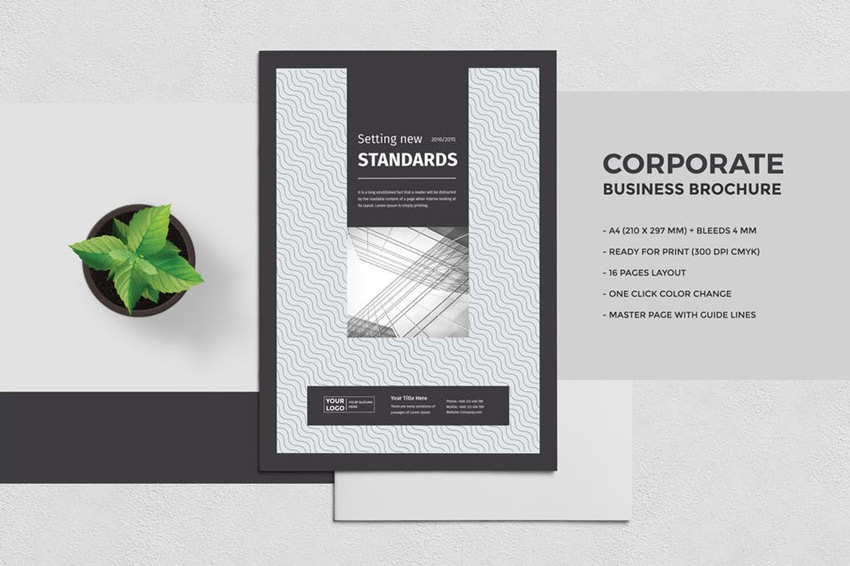
Multipurpose Brochure Template – 16 Pages
A
minimalist design may be just what you need. This corporate brochure
package features a clean, professional design available in A4 size. It’s
a print-ready file that’s easy to customize and even includes helpful
bleed lines for your convenience.
Brochure Template
Here’s
a multipurpose layout that is perfect for your business! It’s designed
with three popular corporate colors and fully editable files that are
easy to customize. Explore more amazing options including the one-click
Spot Color feature to easily change colors.

Corporate Brochure InDesign Template
Highlight
your corporate brochure with a stunning cover design. This pro template
features a clean, professional design with 16 pages that are very easy
to edit. There’s automatic numbering included and more cool features to
speed up your design time.

Multipurpose Brochure InDesign Template
Need
a multipurpose design that fits your growing business? Then check out
this InDesign template! This template features a sleek, corporate design
with 12 pages, editable text layers, and more. It works best with Adobe
InDesign versions CS4 and beyond.

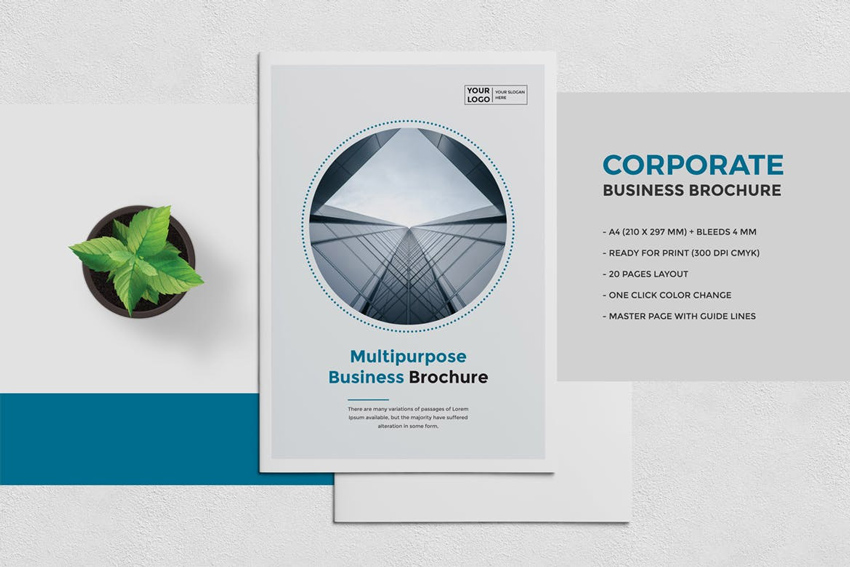
Blue Business Brochure Template
Incorporate
shades of blue into your brochure package for a nice calming effect.
This modern template features a clean, corporate design with well-organized layers, text placeholders, and so much more! Explore the handy
help file also included for more information.
Creative Solution Brochure Template
Add a creative twist to your brochure cover with this stunning geometric design. This brochure template includes two cover options, master pages, and awesome free fonts in one easy-to-use InDesign file.

Fitness Brochure
Get
your customers into tip top shape with this fabulous brochure! This epic
package includes four pages of industry leading top quality design. It
features Adobe Indesign and Photoshop files complete with free fonts and
editable layers.
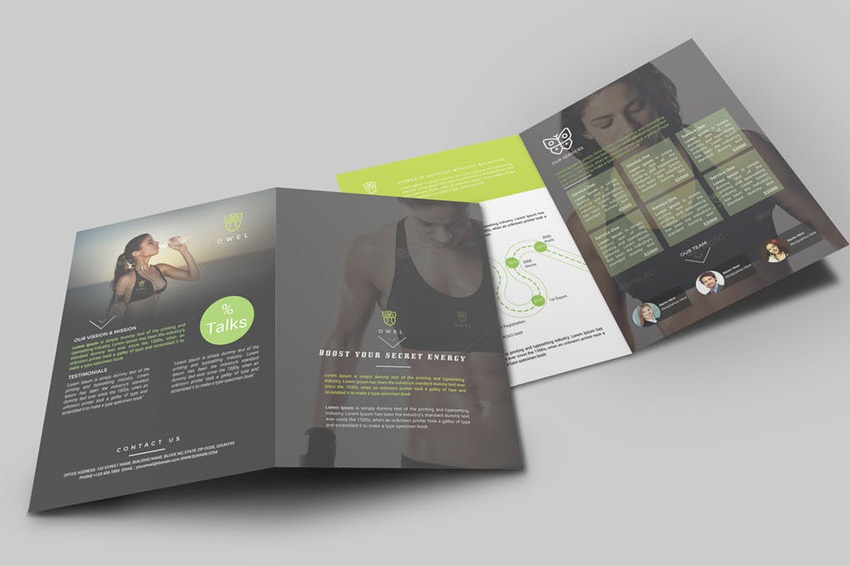
Trifold Brochure Template
You
can never go wrong with a classic trifold brochure. This wonderful
template fully supports one Adobe InDesign file that is easy to
customize. Find more helpful documentation inside to guide you to your
desired result!

Food Brochure Template
Kick-start your career as the next star in cooking with this amazing
template. This template features a rustic, minimalist design with 30 editable pages available at 200x200mm. Great for recipes, food
catalogs, and more, this template should be downloaded right away!

DJ / A5 Brochure Template
Get
the best DJ jobs in your area with a great brochure that outlines your
services. This awesome template includes a unique, geometric design with
fully editable files. And because each element is 100% customizable,
you can scale your objects without any quality loss.

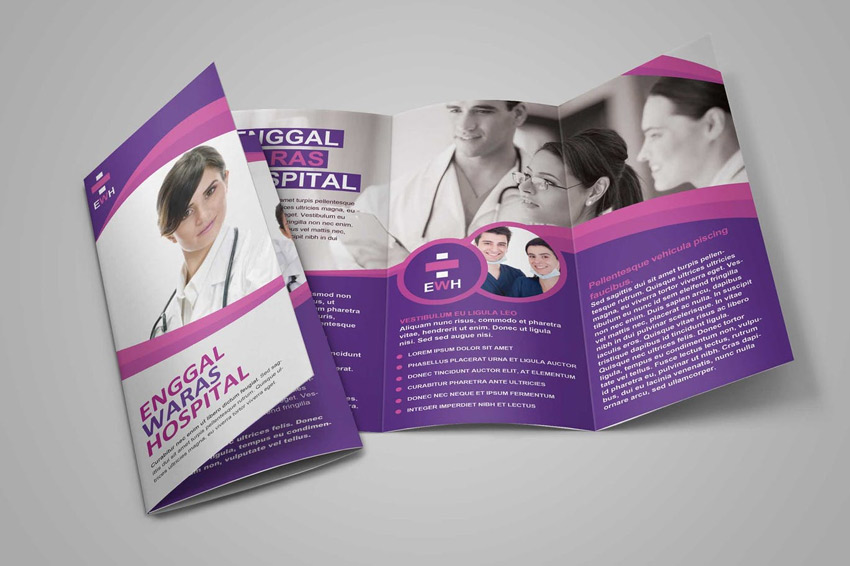
Medical Brochure Template
The medical profession is a very rewarding career. And you should highlight your professional business with this amazing template. This template includes one Photoshop file with well-organized layers, free fonts, and completely editable text.
Business Brochure Template
Great for any corporate project, this exquisite brochure is jam-packed with exciting features. Enjoy fully editable files with 16 pages, print-ready colors, and free fonts. Further instruction is also included in a handy help file.

Newsletter Brochure InDesign Template
This newsletter brochure features a classic design we’re sure you’ll love! Inside you’ll get access to 12 pages with infinite color variations and so much more! Just add your text for an inspiring, professional brochure in only a few minutes!

Fashion Catalogue / Brochure Template
Become
the next big name in fashion. Create a high-quality brochure full of
fashionable expression. This premium template comes complete with 16 pages,
standard print sizes, and free fonts. Customize it easily using templates available in three convenient formats.

Business Report / Brochure Template
Create a smart business report with this brochure design. This design features a 14-page brochure packaged with several convenient files that can be used by anyone. Suitable for any business, get access to A5 and US Letter formats and high-resolution files.

Restaurant/Fast Food – Trifold Brochure Template
Trifolds are a great way to present menus in the food industry! And you can enjoy this simple template in just a few clicks! Download this Photoshop template to get access to fully editable files, well-organized layers, and so much more!

Geometric Brochure
Need a template fast? Enjoy this wonderful geometric design. This brochure includes two different sizes, 24 pages, and print-ready files. A nifty help file is also included for further instruction.

Innovative Brochure Template
Impress your clients with a stunning, modern design. This InDesign template includes both US Letter and A4 sizes available in a classic portrait orientation. Compatible with Adobe InDesign CS4 and higher, this template also includes free fonts and more!
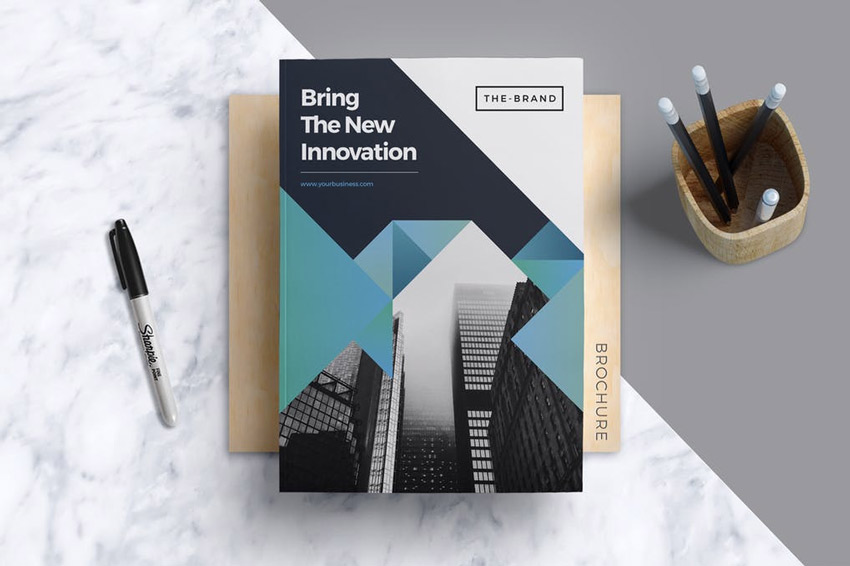
Brochure Template
Invoke the calm feelings you get from beautiful sky colors with this lovely brochure. This premium template includes bold shapes, 24 pages, and InDesign files. Also included are the paragraph and character styles you need to finish your design.

Conclusion
This list features exciting
resources for the avid designer
familiar with Adobe Illustrator, Photoshop, and InDesign. For
additional help with all your brochure needs, enlist the skills of a
talented
professional by choosing one of the amazing designers from Envato Studio.
And with loads of brochure templates available at your fingertips, chances are we’ve missed a few to add to your personal collection. Be sure to browse Envato Elements for more resources, and let us know your favorites in the comments below!

25 Best Professional Brochure Templates
Post pobrano z: 25 Best Professional Brochure Templates
Create a lasting impression with a professional brochure. Check out this amazing collection of 25 brochure templates from Envato Elements.
25 Professional Brochure Templates
Never underestimate the power of a good brochure. They provide the basic background to your business and answer common questions in a quick, friendly manner.
In this incredible selection of premium assets, we’re bringing you 25 brochure templates perfect for any business owner. And you can subscribe to unlock unlimited assets from Envato Elements for one monthly fee!
Upgrade your current templates with these awesome designs, or enlist the help of a talented professional from Envato Studio for all your creative needs.
Gradient Square Brochure Template
Stand out with this unique square design. This Illustrator template features a clean, modern design with free fonts and placeholders for all your text and images. Just switch out the cover photo for a print-ready brochure.
Clean Brochure / Catalog Template
Minimalist
brochure designs provide all the information you need in a convenient,
sleek package. And this amazing template is no different! Enjoy an
exquisite design that features 30 pages, editable layers, and two color
options.
Red Brochure Template
Bring
your business to the next level! This corporate brochure features 16
unique pages and print-ready files. And it’s created with Adobe InDesign, so you can
edit this template easily using the fully editable placeholders.
Business Brochure Template
Just
drag and drop your photos for a gorgeous brochure in minutes! This
professional template is available in multiple versions of Adobe
InDesign. And you can enjoy premium perks like print-ready files and
more with this awesome package!
Multipurpose Brochure Template – 16 Pages
A
minimalist design may be just what you need. This corporate brochure
package features a clean, professional design available in A4 size. It’s
a print-ready file that’s easy to customize and even includes helpful
bleed lines for your convenience.
Brochure Template
Here’s
a multipurpose layout that is perfect for your business! It’s designed
with three popular corporate colors and fully editable files that are
easy to customize. Explore more amazing options including the one-click
Spot Color feature to easily change colors.
Corporate Brochure InDesign Template
Highlight
your corporate brochure with a stunning cover design. This pro template
features a clean, professional design with 16 pages that are very easy
to edit. There’s automatic numbering included and more cool features to
speed up your design time.
Multipurpose Brochure InDesign Template
Need
a multipurpose design that fits your growing business? Then check out
this InDesign template! This template features a sleek, corporate design
with 12 pages, editable text layers, and more. It works best with Adobe
InDesign versions CS4 and beyond.
Blue Business Brochure Template
Incorporate
shades of blue into your brochure package for a nice calming effect.
This modern template features a clean, corporate design with well-organized layers, text placeholders, and so much more! Explore the handy
help file also included for more information.
Creative Solution Brochure Template
Add a creative twist to your brochure cover with this stunning geometric design. This brochure template includes two cover options, master pages, and awesome free fonts in one easy-to-use InDesign file.
Fitness Brochure
Get
your customers into tip top shape with this fabulous brochure! This epic
package includes four pages of industry leading top quality design. It
features Adobe Indesign and Photoshop files complete with free fonts and
editable layers.
Trifold Brochure Template
You
can never go wrong with a classic trifold brochure. This wonderful
template fully supports one Adobe InDesign file that is easy to
customize. Find more helpful documentation inside to guide you to your
desired result!
Food Brochure Template
Kick-start your career as the next star in cooking with this amazing
template. This template features a rustic, minimalist design with 30 editable pages available at 200x200mm. Great for recipes, food
catalogs, and more, this template should be downloaded right away!
DJ / A5 Brochure Template
Get
the best DJ jobs in your area with a great brochure that outlines your
services. This awesome template includes a unique, geometric design with
fully editable files. And because each element is 100% customizable,
you can scale your objects without any quality loss.
Medical Brochure Template
The medical profession is a very rewarding career. And you should highlight your professional business with this amazing template. This template includes one Photoshop file with well-organized layers, free fonts, and completely editable text.
Business Brochure Template
Great for any corporate project, this exquisite brochure is jam-packed with exciting features. Enjoy fully editable files with 16 pages, print-ready colors, and free fonts. Further instruction is also included in a handy help file.
Newsletter Brochure InDesign Template
This newsletter brochure features a classic design we’re sure you’ll love! Inside you’ll get access to 12 pages with infinite color variations and so much more! Just add your text for an inspiring, professional brochure in only a few minutes!
Fashion Catalogue / Brochure Template
Become
the next big name in fashion. Create a high-quality brochure full of
fashionable expression. This premium template comes complete with 16 pages,
standard print sizes, and free fonts. Customize it easily using templates available in three convenient formats.
Business Report / Brochure Template
Create a smart business report with this brochure design. This design features a 14-page brochure packaged with several convenient files that can be used by anyone. Suitable for any business, get access to A5 and US Letter formats and high-resolution files.
Restaurant/Fast Food – Trifold Brochure Template
Trifolds are a great way to present menus in the food industry! And you can enjoy this simple template in just a few clicks! Download this Photoshop template to get access to fully editable files, well-organized layers, and so much more!
Geometric Brochure
Need a template fast? Enjoy this wonderful geometric design. This brochure includes two different sizes, 24 pages, and print-ready files. A nifty help file is also included for further instruction.
Innovative Brochure Template
Impress your clients with a stunning, modern design. This InDesign template includes both US Letter and A4 sizes available in a classic portrait orientation. Compatible with Adobe InDesign CS4 and higher, this template also includes free fonts and more!
Brochure Template
Invoke the calm feelings you get from beautiful sky colors with this lovely brochure. This premium template includes bold shapes, 24 pages, and InDesign files. Also included are the paragraph and character styles you need to finish your design.
Conclusion
This list features exciting
resources for the avid designer
familiar with Adobe Illustrator, Photoshop, and InDesign. For
additional help with all your brochure needs, enlist the skills of a
talented
professional by choosing one of the amazing designers from Envato Studio.
And with loads of brochure templates available at your fingertips, chances are we’ve missed a few to add to your personal collection. Be sure to browse Envato Elements for more resources, and let us know your favorites in the comments below!
25 Best Professional Brochure Templates
Post pobrano z: 25 Best Professional Brochure Templates
Create a lasting impression with a professional brochure. Check out this amazing collection of 25 brochure templates from Envato Elements.
25 Professional Brochure Templates
Never underestimate the power of a good brochure. They provide the basic background to your business and answer common questions in a quick, friendly manner.
In this incredible selection of premium assets, we’re bringing you 25 brochure templates perfect for any business owner. And you can subscribe to unlock unlimited assets from Envato Elements for one monthly fee!
Upgrade your current templates with these awesome designs, or enlist the help of a talented professional from Envato Studio for all your creative needs.
Gradient Square Brochure Template
Stand out with this unique square design. This Illustrator template features a clean, modern design with free fonts and placeholders for all your text and images. Just switch out the cover photo for a print-ready brochure.
Clean Brochure / Catalog Template
Minimalist
brochure designs provide all the information you need in a convenient,
sleek package. And this amazing template is no different! Enjoy an
exquisite design that features 30 pages, editable layers, and two color
options.
Red Brochure Template
Bring
your business to the next level! This corporate brochure features 16
unique pages and print-ready files. And it’s created with Adobe InDesign, so you can
edit this template easily using the fully editable placeholders.
Business Brochure Template
Just
drag and drop your photos for a gorgeous brochure in minutes! This
professional template is available in multiple versions of Adobe
InDesign. And you can enjoy premium perks like print-ready files and
more with this awesome package!
Multipurpose Brochure Template – 16 Pages
A
minimalist design may be just what you need. This corporate brochure
package features a clean, professional design available in A4 size. It’s
a print-ready file that’s easy to customize and even includes helpful
bleed lines for your convenience.
Brochure Template
Here’s
a multipurpose layout that is perfect for your business! It’s designed
with three popular corporate colors and fully editable files that are
easy to customize. Explore more amazing options including the one-click
Spot Color feature to easily change colors.
Corporate Brochure InDesign Template
Highlight
your corporate brochure with a stunning cover design. This pro template
features a clean, professional design with 16 pages that are very easy
to edit. There’s automatic numbering included and more cool features to
speed up your design time.
Multipurpose Brochure InDesign Template
Need
a multipurpose design that fits your growing business? Then check out
this InDesign template! This template features a sleek, corporate design
with 12 pages, editable text layers, and more. It works best with Adobe
InDesign versions CS4 and beyond.
Blue Business Brochure Template
Incorporate
shades of blue into your brochure package for a nice calming effect.
This modern template features a clean, corporate design with well-organized layers, text placeholders, and so much more! Explore the handy
help file also included for more information.
Creative Solution Brochure Template
Add a creative twist to your brochure cover with this stunning geometric design. This brochure template includes two cover options, master pages, and awesome free fonts in one easy-to-use InDesign file.
Fitness Brochure
Get
your customers into tip top shape with this fabulous brochure! This epic
package includes four pages of industry leading top quality design. It
features Adobe Indesign and Photoshop files complete with free fonts and
editable layers.
Trifold Brochure Template
You
can never go wrong with a classic trifold brochure. This wonderful
template fully supports one Adobe InDesign file that is easy to
customize. Find more helpful documentation inside to guide you to your
desired result!
Food Brochure Template
Kick-start your career as the next star in cooking with this amazing
template. This template features a rustic, minimalist design with 30 editable pages available at 200x200mm. Great for recipes, food
catalogs, and more, this template should be downloaded right away!
DJ / A5 Brochure Template
Get
the best DJ jobs in your area with a great brochure that outlines your
services. This awesome template includes a unique, geometric design with
fully editable files. And because each element is 100% customizable,
you can scale your objects without any quality loss.
Medical Brochure Template
The medical profession is a very rewarding career. And you should highlight your professional business with this amazing template. This template includes one Photoshop file with well-organized layers, free fonts, and completely editable text.
Business Brochure Template
Great for any corporate project, this exquisite brochure is jam-packed with exciting features. Enjoy fully editable files with 16 pages, print-ready colors, and free fonts. Further instruction is also included in a handy help file.
Newsletter Brochure InDesign Template
This newsletter brochure features a classic design we’re sure you’ll love! Inside you’ll get access to 12 pages with infinite color variations and so much more! Just add your text for an inspiring, professional brochure in only a few minutes!
Fashion Catalogue / Brochure Template
Become
the next big name in fashion. Create a high-quality brochure full of
fashionable expression. This premium template comes complete with 16 pages,
standard print sizes, and free fonts. Customize it easily using templates available in three convenient formats.
Business Report / Brochure Template
Create a smart business report with this brochure design. This design features a 14-page brochure packaged with several convenient files that can be used by anyone. Suitable for any business, get access to A5 and US Letter formats and high-resolution files.
Restaurant/Fast Food – Trifold Brochure Template
Trifolds are a great way to present menus in the food industry! And you can enjoy this simple template in just a few clicks! Download this Photoshop template to get access to fully editable files, well-organized layers, and so much more!
Geometric Brochure
Need a template fast? Enjoy this wonderful geometric design. This brochure includes two different sizes, 24 pages, and print-ready files. A nifty help file is also included for further instruction.
Innovative Brochure Template
Impress your clients with a stunning, modern design. This InDesign template includes both US Letter and A4 sizes available in a classic portrait orientation. Compatible with Adobe InDesign CS4 and higher, this template also includes free fonts and more!
Brochure Template
Invoke the calm feelings you get from beautiful sky colors with this lovely brochure. This premium template includes bold shapes, 24 pages, and InDesign files. Also included are the paragraph and character styles you need to finish your design.
Conclusion
This list features exciting
resources for the avid designer
familiar with Adobe Illustrator, Photoshop, and InDesign. For
additional help with all your brochure needs, enlist the skills of a
talented
professional by choosing one of the amazing designers from Envato Studio.
And with loads of brochure templates available at your fingertips, chances are we’ve missed a few to add to your personal collection. Be sure to browse Envato Elements for more resources, and let us know your favorites in the comments below!