Every business owner knows the cloud can take them places. But the journey can be a whirlwind, full of migration challenges and complexities. To communicate how HPE Hybrid Cloud Expertise can help them change this story, we reimagined the cloud rolein one of the most iconic stories of all time: The Wizard of Oz.
As someone who loves
design but who has admittedly little artistic ability, I’m always looking for new design tools that let me
create beautiful visuals without needing to ask for help.
To save you some of the
work, I’m sharing some
of my favorite DIY tools for creating custom-made logos, Instagram posts,
infographics, and more.
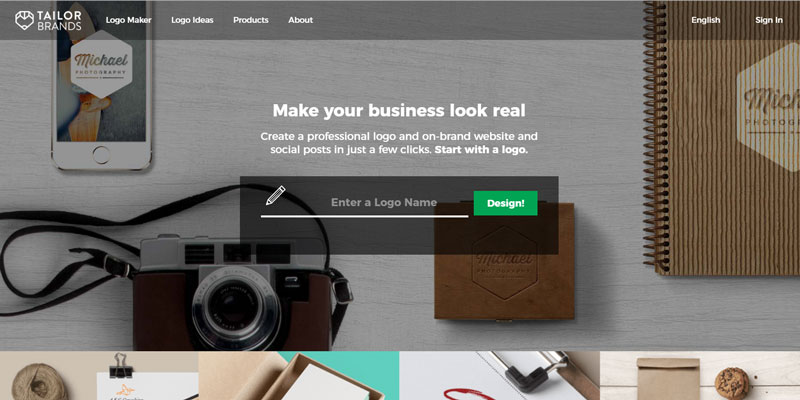
Tailor Brands is a quick and easy tool for designing beautiful, professional, quality logos. The tool is great if you’re creating a business website or blog or spicing up a social media page.
Tailor Brands uses
algorithms, machine learning, and artificial intelligence to generate logo
designs that take into account your industry niche, products, and audience.
While the design tool asks the user to make a few choices, it finishes the logo
process in minutes and requires very little effort overall.
The AI design platform
first asks the user to type in their company name and industry. After supplying
a brief description of their business, users are asked to choose their
preferred logo format and font types. I like that the logo generator supplies
several logo options so that you can choose the one that resonates with you
most.
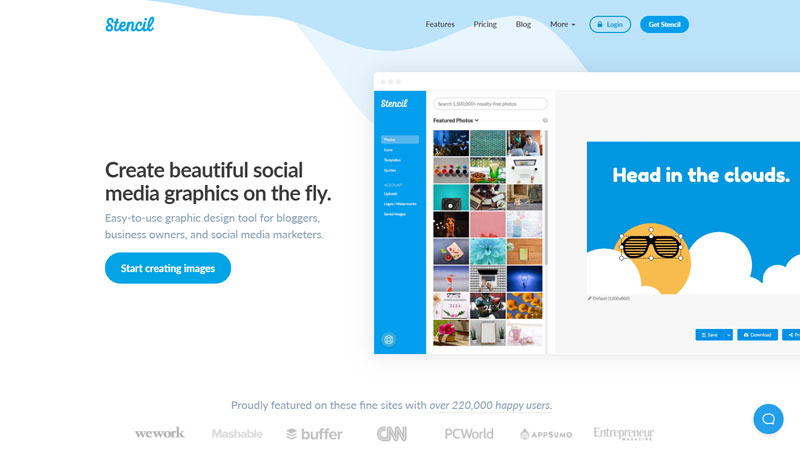
I love using Stencil because it consistently boosts engagement
on my social media posts. The design tool has a supply of 1.4 million
background photos and over 650 design templates, which means I’m bound to find something I like.
The program comes with image-editing capabilities that make each image customizable. According to a Kissmetrics survey, these image-editing capabilities have helped businesses earn 84% more clicks.
The tool also lets you
specify which social media platform you’d like to post on, and then resizes your design accordingly.
You can schedule posts ahead of time, too, to create a full social media
posting schedule.
While the Pro version
costs $9 per month, the free version is fairly generous. The free version lets
you create ten images per month, with limited options for icons and background.
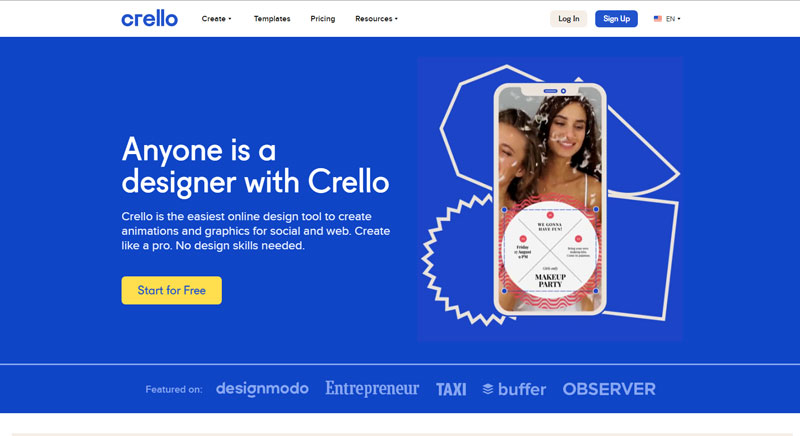
Crello is a helpful and easy-to-use design tool
for web graphics of all kinds, but I particularly like using it for animation.
They have a huge image library of genuinely high-quality photos, with additional access to the photo library of stock photo giant Depositphotos. On top of that, the tool offers over 4,000 animated templates and over 2,000 animated objects, letting you create eye-catching graphics that move and sparkle.
I typically use Crello
for animated social media posts, paid ads, and Instagram Stories, but it’s also a helpful tool for printed posters
and flyers. After you choose a template, you can either start designing from
scratch or use typefaces pre-selected by Crello’s design team. The templates are highly customizable,
with lots of options for backgrounds, stickers, borders, icons, and fonts.
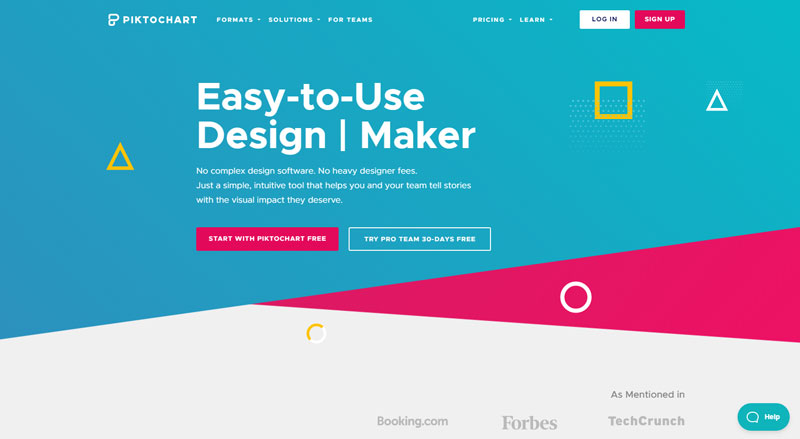
Piktochart is a helpful DIY design tool to create custom infographics for your blog posts, social media pages, and more. The drag-and-drop interface is simple and intuitive, with a very easy learning curve, and requires no prior design experience.
You start by picking
from Piktochart’s library of
over 600 templates. Once you’ve chosen a
template, you can select from a wide array of images, interactive charts,
animated icons, and videos. The platform is also easy to edit, and lets you
change the color, font, or format of any design.
To enrich your
infographic with hard data, the design tool lets you import an Excel file with
data on it that you can then add to your presentation.
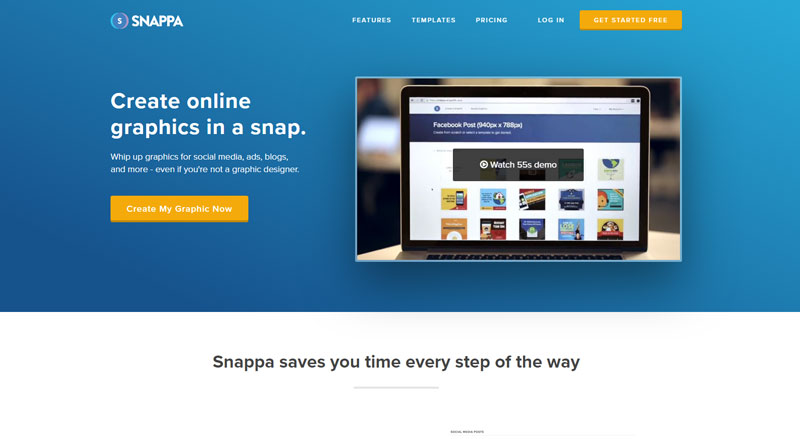
When it comes to customizing images, Snappa is another easy-to-use tool. The benefit of Snappa is that it makes it simple and straightforward to choose the appropriate image dimensions for your platform. The tool has preset image dimensions for social media, blogs, emails, display ads, and infographics.
Like many of the other
tools in this list, it also offers a wide selection of professionally designed
templates. The stock photo library is impressive and doesn’t look as cheesy as most of the stock photo libraries
available online. You have the option to further customize these templates by
adding graphics, texts, and various effects to your photos.
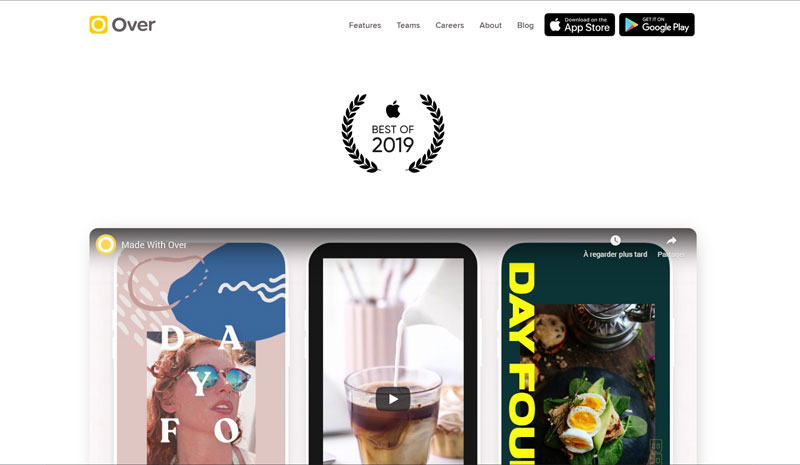
I’ve included Over
on this list because unlike the other options, it’s a mobile app. Over lets you do DIY design from your
phone and on the go. This is particularly useful for Instagram and other
mobile-first platforms.
Over also takes into account the importance of different image sizes, and it offers 27 preset image sizes that suit different platforms and needs.
The mobile design tool
provides custom-made fonts and beautiful artwork overlays that allow you to
customize your own images. It even features a clever color picker tool that you
can use to match your text to an existing color in the image. The app gives
mobile creatives a high degree of freedom to tweak and customize images and
text.
Summary
I’m amazed by the number of DIY design tools available,
and you can’t go wrong
with any of these options. Whether you to create a custom image with animated
icons or text overlay, an engaging social media post, or a logo for your small
business or blog, these tools help designers and non-designers alike create
beautiful visuals in minutes.
As someone who loves
design but who has admittedly little artistic ability, I’m always looking for new design tools that let me
create beautiful visuals without needing to ask for help.
To save you some of the
work, I’m sharing some
of my favorite DIY tools for creating custom-made logos, Instagram posts,
infographics, and more.
Tailor Brands is a quick and easy tool for designing beautiful, professional, quality logos. The tool is great if you’re creating a business website or blog or spicing up a social media page.
Tailor Brands uses
algorithms, machine learning, and artificial intelligence to generate logo
designs that take into account your industry niche, products, and audience.
While the design tool asks the user to make a few choices, it finishes the logo
process in minutes and requires very little effort overall.
The AI design platform
first asks the user to type in their company name and industry. After supplying
a brief description of their business, users are asked to choose their
preferred logo format and font types. I like that the logo generator supplies
several logo options so that you can choose the one that resonates with you
most.
I love using Stencil because it consistently boosts engagement
on my social media posts. The design tool has a supply of 1.4 million
background photos and over 650 design templates, which means I’m bound to find something I like.
The program comes with image-editing capabilities that make each image customizable. According to a Kissmetrics survey, these image-editing capabilities have helped businesses earn 84% more clicks.
The tool also lets you
specify which social media platform you’d like to post on, and then resizes your design accordingly.
You can schedule posts ahead of time, too, to create a full social media
posting schedule.
While the Pro version
costs $9 per month, the free version is fairly generous. The free version lets
you create ten images per month, with limited options for icons and background.
Crello is a helpful and easy-to-use design tool
for web graphics of all kinds, but I particularly like using it for animation.
They have a huge image library of genuinely high-quality photos, with additional access to the photo library of stock photo giant Depositphotos. On top of that, the tool offers over 4,000 animated templates and over 2,000 animated objects, letting you create eye-catching graphics that move and sparkle.
I typically use Crello
for animated social media posts, paid ads, and Instagram Stories, but it’s also a helpful tool for printed posters
and flyers. After you choose a template, you can either start designing from
scratch or use typefaces pre-selected by Crello’s design team. The templates are highly customizable,
with lots of options for backgrounds, stickers, borders, icons, and fonts.
Piktochart is a helpful DIY design tool to create custom infographics for your blog posts, social media pages, and more. The drag-and-drop interface is simple and intuitive, with a very easy learning curve, and requires no prior design experience.
You start by picking
from Piktochart’s library of
over 600 templates. Once you’ve chosen a
template, you can select from a wide array of images, interactive charts,
animated icons, and videos. The platform is also easy to edit, and lets you
change the color, font, or format of any design.
To enrich your
infographic with hard data, the design tool lets you import an Excel file with
data on it that you can then add to your presentation.
When it comes to customizing images, Snappa is another easy-to-use tool. The benefit of Snappa is that it makes it simple and straightforward to choose the appropriate image dimensions for your platform. The tool has preset image dimensions for social media, blogs, emails, display ads, and infographics.
Like many of the other
tools in this list, it also offers a wide selection of professionally designed
templates. The stock photo library is impressive and doesn’t look as cheesy as most of the stock photo libraries
available online. You have the option to further customize these templates by
adding graphics, texts, and various effects to your photos.
I’ve included Over
on this list because unlike the other options, it’s a mobile app. Over lets you do DIY design from your
phone and on the go. This is particularly useful for Instagram and other
mobile-first platforms.
Over also takes into account the importance of different image sizes, and it offers 27 preset image sizes that suit different platforms and needs.
The mobile design tool
provides custom-made fonts and beautiful artwork overlays that allow you to
customize your own images. It even features a clever color picker tool that you
can use to match your text to an existing color in the image. The app gives
mobile creatives a high degree of freedom to tweak and customize images and
text.
Summary
I’m amazed by the number of DIY design tools available,
and you can’t go wrong
with any of these options. Whether you to create a custom image with animated
icons or text overlay, an engaging social media post, or a logo for your small
business or blog, these tools help designers and non-designers alike create
beautiful visuals in minutes.
I edit a good amount of technical articles about the web, and there is a tendency for authors to be super broad in their opening sentence, like „What we’re able to do on the web has expanded greatly over the years.”
I tend to remove stuff like that because it usually doesn’t serve the article well, even though I understand the sentiment.
Just look at Luigi De Rosa’s list here. I’d bet a lot of you didn’t know the browser could do all that stuff — push notifications! Native sharing menus! Picture-in-picture!
It’s mostly JavaScript stuff, a little CSS, and notably absent: anything in HTML.
Digital design is great, it opens a range of possibilities that were unheard of previously. However, sometimes you just want to give a more human, non-digital look-and-feel to your designs. Unfortunately, you cannot always work by hand on your designs for obvious time reasons, but there is a solution, thanks to great online resources. Here is a list of 10 great paper cut-out fonts that will give a more human touch to your graphic design work.
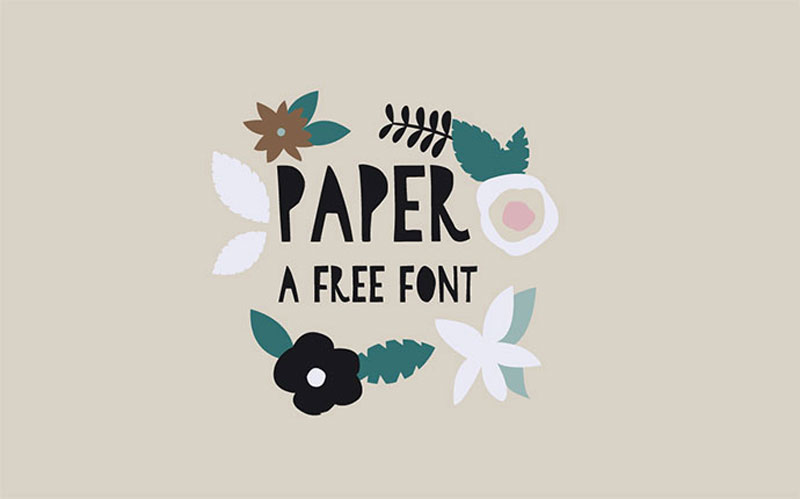
1. Paper (Free)
Paper was designed by Amy Cox out of real paper cut-outs, which makes it more real than a purely digital font. A nice touch that was added to the font is the filling of the counters, which give it a unique personality.
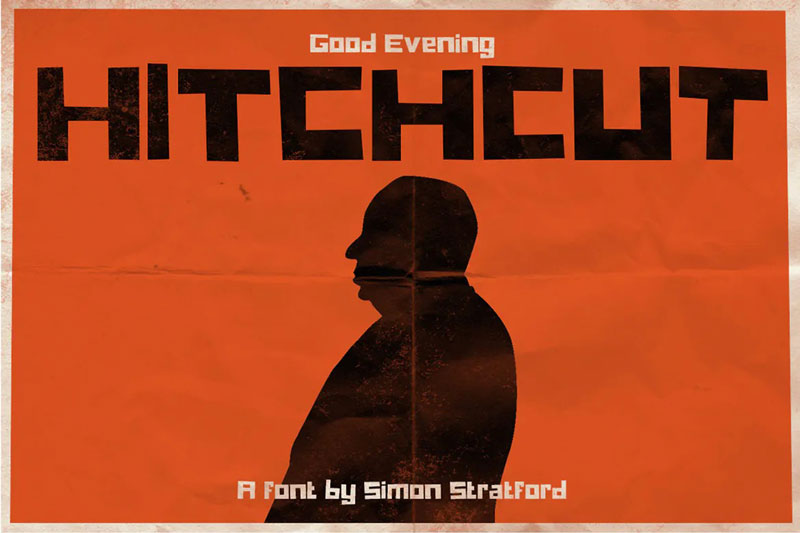
2. Hitchcut
As you already may have guessed, Hitchcut is a tribute to the work of Alfred Hitchcock and his famous designer Saul Bass. The font was designed to look like the ones used in several Hitchcock’s movie posters, and the name is a blend of the filmmaker’s name and the word “cut”.
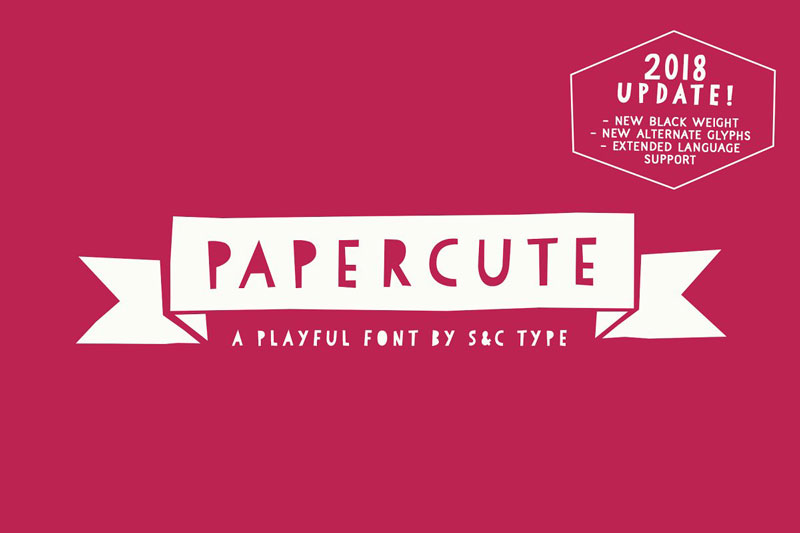
3. Papercute
Designed by two Frech designers, Fanny Coulez and Julien Saurin, Papercute was inspired by… paper cutting. It’s a very legible font, with alternate glyphs that can be used to give more diversity in your designs and reinforce the paper-cutting effect. It also comes with paper ornaments to add some extra cuteness to your designs.
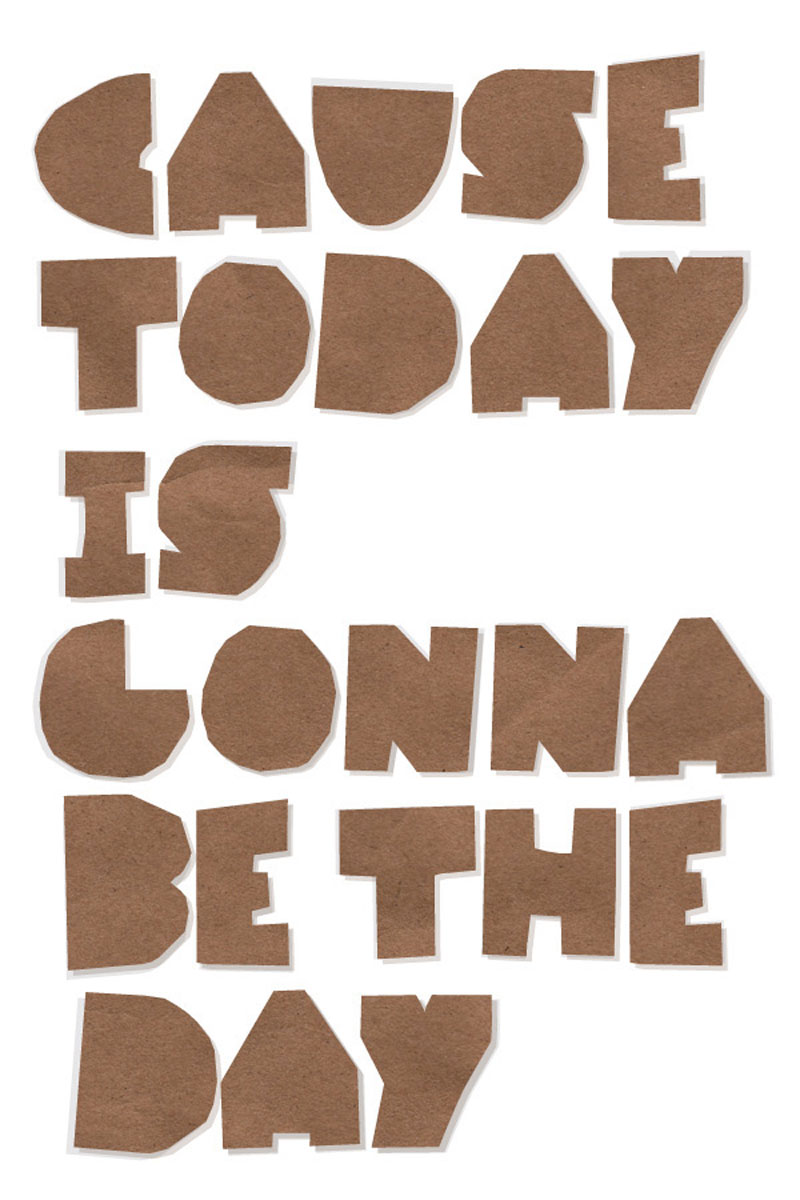
4. Cut Out the Jams (Free)
Made out of thick cardstock, Cut Out The Jams is a thick display typeface that is perfect for headlines. It includes uppercase, lowercase, numbers, and English punctuation.
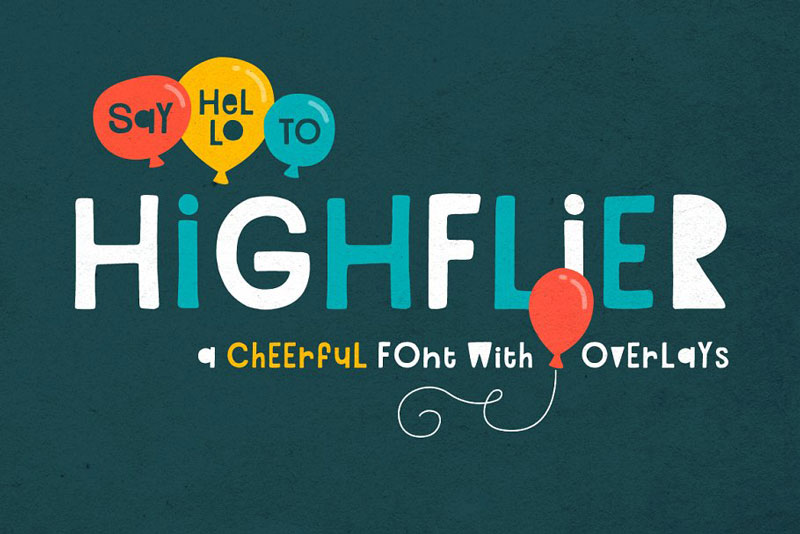
5. Highflier
Described by its author as “cheerful”, Highflier looks less like a paper cut-out than the previous examples, but it still fits in the category. Perfect to design anything related to children, the typeface comes with 4 overlays: Slice, Scribble, Shadow, and Block, which makes it very adaptable.
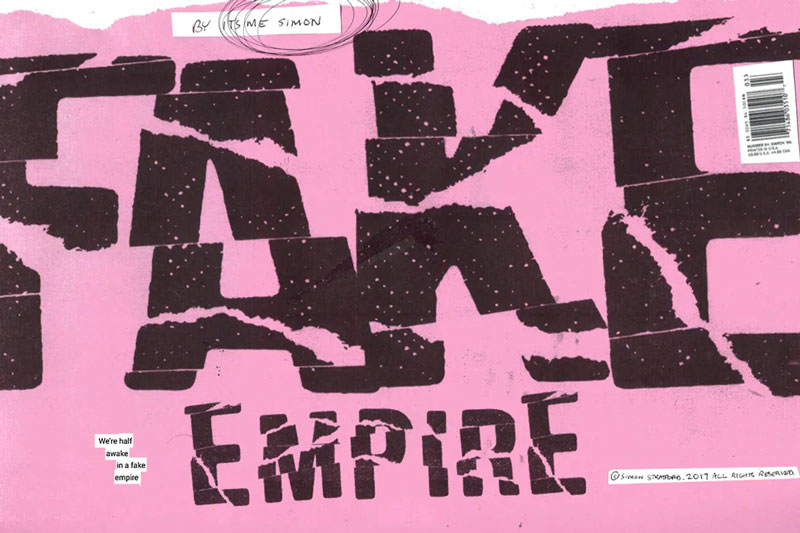
6. Fake Empire
Fake Empire is a font that celebrates imperfections. It was built using paper, glue, and scissors, by Ben Simmons. The design flaws are voluntary, they are what give the using personality to the typeface.
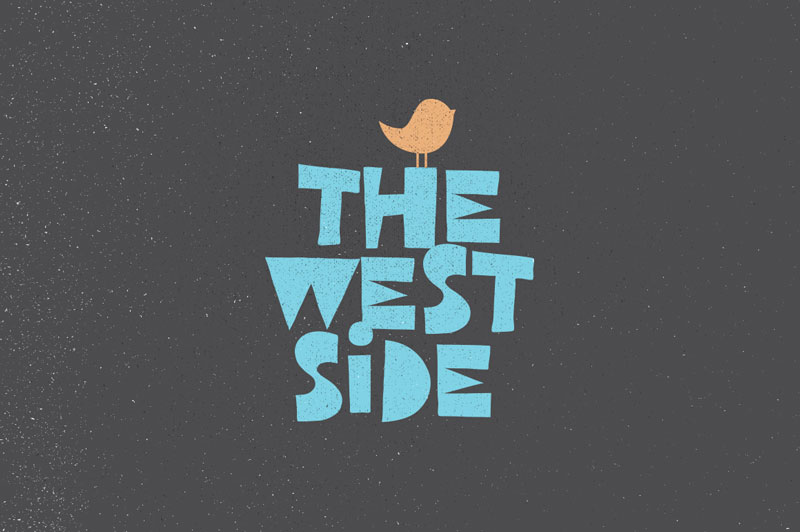
7. West Side (Free)
This bold looking cut-out font was inspired by the 1980s handmade poster designs and illustrations. West Side was handcrafted and it’s perfect to give a retro feeling in your designs.
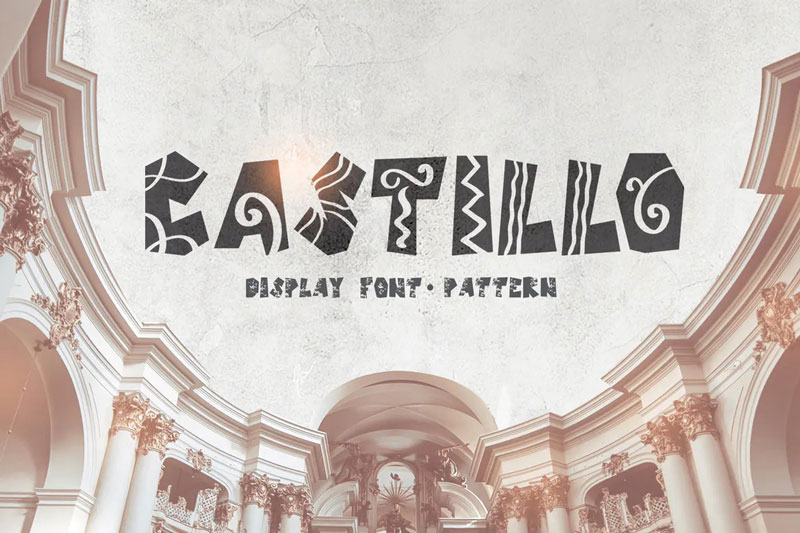
8. Castillo
Castillo is a handmade font that was inspired by paper cut-outs and Hispanic style patterns. It will look great in any children albums, greeting cards, logos, presentations, or for social media images.
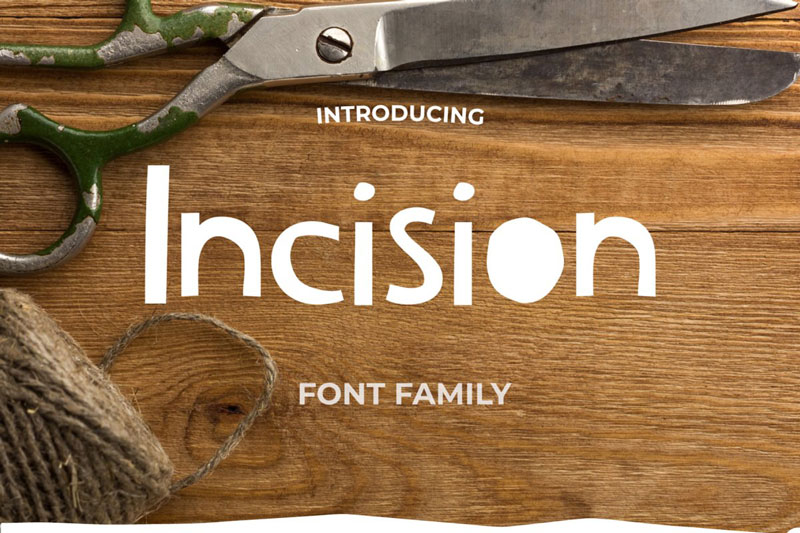
9. Incision
Incision is a hand-cut font with a scrappy look-and-feel. It comes with a strong personality that will make it a perfect fit for any personalized project. It also comes with a range of cut-out shapes for a total of 450 glyphs. On top of the font, purchasing Incision will also get you a set of 70 editable designs created with the font.
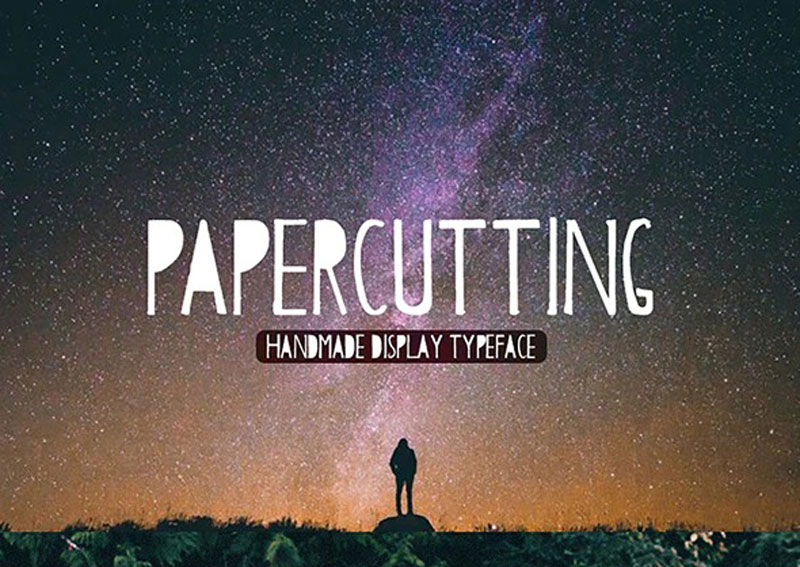
10. Papercutting
You could guess it by its name, Papercutting is a handmade display typeface that was made with… paper cuttings.
Digital design is great, it opens a range of possibilities that were unheard of previously. However, sometimes you just want to give a more human, non-digital look-and-feel to your designs. Unfortunately, you cannot always work by hand on your designs for obvious time reasons, but there is a solution, thanks to great online resources. Here is a list of 10 great paper cut-out fonts that will give a more human touch to your graphic design work.
1. Paper (Free)
Paper was designed by Amy Cox out of real paper cut-outs, which makes it more real than a purely digital font. A nice touch that was added to the font is the filling of the counters, which give it a unique personality.
2. Hitchcut
As you already may have guessed, Hitchcut is a tribute to the work of Alfred Hitchcock and his famous designer Saul Bass. The font was designed to look like the ones used in several Hitchcock’s movie posters, and the name is a blend of the filmmaker’s name and the word “cut”.
3. Papercute
Designed by two Frech designers, Fanny Coulez and Julien Saurin, Papercute was inspired by… paper cutting. It’s a very legible font, with alternate glyphs that can be used to give more diversity in your designs and reinforce the paper-cutting effect. It also comes with paper ornaments to add some extra cuteness to your designs.
4. Cut Out the Jams (Free)
Made out of thick cardstock, Cut Out The Jams is a thick display typeface that is perfect for headlines. It includes uppercase, lowercase, numbers, and English punctuation.
5. Highflier
Described by its author as “cheerful”, Highflier looks less like a paper cut-out than the previous examples, but it still fits in the category. Perfect to design anything related to children, the typeface comes with 4 overlays: Slice, Scribble, Shadow, and Block, which makes it very adaptable.
6. Fake Empire
Fake Empire is a font that celebrates imperfections. It was built using paper, glue, and scissors, by Ben Simmons. The design flaws are voluntary, they are what give the using personality to the typeface.
7. West Side (Free)
This bold looking cut-out font was inspired by the 1980s handmade poster designs and illustrations. West Side was handcrafted and it’s perfect to give a retro feeling in your designs.
8. Castillo
Castillo is a handmade font that was inspired by paper cut-outs and Hispanic style patterns. It will look great in any children albums, greeting cards, logos, presentations, or for social media images.
9. Incision
Incision is a hand-cut font with a scrappy look-and-feel. It comes with a strong personality that will make it a perfect fit for any personalized project. It also comes with a range of cut-out shapes for a total of 450 glyphs. On top of the font, purchasing Incision will also get you a set of 70 editable designs created with the font.
10. Papercutting
You could guess it by its name, Papercutting is a handmade display typeface that was made with… paper cuttings.
Digital design is great, it opens a range of possibilities that were unheard of previously. However, sometimes you just want to give a more human, non-digital look-and-feel to your designs. Unfortunately, you cannot always work by hand on your designs for obvious time reasons, but there is a solution, thanks to great online resources. Here is a list of 10 great paper cut-out fonts that will give a more human touch to your graphic design work.
1. Paper (Free)
Paper was designed by Amy Cox out of real paper cut-outs, which makes it more real than a purely digital font. A nice touch that was added to the font is the filling of the counters, which give it a unique personality.
2. Hitchcut
As you already may have guessed, Hitchcut is a tribute to the work of Alfred Hitchcock and his famous designer Saul Bass. The font was designed to look like the ones used in several Hitchcock’s movie posters, and the name is a blend of the filmmaker’s name and the word “cut”.
3. Papercute
Designed by two Frech designers, Fanny Coulez and Julien Saurin, Papercute was inspired by… paper cutting. It’s a very legible font, with alternate glyphs that can be used to give more diversity in your designs and reinforce the paper-cutting effect. It also comes with paper ornaments to add some extra cuteness to your designs.
4. Cut Out the Jams (Free)
Made out of thick cardstock, Cut Out The Jams is a thick display typeface that is perfect for headlines. It includes uppercase, lowercase, numbers, and English punctuation.
5. Highflier
Described by its author as “cheerful”, Highflier looks less like a paper cut-out than the previous examples, but it still fits in the category. Perfect to design anything related to children, the typeface comes with 4 overlays: Slice, Scribble, Shadow, and Block, which makes it very adaptable.
6. Fake Empire
Fake Empire is a font that celebrates imperfections. It was built using paper, glue, and scissors, by Ben Simmons. The design flaws are voluntary, they are what give the using personality to the typeface.
7. West Side (Free)
This bold looking cut-out font was inspired by the 1980s handmade poster designs and illustrations. West Side was handcrafted and it’s perfect to give a retro feeling in your designs.
8. Castillo
Castillo is a handmade font that was inspired by paper cut-outs and Hispanic style patterns. It will look great in any children albums, greeting cards, logos, presentations, or for social media images.
9. Incision
Incision is a hand-cut font with a scrappy look-and-feel. It comes with a strong personality that will make it a perfect fit for any personalized project. It also comes with a range of cut-out shapes for a total of 450 glyphs. On top of the font, purchasing Incision will also get you a set of 70 editable designs created with the font.
10. Papercutting
You could guess it by its name, Papercutting is a handmade display typeface that was made with… paper cuttings.
Agregator najlepszych postów o designie, webdesignie, cssie i Internecie