Post pobrano z: Photoshop in 60 Seconds: How to Create a Tie-Dye Pattern in Adobe Photoshop

When in doubt, create your own patterns! Learn how to make a tie-dye effect in under a minute!
Photoshop in 60 Seconds: Tie-Dye Pattern
Decorate your work with custom patterns! They’re an essential resource for designers and are super easy to make!
In this quick video, I’ll show you how to use Photoshop’s different filter tools to create a custom tie-dye pattern. Experiment with colors and more, and show us your results!
How to Create a Tie-Dye Pattern in Photoshop
Create a New Document at 850 x 850 pixels, and then add a New Layer.
Use the Rectangular Marquee Tool (M) to create a vertical selection and Fill it with color using the Paint Bucket Tool (G).
Repeat this process until the entire document is filled with any alternating colors that you like.

Here are the colors I’ve used:
#791a93#18106e#2c73d2#71cae1#31a457#f1ea88#f07c4f#f03d0f
Now blend the colors together. Go to Filter > Blur > Gaussian Blur and add a Radius of 25 pixels.
Next, go to Filter > Distort > Polar Coordinates and choose Rectangular to Polar.

For the tie-dye effect, go to Filter > Liquify and select the Twirl Clockwise Tool (C).
Increase the size of your brush before clicking and holding the center to twirl the colors. Use the Forward Warp Tool (W) to drag lines out from the center and distort the pattern. (You can also blur any harsh lines with the Blur Tool (O).)
Experiment with different directions for a better look.

Add more texture by setting a Watercolor Stock to Overlay and lowering the Opacity to 82%. Then, Merge all the layers together. To create the final pattern, select the Rectangular Marquee Tool (M), and go to Edit > Define Pattern.
Here is the tie-dye result below.
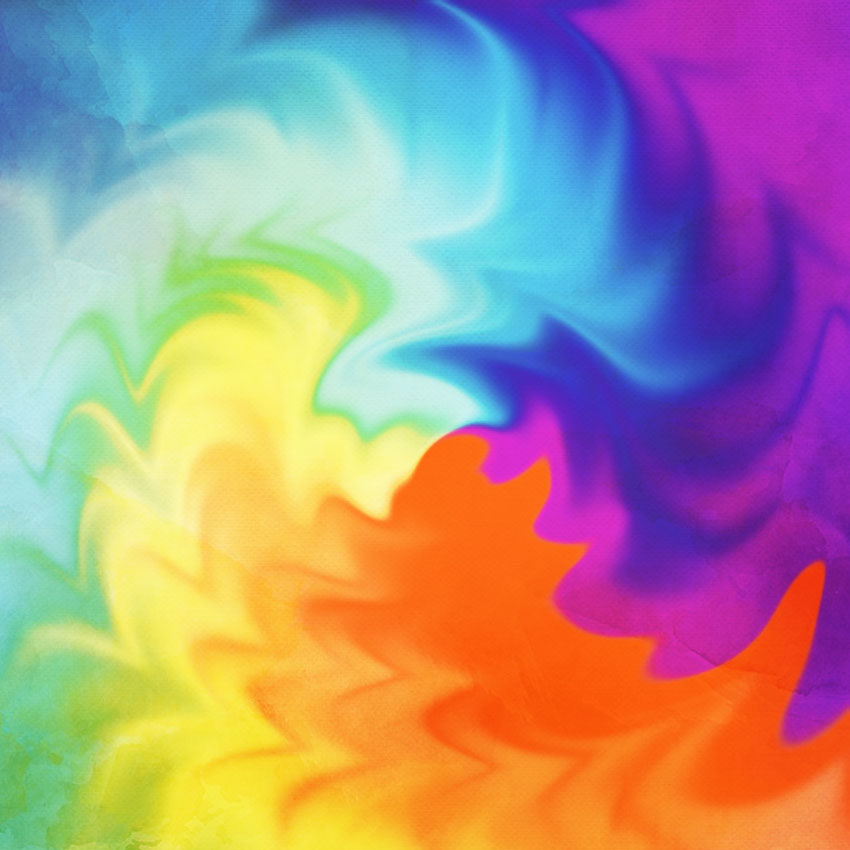
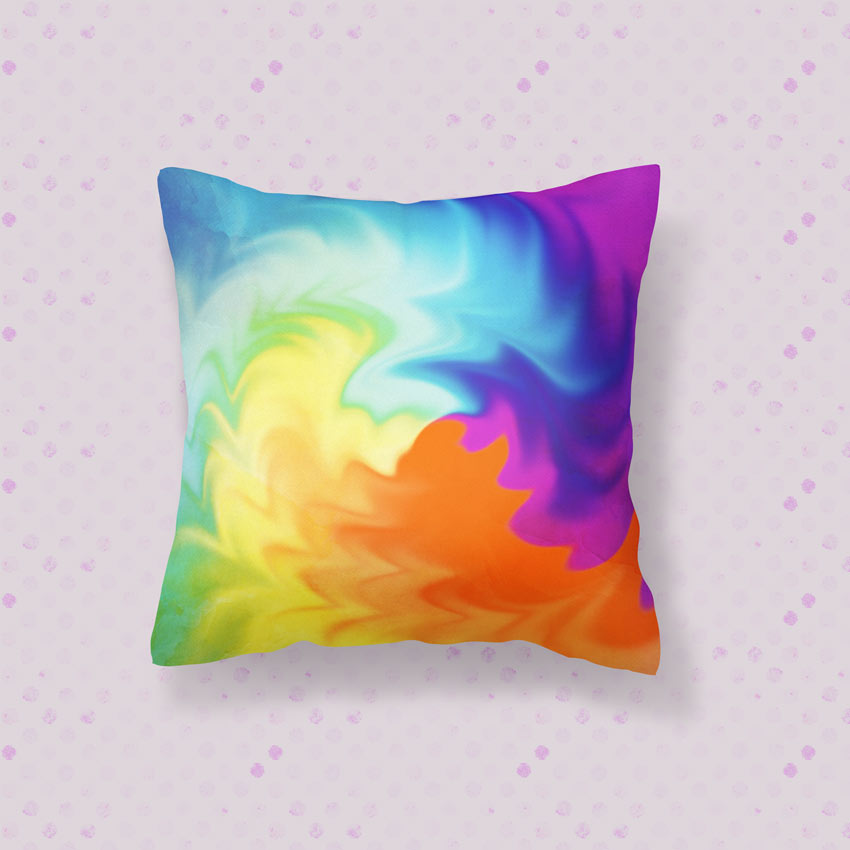
Apply it to different scenes like this Pillow Mockup for more fun variations.
Learn More With Our Tutorials!
Inspired to create custom patterns? Start with one of our
tutorials! Continue to grow your skills over time while growing your collection of resources.
Get Amazing Design Resources
Want to create videos like this? Download the items used in this video:
And check out these tutorials to learn more from our experts:
 PatternsPhotoshop in 60 Seconds: How to Install and Use PatternsMelody Nieves
 PatternsHow to Create a 90s Geometric Pattern Using Basic Shapes in Adobe PhotoshopMohammad Jeprie
60 Seconds?!
This is part of a series of quick video tutorials on
Envato Tuts+ in which we introduce a range of subjects, all in 60
seconds—just enough to whet your appetite. Let us know in the comments
what you thought of this video and what else you’d like to see explained
in 60 seconds!
