WooCommerce is a powerful eCommerce solution for WordPress sites. If you’re like me, and like working with WordPress and have WordPress-powered sites already, WooCommerce is a no-brainer for helping you sell things online on those sites. But even if you don’t already have a WordPress site, WooCommerce is so good I think it would make sense to spin up a WordPress site so you could use it for your eCommerce solution.
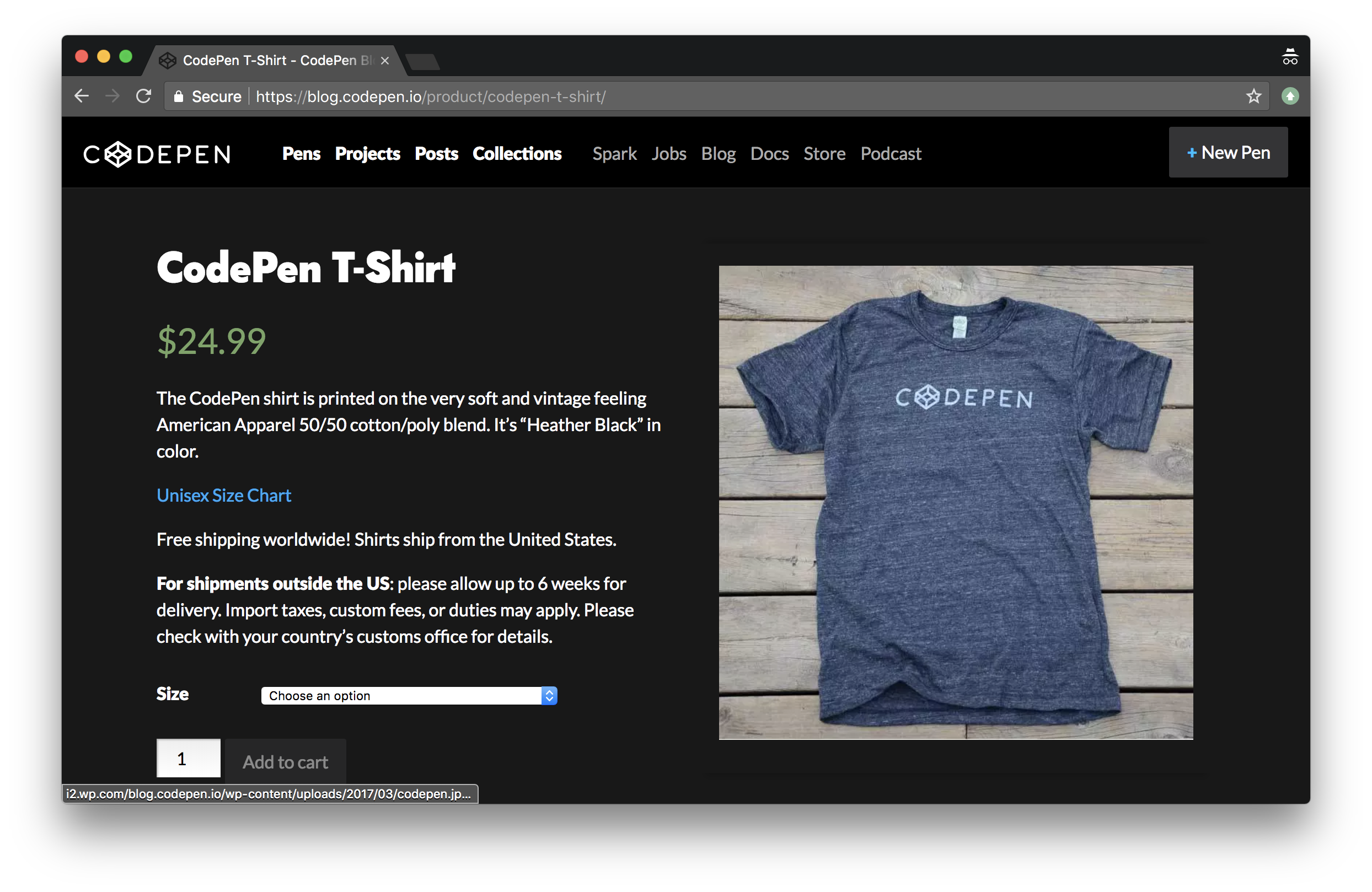
Personally, I’ve used WooCommerce a number of times to sell things. Most recently, I’ve used it to sell T-Shirts (and hats) over on CodePen. We use WordPress already to power our blog, documentation, and podcast. Makes perfect sense to use WordPress for the store as well!
What I think is notable about our WooCommerce installation at CodePen is how painless it was, while doing everything we need it to do. I’d say it was a half-day job with maybe a half-day of maintenance every few months, partially based on us wanting to change something.
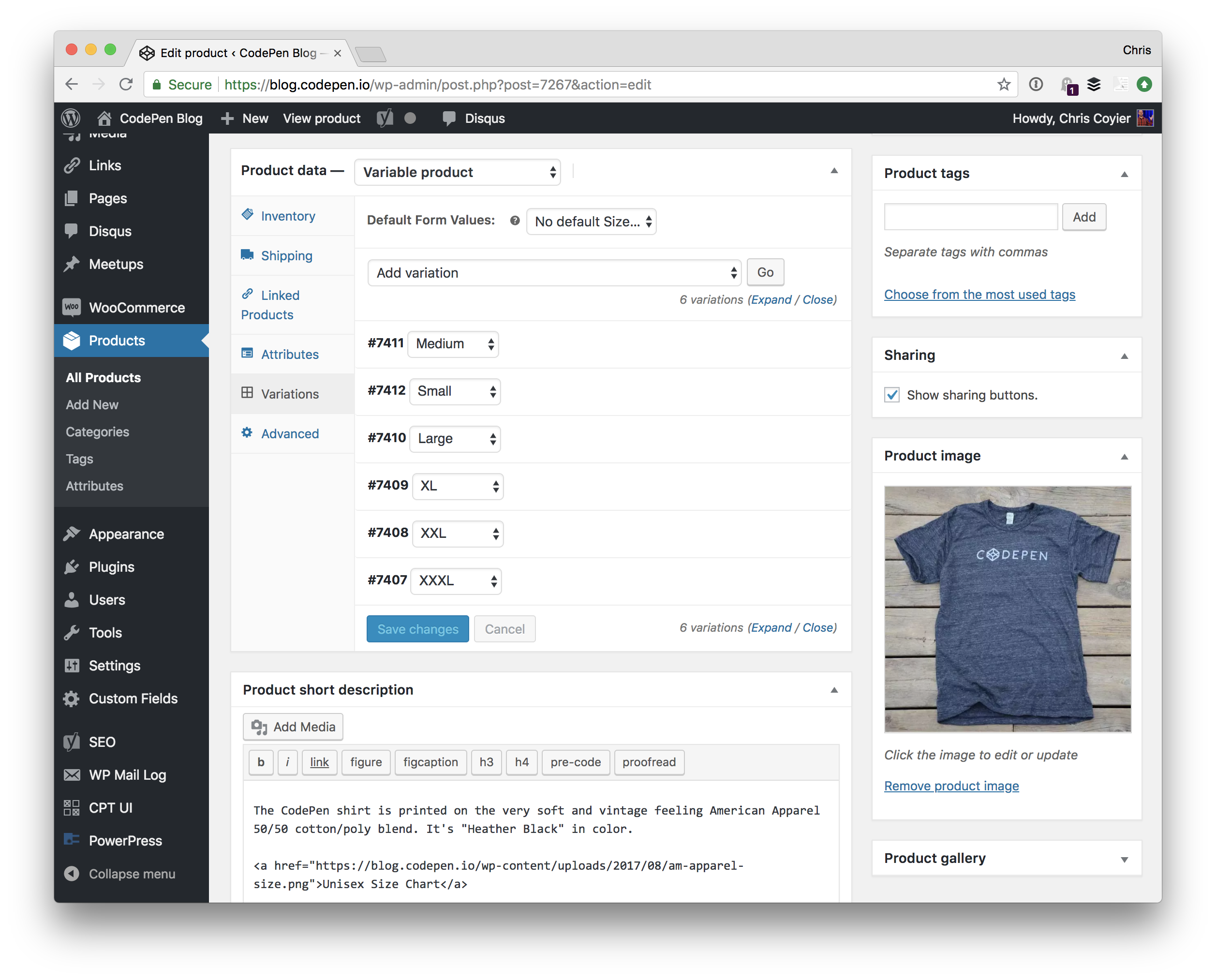
The first step is installing the plugin, and immediately you get a Products post type you can use to add new products. We’re selling a T-Shirt, so that looks like this:
Note the variations in use for size. We even track inventory at the size level so our T-Shirt printing company knows when to re-print different sizes.
What is somewhat astounding about WooCommerce is that you might need to do very little else. You could set a price, flip on the basic PayPal integration and enter your email, publish the product, and start taking orders.
Or, you could start customizing things and do as much or as little as you want:
You could add as many different payment processors as you like. We like using Stripe for credit card processing at CodePen, but also offer PayPal.
You could customize the template of every different page involved, or just use the defaults. At CodePen we have very lightly customized templates for the store homepage and product page.
You could get very detailed with calculating shipping costs, or use flat rates. We use a flat rate shipping cost at CodePen almost as marketing: same shipping cost anywhere in the world!
You could get into integrations, like connecting it with your MailChimp account for further email marketing or Slack account to notify your team of sales.
If you can dream it, you can do it with WooCommerce.
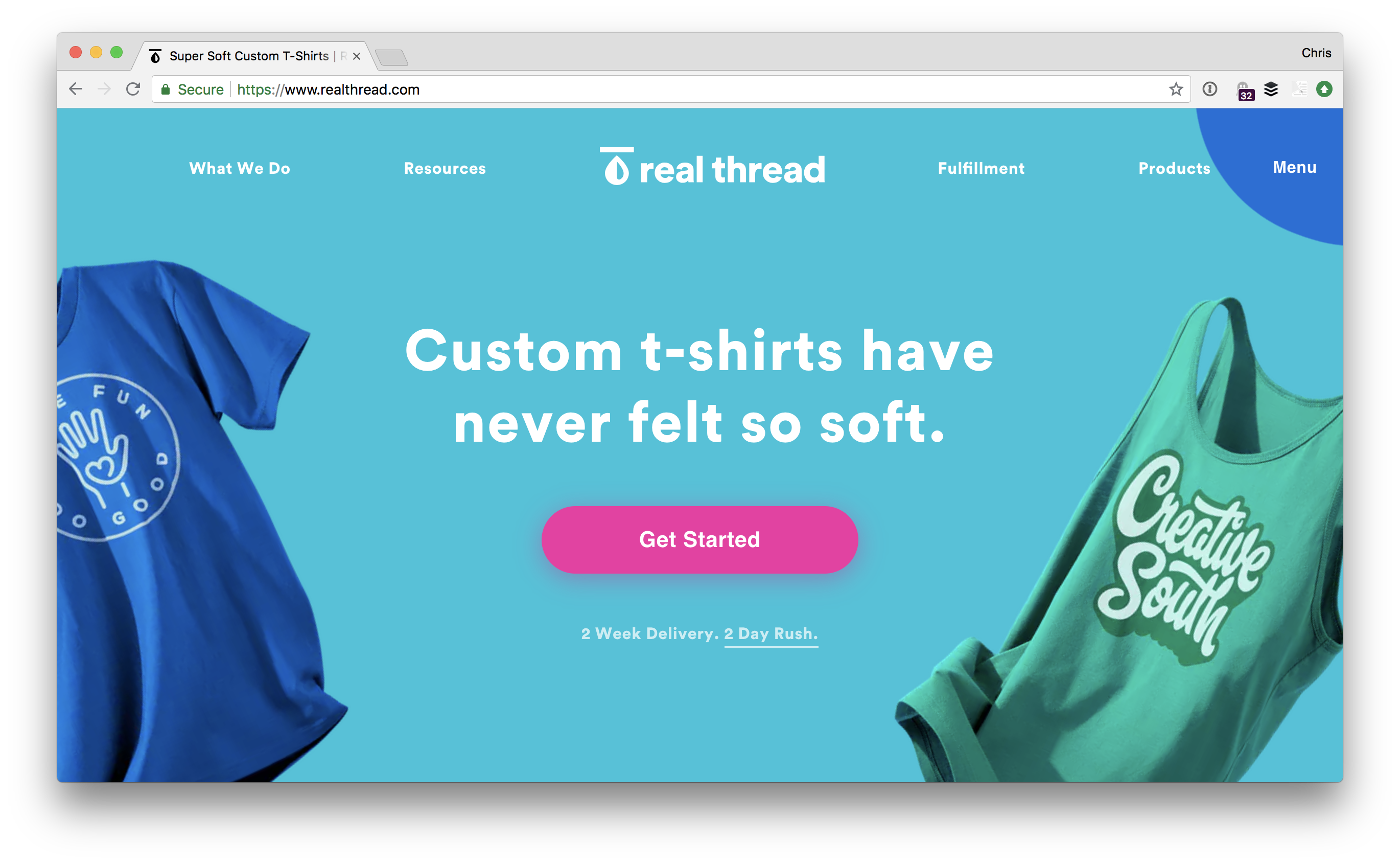
At CodePen, we work with a company called RealThread that actually prints and ships the T-Shirts.
They work great with WooCommerce of course, and the way we set that up is that we use the ShipStationintegration and blast the orders into their account there and they handle all the fulfillment from there. There are all sorts of shipping method plugins though for anything you can think of.
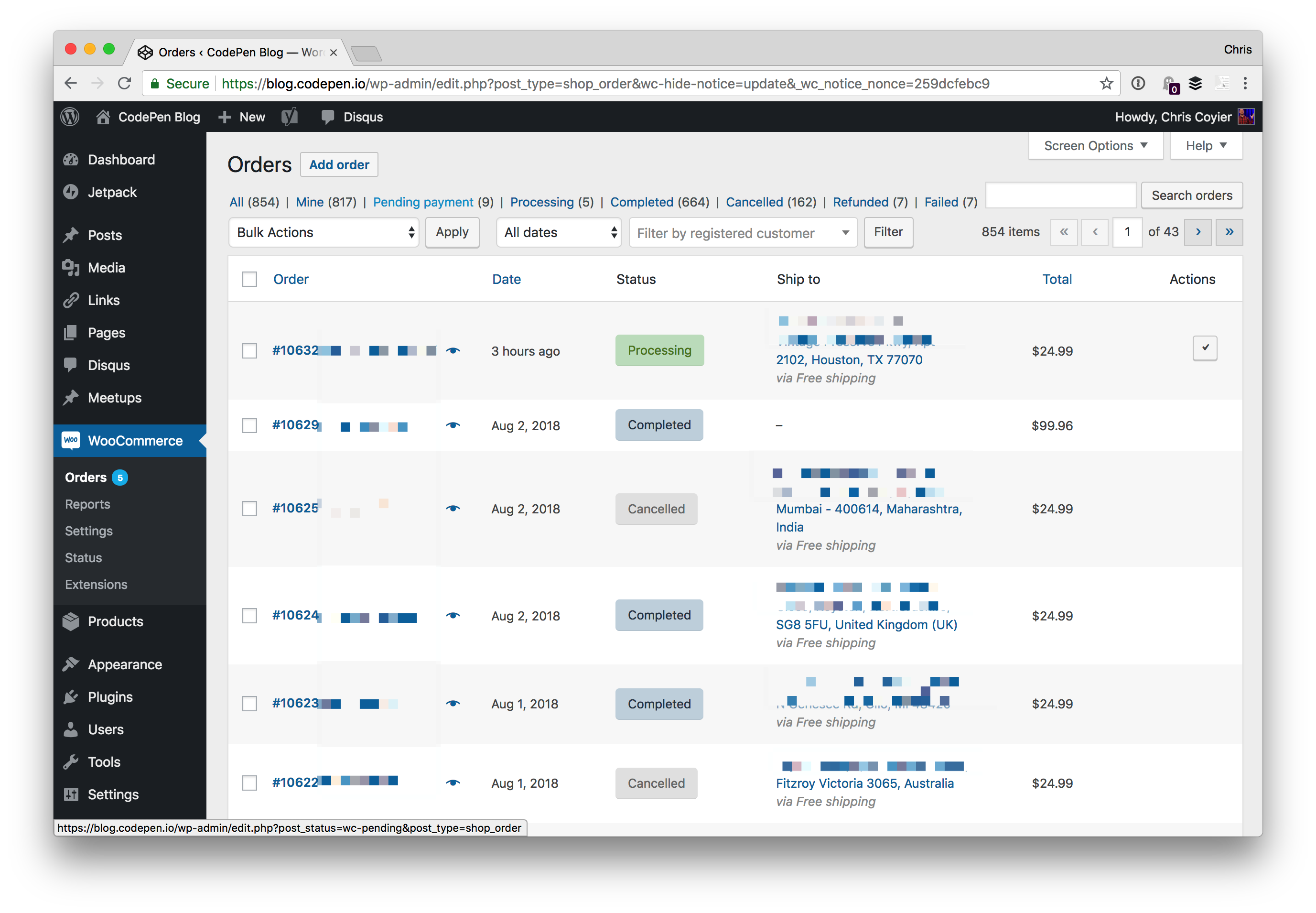
Within WooCommerce, we have a dashboard of all the orders, their status, and even tracking information should we need to look something up.
So essentially:
We use WooCommerce
We use the Stripe plugin to take our credit card payments that way
We use the PayPal plugin to take PayPal payments over Braintree
We use the ShipStation plugin to send orders to that system for our fulfillment company to handle
It was quite easy to set up and works great, and it’s comforting to know that we could do tons more with it if we needed to and support is there to help.
Color is one of the most powerful means of communication. Nature uses it to signal us what is dangerous or poisonous, to attract or repel. Each color has its meaning and a special place in our everyday lives. We are used to associating pink with girls, blue with boys and red with a passion but how does the game of colors work in a business setting?
The basic meaning behind the game of colors
The emotion that colors evoke has remained strong throughout the years.
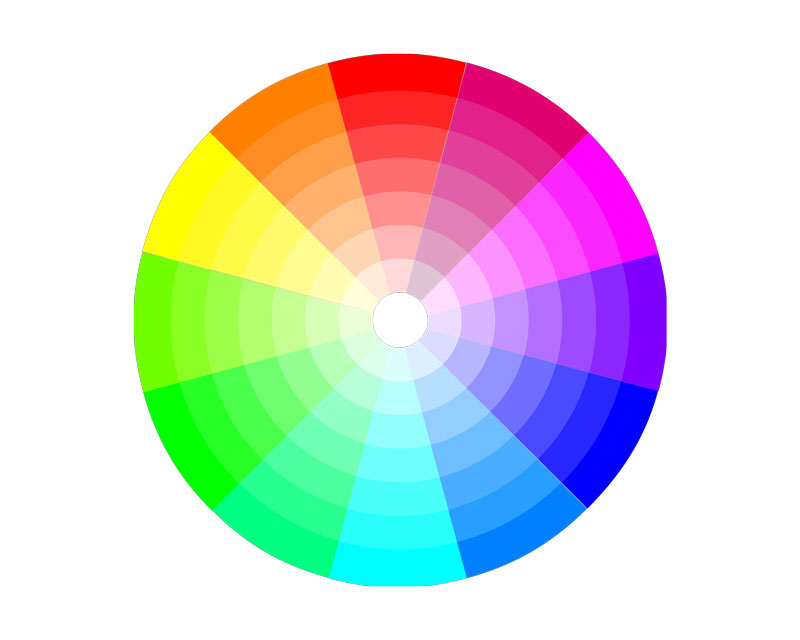
The Color Wheel gives us a definition of the meaning of each color, which can be very useful when you are choosing the main nuance of your brand.
Red is an emotionally intense color and is used to make people take quick decisions. It is associated with energy, power, strength, desire, and Red is used to emphasize a given text or image and it brings them to the foreground. It is part of many national flags and important road signs such as “stop”.
Orange is associated with happiness, enthusiasm, creativity, and It stimulates mental activity and is associated with citrus fruits and hence with healthy food. The color is often used to promote toys or food.
Yellow is a warm, cheerful color that brings happiness, joy, energy and is associated with intellect. As it grabs the attention, it is a good idea to use yellow for the most important elements of your design. You can use it to promote leisure activities, for example.
Green is the color of nature and is highly associated with safety, harmony, growth. You can use it to promote “green” products and safe medical products. Darker green is the color of money so it is very good for a brand associated with finance, banking or Wall Street.
Blue symbolizes stability, trust, intelligence and evokes confidence. It is a masculine color and is often used to promote high-tech products.
Purple is the symbol of royalty, wisdom, magic. Most of the pre-adolescent children prefer this nuance so it is a good strategy to include it in your brand design if this is your target group.
White is often seen as the color of perfection and symbolizes light, purity, goodness. It is often associated with the successful beginning and simplicity. It can be used to advertise safe medical procedures and hospitals or new technologies. It is also a good color for a charity organization.
Black evokes power and is associated with elegance, power, and Black can be used as a background to make other colors stand out. It is often used for quite expensive products so including this color in your brand will make it stand out.
How color defines your brand
Color defines the feeling that we get towards a certain object no matter if it is part of the nature that surrounds us or is an artificial discovery of mankind. The same associations arise between a given color and a brand. When you think of Coca-Cola, for example, you definitely see red. Ferrari is yet another brand that makes use of this powerful color.
A combination of red and yellow is often used by fast food chains. Recently, McDonald’s decided to run away a bit from this combination by adding some green to its main colors as a symbol of their attempt to distinguish themselves from their competitors.
Handmadewritings who specialize in providing custom writing services use a lot of yellow in their brand design, which as mentioned above is the symbol of intellect and thus they emphasize the intellectual services they provide. The combination of old-fashioned books and a blackboard enhances the meaning of the brand and their position in the educational market.
Many banks use green, as the symbol of money or the national colors in order to win the trust of their customers. Newspapers and magazines that are established as a solid and trustworthy source of information prefer black in their design as a symbol of their high quality.
The overall idea is that you should know your customers and the message you want to send them when choosing the colors of your brand.
The power of color
There are many studies that reveal the significant role color plays in building a relationship between a potential customer and a given brand. A person needs just 90 seconds to make their decision about another person or a product and the influence of color in this process is between 62% and 90%. This means that you should not underestimate the power of color when designing your website, logo or any other materials related to your brand. Take time to research the market, learn from your competitors and find inspiration in nature in order to come up with the best color combination that will establish your brand on the market.
Color is emotion and we often choose our favorite brands with our heart but through our eyes. When it comes to design, it is good to consult experienced experts in the field who can give you the best tips when it comes to nuances. Keep in mind the above-written advice as well and you will manage to find the best shade for your brand and play the game of colors with confidence.
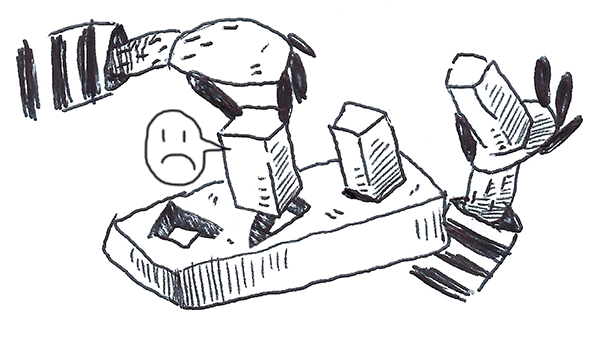
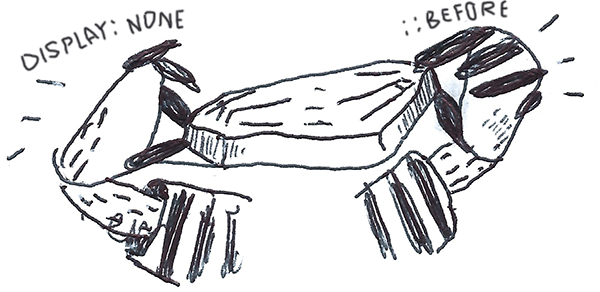
Note the double-colon ::before versus the single-colon :before. Which one is correct?
Technically, the correct answer is ::before. But that doesn’t mean you should automatically use it.
The situation is that:
double-colon selectors are pseudo-elements.
single-colon selectors are pseudo-selectors.
::before is definitely a pseudo-element, so it should use the double colon.
The distinction between a pseudo-element and pseudo-selector is already confusing. Fortunately, ::after and ::before are fairly straightforward. They literally add something new to the page, an element.
But something like ::first-letter is also a pseudo-element. The way I reason that out in my brain is that it’s selecting a part of something in which there is no existing HTML element for. There is no <span> around that first letter you’re targeting, so that first letter is almost like a new element you’re adding on the page. That differs from pseudo-selectors which are selecting things that already exist, like the :nth-child(2) or whatever.
Even though ::before is a pseudo-element and a double-colon is the correct way to use pseudo-elements, should you?
There is an argument that perhaps you should use :before, which goes like this:
Internet Explorer 8 and below only supported :before, not ::before
All modern browsers support it both ways, since tons of sites use :before and browsers really value backwards compatibility.
Hey it’s one less character as a bonus.
I’ve heard people say that they have a CSS linter that requires (or automates) them to be single-colon. Personally, I’m OK with people doing that. Seems fine. I’d value consistency over which way you choose to go.
On the flip side, there’s an argument for going with ::before that goes like this:
Single-colon pseudo-elements were a mistake. There will never be any more pseudo-elements with a single-colon.
If you have the distinction straight in your mind, might as well train your fingers to do it right.
This is already confusing enough, so let’s just follow the correctly specced way.
I’ve got my linter set up to force me to do double-colons. I don’t support Internet Explorer 8 anyway and it feels good to be doing things the „right” way.
WooCommerce is a powerful eCommerce solution for WordPress sites. If you’re like me, and like working with WordPress and have WordPress-powered sites already, WooCommerce is a no-brainer for helping you sell things online on those sites. But even if you don’t already have a WordPress site, WooCommerce is so good I think it would make sense to spin up a WordPress site so you could use it for your eCommerce solution.
Personally, I’ve used WooCommerce a number of times to sell things. Most recently, I’ve used it to sell T-Shirts (and hats) over on CodePen. We use WordPress already to power our blog, documentation, and podcast. Makes perfect sense to use WordPress for the store as well!
What I think is notable about our WooCommerce installation at CodePen is how painless it was, while doing everything we need it to do. I’d say it was a half-day job with maybe a half-day of maintenance every few months, partially based on us wanting to change something.
The first step is installing the plugin, and immediately you get a Products post type you can use to add new products. We’re selling a T-Shirt, so that looks like this:
Note the variations in use for size. We even track inventory at the size level so our T-Shirt printing company knows when to re-print different sizes.
What is somewhat astounding about WooCommerce is that you might need to do very little else. You could set a price, flip on the basic PayPal integration and enter your email, publish the product, and start taking orders.
Or, you could start customizing things and do as much or as little as you want:
You could add as many different payment processors as you like. We like using Stripe for credit card processing at CodePen, but also offer PayPal.
You could customize the template of every different page involved, or just use the defaults. At CodePen we have very lightly customized templates for the store homepage and product page.
You could get very detailed with calculating shipping costs, or use flat rates. We use a flat rate shipping cost at CodePen almost as marketing: same shipping cost anywhere in the world!
You could get into integrations, like connecting it with your MailChimp account for further email marketing or Slack account to notify your team of sales.
If you can dream it, you can do it with WooCommerce.
At CodePen, we work with a company called RealThread that actually prints and ships the T-Shirts.
They work great with WooCommerce of course, and the way we set that up is that we use the ShipStationintegration and blast the orders into their account there and they handle all the fulfillment from there. There are all sorts of shipping method plugins though for anything you can think of.
Within WooCommerce, we have a dashboard of all the orders, their status, and even tracking information should we need to look something up.
So essentially:
We use WooCommerce
We use the Stripe plugin to take our credit card payments that way
We use the PayPal plugin to take PayPal payments over Braintree
We use the ShipStation plugin to send orders to that system for our fulfillment company to handle
It was quite easy to set up and works great, and it’s comforting to know that we could do tons more with it if we needed to and support is there to help.
In early 2017, I presented a couple of workshops on the topic of CSS feature detection, titled CSS Feature Detection in 2017.
A friend of mine, Justin Slack from New Media Labs, recently sent me a link to the phenomenal Feature Query Manager extension (available for both Chrome and Firefox), by Nigerian developer Ire Aderinokun. This seemed to be a perfect addition to my workshop material on the subject.
However, upon returning to the material, I realized how much my work on the subject has aged in the last 18 months.
The CSS landscape has undergone some tectonic shifts:
The Atomic CSS approach, although widely hated at first, has gained some traction through libraries like Tailwind, and perhaps influenced the addition of several new utility classes to Bootstrap 4.
The CSS Grid Layout spec has been adopted by browser vendors with surprising speed, and was almost immediately sanctioned as production ready.
The above prompted me to not only revisit my existing material, but also ponder the state of CSS feature detection in the upcoming 18 months.
In short:
❓ Why do we need CSS feature detection at all?
🛠️ What are good (and not so good) ways to do feature detection?
🤖 What does the future hold for CSS feature detection?
Cross-browser compatible CSS
When working with CSS, it seems that one of the top concerns always ends up being inconsistent feature support among browsers. This means that CSS styling might look perfect on my browsers of choice, but might be completely broken on another (perhaps an even more popular) browser.
Luckily, dealing with inconsistent browser support is trivial due to a key feature in the design of the CSS language itself. This behavior, called fault tolerance, means that browsers ignore CSS code they don’t understand. This is in stark contrast to languages like JavaScript or PHP that stop all execution in order to throw an error.
The critical implication here is that if we layer our CSS accordingly, properties will only be applied if the browser understands what they mean. As an example, you can include the following CSS rule and the browser will just ignore it— overriding the initial yellow color, but ignoring the third nonsensical value:
To illustrate how this can be used in practice, let me start with a contrived, but straightforward situation:
A client comes to you with a strong desire to include a call-to-action (in the form of a popup) on his homepage. With your amazing front-end skills, you are able to quickly produce the most obnoxious pop-up message known to man:
Unfortunately, it turns out that his wife has an old Windows XP machine running Internet Explorer 8. You’re shocked to learn that what she sees no longer resembles a popup in any shape or form.
But! We remember that by using the magic of CSS fault tolerance, we can remedy the situation. We identify all the mission-critical parts of the styling (e.g., the shadow is nice to have, but does not add anything useful usability-wise) and buffer prepend all core styling with fallbacks.
This means that our CSS now looks something like the following (the overrides are highlighted for clarity):
If you’re new to front-end development, you might wonder how on earth does one know the support level of specific CSS properties. The short answer is that the more you work with CSS, the more you will learn these by heart. However, there are a couple of tools that are able to help us along the way:
Can I Use is a widely used directory that contains searchable, up to date support matrices for all CSS features.
Even with all the above at our disposal, learning CSS support by heart will help us plan our styling up front and increase our efficiency when writing it.
Limits of CSS fault tolerance
The next week, your client returns with a new request. He wants to gather some feedback from users on the earlier changes that were made to the homepage—again, with a pop-up:
Once again it will look as follows in Internet Explorer 8:
Being more proactive this time, you use your new fallback skills to establish a base level of styling that works on Internet Explorer 8 and progressive styling for everything else. Unfortunately, we still run into a problem…
In order to replace the default radio buttons with ASCII hearts, we use the ::beforepseudo-element. However this pseudo-element is not supported in Internet Explorer 8. This means that the heart icon does not render; however the display: none property on the <input type="radio"> element still triggers on Internet Explorer 8. The implication being that neither the replacement behavior nor the default behavior is shown.
Credit to John Faulds for pointing out that it is actually possible to get the ’::before’ pseudo-element to work in Internet Explorer 8 if you replace the official double colon syntax with a single colon.
In short, we have a rule (display: none) whose execution should not be bound to its own support (and thus its own fallback structure), but to the support level of a completely separate CSS feature (::before).
For all intents and purposes, the common approach is to explore whether there are more straightforward solutions that do not rely on ::before. However, for the sake of this example, let’s say that the above solution is non-negotiable (and sometimes they are).
Enter User Agent Detection
A solution might be to determine what browser the user is using and then only apply display: none if their browser supports the ::before pseudo-element.
In fact, this approach is almost as old as the web itself. It is known as User Agent Detection or, more colloquially, browser sniffing.
It is usually done as follows:
All browsers add a JavaScript property on the global window object called navigator and this object contains a userAgent string property.
In my case, the userAgent string is: Mozilla/5.0 (Windows NT10.0;Win64;x64) AppleWebKit/537.36 (KHTML, like Gecko) Chrome/67.0.3396.9 Safari/537.36.
Mozilla Developer Network has a comprehensive list of how the above can be used to determine the browser.
If we are using Chrome, then the following should return true: (navigator.userAgent.indexOf("chrome") !== -1).
However, under the Internet Explorer section on MDN, we just get Internet Explorer. IE doesn’t put its name in the BrowserName/VersionNumber format.
Luckily, Internet Explorer provides its own native detection in the form of Conditional Comments.
This means that adding the following in our HTML should suffice:
This means that the above will be applied, should the browser be a version of Internet Explorer lower than version 9 (IE 9 supports ::before)—effectively overriding the display: none property.
Seems straightforward enough?
Unfortunately, over time, some critical flaws emerged in User Agent Detection. So much so that Internet Explorer stopped supporting Conditional Comments from version 10 onward. You will also notice that in the Mozilla Developer Network link itself, the following is presented in an orange alert:
It’s worth re-iterating: it’s very rarely a good idea to use user agent sniffing. You can almost always find a better, more broadly compatible way to solve your problem!
The biggest drawback of User Agent Detection is that browser vendors started spoofing their user agent strings over time due to the following:
Developer adds CSS feature that is not supported in the browser.
Developer adds User Agent Detection code to serve fallbacks to the browser.
Browser eventually adds support for that specific CSS feature.
Original User Agent Detection code is not updated to take this into consideration.
Code always displays the fallback, even if the browser now supports the CSS feature.
Browser uses a fake user agent string to give users the best experience on the web.
Furthermore, even if we were able to infallibly determine every browser type and version, we would have to actively maintain and update our User Agent Detection to reflect the feature support state of those browsers (notwithstanding browsers that have not even been developed yet).
It is important to note that although there are superficial similarities between feature detection and User Agent Detection, feature detection takes a radically different approach than User Agent Detection. According to the Mozilla Developer Network, when we use feature detection, we are essentially doing the following:
🔎 Testing whether a browser is actually able to run a specific line (or lines) of HTML, CSS or JavaScript code.
💪 Taking a specific action based on the outcome of this test.
We can also look to Wikipedia for a more formal definition (emphasis mine):
Feature detection (also feature testing) is a technique used in web development for handling differences between runtime environments (typically web browsers or user agents), by programmatically testing for clues that the environment may or may not offer certain functionality. This information is then used to make the application adapt in some way to suit the environment: to make use of certain APIs, or tailor for a better user experience.
While a bit esoteric, this definition does highlight two important aspects of feature detection:
Feature detection is a technique, as opposed to a specific tool or technology. This means that there are various (equally valid) ways to accomplish feature detection.
Feature detection programmatically tests code. This means that browsers actually run a piece of code to see what happens, as opposed to merely using inference or comparing it against a theoretical reference/list as done with User Agent Detection.
CSS feature detection with @supports
The core concept is not to ask „What browser is this?” It’s to ask „Does your browser support the feature I want to use?”.
Most modern browsers support a set of native CSS rules called CSS conditional rules. These allow us to test for certain conditions within the stylesheet itself. The latest iteration (known as module level 3) is described by the Cascading Style Sheets Working Group as follows:
This module contains the features of CSS for conditional processing of parts of style sheets, conditioned on capabilities of the processor or the document the style sheet is being applied to. It includes and extends the functionality of CSS level 2 [CSS21], which builds on CSS level 1 [CSS1]. The main extensions compared to level 2 are allowing nesting of certain at-rules inside ‘@media’, and the addition of the ‘@supports’ rule for conditional processing.
If you’ve used @media, @document or @import before, then you already have experience working with CSS conditional rules. For example when using CSS media queries we do the following:
Wrap a single or multiple CSS declarations in a code block with curly brackets, { }.
Prepend the code block with a @media query with additional information.
Include an optional media type. This can either be all, print, speech or the commonly used screen type.
Chain expressions with and/or to determine the scope. For example, if we use (min-width: 300px) and (max-width: 800px), it will trigger the query if the screen size is wider than 300 pixels and smaller than 800 pixels.
The feature queries spec (editor’s draft) prescribes behavior that is conveniently similar to the above example. Instead of using a query expression to set a condition based on the screen size, we write an expression to scope our code block according to a browser’s CSS support (emphasis mine):
The ‘@supports rule allows CSS to be conditioned on implementation support for CSS properties and values. This rule makes it much easier for authors to use new CSS features and provide good fallback for implementations that do not support those features. This is particularly important for CSS features that provide new layout mechanisms, and for other cases where a set of related styles needs to be conditioned on property support.
In short, feature queries are a small built-in CSS tool that allow us to only execute code (like the display: none example above) when a browser supports a separate CSS feature—and much like media queries, we are able to chain expressions as follows: @supports (display: grid) and ((animation-name: spin) or (transition: transform(rotate(360deg)).
So, theoretically, we should be able to do the following:
@supports (::before) {
  input {
    display: none;
  }
}
Unfortunately, it seems that in our example above the display: none property did not trigger, in spite of the fact that your browser probably supports ::before.
That’s because there are some caveats to using @supports:
Secondly, you will see that in the above example our @supports (transform: scale(2)) and (animation-name: beat) condition fires correctly. However if we were to test it in Internet Explorer 11 (which supports both transform: scale(2) and animation-name: beat) it does not fire. What gives? In short, @supports is a CSS feature, with a support matrix of its own.
CSS feature detection with Modernizr
Luckily, the fix is fairly easy! It comes in the form of an open source JavaScript library named Modernizr, initially developed by Faruk Ateş (although it now has some pretty big names behind it, like Paul Irish from Chrome and Alex Sexton from Stripe).
Before we dig into Modernizr, let’s address a subject of great confusion for many developers (partly due to the name „Modernizr” itself). Modernizr does not transform your code or magically enable unsupported features. In fact, the only change Modernzr makes to your code is appending specific CSS classes to your <html> tag.
This means that you might end up with something like the following:
That is one big HTML tag! However, it allows us do something super powerful: use the CSS descendant selector to conditionally apply CSS rules.
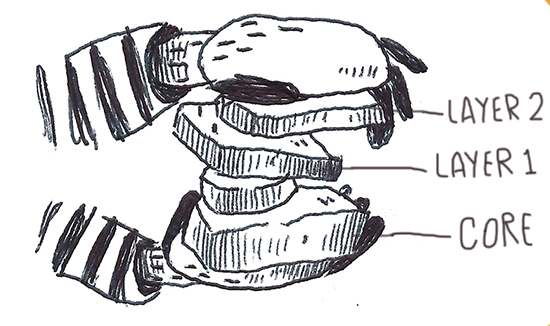
When Modernizr runs, it uses JavaScript to detect what the user’s browser supports, and if it does support that feature, Modernizr injects the name of it as a class to the <html>. Alternatively, if the browser does not support the feature, it prefixes the injected class with no- (e.g., no-generatedcontent in our ::before example). This means that we can write our conditional rule in the stylesheet as follows:
.generatedcontent input {
  display: none
}
In addition, we are able to replicate the chaining of @supports expressions in Modernizr as follows:
Since Modernizr runs in JavaScript (and does not use any native browser APIs), it’s effectively supported on almost all browsers. This means that by leveraging classes like generatedcontent and csstransforms, we are able to cover all our bases for Internet Explorer 8, while still serving bleeding-edge CSS to the latest browsers.
It is important to note that since the release of Modernizr 3.0, we are no longer able to download a stock-standard modernizr.js file with everything except the kitchen sink. Instead, we have to explicitly generate our own custom Modernizr code via their wizard (to copy or download). This is most likely in response to the increasing global focus on web performance over the last couple of years. Checking for more features contributes to more loading, so Modernizr wants us to only check for what we need.
So, I should always use Modernizr?
Given that Modernizr is effectively supported across all browsers, is there any point in even using CSS feature queries? Ironically, I would not only say that we should but that feature queries should still be our first port of call.
First and foremost, the fact that Modernizr does not plug directly into the browser API is it’s greatest strength—it does not rely on the availability of a specific browser API. However, this benefit comes a cost, and that cost is additional overhead to something most browsers support out of the box through @supports—especially when you’re delivering this additional overhead to all users indiscriminately in order to a small amount of edge users. It is important to note that, in our example above, Internet Explorer 8 currently only stands at 0.18% global usage).
Compared to the light touch of @supports, Modernizr has the following drawbacks:
In the majority of cases, Modernizr needs to be render blocking. This means that Modernizr needs to be downloaded and executed in JavaScript before a web page can even show content on the screen—increasing our page load time (especially on mobile devices)!
In order to run tests, Modernizr often has to actually build hidden HTML nodes and test whether it works. For example, in order to test for <canvas> support, Modernizr executes the follow JavaScript code: return !!(document.createElement('canvas').getContext && document.createElement('canvas').getContext('2d'));. This consumes CPU processing power that could be used elsewhere.
The CSS descendant selector pattern used by Modernizr increases CSS specificity. (See Harry Roberts’ excellent article on why „specificity is a trait best avoided.”)
Although Modernizr covers a lot of tests (150+), it still does not cover the entire spectrum of CSS properties like @support does. The Modernizr team actively maintains a list of these undetectables.
Given that feature queries have already been widely implemented across the browser landscape, (covering about 93.42% of global browsers at the time of writing), it’s been a good while since I’ve used Modernizr. However, it is good to know that it exists as an option should we run into the limitations of @supports or if we need to support users still locked into older browsers or devices for a variety of potential reasons.
Furthermore, when using Modernizr, it is usually in conjunction with @supports as follows:
If ::before is not supported, our CSS will fallback to the default HTML radio select.
If neither transform(scale(2)) nor animation-name: beat are supported but ::before is, then the heart icon will change to black instead of animate when selected.
If transform(scale(2), animation-name: beat and ::before are supported, then the heart icon will animate when selected.
From that moment on, the web community was split in two by an intense debate between those who see CSS as an untouchable layer in the „separation of concerns” paradigm (content + presentation + behaviour, HTML + CSS + JS) and those who have simply ignored this golden rule and found different ways to style the UI, typically applying CSS styles via JavaScript. This debate has become more and more intense every day, bringing division in a community that used to be immune to this kind of „religion wars”.
However, I think exploring how to apply feature detection in the modern CSS-in-JS toolchain might be of value as follows:
It provides an opportunity to explore how CSS feature detection would work in a radically different environment.
It showcasesfeature detection as a technique, as opposed to a specific technology or tool.
With this in mind, let us start by examining an implementation of our pop-up by means of the most widely-used CSS-in-JS library (at least at the time of writing), Styled Components:
This is how it will look in Internet Explorer 8:
In our previous examples, we’ve been able to conditionally execute CSS rules based on the browser support of ::before (via Modernizr) and transform (via @supports). However, by leveraging JavaScript, we are able to take this even further. Since both @supports and Modernizr expose their APIs via JavaScript, we are able to conditionally load entire parts of our pop-up based solely on browser support.
Keep in mind that you will probably need to do a lot of heavy lifting to get React and Styled Components working in a browser that does not even support ::before (checking for display: grid might make more sense in this context), but for the sake of keeping with the above examples, let us assume that we have React and Styled Components running in Internet Explorer 8 or lower.
In the example above, you will notice that we’ve created a component, called ValueSelection. This component returns a clickable button that increments the amount of likes on click. If you are viewing the example on a slightly older browser, you might notice that instead of the button you will see a dropdown with values from 0 to 9.
In order to achieve this, we’re conditionally returning an enhanced version of the component only if the following conditions are met:
What is intriguing about this approach is that the ValueSelection component only exposes two parameters:
The current amount of likes
The function to run when the amount of likes are updated
<Overlay>
  <Popup>
    <Title>How much do you like popups?</Title>
    <form>
      <ValueInterface value={liked} change={changeLike} />
      <Button type="submit">Submit</Button>
    </form>
  </Popup>
</Overlay>
In other words, the component’s logic is completely separate from its presentation. The component itself will internally decide what presentation works best given a browser’s support matrix. Having the conditional presentation abstracted away inside the component itself opens the door to exciting new ways of building cross-browser compatible interfaces when working in a front-end and/or design team.
Here’s the final product:
…and how it should theoretically look in Internet Explorer 8:
Additional Resources
If you are interested in diving deeper into the above you can visit the following resources:
In early 2017, I presented a couple of workshops on the topic of CSS feature detection, titled CSS Feature Detection in 2017.
A friend of mine, Justin Slack from New Media Labs, recently sent me a link to the phenomenal Feature Query Manager extension (available for both Chrome and Firefox), by Nigerian developer Ire Aderinokun. This seemed to be a perfect addition to my workshop material on the subject.
However, upon returning to the material, I realized how much my work on the subject has aged in the last 18 months.
The CSS landscape has undergone some tectonic shifts:
The Atomic CSS approach, although widely hated at first, has gained some traction through libraries like Tailwind, and perhaps influenced the addition of several new utility classes to Bootstrap 4.
The CSS Grid Layout spec has been adopted by browser vendors with surprising speed, and was almost immediately sanctioned as production ready.
The above prompted me to not only revisit my existing material, but also ponder the state of CSS feature detection in the upcoming 18 months.
In short:
❓ Why do we need CSS feature detection at all?
🛠️ What are good (and not so good) ways to do feature detection?
🤖 What does the future hold for CSS feature detection?
Cross-browser compatible CSS
When working with CSS, it seems that one of the top concerns always ends up being inconsistent feature support among browsers. This means that CSS styling might look perfect on my browsers of choice, but might be completely broken on another (perhaps an even more popular) browser.
Luckily, dealing with inconsistent browser support is trivial due to a key feature in the design of the CSS language itself. This behavior, called fault tolerance, means that browsers ignore CSS code they don’t understand. This is in stark contrast to languages like JavaScript or PHP that stop all execution in order to throw an error.
The critical implication here is that if we layer our CSS accordingly, properties will only be applied if the browser understands what they mean. As an example, you can include the following CSS rule and the browser will just ignore it— overriding the initial yellow color, but ignoring the third nonsensical value:
To illustrate how this can be used in practice, let me start with a contrived, but straightforward situation:
A client comes to you with a strong desire to include a call-to-action (in the form of a popup) on his homepage. With your amazing front-end skills, you are able to quickly produce the most obnoxious pop-up message known to man:
Unfortunately, it turns out that his wife has an old Windows XP machine running Internet Explorer 8. You’re shocked to learn that what she sees no longer resembles a popup in any shape or form.
But! We remember that by using the magic of CSS fault tolerance, we can remedy the situation. We identify all the mission-critical parts of the styling (e.g., the shadow is nice to have, but does not add anything useful usability-wise) and buffer prepend all core styling with fallbacks.
This means that our CSS now looks something like the following (the overrides are highlighted for clarity):
If you’re new to front-end development, you might wonder how on earth does one know the support level of specific CSS properties. The short answer is that the more you work with CSS, the more you will learn these by heart. However, there are a couple of tools that are able to help us along the way:
Can I Use is a widely used directory that contains searchable, up to date support matrices for all CSS features.
Even with all the above at our disposal, learning CSS support by heart will help us plan our styling up front and increase our efficiency when writing it.
Limits of CSS fault tolerance
The next week, your client returns with a new request. He wants to gather some feedback from users on the earlier changes that were made to the homepage—again, with a pop-up:
Once again it will look as follows in Internet Explorer 8:
Being more proactive this time, you use your new fallback skills to establish a base level of styling that works on Internet Explorer 8 and progressive styling for everything else. Unfortunately, we still run into a problem…
In order to replace the default radio buttons with ASCII hearts, we use the ::beforepseudo-element. However this pseudo-element is not supported in Internet Explorer 8. This means that the heart icon does not render; however the display: none property on the <input type="radio"> element still triggers on Internet Explorer 8. The implication being that neither the replacement behavior nor the default behavior is shown.
Credit to John Faulds for pointing out that it is actually possible to get the ’::before’ pseudo-element to work in Internet Explorer 8 if you replace the official double colon syntax with a single colon.
In short, we have a rule (display: none) whose execution should not be bound to its own support (and thus its own fallback structure), but to the support level of a completely separate CSS feature (::before).
For all intents and purposes, the common approach is to explore whether there are more straightforward solutions that do not rely on ::before. However, for the sake of this example, let’s say that the above solution is non-negotiable (and sometimes they are).
Enter User Agent Detection
A solution might be to determine what browser the user is using and then only apply display: none if their browser supports the ::before pseudo-element.
In fact, this approach is almost as old as the web itself. It is known as User Agent Detection or, more colloquially, browser sniffing.
It is usually done as follows:
All browsers add a JavaScript property on the global window object called navigator and this object contains a userAgent string property.
In my case, the userAgent string is: Mozilla/5.0 (Windows NT10.0;Win64;x64) AppleWebKit/537.36 (KHTML, like Gecko) Chrome/67.0.3396.9 Safari/537.36.
Mozilla Developer Network has a comprehensive list of how the above can be used to determine the browser.
If we are using Chrome, then the following should return true: (navigator.userAgent.indexOf("chrome") !== -1).
However, under the Internet Explorer section on MDN, we just get Internet Explorer. IE doesn’t put its name in the BrowserName/VersionNumber format.
Luckily, Internet Explorer provides its own native detection in the form of Conditional Comments.
This means that adding the following in our HTML should suffice:
This means that the above will be applied, should the browser be a version of Internet Explorer lower than version 9 (IE 9 supports ::before)—effectively overriding the display: none property.
Seems straightforward enough?
Unfortunately, over time, some critical flaws emerged in User Agent Detection. So much so that Internet Explorer stopped supporting Conditional Comments from version 10 onward. You will also notice that in the Mozilla Developer Network link itself, the following is presented in an orange alert:
It’s worth re-iterating: it’s very rarely a good idea to use user agent sniffing. You can almost always find a better, more broadly compatible way to solve your problem!
The biggest drawback of User Agent Detection is that browser vendors started spoofing their user agent strings over time due to the following:
Developer adds CSS feature that is not supported in the browser.
Developer adds User Agent Detection code to serve fallbacks to the browser.
Browser eventually adds support for that specific CSS feature.
Original User Agent Detection code is not updated to take this into consideration.
Code always displays the fallback, even if the browser now supports the CSS feature.
Browser uses a fake user agent string to give users the best experience on the web.
Furthermore, even if we were able to infallibly determine every browser type and version, we would have to actively maintain and update our User Agent Detection to reflect the feature support state of those browsers (notwithstanding browsers that have not even been developed yet).
It is important to note that although there are superficial similarities between feature detection and User Agent Detection, feature detection takes a radically different approach than User Agent Detection. According to the Mozilla Developer Network, when we use feature detection, we are essentially doing the following:
🔎 Testing whether a browser is actually able to run a specific line (or lines) of HTML, CSS or JavaScript code.
💪 Taking a specific action based on the outcome of this test.
We can also look to Wikipedia for a more formal definition (emphasis mine):
Feature detection (also feature testing) is a technique used in web development for handling differences between runtime environments (typically web browsers or user agents), by programmatically testing for clues that the environment may or may not offer certain functionality. This information is then used to make the application adapt in some way to suit the environment: to make use of certain APIs, or tailor for a better user experience.
While a bit esoteric, this definition does highlight two important aspects of feature detection:
Feature detection is a technique, as opposed to a specific tool or technology. This means that there are various (equally valid) ways to accomplish feature detection.
Feature detection programmatically tests code. This means that browsers actually run a piece of code to see what happens, as opposed to merely using inference or comparing it against a theoretical reference/list as done with User Agent Detection.
CSS feature detection with @supports
The core concept is not to ask „What browser is this?” It’s to ask „Does your browser support the feature I want to use?”.
Most modern browsers support a set of native CSS rules called CSS conditional rules. These allow us to test for certain conditions within the stylesheet itself. The latest iteration (known as module level 3) is described by the Cascading Style Sheets Working Group as follows:
This module contains the features of CSS for conditional processing of parts of style sheets, conditioned on capabilities of the processor or the document the style sheet is being applied to. It includes and extends the functionality of CSS level 2 [CSS21], which builds on CSS level 1 [CSS1]. The main extensions compared to level 2 are allowing nesting of certain at-rules inside ‘@media’, and the addition of the ‘@supports’ rule for conditional processing.
If you’ve used @media, @document or @import before, then you already have experience working with CSS conditional rules. For example when using CSS media queries we do the following:
Wrap a single or multiple CSS declarations in a code block with curly brackets, { }.
Prepend the code block with a @media query with additional information.
Include an optional media type. This can either be all, print, speech or the commonly used screen type.
Chain expressions with and/or to determine the scope. For example, if we use (min-width: 300px) and (max-width: 800px), it will trigger the query if the screen size is wider than 300 pixels and smaller than 800 pixels.
The feature queries spec (editor’s draft) prescribes behavior that is conveniently similar to the above example. Instead of using a query expression to set a condition based on the screen size, we write an expression to scope our code block according to a browser’s CSS support (emphasis mine):
The ‘@supports rule allows CSS to be conditioned on implementation support for CSS properties and values. This rule makes it much easier for authors to use new CSS features and provide good fallback for implementations that do not support those features. This is particularly important for CSS features that provide new layout mechanisms, and for other cases where a set of related styles needs to be conditioned on property support.
In short, feature queries are a small built-in CSS tool that allow us to only execute code (like the display: none example above) when a browser supports a separate CSS feature—and much like media queries, we are able to chain expressions as follows: @supports (display: grid) and ((animation-name: spin) or (transition: transform(rotate(360deg)).
So, theoretically, we should be able to do the following:
@supports (::before) {
  input {
    display: none;
  }
}
Unfortunately, it seems that in our example above the display: none property did not trigger, in spite of the fact that your browser probably supports ::before.
That’s because there are some caveats to using @supports:
Secondly, you will see that in the above example our @supports (transform: scale(2)) and (animation-name: beat) condition fires correctly. However if we were to test it in Internet Explorer 11 (which supports both transform: scale(2) and animation-name: beat) it does not fire. What gives? In short, @supports is a CSS feature, with a support matrix of its own.
CSS feature detection with Modernizr
Luckily, the fix is fairly easy! It comes in the form of an open source JavaScript library named Modernizr, initially developed by Faruk Ateş (although it now has some pretty big names behind it, like Paul Irish from Chrome and Alex Sexton from Stripe).
Before we dig into Modernizr, let’s address a subject of great confusion for many developers (partly due to the name „Modernizr” itself). Modernizr does not transform your code or magically enable unsupported features. In fact, the only change Modernzr makes to your code is appending specific CSS classes to your <html> tag.
This means that you might end up with something like the following:
That is one big HTML tag! However, it allows us do something super powerful: use the CSS descendant selector to conditionally apply CSS rules.
When Modernizr runs, it uses JavaScript to detect what the user’s browser supports, and if it does support that feature, Modernizr injects the name of it as a class to the <html>. Alternatively, if the browser does not support the feature, it prefixes the injected class with no- (e.g., no-generatedcontent in our ::before example). This means that we can write our conditional rule in the stylesheet as follows:
.generatedcontent input {
  display: none
}
In addition, we are able to replicate the chaining of @supports expressions in Modernizr as follows:
Since Modernizr runs in JavaScript (and does not use any native browser APIs), it’s effectively supported on almost all browsers. This means that by leveraging classes like generatedcontent and csstransforms, we are able to cover all our bases for Internet Explorer 8, while still serving bleeding-edge CSS to the latest browsers.
It is important to note that since the release of Modernizr 3.0, we are no longer able to download a stock-standard modernizr.js file with everything except the kitchen sink. Instead, we have to explicitly generate our own custom Modernizr code via their wizard (to copy or download). This is most likely in response to the increasing global focus on web performance over the last couple of years. Checking for more features contributes to more loading, so Modernizr wants us to only check for what we need.
So, I should always use Modernizr?
Given that Modernizr is effectively supported across all browsers, is there any point in even using CSS feature queries? Ironically, I would not only say that we should but that feature queries should still be our first port of call.
First and foremost, the fact that Modernizr does not plug directly into the browser API is it’s greatest strength—it does not rely on the availability of a specific browser API. However, this benefit comes a cost, and that cost is additional overhead to something most browsers support out of the box through @supports—especially when you’re delivering this additional overhead to all users indiscriminately in order to a small amount of edge users. It is important to note that, in our example above, Internet Explorer 8 currently only stands at 0.18% global usage).
Compared to the light touch of @supports, Modernizr has the following drawbacks:
In the majority of cases, Modernizr needs to be render blocking. This means that Modernizr needs to be downloaded and executed in JavaScript before a web page can even show content on the screen—increasing our page load time (especially on mobile devices)!
In order to run tests, Modernizr often has to actually build hidden HTML nodes and test whether it works. For example, in order to test for <canvas> support, Modernizr executes the follow JavaScript code: return !!(document.createElement('canvas').getContext && document.createElement('canvas').getContext('2d'));. This consumes CPU processing power that could be used elsewhere.
The CSS descendant selector pattern used by Modernizr increases CSS specificity. (See Harry Roberts’ excellent article on why „specificity is a trait best avoided.”)
Although Modernizr covers a lot of tests (150+), it still does not cover the entire spectrum of CSS properties like @support does. The Modernizr team actively maintains a list of these undetectables.
Given that feature queries have already been widely implemented across the browser landscape, (covering about 93.42% of global browsers at the time of writing), it’s been a good while since I’ve used Modernizr. However, it is good to know that it exists as an option should we run into the limitations of @supports or if we need to support users still locked into older browsers or devices for a variety of potential reasons.
Furthermore, when using Modernizr, it is usually in conjunction with @supports as follows:
If ::before is not supported, our CSS will fallback to the default HTML radio select.
If neither transform(scale(2)) nor animation-name: beat are supported but ::before is, then the heart icon will change to black instead of animate when selected.
If transform(scale(2), animation-name: beat and ::before are supported, then the heart icon will animate when selected.
From that moment on, the web community was split in two by an intense debate between those who see CSS as an untouchable layer in the „separation of concerns” paradigm (content + presentation + behaviour, HTML + CSS + JS) and those who have simply ignored this golden rule and found different ways to style the UI, typically applying CSS styles via JavaScript. This debate has become more and more intense every day, bringing division in a community that used to be immune to this kind of „religion wars”.
However, I think exploring how to apply feature detection in the modern CSS-in-JS toolchain might be of value as follows:
It provides an opportunity to explore how CSS feature detection would work in a radically different environment.
It showcasesfeature detection as a technique, as opposed to a specific technology or tool.
With this in mind, let us start by examining an implementation of our pop-up by means of the most widely-used CSS-in-JS library (at least at the time of writing), Styled Components:
This is how it will look in Internet Explorer 8:
In our previous examples, we’ve been able to conditionally execute CSS rules based on the browser support of ::before (via Modernizr) and transform (via @supports). However, by leveraging JavaScript, we are able to take this even further. Since both @supports and Modernizr expose their APIs via JavaScript, we are able to conditionally load entire parts of our pop-up based solely on browser support.
Keep in mind that you will probably need to do a lot of heavy lifting to get React and Styled Components working in a browser that does not even support ::before (checking for display: grid might make more sense in this context), but for the sake of keeping with the above examples, let us assume that we have React and Styled Components running in Internet Explorer 8 or lower.
In the example above, you will notice that we’ve created a component, called ValueSelection. This component returns a clickable button that increments the amount of likes on click. If you are viewing the example on a slightly older browser, you might notice that instead of the button you will see a dropdown with values from 0 to 9.
In order to achieve this, we’re conditionally returning an enhanced version of the component only if the following conditions are met:
What is intriguing about this approach is that the ValueSelection component only exposes two parameters:
The current amount of likes
The function to run when the amount of likes are updated
<Overlay>
  <Popup>
    <Title>How much do you like popups?</Title>
    <form>
      <ValueInterface value={liked} change={changeLike} />
      <Button type="submit">Submit</Button>
    </form>
  </Popup>
</Overlay>
In other words, the component’s logic is completely separate from its presentation. The component itself will internally decide what presentation works best given a browser’s support matrix. Having the conditional presentation abstracted away inside the component itself opens the door to exciting new ways of building cross-browser compatible interfaces when working in a front-end and/or design team.
Here’s the final product:
…and how it should theoretically look in Internet Explorer 8:
Additional Resources
If you are interested in diving deeper into the above you can visit the following resources:
This tutorial will introduce you to the basics of Procreate, which can be a great professional tool for you as it is for me. Procreate has quickly become my go-to digital painting app, and I do most of my work in this app.
In this tutorial, I’ll be using an iPad Pro with the Apple Pencil and Procreate 4. I’ll also guide you through my painting techniques and the process of developing a masculine portrait.
Let’s start!
1. How to Make a Sketch
Step 1
First, open the Procreate application. Tap the (+) icon
in the top right corner to create a New Canvas. Tap to Create
Custom Size and create a 3500 x 4000 px canvas size, RGB, 300 DPIresolution.
Step 2
I start the process by gathering the reference materials for my masculine punk character, collecting images with some attributes
inherent to this style.
I create my sketch directly in Procreate using my Apple Pencil. Procreate has a great selection of
sketching brushes, which you can find in the Sketching set.
Any brush from this set will be
suitable for sketching. My favorite is the 6B Pencilbrush.
Let’s modify
this brush a little bit to get more flexibility in the sketching process. Tap the 6B
Pencil icon, and the Settings of the tool will
appear. Choose the General settings and change the Size
Limits to ~30% Max.
Step 3
We already have two layers by default: one layer with the
background color and one empty layer. It’s best
to start with a simple white canvas, without any gradients or colours, so we’re keeping the background color white.
Open the Layers panel, tap „Layer 2”,
and rename it „sketch”. Choose any color you like from the Color menu in the top right
corner.
Step 4
The references are collected and the brush and color are selected, so now it’s time to create the sketch!
Start with the
basic shapes, keeping the image simple and not going into too much detail. Then
build up your rough sketch into something more refined, adding more details to give them a bit more character.
You can
rotate the canvas in the process for convenience. Just use two fingers and rotate your
image or size it.
Also, you can change the Size and Opacity of
any Brush tool by moving the
sliders on the left side of the screen up and down.
2. How to Create the Line Art
Step 1
First, open the Layers menu, tap N on
the „sketch” layer, and lower the Opacity to about 30%.
Then
create a New Layer for your line art on
top of the „sketch” layer.
Step 2
Let’s create
a New Ink Brushfor our line work.
First, choose the Inking set, and tap the + icon
in the top-right corner of the brush list to create your New Brush.
The menu with sources will appear.
For the Shape, tap Swap from Pro Library and
choose Ink 2. For
the Grain, tap Swap from Pro Library and choose
the Recycled Paper texture.
Rename it „New ink brush”, and use the brush settings shown below.
Step 3
Let’s make a few trial lines with our new brush,
so we can sense the lines. The
thickness of the line depends on how hard you press with the pencil.
Then tap on the „lines” layer and select Clear from the drop-down list to delete your trial
lines. Now we can start our line art on the clean layer.
Step 4
We’re ready to start creating our line art.
First, let’s pick the color for the lines.Choose a deep blue-gray
color from the Colors menu, avoiding black for
a softer look.
The most convenient
method during the work process is to mirror
your image. It will
allow you to control the proportions and have more flexibility in the drawing process. Also, it helps you to take a fresh look at your work, so you can correct any early mistakes.
Just go to Actions > Canvas >
Flip canvas horizontally as shown below.
Step 5
Set the brush Size to
about 5-10%with 100%Opacity.
Start by
drawing the face with smooth lines on top of your sketch. Create
a variance of line weight, making transitions from thin to thick and imitating
traditional ink. It will give more life to your drawing.
If you feel
the lines are thicker or thinner than you would like them, you can always change their Weightby moving the Brush Size slider on the left side of the
screen up or down.
Step 6
Now let’s draw the outfit: jacket,
t-shirt, and rock collar.
Don’t think
about any details on this stage—just draw the main objects of your character’s outfit.
Let’s add
some necessary details to the outfit.
Draw one rivet on the jacket’s
collar first. Take the Selection tool, and
make sure it’s on Freehand. Select
the area of the rivet. Then tap Transform, which is next in the top panel. Swipe down with three fingers, and the menu
will appear. Choose Copy + Paste and you’ll
get this rivet on a new layer. Move it down
and place it on another part
of the collar.
Create more rivets using the same principle.
As a result,
we’ll get them as
inserted images on the new layers.
Merge these layers into one. Just tap on the top layer and choose Merge
Down from the drop-down list. Or you can take the two layers (one
finger on one, and one finger on the other) and squeeze them together.
Finish the decoration of the jacket by adding more rivets, buttons, pins, and badges.
Step 7
I noticed
that the rock collar is too low on the neck. But we can fix it easily.
Tap
the Selection tool, and draw a shape on the area of the collar. Then tap Transform, so you can move this object up a
little. Use the Eraser
to clean the rock collar a little bit, and finish this by drawing some missing
lines.
In the end, decorate the t-shirt
with a skull drawing.
Step 8
Now let’s draw the hairstyle. Create the solid shapes first, making just the main lines. Then add some details
made of very thin lines.
At once, use the same brush to add some volume and deep contrast shadows to the
hairstyle.
Make the
“sketch” layer invisible and admire the result of the line art.
3. How to Create the Main Shapes
Step 1
Let’s start by filling the background with some basic color.
Pick the Charcoal Block brush from the Charcoals set, and modify it by
changing the Size Limit toabout 160%.
Now create a New Layer under
the „lines” layer.
Choose pink, and draw the main shape of the background pattern following
the sketch. We can change this
color as necessary later.
Step 2
We can keep all the
colors that we will pick up in the process by creating a Paletteof basic colors.
We have the Colors menu in the top right
corner, where we can select the color.
Click on the + icon to Create a New
Palette, and a new area with empty boxes for our new palette will appear.
Rename it „Punk-rock”.
Let’s add the pink
from the background first.
Pick the color and tap on any of the empty boxes, and it saves it.
Further
fill these boxes with selected colors to create your own palette.
Step 3
Create
a New Layer and
pick a beige color for the skin tone.
Now let’s
find a suitable brush for the
painting. My favorite is the Soft Pastelbrush from the Sketching set.
Use the Max Size of the brush and fill the
face and neck with color. Clean the area around the body using the Eraser
Tool. Choose the Soft Pastel brush as an
eraser as well.
Add
this skin tone color to your Palette.
Step 4
Now let’s find
another cool brush for the jacket.
Go to Brushes > Painting > Nikko Rull,
and change the Size Limit to about 470%.
Set the brush Size to
about 70%with 100%Opacity. Pick a dark
violet color and draw large strokes to cover the whole area of the jacket shape. Add this color to your Palette.
Now we need
to clean the area outside of the lines. We
can use the Eraser Tool, as we did before. But in this case I find
the Selection Tool is a more convenient method.
Tap the Selection Tool
and draw a
shape on the area you need to delete. Then tap Transform, swipe
down with three fingers, and the menu will appear. Choose Cut, and
you’ll get an absolutely clean area.
In
the end, refine the edges using the Eraser
Tool.
Step 5
Create new layers for each
group of objects, and fill them with colors using the Soft
Pastel brush.
Organize the layers as shown in the screenshot below.
Step 6
Let’s set the background color by tapping the
„Background color” layer, which we already have by default. Select a
dark blue color on the Colormenu.
Now
we need to change the color of our background shape and make it more saturated. It allows us to create a good range of
contrast and make the character more expressive.
First select the layer, and then tap the Adjustments icon
and choose Hue, Saturation,Brightness from
the drop-down list. Move the sliders
until you get the desired result.
4. How to Add Shadows and Highlights
Step 1
Let’s start by adding some volume to the face.
Tap on the „skin” layer and
select Alpha Lock from the drop-down list. It will help us to
paint inside the body shape without crossing this area.
Now select a peach color and choose the Soft Pastelbrush from the Sketching set. I like using
this brush because of the softness and texture, and it also makes the painting look
more realistic.
Start
building the basic shapes of the face and neck with very large
brush strokes and defining the character’s facial features.
Then
create some subtle shadows using a light brown color to show the volume more clearly. You can vary the
brush Size in the process as you like.
Step 2
This way, add some basic
shadows by making strokes on the shadowy area. Use the Bordeaux color for them.
Then
add a little contrast to the face.
Choose the dark blue-grey color and add some deeper shadows to the eyes, nose, ear, neck, and hair growth line.
Step 3
Create a New Layer for the highlights on top of the „skin”
layer.
Select a lighter cold tint starting from the base skin color, and paint some
highlight strokes using the same Soft Pastel brush. Reduce the Opacity of the layer to about 65%.
Once we’re happy with the highlights, we can
merge these layers with highlights and skin into one „skin”
layer. Tap on the top layer with highlights and choose Merge Down from
the drop-down list.
Let’s refine the skin a little bit,
correcting the roughness of the skin and improving the shape of his face
and neck. Also add some volume to the eyes and lips.
Use the Color Picker Button to
select the color you need. You can find this button between the Sizeand Opacity sliders.
Step 4
Once we’re happy with the volume of the face, let’s add some colors to make the skin more natural and bring some life to it.
Create a New Layer on top of the
„skin”, and rename it „color
zone”.
First select the
„skin” layer. Just tap on the layer and choose Select from
the drop-down list. It will allow us to draw on the „color zone” layer just inside the body
shape.
Now we need to add
some variation in color to the face: yellow tones to the forehead and neck,
reddish tones to the cheeks, nose and ear, and blue tones underneath the eyes
and around the chin.
Change the Blending Mode of
this layer to Multiply. Reduce the Opacity to about20%. You can play around
with the Opacity until you’re happy with how it looks.
Step 5
Create a New Layer for the bristle on top of the „color zone” layer.
Keeping
the „skin” layer selected, draw large brush strokes on the head and
chin. Use the same Soft
Pastel brush and a deep
blue color. Refine the edges using the Eraser Tool.
In
the end, change the Blending Mode to Hard Light to add saturated colors and
darken areas simultaneously.
Step 6
Let’s add some freckles to make the skin more natural.
Create a New Layer on top of
the „skin”, and rename it „freckles”. Choose the Flicks brush from the Spraypaints set and
pick the Bordeaux color.
Apply Select to the
„skin” layer. Using the middle size of the brush, draw some strokes, spraying tiny
spots on the skin area. Change the Blending Mode to Color Burn and reduce
the Opacity to about 20%.
Using the same color and the Soft Pastel brush, add some freckles and moles randomly to the nose, cheeks, and neck.
Vary the brush Size around 5–15% in the
process.
In the end, let’s draw some falling shadows
from the hair.
Create a New Layer for themon
top of the „skin”. Add some dark blue shadows
to the forehead under the fringe and to the face under the beard.
5. How to Create a Vibrant Hairstyle
Step 1
Let’s start forming the hairstyle.
First, lock the „hair” layer by activating Alpha
Lock.
Use the Soft Pastel brush to add some large green and pink shapes to the hairstyle.
Draw some deep blue strokes on the roots of the hair and on the
shadowy area of the locks.
Then
use a very saturated green colour and mix it with the pink and blue, creating
some interesting effects.
We
don’t paint every strand individually at this stage, but cluster and form
groups.
Now
eye-drop the colors from the skin to the very roots of the hair, and make some smooth color transitions from the skin to the hair.
Then
create some volume by adding some saturated blue color.
Step 2
Use the same Soft Pastel brush and yellow color to add some bright spots to the green part
of the hairstyle. Then draw some gentle aquamarine strokes, styling
separate locks.
And don’t forget about the beard! Use blue and purple tints for it.
Turn off Alpha Lockon the
„hair” layer.
Use the blue, pink and yellow
colors to draw some short, bright strokes, imitating
shaved hair. Also refine the hair’s roots a little bit using
the Eraser Tool.
Step 3
Now we need
to make a shadow for the
outer edges of the
hairstyle. Take the Selection Tool,
and select the area of the hairstyle you want
to make a little darker.
Then tap Transform, swipe down with three fingers,
and the menu will appear. Choose Copy + Paste, and you’ll get this shape on a new
layer.
Tap
the Adjustments icon and choose Hue,Saturation,Brightnessfrom the drop-down list. Move the sliders to the left until you get the desired result.
In
the end, make the edges softer using the Eraser Tool.
Step 4
Let’s make the middle part of the
hairstyle a little brighter.
Select the area using the Selection Tool, tap Transform,
and Copy + Paste this shape to a new layer.
Go
to Adjustments>Hue,Saturation,Brightness, andmove
the Saturation and Brightness sliders a little bit to the right.
Once
we’re happy with the result, we can merge these layers.
Step 5
Let’s add some single
strands of hair for an element of realism.
Create a New Layer for the tiny details on top of the „lines”
first. Then
pick the 6B Pencil, and draw separate
thin hairs using adjacent colors.
In the end, add some gloss to these hairs.
6. How to Add Volume and Texture to the Outfit
Step 1
Let’s start on the t-shirt.
First, lock in the „t-shirt” layer by activating Alpha Lock.
Take the Selection tool, and
select the lightest area of the t-shirt. Use a big size of the Soft Pastel brush and some bluish tints to
add large shapes of the highlights.
Make the edges of the highlight’s shape softer using the Eraser Tool. Also draw some
dark shadows and bright highlights, using the deep blue and soft blue-grey
colors respectively. Play around with the Opacity where possible.
Now let’s distress this
punk t-shirt by adding holes.
Turn off Alpha Lockon the layer
first.
Then
use the Eraser Tool to make some holes in the fabric. Decorate
them with tiny threads. In the end, make this t-shirt a little bit more shabby
by adding some scratches to the fabric.
Step 2
Now we’ll draw the skull print on the t-shirt.
Lock the „skull” layer by
activating Alpha Lock.
Using the Nikko Rull brush,
add some blue and green textured
strokes to the skull. Then, using the basic color
from the jacket, add some
falling shadows from the collar on both sides of the t-shirt.
Lower the intensity
of the pattern by reducing the Opacity of
the layer to 75%.
Step 3
It’s time to add some volume to the jacket. Activate the Alpha Lockon this
layer as we did before.
We’ll use
the Selection Tool as a more
convenient method to add shadows and
highlights to the certain areas. Tap the + or –symbols on the bottom toolbar to add the
selected areas to each other, or subtract them accordingly.
Choose
the color from the outlines and the Soft Pastel brush to add some shadows to
the jacket. Then use the Color Picker tool to make some smooth transitions from the shadows on the base of the jacket.
Step 4
Now let’s add a leather texture to the jacket.
First, apply Select to the „jacket” layer, and create a New Layer for the texture on top of it.
Choose a new Old Skinbrush from the Touchupsset.
Set
the BrushSize to 100%, pick the color from the lines, and cover the whole surface
of the jacket with the texture. Just drive the
brush back and forth across the area without lifting the stylus off the
surface.
Change the Blending Mode of this layer
to Multiply, and drop the Opacity to 70%.
Create
a New Layer again for the highlight texture. Keep the „jacket” layer selected. Pick a pale lilac-blue
color, and add some highlights using the same Old Skinbrush.
Step 5
Create
a New Layer for the highlights.
Pick the Soft Pastel brush again, and draw some bright highlights using the same pale lilac-blue color. Change the Brush
Size in the process. Add some large strokes and tiny details to get an imitation
of leather.
Reduce the Opacity of the layer to about 75%.
Step 6
Let’s add some necessary details.
First,
create a New Layer for
reflections. Now
eye-drop the colors from the skin and t-shirt and
draw some shapes of reflections, mostly along the inner parts of the collar. Use
the Soft Pastel brush with 60% Opacity.
Also, add some soft atmospheric
pink light from the background to the outer edge of the jacket.
Create a New Layer again for the
glare.
Draw some bright highlights and gloss using a pale grey
color. It’s a very easy way to get the effect of shining leather.
In the end, add
some scratches to the jacket’s surface.
Step 7
For a
convenient work process, let’s create a Layers
Folder or Group with
all the jacket layers.
Drag
these layers from left to right to
select them. Then tap the lines in the top right, and you’ll get a New Group.
Rename it „jacket”.
You can open or close this folder—just tap the little arrow in
front of the group name.
Step 8
Let’s move to the silver earrings and rivets.
Apply Alpha Lock to
the „accessories” layer. Use dark purple-blue tints to
draw the shadows
and lilac-blue
color for the highlights. Also add some metal gloss to these details.
In the end, add some reflections from the nearby
objects such as the skin, hair, and background.
Step 9
This way, we’ll add
some volume to the last earring and the badges. Don’t be afraid to use bold colors for the highlights and reflections.
Step 10
Let’s refine the whole image a little bit. Add more pink backlight to the edges of the collar and
the hairstyle to fit your character into the background better.
And here’s what we’ve got!
7. How to Create an Abstract Background
Step 1
We already have the basic dark purple color
on our default background layer. Let’s make it a little bit darker.
Then reduce the Opacity of the „background” layer to about 40%.
It will serve as a substrate in adding some texture to the background.
Step 2
Let’s add some texture and a pattern to give your image more of a grunge style.
Create a New Layer on
top of „background”, and rename it „texture”.
Pick a new brush, Rad, from the Retro set
and the same saturated pink color to add a pattern to the background. Feel free to place them in whatever manner you find
best.
Reduce the Opacity of
the layer to about 75%.
This way, add some
blue spots on the New Layeras well.
We’re Finished!
I like this punk-rock style so much!
It
was a time-consuming process, but at the same time, it’s very interesting.
Thank
you for creating and experimenting with me. Enjoy and share your result!
Want more tutorials on learning Procreate? Why not check out these:
This tutorial will introduce you to the basics of Procreate, which can be a great professional tool for you as it is for me. Procreate has quickly become my go-to digital painting app, and I do most of my work in this app.
In this tutorial, I’ll be using an iPad Pro with the Apple Pencil and Procreate 4. I’ll also guide you through my painting techniques and the process of developing a masculine portrait.
Let’s start!
1. How to Make a Sketch
Step 1
First, open the Procreate application. Tap the (+) icon
in the top right corner to create a New Canvas. Tap to Create
Custom Size and create a 3500 x 4000 px canvas size, RGB, 300 DPIresolution.
Step 2
I start the process by gathering the reference materials for my masculine punk character, collecting images with some attributes
inherent to this style.
I create my sketch directly in Procreate using my Apple Pencil. Procreate has a great selection of
sketching brushes, which you can find in the Sketching set.
Any brush from this set will be
suitable for sketching. My favorite is the 6B Pencilbrush.
Let’s modify
this brush a little bit to get more flexibility in the sketching process. Tap the 6B
Pencil icon, and the Settings of the tool will
appear. Choose the General settings and change the Size
Limits to ~30% Max.
Step 3
We already have two layers by default: one layer with the
background color and one empty layer. It’s best
to start with a simple white canvas, without any gradients or colours, so we’re keeping the background color white.
Open the Layers panel, tap „Layer 2”,
and rename it „sketch”. Choose any color you like from the Color menu in the top right
corner.
Step 4
The references are collected and the brush and color are selected, so now it’s time to create the sketch!
Start with the
basic shapes, keeping the image simple and not going into too much detail. Then
build up your rough sketch into something more refined, adding more details to give them a bit more character.
You can
rotate the canvas in the process for convenience. Just use two fingers and rotate your
image or size it.
Also, you can change the Size and Opacity of
any Brush tool by moving the
sliders on the left side of the screen up and down.
2. How to Create the Line Art
Step 1
First, open the Layers menu, tap N on
the „sketch” layer, and lower the Opacity to about 30%.
Then
create a New Layer for your line art on
top of the „sketch” layer.
Step 2
Let’s create
a New Ink Brushfor our line work.
First, choose the Inking set, and tap the + icon
in the top-right corner of the brush list to create your New Brush.
The menu with sources will appear.
For the Shape, tap Swap from Pro Library and
choose Ink 2. For
the Grain, tap Swap from Pro Library and choose
the Recycled Paper texture.
Rename it „New ink brush”, and use the brush settings shown below.
Step 3
Let’s make a few trial lines with our new brush,
so we can sense the lines. The
thickness of the line depends on how hard you press with the pencil.
Then tap on the „lines” layer and select Clear from the drop-down list to delete your trial
lines. Now we can start our line art on the clean layer.
Step 4
We’re ready to start creating our line art.
First, let’s pick the color for the lines.Choose a deep blue-gray
color from the Colors menu, avoiding black for
a softer look.
The most convenient
method during the work process is to mirror
your image. It will
allow you to control the proportions and have more flexibility in the drawing process. Also, it helps you to take a fresh look at your work, so you can correct any early mistakes.
Just go to Actions > Canvas >
Flip canvas horizontally as shown below.
Step 5
Set the brush Size to
about 5-10%with 100%Opacity.
Start by
drawing the face with smooth lines on top of your sketch. Create
a variance of line weight, making transitions from thin to thick and imitating
traditional ink. It will give more life to your drawing.
If you feel
the lines are thicker or thinner than you would like them, you can always change their Weightby moving the Brush Size slider on the left side of the
screen up or down.
Step 6
Now let’s draw the outfit: jacket,
t-shirt, and rock collar.
Don’t think
about any details on this stage—just draw the main objects of your character’s outfit.
Let’s add
some necessary details to the outfit.
Draw one rivet on the jacket’s
collar first. Take the Selection tool, and
make sure it’s on Freehand. Select
the area of the rivet. Then tap Transform, which is next in the top panel. Swipe down with three fingers, and the menu
will appear. Choose Copy + Paste and you’ll
get this rivet on a new layer. Move it down
and place it on another part
of the collar.
Create more rivets using the same principle.
As a result,
we’ll get them as
inserted images on the new layers.
Merge these layers into one. Just tap on the top layer and choose Merge
Down from the drop-down list. Or you can take the two layers (one
finger on one, and one finger on the other) and squeeze them together.
Finish the decoration of the jacket by adding more rivets, buttons, pins, and badges.
Step 7
I noticed
that the rock collar is too low on the neck. But we can fix it easily.
Tap
the Selection tool, and draw a shape on the area of the collar. Then tap Transform, so you can move this object up a
little. Use the Eraser
to clean the rock collar a little bit, and finish this by drawing some missing
lines.
In the end, decorate the t-shirt
with a skull drawing.
Step 8
Now let’s draw the hairstyle. Create the solid shapes first, making just the main lines. Then add some details
made of very thin lines.
At once, use the same brush to add some volume and deep contrast shadows to the
hairstyle.
Make the
“sketch” layer invisible and admire the result of the line art.
3. How to Create the Main Shapes
Step 1
Let’s start by filling the background with some basic color.
Pick the Charcoal Block brush from the Charcoals set, and modify it by
changing the Size Limit toabout 160%.
Now create a New Layer under
the „lines” layer.
Choose pink, and draw the main shape of the background pattern following
the sketch. We can change this
color as necessary later.
Step 2
We can keep all the
colors that we will pick up in the process by creating a Paletteof basic colors.
We have the Colors menu in the top right
corner, where we can select the color.
Click on the + icon to Create a New
Palette, and a new area with empty boxes for our new palette will appear.
Rename it „Punk-rock”.
Let’s add the pink
from the background first.
Pick the color and tap on any of the empty boxes, and it saves it.
Further
fill these boxes with selected colors to create your own palette.
Step 3
Create
a New Layer and
pick a beige color for the skin tone.
Now let’s
find a suitable brush for the
painting. My favorite is the Soft Pastelbrush from the Sketching set.
Use the Max Size of the brush and fill the
face and neck with color. Clean the area around the body using the Eraser
Tool. Choose the Soft Pastel brush as an
eraser as well.
Add
this skin tone color to your Palette.
Step 4
Now let’s find
another cool brush for the jacket.
Go to Brushes > Painting > Nikko Rull,
and change the Size Limit to about 470%.
Set the brush Size to
about 70%with 100%Opacity. Pick a dark
violet color and draw large strokes to cover the whole area of the jacket shape. Add this color to your Palette.
Now we need
to clean the area outside of the lines. We
can use the Eraser Tool, as we did before. But in this case I find
the Selection Tool is a more convenient method.
Tap the Selection Tool
and draw a
shape on the area you need to delete. Then tap Transform, swipe
down with three fingers, and the menu will appear. Choose Cut, and
you’ll get an absolutely clean area.
In
the end, refine the edges using the Eraser
Tool.
Step 5
Create new layers for each
group of objects, and fill them with colors using the Soft
Pastel brush.
Organize the layers as shown in the screenshot below.
Step 6
Let’s set the background color by tapping the
„Background color” layer, which we already have by default. Select a
dark blue color on the Colormenu.
Now
we need to change the color of our background shape and make it more saturated. It allows us to create a good range of
contrast and make the character more expressive.
First select the layer, and then tap the Adjustments icon
and choose Hue, Saturation,Brightness from
the drop-down list. Move the sliders
until you get the desired result.
4. How to Add Shadows and Highlights
Step 1
Let’s start by adding some volume to the face.
Tap on the „skin” layer and
select Alpha Lock from the drop-down list. It will help us to
paint inside the body shape without crossing this area.
Now select a peach color and choose the Soft Pastelbrush from the Sketching set. I like using
this brush because of the softness and texture, and it also makes the painting look
more realistic.
Start
building the basic shapes of the face and neck with very large
brush strokes and defining the character’s facial features.
Then
create some subtle shadows using a light brown color to show the volume more clearly. You can vary the
brush Size in the process as you like.
Step 2
This way, add some basic
shadows by making strokes on the shadowy area. Use the Bordeaux color for them.
Then
add a little contrast to the face.
Choose the dark blue-grey color and add some deeper shadows to the eyes, nose, ear, neck, and hair growth line.
Step 3
Create a New Layer for the highlights on top of the „skin”
layer.
Select a lighter cold tint starting from the base skin color, and paint some
highlight strokes using the same Soft Pastel brush. Reduce the Opacity of the layer to about 65%.
Once we’re happy with the highlights, we can
merge these layers with highlights and skin into one „skin”
layer. Tap on the top layer with highlights and choose Merge Down from
the drop-down list.
Let’s refine the skin a little bit,
correcting the roughness of the skin and improving the shape of his face
and neck. Also add some volume to the eyes and lips.
Use the Color Picker Button to
select the color you need. You can find this button between the Sizeand Opacity sliders.
Step 4
Once we’re happy with the volume of the face, let’s add some colors to make the skin more natural and bring some life to it.
Create a New Layer on top of the
„skin”, and rename it „color
zone”.
First select the
„skin” layer. Just tap on the layer and choose Select from
the drop-down list. It will allow us to draw on the „color zone” layer just inside the body
shape.
Now we need to add
some variation in color to the face: yellow tones to the forehead and neck,
reddish tones to the cheeks, nose and ear, and blue tones underneath the eyes
and around the chin.
Change the Blending Mode of
this layer to Multiply. Reduce the Opacity to about20%. You can play around
with the Opacity until you’re happy with how it looks.
Step 5
Create a New Layer for the bristle on top of the „color zone” layer.
Keeping
the „skin” layer selected, draw large brush strokes on the head and
chin. Use the same Soft
Pastel brush and a deep
blue color. Refine the edges using the Eraser Tool.
In
the end, change the Blending Mode to Hard Light to add saturated colors and
darken areas simultaneously.
Step 6
Let’s add some freckles to make the skin more natural.
Create a New Layer on top of
the „skin”, and rename it „freckles”. Choose the Flicks brush from the Spraypaints set and
pick the Bordeaux color.
Apply Select to the
„skin” layer. Using the middle size of the brush, draw some strokes, spraying tiny
spots on the skin area. Change the Blending Mode to Color Burn and reduce
the Opacity to about 20%.
Using the same color and the Soft Pastel brush, add some freckles and moles randomly to the nose, cheeks, and neck.
Vary the brush Size around 5–15% in the
process.
In the end, let’s draw some falling shadows
from the hair.
Create a New Layer for themon
top of the „skin”. Add some dark blue shadows
to the forehead under the fringe and to the face under the beard.
5. How to Create a Vibrant Hairstyle
Step 1
Let’s start forming the hairstyle.
First, lock the „hair” layer by activating Alpha
Lock.
Use the Soft Pastel brush to add some large green and pink shapes to the hairstyle.
Draw some deep blue strokes on the roots of the hair and on the
shadowy area of the locks.
Then
use a very saturated green colour and mix it with the pink and blue, creating
some interesting effects.
We
don’t paint every strand individually at this stage, but cluster and form
groups.
Now
eye-drop the colors from the skin to the very roots of the hair, and make some smooth color transitions from the skin to the hair.
Then
create some volume by adding some saturated blue color.
Step 2
Use the same Soft Pastel brush and yellow color to add some bright spots to the green part
of the hairstyle. Then draw some gentle aquamarine strokes, styling
separate locks.
And don’t forget about the beard! Use blue and purple tints for it.
Turn off Alpha Lockon the
„hair” layer.
Use the blue, pink and yellow
colors to draw some short, bright strokes, imitating
shaved hair. Also refine the hair’s roots a little bit using
the Eraser Tool.
Step 3
Now we need
to make a shadow for the
outer edges of the
hairstyle. Take the Selection Tool,
and select the area of the hairstyle you want
to make a little darker.
Then tap Transform, swipe down with three fingers,
and the menu will appear. Choose Copy + Paste, and you’ll get this shape on a new
layer.
Tap
the Adjustments icon and choose Hue,Saturation,Brightnessfrom the drop-down list. Move the sliders to the left until you get the desired result.
In
the end, make the edges softer using the Eraser Tool.
Step 4
Let’s make the middle part of the
hairstyle a little brighter.
Select the area using the Selection Tool, tap Transform,
and Copy + Paste this shape to a new layer.
Go
to Adjustments>Hue,Saturation,Brightness, andmove
the Saturation and Brightness sliders a little bit to the right.
Once
we’re happy with the result, we can merge these layers.
Step 5
Let’s add some single
strands of hair for an element of realism.
Create a New Layer for the tiny details on top of the „lines”
first. Then
pick the 6B Pencil, and draw separate
thin hairs using adjacent colors.
In the end, add some gloss to these hairs.
6. How to Add Volume and Texture to the Outfit
Step 1
Let’s start on the t-shirt.
First, lock in the „t-shirt” layer by activating Alpha Lock.
Take the Selection tool, and
select the lightest area of the t-shirt. Use a big size of the Soft Pastel brush and some bluish tints to
add large shapes of the highlights.
Make the edges of the highlight’s shape softer using the Eraser Tool. Also draw some
dark shadows and bright highlights, using the deep blue and soft blue-grey
colors respectively. Play around with the Opacity where possible.
Now let’s distress this
punk t-shirt by adding holes.
Turn off Alpha Lockon the layer
first.
Then
use the Eraser Tool to make some holes in the fabric. Decorate
them with tiny threads. In the end, make this t-shirt a little bit more shabby
by adding some scratches to the fabric.
Step 2
Now we’ll draw the skull print on the t-shirt.
Lock the „skull” layer by
activating Alpha Lock.
Using the Nikko Rull brush,
add some blue and green textured
strokes to the skull. Then, using the basic color
from the jacket, add some
falling shadows from the collar on both sides of the t-shirt.
Lower the intensity
of the pattern by reducing the Opacity of
the layer to 75%.
Step 3
It’s time to add some volume to the jacket. Activate the Alpha Lockon this
layer as we did before.
We’ll use
the Selection Tool as a more
convenient method to add shadows and
highlights to the certain areas. Tap the + or –symbols on the bottom toolbar to add the
selected areas to each other, or subtract them accordingly.
Choose
the color from the outlines and the Soft Pastel brush to add some shadows to
the jacket. Then use the Color Picker tool to make some smooth transitions from the shadows on the base of the jacket.
Step 4
Now let’s add a leather texture to the jacket.
First, apply Select to the „jacket” layer, and create a New Layer for the texture on top of it.
Choose a new Old Skinbrush from the Touchupsset.
Set
the BrushSize to 100%, pick the color from the lines, and cover the whole surface
of the jacket with the texture. Just drive the
brush back and forth across the area without lifting the stylus off the
surface.
Change the Blending Mode of this layer
to Multiply, and drop the Opacity to 70%.
Create
a New Layer again for the highlight texture. Keep the „jacket” layer selected. Pick a pale lilac-blue
color, and add some highlights using the same Old Skinbrush.
Step 5
Create
a New Layer for the highlights.
Pick the Soft Pastel brush again, and draw some bright highlights using the same pale lilac-blue color. Change the Brush
Size in the process. Add some large strokes and tiny details to get an imitation
of leather.
Reduce the Opacity of the layer to about 75%.
Step 6
Let’s add some necessary details.
First,
create a New Layer for
reflections. Now
eye-drop the colors from the skin and t-shirt and
draw some shapes of reflections, mostly along the inner parts of the collar. Use
the Soft Pastel brush with 60% Opacity.
Also, add some soft atmospheric
pink light from the background to the outer edge of the jacket.
Create a New Layer again for the
glare.
Draw some bright highlights and gloss using a pale grey
color. It’s a very easy way to get the effect of shining leather.
In the end, add
some scratches to the jacket’s surface.
Step 7
For a
convenient work process, let’s create a Layers
Folder or Group with
all the jacket layers.
Drag
these layers from left to right to
select them. Then tap the lines in the top right, and you’ll get a New Group.
Rename it „jacket”.
You can open or close this folder—just tap the little arrow in
front of the group name.
Step 8
Let’s move to the silver earrings and rivets.
Apply Alpha Lock to
the „accessories” layer. Use dark purple-blue tints to
draw the shadows
and lilac-blue
color for the highlights. Also add some metal gloss to these details.
In the end, add some reflections from the nearby
objects such as the skin, hair, and background.
Step 9
This way, we’ll add
some volume to the last earring and the badges. Don’t be afraid to use bold colors for the highlights and reflections.
Step 10
Let’s refine the whole image a little bit. Add more pink backlight to the edges of the collar and
the hairstyle to fit your character into the background better.
And here’s what we’ve got!
7. How to Create an Abstract Background
Step 1
We already have the basic dark purple color
on our default background layer. Let’s make it a little bit darker.
Then reduce the Opacity of the „background” layer to about 40%.
It will serve as a substrate in adding some texture to the background.
Step 2
Let’s add some texture and a pattern to give your image more of a grunge style.
Create a New Layer on
top of „background”, and rename it „texture”.
Pick a new brush, Rad, from the Retro set
and the same saturated pink color to add a pattern to the background. Feel free to place them in whatever manner you find
best.
Reduce the Opacity of
the layer to about 75%.
This way, add some
blue spots on the New Layeras well.
We’re Finished!
I like this punk-rock style so much!
It
was a time-consuming process, but at the same time, it’s very interesting.
Thank
you for creating and experimenting with me. Enjoy and share your result!
Want more tutorials on learning Procreate? Why not check out these:
This tutorial will introduce you to the basics of Procreate, which can be a great professional tool for you as it is for me. Procreate has quickly become my go-to digital painting app, and I do most of my work in this app.
In this tutorial, I’ll be using an iPad Pro with the Apple Pencil and Procreate 4. I’ll also guide you through my painting techniques and the process of developing a masculine portrait.
Let’s start!
1. How to Make a Sketch
Step 1
First, open the Procreate application. Tap the (+) icon
in the top right corner to create a New Canvas. Tap to Create
Custom Size and create a 3500 x 4000 px canvas size, RGB, 300 DPIresolution.
Step 2
I start the process by gathering the reference materials for my masculine punk character, collecting images with some attributes
inherent to this style.
I create my sketch directly in Procreate using my Apple Pencil. Procreate has a great selection of
sketching brushes, which you can find in the Sketching set.
Any brush from this set will be
suitable for sketching. My favorite is the 6B Pencilbrush.
Let’s modify
this brush a little bit to get more flexibility in the sketching process. Tap the 6B
Pencil icon, and the Settings of the tool will
appear. Choose the General settings and change the Size
Limits to ~30% Max.
Step 3
We already have two layers by default: one layer with the
background color and one empty layer. It’s best
to start with a simple white canvas, without any gradients or colours, so we’re keeping the background color white.
Open the Layers panel, tap „Layer 2”,
and rename it „sketch”. Choose any color you like from the Color menu in the top right
corner.
Step 4
The references are collected and the brush and color are selected, so now it’s time to create the sketch!
Start with the
basic shapes, keeping the image simple and not going into too much detail. Then
build up your rough sketch into something more refined, adding more details to give them a bit more character.
You can
rotate the canvas in the process for convenience. Just use two fingers and rotate your
image or size it.
Also, you can change the Size and Opacity of
any Brush tool by moving the
sliders on the left side of the screen up and down.
2. How to Create the Line Art
Step 1
First, open the Layers menu, tap N on
the „sketch” layer, and lower the Opacity to about 30%.
Then
create a New Layer for your line art on
top of the „sketch” layer.
Step 2
Let’s create
a New Ink Brushfor our line work.
First, choose the Inking set, and tap the + icon
in the top-right corner of the brush list to create your New Brush.
The menu with sources will appear.
For the Shape, tap Swap from Pro Library and
choose Ink 2. For
the Grain, tap Swap from Pro Library and choose
the Recycled Paper texture.
Rename it „New ink brush”, and use the brush settings shown below.
Step 3
Let’s make a few trial lines with our new brush,
so we can sense the lines. The
thickness of the line depends on how hard you press with the pencil.
Then tap on the „lines” layer and select Clear from the drop-down list to delete your trial
lines. Now we can start our line art on the clean layer.
Step 4
We’re ready to start creating our line art.
First, let’s pick the color for the lines.Choose a deep blue-gray
color from the Colors menu, avoiding black for
a softer look.
The most convenient
method during the work process is to mirror
your image. It will
allow you to control the proportions and have more flexibility in the drawing process. Also, it helps you to take a fresh look at your work, so you can correct any early mistakes.
Just go to Actions > Canvas >
Flip canvas horizontally as shown below.
Step 5
Set the brush Size to
about 5-10%with 100%Opacity.
Start by
drawing the face with smooth lines on top of your sketch. Create
a variance of line weight, making transitions from thin to thick and imitating
traditional ink. It will give more life to your drawing.
If you feel
the lines are thicker or thinner than you would like them, you can always change their Weightby moving the Brush Size slider on the left side of the
screen up or down.
Step 6
Now let’s draw the outfit: jacket,
t-shirt, and rock collar.
Don’t think
about any details on this stage—just draw the main objects of your character’s outfit.
Let’s add
some necessary details to the outfit.
Draw one rivet on the jacket’s
collar first. Take the Selection tool, and
make sure it’s on Freehand. Select
the area of the rivet. Then tap Transform, which is next in the top panel. Swipe down with three fingers, and the menu
will appear. Choose Copy + Paste and you’ll
get this rivet on a new layer. Move it down
and place it on another part
of the collar.
Create more rivets using the same principle.
As a result,
we’ll get them as
inserted images on the new layers.
Merge these layers into one. Just tap on the top layer and choose Merge
Down from the drop-down list. Or you can take the two layers (one
finger on one, and one finger on the other) and squeeze them together.
Finish the decoration of the jacket by adding more rivets, buttons, pins, and badges.
Step 7
I noticed
that the rock collar is too low on the neck. But we can fix it easily.
Tap
the Selection tool, and draw a shape on the area of the collar. Then tap Transform, so you can move this object up a
little. Use the Eraser
to clean the rock collar a little bit, and finish this by drawing some missing
lines.
In the end, decorate the t-shirt
with a skull drawing.
Step 8
Now let’s draw the hairstyle. Create the solid shapes first, making just the main lines. Then add some details
made of very thin lines.
At once, use the same brush to add some volume and deep contrast shadows to the
hairstyle.
Make the
“sketch” layer invisible and admire the result of the line art.
3. How to Create the Main Shapes
Step 1
Let’s start by filling the background with some basic color.
Pick the Charcoal Block brush from the Charcoals set, and modify it by
changing the Size Limit toabout 160%.
Now create a New Layer under
the „lines” layer.
Choose pink, and draw the main shape of the background pattern following
the sketch. We can change this
color as necessary later.
Step 2
We can keep all the
colors that we will pick up in the process by creating a Paletteof basic colors.
We have the Colors menu in the top right
corner, where we can select the color.
Click on the + icon to Create a New
Palette, and a new area with empty boxes for our new palette will appear.
Rename it „Punk-rock”.
Let’s add the pink
from the background first.
Pick the color and tap on any of the empty boxes, and it saves it.
Further
fill these boxes with selected colors to create your own palette.
Step 3
Create
a New Layer and
pick a beige color for the skin tone.
Now let’s
find a suitable brush for the
painting. My favorite is the Soft Pastelbrush from the Sketching set.
Use the Max Size of the brush and fill the
face and neck with color. Clean the area around the body using the Eraser
Tool. Choose the Soft Pastel brush as an
eraser as well.
Add
this skin tone color to your Palette.
Step 4
Now let’s find
another cool brush for the jacket.
Go to Brushes > Painting > Nikko Rull,
and change the Size Limit to about 470%.
Set the brush Size to
about 70%with 100%Opacity. Pick a dark
violet color and draw large strokes to cover the whole area of the jacket shape. Add this color to your Palette.
Now we need
to clean the area outside of the lines. We
can use the Eraser Tool, as we did before. But in this case I find
the Selection Tool is a more convenient method.
Tap the Selection Tool
and draw a
shape on the area you need to delete. Then tap Transform, swipe
down with three fingers, and the menu will appear. Choose Cut, and
you’ll get an absolutely clean area.
In
the end, refine the edges using the Eraser
Tool.
Step 5
Create new layers for each
group of objects, and fill them with colors using the Soft
Pastel brush.
Organize the layers as shown in the screenshot below.
Step 6
Let’s set the background color by tapping the
„Background color” layer, which we already have by default. Select a
dark blue color on the Colormenu.
Now
we need to change the color of our background shape and make it more saturated. It allows us to create a good range of
contrast and make the character more expressive.
First select the layer, and then tap the Adjustments icon
and choose Hue, Saturation,Brightness from
the drop-down list. Move the sliders
until you get the desired result.
4. How to Add Shadows and Highlights
Step 1
Let’s start by adding some volume to the face.
Tap on the „skin” layer and
select Alpha Lock from the drop-down list. It will help us to
paint inside the body shape without crossing this area.
Now select a peach color and choose the Soft Pastelbrush from the Sketching set. I like using
this brush because of the softness and texture, and it also makes the painting look
more realistic.
Start
building the basic shapes of the face and neck with very large
brush strokes and defining the character’s facial features.
Then
create some subtle shadows using a light brown color to show the volume more clearly. You can vary the
brush Size in the process as you like.
Step 2
This way, add some basic
shadows by making strokes on the shadowy area. Use the Bordeaux color for them.
Then
add a little contrast to the face.
Choose the dark blue-grey color and add some deeper shadows to the eyes, nose, ear, neck, and hair growth line.
Step 3
Create a New Layer for the highlights on top of the „skin”
layer.
Select a lighter cold tint starting from the base skin color, and paint some
highlight strokes using the same Soft Pastel brush. Reduce the Opacity of the layer to about 65%.
Once we’re happy with the highlights, we can
merge these layers with highlights and skin into one „skin”
layer. Tap on the top layer with highlights and choose Merge Down from
the drop-down list.
Let’s refine the skin a little bit,
correcting the roughness of the skin and improving the shape of his face
and neck. Also add some volume to the eyes and lips.
Use the Color Picker Button to
select the color you need. You can find this button between the Sizeand Opacity sliders.
Step 4
Once we’re happy with the volume of the face, let’s add some colors to make the skin more natural and bring some life to it.
Create a New Layer on top of the
„skin”, and rename it „color
zone”.
First select the
„skin” layer. Just tap on the layer and choose Select from
the drop-down list. It will allow us to draw on the „color zone” layer just inside the body
shape.
Now we need to add
some variation in color to the face: yellow tones to the forehead and neck,
reddish tones to the cheeks, nose and ear, and blue tones underneath the eyes
and around the chin.
Change the Blending Mode of
this layer to Multiply. Reduce the Opacity to about20%. You can play around
with the Opacity until you’re happy with how it looks.
Step 5
Create a New Layer for the bristle on top of the „color zone” layer.
Keeping
the „skin” layer selected, draw large brush strokes on the head and
chin. Use the same Soft
Pastel brush and a deep
blue color. Refine the edges using the Eraser Tool.
In
the end, change the Blending Mode to Hard Light to add saturated colors and
darken areas simultaneously.
Step 6
Let’s add some freckles to make the skin more natural.
Create a New Layer on top of
the „skin”, and rename it „freckles”. Choose the Flicks brush from the Spraypaints set and
pick the Bordeaux color.
Apply Select to the
„skin” layer. Using the middle size of the brush, draw some strokes, spraying tiny
spots on the skin area. Change the Blending Mode to Color Burn and reduce
the Opacity to about 20%.
Using the same color and the Soft Pastel brush, add some freckles and moles randomly to the nose, cheeks, and neck.
Vary the brush Size around 5–15% in the
process.
In the end, let’s draw some falling shadows
from the hair.
Create a New Layer for themon
top of the „skin”. Add some dark blue shadows
to the forehead under the fringe and to the face under the beard.
5. How to Create a Vibrant Hairstyle
Step 1
Let’s start forming the hairstyle.
First, lock the „hair” layer by activating Alpha
Lock.
Use the Soft Pastel brush to add some large green and pink shapes to the hairstyle.
Draw some deep blue strokes on the roots of the hair and on the
shadowy area of the locks.
Then
use a very saturated green colour and mix it with the pink and blue, creating
some interesting effects.
We
don’t paint every strand individually at this stage, but cluster and form
groups.
Now
eye-drop the colors from the skin to the very roots of the hair, and make some smooth color transitions from the skin to the hair.
Then
create some volume by adding some saturated blue color.
Step 2
Use the same Soft Pastel brush and yellow color to add some bright spots to the green part
of the hairstyle. Then draw some gentle aquamarine strokes, styling
separate locks.
And don’t forget about the beard! Use blue and purple tints for it.
Turn off Alpha Lockon the
„hair” layer.
Use the blue, pink and yellow
colors to draw some short, bright strokes, imitating
shaved hair. Also refine the hair’s roots a little bit using
the Eraser Tool.
Step 3
Now we need
to make a shadow for the
outer edges of the
hairstyle. Take the Selection Tool,
and select the area of the hairstyle you want
to make a little darker.
Then tap Transform, swipe down with three fingers,
and the menu will appear. Choose Copy + Paste, and you’ll get this shape on a new
layer.
Tap
the Adjustments icon and choose Hue,Saturation,Brightnessfrom the drop-down list. Move the sliders to the left until you get the desired result.
In
the end, make the edges softer using the Eraser Tool.
Step 4
Let’s make the middle part of the
hairstyle a little brighter.
Select the area using the Selection Tool, tap Transform,
and Copy + Paste this shape to a new layer.
Go
to Adjustments>Hue,Saturation,Brightness, andmove
the Saturation and Brightness sliders a little bit to the right.
Once
we’re happy with the result, we can merge these layers.
Step 5
Let’s add some single
strands of hair for an element of realism.
Create a New Layer for the tiny details on top of the „lines”
first. Then
pick the 6B Pencil, and draw separate
thin hairs using adjacent colors.
In the end, add some gloss to these hairs.
6. How to Add Volume and Texture to the Outfit
Step 1
Let’s start on the t-shirt.
First, lock in the „t-shirt” layer by activating Alpha Lock.
Take the Selection tool, and
select the lightest area of the t-shirt. Use a big size of the Soft Pastel brush and some bluish tints to
add large shapes of the highlights.
Make the edges of the highlight’s shape softer using the Eraser Tool. Also draw some
dark shadows and bright highlights, using the deep blue and soft blue-grey
colors respectively. Play around with the Opacity where possible.
Now let’s distress this
punk t-shirt by adding holes.
Turn off Alpha Lockon the layer
first.
Then
use the Eraser Tool to make some holes in the fabric. Decorate
them with tiny threads. In the end, make this t-shirt a little bit more shabby
by adding some scratches to the fabric.
Step 2
Now we’ll draw the skull print on the t-shirt.
Lock the „skull” layer by
activating Alpha Lock.
Using the Nikko Rull brush,
add some blue and green textured
strokes to the skull. Then, using the basic color
from the jacket, add some
falling shadows from the collar on both sides of the t-shirt.
Lower the intensity
of the pattern by reducing the Opacity of
the layer to 75%.
Step 3
It’s time to add some volume to the jacket. Activate the Alpha Lockon this
layer as we did before.
We’ll use
the Selection Tool as a more
convenient method to add shadows and
highlights to the certain areas. Tap the + or –symbols on the bottom toolbar to add the
selected areas to each other, or subtract them accordingly.
Choose
the color from the outlines and the Soft Pastel brush to add some shadows to
the jacket. Then use the Color Picker tool to make some smooth transitions from the shadows on the base of the jacket.
Step 4
Now let’s add a leather texture to the jacket.
First, apply Select to the „jacket” layer, and create a New Layer for the texture on top of it.
Choose a new Old Skinbrush from the Touchupsset.
Set
the BrushSize to 100%, pick the color from the lines, and cover the whole surface
of the jacket with the texture. Just drive the
brush back and forth across the area without lifting the stylus off the
surface.
Change the Blending Mode of this layer
to Multiply, and drop the Opacity to 70%.
Create
a New Layer again for the highlight texture. Keep the „jacket” layer selected. Pick a pale lilac-blue
color, and add some highlights using the same Old Skinbrush.
Step 5
Create
a New Layer for the highlights.
Pick the Soft Pastel brush again, and draw some bright highlights using the same pale lilac-blue color. Change the Brush
Size in the process. Add some large strokes and tiny details to get an imitation
of leather.
Reduce the Opacity of the layer to about 75%.
Step 6
Let’s add some necessary details.
First,
create a New Layer for
reflections. Now
eye-drop the colors from the skin and t-shirt and
draw some shapes of reflections, mostly along the inner parts of the collar. Use
the Soft Pastel brush with 60% Opacity.
Also, add some soft atmospheric
pink light from the background to the outer edge of the jacket.
Create a New Layer again for the
glare.
Draw some bright highlights and gloss using a pale grey
color. It’s a very easy way to get the effect of shining leather.
In the end, add
some scratches to the jacket’s surface.
Step 7
For a
convenient work process, let’s create a Layers
Folder or Group with
all the jacket layers.
Drag
these layers from left to right to
select them. Then tap the lines in the top right, and you’ll get a New Group.
Rename it „jacket”.
You can open or close this folder—just tap the little arrow in
front of the group name.
Step 8
Let’s move to the silver earrings and rivets.
Apply Alpha Lock to
the „accessories” layer. Use dark purple-blue tints to
draw the shadows
and lilac-blue
color for the highlights. Also add some metal gloss to these details.
In the end, add some reflections from the nearby
objects such as the skin, hair, and background.
Step 9
This way, we’ll add
some volume to the last earring and the badges. Don’t be afraid to use bold colors for the highlights and reflections.
Step 10
Let’s refine the whole image a little bit. Add more pink backlight to the edges of the collar and
the hairstyle to fit your character into the background better.
And here’s what we’ve got!
7. How to Create an Abstract Background
Step 1
We already have the basic dark purple color
on our default background layer. Let’s make it a little bit darker.
Then reduce the Opacity of the „background” layer to about 40%.
It will serve as a substrate in adding some texture to the background.
Step 2
Let’s add some texture and a pattern to give your image more of a grunge style.
Create a New Layer on
top of „background”, and rename it „texture”.
Pick a new brush, Rad, from the Retro set
and the same saturated pink color to add a pattern to the background. Feel free to place them in whatever manner you find
best.
Reduce the Opacity of
the layer to about 75%.
This way, add some
blue spots on the New Layeras well.
We’re Finished!
I like this punk-rock style so much!
It
was a time-consuming process, but at the same time, it’s very interesting.
Thank
you for creating and experimenting with me. Enjoy and share your result!
Want more tutorials on learning Procreate? Why not check out these:
This tutorial will introduce you to the basics of Procreate, which can be a great professional tool for you as it is for me. Procreate has quickly become my go-to digital painting app, and I do most of my work in this app.
In this tutorial, I’ll be using an iPad Pro with the Apple Pencil and Procreate 4. I’ll also guide you through my painting techniques and the process of developing a masculine portrait.
Let’s start!
1. How to Make a Sketch
Step 1
First, open the Procreate application. Tap the (+) icon
in the top right corner to create a New Canvas. Tap to Create
Custom Size and create a 3500 x 4000 px canvas size, RGB, 300 DPIresolution.
Step 2
I start the process by gathering the reference materials for my masculine punk character, collecting images with some attributes
inherent to this style.
I create my sketch directly in Procreate using my Apple Pencil. Procreate has a great selection of
sketching brushes, which you can find in the Sketching set.
Any brush from this set will be
suitable for sketching. My favorite is the 6B Pencilbrush.
Let’s modify
this brush a little bit to get more flexibility in the sketching process. Tap the 6B
Pencil icon, and the Settings of the tool will
appear. Choose the General settings and change the Size
Limits to ~30% Max.
Step 3
We already have two layers by default: one layer with the
background color and one empty layer. It’s best
to start with a simple white canvas, without any gradients or colours, so we’re keeping the background color white.
Open the Layers panel, tap „Layer 2”,
and rename it „sketch”. Choose any color you like from the Color menu in the top right
corner.
Step 4
The references are collected and the brush and color are selected, so now it’s time to create the sketch!
Start with the
basic shapes, keeping the image simple and not going into too much detail. Then
build up your rough sketch into something more refined, adding more details to give them a bit more character.
You can
rotate the canvas in the process for convenience. Just use two fingers and rotate your
image or size it.
Also, you can change the Size and Opacity of
any Brush tool by moving the
sliders on the left side of the screen up and down.
2. How to Create the Line Art
Step 1
First, open the Layers menu, tap N on
the „sketch” layer, and lower the Opacity to about 30%.
Then
create a New Layer for your line art on
top of the „sketch” layer.
Step 2
Let’s create
a New Ink Brushfor our line work.
First, choose the Inking set, and tap the + icon
in the top-right corner of the brush list to create your New Brush.
The menu with sources will appear.
For the Shape, tap Swap from Pro Library and
choose Ink 2. For
the Grain, tap Swap from Pro Library and choose
the Recycled Paper texture.
Rename it „New ink brush”, and use the brush settings shown below.
Step 3
Let’s make a few trial lines with our new brush,
so we can sense the lines. The
thickness of the line depends on how hard you press with the pencil.
Then tap on the „lines” layer and select Clear from the drop-down list to delete your trial
lines. Now we can start our line art on the clean layer.
Step 4
We’re ready to start creating our line art.
First, let’s pick the color for the lines.Choose a deep blue-gray
color from the Colors menu, avoiding black for
a softer look.
The most convenient
method during the work process is to mirror
your image. It will
allow you to control the proportions and have more flexibility in the drawing process. Also, it helps you to take a fresh look at your work, so you can correct any early mistakes.
Just go to Actions > Canvas >
Flip canvas horizontally as shown below.
Step 5
Set the brush Size to
about 5-10%with 100%Opacity.
Start by
drawing the face with smooth lines on top of your sketch. Create
a variance of line weight, making transitions from thin to thick and imitating
traditional ink. It will give more life to your drawing.
If you feel
the lines are thicker or thinner than you would like them, you can always change their Weightby moving the Brush Size slider on the left side of the
screen up or down.
Step 6
Now let’s draw the outfit: jacket,
t-shirt, and rock collar.
Don’t think
about any details on this stage—just draw the main objects of your character’s outfit.
Let’s add
some necessary details to the outfit.
Draw one rivet on the jacket’s
collar first. Take the Selection tool, and
make sure it’s on Freehand. Select
the area of the rivet. Then tap Transform, which is next in the top panel. Swipe down with three fingers, and the menu
will appear. Choose Copy + Paste and you’ll
get this rivet on a new layer. Move it down
and place it on another part
of the collar.
Create more rivets using the same principle.
As a result,
we’ll get them as
inserted images on the new layers.
Merge these layers into one. Just tap on the top layer and choose Merge
Down from the drop-down list. Or you can take the two layers (one
finger on one, and one finger on the other) and squeeze them together.
Finish the decoration of the jacket by adding more rivets, buttons, pins, and badges.
Step 7
I noticed
that the rock collar is too low on the neck. But we can fix it easily.
Tap
the Selection tool, and draw a shape on the area of the collar. Then tap Transform, so you can move this object up a
little. Use the Eraser
to clean the rock collar a little bit, and finish this by drawing some missing
lines.
In the end, decorate the t-shirt
with a skull drawing.
Step 8
Now let’s draw the hairstyle. Create the solid shapes first, making just the main lines. Then add some details
made of very thin lines.
At once, use the same brush to add some volume and deep contrast shadows to the
hairstyle.
Make the
“sketch” layer invisible and admire the result of the line art.
3. How to Create the Main Shapes
Step 1
Let’s start by filling the background with some basic color.
Pick the Charcoal Block brush from the Charcoals set, and modify it by
changing the Size Limit toabout 160%.
Now create a New Layer under
the „lines” layer.
Choose pink, and draw the main shape of the background pattern following
the sketch. We can change this
color as necessary later.
Step 2
We can keep all the
colors that we will pick up in the process by creating a Paletteof basic colors.
We have the Colors menu in the top right
corner, where we can select the color.
Click on the + icon to Create a New
Palette, and a new area with empty boxes for our new palette will appear.
Rename it „Punk-rock”.
Let’s add the pink
from the background first.
Pick the color and tap on any of the empty boxes, and it saves it.
Further
fill these boxes with selected colors to create your own palette.
Step 3
Create
a New Layer and
pick a beige color for the skin tone.
Now let’s
find a suitable brush for the
painting. My favorite is the Soft Pastelbrush from the Sketching set.
Use the Max Size of the brush and fill the
face and neck with color. Clean the area around the body using the Eraser
Tool. Choose the Soft Pastel brush as an
eraser as well.
Add
this skin tone color to your Palette.
Step 4
Now let’s find
another cool brush for the jacket.
Go to Brushes > Painting > Nikko Rull,
and change the Size Limit to about 470%.
Set the brush Size to
about 70%with 100%Opacity. Pick a dark
violet color and draw large strokes to cover the whole area of the jacket shape. Add this color to your Palette.
Now we need
to clean the area outside of the lines. We
can use the Eraser Tool, as we did before. But in this case I find
the Selection Tool is a more convenient method.
Tap the Selection Tool
and draw a
shape on the area you need to delete. Then tap Transform, swipe
down with three fingers, and the menu will appear. Choose Cut, and
you’ll get an absolutely clean area.
In
the end, refine the edges using the Eraser
Tool.
Step 5
Create new layers for each
group of objects, and fill them with colors using the Soft
Pastel brush.
Organize the layers as shown in the screenshot below.
Step 6
Let’s set the background color by tapping the
„Background color” layer, which we already have by default. Select a
dark blue color on the Colormenu.
Now
we need to change the color of our background shape and make it more saturated. It allows us to create a good range of
contrast and make the character more expressive.
First select the layer, and then tap the Adjustments icon
and choose Hue, Saturation,Brightness from
the drop-down list. Move the sliders
until you get the desired result.
4. How to Add Shadows and Highlights
Step 1
Let’s start by adding some volume to the face.
Tap on the „skin” layer and
select Alpha Lock from the drop-down list. It will help us to
paint inside the body shape without crossing this area.
Now select a peach color and choose the Soft Pastelbrush from the Sketching set. I like using
this brush because of the softness and texture, and it also makes the painting look
more realistic.
Start
building the basic shapes of the face and neck with very large
brush strokes and defining the character’s facial features.
Then
create some subtle shadows using a light brown color to show the volume more clearly. You can vary the
brush Size in the process as you like.
Step 2
This way, add some basic
shadows by making strokes on the shadowy area. Use the Bordeaux color for them.
Then
add a little contrast to the face.
Choose the dark blue-grey color and add some deeper shadows to the eyes, nose, ear, neck, and hair growth line.
Step 3
Create a New Layer for the highlights on top of the „skin”
layer.
Select a lighter cold tint starting from the base skin color, and paint some
highlight strokes using the same Soft Pastel brush. Reduce the Opacity of the layer to about 65%.
Once we’re happy with the highlights, we can
merge these layers with highlights and skin into one „skin”
layer. Tap on the top layer with highlights and choose Merge Down from
the drop-down list.
Let’s refine the skin a little bit,
correcting the roughness of the skin and improving the shape of his face
and neck. Also add some volume to the eyes and lips.
Use the Color Picker Button to
select the color you need. You can find this button between the Sizeand Opacity sliders.
Step 4
Once we’re happy with the volume of the face, let’s add some colors to make the skin more natural and bring some life to it.
Create a New Layer on top of the
„skin”, and rename it „color
zone”.
First select the
„skin” layer. Just tap on the layer and choose Select from
the drop-down list. It will allow us to draw on the „color zone” layer just inside the body
shape.
Now we need to add
some variation in color to the face: yellow tones to the forehead and neck,
reddish tones to the cheeks, nose and ear, and blue tones underneath the eyes
and around the chin.
Change the Blending Mode of
this layer to Multiply. Reduce the Opacity to about20%. You can play around
with the Opacity until you’re happy with how it looks.
Step 5
Create a New Layer for the bristle on top of the „color zone” layer.
Keeping
the „skin” layer selected, draw large brush strokes on the head and
chin. Use the same Soft
Pastel brush and a deep
blue color. Refine the edges using the Eraser Tool.
In
the end, change the Blending Mode to Hard Light to add saturated colors and
darken areas simultaneously.
Step 6
Let’s add some freckles to make the skin more natural.
Create a New Layer on top of
the „skin”, and rename it „freckles”. Choose the Flicks brush from the Spraypaints set and
pick the Bordeaux color.
Apply Select to the
„skin” layer. Using the middle size of the brush, draw some strokes, spraying tiny
spots on the skin area. Change the Blending Mode to Color Burn and reduce
the Opacity to about 20%.
Using the same color and the Soft Pastel brush, add some freckles and moles randomly to the nose, cheeks, and neck.
Vary the brush Size around 5–15% in the
process.
In the end, let’s draw some falling shadows
from the hair.
Create a New Layer for themon
top of the „skin”. Add some dark blue shadows
to the forehead under the fringe and to the face under the beard.
5. How to Create a Vibrant Hairstyle
Step 1
Let’s start forming the hairstyle.
First, lock the „hair” layer by activating Alpha
Lock.
Use the Soft Pastel brush to add some large green and pink shapes to the hairstyle.
Draw some deep blue strokes on the roots of the hair and on the
shadowy area of the locks.
Then
use a very saturated green colour and mix it with the pink and blue, creating
some interesting effects.
We
don’t paint every strand individually at this stage, but cluster and form
groups.
Now
eye-drop the colors from the skin to the very roots of the hair, and make some smooth color transitions from the skin to the hair.
Then
create some volume by adding some saturated blue color.
Step 2
Use the same Soft Pastel brush and yellow color to add some bright spots to the green part
of the hairstyle. Then draw some gentle aquamarine strokes, styling
separate locks.
And don’t forget about the beard! Use blue and purple tints for it.
Turn off Alpha Lockon the
„hair” layer.
Use the blue, pink and yellow
colors to draw some short, bright strokes, imitating
shaved hair. Also refine the hair’s roots a little bit using
the Eraser Tool.
Step 3
Now we need
to make a shadow for the
outer edges of the
hairstyle. Take the Selection Tool,
and select the area of the hairstyle you want
to make a little darker.
Then tap Transform, swipe down with three fingers,
and the menu will appear. Choose Copy + Paste, and you’ll get this shape on a new
layer.
Tap
the Adjustments icon and choose Hue,Saturation,Brightnessfrom the drop-down list. Move the sliders to the left until you get the desired result.
In
the end, make the edges softer using the Eraser Tool.
Step 4
Let’s make the middle part of the
hairstyle a little brighter.
Select the area using the Selection Tool, tap Transform,
and Copy + Paste this shape to a new layer.
Go
to Adjustments>Hue,Saturation,Brightness, andmove
the Saturation and Brightness sliders a little bit to the right.
Once
we’re happy with the result, we can merge these layers.
Step 5
Let’s add some single
strands of hair for an element of realism.
Create a New Layer for the tiny details on top of the „lines”
first. Then
pick the 6B Pencil, and draw separate
thin hairs using adjacent colors.
In the end, add some gloss to these hairs.
6. How to Add Volume and Texture to the Outfit
Step 1
Let’s start on the t-shirt.
First, lock in the „t-shirt” layer by activating Alpha Lock.
Take the Selection tool, and
select the lightest area of the t-shirt. Use a big size of the Soft Pastel brush and some bluish tints to
add large shapes of the highlights.
Make the edges of the highlight’s shape softer using the Eraser Tool. Also draw some
dark shadows and bright highlights, using the deep blue and soft blue-grey
colors respectively. Play around with the Opacity where possible.
Now let’s distress this
punk t-shirt by adding holes.
Turn off Alpha Lockon the layer
first.
Then
use the Eraser Tool to make some holes in the fabric. Decorate
them with tiny threads. In the end, make this t-shirt a little bit more shabby
by adding some scratches to the fabric.
Step 2
Now we’ll draw the skull print on the t-shirt.
Lock the „skull” layer by
activating Alpha Lock.
Using the Nikko Rull brush,
add some blue and green textured
strokes to the skull. Then, using the basic color
from the jacket, add some
falling shadows from the collar on both sides of the t-shirt.
Lower the intensity
of the pattern by reducing the Opacity of
the layer to 75%.
Step 3
It’s time to add some volume to the jacket. Activate the Alpha Lockon this
layer as we did before.
We’ll use
the Selection Tool as a more
convenient method to add shadows and
highlights to the certain areas. Tap the + or –symbols on the bottom toolbar to add the
selected areas to each other, or subtract them accordingly.
Choose
the color from the outlines and the Soft Pastel brush to add some shadows to
the jacket. Then use the Color Picker tool to make some smooth transitions from the shadows on the base of the jacket.
Step 4
Now let’s add a leather texture to the jacket.
First, apply Select to the „jacket” layer, and create a New Layer for the texture on top of it.
Choose a new Old Skinbrush from the Touchupsset.
Set
the BrushSize to 100%, pick the color from the lines, and cover the whole surface
of the jacket with the texture. Just drive the
brush back and forth across the area without lifting the stylus off the
surface.
Change the Blending Mode of this layer
to Multiply, and drop the Opacity to 70%.
Create
a New Layer again for the highlight texture. Keep the „jacket” layer selected. Pick a pale lilac-blue
color, and add some highlights using the same Old Skinbrush.
Step 5
Create
a New Layer for the highlights.
Pick the Soft Pastel brush again, and draw some bright highlights using the same pale lilac-blue color. Change the Brush
Size in the process. Add some large strokes and tiny details to get an imitation
of leather.
Reduce the Opacity of the layer to about 75%.
Step 6
Let’s add some necessary details.
First,
create a New Layer for
reflections. Now
eye-drop the colors from the skin and t-shirt and
draw some shapes of reflections, mostly along the inner parts of the collar. Use
the Soft Pastel brush with 60% Opacity.
Also, add some soft atmospheric
pink light from the background to the outer edge of the jacket.
Create a New Layer again for the
glare.
Draw some bright highlights and gloss using a pale grey
color. It’s a very easy way to get the effect of shining leather.
In the end, add
some scratches to the jacket’s surface.
Step 7
For a
convenient work process, let’s create a Layers
Folder or Group with
all the jacket layers.
Drag
these layers from left to right to
select them. Then tap the lines in the top right, and you’ll get a New Group.
Rename it „jacket”.
You can open or close this folder—just tap the little arrow in
front of the group name.
Step 8
Let’s move to the silver earrings and rivets.
Apply Alpha Lock to
the „accessories” layer. Use dark purple-blue tints to
draw the shadows
and lilac-blue
color for the highlights. Also add some metal gloss to these details.
In the end, add some reflections from the nearby
objects such as the skin, hair, and background.
Step 9
This way, we’ll add
some volume to the last earring and the badges. Don’t be afraid to use bold colors for the highlights and reflections.
Step 10
Let’s refine the whole image a little bit. Add more pink backlight to the edges of the collar and
the hairstyle to fit your character into the background better.
And here’s what we’ve got!
7. How to Create an Abstract Background
Step 1
We already have the basic dark purple color
on our default background layer. Let’s make it a little bit darker.
Then reduce the Opacity of the „background” layer to about 40%.
It will serve as a substrate in adding some texture to the background.
Step 2
Let’s add some texture and a pattern to give your image more of a grunge style.
Create a New Layer on
top of „background”, and rename it „texture”.
Pick a new brush, Rad, from the Retro set
and the same saturated pink color to add a pattern to the background. Feel free to place them in whatever manner you find
best.
Reduce the Opacity of
the layer to about 75%.
This way, add some
blue spots on the New Layeras well.
We’re Finished!
I like this punk-rock style so much!
It
was a time-consuming process, but at the same time, it’s very interesting.
Thank
you for creating and experimenting with me. Enjoy and share your result!
Want more tutorials on learning Procreate? Why not check out these: