Archiwum kategorii: Web Tools

25+ Real-Life Wix Examples for Your Inspiration (2019)

Post pobrano z: 25+ Real-Life Wix Examples for Your Inspiration (2019)

Wix, founded in 2006 as an all-in-one platform designed to give people a simple way to build and manage websites, currently boasts over 148 million users. It hosts all your data, requires zero coding skills, and lets you launch both a blog and eCommerce shop.

But perhaps one of the most appealing features Wix offers website owners is the library of 500+ pre-designed templates. No matter what type of website you’re looking to launch, Wix has a template for you. You also have access to a drag and drop interface that makes site building a cinch. And while Wix doesn’t offer the same level of functionality and flexibility that a self-hosted solution like WordPress does, there’s no denying that Wix gives beginners an easy way to build a site from scratch with no technical knowledge.

If you’re thinking about using Wix for your website, or just need a little inspiration for your existing site, check out our roundup of some real-life Wix examples to see just what you can accomplish.

1. Monica Pack Pilates

monica pack pilates

Monica Pack Pilates is a website dedicated to fitness and uses one page site design mixed with smooth parallax effects. It has a large background image to catch your attention right away. And as you scroll, you are met with a variety of beautiful pastels color schemes, relevant imagery, and links that lead you to additional information.

To make booking a Pilates session easier on clients, Monica Pack Pilates adds a convenient contact form not only in the navigational menu, but at the bottom of the page too. Not to mention, the navigational menu is sticky, so readers can easily see all the content they want with ease.

2. Seven Grams Caffe

seven grams caffe

Seven Grams Caffe is one of the best restaurant websites and Wix examples around. It starts off by displaying a large, fullscreen image to give site visitors an idea what the site is all about. After scrolling to the bottom of this one page site, you’ll see an impressive footer section, complete with location information, social media icons, and sticky buttons for ordering online. And don’t forget the beautiful image gallery mid-scroll that shows off Seven Grams Caffe’s shops, food items, and of course, delicious drinks.

The eCommerce portion of the site is opened in a separate tab so as not to ruin the overall user experience. It includes product images, social sharing, variable product options, and more, all using the popular Square payment gateway that easily integrates with Wix.

3. Jordan Likes Birds

jordan likes birds

Jordan Likes Birds is a simple Wix website that acts like a landing page for prospective clients. Click on illustration, vis dev, graphics, or stories/boards categories to be taken to extensive portfolios of Jordy Farrell’s best work. In addition, if you select the Books menu item from the dropdown, you’ll be taken to a list of Amazon affiliate books you might be interested in purchasing. Affiliate marketing is a great way to monetize your already successful Wix website.

Follow Jordy on Instagram by clicking the social media icon in the header section. And most unique of all, find a link to a secret portfolio by clicking on the custom icon in the header.

4. Calvin Pausania

calvin pausania

Calvin Pausania is a director, photographer, and designer that uses Wix to highlight his projects and give people a way to get in touch. To start, he makes a powerful statement by using a predominantly black color scheme with pops of color throughout to grab people’s attention and make them want to know more. And if you want to explore his website, all you have to do is click on the Menu button and navigate the lightbox that pops up.

The portfolio images found in this website are large and bold, and reading about Calvin’s story in the dedicated About page is more than captivating.

5. Jérome Studio

jerome studio

Jérome Studio is an online shop that sells elegant handbags. The team behind this chic Wix website provide site visitors with both a sticky header and footer section. In other words, there are two navigational menus at once, separated so as to not overwhelm the customer. In addition, you can check out which items are in your cart in the upper right hand corner, click your favorite product to learn more and buy, and even log in if you’re a registered user.

Want to create a sense of urgency in your own Wix shop? Do what Jérome Studio does and add a small banner on the top portion of your website. Here, you learn that Jérome Studio donates 5% of every purchase to children in need. This strategy not only helps the community, but generates more sales too. Your banner can be customized however you like so you garner more sales in less time.

6. Helena Krüger

helena kruger

Helena Krüger is an illustrator that seeks to showcase her best work to the public so that businesses and private clients alike will hire her for their own custom illustrations. Her use of whitespace causes her grid of illustrations to pop out in a clean and modern way. In addition, after getting to see a little bit of her best work, Helena presents site visitors with links to her best-selling products and online store for more.

She makes it very clear what type of work she does and how to get in touch for a quote. And if you aren’t quite sure exactly what you want, you can always link to her photo gallery modules and see each piece of work up close and personal in the lightbox popup.

7. Adam McCain

adam mccain

Adam McCain has a beautiful website built on Wix that shows people who he is and what he does. There’s a large background image that shows Adam’s personality. In addition, he gives people a chance to connect on social media, link out to images in his gallery, and even book him as a speaker for your event.

Wix gives Adam a way to connect people to his YouTube channel. It’s powerful features even give Adam a way to highlight featured speakers that you can learn more about and reach out to on multiple channels such as Facebook, Instagram, and Twitter.

8. Marco de Haunt

marco de haunt

Marco de Haunt is part of our Wix examples roundup because it has a landing page like homepage and lets site visitors check out the music or graphic/photography categories. The large background image on the homepage is dark and brooding, which gives the impression that the work found here is darker and more serious than other artists.

Check out extensive photo galleries, complete with the ability to like or share via social media or email. And if you want to get in contact, all you have to do is click the contact CTA button and find the contact form to fill out. You’ll also find additional information, such as an email and address if you need to know that too.

9. Leandro Pedretti

leandro pedretti

Leandro Pedretti’s Wix website is a neutral one page site that shares with others the type of work he does, services he provides, and social networks he frequents so you can connect. Click on a link in the services module to view additional information and a stunning slider gallery.

In addition, notice how the imagery blends well with the text and standout video image that meets the eye once you click on the website. It’s details like this that Wix offers website owners that are trying to push ahead of the competition and encourage people to convert.

10. SoFlo Cake & Candy Expo

soflo cake & candy expo

SoFlo Cake & Candy Expo does an excellent job of taking an overwhelming amount of information and displaying it to site visitors in an organized and easy to understand way. Plus, the color scheme they use is fun and bright, which is perfect for bakers that want to bring joy into the lives of others.

People can buy tickets to the next cake and candy event, check out their online shop and get the ingredients they need, and even advertise their own businesses in the ad sections offered throughout the website. Lastly, as a way to build a bigger email list and get more subscribers, the creators of the SoFlo Cake & Candy Expo offer 10% off tickets for signing up.

11. Eat Live Sleep

eat sleep live

Eat Sleep Live is a food blog that caters to French cuisine. It makes use of Wix’s ability to handle image-heavy sites without sacrificing site speed or performance. In fact, after scrolling a bit down the homepage, you’ll notice a full width slider that shows exquisite detail on all the featured food recipes that loads fast and makes you hungry for more.

This food blog also makes connecting via social media, contacting the team for advice, and navigating the website easy thanks to the detailed footer section.

12. Tobias Becs

tobias becs

Tobias Becs knows how to introduce himself to the world at large, even when they are so many other people doing the exact same thing. He uses a bold image to showcase himself and his skills (as a football freestyler), takes advantage of the sticky navigational menu and social media icons, and most notably includes large images mid-scroll that link to his Facebook, Instagram, and YouTube channels.

Because Tobias uses Wix as his CMS, he is able to create a daily vlog section that his loyal followers can watch. And since video content is so popular these days, this approach to “blogging” increases site engagement and creates a stronger community.

13. Kome Waza

kome waza

Kome Waza is another wonderful restaurant site using the Wix platform as a CMS. To start, the fullscreen image seen on the homepage leaves a great first impression. Plus, it’s fading effect gives a different vibe than a traditional slider gallery.

If you scroll down to the bottom of the homepage, you’ll notice the site has creative footers. First, check out the restaurant’s address, complete with a small image section that continually changes. Next, view the restaurant’s physical location on the map module, and access the phone number, email address, and social media icons for staying connected.

14. BeardTamer

beardtamer

BeardTamer is a website that showcases just how Wix lets site owners use parallax effects on their homepages to leave a lasting impression. There’s a stunning background image with text overlay that follows you as you scroll down this one page eCommerce site.

Adding to that, BeardTamer includes large imagery throughout their site to highlight their product and their message. Lastly, notice the use of creative fonts in the company logo, navigational menu, contact form, testimonial section. Though they are all different, thanks to the flexibility Wix offers, they also complement each other in a harmonizing way.

15. Louise Whitehouse

louise whitehouse

Lousie Whitehouse takes her artistry seriously, as you can read about in her About section. She takes a minimal approach to her web design and showcases her best work to convince people to buy. In addition, she loves to share stories in her blog that are not only heartfelt, but valuable. Plus, this site is an excellent example of a stunning black website.

A beautiful grid like layout is used in the portfolio section of this website. It comes complete with plenty of whitespace so there are zero distractions. Her blog posts have large featured images that pique interest before you even set out to read the post itself. And connecting with her via social media is easy thanks to the dark social media icons that appear throughout her website.

16. Stolen Goods

stolen goods

Stolen Goods is an online clothing store that uses simplicity to stand out. From the pale color palette to the vertically centered web design leading people to their online shop, Stolen Goods is the epitome of minimalism.

Once you enter the online shop, you are presented with organized product images. Not to mention, there’s a navigational menu that will take you to the category of your choice and social media links so you can stay connected. Buying from this online shop is super simple thanks to the PayPal payment gateway that Wix supports.

17. The Ancient Mariner

the ancient mariner

The Ancient Mariner is one of the truly unique Wix examples on our list. As a port side restaurant made to mimic being out on the open sea, The Ancient Mariner focuses on the user experience both on their website and in their restaurant.

To start, they use a map module to show you their exact location. Additionally, they provide links to external reviews on Tripadvisor and a link to the restaurant’s full menu. This menu is complete with large images, full descriptions, and prices. Because of this you get excited about the unique dining experience you’re about to sign up for.

18. Lera Mishurov(a)

lera mishurov(a)

Lera Mishurov(a) is the perfect example of a Wix website being used to sell a skill. Illustrators, animators, etchers, and other creatives can take inspiration from this website. For instance, the images found throughout the website are custom drawings by the freelance artist herself. This shows potential clients a bit of her work and her personality in an attempt to convince them to buy.

You’ll notice that each webpage has a Wix module displaying the number of Facebook likes the site has. This happens to be an effective form of social proof. Lastly, you can check out the clickable Contact menu item that takes you to the built-in contact form for staying in touch with prospective clients.

19. Stylists in Crime

stylists in crime

Stylists in Crime is a company that deals with advertising, fashion, magazines, brands, music, and television. They aim to reach a global audience, and have an extensive portfolio filled with editorials, video clips, commercials, and elite brand advertisements.

Get in touch via social media, even lesser-known ones like Behance, by clicking the icons that appear throughout the site. In addition, view the portfolio images, displayed in neat grid columns and get a feel for their work. Also, contact the stylists in crime that are responsible for such breathtaking work.

20. IAMEVE

i am eve

IAMEVE is a singer, songwriter, and storyteller that taps into geometry and surrealism. Bu doing this, she hopes to inspire people to learn to balance the masculinity and femininity in the world. She also works hard to express her deep desire to share heartfelt music with the world by using dark, mysterious imagery.

Subscribe to her newsletter using the subscribe box module and connect via social media by clicking the social network icons. Learn more about IAMEVE’s musings by reading her blog. You can even register for upcoming events and shop in the online store for merch and music. And lastly, make sure to check out IAMEVE’s video content modules that are nothing short of mesmerizing.

21. John Harris Wedding Films

john harris wedding films

John Harris Wedding Films is a great website to take inspiration from if you’re a videographer or photographer. It uses a modern and clean font and light pastel color schemes that are reminiscent of wedding days. Plus, there are plenty of images and video content to showcase just what the team at JHWF can do.

This simple Wix website turns what could be a lot of information into organized chunks of text. For instance, there’s a portfolio, testimonial, contact form, and pricing section making it clear to people what to expect from JHWF.

22. Animal Music

animal music

Animal Music is an impressive portfolio that catches your attention from the start. To start, it has a fullscreen video module that occupies the entire header section of the homepage. From there, the grid layout of video clips make it easy for you to see individual pieces of work completed by the team at Animal Music. What’s more, you can also like and share the clips with others.

Want a neat way to get people to subscribe to your newsletter? Give out some free swag from your company like Animal Music does (free t-shirt anyone?) and get people to sign up. In addition, create a team specific webpage and put some faces to the names and set up a contact form for people to get in touch with your company.

23. Balloon Rouge

balloon rouge

Balloon Rouge is a Wix website that utilizes the format of a landing page to guide people around. On the homepage, you see a fullscreen image providing a glimpse into the creativity Balloon Rouge offers clients. You’ll also have access to contact information and links to the rest of the site in the footer section.

Once you enter the site, you are presented with a one-of-a-kind navigational menu in the shape of a tree. Just click on any one of the menu items to be lead to a portfolio of related works. And the best part about this website has to be the small, attention-grabbing animations that appear every time you click on a new page.

24. Thank God It’s Monday

thank god its monday

Thank God It’s Monday is a sleek and cool website that has a lot going on at once. For example, it has a variety of font styles, imagery, animations, and sections for site visitors to view. It also comes with a non-traditional vertical slider that lets visitors click through the homepage content.

When you click on the different types of branding work the creator of Thank God It’s Monday does, you are met with smooth parallax effects, stunning background images, and plenty of text overlay that are convincing enough to even the most skeptic marketer. And the cool thing is, you too can do the same with your Wix website.

25. Le Tigre Tents

le tigre tents

Le Tigre Tents is a wonderful example of how a simple service can not only be lucrative, but exciting too. And after you take one look at this website, you’re sure to feel the same excitement. Fabulous custom imagery, inspirational font pairings, video content, and lightbox popups of the tents in action are the norm on this Wix site.

And don’t forget the staples site elements. For instance, social sharing, social media counts, a built-in contact form, and vertical sliders are all included in this website.

26. Amber Schormans

amber schormans

Amber Schormans take a minimal, subtle approach to promoting what they have to offer, which is portrait and fashion photography. Each portfolio section that highlights different works or events takes advantage of the Wix lightbox gallery. This way users can see beautiful photos up close and personal.

This website has no dedicated blog section, contact form (just an email), or eCommerce shop. Instead, the focus always remains on the message the photographer’s trying to portray and her related works.

27. Brown Owl Creative

brown owl creative

Brown Owl Creative uses Wix to create a dynamic website full of colorful animations. Plus, it comes with grid layouts and smooth parallax effects as people explore portfolios, the blog, and the CTA button.

One way Brown Owl Creative keeps things consistent across their Wix website is with video content. Some people prefer video over written text. So, adding these clips help boost site engagement and your overall SEO efforts.

Final Thoughts

And there you have it! Over 25 of the best real-life Wix examples found on the internet today.

Wix is a powerful platform that offers poeple a great way to promote their products and publish their blog content. Plus, since it’s a comprehensive CMS, it eliminates the need to hire a professional developer.

If you need some more web design ideas, be sure to check out our roundup of stunning Squarespace websites and see if there is any design inspiration you can get from those too.

Have you ever had success using Wix to create a website? If so, we would love to hear all about it in the comments below!

The post 25+ Real-Life Wix Examples for Your Inspiration (2019) appeared first on WebresourcesDepot.

25+ Real-Life Wix Examples for Your Inspiration (2019)

Post pobrano z: 25+ Real-Life Wix Examples for Your Inspiration (2019)

Wix, founded in 2006 as an all-in-one platform designed to give people a simple way to build and manage websites, currently boasts over 148 million users. It hosts all your data, requires zero coding skills, and lets you launch both a blog and eCommerce shop.

But perhaps one of the most appealing features Wix offers website owners is the library of 500+ pre-designed templates. No matter what type of website you’re looking to launch, Wix has a template for you. You also have access to a drag and drop interface that makes site building a cinch. And while Wix doesn’t offer the same level of functionality and flexibility that a self-hosted solution like WordPress does, there’s no denying that Wix gives beginners an easy way to build a site from scratch with no technical knowledge.

If you’re thinking about using Wix for your website, or just need a little inspiration for your existing site, check out our roundup of some real-life Wix examples to see just what you can accomplish.

1. Monica Pack Pilates

monica pack pilates

Monica Pack Pilates is a website dedicated to fitness and uses one page site design mixed with smooth parallax effects. It has a large background image to catch your attention right away. And as you scroll, you are met with a variety of beautiful pastels color schemes, relevant imagery, and links that lead you to additional information.

To make booking a Pilates session easier on clients, Monica Pack Pilates adds a convenient contact form not only in the navigational menu, but at the bottom of the page too. Not to mention, the navigational menu is sticky, so readers can easily see all the content they want with ease.

2. Seven Grams Caffe

seven grams caffe

Seven Grams Caffe is one of the best restaurant websites and Wix examples around. It starts off by displaying a large, fullscreen image to give site visitors an idea what the site is all about. After scrolling to the bottom of this one page site, you’ll see an impressive footer section, complete with location information, social media icons, and sticky buttons for ordering online. And don’t forget the beautiful image gallery mid-scroll that shows off Seven Grams Caffe’s shops, food items, and of course, delicious drinks.

The eCommerce portion of the site is opened in a separate tab so as not to ruin the overall user experience. It includes product images, social sharing, variable product options, and more, all using the popular Square payment gateway that easily integrates with Wix.

3. Jordan Likes Birds

jordan likes birds

Jordan Likes Birds is a simple Wix website that acts like a landing page for prospective clients. Click on illustration, vis dev, graphics, or stories/boards categories to be taken to extensive portfolios of Jordy Farrell’s best work. In addition, if you select the Books menu item from the dropdown, you’ll be taken to a list of Amazon affiliate books you might be interested in purchasing. Affiliate marketing is a great way to monetize your already successful Wix website.

Follow Jordy on Instagram by clicking the social media icon in the header section. And most unique of all, find a link to a secret portfolio by clicking on the custom icon in the header.

4. Calvin Pausania

calvin pausania

Calvin Pausania is a director, photographer, and designer that uses Wix to highlight his projects and give people a way to get in touch. To start, he makes a powerful statement by using a predominantly black color scheme with pops of color throughout to grab people’s attention and make them want to know more. And if you want to explore his website, all you have to do is click on the Menu button and navigate the lightbox that pops up.

The portfolio images found in this website are large and bold, and reading about Calvin’s story in the dedicated About page is more than captivating.

5. Jérome Studio

jerome studio

Jérome Studio is an online shop that sells elegant handbags. The team behind this chic Wix website provide site visitors with both a sticky header and footer section. In other words, there are two navigational menus at once, separated so as to not overwhelm the customer. In addition, you can check out which items are in your cart in the upper right hand corner, click your favorite product to learn more and buy, and even log in if you’re a registered user.

Want to create a sense of urgency in your own Wix shop? Do what Jérome Studio does and add a small banner on the top portion of your website. Here, you learn that Jérome Studio donates 5% of every purchase to children in need. This strategy not only helps the community, but generates more sales too. Your banner can be customized however you like so you garner more sales in less time.

6. Helena Krüger

helena kruger

Helena Krüger is an illustrator that seeks to showcase her best work to the public so that businesses and private clients alike will hire her for their own custom illustrations. Her use of whitespace causes her grid of illustrations to pop out in a clean and modern way. In addition, after getting to see a little bit of her best work, Helena presents site visitors with links to her best-selling products and online store for more.

She makes it very clear what type of work she does and how to get in touch for a quote. And if you aren’t quite sure exactly what you want, you can always link to her photo gallery modules and see each piece of work up close and personal in the lightbox popup.

7. Adam McCain

adam mccain

Adam McCain has a beautiful website built on Wix that shows people who he is and what he does. There’s a large background image that shows Adam’s personality. In addition, he gives people a chance to connect on social media, link out to images in his gallery, and even book him as a speaker for your event.

Wix gives Adam a way to connect people to his YouTube channel. It’s powerful features even give Adam a way to highlight featured speakers that you can learn more about and reach out to on multiple channels such as Facebook, Instagram, and Twitter.

8. Marco de Haunt

marco de haunt

Marco de Haunt is part of our Wix examples roundup because it has a landing page like homepage and lets site visitors check out the music or graphic/photography categories. The large background image on the homepage is dark and brooding, which gives the impression that the work found here is darker and more serious than other artists.

Check out extensive photo galleries, complete with the ability to like or share via social media or email. And if you want to get in contact, all you have to do is click the contact CTA button and find the contact form to fill out. You’ll also find additional information, such as an email and address if you need to know that too.

9. Leandro Pedretti

leandro pedretti

Leandro Pedretti’s Wix website is a neutral one page site that shares with others the type of work he does, services he provides, and social networks he frequents so you can connect. Click on a link in the services module to view additional information and a stunning slider gallery.

In addition, notice how the imagery blends well with the text and standout video image that meets the eye once you click on the website. It’s details like this that Wix offers website owners that are trying to push ahead of the competition and encourage people to convert.

10. SoFlo Cake & Candy Expo

soflo cake & candy expo

SoFlo Cake & Candy Expo does an excellent job of taking an overwhelming amount of information and displaying it to site visitors in an organized and easy to understand way. Plus, the color scheme they use is fun and bright, which is perfect for bakers that want to bring joy into the lives of others.

People can buy tickets to the next cake and candy event, check out their online shop and get the ingredients they need, and even advertise their own businesses in the ad sections offered throughout the website. Lastly, as a way to build a bigger email list and get more subscribers, the creators of the SoFlo Cake & Candy Expo offer 10% off tickets for signing up.

11. Eat Live Sleep

eat sleep live

Eat Sleep Live is a food blog that caters to French cuisine. It makes use of Wix’s ability to handle image-heavy sites without sacrificing site speed or performance. In fact, after scrolling a bit down the homepage, you’ll notice a full width slider that shows exquisite detail on all the featured food recipes that loads fast and makes you hungry for more.

This food blog also makes connecting via social media, contacting the team for advice, and navigating the website easy thanks to the detailed footer section.

12. Tobias Becs

tobias becs

Tobias Becs knows how to introduce himself to the world at large, even when they are so many other people doing the exact same thing. He uses a bold image to showcase himself and his skills (as a football freestyler), takes advantage of the sticky navigational menu and social media icons, and most notably includes large images mid-scroll that link to his Facebook, Instagram, and YouTube channels.

Because Tobias uses Wix as his CMS, he is able to create a daily vlog section that his loyal followers can watch. And since video content is so popular these days, this approach to “blogging” increases site engagement and creates a stronger community.

13. Kome Waza

kome waza

Kome Waza is another wonderful restaurant site using the Wix platform as a CMS. To start, the fullscreen image seen on the homepage leaves a great first impression. Plus, it’s fading effect gives a different vibe than a traditional slider gallery.

If you scroll down to the bottom of the homepage, you’ll notice the site has creative footers. First, check out the restaurant’s address, complete with a small image section that continually changes. Next, view the restaurant’s physical location on the map module, and access the phone number, email address, and social media icons for staying connected.

14. BeardTamer

beardtamer

BeardTamer is a website that showcases just how Wix lets site owners use parallax effects on their homepages to leave a lasting impression. There’s a stunning background image with text overlay that follows you as you scroll down this one page eCommerce site.

Adding to that, BeardTamer includes large imagery throughout their site to highlight their product and their message. Lastly, notice the use of creative fonts in the company logo, navigational menu, contact form, testimonial section. Though they are all different, thanks to the flexibility Wix offers, they also complement each other in a harmonizing way.

15. Louise Whitehouse

louise whitehouse

Lousie Whitehouse takes her artistry seriously, as you can read about in her About section. She takes a minimal approach to her web design and showcases her best work to convince people to buy. In addition, she loves to share stories in her blog that are not only heartfelt, but valuable. Plus, this site is an excellent example of a stunning black website.

A beautiful grid like layout is used in the portfolio section of this website. It comes complete with plenty of whitespace so there are zero distractions. Her blog posts have large featured images that pique interest before you even set out to read the post itself. And connecting with her via social media is easy thanks to the dark social media icons that appear throughout her website.

16. Stolen Goods

stolen goods

Stolen Goods is an online clothing store that uses simplicity to stand out. From the pale color palette to the vertically centered web design leading people to their online shop, Stolen Goods is the epitome of minimalism.

Once you enter the online shop, you are presented with organized product images. Not to mention, there’s a navigational menu that will take you to the category of your choice and social media links so you can stay connected. Buying from this online shop is super simple thanks to the PayPal payment gateway that Wix supports.

17. The Ancient Mariner

the ancient mariner

The Ancient Mariner is one of the truly unique Wix examples on our list. As a port side restaurant made to mimic being out on the open sea, The Ancient Mariner focuses on the user experience both on their website and in their restaurant.

To start, they use a map module to show you their exact location. Additionally, they provide links to external reviews on Tripadvisor and a link to the restaurant’s full menu. This menu is complete with large images, full descriptions, and prices. Because of this you get excited about the unique dining experience you’re about to sign up for.

18. Lera Mishurov(a)

lera mishurov(a)

Lera Mishurov(a) is the perfect example of a Wix website being used to sell a skill. Illustrators, animators, etchers, and other creatives can take inspiration from this website. For instance, the images found throughout the website are custom drawings by the freelance artist herself. This shows potential clients a bit of her work and her personality in an attempt to convince them to buy.

You’ll notice that each webpage has a Wix module displaying the number of Facebook likes the site has. This happens to be an effective form of social proof. Lastly, you can check out the clickable Contact menu item that takes you to the built-in contact form for staying in touch with prospective clients.

19. Stylists in Crime

stylists in crime

Stylists in Crime is a company that deals with advertising, fashion, magazines, brands, music, and television. They aim to reach a global audience, and have an extensive portfolio filled with editorials, video clips, commercials, and elite brand advertisements.

Get in touch via social media, even lesser-known ones like Behance, by clicking the icons that appear throughout the site. In addition, view the portfolio images, displayed in neat grid columns and get a feel for their work. Also, contact the stylists in crime that are responsible for such breathtaking work.

20. IAMEVE

i am eve

IAMEVE is a singer, songwriter, and storyteller that taps into geometry and surrealism. Bu doing this, she hopes to inspire people to learn to balance the masculinity and femininity in the world. She also works hard to express her deep desire to share heartfelt music with the world by using dark, mysterious imagery.

Subscribe to her newsletter using the subscribe box module and connect via social media by clicking the social network icons. Learn more about IAMEVE’s musings by reading her blog. You can even register for upcoming events and shop in the online store for merch and music. And lastly, make sure to check out IAMEVE’s video content modules that are nothing short of mesmerizing.

21. John Harris Wedding Films

john harris wedding films

John Harris Wedding Films is a great website to take inspiration from if you’re a videographer or photographer. It uses a modern and clean font and light pastel color schemes that are reminiscent of wedding days. Plus, there are plenty of images and video content to showcase just what the team at JHWF can do.

This simple Wix website turns what could be a lot of information into organized chunks of text. For instance, there’s a portfolio, testimonial, contact form, and pricing section making it clear to people what to expect from JHWF.

22. Animal Music

animal music

Animal Music is an impressive portfolio that catches your attention from the start. To start, it has a fullscreen video module that occupies the entire header section of the homepage. From there, the grid layout of video clips make it easy for you to see individual pieces of work completed by the team at Animal Music. What’s more, you can also like and share the clips with others.

Want a neat way to get people to subscribe to your newsletter? Give out some free swag from your company like Animal Music does (free t-shirt anyone?) and get people to sign up. In addition, create a team specific webpage and put some faces to the names and set up a contact form for people to get in touch with your company.

23. Balloon Rouge

balloon rouge

Balloon Rouge is a Wix website that utilizes the format of a landing page to guide people around. On the homepage, you see a fullscreen image providing a glimpse into the creativity Balloon Rouge offers clients. You’ll also have access to contact information and links to the rest of the site in the footer section.

Once you enter the site, you are presented with a one-of-a-kind navigational menu in the shape of a tree. Just click on any one of the menu items to be lead to a portfolio of related works. And the best part about this website has to be the small, attention-grabbing animations that appear every time you click on a new page.

24. Thank God It’s Monday

thank god its monday

Thank God It’s Monday is a sleek and cool website that has a lot going on at once. For example, it has a variety of font styles, imagery, animations, and sections for site visitors to view. It also comes with a non-traditional vertical slider that lets visitors click through the homepage content.

When you click on the different types of branding work the creator of Thank God It’s Monday does, you are met with smooth parallax effects, stunning background images, and plenty of text overlay that are convincing enough to even the most skeptic marketer. And the cool thing is, you too can do the same with your Wix website.

25. Le Tigre Tents

le tigre tents

Le Tigre Tents is a wonderful example of how a simple service can not only be lucrative, but exciting too. And after you take one look at this website, you’re sure to feel the same excitement. Fabulous custom imagery, inspirational font pairings, video content, and lightbox popups of the tents in action are the norm on this Wix site.

And don’t forget the staples site elements. For instance, social sharing, social media counts, a built-in contact form, and vertical sliders are all included in this website.

26. Amber Schormans

amber schormans

Amber Schormans take a minimal, subtle approach to promoting what they have to offer, which is portrait and fashion photography. Each portfolio section that highlights different works or events takes advantage of the Wix lightbox gallery. This way users can see beautiful photos up close and personal.

This website has no dedicated blog section, contact form (just an email), or eCommerce shop. Instead, the focus always remains on the message the photographer’s trying to portray and her related works.

27. Brown Owl Creative

brown owl creative

Brown Owl Creative uses Wix to create a dynamic website full of colorful animations. Plus, it comes with grid layouts and smooth parallax effects as people explore portfolios, the blog, and the CTA button.

One way Brown Owl Creative keeps things consistent across their Wix website is with video content. Some people prefer video over written text. So, adding these clips help boost site engagement and your overall SEO efforts.

Final Thoughts

And there you have it! Over 25 of the best real-life Wix examples found on the internet today.

Wix is a powerful platform that offers poeple a great way to promote their products and publish their blog content. Plus, since it’s a comprehensive CMS, it eliminates the need to hire a professional developer.

If you need some more web design ideas, be sure to check out our roundup of stunning Squarespace websites and see if there is any design inspiration you can get from those too.

Have you ever had success using Wix to create a website? If so, we would love to hear all about it in the comments below!

The post 25+ Real-Life Wix Examples for Your Inspiration (2019) appeared first on WebresourcesDepot.

25+ Real-Life Wix Examples for Your Inspiration (2019)

Post pobrano z: 25+ Real-Life Wix Examples for Your Inspiration (2019)

Wix, founded in 2006 as an all-in-one platform designed to give people a simple way to build and manage websites, currently boasts over 148 million users. It hosts all your data, requires zero coding skills, and lets you launch both a blog and eCommerce shop.

But perhaps one of the most appealing features Wix offers website owners is the library of 500+ pre-designed templates. No matter what type of website you’re looking to launch, Wix has a template for you. You also have access to a drag and drop interface that makes site building a cinch. And while Wix doesn’t offer the same level of functionality and flexibility that a self-hosted solution like WordPress does, there’s no denying that Wix gives beginners an easy way to build a site from scratch with no technical knowledge.

If you’re thinking about using Wix for your website, or just need a little inspiration for your existing site, check out our roundup of some real-life Wix examples to see just what you can accomplish.

1. Monica Pack Pilates

monica pack pilates

Monica Pack Pilates is a website dedicated to fitness and uses one page site design mixed with smooth parallax effects. It has a large background image to catch your attention right away. And as you scroll, you are met with a variety of beautiful pastels color schemes, relevant imagery, and links that lead you to additional information.

To make booking a Pilates session easier on clients, Monica Pack Pilates adds a convenient contact form not only in the navigational menu, but at the bottom of the page too. Not to mention, the navigational menu is sticky, so readers can easily see all the content they want with ease.

2. Seven Grams Caffe

seven grams caffe

Seven Grams Caffe is one of the best restaurant websites and Wix examples around. It starts off by displaying a large, fullscreen image to give site visitors an idea what the site is all about. After scrolling to the bottom of this one page site, you’ll see an impressive footer section, complete with location information, social media icons, and sticky buttons for ordering online. And don’t forget the beautiful image gallery mid-scroll that shows off Seven Grams Caffe’s shops, food items, and of course, delicious drinks.

The eCommerce portion of the site is opened in a separate tab so as not to ruin the overall user experience. It includes product images, social sharing, variable product options, and more, all using the popular Square payment gateway that easily integrates with Wix.

3. Jordan Likes Birds

jordan likes birds

Jordan Likes Birds is a simple Wix website that acts like a landing page for prospective clients. Click on illustration, vis dev, graphics, or stories/boards categories to be taken to extensive portfolios of Jordy Farrell’s best work. In addition, if you select the Books menu item from the dropdown, you’ll be taken to a list of Amazon affiliate books you might be interested in purchasing. Affiliate marketing is a great way to monetize your already successful Wix website.

Follow Jordy on Instagram by clicking the social media icon in the header section. And most unique of all, find a link to a secret portfolio by clicking on the custom icon in the header.

4. Calvin Pausania

calvin pausania

Calvin Pausania is a director, photographer, and designer that uses Wix to highlight his projects and give people a way to get in touch. To start, he makes a powerful statement by using a predominantly black color scheme with pops of color throughout to grab people’s attention and make them want to know more. And if you want to explore his website, all you have to do is click on the Menu button and navigate the lightbox that pops up.

The portfolio images found in this website are large and bold, and reading about Calvin’s story in the dedicated About page is more than captivating.

5. Jérome Studio

jerome studio

Jérome Studio is an online shop that sells elegant handbags. The team behind this chic Wix website provide site visitors with both a sticky header and footer section. In other words, there are two navigational menus at once, separated so as to not overwhelm the customer. In addition, you can check out which items are in your cart in the upper right hand corner, click your favorite product to learn more and buy, and even log in if you’re a registered user.

Want to create a sense of urgency in your own Wix shop? Do what Jérome Studio does and add a small banner on the top portion of your website. Here, you learn that Jérome Studio donates 5% of every purchase to children in need. This strategy not only helps the community, but generates more sales too. Your banner can be customized however you like so you garner more sales in less time.

6. Helena Krüger

helena kruger

Helena Krüger is an illustrator that seeks to showcase her best work to the public so that businesses and private clients alike will hire her for their own custom illustrations. Her use of whitespace causes her grid of illustrations to pop out in a clean and modern way. In addition, after getting to see a little bit of her best work, Helena presents site visitors with links to her best-selling products and online store for more.

She makes it very clear what type of work she does and how to get in touch for a quote. And if you aren’t quite sure exactly what you want, you can always link to her photo gallery modules and see each piece of work up close and personal in the lightbox popup.

7. Adam McCain

adam mccain

Adam McCain has a beautiful website built on Wix that shows people who he is and what he does. There’s a large background image that shows Adam’s personality. In addition, he gives people a chance to connect on social media, link out to images in his gallery, and even book him as a speaker for your event.

Wix gives Adam a way to connect people to his YouTube channel. It’s powerful features even give Adam a way to highlight featured speakers that you can learn more about and reach out to on multiple channels such as Facebook, Instagram, and Twitter.

8. Marco de Haunt

marco de haunt

Marco de Haunt is part of our Wix examples roundup because it has a landing page like homepage and lets site visitors check out the music or graphic/photography categories. The large background image on the homepage is dark and brooding, which gives the impression that the work found here is darker and more serious than other artists.

Check out extensive photo galleries, complete with the ability to like or share via social media or email. And if you want to get in contact, all you have to do is click the contact CTA button and find the contact form to fill out. You’ll also find additional information, such as an email and address if you need to know that too.

9. Leandro Pedretti

leandro pedretti

Leandro Pedretti’s Wix website is a neutral one page site that shares with others the type of work he does, services he provides, and social networks he frequents so you can connect. Click on a link in the services module to view additional information and a stunning slider gallery.

In addition, notice how the imagery blends well with the text and standout video image that meets the eye once you click on the website. It’s details like this that Wix offers website owners that are trying to push ahead of the competition and encourage people to convert.

10. SoFlo Cake & Candy Expo

soflo cake & candy expo

SoFlo Cake & Candy Expo does an excellent job of taking an overwhelming amount of information and displaying it to site visitors in an organized and easy to understand way. Plus, the color scheme they use is fun and bright, which is perfect for bakers that want to bring joy into the lives of others.

People can buy tickets to the next cake and candy event, check out their online shop and get the ingredients they need, and even advertise their own businesses in the ad sections offered throughout the website. Lastly, as a way to build a bigger email list and get more subscribers, the creators of the SoFlo Cake & Candy Expo offer 10% off tickets for signing up.

11. Eat Live Sleep

eat sleep live

Eat Sleep Live is a food blog that caters to French cuisine. It makes use of Wix’s ability to handle image-heavy sites without sacrificing site speed or performance. In fact, after scrolling a bit down the homepage, you’ll notice a full width slider that shows exquisite detail on all the featured food recipes that loads fast and makes you hungry for more.

This food blog also makes connecting via social media, contacting the team for advice, and navigating the website easy thanks to the detailed footer section.

12. Tobias Becs

tobias becs

Tobias Becs knows how to introduce himself to the world at large, even when they are so many other people doing the exact same thing. He uses a bold image to showcase himself and his skills (as a football freestyler), takes advantage of the sticky navigational menu and social media icons, and most notably includes large images mid-scroll that link to his Facebook, Instagram, and YouTube channels.

Because Tobias uses Wix as his CMS, he is able to create a daily vlog section that his loyal followers can watch. And since video content is so popular these days, this approach to “blogging” increases site engagement and creates a stronger community.

13. Kome Waza

kome waza

Kome Waza is another wonderful restaurant site using the Wix platform as a CMS. To start, the fullscreen image seen on the homepage leaves a great first impression. Plus, it’s fading effect gives a different vibe than a traditional slider gallery.

If you scroll down to the bottom of the homepage, you’ll notice the site has creative footers. First, check out the restaurant’s address, complete with a small image section that continually changes. Next, view the restaurant’s physical location on the map module, and access the phone number, email address, and social media icons for staying connected.

14. BeardTamer

beardtamer

BeardTamer is a website that showcases just how Wix lets site owners use parallax effects on their homepages to leave a lasting impression. There’s a stunning background image with text overlay that follows you as you scroll down this one page eCommerce site.

Adding to that, BeardTamer includes large imagery throughout their site to highlight their product and their message. Lastly, notice the use of creative fonts in the company logo, navigational menu, contact form, testimonial section. Though they are all different, thanks to the flexibility Wix offers, they also complement each other in a harmonizing way.

15. Louise Whitehouse

louise whitehouse

Lousie Whitehouse takes her artistry seriously, as you can read about in her About section. She takes a minimal approach to her web design and showcases her best work to convince people to buy. In addition, she loves to share stories in her blog that are not only heartfelt, but valuable. Plus, this site is an excellent example of a stunning black website.

A beautiful grid like layout is used in the portfolio section of this website. It comes complete with plenty of whitespace so there are zero distractions. Her blog posts have large featured images that pique interest before you even set out to read the post itself. And connecting with her via social media is easy thanks to the dark social media icons that appear throughout her website.

16. Stolen Goods

stolen goods

Stolen Goods is an online clothing store that uses simplicity to stand out. From the pale color palette to the vertically centered web design leading people to their online shop, Stolen Goods is the epitome of minimalism.

Once you enter the online shop, you are presented with organized product images. Not to mention, there’s a navigational menu that will take you to the category of your choice and social media links so you can stay connected. Buying from this online shop is super simple thanks to the PayPal payment gateway that Wix supports.

17. The Ancient Mariner

the ancient mariner

The Ancient Mariner is one of the truly unique Wix examples on our list. As a port side restaurant made to mimic being out on the open sea, The Ancient Mariner focuses on the user experience both on their website and in their restaurant.

To start, they use a map module to show you their exact location. Additionally, they provide links to external reviews on Tripadvisor and a link to the restaurant’s full menu. This menu is complete with large images, full descriptions, and prices. Because of this you get excited about the unique dining experience you’re about to sign up for.

18. Lera Mishurov(a)

lera mishurov(a)

Lera Mishurov(a) is the perfect example of a Wix website being used to sell a skill. Illustrators, animators, etchers, and other creatives can take inspiration from this website. For instance, the images found throughout the website are custom drawings by the freelance artist herself. This shows potential clients a bit of her work and her personality in an attempt to convince them to buy.

You’ll notice that each webpage has a Wix module displaying the number of Facebook likes the site has. This happens to be an effective form of social proof. Lastly, you can check out the clickable Contact menu item that takes you to the built-in contact form for staying in touch with prospective clients.

19. Stylists in Crime

stylists in crime

Stylists in Crime is a company that deals with advertising, fashion, magazines, brands, music, and television. They aim to reach a global audience, and have an extensive portfolio filled with editorials, video clips, commercials, and elite brand advertisements.

Get in touch via social media, even lesser-known ones like Behance, by clicking the icons that appear throughout the site. In addition, view the portfolio images, displayed in neat grid columns and get a feel for their work. Also, contact the stylists in crime that are responsible for such breathtaking work.

20. IAMEVE

i am eve

IAMEVE is a singer, songwriter, and storyteller that taps into geometry and surrealism. Bu doing this, she hopes to inspire people to learn to balance the masculinity and femininity in the world. She also works hard to express her deep desire to share heartfelt music with the world by using dark, mysterious imagery.

Subscribe to her newsletter using the subscribe box module and connect via social media by clicking the social network icons. Learn more about IAMEVE’s musings by reading her blog. You can even register for upcoming events and shop in the online store for merch and music. And lastly, make sure to check out IAMEVE’s video content modules that are nothing short of mesmerizing.

21. John Harris Wedding Films

john harris wedding films

John Harris Wedding Films is a great website to take inspiration from if you’re a videographer or photographer. It uses a modern and clean font and light pastel color schemes that are reminiscent of wedding days. Plus, there are plenty of images and video content to showcase just what the team at JHWF can do.

This simple Wix website turns what could be a lot of information into organized chunks of text. For instance, there’s a portfolio, testimonial, contact form, and pricing section making it clear to people what to expect from JHWF.

22. Animal Music

animal music

Animal Music is an impressive portfolio that catches your attention from the start. To start, it has a fullscreen video module that occupies the entire header section of the homepage. From there, the grid layout of video clips make it easy for you to see individual pieces of work completed by the team at Animal Music. What’s more, you can also like and share the clips with others.

Want a neat way to get people to subscribe to your newsletter? Give out some free swag from your company like Animal Music does (free t-shirt anyone?) and get people to sign up. In addition, create a team specific webpage and put some faces to the names and set up a contact form for people to get in touch with your company.

23. Balloon Rouge

balloon rouge

Balloon Rouge is a Wix website that utilizes the format of a landing page to guide people around. On the homepage, you see a fullscreen image providing a glimpse into the creativity Balloon Rouge offers clients. You’ll also have access to contact information and links to the rest of the site in the footer section.

Once you enter the site, you are presented with a one-of-a-kind navigational menu in the shape of a tree. Just click on any one of the menu items to be lead to a portfolio of related works. And the best part about this website has to be the small, attention-grabbing animations that appear every time you click on a new page.

24. Thank God It’s Monday

thank god its monday

Thank God It’s Monday is a sleek and cool website that has a lot going on at once. For example, it has a variety of font styles, imagery, animations, and sections for site visitors to view. It also comes with a non-traditional vertical slider that lets visitors click through the homepage content.

When you click on the different types of branding work the creator of Thank God It’s Monday does, you are met with smooth parallax effects, stunning background images, and plenty of text overlay that are convincing enough to even the most skeptic marketer. And the cool thing is, you too can do the same with your Wix website.

25. Le Tigre Tents

le tigre tents

Le Tigre Tents is a wonderful example of how a simple service can not only be lucrative, but exciting too. And after you take one look at this website, you’re sure to feel the same excitement. Fabulous custom imagery, inspirational font pairings, video content, and lightbox popups of the tents in action are the norm on this Wix site.

And don’t forget the staples site elements. For instance, social sharing, social media counts, a built-in contact form, and vertical sliders are all included in this website.

26. Amber Schormans

amber schormans

Amber Schormans take a minimal, subtle approach to promoting what they have to offer, which is portrait and fashion photography. Each portfolio section that highlights different works or events takes advantage of the Wix lightbox gallery. This way users can see beautiful photos up close and personal.

This website has no dedicated blog section, contact form (just an email), or eCommerce shop. Instead, the focus always remains on the message the photographer’s trying to portray and her related works.

27. Brown Owl Creative

brown owl creative

Brown Owl Creative uses Wix to create a dynamic website full of colorful animations. Plus, it comes with grid layouts and smooth parallax effects as people explore portfolios, the blog, and the CTA button.

One way Brown Owl Creative keeps things consistent across their Wix website is with video content. Some people prefer video over written text. So, adding these clips help boost site engagement and your overall SEO efforts.

Final Thoughts

And there you have it! Over 25 of the best real-life Wix examples found on the internet today.

Wix is a powerful platform that offers poeple a great way to promote their products and publish their blog content. Plus, since it’s a comprehensive CMS, it eliminates the need to hire a professional developer.

If you need some more web design ideas, be sure to check out our roundup of stunning Squarespace websites and see if there is any design inspiration you can get from those too.

Have you ever had success using Wix to create a website? If so, we would love to hear all about it in the comments below!

The post 25+ Real-Life Wix Examples for Your Inspiration (2019) appeared first on WebresourcesDepot.

How to Create a Mosaic Photo Effect Action in Photoshop

Post pobrano z: How to Create a Mosaic Photo Effect Action in Photoshop

Final product image
What You’ll Be Creating

In this tutorial, you will learn how to create a Photoshop action to add mosaic photo effects to your photos. I will explain everything in so much detail that everyone can create it, even those who have just opened Photoshop for the first time.

For more mosaic photo effects and Photoshop actions, don’t forget to check our list of five Photoshop actions and photo filters and effects in this article.

What You’ll Need

To recreate the design above, you will need the following resources:

1. How to Start Creating an Action

Step 1

First, open the photo that you want to work with. To open your photo, go to File > Open, choose your photo, and click Open. Now, before we get started, just check a couple of things:

  1. Your photo should be in RGB Color mode, 8 Bits/Channel. To check this, go to Image > Mode.
  2. For best results, your photo size should be 2000–3500 px wide/high. To check this, go to Image > Image Size.
  3. Your photo should be the Background layer. If it is not, go to Layer > New > Background from Layer.
Checking image size and mode

Step 2

Now go to Window > Actions, and in the Actions panel, click on the menu icon in the top right-hand corner, choose New Set to create a new set, and name it Mosaic. Then, click on the same menu icon again, choose New Action to create a new action, and name it Mosaic as shown below:

Creating new action

2. How to Create a Mosaic Effect

Step 1

In this section, we are going to create the mosaic effect. Press Control-J on your keyboard to duplicate the Background layer. Then, go to Filter > Filter Gallery > Texture > Stained Glass and set the Cell Size to 7, Border Thickness to 3, and Light Intensity to 0.

Adding stained glass filter

Step 2

Now name this layer Mosaic.

Naming layer

3. How to Add Textures

Step 1

Go to File > Place Embedded, select the texture from the first texture link, and click Place. Then, set the Width and Height of the texture to 22.15% and the Angle to 90°, and name this layer Texture_1.

Adding texture

Step 2

Now change the Blending Mode of this layer to Soft Light.

Changing blending mode

Step 3

Select the Mosaic layer, go to File > Place Embedded, select the texture from the second texture link, and click Place. Then, set the Width and Height of the texture to 51.75%, and name this layer Texture_2.

Adding texture

Step 4

Now change the Blending Mode of this layer to Soft Light.

Changing blending mode

4. How to Make the Final Adjustments

Step 1

In this section, we are going to make some final adjustments. Hide the Texture_1 and Texture_2 layers. Then, select the Mosaic layer, press Control-Alt-Shift-E on your keyboard to make a screenshot, and press Control-Shift-U to desaturate this layer.

Making screenshot

Step 2

Now go to Filter > Stylize > Emboss and set the Angle to 90°, Height to 3 px, and Amount to 100%.

Adding emboss filter

Step 3

Change the Blending Mode of this layer to Hard Light and name this layer Emboss Effect. Then, drag this layer to the top of the layers in the Layers panel.

Changing blending mode

Step 4

Now, select the Background layer and press Control-J on your keyboard to duplicate it. Then, drag this layer to the top of the layers in the Layers panel. After that, press Control-Shift-U to desaturate this layer.

Duplicating and desaturating layer

Step 5

Go to Filter > Other > High Pass and set the Radius to 10 px.

Adding high pass filter

Step 6

Change the Blending Mode of this layer to Hard Light and set the Opacity to 80%. Then, name this layer Reveal Details.

Changing blending mode and opacity

Step 7

Show the Texture_1 and Texture_2 layers. Then, press D on your keyboard to reset the swatches. After that, go to Layer > New Adjustment Layer > Gradient Map to create a new gradient map adjustment layer and name it Overall Contrast.

Creating new gradient map adjustment layer

Step 8

Now change the Blending Mode to Soft Light and set the Opacity to 41%.

Changing blending mode and opacity

Step 9

Go to Layer > New Adjustment Layer > Vibrance to create a new vibrance adjustment layer and name it Overall Vibrance/Saturation.

Creating new vibrance adjustment layer

Step 10

Now Double-click on this layer thumbnail and, in the Properties panel, set the Vibrance to +45 and Saturation to +23. Click on Stop, and you’re done!

Adjusting vibrance and saturation

You Made It!

Congratulations, you have succeeded! Here is our final result:

Final result

5 Mosaic Photoshop Actions and Photo Filters and Effects

Want more mosaic
Photoshop effects? Here is our quick list of five cool mosaic photo effects and Photoshop
actions you may want to try:

Pixelator – 14 Triangular Mosaic Pixel Effects

Skip the default Photoshop Mosaic filter and pixelate beautifully
with this huge set of 100+ actions. These actions let you create
stunning pixel patterns in 14 different styles. There are even three border
styles of varying strengths and ten photo styles that you can combine to
create hundreds of variations.

Pixelator  14 Triangular Mosaic Pixel Effects

Doodle Mosaic Art Photoshop Action

Doodle Mosaic Art Photoshop Action transforms
your photos into hand-drawn doodle sketch artworks in just a few clicks.
The action works best with portraits, figures, models, and inanimate
objects. The final composition is fully layered and provides lots of
effects and customization. The action also contains five paper textures and
creates ten color presets to apply with a single click. It’s super easy
to use and will save you hours of work.

Doodle Mosaic Art Photoshop Action

Pixelated Photoshop Action

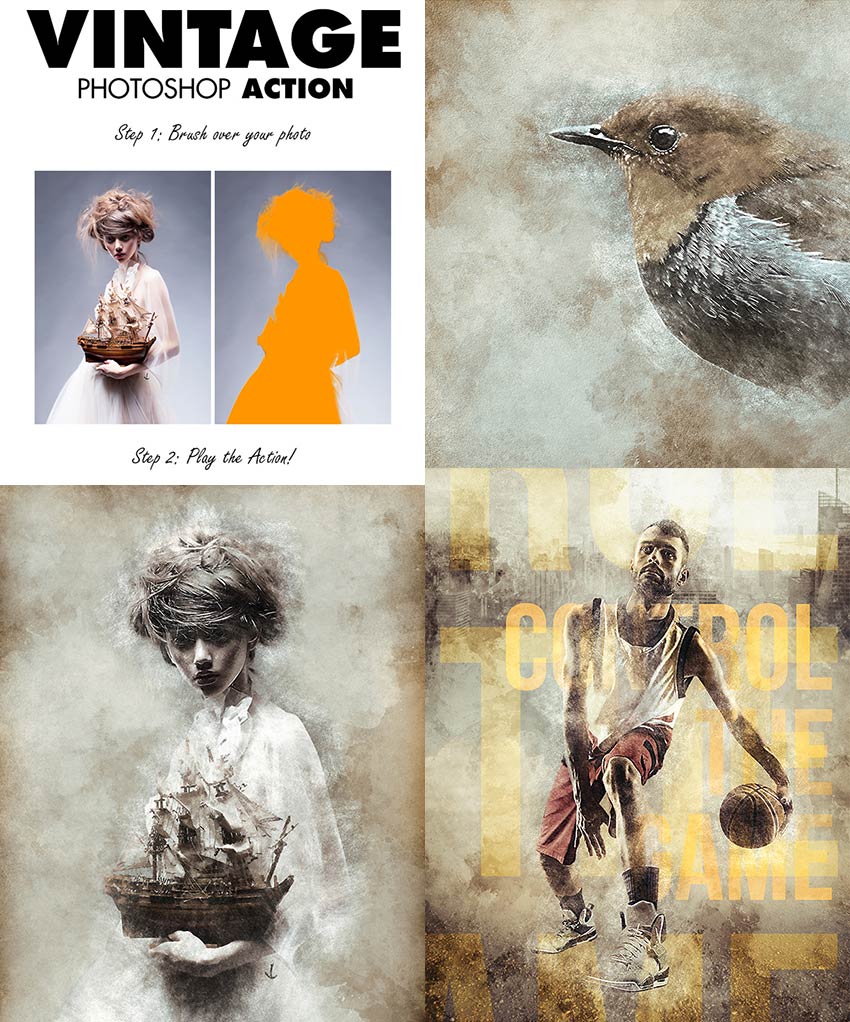
How does the Pixelated Photoshop Action work? You simply brush over your photo where you want to pixelate and play the action!

Pixelated Photoshop Action

Generative Geometric Art Photoshop Action

This is a generative art Photoshop action. Every time you run
the action, a unique result will be produced, even if you don’t change
anything. How cool is that?

Generative Geometric Art Photoshop Action

50 Brick Mosaics Actions

Turn any photo into a fun brick mosaic! These actions will
pixelate your photo and add a brick texture to it in many different
styles.

50 Brick Mosaics Actions

You may also like:

How to Create a Mosaic Photo Effect Action in Photoshop

Post pobrano z: How to Create a Mosaic Photo Effect Action in Photoshop

Final product image
What You’ll Be Creating

In this tutorial, you will learn how to create a Photoshop action to add mosaic photo effects to your photos. I will explain everything in so much detail that everyone can create it, even those who have just opened Photoshop for the first time.

For more mosaic photo effects and Photoshop actions, don’t forget to check our list of five Photoshop actions and photo filters and effects in this article.

What You’ll Need

To recreate the design above, you will need the following resources:

1. How to Start Creating an Action

Step 1

First, open the photo that you want to work with. To open your photo, go to File > Open, choose your photo, and click Open. Now, before we get started, just check a couple of things:

  1. Your photo should be in RGB Color mode, 8 Bits/Channel. To check this, go to Image > Mode.
  2. For best results, your photo size should be 2000–3500 px wide/high. To check this, go to Image > Image Size.
  3. Your photo should be the Background layer. If it is not, go to Layer > New > Background from Layer.
Checking image size and mode

Step 2

Now go to Window > Actions, and in the Actions panel, click on the menu icon in the top right-hand corner, choose New Set to create a new set, and name it Mosaic. Then, click on the same menu icon again, choose New Action to create a new action, and name it Mosaic as shown below:

Creating new action

2. How to Create a Mosaic Effect

Step 1

In this section, we are going to create the mosaic effect. Press Control-J on your keyboard to duplicate the Background layer. Then, go to Filter > Filter Gallery > Texture > Stained Glass and set the Cell Size to 7, Border Thickness to 3, and Light Intensity to 0.

Adding stained glass filter

Step 2

Now name this layer Mosaic.

Naming layer

3. How to Add Textures

Step 1

Go to File > Place Embedded, select the texture from the first texture link, and click Place. Then, set the Width and Height of the texture to 22.15% and the Angle to 90°, and name this layer Texture_1.

Adding texture

Step 2

Now change the Blending Mode of this layer to Soft Light.

Changing blending mode

Step 3

Select the Mosaic layer, go to File > Place Embedded, select the texture from the second texture link, and click Place. Then, set the Width and Height of the texture to 51.75%, and name this layer Texture_2.

Adding texture

Step 4

Now change the Blending Mode of this layer to Soft Light.

Changing blending mode

4. How to Make the Final Adjustments

Step 1

In this section, we are going to make some final adjustments. Hide the Texture_1 and Texture_2 layers. Then, select the Mosaic layer, press Control-Alt-Shift-E on your keyboard to make a screenshot, and press Control-Shift-U to desaturate this layer.

Making screenshot

Step 2

Now go to Filter > Stylize > Emboss and set the Angle to 90°, Height to 3 px, and Amount to 100%.

Adding emboss filter

Step 3

Change the Blending Mode of this layer to Hard Light and name this layer Emboss Effect. Then, drag this layer to the top of the layers in the Layers panel.

Changing blending mode

Step 4

Now, select the Background layer and press Control-J on your keyboard to duplicate it. Then, drag this layer to the top of the layers in the Layers panel. After that, press Control-Shift-U to desaturate this layer.

Duplicating and desaturating layer

Step 5

Go to Filter > Other > High Pass and set the Radius to 10 px.

Adding high pass filter

Step 6

Change the Blending Mode of this layer to Hard Light and set the Opacity to 80%. Then, name this layer Reveal Details.

Changing blending mode and opacity

Step 7

Show the Texture_1 and Texture_2 layers. Then, press D on your keyboard to reset the swatches. After that, go to Layer > New Adjustment Layer > Gradient Map to create a new gradient map adjustment layer and name it Overall Contrast.

Creating new gradient map adjustment layer

Step 8

Now change the Blending Mode to Soft Light and set the Opacity to 41%.

Changing blending mode and opacity

Step 9

Go to Layer > New Adjustment Layer > Vibrance to create a new vibrance adjustment layer and name it Overall Vibrance/Saturation.

Creating new vibrance adjustment layer

Step 10

Now Double-click on this layer thumbnail and, in the Properties panel, set the Vibrance to +45 and Saturation to +23. Click on Stop, and you’re done!

Adjusting vibrance and saturation

You Made It!

Congratulations, you have succeeded! Here is our final result:

Final result

5 Mosaic Photoshop Actions and Photo Filters and Effects

Want more mosaic
Photoshop effects? Here is our quick list of five cool mosaic photo effects and Photoshop
actions you may want to try:

Pixelator – 14 Triangular Mosaic Pixel Effects

Skip the default Photoshop Mosaic filter and pixelate beautifully
with this huge set of 100+ actions. These actions let you create
stunning pixel patterns in 14 different styles. There are even three border
styles of varying strengths and ten photo styles that you can combine to
create hundreds of variations.

Pixelator  14 Triangular Mosaic Pixel Effects

Doodle Mosaic Art Photoshop Action

Doodle Mosaic Art Photoshop Action transforms
your photos into hand-drawn doodle sketch artworks in just a few clicks.
The action works best with portraits, figures, models, and inanimate
objects. The final composition is fully layered and provides lots of
effects and customization. The action also contains five paper textures and
creates ten color presets to apply with a single click. It’s super easy
to use and will save you hours of work.

Doodle Mosaic Art Photoshop Action

Pixelated Photoshop Action

How does the Pixelated Photoshop Action work? You simply brush over your photo where you want to pixelate and play the action!

Pixelated Photoshop Action

Generative Geometric Art Photoshop Action

This is a generative art Photoshop action. Every time you run
the action, a unique result will be produced, even if you don’t change
anything. How cool is that?

Generative Geometric Art Photoshop Action

50 Brick Mosaics Actions

Turn any photo into a fun brick mosaic! These actions will
pixelate your photo and add a brick texture to it in many different
styles.

50 Brick Mosaics Actions

You may also like:

How to Create a Mosaic Photo Effect Action in Photoshop

Post pobrano z: How to Create a Mosaic Photo Effect Action in Photoshop

Final product image
What You’ll Be Creating

In this tutorial, you will learn how to create a Photoshop action to add mosaic photo effects to your photos. I will explain everything in so much detail that everyone can create it, even those who have just opened Photoshop for the first time.

For more mosaic photo effects and Photoshop actions, don’t forget to check our list of five Photoshop actions and photo filters and effects in this article.

What You’ll Need

To recreate the design above, you will need the following resources:

1. How to Start Creating an Action

Step 1

First, open the photo that you want to work with. To open your photo, go to File > Open, choose your photo, and click Open. Now, before we get started, just check a couple of things:

  1. Your photo should be in RGB Color mode, 8 Bits/Channel. To check this, go to Image > Mode.
  2. For best results, your photo size should be 2000–3500 px wide/high. To check this, go to Image > Image Size.
  3. Your photo should be the Background layer. If it is not, go to Layer > New > Background from Layer.
Checking image size and mode

Step 2

Now go to Window > Actions, and in the Actions panel, click on the menu icon in the top right-hand corner, choose New Set to create a new set, and name it Mosaic. Then, click on the same menu icon again, choose New Action to create a new action, and name it Mosaic as shown below:

Creating new action

2. How to Create a Mosaic Effect

Step 1

In this section, we are going to create the mosaic effect. Press Control-J on your keyboard to duplicate the Background layer. Then, go to Filter > Filter Gallery > Texture > Stained Glass and set the Cell Size to 7, Border Thickness to 3, and Light Intensity to 0.

Adding stained glass filter

Step 2

Now name this layer Mosaic.

Naming layer

3. How to Add Textures

Step 1

Go to File > Place Embedded, select the texture from the first texture link, and click Place. Then, set the Width and Height of the texture to 22.15% and the Angle to 90°, and name this layer Texture_1.

Adding texture

Step 2

Now change the Blending Mode of this layer to Soft Light.

Changing blending mode

Step 3

Select the Mosaic layer, go to File > Place Embedded, select the texture from the second texture link, and click Place. Then, set the Width and Height of the texture to 51.75%, and name this layer Texture_2.

Adding texture

Step 4

Now change the Blending Mode of this layer to Soft Light.

Changing blending mode

4. How to Make the Final Adjustments

Step 1

In this section, we are going to make some final adjustments. Hide the Texture_1 and Texture_2 layers. Then, select the Mosaic layer, press Control-Alt-Shift-E on your keyboard to make a screenshot, and press Control-Shift-U to desaturate this layer.

Making screenshot

Step 2

Now go to Filter > Stylize > Emboss and set the Angle to 90°, Height to 3 px, and Amount to 100%.

Adding emboss filter

Step 3

Change the Blending Mode of this layer to Hard Light and name this layer Emboss Effect. Then, drag this layer to the top of the layers in the Layers panel.

Changing blending mode

Step 4

Now, select the Background layer and press Control-J on your keyboard to duplicate it. Then, drag this layer to the top of the layers in the Layers panel. After that, press Control-Shift-U to desaturate this layer.

Duplicating and desaturating layer

Step 5

Go to Filter > Other > High Pass and set the Radius to 10 px.

Adding high pass filter

Step 6

Change the Blending Mode of this layer to Hard Light and set the Opacity to 80%. Then, name this layer Reveal Details.

Changing blending mode and opacity

Step 7

Show the Texture_1 and Texture_2 layers. Then, press D on your keyboard to reset the swatches. After that, go to Layer > New Adjustment Layer > Gradient Map to create a new gradient map adjustment layer and name it Overall Contrast.

Creating new gradient map adjustment layer

Step 8

Now change the Blending Mode to Soft Light and set the Opacity to 41%.

Changing blending mode and opacity

Step 9

Go to Layer > New Adjustment Layer > Vibrance to create a new vibrance adjustment layer and name it Overall Vibrance/Saturation.

Creating new vibrance adjustment layer

Step 10

Now Double-click on this layer thumbnail and, in the Properties panel, set the Vibrance to +45 and Saturation to +23. Click on Stop, and you’re done!

Adjusting vibrance and saturation

You Made It!

Congratulations, you have succeeded! Here is our final result:

Final result

5 Mosaic Photoshop Actions and Photo Filters and Effects

Want more mosaic
Photoshop effects? Here is our quick list of five cool mosaic photo effects and Photoshop
actions you may want to try:

Pixelator – 14 Triangular Mosaic Pixel Effects

Skip the default Photoshop Mosaic filter and pixelate beautifully
with this huge set of 100+ actions. These actions let you create
stunning pixel patterns in 14 different styles. There are even three border
styles of varying strengths and ten photo styles that you can combine to
create hundreds of variations.

Pixelator  14 Triangular Mosaic Pixel Effects

Doodle Mosaic Art Photoshop Action

Doodle Mosaic Art Photoshop Action transforms
your photos into hand-drawn doodle sketch artworks in just a few clicks.
The action works best with portraits, figures, models, and inanimate
objects. The final composition is fully layered and provides lots of
effects and customization. The action also contains five paper textures and
creates ten color presets to apply with a single click. It’s super easy
to use and will save you hours of work.

Doodle Mosaic Art Photoshop Action

Pixelated Photoshop Action

How does the Pixelated Photoshop Action work? You simply brush over your photo where you want to pixelate and play the action!

Pixelated Photoshop Action

Generative Geometric Art Photoshop Action

This is a generative art Photoshop action. Every time you run
the action, a unique result will be produced, even if you don’t change
anything. How cool is that?

Generative Geometric Art Photoshop Action

50 Brick Mosaics Actions

Turn any photo into a fun brick mosaic! These actions will
pixelate your photo and add a brick texture to it in many different
styles.

50 Brick Mosaics Actions

You may also like:

How to Create a Mosaic Photo Effect Action in Photoshop

Post pobrano z: How to Create a Mosaic Photo Effect Action in Photoshop

Final product image
What You’ll Be Creating

In this tutorial, you will learn how to create a Photoshop action to add mosaic photo effects to your photos. I will explain everything in so much detail that everyone can create it, even those who have just opened Photoshop for the first time.

For more mosaic photo effects and Photoshop actions, don’t forget to check our list of five Photoshop actions and photo filters and effects in this article.

What You’ll Need

To recreate the design above, you will need the following resources:

1. How to Start Creating an Action

Step 1

First, open the photo that you want to work with. To open your photo, go to File > Open, choose your photo, and click Open. Now, before we get started, just check a couple of things:

  1. Your photo should be in RGB Color mode, 8 Bits/Channel. To check this, go to Image > Mode.
  2. For best results, your photo size should be 2000–3500 px wide/high. To check this, go to Image > Image Size.
  3. Your photo should be the Background layer. If it is not, go to Layer > New > Background from Layer.
Checking image size and mode

Step 2

Now go to Window > Actions, and in the Actions panel, click on the menu icon in the top right-hand corner, choose New Set to create a new set, and name it Mosaic. Then, click on the same menu icon again, choose New Action to create a new action, and name it Mosaic as shown below:

Creating new action

2. How to Create a Mosaic Effect

Step 1

In this section, we are going to create the mosaic effect. Press Control-J on your keyboard to duplicate the Background layer. Then, go to Filter > Filter Gallery > Texture > Stained Glass and set the Cell Size to 7, Border Thickness to 3, and Light Intensity to 0.

Adding stained glass filter

Step 2

Now name this layer Mosaic.

Naming layer

3. How to Add Textures

Step 1

Go to File > Place Embedded, select the texture from the first texture link, and click Place. Then, set the Width and Height of the texture to 22.15% and the Angle to 90°, and name this layer Texture_1.

Adding texture

Step 2

Now change the Blending Mode of this layer to Soft Light.

Changing blending mode

Step 3

Select the Mosaic layer, go to File > Place Embedded, select the texture from the second texture link, and click Place. Then, set the Width and Height of the texture to 51.75%, and name this layer Texture_2.

Adding texture

Step 4

Now change the Blending Mode of this layer to Soft Light.

Changing blending mode

4. How to Make the Final Adjustments

Step 1

In this section, we are going to make some final adjustments. Hide the Texture_1 and Texture_2 layers. Then, select the Mosaic layer, press Control-Alt-Shift-E on your keyboard to make a screenshot, and press Control-Shift-U to desaturate this layer.

Making screenshot

Step 2

Now go to Filter > Stylize > Emboss and set the Angle to 90°, Height to 3 px, and Amount to 100%.

Adding emboss filter

Step 3

Change the Blending Mode of this layer to Hard Light and name this layer Emboss Effect. Then, drag this layer to the top of the layers in the Layers panel.

Changing blending mode

Step 4

Now, select the Background layer and press Control-J on your keyboard to duplicate it. Then, drag this layer to the top of the layers in the Layers panel. After that, press Control-Shift-U to desaturate this layer.

Duplicating and desaturating layer

Step 5

Go to Filter > Other > High Pass and set the Radius to 10 px.

Adding high pass filter

Step 6

Change the Blending Mode of this layer to Hard Light and set the Opacity to 80%. Then, name this layer Reveal Details.

Changing blending mode and opacity

Step 7

Show the Texture_1 and Texture_2 layers. Then, press D on your keyboard to reset the swatches. After that, go to Layer > New Adjustment Layer > Gradient Map to create a new gradient map adjustment layer and name it Overall Contrast.

Creating new gradient map adjustment layer

Step 8

Now change the Blending Mode to Soft Light and set the Opacity to 41%.

Changing blending mode and opacity

Step 9

Go to Layer > New Adjustment Layer > Vibrance to create a new vibrance adjustment layer and name it Overall Vibrance/Saturation.

Creating new vibrance adjustment layer

Step 10

Now Double-click on this layer thumbnail and, in the Properties panel, set the Vibrance to +45 and Saturation to +23. Click on Stop, and you’re done!

Adjusting vibrance and saturation

You Made It!

Congratulations, you have succeeded! Here is our final result:

Final result

5 Mosaic Photoshop Actions and Photo Filters and Effects

Want more mosaic
Photoshop effects? Here is our quick list of five cool mosaic photo effects and Photoshop
actions you may want to try:

Pixelator – 14 Triangular Mosaic Pixel Effects

Skip the default Photoshop Mosaic filter and pixelate beautifully
with this huge set of 100+ actions. These actions let you create
stunning pixel patterns in 14 different styles. There are even three border
styles of varying strengths and ten photo styles that you can combine to
create hundreds of variations.

Pixelator  14 Triangular Mosaic Pixel Effects

Doodle Mosaic Art Photoshop Action

Doodle Mosaic Art Photoshop Action transforms
your photos into hand-drawn doodle sketch artworks in just a few clicks.
The action works best with portraits, figures, models, and inanimate
objects. The final composition is fully layered and provides lots of
effects and customization. The action also contains five paper textures and
creates ten color presets to apply with a single click. It’s super easy
to use and will save you hours of work.

Doodle Mosaic Art Photoshop Action

Pixelated Photoshop Action

How does the Pixelated Photoshop Action work? You simply brush over your photo where you want to pixelate and play the action!

Pixelated Photoshop Action

Generative Geometric Art Photoshop Action

This is a generative art Photoshop action. Every time you run
the action, a unique result will be produced, even if you don’t change
anything. How cool is that?

Generative Geometric Art Photoshop Action

50 Brick Mosaics Actions

Turn any photo into a fun brick mosaic! These actions will
pixelate your photo and add a brick texture to it in many different
styles.

50 Brick Mosaics Actions

You may also like:

How to Create a Mosaic Photo Effect Action in Photoshop

Post pobrano z: How to Create a Mosaic Photo Effect Action in Photoshop

Final product image
What You’ll Be Creating

In this tutorial, you will learn how to create a Photoshop action to add mosaic photo effects to your photos. I will explain everything in so much detail that everyone can create it, even those who have just opened Photoshop for the first time.

For more mosaic photo effects and Photoshop actions, don’t forget to check our list of five Photoshop actions and photo filters and effects in this article.

What You’ll Need

To recreate the design above, you will need the following resources:

1. How to Start Creating an Action

Step 1

First, open the photo that you want to work with. To open your photo, go to File > Open, choose your photo, and click Open. Now, before we get started, just check a couple of things:

  1. Your photo should be in RGB Color mode, 8 Bits/Channel. To check this, go to Image > Mode.
  2. For best results, your photo size should be 2000–3500 px wide/high. To check this, go to Image > Image Size.
  3. Your photo should be the Background layer. If it is not, go to Layer > New > Background from Layer.
Checking image size and mode

Step 2

Now go to Window > Actions, and in the Actions panel, click on the menu icon in the top right-hand corner, choose New Set to create a new set, and name it Mosaic. Then, click on the same menu icon again, choose New Action to create a new action, and name it Mosaic as shown below:

Creating new action

2. How to Create a Mosaic Effect

Step 1

In this section, we are going to create the mosaic effect. Press Control-J on your keyboard to duplicate the Background layer. Then, go to Filter > Filter Gallery > Texture > Stained Glass and set the Cell Size to 7, Border Thickness to 3, and Light Intensity to 0.

Adding stained glass filter

Step 2

Now name this layer Mosaic.

Naming layer

3. How to Add Textures

Step 1

Go to File > Place Embedded, select the texture from the first texture link, and click Place. Then, set the Width and Height of the texture to 22.15% and the Angle to 90°, and name this layer Texture_1.

Adding texture

Step 2

Now change the Blending Mode of this layer to Soft Light.

Changing blending mode

Step 3

Select the Mosaic layer, go to File > Place Embedded, select the texture from the second texture link, and click Place. Then, set the Width and Height of the texture to 51.75%, and name this layer Texture_2.

Adding texture

Step 4

Now change the Blending Mode of this layer to Soft Light.

Changing blending mode

4. How to Make the Final Adjustments

Step 1

In this section, we are going to make some final adjustments. Hide the Texture_1 and Texture_2 layers. Then, select the Mosaic layer, press Control-Alt-Shift-E on your keyboard to make a screenshot, and press Control-Shift-U to desaturate this layer.

Making screenshot

Step 2

Now go to Filter > Stylize > Emboss and set the Angle to 90°, Height to 3 px, and Amount to 100%.

Adding emboss filter

Step 3

Change the Blending Mode of this layer to Hard Light and name this layer Emboss Effect. Then, drag this layer to the top of the layers in the Layers panel.

Changing blending mode

Step 4

Now, select the Background layer and press Control-J on your keyboard to duplicate it. Then, drag this layer to the top of the layers in the Layers panel. After that, press Control-Shift-U to desaturate this layer.

Duplicating and desaturating layer

Step 5

Go to Filter > Other > High Pass and set the Radius to 10 px.

Adding high pass filter

Step 6

Change the Blending Mode of this layer to Hard Light and set the Opacity to 80%. Then, name this layer Reveal Details.

Changing blending mode and opacity

Step 7

Show the Texture_1 and Texture_2 layers. Then, press D on your keyboard to reset the swatches. After that, go to Layer > New Adjustment Layer > Gradient Map to create a new gradient map adjustment layer and name it Overall Contrast.

Creating new gradient map adjustment layer

Step 8

Now change the Blending Mode to Soft Light and set the Opacity to 41%.

Changing blending mode and opacity

Step 9

Go to Layer > New Adjustment Layer > Vibrance to create a new vibrance adjustment layer and name it Overall Vibrance/Saturation.

Creating new vibrance adjustment layer

Step 10

Now Double-click on this layer thumbnail and, in the Properties panel, set the Vibrance to +45 and Saturation to +23. Click on Stop, and you’re done!

Adjusting vibrance and saturation

You Made It!

Congratulations, you have succeeded! Here is our final result:

Final result

5 Mosaic Photoshop Actions and Photo Filters and Effects

Want more mosaic
Photoshop effects? Here is our quick list of five cool mosaic photo effects and Photoshop
actions you may want to try:

Pixelator – 14 Triangular Mosaic Pixel Effects

Skip the default Photoshop Mosaic filter and pixelate beautifully
with this huge set of 100+ actions. These actions let you create
stunning pixel patterns in 14 different styles. There are even three border
styles of varying strengths and ten photo styles that you can combine to
create hundreds of variations.

Pixelator  14 Triangular Mosaic Pixel Effects

Doodle Mosaic Art Photoshop Action

Doodle Mosaic Art Photoshop Action transforms
your photos into hand-drawn doodle sketch artworks in just a few clicks.
The action works best with portraits, figures, models, and inanimate
objects. The final composition is fully layered and provides lots of
effects and customization. The action also contains five paper textures and
creates ten color presets to apply with a single click. It’s super easy
to use and will save you hours of work.

Doodle Mosaic Art Photoshop Action

Pixelated Photoshop Action

How does the Pixelated Photoshop Action work? You simply brush over your photo where you want to pixelate and play the action!

Pixelated Photoshop Action

Generative Geometric Art Photoshop Action

This is a generative art Photoshop action. Every time you run
the action, a unique result will be produced, even if you don’t change
anything. How cool is that?

Generative Geometric Art Photoshop Action

50 Brick Mosaics Actions

Turn any photo into a fun brick mosaic! These actions will
pixelate your photo and add a brick texture to it in many different
styles.

50 Brick Mosaics Actions

You may also like:

45 Best Photoshop Actions With Creative Photo Effects

Post pobrano z: 45 Best Photoshop Actions With Creative Photo Effects

Creative Photoshop actions can achieve very high-quality photo effects without it having to take you days, hours, or your whole work week creating them from scratch. In this article, I’ll show you the 45 best Photoshop actions with creative photo effects.

In this article, we showcase a selection of our best photo effect Photoshop actions from Envato Market (updated weekly), with a huge variety of commercial-quality, creative styles to work with, that will save you a ton of time.

 PSD Photo Effect Actions
Best Selling PSD Photo Effect Actions – available for sale on Envato Market (GraphicRiver)

These creative photo effects are made for designers and digital artists that work in Adobe Photoshop. They can help you transform your photos and add a number of innovative effects to them, taking your flyers, posters, or photo manipulations to the next level!

Each downloadable PSD action is easy to work with. Get results with the push of a button. Readily direct how each action works with your source photos. Most of these actions work with brushes that you can apply and control. You can then further customize the effects from the resulting organized layers to get exactly the look you’re aiming for.  

Jump into this collection, and learn more about the time-saving, professional Photoshop Actions that can transform your photos with professional creative effects!

Creative Photoshop Actions & Photo Effects on Envato Elements

You can find hundreds of amazing Photoshop actions on Envato Elements, with a compelling offer: download as many as you want for a single monthly fee. 

For example, check out this amazing Sandstorm Photoshop Action. It’s so easy to create this mind-blowing effect—just brush onto the areas of your photo that you would like to transform, hit the play button, and sit back and watch it happen!

Sandstorm Photoshop Action on Envato Elements

Here are 15 more great photo effect actions to add to your essential toolkit.

Flex Photoshop Action

Flex your insane power with this awesome Photoshop action. Created to emulate a high-energy abstract artwork, this action is super easy to use. Simply fill in your subject with color and play the action. It’s really that simple!

Try it on your favorite photos or bring life to wildlife photography.

Flex Photoshop Action

80 Double Exposure Photoshop Actions

Or show off your love for this trendy double exposure photo effect. Featured in this action pack are 80 incredible Photoshop actions that help you merge your favorite photos together. Create a professional effect in seconds with this amazing set.

80 Double Exposure Photoshop Actions

Elemental Photoshop Action

Show how fierce and fiery you are with this wickedly awesome elemental Photoshop action featuring several colorful elements to choose from. Simply brush over the area of the photo where you would like the effect to occur, and press play!

Explore the different color options to open the door to new photo effect possibilities.

Elemental Photoshop Action

Dimension Photoshop Action

Explore different dimensions with this super creative Photoshop action. Designed to make it look as if you’re shattering right through to another dimension, this pack features eight different glass patterns that can be scaled up or down depending on your personal preferences.

Easily control which part of your subject appears in front of the glass wall, and choose from ten color options for additional looks.

Dimension Photoshop Action

Architekt Photoshop Action

Love geometric design? How about incorporating it into your next photo effect? Give this insane Architekt action a try to transform your photos into a highly detailed work of art. As with many actions online, the process to achieve results like the one shown below is simple.

Simply fill the subject with color and press play on the Actions panel. Watch your photo magically shift into an explosive abstract design with just a few clicks!

Architekt Photoshop Action

Da Vinci Sketch Photoshop Action

Make legendary works of art just like the masters. This next Photoshop action is inspired by the great Renaissance man himself, Leondardo Da Vinci.

It helps you effectively turn any picture into a hand-drawn sketch while adding extra cool details like notes and scribbles. Customize it with your signature for a personal touch!

Da Vinci Sketch Photoshop Action

Vector Painting Photoshop Action

Want a fast way to turn your photos into stunning vector art? This Photoshop action will do just the trick. It only works with Photoshop CS6 and the latest versions of Creative Cloud, so make sure you have the recent updates to use this action.

It’s super easy to use and works with all languages. Check it out!

Vector Painting Photoshop Action

Tesla Photoshop Action

Harness the power of electricity! This Tesla Photoshop action will make any science fan proud. It creates an electrifying super-charged effect that can be applied to any part of your photo.

Outline your limbs with powerful energy or use the action to produce incredible details for photo manipulations. The possibilities or limitless!

Tesla Photoshop Action

Animated Meteor Shower Photoshop Action

Photoshop actions aren’t just for static images! You can also create mind blowing animations like the one featured in this download. Inspired by space, this action creates an animated meteor shower for banners, social media posts and more.

Animated Meteor Shower Photoshop Action

Hologram Photoshop Action

Who knew you needed a hologram kitty? This Photoshop action is the best way to surprise your friends and fans with exciting, fun visuals.

Just open photos of yourself, friends or pets into Photoshop and brush over the area where you would like the main effect to occur. Then press play and sit back to enjoy the result.

Hologram Photoshop Action

Water Photoshop Action

Or splash around with this super cool water-inspired Photoshop action. Created to turn you into a powerful underwater entity, this creative photo effect is definitely one you’ll want to try.

Included in this package are three different water actions, each with a unique set of splash graphics. Get a realistic underwater effect over your subject by just hiding a few simple layers!

Water Photoshop Action

Forge Photoshop Action

Ready to creative explosive photos with amazing, high-quality details? Forge your own works of art with this incredible Photoshop action.

This action has been tested to work on a multitude of Photoshop versions, so rest easy knowing that you can create this photo effect on your current version. Enjoy access to a quick video tutorial to see this action at work!

Forge Photoshop Action

Plasma Photoshop Action

Create gorgeous, luminous lines and incredible lighting effects with this awesome Photoshop action. A photo effect that transforms your photos into stylish, abstract designs, this package includes an easy-to-use action to create an energetic design with a few simple clicks.

Download this package to get access to helpful documents and an additional video to see the step-by-step process of this plasma evolution.

Plasma Photoshop Action

Haunted Photoshop Actions

Want to creep out your friends the fun way? Give this ghoulish Photoshop action a try. Created to simulate the haunting look of horror films, this action will transform you or a friend into a photographed ghost.

Download this action for a professional visual effect that works non-destructively to alter your photos.

Haunted Photoshop Actions

If you prefer to buy actions one at a time instead of getting unlimited access, check out the selection from Envato Market below.

Creative Photo Effects Photoshop Actions

Here are 30 brilliant photo effect PSD actions that you can purchase from Envato Market for just $6 each. A number of these are designed by the prolific Power Elite Author SevenStyles and Elite Author Eugene-design, as well as authors Profactions and BlackNull.

There are a whole lot of creative photo effects here that will transform your photos, such as those with high energy and glowing sparks, fractures and explosions, and paint splatters and charcoal.

Whether you want a style that feels hand-crafted or bleeds with digital detail, make the next work you create stand out with one of these vivid Photoshop photo effect actions.

Hand Drawn – Photoshop Effect Action

With this Photoshop action, you can create a professional hand-drawn photo effect in no time!

Just brush over the areas of your photo that you want to have the hand-drawn detail applied to, play the action, and it will run in just a couple minutes. Inside the brushed area will be detailed, and outside the brushed area will have a more sketchy edge style, which blends in nicely.

After each action has played, it creates a well-organized layer structure that’s easy to work with and that can be customized further. Like the rest of the SevenStyles PSD actions, it has been tested on hundreds of photos in Photoshop CS3 through CC versions.

Hand Drawn PSD Photo Effect Action

Watercolor – Effect Photoshop Action

Apply this watercolor Photoshop action to your photos to get an artistic effect. It’s quick to apply this expressive style to your photos, and the result allows for further customization. 

The resulting layers can be further adjusted with full creative control. Be sure to apply this to high-resolution photos, in the range of 1,500 pixels to 3,500 pixels for best results, so you can really see all the rich details.

Watercolor - Effect PSD Photo Action

Energy – Photoshop Photo Action

This is the best Photoshop photo action for energy effects, and it’s very popular, with great customer ratings. The results are commercial quality. It’s made for both beginners and experts and is quick to work with. This PSD action will save you a ton of time. It also includes 50 fractal brushes at 2,500 pixel high resolution.

Energy PSD Photo Effect Action

Legendary – Creative Photoshop Action

Control your light source with this masterful PSD photo effect action. You can apply amazing light effects in Photoshop that connect with your subject, draw the viewer’s eye to your focal point, and add drama and impact to your photos. In addition, you can choose the light color so it fuses with your source photo. There are ten color options to work with.

Legendary Photo Effect Creative Photoshop Action

Smoke – PSD Photo Effect Action

Smoke is an effect that adds mystery to your photo manipulations. With this action, it’s quick to take your source photo from plain to magically floating within just a few minutes in Photoshop—creating awesome smoke effect results. Make your photos appear as mystical apparitions. 

Smoke Photoshop Photo Effect Action

FireStorm – Effect Photoshop Action

Light your photos on fire with this intense and highly detailed Photoshop firestorm effect action. Use it to tell a story with your photos, like a shot of a dancer now burning up the stage or the rose of a love affair combusting like a forest fire.

You can control four directions of blazing flames with this action. Every time you run it, you get a fresh, completely unique result. The more brushed angles (left, right, up, down) you apply this action to, the more flames you’ll generate, until your photo is blazing like an inferno.

FireStorm Photo Effect Photoshop Action

Fracture – Photoshop Photo Action

Energy is unpredictable—it travels through our bodies as we move, contorting one way, while opposite forces counterbalance our actions, affecting the space we occupy. Capture that feeling with this Fracture photo effect action.

Use it to create a complex, compelling design from your photo fast! Just brush over your photo, run the action, and the resulting Photoshop file is set up with organized, color coded, properly named layers to further customize as you see fit.

Fracture Photoshop Photo Effect Action

PolyEx – Photoshop Photo Effect Action

This Photoshop photo effect can take your source photos and add a trendy style of triangles and polygonal mesh to your work, quickly transforming it into an energetic set of shapes. Apply a poly style to your photos with ease. It’s great for adding that bit of flair that makes your designs leap out as distinctive.

PolyEx PSD Photo Effect Action

TechnicalArt 2 Photoshop Action

Get over 60 high quality watercolor brushes and so much more in this awesome download. Very easy to use, this Photoshop action is compatible with versions CS6 and above. Create amazing, professional sketches your fans will love. Check it out!

TechnicalArt 2 Photoshop Action

Dispersion Photoshop Action

Dispersion effects are perfect for adding wow to your overall photography. So create a unique dispersion effect with this Photoshop action. Grab the photo you need then paint over the area that you want.

Play the action before choosing the images you want to disperse. This look works especially well with natural themes featuring leaves and insects.

Dispersion with Real Images Photoshop Action

Tech Sketch Photoshop Action

Save valuable hours making detailed sketches with this tech sketch Photoshop action. This action makes a professional result in almost no time! Included are 10 special color effects as well as all the files you need to get started. Add it to your collection!

Tech Sketch Photoshop Action

Charcoal Effect – Photoshop Photo Action

Charcoal is a creative medium, and it’s one of the core tools used early on in art schools, which allows you to quickly capture an image with raw gestural movements. It’s what you see famous painters having used to draft initial sketches of their defining works.

There’s a history and tradition attached to this medium. You can capture that quick, sketchy, artistic feeling in your digital work with this photo effect action. There are five unique charcoal styles and high-resolution brushes included in this download, allowing you to create artistic charcoal designs from your photos with ease!

Charcoal Effect PSD Photo Action

Architecture Sketch Art Photoshop Action

Need a creative corporate solution with just a few clicks? This architecture sketch action will turn your corporate photography into stunning traditional drawings.

After isolating the area you would like to apply the effect, just run the action. In just a few seconds, you’ll get a wicked result you can finely tune with more details and texture.

Architecture Sketch Art Photoshop Action

Advanced Double Exposure – Photoshop Action

Recreate the famous double exposure effect just like your favorite creative! Make a legendary effect that looks wonderful on movie posters and print material!

This Photoshop action sets up your photo with lots of customization options including 18 color presets you can mix together. Experiment to see what looks best for your photos!

Advanced Double Exposure - Photoshop Action

Explosion – Photo Effect PSD Action

Give your photos the power and disruptive strength of an explosion effect. With just a few clicks, you can unleash a driving force in your work. You can control where the explosion appears on your Photoshop canvas, brushing where it will show in your photos, so you can direct the final effect on the viewer.

Explosion Photo Effect Photoshop Action

Tekniq – Creative Photoshop Action

If you’re looking for a quick way to add a compelling mix of sketchy linework with colorful artistic brushes of color, then this effect is a must add to your digital toolkit. Tekniq is a unique PSD photo effect action that allows you to create an abstract digital art piece from your photo with ease.

Tekniq Creative Photo Effect Photoshop Action

Shatter2 – Photoshop Action Photo Effect

Breaking up your photo in a shatter of creativity is a unique effect that lends cinematic action to your work. Explode your designs into multiple pieces of triangular debris. This Shatter PSD photo effect action is quick to work with, easy to control, and will save you tons of Photoshop work, while giving you an inspiring result!

Shatter2 PSD Action Photo Effect

Newspaper Art – Stylish Photoshop Action

This Newspaper Art PSD action turns your photos into a paper-style composition of words, print clippings, and bits of newspaper. It looks like mixed media with a hand-crafted, printed style. If you want a unique work with a creative result that doesn’t readily look made in Photoshop, grab this photo effect action.

Newspaper Art Stylish Photoshop Action

3D Dispersion – Photoshop Photo Effect Action

Add a three-dimensional effect of flying particles to your work. Achieve simple, amazing, and quick results in Photoshop! Take your photo and apply a brush over the area you want to disperse, then play the action, and control the direction of the effect.

With this dispersion PSD photo effect action, you can make it look as if someone is moving so fast that they broke through to another dimension and are leaving a trail of themselves in their wake.

3D Dispersion PSD Photo Effect Action

Architectum – Artistic PS Photo Action

This is a beautiful action with easy-to-control Photoshop effects that transform your photos into a classically painted artwork style—one that has a colored focal point and sketchy architectural quality lines throughout the rest of the image. 

In addition to the main PSD action, there are ten color present options, lots of graphic elements, and completely editable layers. It’s easy to run the action and customize the results!

Architectum Artistic Effect PS Photo Action

Sparkler – Photoshop Action Photo Effect

Transform your photos into a compelling night shot effect with a poignant area of glowing colored sparkles. Add a striking element of text (or glowing wonder) to your posters, flyers, or next digital work.

With this Photoshop action you can control the sparkler color, the glow of light, and focal area of the ground glow. Easily paint the area you want illuminated with this glowing sparkler effect. Then save the results with a transparent background and drag-and-drop results into your designs.

Sparkler Photoshop Action Photo Effect

Renegade – Glowing Effect Photoshop Action

Make a professional photo manipulation with this Renegade Photoshop Action. It has a number of overlapping effects that give energetic shapes and lines of glow overlaid on creative elements.

Instantly turn a photo into a work of art. There are lots of customization options with a ton of tips and tricks delivered by SevenStyles in this hour-long Photo Effect tutorial. Discover just how flexible it is to work with this photo effect action.

Renegade Glowing Effect PSD Photo Action

Grunge 2 – Grity Style Photo Effect Action

Add a darker creative theme to your work with Grunge 2, a Photoshop photo action with layered gritty effects of rough lines and splattered paint. The PSD action set includes 19 paint textures with background photos, and 12 presets in the download files. You have lots of creative control over the results after this action runs. Give your photos just the right amount of grunge styling!

Grunge 2 PSD Photo Effect Action

Epic – Creative Effect Photoshop Action

With dramatic colored lighting and just the right amount of digital smoke filled with glowing particles, the Epic Photoshop Action will transform your source photo from blasé to legendary.

Add this cinematic Photoshop photo effect to your digital toolbox, and use it to quickly change smoke, backgrounds, particles and how you light the subjects in your work. Jump to a creative, fully formed composition with just a few clicks.

Epic Creative Photo Effect Photoshop Action

Caricature – Fun Photo Effect Photoshop Action

This is a really fun Photoshop photo effect action, which you can use to create expressive caricatures from your photos. There are four funny caricature styles included. 

You can readily control how they are applied to your photo and adjust the eyes, eyebrows, lips, nose, and ears—picking and choosing which features you exaggerate. Get quick, professional, amusing results with this set of PSD photo effect actions.

Fun Photo Effect Photoshop Action

Acrylic 2 – Artistic Photoshop Photo Action

Use the Acrylic 2 artistic photo effect action to turn your images into colorful acrylic-style paintings. There are numerous settings that are included in this PSD action, which you can adjust to render your composition with vivid colors and expressive brush strokes. Create great portraits, and morph your photos into works of art quickly, with this stylish Photoshop photo effect.

Acrylic 2 Artistic Photo Effect Photo Action

Shatter – Realistic Photoshop Action Effect

Do you want to shatter metal, disintegrate body parts, or break apart areas of your photos? If you need a realistic photo effect that takes your image and gives you control over shattering it into particles of tiny shapes, then this Photoshop action is a stylish choice.

It only takes a few clicks to get professional results with the Shatter PSD action. You can readily control the image areas that have shattered effects applied to your photos by just applying a brush and then running the action.

Shatter Realistic Photo Action Effect

Paint Splatter – Photoshop Photo Effects

Turn your image into a piece of modern art in just a few clicks. This Photoshop photo effect action automatically creates a number of paint splatter effects and graphic elements. It’s easy to use, non-destructive, and fully-editable. It also includes well-organized layers, a text guide, and video walkthrough.

Paint Splatter Photoshop Photo Effect Actions

Magic Dust – Creative Photoshop Photo Action

Quickly add colorful magic dust to your designs, photo manipulations, or photo artwork. Brush where you want to apply the magical lighting effect over your images, and then play the action. 

The magical glowing particle PSD effect will be applied where you want. There’s plenty of control to add a mystical touch to your work, whether you want to indicate dark wizardry or the innocence of fairy dust.

Magic DustCreative PSD Photo Action

Vintage – Classic Style Photoshop Action

Create a vintage-style design from your photos with ease! This Photoshop action applies a photo effect that adds a time-worn look to your images. It’s built with textures that were made from charcoal and watercolor scans. So the PSD photo effect looks organically aged and authentically crafted.

Vintage Classic Style Photoshop Effect

Grab a Creative Photoshop Action Photo Effect!

There are a number of intense Photoshop Action photo effects on Envato Market that trend weekly. Or browse through the thousands of new PSD photo effect Actions that are added by professional designers on a regular basis. Pick one that’s the perfect fit for your next creative work of art, photo manipulation, or fresh design!

Find more incredible Photoshop actions at these links:

45 Best Photoshop Actions With Creative Photo Effects

Post pobrano z: 45 Best Photoshop Actions With Creative Photo Effects

Creative Photoshop actions can achieve very high-quality photo effects without it having to take you days, hours, or your whole work week creating them from scratch. In this article, I’ll show you the 45 best Photoshop actions with creative photo effects.

In this article, we showcase a selection of our best photo effect Photoshop actions from Envato Market (updated weekly), with a huge variety of commercial-quality, creative styles to work with, that will save you a ton of time.

 PSD Photo Effect Actions
Best Selling PSD Photo Effect Actions – available for sale on Envato Market (GraphicRiver)

These creative photo effects are made for designers and digital artists that work in Adobe Photoshop. They can help you transform your photos and add a number of innovative effects to them, taking your flyers, posters, or photo manipulations to the next level!

Each downloadable PSD action is easy to work with. Get results with the push of a button. Readily direct how each action works with your source photos. Most of these actions work with brushes that you can apply and control. You can then further customize the effects from the resulting organized layers to get exactly the look you’re aiming for.  

Jump into this collection, and learn more about the time-saving, professional Photoshop Actions that can transform your photos with professional creative effects!

Creative Photoshop Actions & Photo Effects on Envato Elements

You can find hundreds of amazing Photoshop actions on Envato Elements, with a compelling offer: download as many as you want for a single monthly fee. 

For example, check out this amazing Sandstorm Photoshop Action. It’s so easy to create this mind-blowing effect—just brush onto the areas of your photo that you would like to transform, hit the play button, and sit back and watch it happen!

Sandstorm Photoshop Action on Envato Elements

Here are 15 more great photo effect actions to add to your essential toolkit.

Flex Photoshop Action

Flex your insane power with this awesome Photoshop action. Created to emulate a high-energy abstract artwork, this action is super easy to use. Simply fill in your subject with color and play the action. It’s really that simple!

Try it on your favorite photos or bring life to wildlife photography.

Flex Photoshop Action

80 Double Exposure Photoshop Actions

Or show off your love for this trendy double exposure photo effect. Featured in this action pack are 80 incredible Photoshop actions that help you merge your favorite photos together. Create a professional effect in seconds with this amazing set.

80 Double Exposure Photoshop Actions

Elemental Photoshop Action

Show how fierce and fiery you are with this wickedly awesome elemental Photoshop action featuring several colorful elements to choose from. Simply brush over the area of the photo where you would like the effect to occur, and press play!

Explore the different color options to open the door to new photo effect possibilities.

Elemental Photoshop Action

Dimension Photoshop Action

Explore different dimensions with this super creative Photoshop action. Designed to make it look as if you’re shattering right through to another dimension, this pack features eight different glass patterns that can be scaled up or down depending on your personal preferences.

Easily control which part of your subject appears in front of the glass wall, and choose from ten color options for additional looks.

Dimension Photoshop Action

Architekt Photoshop Action

Love geometric design? How about incorporating it into your next photo effect? Give this insane Architekt action a try to transform your photos into a highly detailed work of art. As with many actions online, the process to achieve results like the one shown below is simple.

Simply fill the subject with color and press play on the Actions panel. Watch your photo magically shift into an explosive abstract design with just a few clicks!

Architekt Photoshop Action

Da Vinci Sketch Photoshop Action

Make legendary works of art just like the masters. This next Photoshop action is inspired by the great Renaissance man himself, Leondardo Da Vinci.

It helps you effectively turn any picture into a hand-drawn sketch while adding extra cool details like notes and scribbles. Customize it with your signature for a personal touch!

Da Vinci Sketch Photoshop Action

Vector Painting Photoshop Action

Want a fast way to turn your photos into stunning vector art? This Photoshop action will do just the trick. It only works with Photoshop CS6 and the latest versions of Creative Cloud, so make sure you have the recent updates to use this action.

It’s super easy to use and works with all languages. Check it out!

Vector Painting Photoshop Action

Tesla Photoshop Action

Harness the power of electricity! This Tesla Photoshop action will make any science fan proud. It creates an electrifying super-charged effect that can be applied to any part of your photo.

Outline your limbs with powerful energy or use the action to produce incredible details for photo manipulations. The possibilities or limitless!

Tesla Photoshop Action

Animated Meteor Shower Photoshop Action

Photoshop actions aren’t just for static images! You can also create mind blowing animations like the one featured in this download. Inspired by space, this action creates an animated meteor shower for banners, social media posts and more.

Animated Meteor Shower Photoshop Action

Hologram Photoshop Action

Who knew you needed a hologram kitty? This Photoshop action is the best way to surprise your friends and fans with exciting, fun visuals.

Just open photos of yourself, friends or pets into Photoshop and brush over the area where you would like the main effect to occur. Then press play and sit back to enjoy the result.

Hologram Photoshop Action

Water Photoshop Action

Or splash around with this super cool water-inspired Photoshop action. Created to turn you into a powerful underwater entity, this creative photo effect is definitely one you’ll want to try.

Included in this package are three different water actions, each with a unique set of splash graphics. Get a realistic underwater effect over your subject by just hiding a few simple layers!

Water Photoshop Action

Forge Photoshop Action

Ready to creative explosive photos with amazing, high-quality details? Forge your own works of art with this incredible Photoshop action.

This action has been tested to work on a multitude of Photoshop versions, so rest easy knowing that you can create this photo effect on your current version. Enjoy access to a quick video tutorial to see this action at work!

Forge Photoshop Action

Plasma Photoshop Action

Create gorgeous, luminous lines and incredible lighting effects with this awesome Photoshop action. A photo effect that transforms your photos into stylish, abstract designs, this package includes an easy-to-use action to create an energetic design with a few simple clicks.

Download this package to get access to helpful documents and an additional video to see the step-by-step process of this plasma evolution.

Plasma Photoshop Action

Haunted Photoshop Actions

Want to creep out your friends the fun way? Give this ghoulish Photoshop action a try. Created to simulate the haunting look of horror films, this action will transform you or a friend into a photographed ghost.

Download this action for a professional visual effect that works non-destructively to alter your photos.

Haunted Photoshop Actions

If you prefer to buy actions one at a time instead of getting unlimited access, check out the selection from Envato Market below.

Creative Photo Effects Photoshop Actions

Here are 30 brilliant photo effect PSD actions that you can purchase from Envato Market for just $6 each. A number of these are designed by the prolific Power Elite Author SevenStyles and Elite Author Eugene-design, as well as authors Profactions and BlackNull.

There are a whole lot of creative photo effects here that will transform your photos, such as those with high energy and glowing sparks, fractures and explosions, and paint splatters and charcoal.

Whether you want a style that feels hand-crafted or bleeds with digital detail, make the next work you create stand out with one of these vivid Photoshop photo effect actions.

Hand Drawn – Photoshop Effect Action

With this Photoshop action, you can create a professional hand-drawn photo effect in no time!

Just brush over the areas of your photo that you want to have the hand-drawn detail applied to, play the action, and it will run in just a couple minutes. Inside the brushed area will be detailed, and outside the brushed area will have a more sketchy edge style, which blends in nicely.

After each action has played, it creates a well-organized layer structure that’s easy to work with and that can be customized further. Like the rest of the SevenStyles PSD actions, it has been tested on hundreds of photos in Photoshop CS3 through CC versions.

Hand Drawn PSD Photo Effect Action

Watercolor – Effect Photoshop Action

Apply this watercolor Photoshop action to your photos to get an artistic effect. It’s quick to apply this expressive style to your photos, and the result allows for further customization. 

The resulting layers can be further adjusted with full creative control. Be sure to apply this to high-resolution photos, in the range of 1,500 pixels to 3,500 pixels for best results, so you can really see all the rich details.

Watercolor - Effect PSD Photo Action

Energy – Photoshop Photo Action

This is the best Photoshop photo action for energy effects, and it’s very popular, with great customer ratings. The results are commercial quality. It’s made for both beginners and experts and is quick to work with. This PSD action will save you a ton of time. It also includes 50 fractal brushes at 2,500 pixel high resolution.

Energy PSD Photo Effect Action

Legendary – Creative Photoshop Action

Control your light source with this masterful PSD photo effect action. You can apply amazing light effects in Photoshop that connect with your subject, draw the viewer’s eye to your focal point, and add drama and impact to your photos. In addition, you can choose the light color so it fuses with your source photo. There are ten color options to work with.

Legendary Photo Effect Creative Photoshop Action

Smoke – PSD Photo Effect Action

Smoke is an effect that adds mystery to your photo manipulations. With this action, it’s quick to take your source photo from plain to magically floating within just a few minutes in Photoshop—creating awesome smoke effect results. Make your photos appear as mystical apparitions. 

Smoke Photoshop Photo Effect Action

FireStorm – Effect Photoshop Action

Light your photos on fire with this intense and highly detailed Photoshop firestorm effect action. Use it to tell a story with your photos, like a shot of a dancer now burning up the stage or the rose of a love affair combusting like a forest fire.

You can control four directions of blazing flames with this action. Every time you run it, you get a fresh, completely unique result. The more brushed angles (left, right, up, down) you apply this action to, the more flames you’ll generate, until your photo is blazing like an inferno.

FireStorm Photo Effect Photoshop Action

Fracture – Photoshop Photo Action

Energy is unpredictable—it travels through our bodies as we move, contorting one way, while opposite forces counterbalance our actions, affecting the space we occupy. Capture that feeling with this Fracture photo effect action.

Use it to create a complex, compelling design from your photo fast! Just brush over your photo, run the action, and the resulting Photoshop file is set up with organized, color coded, properly named layers to further customize as you see fit.

Fracture Photoshop Photo Effect Action

PolyEx – Photoshop Photo Effect Action

This Photoshop photo effect can take your source photos and add a trendy style of triangles and polygonal mesh to your work, quickly transforming it into an energetic set of shapes. Apply a poly style to your photos with ease. It’s great for adding that bit of flair that makes your designs leap out as distinctive.

PolyEx PSD Photo Effect Action

TechnicalArt 2 Photoshop Action

Get over 60 high quality watercolor brushes and so much more in this awesome download. Very easy to use, this Photoshop action is compatible with versions CS6 and above. Create amazing, professional sketches your fans will love. Check it out!

TechnicalArt 2 Photoshop Action

Dispersion Photoshop Action

Dispersion effects are perfect for adding wow to your overall photography. So create a unique dispersion effect with this Photoshop action. Grab the photo you need then paint over the area that you want.

Play the action before choosing the images you want to disperse. This look works especially well with natural themes featuring leaves and insects.

Dispersion with Real Images Photoshop Action

Tech Sketch Photoshop Action

Save valuable hours making detailed sketches with this tech sketch Photoshop action. This action makes a professional result in almost no time! Included are 10 special color effects as well as all the files you need to get started. Add it to your collection!

Tech Sketch Photoshop Action

Charcoal Effect – Photoshop Photo Action

Charcoal is a creative medium, and it’s one of the core tools used early on in art schools, which allows you to quickly capture an image with raw gestural movements. It’s what you see famous painters having used to draft initial sketches of their defining works.

There’s a history and tradition attached to this medium. You can capture that quick, sketchy, artistic feeling in your digital work with this photo effect action. There are five unique charcoal styles and high-resolution brushes included in this download, allowing you to create artistic charcoal designs from your photos with ease!

Charcoal Effect PSD Photo Action

Architecture Sketch Art Photoshop Action

Need a creative corporate solution with just a few clicks? This architecture sketch action will turn your corporate photography into stunning traditional drawings.

After isolating the area you would like to apply the effect, just run the action. In just a few seconds, you’ll get a wicked result you can finely tune with more details and texture.

Architecture Sketch Art Photoshop Action

Advanced Double Exposure – Photoshop Action

Recreate the famous double exposure effect just like your favorite creative! Make a legendary effect that looks wonderful on movie posters and print material!

This Photoshop action sets up your photo with lots of customization options including 18 color presets you can mix together. Experiment to see what looks best for your photos!

Advanced Double Exposure - Photoshop Action

Explosion – Photo Effect PSD Action

Give your photos the power and disruptive strength of an explosion effect. With just a few clicks, you can unleash a driving force in your work. You can control where the explosion appears on your Photoshop canvas, brushing where it will show in your photos, so you can direct the final effect on the viewer.

Explosion Photo Effect Photoshop Action

Tekniq – Creative Photoshop Action

If you’re looking for a quick way to add a compelling mix of sketchy linework with colorful artistic brushes of color, then this effect is a must add to your digital toolkit. Tekniq is a unique PSD photo effect action that allows you to create an abstract digital art piece from your photo with ease.

Tekniq Creative Photo Effect Photoshop Action

Shatter2 – Photoshop Action Photo Effect

Breaking up your photo in a shatter of creativity is a unique effect that lends cinematic action to your work. Explode your designs into multiple pieces of triangular debris. This Shatter PSD photo effect action is quick to work with, easy to control, and will save you tons of Photoshop work, while giving you an inspiring result!

Shatter2 PSD Action Photo Effect

Newspaper Art – Stylish Photoshop Action

This Newspaper Art PSD action turns your photos into a paper-style composition of words, print clippings, and bits of newspaper. It looks like mixed media with a hand-crafted, printed style. If you want a unique work with a creative result that doesn’t readily look made in Photoshop, grab this photo effect action.

Newspaper Art Stylish Photoshop Action

3D Dispersion – Photoshop Photo Effect Action

Add a three-dimensional effect of flying particles to your work. Achieve simple, amazing, and quick results in Photoshop! Take your photo and apply a brush over the area you want to disperse, then play the action, and control the direction of the effect.

With this dispersion PSD photo effect action, you can make it look as if someone is moving so fast that they broke through to another dimension and are leaving a trail of themselves in their wake.

3D Dispersion PSD Photo Effect Action

Architectum – Artistic PS Photo Action

This is a beautiful action with easy-to-control Photoshop effects that transform your photos into a classically painted artwork style—one that has a colored focal point and sketchy architectural quality lines throughout the rest of the image. 

In addition to the main PSD action, there are ten color present options, lots of graphic elements, and completely editable layers. It’s easy to run the action and customize the results!

Architectum Artistic Effect PS Photo Action

Sparkler – Photoshop Action Photo Effect

Transform your photos into a compelling night shot effect with a poignant area of glowing colored sparkles. Add a striking element of text (or glowing wonder) to your posters, flyers, or next digital work.

With this Photoshop action you can control the sparkler color, the glow of light, and focal area of the ground glow. Easily paint the area you want illuminated with this glowing sparkler effect. Then save the results with a transparent background and drag-and-drop results into your designs.

Sparkler Photoshop Action Photo Effect

Renegade – Glowing Effect Photoshop Action

Make a professional photo manipulation with this Renegade Photoshop Action. It has a number of overlapping effects that give energetic shapes and lines of glow overlaid on creative elements.

Instantly turn a photo into a work of art. There are lots of customization options with a ton of tips and tricks delivered by SevenStyles in this hour-long Photo Effect tutorial. Discover just how flexible it is to work with this photo effect action.

Renegade Glowing Effect PSD Photo Action

Grunge 2 – Grity Style Photo Effect Action

Add a darker creative theme to your work with Grunge 2, a Photoshop photo action with layered gritty effects of rough lines and splattered paint. The PSD action set includes 19 paint textures with background photos, and 12 presets in the download files. You have lots of creative control over the results after this action runs. Give your photos just the right amount of grunge styling!

Grunge 2 PSD Photo Effect Action

Epic – Creative Effect Photoshop Action

With dramatic colored lighting and just the right amount of digital smoke filled with glowing particles, the Epic Photoshop Action will transform your source photo from blasé to legendary.

Add this cinematic Photoshop photo effect to your digital toolbox, and use it to quickly change smoke, backgrounds, particles and how you light the subjects in your work. Jump to a creative, fully formed composition with just a few clicks.

Epic Creative Photo Effect Photoshop Action

Caricature – Fun Photo Effect Photoshop Action

This is a really fun Photoshop photo effect action, which you can use to create expressive caricatures from your photos. There are four funny caricature styles included. 

You can readily control how they are applied to your photo and adjust the eyes, eyebrows, lips, nose, and ears—picking and choosing which features you exaggerate. Get quick, professional, amusing results with this set of PSD photo effect actions.

Fun Photo Effect Photoshop Action

Acrylic 2 – Artistic Photoshop Photo Action

Use the Acrylic 2 artistic photo effect action to turn your images into colorful acrylic-style paintings. There are numerous settings that are included in this PSD action, which you can adjust to render your composition with vivid colors and expressive brush strokes. Create great portraits, and morph your photos into works of art quickly, with this stylish Photoshop photo effect.

Acrylic 2 Artistic Photo Effect Photo Action

Shatter – Realistic Photoshop Action Effect

Do you want to shatter metal, disintegrate body parts, or break apart areas of your photos? If you need a realistic photo effect that takes your image and gives you control over shattering it into particles of tiny shapes, then this Photoshop action is a stylish choice.

It only takes a few clicks to get professional results with the Shatter PSD action. You can readily control the image areas that have shattered effects applied to your photos by just applying a brush and then running the action.

Shatter Realistic Photo Action Effect

Paint Splatter – Photoshop Photo Effects

Turn your image into a piece of modern art in just a few clicks. This Photoshop photo effect action automatically creates a number of paint splatter effects and graphic elements. It’s easy to use, non-destructive, and fully-editable. It also includes well-organized layers, a text guide, and video walkthrough.

Paint Splatter Photoshop Photo Effect Actions

Magic Dust – Creative Photoshop Photo Action

Quickly add colorful magic dust to your designs, photo manipulations, or photo artwork. Brush where you want to apply the magical lighting effect over your images, and then play the action. 

The magical glowing particle PSD effect will be applied where you want. There’s plenty of control to add a mystical touch to your work, whether you want to indicate dark wizardry or the innocence of fairy dust.

Magic DustCreative PSD Photo Action

Vintage – Classic Style Photoshop Action

Create a vintage-style design from your photos with ease! This Photoshop action applies a photo effect that adds a time-worn look to your images. It’s built with textures that were made from charcoal and watercolor scans. So the PSD photo effect looks organically aged and authentically crafted.

Vintage Classic Style Photoshop Effect

Grab a Creative Photoshop Action Photo Effect!

There are a number of intense Photoshop Action photo effects on Envato Market that trend weekly. Or browse through the thousands of new PSD photo effect Actions that are added by professional designers on a regular basis. Pick one that’s the perfect fit for your next creative work of art, photo manipulation, or fresh design!

Find more incredible Photoshop actions at these links: