Archiwum kategorii: Web Tools

35 Best Retro 80s Fonts

Post pobrano z: 35 Best Retro 80s Fonts

Looking for the best 80s fonts to complete your projects? Check out this new list for exciting pro fonts!

35 Best Retro 80s Fonts

Everyone is in love with the 80s. Inspired by everything from the futuristic sci-fi films to the awesome retro graphics, designers are getting really creative with their 80s style fonts.

Want to incorporate a few into your next poster? Enjoy this inspiring collection of high-quality fonts from Envato Market and Envato Elements.

Or try out an epic 80s text effect. Check out this fun lesson from Ivan Gromov.

Death Star Retro Font

Let’s begin with this wicked design inspired by Star Wars. Crush the competition with a cool retro font that’s perfect for sci-fi projects and games. Included in this download are letters, numbers, and additional alternates and ligatures. Check it out!

Death Star Retro Font

The Hurricane Handbrush 80s Font

Handmade fonts are created by scanning in high-resolution images of letters elegantly brushed by hand. This next set includes a versatile brush typeface inspired by simple masculine vibes. Try it out on posters, invites, or stationery.

The Hurricane Handbrush 80s Font

Copper 80s Retro Font

Looking for a clear, 80s retro font? This popular trend often features a great metallic sheen that will work on many 80s projects. Add it to a movie or product title like the image below. For more great results, personalize it to fit your brand’s style.

Copper 80s Retro Font

Raskhal 80s Font

80s style fonts like this one don’t often come with extra bonus features. So make sure to grab this creative typeface inspired by the neon lights of the 1980s. You can even test drive this font with any word by visiting the preview link. Try it out!

Raskhal 80s Font

Ambisi Typeface 80s Font

80s text fonts like this Ambisi font are like no other. They feature interesting geometric shapes inspired by abstract and futuristic concepts. Make your work stand out with this cool and unique text style.

Ambisi Typeface 80s Font

Thunderstorm Retro Font

Need another great retro font for your collection? Thunderstorm is a hand-painted typeface that emulates classic show titles from the past. Add it to your YouTube videos, social media pictures and more for a whole new look!

Thunderstorm Retro Font

Nemphis 80s Font

Nemphis is a brilliant new font based on the popular 80s Memphis Design trend. It uses funky shapes and letter arrangements to create intricate letters with lots of personality. Use this display typeface on almost any project, from web work to print design.

Nemphis 80s Font

Ambrogio Signature Font

Or wrap your signature around a stunning skyline with the Ambrogio font. This 80s script font is destined to give your work a bold new aesthetic. Designed entirely by hand, this signature font will work perfectly with book covers, magazines, and text effects.

Ambrogio Signature Font

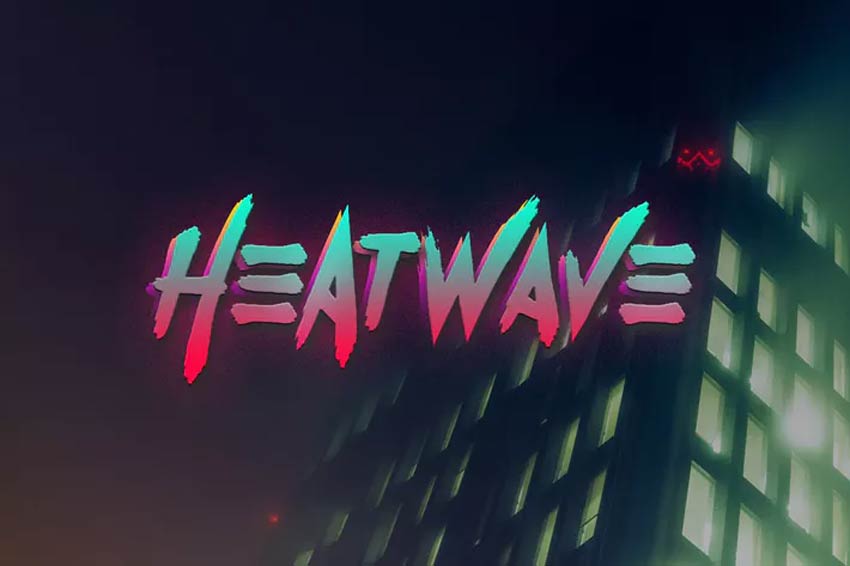
Heatwave 80s Font

Need a neon 80s font? This Heatwave font might be just the fit for your 80s poster. Inspired by classic retro 80s graphics, this font is cool and edgy. Included in this download is a full set of letters, numbers, and punctuation. Multi-language support is also included!
Heatwave 80s Font

Oh Blazt 80s Font

Get inspired to make great graphics. This next cool 80s font really stands out on posters, logos, and header designs. You can also add it to illustrations for a nice comic effect. Grab this pro font for just under $20!

Oh Blazt 80s Font

Vintage Party – 80s Script Font

So where’s the party? Lay out the plans with this incredible 80s script font. Whether you’re throwing a party or creating signs for a tropical bar, this font will help you set up your brand right. Grab it today for just under $15.

Vintage Party - 80s Retro Font

Burnout 80s Font

Feeling burnt out? Stay inspired with a creative typography project. This burnout font is an all caps typeface that is loud and proud. So stand out with this complete set of letters, numbers, and punctuation. Perfect for retro album covers too!

Burnout 80s Font

Boldwest Font

Want a bold font next? Boldwest is a creepy and spooky font type. Inspired by Halloween, the letters were created to emulate spooky ghost shapes and funny characters. Add it to your work for a cute and funny typeface.

Boldwest Font

New York 80s Font

Many of New York’s famous buildings were made in the 80s. Now you can get that 80s New York vibe with this retro font. Featuring eight creative fonts, this pack includes amazingly detailed grunge textures and serif typefaces.

New York 80s Font

Crava 80s Retro Font

Craving a little nostalgia? Step into a time machine with this wonderful Crava retro font. This 80s font is curvy and big. It’s a unique display font with large, looping letters and an all caps style. Use it for a retro twist to any poster or project.

Crava 80s Retro Font

Game Over Retro 80s Font

What was your favorite game in the 80s? Many of the 80s style fonts we’ve seen already are inspired by eight-bit pixel games and sci-fi films. And the Game Over font is no different. Grab it for just $11 to see how it will look on your next design. Try it out!

Game Over Retro 80s Font

Blagious Bold Script

Create bold logos with the Blagious script typeface. An extraordinary design by Cotbada-studio, this script is flirty and makes any packaging stand out. Visit the preview link to see more examples and to test it out!

Blagious Bold Script

Arcade Machine 80s Retro Font

Relive the magic of the 1980s arcade. Inspired by 80s classics like Knight Rider, Miami Vice, and arcade games, this retro font pack is sure to make your T-shirts and posters shine. It comes with uppercase and lowercase letters as well as additional ligatures.

Arcade Machine 80s Retro Font

Outrunner 80s Retro Script

Here’s another great neon 80s font to add to your collection. This retro, classic script could easily have come out of any vintage film. It features stylish capital and lowercase letters you can definitely bring into modern designs. Try it out with your work!

Outrunner 80s Retro Script

Friday Sunday Font Duo

Create more harmony in your designs with this creative font duo. Friday Sunday is a cool retro font with a nice modern edge. Easily implement it into logos, websites, and stylish branding material. The possibilities are limitless with this one.

Friday Sunday Font Duo

Neolion Font Duo – Neon 80s Font

The neon 80s font trend has seen many great fonts, like this Neolion font duo. This download comes with amazing regular, italic, and script neon styles. Suitable for a variety of purposes, this font can definitely help if you need a boost in your creative content.

Neolion Font Duo

Cred Typeface

Many fonts from the 80s are just plain old quirky, like this Cred font. Inspired by the fun and funny fat typefaces from the 80s, this typeface is full of texture and personality. It’ll certainly take up space too, so use it wisely for the best impact.

Cred Typeface

Futurist 6 – Retro Font

There is nothing like a classic sci-fi movie from the 80s. The Futurist 6 font explores the wonderful geometric trend with angular shapes and minimalist lines. It’s legible enough to read as a book title or a bold logo. Add it to your collection today!

Futurist 6 - Retro Font

Minority Retro 80s Font

80s text fonts are sometimes messy too. The Minority retro font features a hand-painted condensed script that is bold and explosive. Enjoy the realistic spray-painted effect and epic stylistic alternates. How would you use this font in a project?

Minority Retro 80s Font

Broken Font

You can fix just about anything with good design. So fix your work with the Broken font. Made by designer yandidesigns, this bold scratch font is new and unique. It features a full set of uppercase letters with realistic dents and scratches. Give it a go!

Broken Font

Saltino 80s Retro Font

If you’re looking for a logo design that looks effortlessly natural, try this Saltino typeface. This natural, handwritten typeface was made by designer khurasan. Its sultry style is soft and elegant, making it the perfect fit for wedding designs.

Saltino 80s Retro Font

Alaska Adventure Sans Serif Type

Want another great 80s text font? The Alaska Adventure typeface has a clean, sans serif style. The subtle letter arrangement has awesome character to it and works incredibly well with minimalist projects like logos and headers. Try it out on invites and print design too!

Alaska Adventure Sans Serif Type

Kust Brush Font

Here’s another impressive brush font to add to your arsenal. Kust Brush is both bold and effective. It features a realistic brush style with lots of texture. Every letter has been given a distorted look, so you’ll truly get a unique vibe with this typeface.

Kust Brush Font

Video Game 80s Font

Love the video games of the 80s? Create your very own video game titles with this amazing video game font. Designer maroonbaboon created this pack of fonts and video game characters, including 17 retro Martians. Mix and match this pack for a cool result!

Video Game 80s Font

School Story 80s Font

Or tell your story as you would in school. School Story is a cute display typeface made with a lot of creativity. It can instantly add a cheerful element to your designs and works well with presentations and more. Get letters, numbers, and punctuation with this set!

School Story 80s Font

Artzopo Font

Feeling a little artsy? Express your creative juices with the Artzopo font. This handmade font can easily be fitted for logos on T-shirts and apparel. Make an impact with a cool handwritten look that’s hard to miss. Try it out!

Artzopo Font

Zeky Typeface Font

This next 80s text font is sleek and sophisticated. Zeky is a classic typeface with tall characters and sans serif letters. Download this font to get everything you need as well as a helpful instructional guide. Easy installation too!

Zeky Typeface Font

Manticore – 80s Brush Font

Brush fonts are one of the best ways to add a little edge to your projects. The Manticore font is an 80s brush font with letters, numbers, and extra glyphs. It works best on 80s styled prints like punk graphics or horror themes. Check it out!

Manticore - 80s Brush Font

Newtype Typeface Font

Looking for something new? Step out of the box with the Newtype typeface. This fresh and unique font is sure to add character to your typography. It’s available in OTF and TTF format and works well with various media. Try it out on video games or movie titles.

Newtype Typeface Font

Jagalana 80s Script Font

Or make a lasting impression with the stunning Jagalana typeface. This 80s script font has beautiful, swooping letters and a nice, elegant feel. Calligraphy styles like these are lovely on invites, but you can also try them out on branding material and more. So add it today!

Jagalana 80s Script Font

More Font Inspiration

Fonts used in the 80s are getting their long overdue praise in 2019. So how will you incorporate these cool designs into your next work? Let us know your favorites in the comments!

Learn more about 80s styled fonts. Check out these links:

This has been a selection of premium resources perfect for the avid
designer. For more 80s fonts, check out Envato Market and Envato Elements. Happy designing!

How to Create a 'Stranger Things’ Inspired Text Effect in Adobe Photoshop

Post pobrano z: How to Create a 'Stranger Things’ Inspired Text Effect in Adobe Photoshop

Final product image
What You’ll Be Creating

This very quick tutorial will show you an easy way to create a text effect inspired by the 'Stranger Things’ series, using only layer styles and some simple adjustments. Let’s get started!
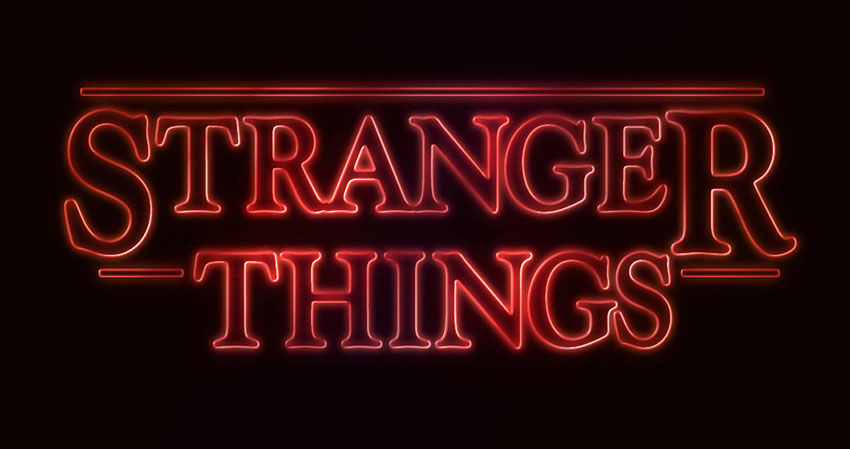
This text effect was inspired by the many Layer Styles available on Envato Market. You can get a very similar style named Stranger Twins, which is available to download and use in Adobe Photoshop.

Tutorial Assets

The following assets were used during the production of this tutorial:

1. Create the Background and the Text

Step 1

Create a new 1280 x 720px document, and fill the Background with the color #0c0101.

Create the Background

Step 2

Create the text in White using the font Indira K.

The original font used is Benguiat, but this is a free alternative that you can use instead.

Set the Size to a value around 141 pt, and check the Faux Bold and All Caps icons in the Character panel (Window > Character).

Create the Text

Step 3

Change the Tracking value to -100.

Change the Tracking

Step 4

Change the Vertical Scale to 115. This will stretch the text vertically.

Change the Vertical Scale

2. Adjust the Bigger Letters

Step 1

Select (highlight) the first letter of your text, and change its Size to a value around 212 pt.

Enlarge the First Letter

Step 2

Next, you’ll need to change the Baseline Shift value in order to move the big letter downwards, until its top is on the same level as the tops of the rest of the letters.

To do that, you can either enter numerical values, or scrub the Set the baseline shift icon to the left.

Set the Baseline Shift

Step 3

Do the same for the last letter of the first line of text, or whatever other letters you like.

Adjust the Last Letter

3. Adjust the Kerning

Step 1

Place the text cursor between the first two letters you have, and change the Kerning to a value you think looks good.

Change the Kerning

Step 2

Depending on your text and the result you’re looking for, adjust the Kerning for the rest of the letters you have. Not all the letters should be adjusted, just the ones you think need that.

Change the Kerning

Step 3

Once you’re done, change the text layer’s Fill value to 0.

Change the Fill Value

4. Style the Text

Double-click the text layer to apply the following layer style:

Step 1

Add a Bevel and Emboss with these settings:

  • Style: Stroke Emboss
  • Depth: 220
  • Size: 3
  • Uncheck the Use Global Light box
  • Angle: 156
  • Altitude: 37
  • Gloss Contour: Cone – Inverted
  • Check the Anti-aliased box
  • Highlight Mode – Opacity: 35%
  • Shadow Mode – Opacity: 50%
Bevel and Emboss

Step 2

Add a Contour with these settings:

  • Contour: Cove – Deep
  • Check the Anti-aliased box.
Contour

Step 3

Add a Stroke with these settings:

  • Size: 3
  • Position: Inside
  • Color: #ce1725
Stroke

Step 4

Add an Inner Glow with these settings:

  • Opacity: 50%
  • Noise: 5%
  • Color: #ea0f0f
  • Size: 17
Inner Glow

Step 5

Add an Outer Glow with these settings:

  • Opacity: 50%
  • Noise: 5%
  • Color: #ea2314
  • Size: 12
  • Range: 60%
Outer Glow

Step 6

This will style the text. Right-click the styled text layer, and choose Copy Layer Style.

Copy Layer Style

5. Create the Rectangle Shapes

Step 1

Pick the Rounded Rectangle Tool, and set the Radius in the Options bar to 2Click-drag to create a rectangle above the text, with a Height value around 7px.

Then, click-drag to create more rectangles at the beginning and end of the second line of text, or anywhere else you’d like to add them. Just make sure to maintain the same Height for all the rectangles you create.

Create the Rectangles

Step 2

Change all the rectangle layers’ Fill value to 0.

Change the Fill Value

6. Style the Rectangles

Right-click any of the rectangle layers you have, and choose Paste Layer Style. This will apply the same layer style copied from the text layer.

After that, double-click the styled rectangle layer to adjust some of the values:

Step 1

Add a Bevel and Emboss with these settings:

  • Size: 2
Bevel and Emboss

Step 2

Add a Stroke with these settings:

  • Size: 2
  • Position: Outside
Stroke

Step 3

Add an Inner Glow with these settings:

  • Size: 5
Inner Glow

Step 4

Add an Outer Glow with these settings:

  • Size: 17
Outer Glow

Step 5

Right-click the styled rectangle layer, and choose Copy Layer Style.

Copy Layer Style

Step 6

Select the other rectangle layers you have, right-click any of them, and choose Paste Layer Style.

Paste Layer Style

Step 7

Place the text and rectangle layers in a group, and call it Text Effect.

Text Effect Group

7. Style the Group

Double-click the Text Effect group to apply the following layer style:

Step 1

Add a Gradient Overlay with these settings:

  • Check the Dither box
  • Blend Mode: Soft Light
  • Style: Reflected
  • Angle: 135
  • Create the Gradient fill using the colors #fbe7c2 to the left and #e69f99 to the right
Gradient Overlay 1

Step 2

Add another Gradient Overlay effect with these settings:

  • Check the Dither box
  • Blend Mode: Overlay
  • Style: Reflected
  • Angle: 135
  • Use the faucet 10 gradient fill
Gradient Overlay 2

Step 3

Add an Outer Glow with these settings:

  • Opacity: 20%
  • Color: #de1b22
  • Size: 34
  • Range: 60%
Outer Glow

This will enhance the effect.

Styled Group

8. Add Some Light Spots

Step 1

Set the Foreground Color to #451d08, and then create a new layer on top of all layers, call it Light, and change its Blend Mode to Color Dodge.

Light Layer

Step 2

Pick the Brush Tool, and choose a big, soft, round tip. Then start clicking over some letters to brighten them up.

You can change the tip’s size, and play around with the Opacity value in the Options bar to control the intensity of the light spots you’re adding.

Add the Light Spots

Step 3

Click the Create new fill or adjustment layer icon in the Layers panel, and choose Hue/Saturation.

HueSaturation Adjustment Layer

Step 4

Change the Saturation value to 35, and the Lightness to 15, or any other values you like.

Change the Values

9. Adjust the Coloring

Step 1

Add a Gradient adjustment layer on top of the Text Effect group.

Create the gradient fill using the colors #5c456e to the right, #b26b73 in the center, and #fda982 to the left. Change the Style to Reflected, the Angle to 155, and the Scale to 55%.

Gradient Adjustment Layer

Step 2

Change the Gradient layer’s Blend Mode to Color, and its Opacity to 35%.

Gradient Layer Settings

Congratulations! You’re Done

In this tutorial, we created the text and modified it using the different Character panel options and settings. Then we styled the text, created the rectangles, and styled them as well.

After that, we grouped all the layers and added one more layer style. Finally, we added some light spots and a gradient adjustment layer to modify the coloring of the final result.

Please feel free to leave your comments, suggestions, and outcomes below.

Final Result

How to Create a 'Stranger Things’ Inspired Text Effect in Adobe Photoshop

Post pobrano z: How to Create a 'Stranger Things’ Inspired Text Effect in Adobe Photoshop

Final product image
What You’ll Be Creating

This very quick tutorial will show you an easy way to create a text effect inspired by the 'Stranger Things’ series, using only layer styles and some simple adjustments. Let’s get started!

This text effect was inspired by the many Layer Styles available on Envato Market. You can get a very similar style named Stranger Twins, which is available to download and use in Adobe Photoshop.

Tutorial Assets

The following assets were used during the production of this tutorial:

1. Create the Background and the Text

Step 1

Create a new 1280 x 720px document, and fill the Background with the color #0c0101.

Create the Background

Step 2

Create the text in White using the font Indira K.

The original font used is Benguiat, but this is a free alternative that you can use instead.

Set the Size to a value around 141 pt, and check the Faux Bold and All Caps icons in the Character panel (Window > Character).

Create the Text

Step 3

Change the Tracking value to -100.

Change the Tracking

Step 4

Change the Vertical Scale to 115. This will stretch the text vertically.

Change the Vertical Scale

2. Adjust the Bigger Letters

Step 1

Select (highlight) the first letter of your text, and change its Size to a value around 212 pt.

Enlarge the First Letter

Step 2

Next, you’ll need to change the Baseline Shift value in order to move the big letter downwards, until its top is on the same level as the tops of the rest of the letters.

To do that, you can either enter numerical values, or scrub the Set the baseline shift icon to the left.

Set the Baseline Shift

Step 3

Do the same for the last letter of the first line of text, or whatever other letters you like.

Adjust the Last Letter

3. Adjust the Kerning

Step 1

Place the text cursor between the first two letters you have, and change the Kerning to a value you think looks good.

Change the Kerning

Step 2

Depending on your text and the result you’re looking for, adjust the Kerning for the rest of the letters you have. Not all the letters should be adjusted, just the ones you think need that.

Change the Kerning

Step 3

Once you’re done, change the text layer’s Fill value to 0.

Change the Fill Value

4. Style the Text

Double-click the text layer to apply the following layer style:

Step 1

Add a Bevel and Emboss with these settings:

  • Style: Stroke Emboss
  • Depth: 220
  • Size: 3
  • Uncheck the Use Global Light box
  • Angle: 156
  • Altitude: 37
  • Gloss Contour: Cone – Inverted
  • Check the Anti-aliased box
  • Highlight Mode – Opacity: 35%
  • Shadow Mode – Opacity: 50%
Bevel and Emboss

Step 2

Add a Contour with these settings:

  • Contour: Cove – Deep
  • Check the Anti-aliased box.
Contour

Step 3

Add a Stroke with these settings:

  • Size: 3
  • Position: Inside
  • Color: #ce1725
Stroke

Step 4

Add an Inner Glow with these settings:

  • Opacity: 50%
  • Noise: 5%
  • Color: #ea0f0f
  • Size: 17
Inner Glow

Step 5

Add an Outer Glow with these settings:

  • Opacity: 50%
  • Noise: 5%
  • Color: #ea2314
  • Size: 12
  • Range: 60%
Outer Glow

Step 6

This will style the text. Right-click the styled text layer, and choose Copy Layer Style.

Copy Layer Style

5. Create the Rectangle Shapes

Step 1

Pick the Rounded Rectangle Tool, and set the Radius in the Options bar to 2Click-drag to create a rectangle above the text, with a Height value around 7px.

Then, click-drag to create more rectangles at the beginning and end of the second line of text, or anywhere else you’d like to add them. Just make sure to maintain the same Height for all the rectangles you create.

Create the Rectangles

Step 2

Change all the rectangle layers’ Fill value to 0.

Change the Fill Value

6. Style the Rectangles

Right-click any of the rectangle layers you have, and choose Paste Layer Style. This will apply the same layer style copied from the text layer.

After that, double-click the styled rectangle layer to adjust some of the values:

Step 1

Add a Bevel and Emboss with these settings:

  • Size: 2
Bevel and Emboss

Step 2

Add a Stroke with these settings:

  • Size: 2
  • Position: Outside
Stroke

Step 3

Add an Inner Glow with these settings:

  • Size: 5
Inner Glow

Step 4

Add an Outer Glow with these settings:

  • Size: 17
Outer Glow

Step 5

Right-click the styled rectangle layer, and choose Copy Layer Style.

Copy Layer Style

Step 6

Select the other rectangle layers you have, right-click any of them, and choose Paste Layer Style.

Paste Layer Style

Step 7

Place the text and rectangle layers in a group, and call it Text Effect.

Text Effect Group

7. Style the Group

Double-click the Text Effect group to apply the following layer style:

Step 1

Add a Gradient Overlay with these settings:

  • Check the Dither box
  • Blend Mode: Soft Light
  • Style: Reflected
  • Angle: 135
  • Create the Gradient fill using the colors #fbe7c2 to the left and #e69f99 to the right
Gradient Overlay 1

Step 2

Add another Gradient Overlay effect with these settings:

  • Check the Dither box
  • Blend Mode: Overlay
  • Style: Reflected
  • Angle: 135
  • Use the faucet 10 gradient fill
Gradient Overlay 2

Step 3

Add an Outer Glow with these settings:

  • Opacity: 20%
  • Color: #de1b22
  • Size: 34
  • Range: 60%
Outer Glow

This will enhance the effect.

Styled Group

8. Add Some Light Spots

Step 1

Set the Foreground Color to #451d08, and then create a new layer on top of all layers, call it Light, and change its Blend Mode to Color Dodge.

Light Layer

Step 2

Pick the Brush Tool, and choose a big, soft, round tip. Then start clicking over some letters to brighten them up.

You can change the tip’s size, and play around with the Opacity value in the Options bar to control the intensity of the light spots you’re adding.

Add the Light Spots

Step 3

Click the Create new fill or adjustment layer icon in the Layers panel, and choose Hue/Saturation.

HueSaturation Adjustment Layer

Step 4

Change the Saturation value to 35, and the Lightness to 15, or any other values you like.

Change the Values

9. Adjust the Coloring

Step 1

Add a Gradient adjustment layer on top of the Text Effect group.

Create the gradient fill using the colors #5c456e to the right, #b26b73 in the center, and #fda982 to the left. Change the Style to Reflected, the Angle to 155, and the Scale to 55%.

Gradient Adjustment Layer

Step 2

Change the Gradient layer’s Blend Mode to Color, and its Opacity to 35%.

Gradient Layer Settings

Congratulations! You’re Done

In this tutorial, we created the text and modified it using the different Character panel options and settings. Then we styled the text, created the rectangles, and styled them as well.

After that, we grouped all the layers and added one more layer style. Finally, we added some light spots and a gradient adjustment layer to modify the coloring of the final result.

Please feel free to leave your comments, suggestions, and outcomes below.

Final Result

How to Create a 'Stranger Things’ Inspired Text Effect in Adobe Photoshop

Post pobrano z: How to Create a 'Stranger Things’ Inspired Text Effect in Adobe Photoshop

Final product image
What You’ll Be Creating

This very quick tutorial will show you an easy way to create a text effect inspired by the 'Stranger Things’ series, using only layer styles and some simple adjustments. Let’s get started!

This text effect was inspired by the many Layer Styles available on Envato Market. You can get a very similar style named Stranger Twins, which is available to download and use in Adobe Photoshop.

Tutorial Assets

The following assets were used during the production of this tutorial:

1. Create the Background and the Text

Step 1

Create a new 1280 x 720px document, and fill the Background with the color #0c0101.

Create the Background

Step 2

Create the text in White using the font Indira K.

The original font used is Benguiat, but this is a free alternative that you can use instead.

Set the Size to a value around 141 pt, and check the Faux Bold and All Caps icons in the Character panel (Window > Character).

Create the Text

Step 3

Change the Tracking value to -100.

Change the Tracking

Step 4

Change the Vertical Scale to 115. This will stretch the text vertically.

Change the Vertical Scale

2. Adjust the Bigger Letters

Step 1

Select (highlight) the first letter of your text, and change its Size to a value around 212 pt.

Enlarge the First Letter

Step 2

Next, you’ll need to change the Baseline Shift value in order to move the big letter downwards, until its top is on the same level as the tops of the rest of the letters.

To do that, you can either enter numerical values, or scrub the Set the baseline shift icon to the left.

Set the Baseline Shift

Step 3

Do the same for the last letter of the first line of text, or whatever other letters you like.

Adjust the Last Letter

3. Adjust the Kerning

Step 1

Place the text cursor between the first two letters you have, and change the Kerning to a value you think looks good.

Change the Kerning

Step 2

Depending on your text and the result you’re looking for, adjust the Kerning for the rest of the letters you have. Not all the letters should be adjusted, just the ones you think need that.

Change the Kerning

Step 3

Once you’re done, change the text layer’s Fill value to 0.

Change the Fill Value

4. Style the Text

Double-click the text layer to apply the following layer style:

Step 1

Add a Bevel and Emboss with these settings:

  • Style: Stroke Emboss
  • Depth: 220
  • Size: 3
  • Uncheck the Use Global Light box
  • Angle: 156
  • Altitude: 37
  • Gloss Contour: Cone – Inverted
  • Check the Anti-aliased box
  • Highlight Mode – Opacity: 35%
  • Shadow Mode – Opacity: 50%
Bevel and Emboss

Step 2

Add a Contour with these settings:

  • Contour: Cove – Deep
  • Check the Anti-aliased box.
Contour

Step 3

Add a Stroke with these settings:

  • Size: 3
  • Position: Inside
  • Color: #ce1725
Stroke

Step 4

Add an Inner Glow with these settings:

  • Opacity: 50%
  • Noise: 5%
  • Color: #ea0f0f
  • Size: 17
Inner Glow

Step 5

Add an Outer Glow with these settings:

  • Opacity: 50%
  • Noise: 5%
  • Color: #ea2314
  • Size: 12
  • Range: 60%
Outer Glow

Step 6

This will style the text. Right-click the styled text layer, and choose Copy Layer Style.

Copy Layer Style

5. Create the Rectangle Shapes

Step 1

Pick the Rounded Rectangle Tool, and set the Radius in the Options bar to 2Click-drag to create a rectangle above the text, with a Height value around 7px.

Then, click-drag to create more rectangles at the beginning and end of the second line of text, or anywhere else you’d like to add them. Just make sure to maintain the same Height for all the rectangles you create.

Create the Rectangles

Step 2

Change all the rectangle layers’ Fill value to 0.

Change the Fill Value

6. Style the Rectangles

Right-click any of the rectangle layers you have, and choose Paste Layer Style. This will apply the same layer style copied from the text layer.

After that, double-click the styled rectangle layer to adjust some of the values:

Step 1

Add a Bevel and Emboss with these settings:

  • Size: 2
Bevel and Emboss

Step 2

Add a Stroke with these settings:

  • Size: 2
  • Position: Outside
Stroke

Step 3

Add an Inner Glow with these settings:

  • Size: 5
Inner Glow

Step 4

Add an Outer Glow with these settings:

  • Size: 17
Outer Glow

Step 5

Right-click the styled rectangle layer, and choose Copy Layer Style.

Copy Layer Style

Step 6

Select the other rectangle layers you have, right-click any of them, and choose Paste Layer Style.

Paste Layer Style

Step 7

Place the text and rectangle layers in a group, and call it Text Effect.

Text Effect Group

7. Style the Group

Double-click the Text Effect group to apply the following layer style:

Step 1

Add a Gradient Overlay with these settings:

  • Check the Dither box
  • Blend Mode: Soft Light
  • Style: Reflected
  • Angle: 135
  • Create the Gradient fill using the colors #fbe7c2 to the left and #e69f99 to the right
Gradient Overlay 1

Step 2

Add another Gradient Overlay effect with these settings:

  • Check the Dither box
  • Blend Mode: Overlay
  • Style: Reflected
  • Angle: 135
  • Use the faucet 10 gradient fill
Gradient Overlay 2

Step 3

Add an Outer Glow with these settings:

  • Opacity: 20%
  • Color: #de1b22
  • Size: 34
  • Range: 60%
Outer Glow

This will enhance the effect.

Styled Group

8. Add Some Light Spots

Step 1

Set the Foreground Color to #451d08, and then create a new layer on top of all layers, call it Light, and change its Blend Mode to Color Dodge.

Light Layer

Step 2

Pick the Brush Tool, and choose a big, soft, round tip. Then start clicking over some letters to brighten them up.

You can change the tip’s size, and play around with the Opacity value in the Options bar to control the intensity of the light spots you’re adding.

Add the Light Spots

Step 3

Click the Create new fill or adjustment layer icon in the Layers panel, and choose Hue/Saturation.

HueSaturation Adjustment Layer

Step 4

Change the Saturation value to 35, and the Lightness to 15, or any other values you like.

Change the Values

9. Adjust the Coloring

Step 1

Add a Gradient adjustment layer on top of the Text Effect group.

Create the gradient fill using the colors #5c456e to the right, #b26b73 in the center, and #fda982 to the left. Change the Style to Reflected, the Angle to 155, and the Scale to 55%.

Gradient Adjustment Layer

Step 2

Change the Gradient layer’s Blend Mode to Color, and its Opacity to 35%.

Gradient Layer Settings

Congratulations! You’re Done

In this tutorial, we created the text and modified it using the different Character panel options and settings. Then we styled the text, created the rectangles, and styled them as well.

After that, we grouped all the layers and added one more layer style. Finally, we added some light spots and a gradient adjustment layer to modify the coloring of the final result.

Please feel free to leave your comments, suggestions, and outcomes below.

Final Result

How to Create a 'Stranger Things’ Inspired Text Effect in Adobe Photoshop

Post pobrano z: How to Create a 'Stranger Things’ Inspired Text Effect in Adobe Photoshop

Final product image
What You’ll Be Creating

This very quick tutorial will show you an easy way to create a text effect inspired by the 'Stranger Things’ series, using only layer styles and some simple adjustments. Let’s get started!

This text effect was inspired by the many Layer Styles available on Envato Market. You can get a very similar style named Stranger Twins, which is available to download and use in Adobe Photoshop.

Tutorial Assets

The following assets were used during the production of this tutorial:

1. Create the Background and the Text

Step 1

Create a new 1280 x 720px document, and fill the Background with the color #0c0101.

Create the Background

Step 2

Create the text in White using the font Indira K.

The original font used is Benguiat, but this is a free alternative that you can use instead.

Set the Size to a value around 141 pt, and check the Faux Bold and All Caps icons in the Character panel (Window > Character).

Create the Text

Step 3

Change the Tracking value to -100.

Change the Tracking

Step 4

Change the Vertical Scale to 115. This will stretch the text vertically.

Change the Vertical Scale

2. Adjust the Bigger Letters

Step 1

Select (highlight) the first letter of your text, and change its Size to a value around 212 pt.

Enlarge the First Letter

Step 2

Next, you’ll need to change the Baseline Shift value in order to move the big letter downwards, until its top is on the same level as the tops of the rest of the letters.

To do that, you can either enter numerical values, or scrub the Set the baseline shift icon to the left.

Set the Baseline Shift

Step 3

Do the same for the last letter of the first line of text, or whatever other letters you like.

Adjust the Last Letter

3. Adjust the Kerning

Step 1

Place the text cursor between the first two letters you have, and change the Kerning to a value you think looks good.

Change the Kerning

Step 2

Depending on your text and the result you’re looking for, adjust the Kerning for the rest of the letters you have. Not all the letters should be adjusted, just the ones you think need that.

Change the Kerning

Step 3

Once you’re done, change the text layer’s Fill value to 0.

Change the Fill Value

4. Style the Text

Double-click the text layer to apply the following layer style:

Step 1

Add a Bevel and Emboss with these settings:

  • Style: Stroke Emboss
  • Depth: 220
  • Size: 3
  • Uncheck the Use Global Light box
  • Angle: 156
  • Altitude: 37
  • Gloss Contour: Cone – Inverted
  • Check the Anti-aliased box
  • Highlight Mode – Opacity: 35%
  • Shadow Mode – Opacity: 50%
Bevel and Emboss

Step 2

Add a Contour with these settings:

  • Contour: Cove – Deep
  • Check the Anti-aliased box.
Contour

Step 3

Add a Stroke with these settings:

  • Size: 3
  • Position: Inside
  • Color: #ce1725
Stroke

Step 4

Add an Inner Glow with these settings:

  • Opacity: 50%
  • Noise: 5%
  • Color: #ea0f0f
  • Size: 17
Inner Glow

Step 5

Add an Outer Glow with these settings:

  • Opacity: 50%
  • Noise: 5%
  • Color: #ea2314
  • Size: 12
  • Range: 60%
Outer Glow

Step 6

This will style the text. Right-click the styled text layer, and choose Copy Layer Style.

Copy Layer Style

5. Create the Rectangle Shapes

Step 1

Pick the Rounded Rectangle Tool, and set the Radius in the Options bar to 2Click-drag to create a rectangle above the text, with a Height value around 7px.

Then, click-drag to create more rectangles at the beginning and end of the second line of text, or anywhere else you’d like to add them. Just make sure to maintain the same Height for all the rectangles you create.

Create the Rectangles

Step 2

Change all the rectangle layers’ Fill value to 0.

Change the Fill Value

6. Style the Rectangles

Right-click any of the rectangle layers you have, and choose Paste Layer Style. This will apply the same layer style copied from the text layer.

After that, double-click the styled rectangle layer to adjust some of the values:

Step 1

Add a Bevel and Emboss with these settings:

  • Size: 2
Bevel and Emboss

Step 2

Add a Stroke with these settings:

  • Size: 2
  • Position: Outside
Stroke

Step 3

Add an Inner Glow with these settings:

  • Size: 5
Inner Glow

Step 4

Add an Outer Glow with these settings:

  • Size: 17
Outer Glow

Step 5

Right-click the styled rectangle layer, and choose Copy Layer Style.

Copy Layer Style

Step 6

Select the other rectangle layers you have, right-click any of them, and choose Paste Layer Style.

Paste Layer Style

Step 7

Place the text and rectangle layers in a group, and call it Text Effect.

Text Effect Group

7. Style the Group

Double-click the Text Effect group to apply the following layer style:

Step 1

Add a Gradient Overlay with these settings:

  • Check the Dither box
  • Blend Mode: Soft Light
  • Style: Reflected
  • Angle: 135
  • Create the Gradient fill using the colors #fbe7c2 to the left and #e69f99 to the right
Gradient Overlay 1

Step 2

Add another Gradient Overlay effect with these settings:

  • Check the Dither box
  • Blend Mode: Overlay
  • Style: Reflected
  • Angle: 135
  • Use the faucet 10 gradient fill
Gradient Overlay 2

Step 3

Add an Outer Glow with these settings:

  • Opacity: 20%
  • Color: #de1b22
  • Size: 34
  • Range: 60%
Outer Glow

This will enhance the effect.

Styled Group

8. Add Some Light Spots

Step 1

Set the Foreground Color to #451d08, and then create a new layer on top of all layers, call it Light, and change its Blend Mode to Color Dodge.

Light Layer

Step 2

Pick the Brush Tool, and choose a big, soft, round tip. Then start clicking over some letters to brighten them up.

You can change the tip’s size, and play around with the Opacity value in the Options bar to control the intensity of the light spots you’re adding.

Add the Light Spots

Step 3

Click the Create new fill or adjustment layer icon in the Layers panel, and choose Hue/Saturation.

HueSaturation Adjustment Layer

Step 4

Change the Saturation value to 35, and the Lightness to 15, or any other values you like.

Change the Values

9. Adjust the Coloring

Step 1

Add a Gradient adjustment layer on top of the Text Effect group.

Create the gradient fill using the colors #5c456e to the right, #b26b73 in the center, and #fda982 to the left. Change the Style to Reflected, the Angle to 155, and the Scale to 55%.

Gradient Adjustment Layer

Step 2

Change the Gradient layer’s Blend Mode to Color, and its Opacity to 35%.

Gradient Layer Settings

Congratulations! You’re Done

In this tutorial, we created the text and modified it using the different Character panel options and settings. Then we styled the text, created the rectangles, and styled them as well.

After that, we grouped all the layers and added one more layer style. Finally, we added some light spots and a gradient adjustment layer to modify the coloring of the final result.

Please feel free to leave your comments, suggestions, and outcomes below.

Final Result

How to Create a 'Stranger Things’ Inspired Text Effect in Adobe Photoshop

Post pobrano z: How to Create a 'Stranger Things’ Inspired Text Effect in Adobe Photoshop

Final product image
What You’ll Be Creating

This very quick tutorial will show you an easy way to create a text effect inspired by the 'Stranger Things’ series, using only layer styles and some simple adjustments. Let’s get started!

This text effect was inspired by the many Layer Styles available on Envato Market. You can get a very similar style named Stranger Twins, which is available to download and use in Adobe Photoshop.

Tutorial Assets

The following assets were used during the production of this tutorial:

1. Create the Background and the Text

Step 1

Create a new 1280 x 720px document, and fill the Background with the color #0c0101.

Create the Background

Step 2

Create the text in White using the font Indira K.

The original font used is Benguiat, but this is a free alternative that you can use instead.

Set the Size to a value around 141 pt, and check the Faux Bold and All Caps icons in the Character panel (Window > Character).

Create the Text

Step 3

Change the Tracking value to -100.

Change the Tracking

Step 4

Change the Vertical Scale to 115. This will stretch the text vertically.

Change the Vertical Scale

2. Adjust the Bigger Letters

Step 1

Select (highlight) the first letter of your text, and change its Size to a value around 212 pt.

Enlarge the First Letter

Step 2

Next, you’ll need to change the Baseline Shift value in order to move the big letter downwards, until its top is on the same level as the tops of the rest of the letters.

To do that, you can either enter numerical values, or scrub the Set the baseline shift icon to the left.

Set the Baseline Shift

Step 3

Do the same for the last letter of the first line of text, or whatever other letters you like.

Adjust the Last Letter

3. Adjust the Kerning

Step 1

Place the text cursor between the first two letters you have, and change the Kerning to a value you think looks good.

Change the Kerning

Step 2

Depending on your text and the result you’re looking for, adjust the Kerning for the rest of the letters you have. Not all the letters should be adjusted, just the ones you think need that.

Change the Kerning

Step 3

Once you’re done, change the text layer’s Fill value to 0.

Change the Fill Value

4. Style the Text

Double-click the text layer to apply the following layer style:

Step 1

Add a Bevel and Emboss with these settings:

  • Style: Stroke Emboss
  • Depth: 220
  • Size: 3
  • Uncheck the Use Global Light box
  • Angle: 156
  • Altitude: 37
  • Gloss Contour: Cone – Inverted
  • Check the Anti-aliased box
  • Highlight Mode – Opacity: 35%
  • Shadow Mode – Opacity: 50%
Bevel and Emboss

Step 2

Add a Contour with these settings:

  • Contour: Cove – Deep
  • Check the Anti-aliased box.
Contour

Step 3

Add a Stroke with these settings:

  • Size: 3
  • Position: Inside
  • Color: #ce1725
Stroke

Step 4

Add an Inner Glow with these settings:

  • Opacity: 50%
  • Noise: 5%
  • Color: #ea0f0f
  • Size: 17
Inner Glow

Step 5

Add an Outer Glow with these settings:

  • Opacity: 50%
  • Noise: 5%
  • Color: #ea2314
  • Size: 12
  • Range: 60%
Outer Glow

Step 6

This will style the text. Right-click the styled text layer, and choose Copy Layer Style.

Copy Layer Style

5. Create the Rectangle Shapes

Step 1

Pick the Rounded Rectangle Tool, and set the Radius in the Options bar to 2Click-drag to create a rectangle above the text, with a Height value around 7px.

Then, click-drag to create more rectangles at the beginning and end of the second line of text, or anywhere else you’d like to add them. Just make sure to maintain the same Height for all the rectangles you create.

Create the Rectangles

Step 2

Change all the rectangle layers’ Fill value to 0.

Change the Fill Value

6. Style the Rectangles

Right-click any of the rectangle layers you have, and choose Paste Layer Style. This will apply the same layer style copied from the text layer.

After that, double-click the styled rectangle layer to adjust some of the values:

Step 1

Add a Bevel and Emboss with these settings:

  • Size: 2
Bevel and Emboss

Step 2

Add a Stroke with these settings:

  • Size: 2
  • Position: Outside
Stroke

Step 3

Add an Inner Glow with these settings:

  • Size: 5
Inner Glow

Step 4

Add an Outer Glow with these settings:

  • Size: 17
Outer Glow

Step 5

Right-click the styled rectangle layer, and choose Copy Layer Style.

Copy Layer Style

Step 6

Select the other rectangle layers you have, right-click any of them, and choose Paste Layer Style.

Paste Layer Style

Step 7

Place the text and rectangle layers in a group, and call it Text Effect.

Text Effect Group

7. Style the Group

Double-click the Text Effect group to apply the following layer style:

Step 1

Add a Gradient Overlay with these settings:

  • Check the Dither box
  • Blend Mode: Soft Light
  • Style: Reflected
  • Angle: 135
  • Create the Gradient fill using the colors #fbe7c2 to the left and #e69f99 to the right
Gradient Overlay 1

Step 2

Add another Gradient Overlay effect with these settings:

  • Check the Dither box
  • Blend Mode: Overlay
  • Style: Reflected
  • Angle: 135
  • Use the faucet 10 gradient fill
Gradient Overlay 2

Step 3

Add an Outer Glow with these settings:

  • Opacity: 20%
  • Color: #de1b22
  • Size: 34
  • Range: 60%
Outer Glow

This will enhance the effect.

Styled Group

8. Add Some Light Spots

Step 1

Set the Foreground Color to #451d08, and then create a new layer on top of all layers, call it Light, and change its Blend Mode to Color Dodge.

Light Layer

Step 2

Pick the Brush Tool, and choose a big, soft, round tip. Then start clicking over some letters to brighten them up.

You can change the tip’s size, and play around with the Opacity value in the Options bar to control the intensity of the light spots you’re adding.

Add the Light Spots

Step 3

Click the Create new fill or adjustment layer icon in the Layers panel, and choose Hue/Saturation.

HueSaturation Adjustment Layer

Step 4

Change the Saturation value to 35, and the Lightness to 15, or any other values you like.

Change the Values

9. Adjust the Coloring

Step 1

Add a Gradient adjustment layer on top of the Text Effect group.

Create the gradient fill using the colors #5c456e to the right, #b26b73 in the center, and #fda982 to the left. Change the Style to Reflected, the Angle to 155, and the Scale to 55%.

Gradient Adjustment Layer

Step 2

Change the Gradient layer’s Blend Mode to Color, and its Opacity to 35%.

Gradient Layer Settings

Congratulations! You’re Done

In this tutorial, we created the text and modified it using the different Character panel options and settings. Then we styled the text, created the rectangles, and styled them as well.

After that, we grouped all the layers and added one more layer style. Finally, we added some light spots and a gradient adjustment layer to modify the coloring of the final result.

Please feel free to leave your comments, suggestions, and outcomes below.

Final Result

How to Create a 'Stranger Things’ Inspired Text Effect in Adobe Photoshop

Post pobrano z: How to Create a 'Stranger Things’ Inspired Text Effect in Adobe Photoshop

Final product image
What You’ll Be Creating

This very quick tutorial will show you an easy way to create a text effect inspired by the 'Stranger Things’ series, using only layer styles and some simple adjustments. Let’s get started!

This text effect was inspired by the many Layer Styles available on Envato Market. You can get a very similar style named Stranger Twins, which is available to download and use in Adobe Photoshop.

Tutorial Assets

The following assets were used during the production of this tutorial:

1. Create the Background and the Text

Step 1

Create a new 1280 x 720px document, and fill the Background with the color #0c0101.

Create the Background

Step 2

Create the text in White using the font Indira K.

The original font used is Benguiat, but this is a free alternative that you can use instead.

Set the Size to a value around 141 pt, and check the Faux Bold and All Caps icons in the Character panel (Window > Character).

Create the Text

Step 3

Change the Tracking value to -100.

Change the Tracking

Step 4

Change the Vertical Scale to 115. This will stretch the text vertically.

Change the Vertical Scale

2. Adjust the Bigger Letters

Step 1

Select (highlight) the first letter of your text, and change its Size to a value around 212 pt.

Enlarge the First Letter

Step 2

Next, you’ll need to change the Baseline Shift value in order to move the big letter downwards, until its top is on the same level as the tops of the rest of the letters.

To do that, you can either enter numerical values, or scrub the Set the baseline shift icon to the left.

Set the Baseline Shift

Step 3

Do the same for the last letter of the first line of text, or whatever other letters you like.

Adjust the Last Letter

3. Adjust the Kerning

Step 1

Place the text cursor between the first two letters you have, and change the Kerning to a value you think looks good.

Change the Kerning

Step 2

Depending on your text and the result you’re looking for, adjust the Kerning for the rest of the letters you have. Not all the letters should be adjusted, just the ones you think need that.

Change the Kerning

Step 3

Once you’re done, change the text layer’s Fill value to 0.

Change the Fill Value

4. Style the Text

Double-click the text layer to apply the following layer style:

Step 1

Add a Bevel and Emboss with these settings:

  • Style: Stroke Emboss
  • Depth: 220
  • Size: 3
  • Uncheck the Use Global Light box
  • Angle: 156
  • Altitude: 37
  • Gloss Contour: Cone – Inverted
  • Check the Anti-aliased box
  • Highlight Mode – Opacity: 35%
  • Shadow Mode – Opacity: 50%
Bevel and Emboss

Step 2

Add a Contour with these settings:

  • Contour: Cove – Deep
  • Check the Anti-aliased box.
Contour

Step 3

Add a Stroke with these settings:

  • Size: 3
  • Position: Inside
  • Color: #ce1725
Stroke

Step 4

Add an Inner Glow with these settings:

  • Opacity: 50%
  • Noise: 5%
  • Color: #ea0f0f
  • Size: 17
Inner Glow

Step 5

Add an Outer Glow with these settings:

  • Opacity: 50%
  • Noise: 5%
  • Color: #ea2314
  • Size: 12
  • Range: 60%
Outer Glow

Step 6

This will style the text. Right-click the styled text layer, and choose Copy Layer Style.

Copy Layer Style

5. Create the Rectangle Shapes

Step 1

Pick the Rounded Rectangle Tool, and set the Radius in the Options bar to 2Click-drag to create a rectangle above the text, with a Height value around 7px.

Then, click-drag to create more rectangles at the beginning and end of the second line of text, or anywhere else you’d like to add them. Just make sure to maintain the same Height for all the rectangles you create.

Create the Rectangles

Step 2

Change all the rectangle layers’ Fill value to 0.

Change the Fill Value

6. Style the Rectangles

Right-click any of the rectangle layers you have, and choose Paste Layer Style. This will apply the same layer style copied from the text layer.

After that, double-click the styled rectangle layer to adjust some of the values:

Step 1

Add a Bevel and Emboss with these settings:

  • Size: 2
Bevel and Emboss

Step 2

Add a Stroke with these settings:

  • Size: 2
  • Position: Outside
Stroke

Step 3

Add an Inner Glow with these settings:

  • Size: 5
Inner Glow

Step 4

Add an Outer Glow with these settings:

  • Size: 17
Outer Glow

Step 5

Right-click the styled rectangle layer, and choose Copy Layer Style.

Copy Layer Style

Step 6

Select the other rectangle layers you have, right-click any of them, and choose Paste Layer Style.

Paste Layer Style

Step 7

Place the text and rectangle layers in a group, and call it Text Effect.

Text Effect Group

7. Style the Group

Double-click the Text Effect group to apply the following layer style:

Step 1

Add a Gradient Overlay with these settings:

  • Check the Dither box
  • Blend Mode: Soft Light
  • Style: Reflected
  • Angle: 135
  • Create the Gradient fill using the colors #fbe7c2 to the left and #e69f99 to the right
Gradient Overlay 1

Step 2

Add another Gradient Overlay effect with these settings:

  • Check the Dither box
  • Blend Mode: Overlay
  • Style: Reflected
  • Angle: 135
  • Use the faucet 10 gradient fill
Gradient Overlay 2

Step 3

Add an Outer Glow with these settings:

  • Opacity: 20%
  • Color: #de1b22
  • Size: 34
  • Range: 60%
Outer Glow

This will enhance the effect.

Styled Group

8. Add Some Light Spots

Step 1

Set the Foreground Color to #451d08, and then create a new layer on top of all layers, call it Light, and change its Blend Mode to Color Dodge.

Light Layer

Step 2

Pick the Brush Tool, and choose a big, soft, round tip. Then start clicking over some letters to brighten them up.

You can change the tip’s size, and play around with the Opacity value in the Options bar to control the intensity of the light spots you’re adding.

Add the Light Spots

Step 3

Click the Create new fill or adjustment layer icon in the Layers panel, and choose Hue/Saturation.

HueSaturation Adjustment Layer

Step 4

Change the Saturation value to 35, and the Lightness to 15, or any other values you like.

Change the Values

9. Adjust the Coloring

Step 1

Add a Gradient adjustment layer on top of the Text Effect group.

Create the gradient fill using the colors #5c456e to the right, #b26b73 in the center, and #fda982 to the left. Change the Style to Reflected, the Angle to 155, and the Scale to 55%.

Gradient Adjustment Layer

Step 2

Change the Gradient layer’s Blend Mode to Color, and its Opacity to 35%.

Gradient Layer Settings

Congratulations! You’re Done

In this tutorial, we created the text and modified it using the different Character panel options and settings. Then we styled the text, created the rectangles, and styled them as well.

After that, we grouped all the layers and added one more layer style. Finally, we added some light spots and a gradient adjustment layer to modify the coloring of the final result.

Please feel free to leave your comments, suggestions, and outcomes below.

Final Result

64 Awesome Halloween Invitations and Flyers for Your Spooky Celebrations

Post pobrano z: 64 Awesome Halloween Invitations and Flyers for Your Spooky Celebrations

It’s almost Halloween! That special time of the year when stores pack their shelves with candy and we all dress up as our favorite ghouls.

And what better way to celebrate our favorite monsters and urban legends then with a  spooktacular collection of Halloween invites and flyers you can only find on Envato Market? Here we have curated a selection of 50 to satisfy all your party needs.

Looking for more to choose from? Browse the wide selection of templates available to you on Envato Market.

Or enlist the help of a design professional by contacting the good folks at Envato Studio.

Halloween Invitations

You can’t have a party without sending out a few invites. These Halloween invitations will make you want to throw your very own costume party and celebrate in style.

Happy Halloween Banner Invitation Card

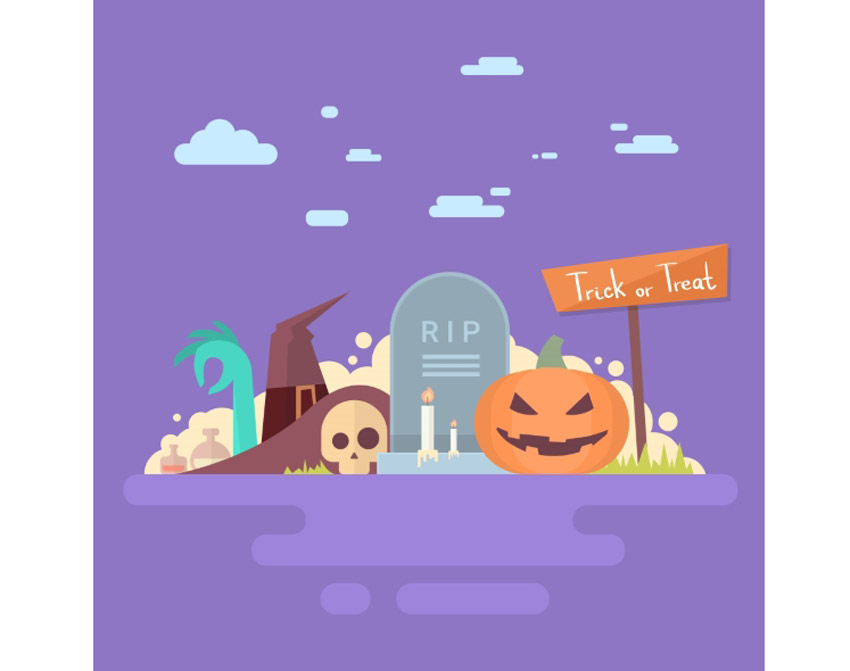
Great for kids parties, this Halloween invitation is super cute and bright. Enjoy the playful design complete with a tombstone, pumpkin, and witch hat.

Happy Halloween Banner Invitation Card

Halloween Party Invitation Template

Kick off your ghoulish celebrations with this invitation template. This simple design features dripping font and a creepy graveyard design at the bottom.

Halloween Party Invitation Template

Vintage Midnight Party Halloween Invitation

Inspired by the classics, this Halloween invite features several stills from horror classics with some fantastic fonts you can download for free. Pick from three versions and several color combinations.

Vintage Midnight Party Halloween Invitation

Halloween Monster Mash Party Invite

Monster mash anyone? Summon your friends to eat, drink, and be scary with this fun and simple Halloween party invite. With two themes available and text ready-to-edit, choose from portrait or landscape orientation for your invites.

Halloween Monster Mash Party Invite

Spooktacular Halloween Party Invitation

Keep it simple with this stylish invitation. This invite contains spooky ghosts against a starry sky. Enjoy the delightful design for a sweet take on Halloween invitations.

Halloween Flyer

Grungy Halloween Invitations in Retro Style

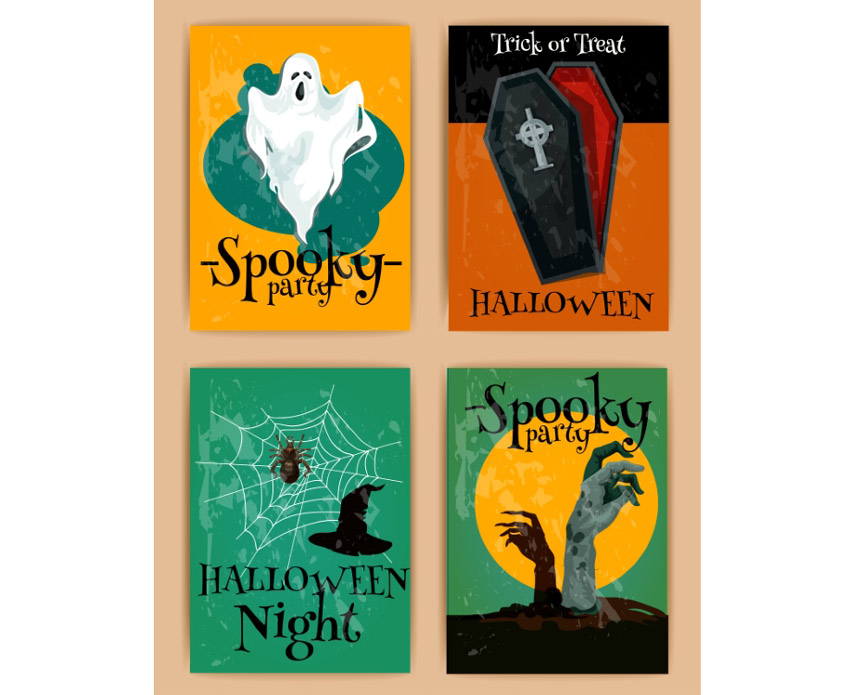
Add some retro charm to your holiday invites! This awesome collection includes four different designs to choose from. They go great with spooky Halloween themes and are sure to impress your party goers.

Grungy Halloween Invitations In Retro Style

Simple Halloween Bash Invitation Bundle

This creative set of invitations provides a variation of three fun designs to choose from. Pick from designs like Frankenstein, a werewolf, and a creepy pumpkin to bring a simple quirky flair to your invites.

Simple Halloween Bash Invitation Bundle

Skull Head Trick or Treat Halloween Invite

Are you a rebellious trick or treater wreaking havoc in the night? Then kick off your Halloween celebrations with this simple invite design. Editable in both Photoshop and Illustrator, you can customize this design no matter your Adobe product preferences.

Skull Head Trick or Treat Halloween Invitation

Typography Halloween Invite Flyer

Choose from different party themes to set your invite apart from others. This pack features spooky, minimalist designs with witch, ghost, and skull elements. Customize it easily by changing the fully editable text.

Typography Halloween Invite Flyer

Halloween Invitation II

Looking for a simple design that is haunting yet straight to the point? Check out this Halloween invitation that features an elegant cemetery silhouette that is subtle enough to fill you with fear. With a fully layered PSD file you can choose to customize the colors and text to fill your needs.

Halloween Invitation II

Halloween Invitation & Flyer Pack

This 2-for-1 deal packs a punch with a simple design you can use for either an invitation or party flyer. Change the background color to switch up the design or edit the text to fill your needs with Adobe Illustrator.

Halloween Invitation  Flyer Pack

Chalkboard Halloween Invitation Card

Love the simplicity of black and white? This chalkboard design features a simple composition that allows the typography and details of your party shine. It’s fully customizable and even comes with free fonts!

Chalkboard Halloween Invitation Card

Costume Halloween Party

Get your friends and family together for a fun costume party with this flyer invitation. This design features a cartoon theme perfect for all ages. Get access to three different color schemes to fit the style of your party.

Costume Halloween Party

Pumpkin Carving Halloween Invitation

What fun designs will you carve on your pumpkins this Halloween? Invite your friends over for a messy good time, and reward the winners with candy. Use this simple design for your invitations featuring a pumpkin, black cat, and simple yellow ribbons.

Pumpkin Carving Halloween Invitation

Glowing Halloween Party Invitation

This beautiful and simple design showcases several fun fonts to highlight all your party details. Available in the format for Adobe Illustrator, customize this invite with your own text and location.

Glowing Halloween Party Invitation

Purple Halloween Party Invitation

Need something short and sweet? This simple design features a beautiful purple night sky with creepy elements from a church cemetery. Create your invites quick and easy by just switching out the bottom text with your own location and contact details.

Purple Halloween Party Invitation

Zombies Attack Invitation Flyer

Watch out for the zombie attack with this wicked invitation flyer. This flyer features an apocalpytic theme with fire, destruction, and zombies, of course. Entertain your friends with the invite of the year!

Zombies Attack

Halloween Party Invitations – Set of 3

Do you like pumpkins, bats, or haunted houses? Choose from three simple designs with this set of Halloween party invitations. These designs use the vector EPS format, and you can easily customize the text for your celebration.

Halloween Party Invitations - Set of 3

Cute Halloween Party Invitation

You don’t always have to creep everyone out to have a good time. This simple party invitation features a cute trio of characters that you can interchange with several different colors. Editable in several formats, use this design for your kid’s party and school celebrations.

Cute Halloween Party Invitation

Halloween Frame Party Invitation

This beautiful yet simple design features a frame of skulls and other fall goodies to frame your choice of text. Add a hint of grunge to your party with this vintage-themed invitation.

Halloween Frame Party Invitation

Horror Witch Halloween Invitation

If you love bold colors and witches then this is the invite for you! Choose this invite made from 100% vector elements with easily resizable vectors. Shock your friends with these bold neon colors and choose something a little out of the box for this Halloween.

Horror Witch Halloween Invitation

Halloween Business Card Party Invitation

Business card or spooky party invite? This unique design features a layout and composition specially-made for business card printing. It utilizes a standard 3.5 x 2 inch design with high resolution for a fantastic high-quality result.

Halloween Business Card Party Invitation

Striped Halloween Party Invitation

Check out this colorful party invite featuring interchangeable skull and pumpkin designs. Edit your text with free fonts and set your celebrations into effect with this easy to use layout.

Striped Halloween Party Invitation

Halloween Ticket Party Invitation

Add a unique twist to your Halloween invites with a ticket-based design. Choose from several layout sizes and customize the colors to fit your theme.

Halloween Ticket Party Invitation

Halloween Costume Party Invitation Card

Having a costume party for all your friends? Pick this fun card that features a flyer full of fun cartoon characters taking their own spin on your favorite Halloween costumes.

Halloween Costume Party Invitation Card

Admission Ticket & Halloween Invite – Ghost Edition

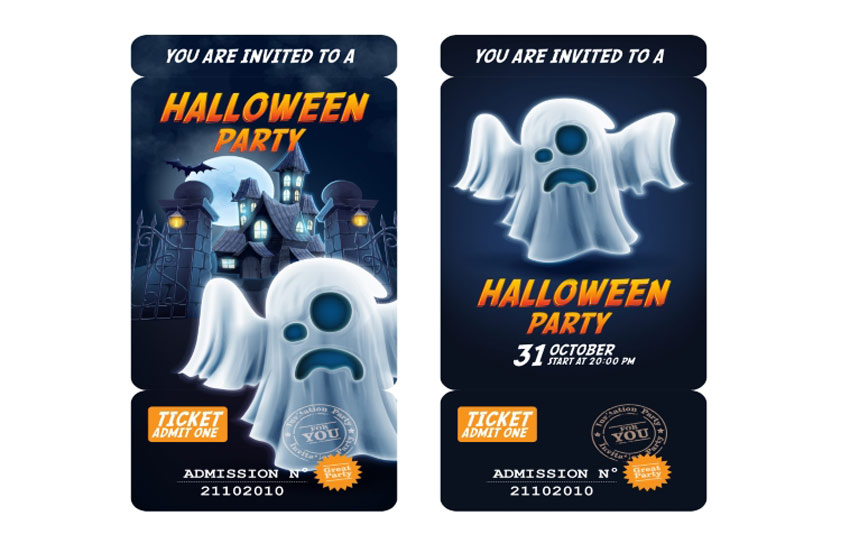
This unique Halloween invitation gives you the option of giving admission tickets to your friends. Simply bring the entire invite, and include an admission number for your exclusive party.

Admission Ticket  Halloween Invite - Ghost Edition

Admission Ticket & Halloween Invitation – Pumpkin Edition

Here is another great admission ticket design utilizing a traditional Halloween pumpkin instead. Choose between a pumpkin along a simple background or an intricate back drop to celebrate your Halloween bash. Admission Ticket  Halloween Invitation - Pumpkin Edition

Simple Pumpkin Witch Halloween Invitation

Cast a spell on all your friends with this clean Halloween invitation. This design features beautiful calligraphy along with an easy to use design you can customize in Adobe Illustrator.

Simple Pumpkin Witch Halloween Invitation

Zombie Party Halloween Invitation Card

Who knew zombies could be so beautiful? This vector design features two deadly zombie hands reaching out of their grave to celebrate your upcoming party. With fun details like bats, gravestones, and an owl, impress your friends with this beautiful yet simple design.

Zombie Party Halloween Invitation Card

Pumpkin Brew Halloween Party Invitation

Boil, boil, toil, and trouble! Impress your friends with this Halloween invite featuring a scary pumpkin and fierce green fire. Choose to keep the fonts as is or incorporate your own for added customization.

Pumpkin Brew Halloween Party Invitation

Halloween Flyers

Whether you’re staying home with friends or dancing the night away, these Halloween flyers will make you want to get up off your feet. Let’s just hope that they’re still attached when you do!

Horror Party Flyer

Kick off the holiday with the party of the year! This flyer features an awesome club theme with 3D text and more. Download several print ready files available in two convenient sizes.

Horror Party Flyer

Halloween Flyer

Create a big impact with this bold and beautiful Halloween flyer. This template features a colorful design with neon text elements you can easily adjust. Enjoy one fully layered Photoshop file with links to the fonts used.

Halloween Flyer

Halloween Night Party Flyer

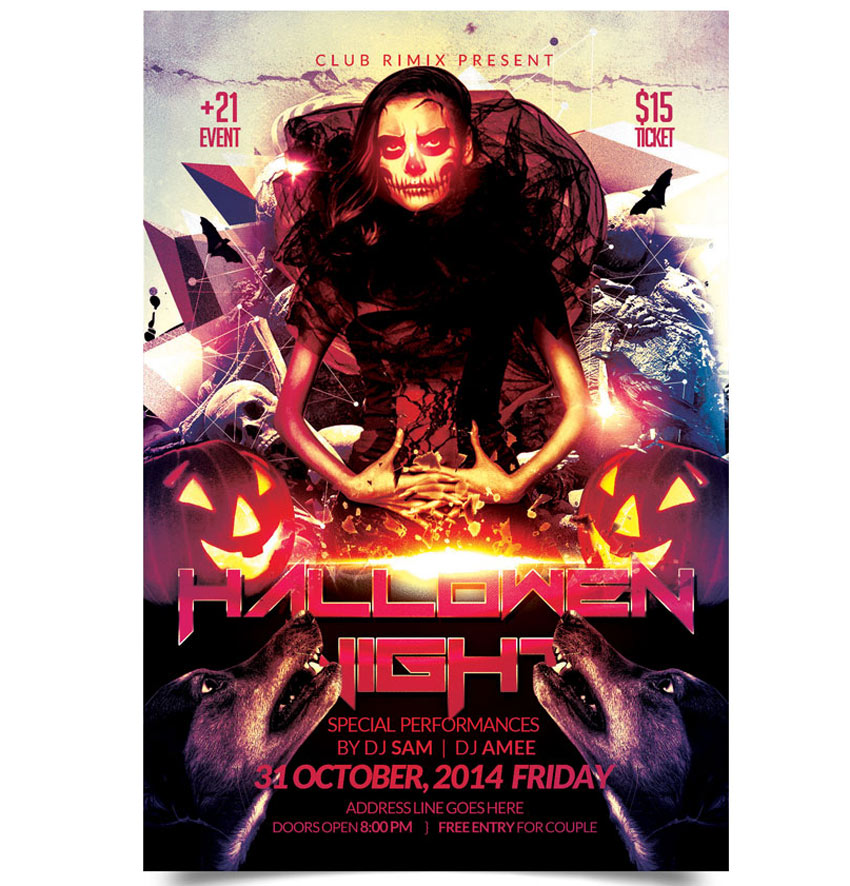
Get ready to dance all night with this show stopping party flyer. This flyer contains impressive abstract elements combined with a Halloween theme. Download this print ready file and get ready to use it right away!

Halloween Night Party Flyer

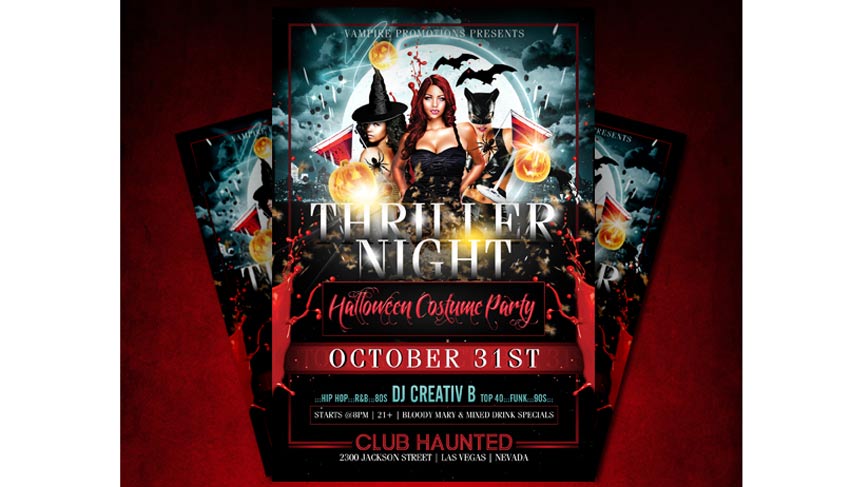
Sexy Thriller Halloween Flyer

If you’re holding a party for the adults, try out this Halloween flyer for your nightclub or party events. With links to fonts used and several design variations, insert your own beautiful vixens to bring in your sinfully good times.

Sexy Thriller Halloween Flyer

Chills and Thrills Halloween Party Flyer

Create chills up the spines of your party goers with this party flyer. This template features a haunted forest vibes with chunky, grunge text. Update it easily with the help of Adobe Photoshop. It’s a flyer that’s perfect for beginners.

Chills and Thrills Halloween Party Flyer

Scary Scarecrow Halloween Flyer

Care to dance with a flaming scarecrow? Creep out your friends with this haunting design which includes six awesome scarecrows, two pre designed versions, and more custom elements to choose from.

Scary Scarecrow Halloween Flyer

Halloween Party Flyer

Creep out your party goers with this scary flyer. This flyer features a horror movie design reminiscent of iconic movie scenes. It’s great for any flyer or invitation and super easy to customize.

Halloween Party Flyer

Grunge Halloween Party Flyer

If you’re looking for a grunge look for your flyer, then look no further. This illustrative poster design features a fun grunge look that is matched with unique fonts and elements. Interchange your details with this easy-to-use template.

Grunge Halloween Party Flyer

Halloween Party Flyer

Don’t get caught in the spooky cobwebs! This cool flyer design features a black and white color theme for a nice, minimalist vibe. Simply switch out the party details to add your own in a matter of minutes!

Halloween Party Flyer

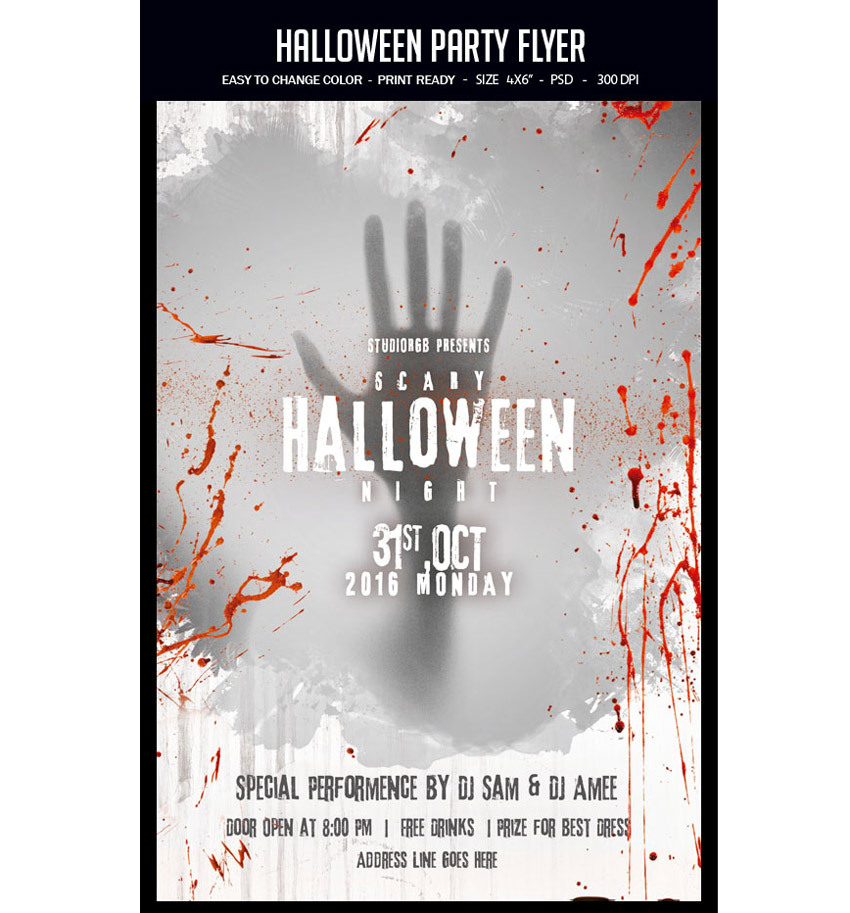
Graphic Zombie Hand Halloween Party Flyer

Having a zombie-themed party at your place? Try out this Halloween flyer to creep out your friends and let them know of the shenanigans ahead. Available in three colors styles and organized layers, this flyer is sure to wake the undead.

Graphic Zombie Hand Halloween Party Flyer

Halloween Rock Festival Flyer Template

Rock out at this year’s festival with this epic flyer template. This template features a rock and roll skull design with minimalist vector details. Choose from three different colors to enjoy this flyer in gold, white, and blue designs.

Halloween Rock Festival Flyer Template

Slime Halloween Party Flyer

Feeling a little slimey? Chances are you’ve gotten yourself into a sticky situation with this Halloween flyer. This design features an organized PSD file for easy editing and free fonts you can download in seconds. So get slimey in no time with this fun party flyer!

Slime Halloween Party Flyer

Gorey Zombie Hand Halloween Flyer

Celebrate the night the dead walk the earth with this quirky zombie flyer. Choose from three different versions, and even a different hand position to promote your zombie event.

Gorey Zombie Hand Halloween Flyer

Kids Halloween Party Flyer

If you’re looking for a kid-friendly design, then this is the flyer for you. With adorable vector elements and different monster cartoons to choose from, your child will have a blast knowing they have the coolest flyer on the block.

Kids Halloween Party Flyer

Haunted House Halloween Flyer

Enter at your own risk. This flyer features a dark haunted house along with a spooky design. With its elements so easy to customize, all you’ll need to is add your own text below and get ready to party!

Haunted House Halloween Flyer

Halloween Flyer

Add some shiny elements to your flyer for a hot design. This template features gold 3D elements like skulls and pumpkins for a sophisticated alternative. Swap out the title and additional text elements to get started with this flyer today!

Halloween Flyer

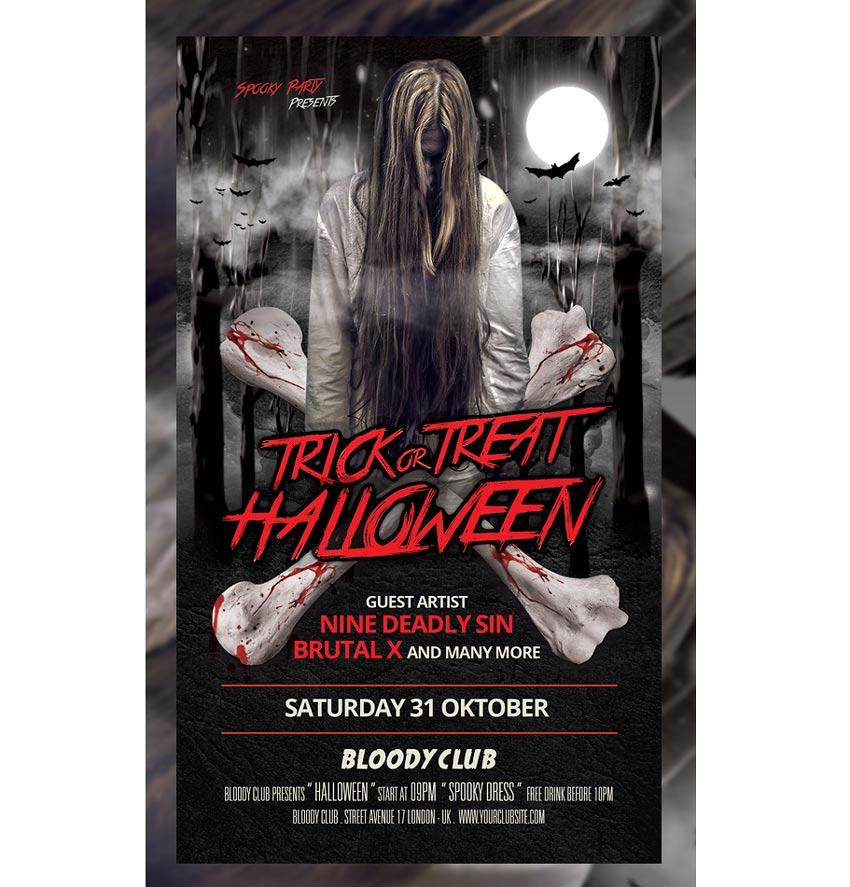
Spooky Halloween Flyer Template

Want to keep your friends up at night? Scare them with this super spooky Halloween template before they even show up to your party. Edit the text easily in Adobe Photoshop, and switch out the main photo with a choice of your own possessed model from Photodune.

Spooky Halloween Flyer Template

Zombie Brain Halloween Flyer

Bbbbraaainnns! This Halloween flyer features a bright design and colorful zombie that will be sure to charm the limbs off your friends. With two color options available, check out this flyer in its easily editable PSD format.

Zombie Brain Halloween Flyer

Club Z Horror Party Template

Did anyone invite zombies to this party? This bloody flyer design features dripping text and 
customizable elements you can edit in Adobe Photoshop. Change out the images with your own zombies or download some stocks from Photodune.

Club Z Horror Party Template

Frankenstein Halloween Flyer

It’s alive! If you’ve been hiding out in a secret laboratory, then this flyer may be for you. Surprise your friends with your deadly creation with this fun Halloween design. Edit in Adobe Photoshop and choose from several different colors to finalize your monster creation.

Frankenstein Halloween Flyer

Black and White Halloween Party Flyer

Looking for a simple design that is easy to print? Check out this grunge Halloween party flyer with graphic elements. Customize the text to fit your party details and celebrate your festivities in style.

Black and White Halloween Party Flyer

Zombie Party Halloween Flyer

Zombies like parties too! Bring in Halloween this year with a fun zombie party using this flyer design. It features colorful Halloween elements and splashes of grunge to keep things a little dirty.

Zombie Party Halloween Flyer

Graveyard Halloween Party Flyer

Need a flyer that is a balance of cool and spooky? Check out this wicked Halloween flyer with graveyard details and customizable text.

Graveyard Halloween Party Flyer

Grunge Vintage Halloween Party Flyer

Feeling a little vintage? Celebrate your feelings of nostalgia with this spooky flyer design. With its fully editable file and easy-to-use PSD format, change the colors to reflect your theme with this print ready poster.

Grunge Vintage Halloween Part

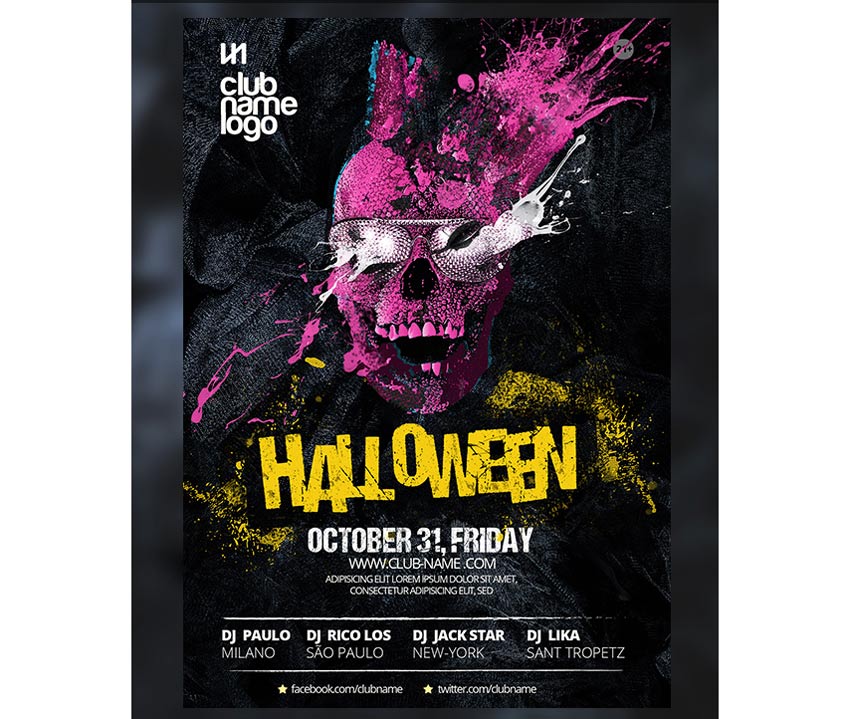
Skull Halloween Party Template

Yes, this awesome skull is included! With an explosive pink design, everyone will be read to dance the night away at your Halloween event. Included with this template are links to the fonts used for this easy-to-edit PSD file.

Skull Halloween Party Template

Simple Halloween Party Flyer

This flyer has all your favorite Halloween elements in one. With a fun ghoulish text atop a skull backdrop, you can let your event shine with this simple design and bold color. Fully editable in Adobe Photoshop, change out the colors or keep this beautiful yellow to go with your Halloween theme. 

Simple Halloween Party Flyer

Retro Halloween Party Flyer

If simple elements are more your style, check out this retro design. Featuring adorable Halloween elements like bats, pumpkins, and even your very own Dracula, invite your friends to your next horror party with this quick and easy flyer.

Retro Halloween Party Flyer

Halloween Monster Party Flyer

Don’t get too close or you just might end up for dinner! This Halloween flyer features a large vector design that is easily resizable in Photoshop. Choose from several vibrant colors and scare your friends with this monstrous design.

Halloween Monster Party Flyer

Trick or Treat Halloween Flyer

Trick or Treat? This Halloween design features a cool night time color palette with glowing pumpkins. Kick off your party or event with this ready-to-print flyer with guides for your understanding.

Trick or Treat Halloween Flyer

Voodoo Doll Halloween Flyer

Allude to your love of voodoo with this fun Halloween design. With a giant spider web, voodoo doll, and additional spooky elements, easily customize this illustrative poster with different colors and unique fonts.

Voodoo Doll Halloween Flyer

Halloween Trunk or Treat Flyer

Invite the neighbors over for a fun game of trunk or treat. Packed with three design variations, this template features ghost, pumpkin, and fire themes. Get access to six files and free fonts in one convenient download!

Halloween Trunk or Treat Flyer

Spooky Hand Halloween Flyer

Need a hand? This Halloween flyer features a mysterious spooky hand that slashes through the poster design. And with the image included, all you’ll need to do is switch out the text with your own party information!

Spooky Hand Halloween Flyer

Skull and Flower Halloween Flyer

If the other designs aren’t quite your speed, then try out this gorgeous Halloween flyer. Featuring a large skull with an elegant flower head piece, show off your love of fashion and style with this unique event poster. Customize the colors to your liking and take relief in knowing that all the images are included!

Skull and Flower Halloween Flyer

Pumpkin Trio Halloween Party Template

Need a quick flyer design with realistic elements? Check out this
impressive Halloween flyer packed with all the resources that you see.
Easily modify text, switch the colors around, and add or remove objects
to the layered PSD file.

Pumpkin Trio Halloween Party Template

Halloween Haunted House Flyer

Celebrate your favorite holiday in the comfort of your home with this haunted house theme. This template features a clean, modern design with bold text against a candlelit background. Just add your address and official event date to get your party started.

Halloween Haunted House Flyer

Conclusion

This list is jam-packed with Halloween resources for the avid designer familiar with Adobe Photoshop and Illustrator. But with thousands of flyers available at your fingertips, chances are we’ve missed a few to add to your personal collection. Be sure to browse Envato Market for more resources and let us know your favorites in the comments below!

64 Awesome Halloween Invitations and Flyers for Your Spooky Celebrations

Post pobrano z: 64 Awesome Halloween Invitations and Flyers for Your Spooky Celebrations

It’s almost Halloween! That special time of the year when stores pack their shelves with candy and we all dress up as our favorite ghouls.

And what better way to celebrate our favorite monsters and urban legends then with a  spooktacular collection of Halloween invites and flyers you can only find on Envato Market? Here we have curated a selection of 50 to satisfy all your party needs.

Looking for more to choose from? Browse the wide selection of templates available to you on Envato Market.

Or enlist the help of a design professional by contacting the good folks at Envato Studio.

Halloween Invitations

You can’t have a party without sending out a few invites. These Halloween invitations will make you want to throw your very own costume party and celebrate in style.

Happy Halloween Banner Invitation Card

Great for kids parties, this Halloween invitation is super cute and bright. Enjoy the playful design complete with a tombstone, pumpkin, and witch hat.

Happy Halloween Banner Invitation Card

Halloween Party Invitation Template

Kick off your ghoulish celebrations with this invitation template. This simple design features dripping font and a creepy graveyard design at the bottom.

Halloween Party Invitation Template

Vintage Midnight Party Halloween Invitation

Inspired by the classics, this Halloween invite features several stills from horror classics with some fantastic fonts you can download for free. Pick from three versions and several color combinations.

Vintage Midnight Party Halloween Invitation

Halloween Monster Mash Party Invite

Monster mash anyone? Summon your friends to eat, drink, and be scary with this fun and simple Halloween party invite. With two themes available and text ready-to-edit, choose from portrait or landscape orientation for your invites.

Halloween Monster Mash Party Invite

Spooktacular Halloween Party Invitation

Keep it simple with this stylish invitation. This invite contains spooky ghosts against a starry sky. Enjoy the delightful design for a sweet take on Halloween invitations.

Halloween Flyer

Grungy Halloween Invitations in Retro Style

Add some retro charm to your holiday invites! This awesome collection includes four different designs to choose from. They go great with spooky Halloween themes and are sure to impress your party goers.

Grungy Halloween Invitations In Retro Style

Simple Halloween Bash Invitation Bundle

This creative set of invitations provides a variation of three fun designs to choose from. Pick from designs like Frankenstein, a werewolf, and a creepy pumpkin to bring a simple quirky flair to your invites.

Simple Halloween Bash Invitation Bundle

Skull Head Trick or Treat Halloween Invite

Are you a rebellious trick or treater wreaking havoc in the night? Then kick off your Halloween celebrations with this simple invite design. Editable in both Photoshop and Illustrator, you can customize this design no matter your Adobe product preferences.

Skull Head Trick or Treat Halloween Invitation

Typography Halloween Invite Flyer

Choose from different party themes to set your invite apart from others. This pack features spooky, minimalist designs with witch, ghost, and skull elements. Customize it easily by changing the fully editable text.

Typography Halloween Invite Flyer

Halloween Invitation II

Looking for a simple design that is haunting yet straight to the point? Check out this Halloween invitation that features an elegant cemetery silhouette that is subtle enough to fill you with fear. With a fully layered PSD file you can choose to customize the colors and text to fill your needs.

Halloween Invitation II

Halloween Invitation & Flyer Pack

This 2-for-1 deal packs a punch with a simple design you can use for either an invitation or party flyer. Change the background color to switch up the design or edit the text to fill your needs with Adobe Illustrator.

Halloween Invitation  Flyer Pack

Chalkboard Halloween Invitation Card

Love the simplicity of black and white? This chalkboard design features a simple composition that allows the typography and details of your party shine. It’s fully customizable and even comes with free fonts!

Chalkboard Halloween Invitation Card

Costume Halloween Party

Get your friends and family together for a fun costume party with this flyer invitation. This design features a cartoon theme perfect for all ages. Get access to three different color schemes to fit the style of your party.

Costume Halloween Party

Pumpkin Carving Halloween Invitation

What fun designs will you carve on your pumpkins this Halloween? Invite your friends over for a messy good time, and reward the winners with candy. Use this simple design for your invitations featuring a pumpkin, black cat, and simple yellow ribbons.

Pumpkin Carving Halloween Invitation

Glowing Halloween Party Invitation

This beautiful and simple design showcases several fun fonts to highlight all your party details. Available in the format for Adobe Illustrator, customize this invite with your own text and location.

Glowing Halloween Party Invitation

Purple Halloween Party Invitation

Need something short and sweet? This simple design features a beautiful purple night sky with creepy elements from a church cemetery. Create your invites quick and easy by just switching out the bottom text with your own location and contact details.

Purple Halloween Party Invitation

Zombies Attack Invitation Flyer

Watch out for the zombie attack with this wicked invitation flyer. This flyer features an apocalpytic theme with fire, destruction, and zombies, of course. Entertain your friends with the invite of the year!

Zombies Attack

Halloween Party Invitations – Set of 3

Do you like pumpkins, bats, or haunted houses? Choose from three simple designs with this set of Halloween party invitations. These designs use the vector EPS format, and you can easily customize the text for your celebration.

Halloween Party Invitations - Set of 3

Cute Halloween Party Invitation

You don’t always have to creep everyone out to have a good time. This simple party invitation features a cute trio of characters that you can interchange with several different colors. Editable in several formats, use this design for your kid’s party and school celebrations.

Cute Halloween Party Invitation

Halloween Frame Party Invitation

This beautiful yet simple design features a frame of skulls and other fall goodies to frame your choice of text. Add a hint of grunge to your party with this vintage-themed invitation.

Halloween Frame Party Invitation

Horror Witch Halloween Invitation

If you love bold colors and witches then this is the invite for you! Choose this invite made from 100% vector elements with easily resizable vectors. Shock your friends with these bold neon colors and choose something a little out of the box for this Halloween.

Horror Witch Halloween Invitation

Halloween Business Card Party Invitation

Business card or spooky party invite? This unique design features a layout and composition specially-made for business card printing. It utilizes a standard 3.5 x 2 inch design with high resolution for a fantastic high-quality result.

Halloween Business Card Party Invitation

Striped Halloween Party Invitation

Check out this colorful party invite featuring interchangeable skull and pumpkin designs. Edit your text with free fonts and set your celebrations into effect with this easy to use layout.

Striped Halloween Party Invitation

Halloween Ticket Party Invitation

Add a unique twist to your Halloween invites with a ticket-based design. Choose from several layout sizes and customize the colors to fit your theme.

Halloween Ticket Party Invitation

Halloween Costume Party Invitation Card

Having a costume party for all your friends? Pick this fun card that features a flyer full of fun cartoon characters taking their own spin on your favorite Halloween costumes.

Halloween Costume Party Invitation Card

Admission Ticket & Halloween Invite – Ghost Edition

This unique Halloween invitation gives you the option of giving admission tickets to your friends. Simply bring the entire invite, and include an admission number for your exclusive party.

Admission Ticket  Halloween Invite - Ghost Edition

Admission Ticket & Halloween Invitation – Pumpkin Edition

Here is another great admission ticket design utilizing a traditional Halloween pumpkin instead. Choose between a pumpkin along a simple background or an intricate back drop to celebrate your Halloween bash. Admission Ticket  Halloween Invitation - Pumpkin Edition

Simple Pumpkin Witch Halloween Invitation

Cast a spell on all your friends with this clean Halloween invitation. This design features beautiful calligraphy along with an easy to use design you can customize in Adobe Illustrator.

Simple Pumpkin Witch Halloween Invitation

Zombie Party Halloween Invitation Card

Who knew zombies could be so beautiful? This vector design features two deadly zombie hands reaching out of their grave to celebrate your upcoming party. With fun details like bats, gravestones, and an owl, impress your friends with this beautiful yet simple design.

Zombie Party Halloween Invitation Card

Pumpkin Brew Halloween Party Invitation

Boil, boil, toil, and trouble! Impress your friends with this Halloween invite featuring a scary pumpkin and fierce green fire. Choose to keep the fonts as is or incorporate your own for added customization.

Pumpkin Brew Halloween Party Invitation

Halloween Flyers

Whether you’re staying home with friends or dancing the night away, these Halloween flyers will make you want to get up off your feet. Let’s just hope that they’re still attached when you do!

Horror Party Flyer

Kick off the holiday with the party of the year! This flyer features an awesome club theme with 3D text and more. Download several print ready files available in two convenient sizes.

Horror Party Flyer

Halloween Flyer

Create a big impact with this bold and beautiful Halloween flyer. This template features a colorful design with neon text elements you can easily adjust. Enjoy one fully layered Photoshop file with links to the fonts used.

Halloween Flyer

Halloween Night Party Flyer

Get ready to dance all night with this show stopping party flyer. This flyer contains impressive abstract elements combined with a Halloween theme. Download this print ready file and get ready to use it right away!

Halloween Night Party Flyer

Sexy Thriller Halloween Flyer

If you’re holding a party for the adults, try out this Halloween flyer for your nightclub or party events. With links to fonts used and several design variations, insert your own beautiful vixens to bring in your sinfully good times.

Sexy Thriller Halloween Flyer

Chills and Thrills Halloween Party Flyer

Create chills up the spines of your party goers with this party flyer. This template features a haunted forest vibes with chunky, grunge text. Update it easily with the help of Adobe Photoshop. It’s a flyer that’s perfect for beginners.

Chills and Thrills Halloween Party Flyer

Scary Scarecrow Halloween Flyer

Care to dance with a flaming scarecrow? Creep out your friends with this haunting design which includes six awesome scarecrows, two pre designed versions, and more custom elements to choose from.

Scary Scarecrow Halloween Flyer

Halloween Party Flyer

Creep out your party goers with this scary flyer. This flyer features a horror movie design reminiscent of iconic movie scenes. It’s great for any flyer or invitation and super easy to customize.

Halloween Party Flyer

Grunge Halloween Party Flyer

If you’re looking for a grunge look for your flyer, then look no further. This illustrative poster design features a fun grunge look that is matched with unique fonts and elements. Interchange your details with this easy-to-use template.

Grunge Halloween Party Flyer

Halloween Party Flyer

Don’t get caught in the spooky cobwebs! This cool flyer design features a black and white color theme for a nice, minimalist vibe. Simply switch out the party details to add your own in a matter of minutes!

Halloween Party Flyer

Graphic Zombie Hand Halloween Party Flyer

Having a zombie-themed party at your place? Try out this Halloween flyer to creep out your friends and let them know of the shenanigans ahead. Available in three colors styles and organized layers, this flyer is sure to wake the undead.

Graphic Zombie Hand Halloween Party Flyer

Halloween Rock Festival Flyer Template

Rock out at this year’s festival with this epic flyer template. This template features a rock and roll skull design with minimalist vector details. Choose from three different colors to enjoy this flyer in gold, white, and blue designs.

Halloween Rock Festival Flyer Template

Slime Halloween Party Flyer

Feeling a little slimey? Chances are you’ve gotten yourself into a sticky situation with this Halloween flyer. This design features an organized PSD file for easy editing and free fonts you can download in seconds. So get slimey in no time with this fun party flyer!

Slime Halloween Party Flyer

Gorey Zombie Hand Halloween Flyer

Celebrate the night the dead walk the earth with this quirky zombie flyer. Choose from three different versions, and even a different hand position to promote your zombie event.

Gorey Zombie Hand Halloween Flyer

Kids Halloween Party Flyer

If you’re looking for a kid-friendly design, then this is the flyer for you. With adorable vector elements and different monster cartoons to choose from, your child will have a blast knowing they have the coolest flyer on the block.

Kids Halloween Party Flyer

Haunted House Halloween Flyer

Enter at your own risk. This flyer features a dark haunted house along with a spooky design. With its elements so easy to customize, all you’ll need to is add your own text below and get ready to party!

Haunted House Halloween Flyer

Halloween Flyer

Add some shiny elements to your flyer for a hot design. This template features gold 3D elements like skulls and pumpkins for a sophisticated alternative. Swap out the title and additional text elements to get started with this flyer today!

Halloween Flyer

Spooky Halloween Flyer Template

Want to keep your friends up at night? Scare them with this super spooky Halloween template before they even show up to your party. Edit the text easily in Adobe Photoshop, and switch out the main photo with a choice of your own possessed model from Photodune.

Spooky Halloween Flyer Template

Zombie Brain Halloween Flyer

Bbbbraaainnns! This Halloween flyer features a bright design and colorful zombie that will be sure to charm the limbs off your friends. With two color options available, check out this flyer in its easily editable PSD format.

Zombie Brain Halloween Flyer

Club Z Horror Party Template

Did anyone invite zombies to this party? This bloody flyer design features dripping text and 
customizable elements you can edit in Adobe Photoshop. Change out the images with your own zombies or download some stocks from Photodune.

Club Z Horror Party Template

Frankenstein Halloween Flyer

It’s alive! If you’ve been hiding out in a secret laboratory, then this flyer may be for you. Surprise your friends with your deadly creation with this fun Halloween design. Edit in Adobe Photoshop and choose from several different colors to finalize your monster creation.

Frankenstein Halloween Flyer

Black and White Halloween Party Flyer

Looking for a simple design that is easy to print? Check out this grunge Halloween party flyer with graphic elements. Customize the text to fit your party details and celebrate your festivities in style.

Black and White Halloween Party Flyer

Zombie Party Halloween Flyer

Zombies like parties too! Bring in Halloween this year with a fun zombie party using this flyer design. It features colorful Halloween elements and splashes of grunge to keep things a little dirty.

Zombie Party Halloween Flyer

Graveyard Halloween Party Flyer

Need a flyer that is a balance of cool and spooky? Check out this wicked Halloween flyer with graveyard details and customizable text.

Graveyard Halloween Party Flyer

Grunge Vintage Halloween Party Flyer

Feeling a little vintage? Celebrate your feelings of nostalgia with this spooky flyer design. With its fully editable file and easy-to-use PSD format, change the colors to reflect your theme with this print ready poster.

Grunge Vintage Halloween Part

Skull Halloween Party Template

Yes, this awesome skull is included! With an explosive pink design, everyone will be read to dance the night away at your Halloween event. Included with this template are links to the fonts used for this easy-to-edit PSD file.

Skull Halloween Party Template

Simple Halloween Party Flyer

This flyer has all your favorite Halloween elements in one. With a fun ghoulish text atop a skull backdrop, you can let your event shine with this simple design and bold color. Fully editable in Adobe Photoshop, change out the colors or keep this beautiful yellow to go with your Halloween theme. 

Simple Halloween Party Flyer

Retro Halloween Party Flyer

If simple elements are more your style, check out this retro design. Featuring adorable Halloween elements like bats, pumpkins, and even your very own Dracula, invite your friends to your next horror party with this quick and easy flyer.

Retro Halloween Party Flyer

Halloween Monster Party Flyer

Don’t get too close or you just might end up for dinner! This Halloween flyer features a large vector design that is easily resizable in Photoshop. Choose from several vibrant colors and scare your friends with this monstrous design.

Halloween Monster Party Flyer

Trick or Treat Halloween Flyer

Trick or Treat? This Halloween design features a cool night time color palette with glowing pumpkins. Kick off your party or event with this ready-to-print flyer with guides for your understanding.

Trick or Treat Halloween Flyer

Voodoo Doll Halloween Flyer

Allude to your love of voodoo with this fun Halloween design. With a giant spider web, voodoo doll, and additional spooky elements, easily customize this illustrative poster with different colors and unique fonts.

Voodoo Doll Halloween Flyer

Halloween Trunk or Treat Flyer

Invite the neighbors over for a fun game of trunk or treat. Packed with three design variations, this template features ghost, pumpkin, and fire themes. Get access to six files and free fonts in one convenient download!

Halloween Trunk or Treat Flyer

Spooky Hand Halloween Flyer

Need a hand? This Halloween flyer features a mysterious spooky hand that slashes through the poster design. And with the image included, all you’ll need to do is switch out the text with your own party information!

Spooky Hand Halloween Flyer

Skull and Flower Halloween Flyer

If the other designs aren’t quite your speed, then try out this gorgeous Halloween flyer. Featuring a large skull with an elegant flower head piece, show off your love of fashion and style with this unique event poster. Customize the colors to your liking and take relief in knowing that all the images are included!

Skull and Flower Halloween Flyer

Pumpkin Trio Halloween Party Template

Need a quick flyer design with realistic elements? Check out this
impressive Halloween flyer packed with all the resources that you see.
Easily modify text, switch the colors around, and add or remove objects
to the layered PSD file.

Pumpkin Trio Halloween Party Template

Halloween Haunted House Flyer

Celebrate your favorite holiday in the comfort of your home with this haunted house theme. This template features a clean, modern design with bold text against a candlelit background. Just add your address and official event date to get your party started.

Halloween Haunted House Flyer

Conclusion

This list is jam-packed with Halloween resources for the avid designer familiar with Adobe Photoshop and Illustrator. But with thousands of flyers available at your fingertips, chances are we’ve missed a few to add to your personal collection. Be sure to browse Envato Market for more resources and let us know your favorites in the comments below!

64 Awesome Halloween Invitations and Flyers for Your Spooky Celebrations

Post pobrano z: 64 Awesome Halloween Invitations and Flyers for Your Spooky Celebrations

It’s almost Halloween! That special time of the year when stores pack their shelves with candy and we all dress up as our favorite ghouls.

And what better way to celebrate our favorite monsters and urban legends then with a  spooktacular collection of Halloween invites and flyers you can only find on Envato Market? Here we have curated a selection of 50 to satisfy all your party needs.

Looking for more to choose from? Browse the wide selection of templates available to you on Envato Market.

Or enlist the help of a design professional by contacting the good folks at Envato Studio.

Halloween Invitations

You can’t have a party without sending out a few invites. These Halloween invitations will make you want to throw your very own costume party and celebrate in style.

Happy Halloween Banner Invitation Card

Great for kids parties, this Halloween invitation is super cute and bright. Enjoy the playful design complete with a tombstone, pumpkin, and witch hat.

Happy Halloween Banner Invitation Card

Halloween Party Invitation Template

Kick off your ghoulish celebrations with this invitation template. This simple design features dripping font and a creepy graveyard design at the bottom.

Halloween Party Invitation Template

Vintage Midnight Party Halloween Invitation

Inspired by the classics, this Halloween invite features several stills from horror classics with some fantastic fonts you can download for free. Pick from three versions and several color combinations.

Vintage Midnight Party Halloween Invitation

Halloween Monster Mash Party Invite

Monster mash anyone? Summon your friends to eat, drink, and be scary with this fun and simple Halloween party invite. With two themes available and text ready-to-edit, choose from portrait or landscape orientation for your invites.

Halloween Monster Mash Party Invite

Spooktacular Halloween Party Invitation

Keep it simple with this stylish invitation. This invite contains spooky ghosts against a starry sky. Enjoy the delightful design for a sweet take on Halloween invitations.

Halloween Flyer

Grungy Halloween Invitations in Retro Style

Add some retro charm to your holiday invites! This awesome collection includes four different designs to choose from. They go great with spooky Halloween themes and are sure to impress your party goers.

Grungy Halloween Invitations In Retro Style

Simple Halloween Bash Invitation Bundle

This creative set of invitations provides a variation of three fun designs to choose from. Pick from designs like Frankenstein, a werewolf, and a creepy pumpkin to bring a simple quirky flair to your invites.

Simple Halloween Bash Invitation Bundle

Skull Head Trick or Treat Halloween Invite

Are you a rebellious trick or treater wreaking havoc in the night? Then kick off your Halloween celebrations with this simple invite design. Editable in both Photoshop and Illustrator, you can customize this design no matter your Adobe product preferences.

Skull Head Trick or Treat Halloween Invitation

Typography Halloween Invite Flyer

Choose from different party themes to set your invite apart from others. This pack features spooky, minimalist designs with witch, ghost, and skull elements. Customize it easily by changing the fully editable text.

Typography Halloween Invite Flyer

Halloween Invitation II

Looking for a simple design that is haunting yet straight to the point? Check out this Halloween invitation that features an elegant cemetery silhouette that is subtle enough to fill you with fear. With a fully layered PSD file you can choose to customize the colors and text to fill your needs.

Halloween Invitation II

Halloween Invitation & Flyer Pack

This 2-for-1 deal packs a punch with a simple design you can use for either an invitation or party flyer. Change the background color to switch up the design or edit the text to fill your needs with Adobe Illustrator.

Halloween Invitation  Flyer Pack

Chalkboard Halloween Invitation Card

Love the simplicity of black and white? This chalkboard design features a simple composition that allows the typography and details of your party shine. It’s fully customizable and even comes with free fonts!

Chalkboard Halloween Invitation Card

Costume Halloween Party

Get your friends and family together for a fun costume party with this flyer invitation. This design features a cartoon theme perfect for all ages. Get access to three different color schemes to fit the style of your party.

Costume Halloween Party

Pumpkin Carving Halloween Invitation

What fun designs will you carve on your pumpkins this Halloween? Invite your friends over for a messy good time, and reward the winners with candy. Use this simple design for your invitations featuring a pumpkin, black cat, and simple yellow ribbons.

Pumpkin Carving Halloween Invitation

Glowing Halloween Party Invitation

This beautiful and simple design showcases several fun fonts to highlight all your party details. Available in the format for Adobe Illustrator, customize this invite with your own text and location.

Glowing Halloween Party Invitation

Purple Halloween Party Invitation

Need something short and sweet? This simple design features a beautiful purple night sky with creepy elements from a church cemetery. Create your invites quick and easy by just switching out the bottom text with your own location and contact details.

Purple Halloween Party Invitation

Zombies Attack Invitation Flyer

Watch out for the zombie attack with this wicked invitation flyer. This flyer features an apocalpytic theme with fire, destruction, and zombies, of course. Entertain your friends with the invite of the year!

Zombies Attack

Halloween Party Invitations – Set of 3

Do you like pumpkins, bats, or haunted houses? Choose from three simple designs with this set of Halloween party invitations. These designs use the vector EPS format, and you can easily customize the text for your celebration.

Halloween Party Invitations - Set of 3

Cute Halloween Party Invitation

You don’t always have to creep everyone out to have a good time. This simple party invitation features a cute trio of characters that you can interchange with several different colors. Editable in several formats, use this design for your kid’s party and school celebrations.

Cute Halloween Party Invitation

Halloween Frame Party Invitation

This beautiful yet simple design features a frame of skulls and other fall goodies to frame your choice of text. Add a hint of grunge to your party with this vintage-themed invitation.

Halloween Frame Party Invitation

Horror Witch Halloween Invitation

If you love bold colors and witches then this is the invite for you! Choose this invite made from 100% vector elements with easily resizable vectors. Shock your friends with these bold neon colors and choose something a little out of the box for this Halloween.

Horror Witch Halloween Invitation

Halloween Business Card Party Invitation

Business card or spooky party invite? This unique design features a layout and composition specially-made for business card printing. It utilizes a standard 3.5 x 2 inch design with high resolution for a fantastic high-quality result.

Halloween Business Card Party Invitation

Striped Halloween Party Invitation

Check out this colorful party invite featuring interchangeable skull and pumpkin designs. Edit your text with free fonts and set your celebrations into effect with this easy to use layout.

Striped Halloween Party Invitation

Halloween Ticket Party Invitation

Add a unique twist to your Halloween invites with a ticket-based design. Choose from several layout sizes and customize the colors to fit your theme.

Halloween Ticket Party Invitation

Halloween Costume Party Invitation Card

Having a costume party for all your friends? Pick this fun card that features a flyer full of fun cartoon characters taking their own spin on your favorite Halloween costumes.

Halloween Costume Party Invitation Card

Admission Ticket & Halloween Invite – Ghost Edition

This unique Halloween invitation gives you the option of giving admission tickets to your friends. Simply bring the entire invite, and include an admission number for your exclusive party.

Admission Ticket  Halloween Invite - Ghost Edition

Admission Ticket & Halloween Invitation – Pumpkin Edition

Here is another great admission ticket design utilizing a traditional Halloween pumpkin instead. Choose between a pumpkin along a simple background or an intricate back drop to celebrate your Halloween bash. Admission Ticket  Halloween Invitation - Pumpkin Edition

Simple Pumpkin Witch Halloween Invitation

Cast a spell on all your friends with this clean Halloween invitation. This design features beautiful calligraphy along with an easy to use design you can customize in Adobe Illustrator.

Simple Pumpkin Witch Halloween Invitation

Zombie Party Halloween Invitation Card

Who knew zombies could be so beautiful? This vector design features two deadly zombie hands reaching out of their grave to celebrate your upcoming party. With fun details like bats, gravestones, and an owl, impress your friends with this beautiful yet simple design.

Zombie Party Halloween Invitation Card

Pumpkin Brew Halloween Party Invitation

Boil, boil, toil, and trouble! Impress your friends with this Halloween invite featuring a scary pumpkin and fierce green fire. Choose to keep the fonts as is or incorporate your own for added customization.

Pumpkin Brew Halloween Party Invitation

Halloween Flyers

Whether you’re staying home with friends or dancing the night away, these Halloween flyers will make you want to get up off your feet. Let’s just hope that they’re still attached when you do!

Horror Party Flyer

Kick off the holiday with the party of the year! This flyer features an awesome club theme with 3D text and more. Download several print ready files available in two convenient sizes.

Horror Party Flyer

Halloween Flyer

Create a big impact with this bold and beautiful Halloween flyer. This template features a colorful design with neon text elements you can easily adjust. Enjoy one fully layered Photoshop file with links to the fonts used.

Halloween Flyer

Halloween Night Party Flyer

Get ready to dance all night with this show stopping party flyer. This flyer contains impressive abstract elements combined with a Halloween theme. Download this print ready file and get ready to use it right away!

Halloween Night Party Flyer

Sexy Thriller Halloween Flyer

If you’re holding a party for the adults, try out this Halloween flyer for your nightclub or party events. With links to fonts used and several design variations, insert your own beautiful vixens to bring in your sinfully good times.

Sexy Thriller Halloween Flyer

Chills and Thrills Halloween Party Flyer

Create chills up the spines of your party goers with this party flyer. This template features a haunted forest vibes with chunky, grunge text. Update it easily with the help of Adobe Photoshop. It’s a flyer that’s perfect for beginners.

Chills and Thrills Halloween Party Flyer

Scary Scarecrow Halloween Flyer

Care to dance with a flaming scarecrow? Creep out your friends with this haunting design which includes six awesome scarecrows, two pre designed versions, and more custom elements to choose from.

Scary Scarecrow Halloween Flyer

Halloween Party Flyer

Creep out your party goers with this scary flyer. This flyer features a horror movie design reminiscent of iconic movie scenes. It’s great for any flyer or invitation and super easy to customize.

Halloween Party Flyer

Grunge Halloween Party Flyer

If you’re looking for a grunge look for your flyer, then look no further. This illustrative poster design features a fun grunge look that is matched with unique fonts and elements. Interchange your details with this easy-to-use template.

Grunge Halloween Party Flyer

Halloween Party Flyer

Don’t get caught in the spooky cobwebs! This cool flyer design features a black and white color theme for a nice, minimalist vibe. Simply switch out the party details to add your own in a matter of minutes!

Halloween Party Flyer

Graphic Zombie Hand Halloween Party Flyer

Having a zombie-themed party at your place? Try out this Halloween flyer to creep out your friends and let them know of the shenanigans ahead. Available in three colors styles and organized layers, this flyer is sure to wake the undead.

Graphic Zombie Hand Halloween Party Flyer

Halloween Rock Festival Flyer Template

Rock out at this year’s festival with this epic flyer template. This template features a rock and roll skull design with minimalist vector details. Choose from three different colors to enjoy this flyer in gold, white, and blue designs.

Halloween Rock Festival Flyer Template

Slime Halloween Party Flyer

Feeling a little slimey? Chances are you’ve gotten yourself into a sticky situation with this Halloween flyer. This design features an organized PSD file for easy editing and free fonts you can download in seconds. So get slimey in no time with this fun party flyer!

Slime Halloween Party Flyer

Gorey Zombie Hand Halloween Flyer

Celebrate the night the dead walk the earth with this quirky zombie flyer. Choose from three different versions, and even a different hand position to promote your zombie event.

Gorey Zombie Hand Halloween Flyer

Kids Halloween Party Flyer

If you’re looking for a kid-friendly design, then this is the flyer for you. With adorable vector elements and different monster cartoons to choose from, your child will have a blast knowing they have the coolest flyer on the block.

Kids Halloween Party Flyer

Haunted House Halloween Flyer

Enter at your own risk. This flyer features a dark haunted house along with a spooky design. With its elements so easy to customize, all you’ll need to is add your own text below and get ready to party!

Haunted House Halloween Flyer

Halloween Flyer

Add some shiny elements to your flyer for a hot design. This template features gold 3D elements like skulls and pumpkins for a sophisticated alternative. Swap out the title and additional text elements to get started with this flyer today!

Halloween Flyer

Spooky Halloween Flyer Template

Want to keep your friends up at night? Scare them with this super spooky Halloween template before they even show up to your party. Edit the text easily in Adobe Photoshop, and switch out the main photo with a choice of your own possessed model from Photodune.

Spooky Halloween Flyer Template

Zombie Brain Halloween Flyer

Bbbbraaainnns! This Halloween flyer features a bright design and colorful zombie that will be sure to charm the limbs off your friends. With two color options available, check out this flyer in its easily editable PSD format.

Zombie Brain Halloween Flyer

Club Z Horror Party Template

Did anyone invite zombies to this party? This bloody flyer design features dripping text and 
customizable elements you can edit in Adobe Photoshop. Change out the images with your own zombies or download some stocks from Photodune.

Club Z Horror Party Template

Frankenstein Halloween Flyer

It’s alive! If you’ve been hiding out in a secret laboratory, then this flyer may be for you. Surprise your friends with your deadly creation with this fun Halloween design. Edit in Adobe Photoshop and choose from several different colors to finalize your monster creation.

Frankenstein Halloween Flyer

Black and White Halloween Party Flyer

Looking for a simple design that is easy to print? Check out this grunge Halloween party flyer with graphic elements. Customize the text to fit your party details and celebrate your festivities in style.

Black and White Halloween Party Flyer

Zombie Party Halloween Flyer

Zombies like parties too! Bring in Halloween this year with a fun zombie party using this flyer design. It features colorful Halloween elements and splashes of grunge to keep things a little dirty.

Zombie Party Halloween Flyer

Graveyard Halloween Party Flyer

Need a flyer that is a balance of cool and spooky? Check out this wicked Halloween flyer with graveyard details and customizable text.

Graveyard Halloween Party Flyer

Grunge Vintage Halloween Party Flyer

Feeling a little vintage? Celebrate your feelings of nostalgia with this spooky flyer design. With its fully editable file and easy-to-use PSD format, change the colors to reflect your theme with this print ready poster.

Grunge Vintage Halloween Part

Skull Halloween Party Template

Yes, this awesome skull is included! With an explosive pink design, everyone will be read to dance the night away at your Halloween event. Included with this template are links to the fonts used for this easy-to-edit PSD file.

Skull Halloween Party Template

Simple Halloween Party Flyer

This flyer has all your favorite Halloween elements in one. With a fun ghoulish text atop a skull backdrop, you can let your event shine with this simple design and bold color. Fully editable in Adobe Photoshop, change out the colors or keep this beautiful yellow to go with your Halloween theme. 

Simple Halloween Party Flyer

Retro Halloween Party Flyer

If simple elements are more your style, check out this retro design. Featuring adorable Halloween elements like bats, pumpkins, and even your very own Dracula, invite your friends to your next horror party with this quick and easy flyer.

Retro Halloween Party Flyer

Halloween Monster Party Flyer

Don’t get too close or you just might end up for dinner! This Halloween flyer features a large vector design that is easily resizable in Photoshop. Choose from several vibrant colors and scare your friends with this monstrous design.

Halloween Monster Party Flyer

Trick or Treat Halloween Flyer

Trick or Treat? This Halloween design features a cool night time color palette with glowing pumpkins. Kick off your party or event with this ready-to-print flyer with guides for your understanding.

Trick or Treat Halloween Flyer

Voodoo Doll Halloween Flyer

Allude to your love of voodoo with this fun Halloween design. With a giant spider web, voodoo doll, and additional spooky elements, easily customize this illustrative poster with different colors and unique fonts.

Voodoo Doll Halloween Flyer

Halloween Trunk or Treat Flyer

Invite the neighbors over for a fun game of trunk or treat. Packed with three design variations, this template features ghost, pumpkin, and fire themes. Get access to six files and free fonts in one convenient download!

Halloween Trunk or Treat Flyer

Spooky Hand Halloween Flyer

Need a hand? This Halloween flyer features a mysterious spooky hand that slashes through the poster design. And with the image included, all you’ll need to do is switch out the text with your own party information!

Spooky Hand Halloween Flyer

Skull and Flower Halloween Flyer

If the other designs aren’t quite your speed, then try out this gorgeous Halloween flyer. Featuring a large skull with an elegant flower head piece, show off your love of fashion and style with this unique event poster. Customize the colors to your liking and take relief in knowing that all the images are included!

Skull and Flower Halloween Flyer

Pumpkin Trio Halloween Party Template

Need a quick flyer design with realistic elements? Check out this
impressive Halloween flyer packed with all the resources that you see.
Easily modify text, switch the colors around, and add or remove objects
to the layered PSD file.

Pumpkin Trio Halloween Party Template

Halloween Haunted House Flyer

Celebrate your favorite holiday in the comfort of your home with this haunted house theme. This template features a clean, modern design with bold text against a candlelit background. Just add your address and official event date to get your party started.

Halloween Haunted House Flyer

Conclusion

This list is jam-packed with Halloween resources for the avid designer familiar with Adobe Photoshop and Illustrator. But with thousands of flyers available at your fingertips, chances are we’ve missed a few to add to your personal collection. Be sure to browse Envato Market for more resources and let us know your favorites in the comments below!