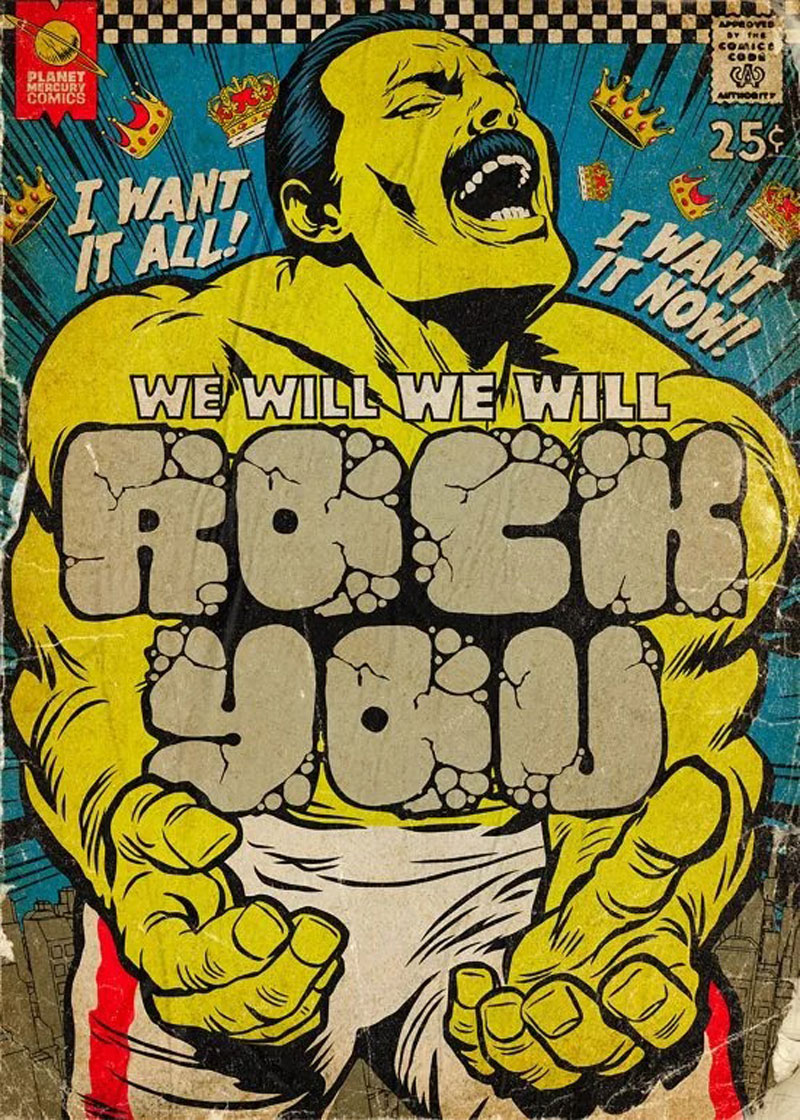
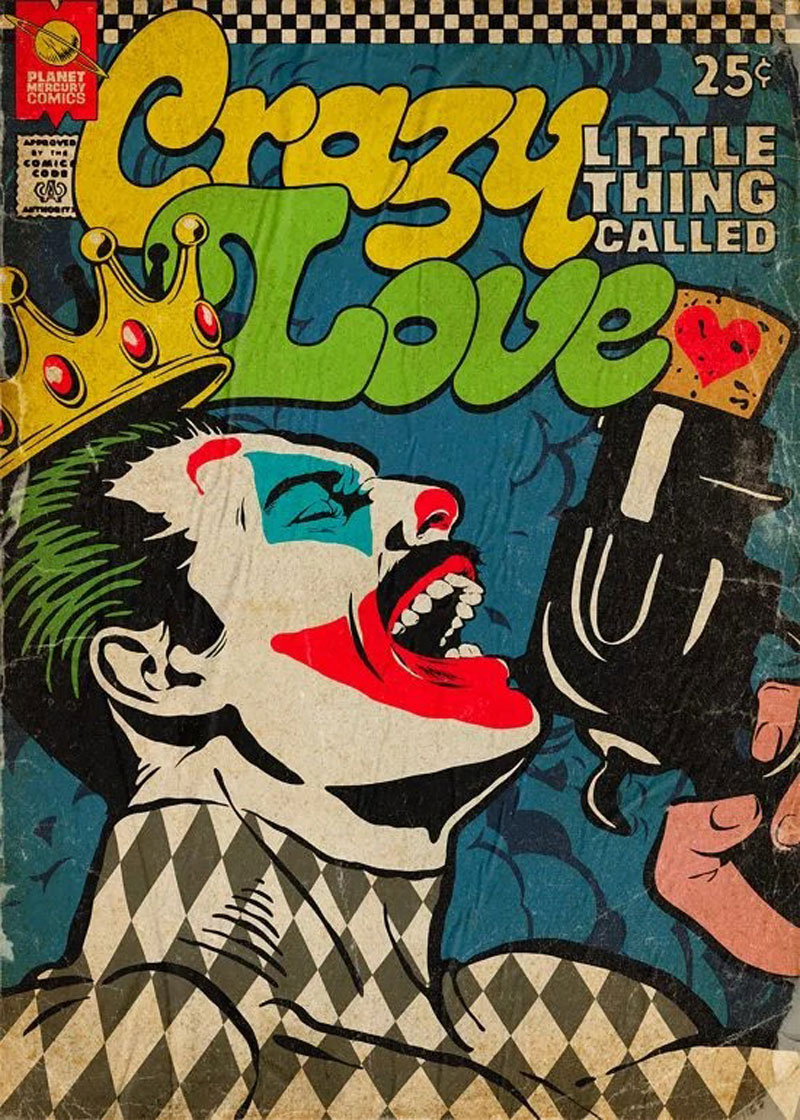
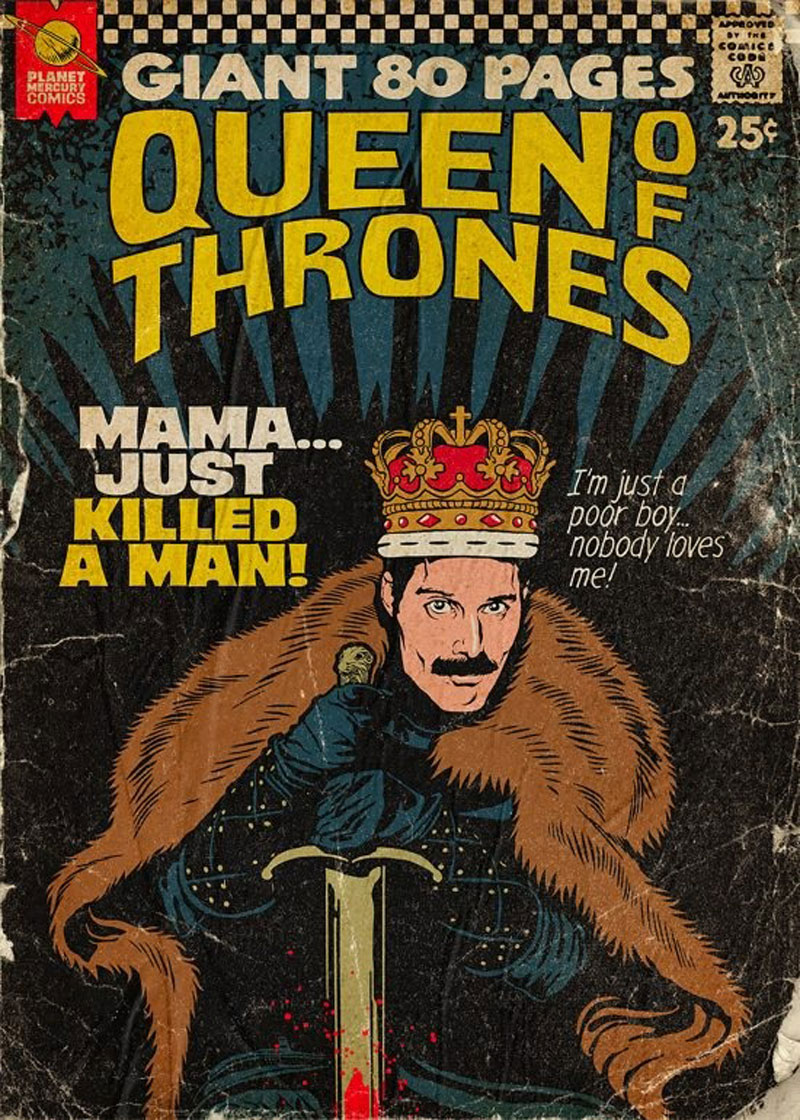
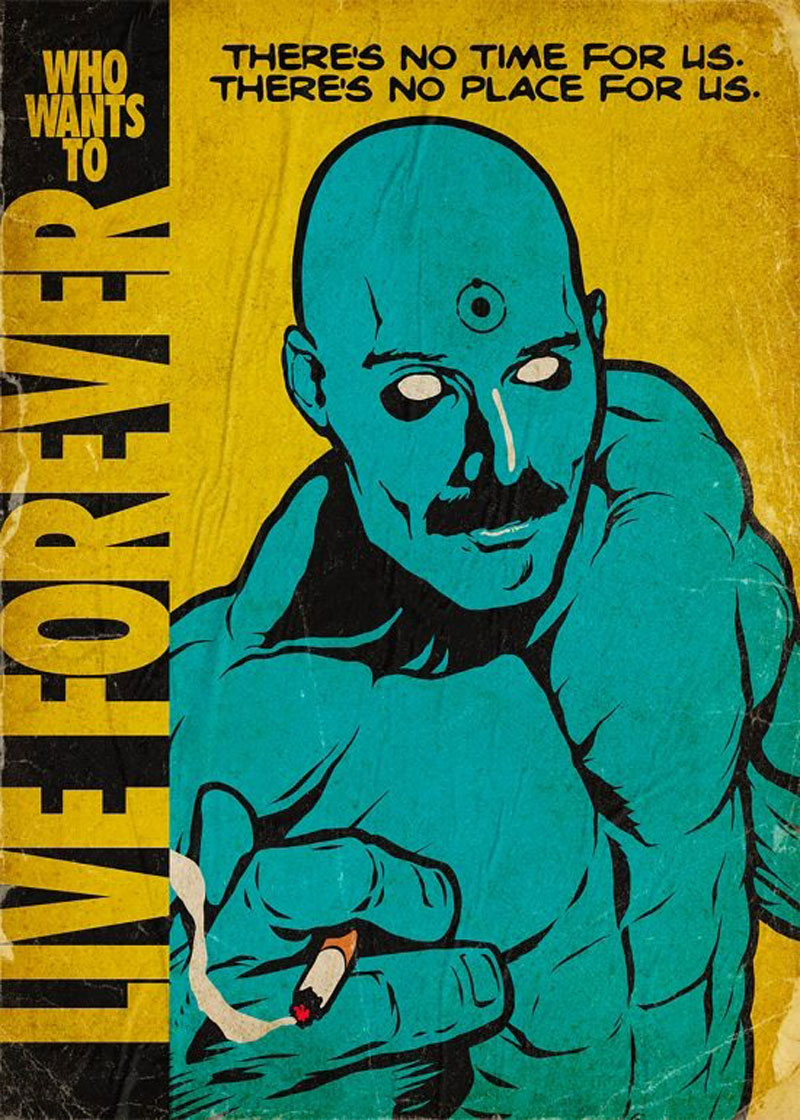
Butcher Billy is an illustrator based in Curitiba, Brazil. He creates powerful illustrations in a comic book style and has a real talent for creating a vintage look-and-feel in his art.
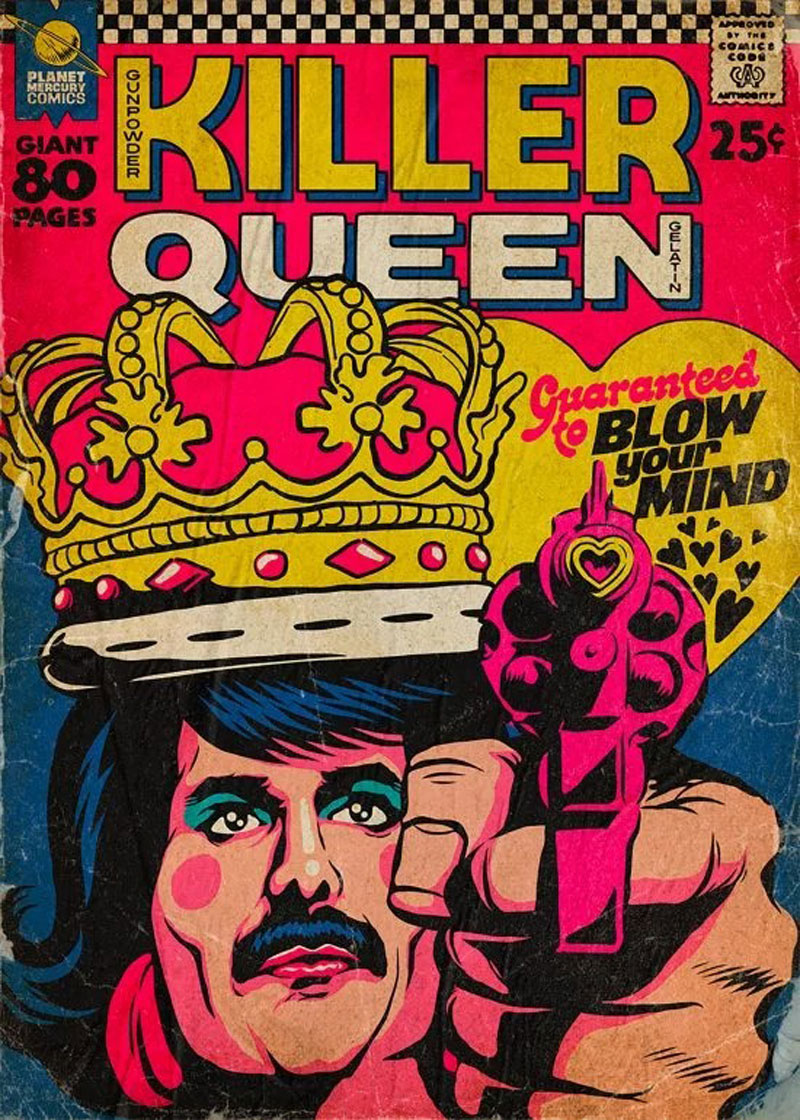
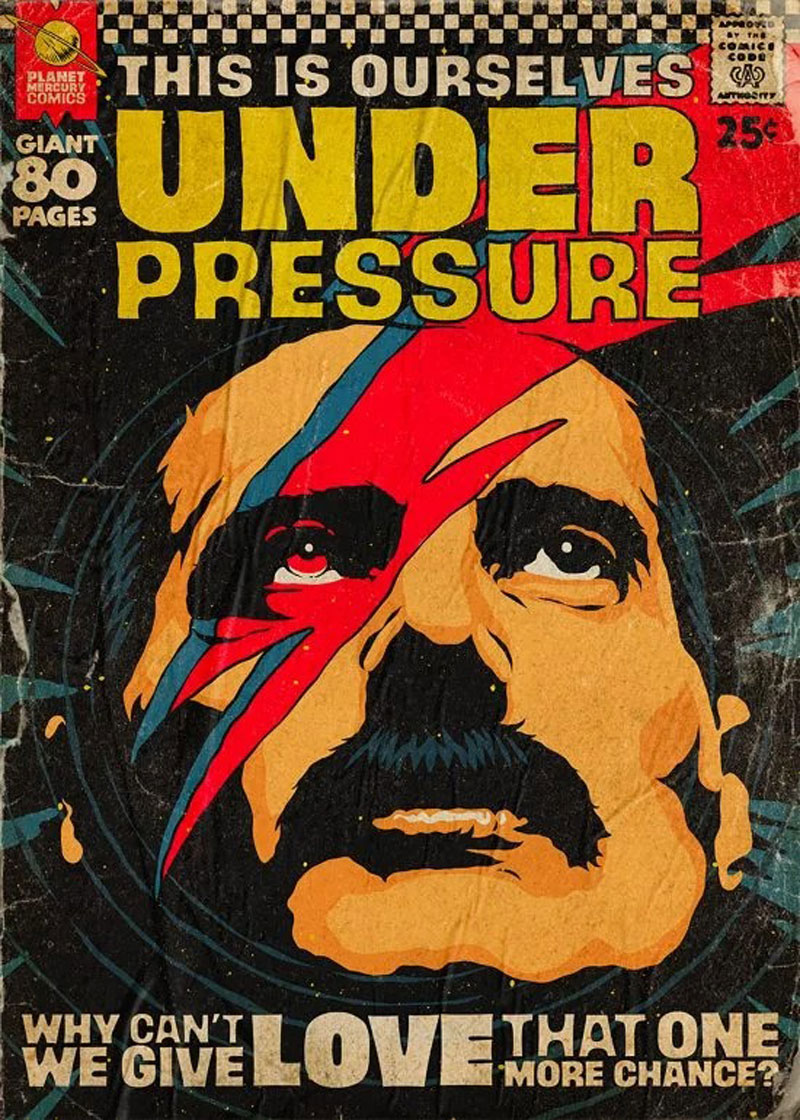
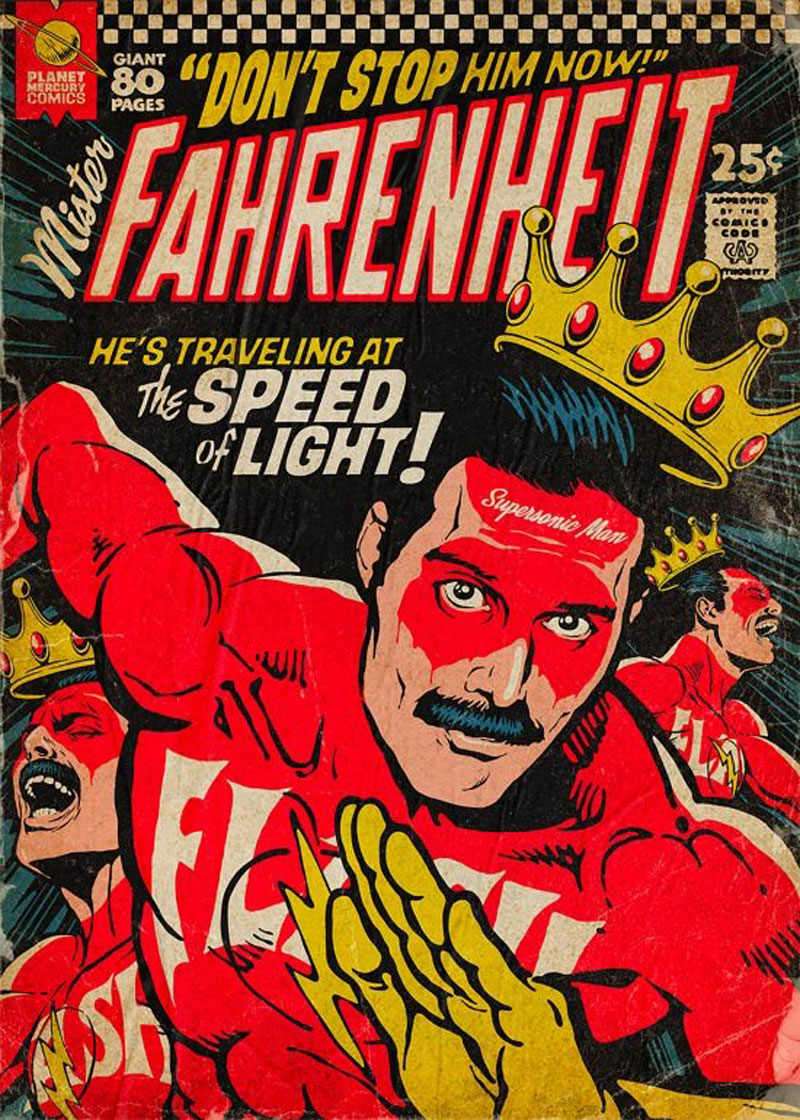
One of his most popular illustration series is this Planet Mercury work. In it, the artist integrated rockstar Freddy Mercury into comics covers and turned him into all kinds of heroes. This work can be purchased as prints on the illustrator’s Redbubble shop.
Butcher Billy is an illustrator based in Curitiba, Brazil. He creates powerful illustrations in a comic book style and has a real talent for creating a vintage look-and-feel in his art.
One of his most popular illustration series is this Planet Mercury work. In it, the artist integrated rockstar Freddy Mercury into comics covers and turned him into all kinds of heroes. This work can be purchased as prints on the illustrator’s Redbubble shop.
Butcher Billy is an illustrator based in Curitiba, Brazil. He creates powerful illustrations in a comic book style and has a real talent for creating a vintage look-and-feel in his art.
One of his most popular illustration series is this Planet Mercury work. In it, the artist integrated rockstar Freddy Mercury into comics covers and turned him into all kinds of heroes. This work can be purchased as prints on the illustrator’s Redbubble shop.
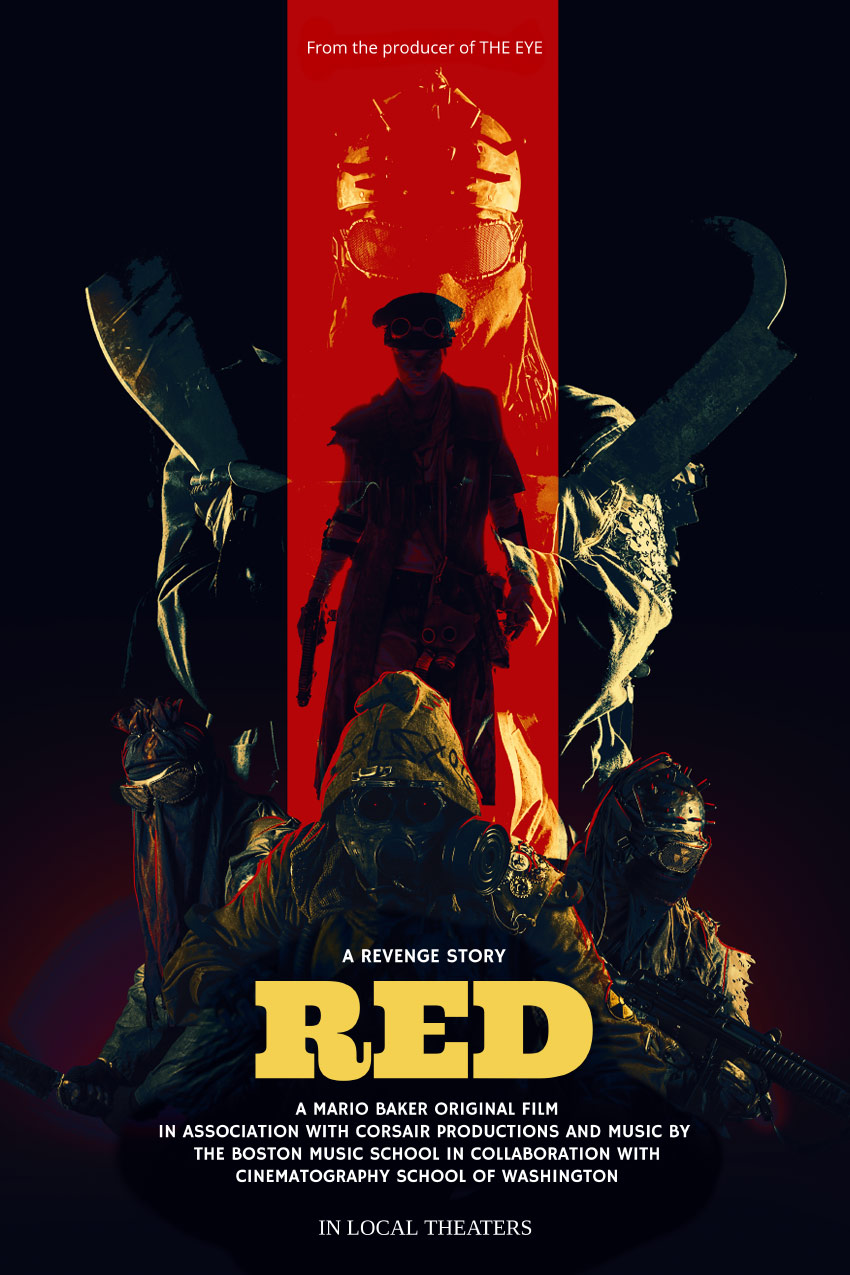
Today we will be learning how to make a movie poster in Adobe Photoshop, paired with Placeit’s poster maker!
We will be focusing on creating a gritty post-apocalyptic color grade using adjustment layers, and you’ll also learn how to apply quick and easy typography with Placeit. Let’s get started!
What You’ll Need
You’ll need the following resources to complete this project:
1. How to Create a Red and Black Silhouetted Character
To start everything off, we will be creating our base and the main focus of our poster. In a real movie poster, this is where the hero would be located!
Step 1
Create a 4349 x 5907 px canvas with a Resolution of 300.
Step 2
Create a Color Fill Layer and fill it with black.
Using the Gradient or Brush Tool, create a red #ef0000 to transparent gradient coming from the bottom of the canvas.
Step 3
Using a massive, soft, round Brush Tool, paint a black shadow gradient coming in from the left and right sides of the canvas.
Step 4
Use the Rectangle Tool to create a long red #ff0000 vertical rectangle going from the top of the canvas to the bottom.
Group all of your background layers into a group named „Base.”
2. How to Plan Out and Place an Effective Composition
Next, we want to place our secondary characters—in this case, our hero’s enemies.
Step 1
Take Nuclear survivor 1 and Nuclear survivor 2 and place them side by side, but facing away from each other. This will help frame the main female character.
To help place him and get his positioning just right, loosely extract him from his background using the Lasso Tool—just enough so that you can see behind the character.
Step 3
Finally, drag and drop Nuclear survivor 4 onto your canvas, setting the layer to Lighten.
He will represent our main bad guy, so let’s not only make him bigger but also place him looming over all the other characters.
Placing all your characters before extracting them is helpful when you have multiple poses or people to choose from. It will keep you from wasting time removing the background of people or objects you end up not using.
3. How to Create a Gritty Post-Apocalyptic Photo Effect
Before we go any further, we are going to add a gritty color grade. Most of the time I save this step for last, but given the intensity of this effect in particular, it’s best to do it earlier on so you have a better vision of the outcome.
These are layered from bottom to top and should be placed above all future layers from here on out.
Step 1
Create a Color Lookup adjustment layer.
Color Lookup Settings
3DLUT: Bleach Bypass
Opacity: 50%
Step 2
Create a Color Lookup adjustment layer.
Color Lookup Settings
3DLUT: Foggy Night
Opacity: 20%
Step 3
Create a Color Lookup adjustment layer.
Color Lookup Settings
3DLUT: Crisp Warm
Opacity: 40%
Step 4
Create a Color Lookup adjustment layer.
Color Lookup Settings
3DLUT: Edgey Amber
Opacity: 50%
Step 5
Create a Color Lookup adjustment layer.
Color Lookup Settings
3DLUT: Horror Blue
Opacity: 100%
Layer Mode: Darker Color
Step 6
Create a Selective Color adjustment layer.
Selective Color Settings
Reds
Yellow: +100%
Blues
Cyan: +100%
Magenta: +3%
Yellow: -96%
Step 7
Create a Color Lookup adjustment layer.
Color Lookup Settings
3DLUT: Teal Orange Plus Contrast
Opacity: 62%
Layer Mode: Color
Group all of your adjustment layers together, naming the group „Color Grade.”
4. How to Composite Multiple Subjects Together
Now that we have our colors fleshed out and our characters placed, we can finally composite them all together.
Now is the time to get their exact positioning just right.
Step 2
Extract and place your third subject located in the front. I also went ahead and enlarged him slightly to give the characters more of a hierarchy.
Step 3
Extract the fourth, largest character using the Magic Wand Tool. We want this character to have mostly highlights and be roughly extracted with a lot of jagged and torn edges.
Make sure the layer is still set to Lighten and place it behind all other characters.
Group all of your characters into a group named „Subjects.”
5. How to Draw Highlights and Blend Characters Quickly
Given the darkness of the overall image, it’s important to make sure your characters pop against their background; adding some strong highlights is a great way to do that!
Step 1
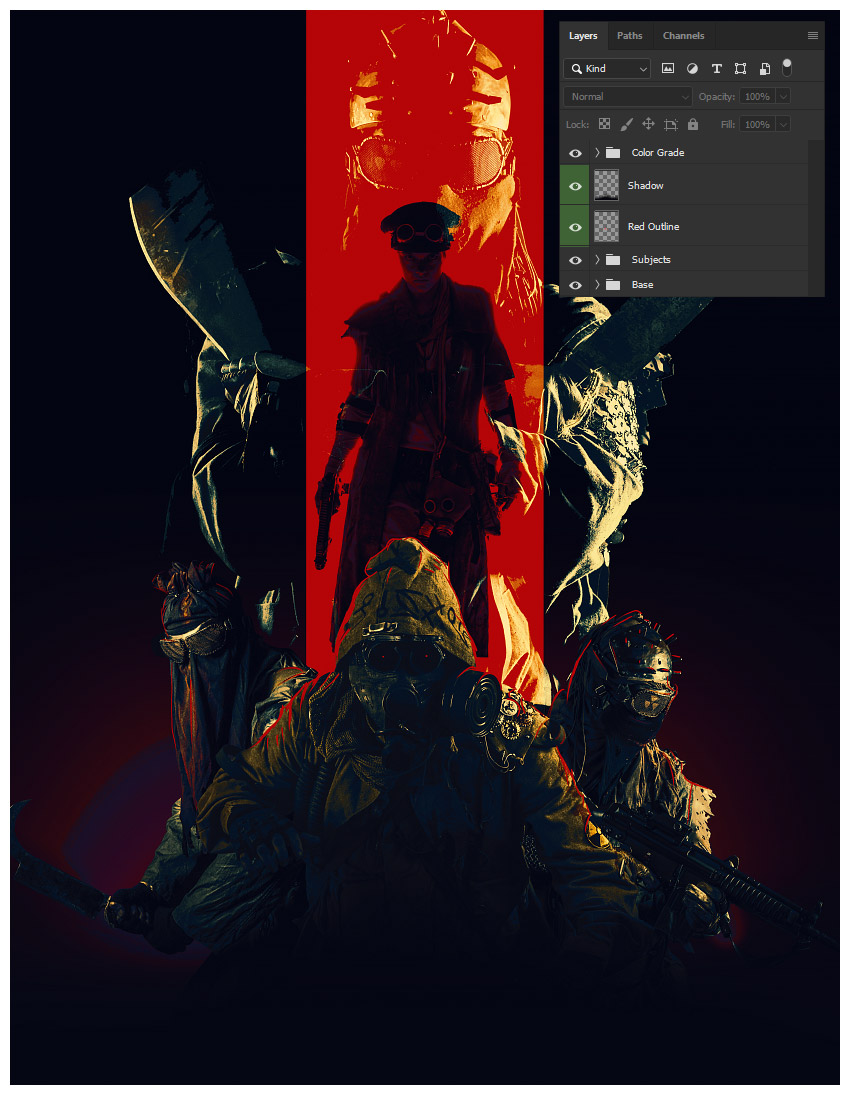
Create a New Layer above the „Subjects” group.
Paint a red, somewhat sloppy outline around your three lower subjects using a small, hard round Brush.
If you don’t have a graphics tablet, bring up the Smoothing of the brushto 30-50% and use the Smudge Tool to taper out the ends of the lines.
Step 2
Create a New Layer above your red outline.
Using a large, soft, round Brush, paint a black shadow below your three lower subjects.
Make sure not to hide any crucial details such as the subject’s weapons, while also making sure the bottom edges of the subjects aren’t showing and it’s a smooth black transition.
6. How to Add Typography Using Placeit’s Poster Maker
Finally, we will be bringing our poster into Placeit’s poster maker to add our movie’s title and other relevant text!
Step 1
Save your poster design as either a JPG or PNG at a max of 12 MB in size.
I’d suggest making your width at least 3600 px.
Step 2
See all of the poster templates available by going to www.placeit.net > Designs and searching „Poster”.
Scroll down to see some of the horror genres presets available.
I will be using „Ritual”. Although this is a horror preset and our film is more in the post-apocalyptic action genre, Placeit gives you tons of customization options!
Step 4
While Placeit has a library of images available to use, we, of course, will be using our own.
Do this by selecting Custom Image on the right-hand side where the background images are located.
Select your saved poster PNG or JPG image.
Crop your image using Placeit’s simple slider crop feature if needed.
Step 5
Add your own text by replacing the text found on the left-hand side of the screen.
The changes happen live and in real time!
Step 6
Once all your text is decided, you can start to change the color, font face, and font placement!
I will be using a pale-yellow color #f4d150 for the title font to make it stand out.
Use the Color Picker Tool in Photoshop to pick colors right off your poster.
Step 7
Next, I will be changing the font to Ultra.
Step 8
Finally, to finish everything up, I am going to arrange our poster text.
To do this in Placeit, drag and place the text wherever you want it. Once again, it’s all live editing!
It also has guides to help you align everything perfectly!
We’ve Done It!
The only thing more important than the composition or color story of a movie poster is the text itself! It must be bold, readable, and something that draws the eye to it!
So, as always, keep experimenting with different techniques, and don’t forget to post your version below, along with any questions, comments, or critiques!
Looking to learn more? Why not check out the following excellent photo manipulation tutorials:
Today we will be learning how to make a movie poster in Adobe Photoshop, paired with Placeit’s poster maker!
We will be focusing on creating a gritty post-apocalyptic color grade using adjustment layers, and you’ll also learn how to apply quick and easy typography with Placeit. Let’s get started!
What You’ll Need
You’ll need the following resources to complete this project:
1. How to Create a Red and Black Silhouetted Character
To start everything off, we will be creating our base and the main focus of our poster. In a real movie poster, this is where the hero would be located!
Step 1
Create a 4349 x 5907 px canvas with a Resolution of 300.
Step 2
Create a Color Fill Layer and fill it with black.
Using the Gradient or Brush Tool, create a red #ef0000 to transparent gradient coming from the bottom of the canvas.
Step 3
Using a massive, soft, round Brush Tool, paint a black shadow gradient coming in from the left and right sides of the canvas.
Step 4
Use the Rectangle Tool to create a long red #ff0000 vertical rectangle going from the top of the canvas to the bottom.
Group all of your background layers into a group named „Base.”
2. How to Plan Out and Place an Effective Composition
Next, we want to place our secondary characters—in this case, our hero’s enemies.
Step 1
Take Nuclear survivor 1 and Nuclear survivor 2 and place them side by side, but facing away from each other. This will help frame the main female character.
To help place him and get his positioning just right, loosely extract him from his background using the Lasso Tool—just enough so that you can see behind the character.
Step 3
Finally, drag and drop Nuclear survivor 4 onto your canvas, setting the layer to Lighten.
He will represent our main bad guy, so let’s not only make him bigger but also place him looming over all the other characters.
Placing all your characters before extracting them is helpful when you have multiple poses or people to choose from. It will keep you from wasting time removing the background of people or objects you end up not using.
3. How to Create a Gritty Post-Apocalyptic Photo Effect
Before we go any further, we are going to add a gritty color grade. Most of the time I save this step for last, but given the intensity of this effect in particular, it’s best to do it earlier on so you have a better vision of the outcome.
These are layered from bottom to top and should be placed above all future layers from here on out.
Step 1
Create a Color Lookup adjustment layer.
Color Lookup Settings
3DLUT: Bleach Bypass
Opacity: 50%
Step 2
Create a Color Lookup adjustment layer.
Color Lookup Settings
3DLUT: Foggy Night
Opacity: 20%
Step 3
Create a Color Lookup adjustment layer.
Color Lookup Settings
3DLUT: Crisp Warm
Opacity: 40%
Step 4
Create a Color Lookup adjustment layer.
Color Lookup Settings
3DLUT: Edgey Amber
Opacity: 50%
Step 5
Create a Color Lookup adjustment layer.
Color Lookup Settings
3DLUT: Horror Blue
Opacity: 100%
Layer Mode: Darker Color
Step 6
Create a Selective Color adjustment layer.
Selective Color Settings
Reds
Yellow: +100%
Blues
Cyan: +100%
Magenta: +3%
Yellow: -96%
Step 7
Create a Color Lookup adjustment layer.
Color Lookup Settings
3DLUT: Teal Orange Plus Contrast
Opacity: 62%
Layer Mode: Color
Group all of your adjustment layers together, naming the group „Color Grade.”
4. How to Composite Multiple Subjects Together
Now that we have our colors fleshed out and our characters placed, we can finally composite them all together.
Now is the time to get their exact positioning just right.
Step 2
Extract and place your third subject located in the front. I also went ahead and enlarged him slightly to give the characters more of a hierarchy.
Step 3
Extract the fourth, largest character using the Magic Wand Tool. We want this character to have mostly highlights and be roughly extracted with a lot of jagged and torn edges.
Make sure the layer is still set to Lighten and place it behind all other characters.
Group all of your characters into a group named „Subjects.”
5. How to Draw Highlights and Blend Characters Quickly
Given the darkness of the overall image, it’s important to make sure your characters pop against their background; adding some strong highlights is a great way to do that!
Step 1
Create a New Layer above the „Subjects” group.
Paint a red, somewhat sloppy outline around your three lower subjects using a small, hard round Brush.
If you don’t have a graphics tablet, bring up the Smoothing of the brushto 30-50% and use the Smudge Tool to taper out the ends of the lines.
Step 2
Create a New Layer above your red outline.
Using a large, soft, round Brush, paint a black shadow below your three lower subjects.
Make sure not to hide any crucial details such as the subject’s weapons, while also making sure the bottom edges of the subjects aren’t showing and it’s a smooth black transition.
6. How to Add Typography Using Placeit’s Poster Maker
Finally, we will be bringing our poster into Placeit’s poster maker to add our movie’s title and other relevant text!
Step 1
Save your poster design as either a JPG or PNG at a max of 12 MB in size.
I’d suggest making your width at least 3600 px.
Step 2
See all of the poster templates available by going to www.placeit.net > Designs and searching „Poster”.
Scroll down to see some of the horror genres presets available.
I will be using „Ritual”. Although this is a horror preset and our film is more in the post-apocalyptic action genre, Placeit gives you tons of customization options!
Step 4
While Placeit has a library of images available to use, we, of course, will be using our own.
Do this by selecting Custom Image on the right-hand side where the background images are located.
Select your saved poster PNG or JPG image.
Crop your image using Placeit’s simple slider crop feature if needed.
Step 5
Add your own text by replacing the text found on the left-hand side of the screen.
The changes happen live and in real time!
Step 6
Once all your text is decided, you can start to change the color, font face, and font placement!
I will be using a pale-yellow color #f4d150 for the title font to make it stand out.
Use the Color Picker Tool in Photoshop to pick colors right off your poster.
Step 7
Next, I will be changing the font to Ultra.
Step 8
Finally, to finish everything up, I am going to arrange our poster text.
To do this in Placeit, drag and place the text wherever you want it. Once again, it’s all live editing!
It also has guides to help you align everything perfectly!
We’ve Done It!
The only thing more important than the composition or color story of a movie poster is the text itself! It must be bold, readable, and something that draws the eye to it!
So, as always, keep experimenting with different techniques, and don’t forget to post your version below, along with any questions, comments, or critiques!
Looking to learn more? Why not check out the following excellent photo manipulation tutorials:
Today we will be learning how to make a movie poster in Adobe Photoshop, paired with Placeit’s poster maker!
We will be focusing on creating a gritty post-apocalyptic color grade using adjustment layers, and you’ll also learn how to apply quick and easy typography with Placeit. Let’s get started!
What You’ll Need
You’ll need the following resources to complete this project:
1. How to Create a Red and Black Silhouetted Character
To start everything off, we will be creating our base and the main focus of our poster. In a real movie poster, this is where the hero would be located!
Step 1
Create a 4349 x 5907 px canvas with a Resolution of 300.
Step 2
Create a Color Fill Layer and fill it with black.
Using the Gradient or Brush Tool, create a red #ef0000 to transparent gradient coming from the bottom of the canvas.
Step 3
Using a massive, soft, round Brush Tool, paint a black shadow gradient coming in from the left and right sides of the canvas.
Step 4
Use the Rectangle Tool to create a long red #ff0000 vertical rectangle going from the top of the canvas to the bottom.
Group all of your background layers into a group named „Base.”
2. How to Plan Out and Place an Effective Composition
Next, we want to place our secondary characters—in this case, our hero’s enemies.
Step 1
Take Nuclear survivor 1 and Nuclear survivor 2 and place them side by side, but facing away from each other. This will help frame the main female character.
To help place him and get his positioning just right, loosely extract him from his background using the Lasso Tool—just enough so that you can see behind the character.
Step 3
Finally, drag and drop Nuclear survivor 4 onto your canvas, setting the layer to Lighten.
He will represent our main bad guy, so let’s not only make him bigger but also place him looming over all the other characters.
Placing all your characters before extracting them is helpful when you have multiple poses or people to choose from. It will keep you from wasting time removing the background of people or objects you end up not using.
3. How to Create a Gritty Post-Apocalyptic Photo Effect
Before we go any further, we are going to add a gritty color grade. Most of the time I save this step for last, but given the intensity of this effect in particular, it’s best to do it earlier on so you have a better vision of the outcome.
These are layered from bottom to top and should be placed above all future layers from here on out.
Step 1
Create a Color Lookup adjustment layer.
Color Lookup Settings
3DLUT: Bleach Bypass
Opacity: 50%
Step 2
Create a Color Lookup adjustment layer.
Color Lookup Settings
3DLUT: Foggy Night
Opacity: 20%
Step 3
Create a Color Lookup adjustment layer.
Color Lookup Settings
3DLUT: Crisp Warm
Opacity: 40%
Step 4
Create a Color Lookup adjustment layer.
Color Lookup Settings
3DLUT: Edgey Amber
Opacity: 50%
Step 5
Create a Color Lookup adjustment layer.
Color Lookup Settings
3DLUT: Horror Blue
Opacity: 100%
Layer Mode: Darker Color
Step 6
Create a Selective Color adjustment layer.
Selective Color Settings
Reds
Yellow: +100%
Blues
Cyan: +100%
Magenta: +3%
Yellow: -96%
Step 7
Create a Color Lookup adjustment layer.
Color Lookup Settings
3DLUT: Teal Orange Plus Contrast
Opacity: 62%
Layer Mode: Color
Group all of your adjustment layers together, naming the group „Color Grade.”
4. How to Composite Multiple Subjects Together
Now that we have our colors fleshed out and our characters placed, we can finally composite them all together.
Now is the time to get their exact positioning just right.
Step 2
Extract and place your third subject located in the front. I also went ahead and enlarged him slightly to give the characters more of a hierarchy.
Step 3
Extract the fourth, largest character using the Magic Wand Tool. We want this character to have mostly highlights and be roughly extracted with a lot of jagged and torn edges.
Make sure the layer is still set to Lighten and place it behind all other characters.
Group all of your characters into a group named „Subjects.”
5. How to Draw Highlights and Blend Characters Quickly
Given the darkness of the overall image, it’s important to make sure your characters pop against their background; adding some strong highlights is a great way to do that!
Step 1
Create a New Layer above the „Subjects” group.
Paint a red, somewhat sloppy outline around your three lower subjects using a small, hard round Brush.
If you don’t have a graphics tablet, bring up the Smoothing of the brushto 30-50% and use the Smudge Tool to taper out the ends of the lines.
Step 2
Create a New Layer above your red outline.
Using a large, soft, round Brush, paint a black shadow below your three lower subjects.
Make sure not to hide any crucial details such as the subject’s weapons, while also making sure the bottom edges of the subjects aren’t showing and it’s a smooth black transition.
6. How to Add Typography Using Placeit’s Poster Maker
Finally, we will be bringing our poster into Placeit’s poster maker to add our movie’s title and other relevant text!
Step 1
Save your poster design as either a JPG or PNG at a max of 12 MB in size.
I’d suggest making your width at least 3600 px.
Step 2
See all of the poster templates available by going to www.placeit.net > Designs and searching „Poster”.
Scroll down to see some of the horror genres presets available.
I will be using „Ritual”. Although this is a horror preset and our film is more in the post-apocalyptic action genre, Placeit gives you tons of customization options!
Step 4
While Placeit has a library of images available to use, we, of course, will be using our own.
Do this by selecting Custom Image on the right-hand side where the background images are located.
Select your saved poster PNG or JPG image.
Crop your image using Placeit’s simple slider crop feature if needed.
Step 5
Add your own text by replacing the text found on the left-hand side of the screen.
The changes happen live and in real time!
Step 6
Once all your text is decided, you can start to change the color, font face, and font placement!
I will be using a pale-yellow color #f4d150 for the title font to make it stand out.
Use the Color Picker Tool in Photoshop to pick colors right off your poster.
Step 7
Next, I will be changing the font to Ultra.
Step 8
Finally, to finish everything up, I am going to arrange our poster text.
To do this in Placeit, drag and place the text wherever you want it. Once again, it’s all live editing!
It also has guides to help you align everything perfectly!
We’ve Done It!
The only thing more important than the composition or color story of a movie poster is the text itself! It must be bold, readable, and something that draws the eye to it!
So, as always, keep experimenting with different techniques, and don’t forget to post your version below, along with any questions, comments, or critiques!
Looking to learn more? Why not check out the following excellent photo manipulation tutorials:
Today we will be learning how to make a movie poster in Adobe Photoshop, paired with Placeit’s poster maker!
We will be focusing on creating a gritty post-apocalyptic color grade using adjustment layers, and you’ll also learn how to apply quick and easy typography with Placeit. Let’s get started!
What You’ll Need
You’ll need the following resources to complete this project:
1. How to Create a Red and Black Silhouetted Character
To start everything off, we will be creating our base and the main focus of our poster. In a real movie poster, this is where the hero would be located!
Step 1
Create a 4349 x 5907 px canvas with a Resolution of 300.
Step 2
Create a Color Fill Layer and fill it with black.
Using the Gradient or Brush Tool, create a red #ef0000 to transparent gradient coming from the bottom of the canvas.
Step 3
Using a massive, soft, round Brush Tool, paint a black shadow gradient coming in from the left and right sides of the canvas.
Step 4
Use the Rectangle Tool to create a long red #ff0000 vertical rectangle going from the top of the canvas to the bottom.
Group all of your background layers into a group named „Base.”
2. How to Plan Out and Place an Effective Composition
Next, we want to place our secondary characters—in this case, our hero’s enemies.
Step 1
Take Nuclear survivor 1 and Nuclear survivor 2 and place them side by side, but facing away from each other. This will help frame the main female character.
To help place him and get his positioning just right, loosely extract him from his background using the Lasso Tool—just enough so that you can see behind the character.
Step 3
Finally, drag and drop Nuclear survivor 4 onto your canvas, setting the layer to Lighten.
He will represent our main bad guy, so let’s not only make him bigger but also place him looming over all the other characters.
Placing all your characters before extracting them is helpful when you have multiple poses or people to choose from. It will keep you from wasting time removing the background of people or objects you end up not using.
3. How to Create a Gritty Post-Apocalyptic Photo Effect
Before we go any further, we are going to add a gritty color grade. Most of the time I save this step for last, but given the intensity of this effect in particular, it’s best to do it earlier on so you have a better vision of the outcome.
These are layered from bottom to top and should be placed above all future layers from here on out.
Step 1
Create a Color Lookup adjustment layer.
Color Lookup Settings
3DLUT: Bleach Bypass
Opacity: 50%
Step 2
Create a Color Lookup adjustment layer.
Color Lookup Settings
3DLUT: Foggy Night
Opacity: 20%
Step 3
Create a Color Lookup adjustment layer.
Color Lookup Settings
3DLUT: Crisp Warm
Opacity: 40%
Step 4
Create a Color Lookup adjustment layer.
Color Lookup Settings
3DLUT: Edgey Amber
Opacity: 50%
Step 5
Create a Color Lookup adjustment layer.
Color Lookup Settings
3DLUT: Horror Blue
Opacity: 100%
Layer Mode: Darker Color
Step 6
Create a Selective Color adjustment layer.
Selective Color Settings
Reds
Yellow: +100%
Blues
Cyan: +100%
Magenta: +3%
Yellow: -96%
Step 7
Create a Color Lookup adjustment layer.
Color Lookup Settings
3DLUT: Teal Orange Plus Contrast
Opacity: 62%
Layer Mode: Color
Group all of your adjustment layers together, naming the group „Color Grade.”
4. How to Composite Multiple Subjects Together
Now that we have our colors fleshed out and our characters placed, we can finally composite them all together.
Now is the time to get their exact positioning just right.
Step 2
Extract and place your third subject located in the front. I also went ahead and enlarged him slightly to give the characters more of a hierarchy.
Step 3
Extract the fourth, largest character using the Magic Wand Tool. We want this character to have mostly highlights and be roughly extracted with a lot of jagged and torn edges.
Make sure the layer is still set to Lighten and place it behind all other characters.
Group all of your characters into a group named „Subjects.”
5. How to Draw Highlights and Blend Characters Quickly
Given the darkness of the overall image, it’s important to make sure your characters pop against their background; adding some strong highlights is a great way to do that!
Step 1
Create a New Layer above the „Subjects” group.
Paint a red, somewhat sloppy outline around your three lower subjects using a small, hard round Brush.
If you don’t have a graphics tablet, bring up the Smoothing of the brushto 30-50% and use the Smudge Tool to taper out the ends of the lines.
Step 2
Create a New Layer above your red outline.
Using a large, soft, round Brush, paint a black shadow below your three lower subjects.
Make sure not to hide any crucial details such as the subject’s weapons, while also making sure the bottom edges of the subjects aren’t showing and it’s a smooth black transition.
6. How to Add Typography Using Placeit’s Poster Maker
Finally, we will be bringing our poster into Placeit’s poster maker to add our movie’s title and other relevant text!
Step 1
Save your poster design as either a JPG or PNG at a max of 12 MB in size.
I’d suggest making your width at least 3600 px.
Step 2
See all of the poster templates available by going to www.placeit.net > Designs and searching „Poster”.
Scroll down to see some of the horror genres presets available.
I will be using „Ritual”. Although this is a horror preset and our film is more in the post-apocalyptic action genre, Placeit gives you tons of customization options!
Step 4
While Placeit has a library of images available to use, we, of course, will be using our own.
Do this by selecting Custom Image on the right-hand side where the background images are located.
Select your saved poster PNG or JPG image.
Crop your image using Placeit’s simple slider crop feature if needed.
Step 5
Add your own text by replacing the text found on the left-hand side of the screen.
The changes happen live and in real time!
Step 6
Once all your text is decided, you can start to change the color, font face, and font placement!
I will be using a pale-yellow color #f4d150 for the title font to make it stand out.
Use the Color Picker Tool in Photoshop to pick colors right off your poster.
Step 7
Next, I will be changing the font to Ultra.
Step 8
Finally, to finish everything up, I am going to arrange our poster text.
To do this in Placeit, drag and place the text wherever you want it. Once again, it’s all live editing!
It also has guides to help you align everything perfectly!
We’ve Done It!
The only thing more important than the composition or color story of a movie poster is the text itself! It must be bold, readable, and something that draws the eye to it!
So, as always, keep experimenting with different techniques, and don’t forget to post your version below, along with any questions, comments, or critiques!
Looking to learn more? Why not check out the following excellent photo manipulation tutorials:
Today we will be learning how to make a movie poster in Adobe Photoshop, paired with Placeit’s poster maker!
We will be focusing on creating a gritty post-apocalyptic color grade using adjustment layers, and you’ll also learn how to apply quick and easy typography with Placeit. Let’s get started!
What You’ll Need
You’ll need the following resources to complete this project:
1. How to Create a Red and Black Silhouetted Character
To start everything off, we will be creating our base and the main focus of our poster. In a real movie poster, this is where the hero would be located!
Step 1
Create a 4349 x 5907 px canvas with a Resolution of 300.
Step 2
Create a Color Fill Layer and fill it with black.
Using the Gradient or Brush Tool, create a red #ef0000 to transparent gradient coming from the bottom of the canvas.
Step 3
Using a massive, soft, round Brush Tool, paint a black shadow gradient coming in from the left and right sides of the canvas.
Step 4
Use the Rectangle Tool to create a long red #ff0000 vertical rectangle going from the top of the canvas to the bottom.
Group all of your background layers into a group named „Base.”
2. How to Plan Out and Place an Effective Composition
Next, we want to place our secondary characters—in this case, our hero’s enemies.
Step 1
Take Nuclear survivor 1 and Nuclear survivor 2 and place them side by side, but facing away from each other. This will help frame the main female character.
To help place him and get his positioning just right, loosely extract him from his background using the Lasso Tool—just enough so that you can see behind the character.
Step 3
Finally, drag and drop Nuclear survivor 4 onto your canvas, setting the layer to Lighten.
He will represent our main bad guy, so let’s not only make him bigger but also place him looming over all the other characters.
Placing all your characters before extracting them is helpful when you have multiple poses or people to choose from. It will keep you from wasting time removing the background of people or objects you end up not using.
3. How to Create a Gritty Post-Apocalyptic Photo Effect
Before we go any further, we are going to add a gritty color grade. Most of the time I save this step for last, but given the intensity of this effect in particular, it’s best to do it earlier on so you have a better vision of the outcome.
These are layered from bottom to top and should be placed above all future layers from here on out.
Step 1
Create a Color Lookup adjustment layer.
Color Lookup Settings
3DLUT: Bleach Bypass
Opacity: 50%
Step 2
Create a Color Lookup adjustment layer.
Color Lookup Settings
3DLUT: Foggy Night
Opacity: 20%
Step 3
Create a Color Lookup adjustment layer.
Color Lookup Settings
3DLUT: Crisp Warm
Opacity: 40%
Step 4
Create a Color Lookup adjustment layer.
Color Lookup Settings
3DLUT: Edgey Amber
Opacity: 50%
Step 5
Create a Color Lookup adjustment layer.
Color Lookup Settings
3DLUT: Horror Blue
Opacity: 100%
Layer Mode: Darker Color
Step 6
Create a Selective Color adjustment layer.
Selective Color Settings
Reds
Yellow: +100%
Blues
Cyan: +100%
Magenta: +3%
Yellow: -96%
Step 7
Create a Color Lookup adjustment layer.
Color Lookup Settings
3DLUT: Teal Orange Plus Contrast
Opacity: 62%
Layer Mode: Color
Group all of your adjustment layers together, naming the group „Color Grade.”
4. How to Composite Multiple Subjects Together
Now that we have our colors fleshed out and our characters placed, we can finally composite them all together.
Now is the time to get their exact positioning just right.
Step 2
Extract and place your third subject located in the front. I also went ahead and enlarged him slightly to give the characters more of a hierarchy.
Step 3
Extract the fourth, largest character using the Magic Wand Tool. We want this character to have mostly highlights and be roughly extracted with a lot of jagged and torn edges.
Make sure the layer is still set to Lighten and place it behind all other characters.
Group all of your characters into a group named „Subjects.”
5. How to Draw Highlights and Blend Characters Quickly
Given the darkness of the overall image, it’s important to make sure your characters pop against their background; adding some strong highlights is a great way to do that!
Step 1
Create a New Layer above the „Subjects” group.
Paint a red, somewhat sloppy outline around your three lower subjects using a small, hard round Brush.
If you don’t have a graphics tablet, bring up the Smoothing of the brushto 30-50% and use the Smudge Tool to taper out the ends of the lines.
Step 2
Create a New Layer above your red outline.
Using a large, soft, round Brush, paint a black shadow below your three lower subjects.
Make sure not to hide any crucial details such as the subject’s weapons, while also making sure the bottom edges of the subjects aren’t showing and it’s a smooth black transition.
6. How to Add Typography Using Placeit’s Poster Maker
Finally, we will be bringing our poster into Placeit’s poster maker to add our movie’s title and other relevant text!
Step 1
Save your poster design as either a JPG or PNG at a max of 12 MB in size.
I’d suggest making your width at least 3600 px.
Step 2
See all of the poster templates available by going to www.placeit.net > Designs and searching „Poster”.
Scroll down to see some of the horror genres presets available.
I will be using „Ritual”. Although this is a horror preset and our film is more in the post-apocalyptic action genre, Placeit gives you tons of customization options!
Step 4
While Placeit has a library of images available to use, we, of course, will be using our own.
Do this by selecting Custom Image on the right-hand side where the background images are located.
Select your saved poster PNG or JPG image.
Crop your image using Placeit’s simple slider crop feature if needed.
Step 5
Add your own text by replacing the text found on the left-hand side of the screen.
The changes happen live and in real time!
Step 6
Once all your text is decided, you can start to change the color, font face, and font placement!
I will be using a pale-yellow color #f4d150 for the title font to make it stand out.
Use the Color Picker Tool in Photoshop to pick colors right off your poster.
Step 7
Next, I will be changing the font to Ultra.
Step 8
Finally, to finish everything up, I am going to arrange our poster text.
To do this in Placeit, drag and place the text wherever you want it. Once again, it’s all live editing!
It also has guides to help you align everything perfectly!
We’ve Done It!
The only thing more important than the composition or color story of a movie poster is the text itself! It must be bold, readable, and something that draws the eye to it!
So, as always, keep experimenting with different techniques, and don’t forget to post your version below, along with any questions, comments, or critiques!
Looking to learn more? Why not check out the following excellent photo manipulation tutorials:
Today we will be learning how to make a movie poster in Adobe Photoshop, paired with Placeit’s poster maker!
We will be focusing on creating a gritty post-apocalyptic color grade using adjustment layers, and you’ll also learn how to apply quick and easy typography with Placeit. Let’s get started!
What You’ll Need
You’ll need the following resources to complete this project:
1. How to Create a Red and Black Silhouetted Character
To start everything off, we will be creating our base and the main focus of our poster. In a real movie poster, this is where the hero would be located!
Step 1
Create a 4349 x 5907 px canvas with a Resolution of 300.
Step 2
Create a Color Fill Layer and fill it with black.
Using the Gradient or Brush Tool, create a red #ef0000 to transparent gradient coming from the bottom of the canvas.
Step 3
Using a massive, soft, round Brush Tool, paint a black shadow gradient coming in from the left and right sides of the canvas.
Step 4
Use the Rectangle Tool to create a long red #ff0000 vertical rectangle going from the top of the canvas to the bottom.
Group all of your background layers into a group named „Base.”
2. How to Plan Out and Place an Effective Composition
Next, we want to place our secondary characters—in this case, our hero’s enemies.
Step 1
Take Nuclear survivor 1 and Nuclear survivor 2 and place them side by side, but facing away from each other. This will help frame the main female character.
To help place him and get his positioning just right, loosely extract him from his background using the Lasso Tool—just enough so that you can see behind the character.
Step 3
Finally, drag and drop Nuclear survivor 4 onto your canvas, setting the layer to Lighten.
He will represent our main bad guy, so let’s not only make him bigger but also place him looming over all the other characters.
Placing all your characters before extracting them is helpful when you have multiple poses or people to choose from. It will keep you from wasting time removing the background of people or objects you end up not using.
3. How to Create a Gritty Post-Apocalyptic Photo Effect
Before we go any further, we are going to add a gritty color grade. Most of the time I save this step for last, but given the intensity of this effect in particular, it’s best to do it earlier on so you have a better vision of the outcome.
These are layered from bottom to top and should be placed above all future layers from here on out.
Step 1
Create a Color Lookup adjustment layer.
Color Lookup Settings
3DLUT: Bleach Bypass
Opacity: 50%
Step 2
Create a Color Lookup adjustment layer.
Color Lookup Settings
3DLUT: Foggy Night
Opacity: 20%
Step 3
Create a Color Lookup adjustment layer.
Color Lookup Settings
3DLUT: Crisp Warm
Opacity: 40%
Step 4
Create a Color Lookup adjustment layer.
Color Lookup Settings
3DLUT: Edgey Amber
Opacity: 50%
Step 5
Create a Color Lookup adjustment layer.
Color Lookup Settings
3DLUT: Horror Blue
Opacity: 100%
Layer Mode: Darker Color
Step 6
Create a Selective Color adjustment layer.
Selective Color Settings
Reds
Yellow: +100%
Blues
Cyan: +100%
Magenta: +3%
Yellow: -96%
Step 7
Create a Color Lookup adjustment layer.
Color Lookup Settings
3DLUT: Teal Orange Plus Contrast
Opacity: 62%
Layer Mode: Color
Group all of your adjustment layers together, naming the group „Color Grade.”
4. How to Composite Multiple Subjects Together
Now that we have our colors fleshed out and our characters placed, we can finally composite them all together.
Now is the time to get their exact positioning just right.
Step 2
Extract and place your third subject located in the front. I also went ahead and enlarged him slightly to give the characters more of a hierarchy.
Step 3
Extract the fourth, largest character using the Magic Wand Tool. We want this character to have mostly highlights and be roughly extracted with a lot of jagged and torn edges.
Make sure the layer is still set to Lighten and place it behind all other characters.
Group all of your characters into a group named „Subjects.”
5. How to Draw Highlights and Blend Characters Quickly
Given the darkness of the overall image, it’s important to make sure your characters pop against their background; adding some strong highlights is a great way to do that!
Step 1
Create a New Layer above the „Subjects” group.
Paint a red, somewhat sloppy outline around your three lower subjects using a small, hard round Brush.
If you don’t have a graphics tablet, bring up the Smoothing of the brushto 30-50% and use the Smudge Tool to taper out the ends of the lines.
Step 2
Create a New Layer above your red outline.
Using a large, soft, round Brush, paint a black shadow below your three lower subjects.
Make sure not to hide any crucial details such as the subject’s weapons, while also making sure the bottom edges of the subjects aren’t showing and it’s a smooth black transition.
6. How to Add Typography Using Placeit’s Poster Maker
Finally, we will be bringing our poster into Placeit’s poster maker to add our movie’s title and other relevant text!
Step 1
Save your poster design as either a JPG or PNG at a max of 12 MB in size.
I’d suggest making your width at least 3600 px.
Step 2
See all of the poster templates available by going to www.placeit.net > Designs and searching „Poster”.
Scroll down to see some of the horror genres presets available.
I will be using „Ritual”. Although this is a horror preset and our film is more in the post-apocalyptic action genre, Placeit gives you tons of customization options!
Step 4
While Placeit has a library of images available to use, we, of course, will be using our own.
Do this by selecting Custom Image on the right-hand side where the background images are located.
Select your saved poster PNG or JPG image.
Crop your image using Placeit’s simple slider crop feature if needed.
Step 5
Add your own text by replacing the text found on the left-hand side of the screen.
The changes happen live and in real time!
Step 6
Once all your text is decided, you can start to change the color, font face, and font placement!
I will be using a pale-yellow color #f4d150 for the title font to make it stand out.
Use the Color Picker Tool in Photoshop to pick colors right off your poster.
Step 7
Next, I will be changing the font to Ultra.
Step 8
Finally, to finish everything up, I am going to arrange our poster text.
To do this in Placeit, drag and place the text wherever you want it. Once again, it’s all live editing!
It also has guides to help you align everything perfectly!
We’ve Done It!
The only thing more important than the composition or color story of a movie poster is the text itself! It must be bold, readable, and something that draws the eye to it!
So, as always, keep experimenting with different techniques, and don’t forget to post your version below, along with any questions, comments, or critiques!
Looking to learn more? Why not check out the following excellent photo manipulation tutorials:
Today we will be learning how to make a movie poster in Adobe Photoshop, paired with Placeit’s poster maker!
We will be focusing on creating a gritty post-apocalyptic color grade using adjustment layers, and you’ll also learn how to apply quick and easy typography with Placeit. Let’s get started!
What You’ll Need
You’ll need the following resources to complete this project:
1. How to Create a Red and Black Silhouetted Character
To start everything off, we will be creating our base and the main focus of our poster. In a real movie poster, this is where the hero would be located!
Step 1
Create a 4349 x 5907 px canvas with a Resolution of 300.
Step 2
Create a Color Fill Layer and fill it with black.
Using the Gradient or Brush Tool, create a red #ef0000 to transparent gradient coming from the bottom of the canvas.
Step 3
Using a massive, soft, round Brush Tool, paint a black shadow gradient coming in from the left and right sides of the canvas.
Step 4
Use the Rectangle Tool to create a long red #ff0000 vertical rectangle going from the top of the canvas to the bottom.
Group all of your background layers into a group named „Base.”
2. How to Plan Out and Place an Effective Composition
Next, we want to place our secondary characters—in this case, our hero’s enemies.
Step 1
Take Nuclear survivor 1 and Nuclear survivor 2 and place them side by side, but facing away from each other. This will help frame the main female character.
To help place him and get his positioning just right, loosely extract him from his background using the Lasso Tool—just enough so that you can see behind the character.
Step 3
Finally, drag and drop Nuclear survivor 4 onto your canvas, setting the layer to Lighten.
He will represent our main bad guy, so let’s not only make him bigger but also place him looming over all the other characters.
Placing all your characters before extracting them is helpful when you have multiple poses or people to choose from. It will keep you from wasting time removing the background of people or objects you end up not using.
3. How to Create a Gritty Post-Apocalyptic Photo Effect
Before we go any further, we are going to add a gritty color grade. Most of the time I save this step for last, but given the intensity of this effect in particular, it’s best to do it earlier on so you have a better vision of the outcome.
These are layered from bottom to top and should be placed above all future layers from here on out.
Step 1
Create a Color Lookup adjustment layer.
Color Lookup Settings
3DLUT: Bleach Bypass
Opacity: 50%
Step 2
Create a Color Lookup adjustment layer.
Color Lookup Settings
3DLUT: Foggy Night
Opacity: 20%
Step 3
Create a Color Lookup adjustment layer.
Color Lookup Settings
3DLUT: Crisp Warm
Opacity: 40%
Step 4
Create a Color Lookup adjustment layer.
Color Lookup Settings
3DLUT: Edgey Amber
Opacity: 50%
Step 5
Create a Color Lookup adjustment layer.
Color Lookup Settings
3DLUT: Horror Blue
Opacity: 100%
Layer Mode: Darker Color
Step 6
Create a Selective Color adjustment layer.
Selective Color Settings
Reds
Yellow: +100%
Blues
Cyan: +100%
Magenta: +3%
Yellow: -96%
Step 7
Create a Color Lookup adjustment layer.
Color Lookup Settings
3DLUT: Teal Orange Plus Contrast
Opacity: 62%
Layer Mode: Color
Group all of your adjustment layers together, naming the group „Color Grade.”
4. How to Composite Multiple Subjects Together
Now that we have our colors fleshed out and our characters placed, we can finally composite them all together.
Now is the time to get their exact positioning just right.
Step 2
Extract and place your third subject located in the front. I also went ahead and enlarged him slightly to give the characters more of a hierarchy.
Step 3
Extract the fourth, largest character using the Magic Wand Tool. We want this character to have mostly highlights and be roughly extracted with a lot of jagged and torn edges.
Make sure the layer is still set to Lighten and place it behind all other characters.
Group all of your characters into a group named „Subjects.”
5. How to Draw Highlights and Blend Characters Quickly
Given the darkness of the overall image, it’s important to make sure your characters pop against their background; adding some strong highlights is a great way to do that!
Step 1
Create a New Layer above the „Subjects” group.
Paint a red, somewhat sloppy outline around your three lower subjects using a small, hard round Brush.
If you don’t have a graphics tablet, bring up the Smoothing of the brushto 30-50% and use the Smudge Tool to taper out the ends of the lines.
Step 2
Create a New Layer above your red outline.
Using a large, soft, round Brush, paint a black shadow below your three lower subjects.
Make sure not to hide any crucial details such as the subject’s weapons, while also making sure the bottom edges of the subjects aren’t showing and it’s a smooth black transition.
6. How to Add Typography Using Placeit’s Poster Maker
Finally, we will be bringing our poster into Placeit’s poster maker to add our movie’s title and other relevant text!
Step 1
Save your poster design as either a JPG or PNG at a max of 12 MB in size.
I’d suggest making your width at least 3600 px.
Step 2
See all of the poster templates available by going to www.placeit.net > Designs and searching „Poster”.
Scroll down to see some of the horror genres presets available.
I will be using „Ritual”. Although this is a horror preset and our film is more in the post-apocalyptic action genre, Placeit gives you tons of customization options!
Step 4
While Placeit has a library of images available to use, we, of course, will be using our own.
Do this by selecting Custom Image on the right-hand side where the background images are located.
Select your saved poster PNG or JPG image.
Crop your image using Placeit’s simple slider crop feature if needed.
Step 5
Add your own text by replacing the text found on the left-hand side of the screen.
The changes happen live and in real time!
Step 6
Once all your text is decided, you can start to change the color, font face, and font placement!
I will be using a pale-yellow color #f4d150 for the title font to make it stand out.
Use the Color Picker Tool in Photoshop to pick colors right off your poster.
Step 7
Next, I will be changing the font to Ultra.
Step 8
Finally, to finish everything up, I am going to arrange our poster text.
To do this in Placeit, drag and place the text wherever you want it. Once again, it’s all live editing!
It also has guides to help you align everything perfectly!
We’ve Done It!
The only thing more important than the composition or color story of a movie poster is the text itself! It must be bold, readable, and something that draws the eye to it!
So, as always, keep experimenting with different techniques, and don’t forget to post your version below, along with any questions, comments, or critiques!
Looking to learn more? Why not check out the following excellent photo manipulation tutorials: