It’s a valid question. A „source map” is a special file that connects a minified/uglified version of an asset (CSS or JavaScript) to the original authored version. Say you’ve got a filed called _header.scss that gets imported into global.scss which is compiled to global.css. That final CSS file is what gets loaded in the browser, so for example, when you inspect an element in DevTools, it might tell you that the <nav> is display: flex; because it says so on line 387 in global.css.
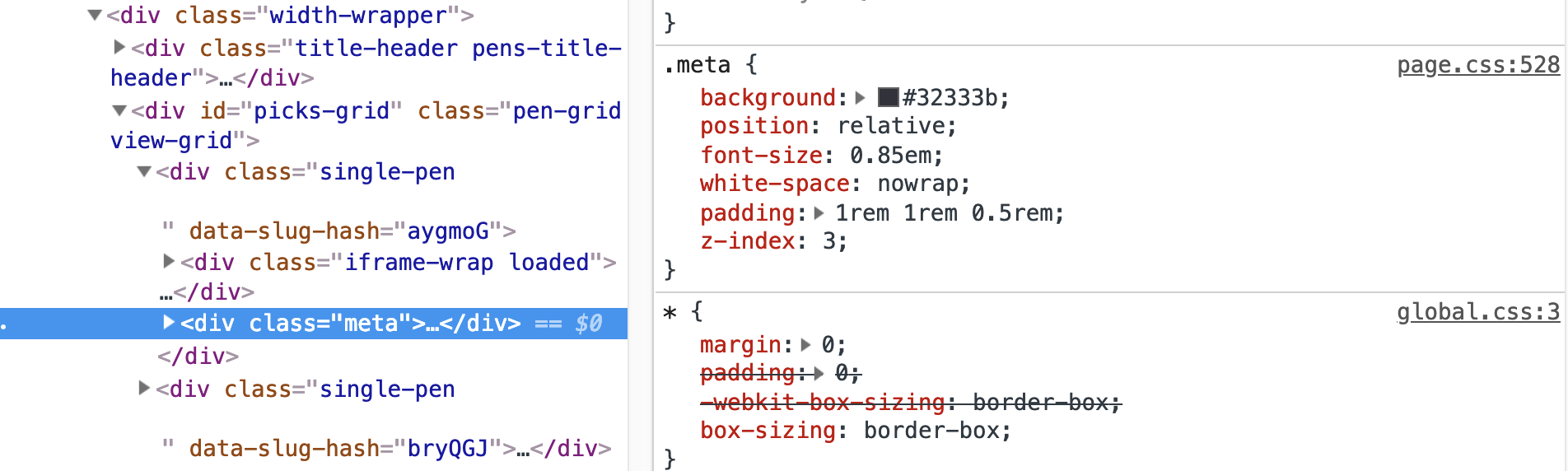
On line 528 of page.css</, we can find out that <code>.meta has position: relative;
But because that final CSS file is probably minified (all whitespace removed), DevTools is likely to tell us that we’ll find the declaration we’re looking for on line 1! Unfortunate, and not helpful for development.
That’s where source maps come in. Like I said up top, source maps are special files that connect that final output file the browser is actually using with the authored files that you actually work with and write code in on your file system.
Typically, source maps are a configuration option from the preprocessor. Here’s Babel’s options. I believe that with Sass, you don’t even have to pass a flag for it in the command or anything because it produces source maps by default.
So, these source maps are for developers. They are particularly useful for you and your team because they help tremendously for debugging issues as well as day-to-day work. I’m sure I make use of them just about every day. I’d say in general, they are used for local development. You might even .gitignore them or skip them in a deployment process in order to serve and store fewer assets to production. But there’s been some recent chatter about making sure they go to production as well.
But source maps have long been seen merely as a local development tool. Not something you ship to production, although people have also been doing that, such that live debugging would be easier. That in itself is a great reason to ship source maps. […]
Check out that issue thread for more interesting conversation about shipping source maps to production. The benefits boil down to these two things:
It might help you track down bugs in production more easily
It helps other people learn from your website more easily
Both are cool. Personally, I’d be opposed to shipping performance-optimized code for learning purposes alone. I wrote about that last year:
I don’t want my source to be human-readable, not for protective reasons, but because I care about web performance more. I want my website to arrive at light speed on a tiny spec of magical network packet dust and blossom into a complete website. Or do whatever computer science deems is the absolute fastest way to send website data between computers. I’m much more worried about the state of web performance than I am about web education. But even if I was very worried about web education, I don’t think it’s the network’s job to deliver teachability.
Shipping source maps to production is a nice middle ground. There’s no hit on performance (source maps don’t get loaded unless you have DevTools open, which is, IMO, irrelevant to a real performance discussion) with the benefit of delivering debugging and learning benefits.
The downsides brought up in recent discussion boil down to:
Sourcemaps require compilation time
It allows people to, I dunno, steal your code or something
I don’t care about #2 (sorry), and #1 seems generally negligible for a small or what we think of as the average site, though I’m afraid I can’t speak for mega sites.
One thing I should add though is that source maps can even be generated for CSS-in-JS tooling, so for those that literally inject styles into the DOM for you, those source maps are injected as well. I’ve seen major slowdowns in those situations, so I would say definitely do not ship source maps to production if you can’t split them out of your main bundles. Otherwise, I’d vote strongly that you do.
It’s a valid question. A „source map” is a special file that connects a minified/uglified version of an asset (CSS or JavaScript) to the original authored version. Say you’ve got a filed called _header.scss that gets imported into global.scss which is compiled to global.css. That final CSS file is what gets loaded in the browser, so for example, when you inspect an element in DevTools, it might tell you that the <nav> is display: flex; because it says so on line 387 in global.css.
On line 528 of page.css</, we can find out that <code>.meta has position: relative;
But because that final CSS file is probably minified (all whitespace removed), DevTools is likely to tell us that we’ll find the declaration we’re looking for on line 1! Unfortunate, and not helpful for development.
That’s where source maps come in. Like I said up top, source maps are special files that connect that final output file the browser is actually using with the authored files that you actually work with and write code in on your file system.
Typically, source maps are a configuration option from the preprocessor. Here’s Babel’s options. I believe that with Sass, you don’t even have to pass a flag for it in the command or anything because it produces source maps by default.
So, these source maps are for developers. They are particularly useful for you and your team because they help tremendously for debugging issues as well as day-to-day work. I’m sure I make use of them just about every day. I’d say in general, they are used for local development. You might even .gitignore them or skip them in a deployment process in order to serve and store fewer assets to production. But there’s been some recent chatter about making sure they go to production as well.
But source maps have long been seen merely as a local development tool. Not something you ship to production, although people have also been doing that, such that live debugging would be easier. That in itself is a great reason to ship source maps. […]
Check out that issue thread for more interesting conversation about shipping source maps to production. The benefits boil down to these two things:
It might help you track down bugs in production more easily
It helps other people learn from your website more easily
Both are cool. Personally, I’d be opposed to shipping performance-optimized code for learning purposes alone. I wrote about that last year:
I don’t want my source to be human-readable, not for protective reasons, but because I care about web performance more. I want my website to arrive at light speed on a tiny spec of magical network packet dust and blossom into a complete website. Or do whatever computer science deems is the absolute fastest way to send website data between computers. I’m much more worried about the state of web performance than I am about web education. But even if I was very worried about web education, I don’t think it’s the network’s job to deliver teachability.
Shipping source maps to production is a nice middle ground. There’s no hit on performance (source maps don’t get loaded unless you have DevTools open, which is, IMO, irrelevant to a real performance discussion) with the benefit of delivering debugging and learning benefits.
The downsides brought up in recent discussion boil down to:
Sourcemaps require compilation time
It allows people to, I dunno, steal your code or something
I don’t care about #2 (sorry), and #1 seems generally negligible for a small or what we think of as the average site, though I’m afraid I can’t speak for mega sites.
One thing I should add though is that source maps can even be generated for CSS-in-JS tooling, so for those that literally inject styles into the DOM for you, those source maps are injected as well. I’ve seen major slowdowns in those situations, so I would say definitely do not ship source maps to production if you can’t split them out of your main bundles. Otherwise, I’d vote strongly that you do.
While it is important to have a well-tested API, solid test coverage is a must for any React application. Tests increase confidence in the code and helps prevent shipping bugs to users.
That’s why we’re going to focus on testing in this post, specifically for React applications. By the end, you’ll be up and running with tests using Jest and Enzyme.
No worries if those names mean nothing to you because that’s where we’re headed right now!
Installing the test dependencies
Jest is a unit testing framework that makes testing React applications pretty darn easy because it works seamlessly with React (because, well, the Facebook team made it, though it is compatible with other JavaScript frameworks). It serves as a test runner that includes an entire library of predefined tests with the ability to mock functions as well.
Enzyme is designed to test components and it’s a great way to write assertions (or scenarios) that simulate actions that confirm the front-end UI is working correctly. In other words, it seeks out components on the front end, interacts with them, and raises a flag if any of the components aren’t working the way it’s told they should.
So, Jest and Enzyme are distinct tools, but they complement each other well.
For our purposes, we will spin up a new React project using create-react-app because it comes with Jest configured right out of the box.
yarn create react-app my-app
We still need to install enzyme and enzyme-adapter-react-16 (that number should be based on whichever version of React version you’re using).
yarn add enzyme enzyme-adapter-react-16 --dev
OK, that creates our project and gets us both Jest and Enzyme in our project in two commands. Next, we need to create a setup file for our tests. We’ll call this file setupTests.js and place it in the src folder of the project.
Here’s what should be in that file:
import { configure } from 'enzyme';
import Adapter from 'enzyme-adapter-react-16';
configure({ adapter: new Adapter() });
This brings in Enzyme and sets up the adapter for running our tests.
To make things easier on us, we are going to write tests for a React application I have already built. Grab a copy of the app over on GitHub.
Taking snapshots of tests
Snapshot testing is used to keep track of changes in the app UI. If you’re wonder whether we’re dealing with literal images of the UI, the answer is no, but snapshots are super useful because they capture the code of a component at a moment in time so we can compare the component in one state versus any other possible states it might take.
The first time a test runs, a snapshot of the component code is composed and saved in a new __snapshots__ folder in the src directory. On test runs, the current UI is compared to the existing. Here’s a snapshot of a successful test of the sample project’s App component.
Every new snapshot that gets generated when the test suite runs will be saved in the __tests__ folder. What’s great about that Jest will check to see if the component matches is then on subsequent times when we run the test, Jest will check to see if the component matches the snapshot on subsequent tests. Here’s how that files looks.
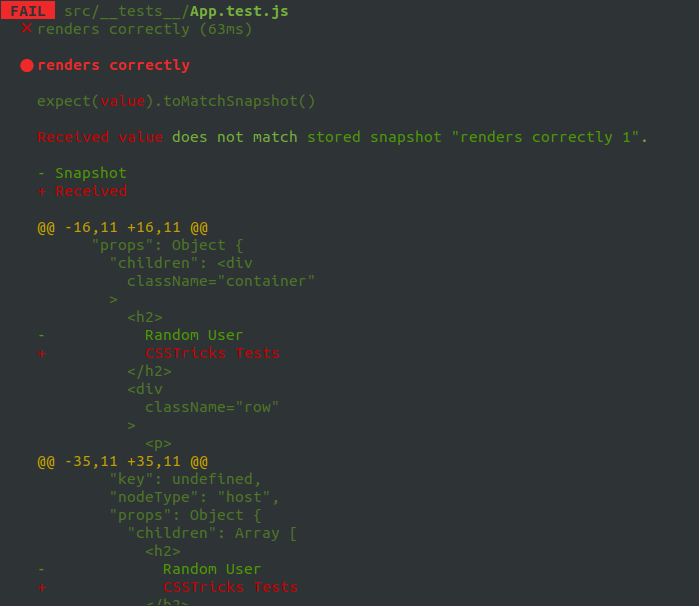
Let’s create a conditions where the test fails. We’ll change the <h2> tag of our component from <h2>Random User</h2> to <h2>CSSTricks Tests</h2> and here’s what we get in the command line when the tests run:
If we want our change to pass the test, we either change the heading to what it was before, or we can update the snapshot file. Jest even provides instructions for how to update the snapshot right from the command line so there’s no need to update the snapshot manually:
Inspect your code changes or press `u` to update them.
So, that’s what we’ll do in this case. We press u to update the snapshot, the test passes, and we move on.
Did you catch the shallow method in our test snapshot? That’s from the Enzyme package and instructs the test to run a single component and nothing else — not even any child components that might be inside it. It’s a nice clean way to isolate code and get better information when debugging and is especially great for simple, non-interactive components.
In addition to shallow, we also have render for snapshot testing. What’s the difference, you ask? While shallow excludes child components when testing a component, render includes them while rendering to static HTML.
There is one more method in the mix to be aware of: mount. This is the most engaging type of test in the bunch because it fully renders components (like shallow and render) and their children (like render) but puts them in the DOM, which means it can fully test any component that interacts with the DOM API as well as any props that are passed to and from it. It’s a comprehensive test for interactivity. It’s also worth noting that, since it does a full mount, we’ll want to make a call to .unmount on the component after the test runs so it doesn’t conflict with other tests.
Testing Component’s Lifecycle Methods
Lifecycle methods are hooks provided by React, which get called at different stages of a component’s lifespan. These methods come in handy when handling things like API calls.
Since they are often used in React components, you can have your test suite cover them to ensure all things work as expected.
We do the fetching of data from the API when the component mounts. We can check if the lifecycle method gets called by making use of jest, which makes it possible for us to mock lifecycle methods used in React applications.
We attach spy to the component’s prototype, and the spy on the componentDidMount() lifecycle method of the component. Next, we assert that the lifecycle method is called once by checking for the call length.
Testing component props
How can you be sure that props from one component are being passed to another? We have a test confirm it, of course! The Enzyme API allows us to create a “mock” function so tests can simulate props being passed between components.
Let’s say we are passing user props from the main App component into a Profile component. In other words, we want the App to inform the Profile with details about user information to render a profile for that user.
Mock functions look a lot like other tests in that they’re wrapped around the components. However, we’re using an additional describe layer that takes the component being tested, then allows us to proceed by telling the test the expected props and values that we expect to be passed.
This particular example contains two tests. In the first test, we pass the user props to the mounted Profile component. Then, we check to see if we can find a <h4> element that corresponds to what we have in the Profile component.
In the second test, we want to check if the props we passed to the mounted component equals the mock props we created above. Note that even though we are destructing the props in the Profile component, it does not affect the test.
Mock API calls
There’s a part in the project we’ve been using where an API call is made to fetch a list of users. And guess what? We can test that API call, too!
The slightly tricky thing about testing API calls is that we don’t actually want to hit the API. Some APIs have call limits or even costs for making making calls, so we want to avoid that. Thankfully, we can use Jest to mock axios requests. See this post for a more thorough walkthrough of using axios to make API calls.
First, we’ll create a new folder called __mock__ in the same directory where our __tests__ folder lives. This is where our mock request files will be created when the tests run.
We want to check and see that the GET request is made. We’ll import axios for that:
import axios from 'axios';
Just below the import statements, we need Jest to replace axios with our mock, so we add this:
jest.mock('axios')
The Jest API has a spyOn() method that takes an accessType? argument that can be used to check whether we are able to “get” data from an API call. We use jest.spyOn() to call the spied method, which we implemented in our __mock__ file, and it can be used with the shallow, render and mount tests we covered earlier.
it('fetches a list of users', () => {
  const getSpy = jest.spyOn(axios, 'get')
  const wrapper = shallow(
    <App />
  )
  expect(getSpy).toBeCalled()
})
We passed the test!
That’s a primer into the world of testing in a React application. Hopefully you now see the value that testing adds to a project and how relatively easy it can be to implement, thanks to the heavy lifting done by the joint powers of Jest and Enzyme.
In this tutorial, I’ll show you how to create your own denim texture using filters in Adobe Photoshop and then how to create an action for the stitched jeans text effect.
First of all, I’ll show you how you can create your own denim texture using Photoshop filters. If you prefer, you can skip these steps and download the denim texture from the tutorial assets.
Step 1
Start Adobe Photoshop and open a new document (Control-N) with 1024 x 1024 px and a resolution of 72 DPI. Then go to Filter > Filter Gallery… and select Halftone Pattern from the Sketch folder and use these settings:
Size: 2
Contrast: 20
Pattern Type: Dot
Hit OK.
Step 2
Go to Filter > Pixelate > Mezzotint…, set Type to Fine Dots, and hit OK. Then go to Filter > Blur > Motion Blur…, and set the Angle to -45° and the Distance to 20 px. Hit OK.
Step 3
Go to Filter > Noise > Add Noise, and set the Amount to 10% and Distribution to Gaussian. Check the Monochromatic box and hit OK. Then go to Filter > Blur > Gaussian Blur, set the Radius to 0.5 px, and hit OK.
Step 4
Go to Layer > New Adjustment Layer > Levels and set Inputs to 21 – 0.52 – 199 and Outputs to 53 – 163. Then select the Background layer and go to Edit > Define Pattern, change the name to denim-texture, and hit OK.
Done. You have just created your own denim texture which we will use in our Photoshop action. We could finish it with a blue color overlay, but I like to leave it in shades of gray, which lets you change the texture to any color later.
2. How to Set the Background and Add Text
For this Photoshop action, I chose the wood planks background, which you can get from the tutorial assets, but it is not mandatory for the action to work.
Step 1
Open the wood planks image (Control-O). Then hit Control-Alt-I, change the Resolution to 72 Pixels/Inch and the Width to 850 px, and hit OK.
Step 2
Take your Type tool (T), change the font to Varsity Team Bold, and set the Size to 450 pt. Then write „JB” on your artboard.
3. How to Start Recording a Photoshop Action
Now we are going to start recording a Photoshop action. It’s important to follow the steps in order and to avoid unnecessary mouse clicks and keystrokes.
Step 1
Hit Alt-F9 to open your Actions panel. At the bottom of this panel, hit the Create new set icon, name it Jeans Action, and hit OK. Then hit the Create new action icon next to it and name it Start. Now hit the Record button and start recording the Photoshop action.
Step 2
To start off our Photoshop action, right-click on the JB layer in your Layers panel and select Duplicate Layer, name it jeans-base, and hit OK. Then right-click on the jeans-base layer and select Duplicate Layer again, name it jeans-rim, and hit OK.
4. How to Create and Style the Jeans Rim
Step 1
Right-click on the jeans-rim layer and select Blending Options. Then set the Fill Opacity to 0%.
Step 2
Add a Stroke with Size of 16 px, set the Position to Outside, and hit OK. Then right-click the jeans-rim layer and select Convert to Smart Object.
Step 3
Right-click on the jeans-rim layer and select Blending Options again. Now add a Bevel and Emboss with these settings:
Style: Inner Bevel
Technique: Smooth
Depth: 888%
Direction: Down
Size: 2 px
Soften: 0 px
Uncheck the Use Global Light box
Angle: 135°
Altitude: 30°
Highlight Mode: Linear Burn with color #000000
Highlight Mode – Opacity: 27%
Highlight Mode: Color Dodge with color #ffffff
Shadow Mode – Opacity: 44%
Step 4
Add a Texture for the Bevel and Emboss with these settings:
Pattern: denim-texture (the one you have created before)
Scale: 50%
Depth: 95%
Step 5
Add an Inner Shadow with these settings:
Color:#6b6b6b
Uncheck the Use Global Light box
Angle: -45°
Distance: 6 px
Choke: 45%
Size: 5 px
Check the Anti-aliased box
Step 6
Add a Color Overlay with these settings:
Blend Mode: Overlay
Color:#224d66
Opacity: 80%
Step 7
Add a Pattern Overlay with these settings:
Blend Mode: Normal
Opacity: 100%
Pattern: denim-texture
Scale: 50%
Step 8
Finally, add a Drop Shadow to our Photoshop text effect with these settings:
Blend Mode: Multiply
Color:#000000
Opacity: 80%
Uncheck the Use Global Light box
Angle: 90°
Distance: 2 px
Spread: 0%
Size: 3 px
Check the Anti-aliased box
Hit OK to apply the text effect.
This is the result of the text effect applied to our Photoshop action.
5. How to Create and Style the Jeans Main Layer
Step 1
Select the jeans-base layer in your Layers panel. Right-click on it and select Blending Options. Now add a Stroke with Size of 15 px, change Position to Outside, and hit OK. Then right-click this layer again and select Convert to Smart Object.
Step 2
Right-click on the jeans-base layer and select Blending Options again. Now add a Bevel and Emboss with these settings:
Style: Inner Bevel
Technique: Smooth
Depth: 100%
Direction: Up
Size: 49 px
Soften: 0 px
Uncheck the Use Global Light box
Angle: 180°
Altitude: 30°
Check the Anti-aliased box
Highlight Mode: Color Dodge with color #ffffff
Highlight Mode – Opacity: 30%
Highlight Mode: Linear Burn with color #000000
Shadow Mode – Opacity: 13%
Step 3
Add an Inner Shadow with these settings:
Blend Mode: Multiply
Color:#7a7a7a
Uncheck the Use Global Light box
Angle: 132°
Distance: 0 px
Choke: 18%
Size: 35 px
Check the Anti-aliased box
Step 4
Add an Inner Glow with these settings:
Blend Mode: Linear Burn
Opacity: 24%
Color:#6a6a6a
Technique: Softer
Source: Edge
Choke: 60%
Size: 38 px
Check the Anti-aliased box
Step 5
Add a Satin style with these settings:
Blend Mode: Linear Burn
Color:#000000
Opacity: 13%
Angle: 0°
Distance: 45 px
Size: 46 px
Check the Anti-aliased box
Check the Invert box
Step 6
Add a Color Overlay with these settings:
Blend Mode: Overlay
Color:#224d66
Opacity: 80%
Step 7
Add a Pattern Overlay with these settings:
Blend Mode: Normal
Opacity: 100%
Pattern: denim-texture
Scale: 50%
Step 8
Finally, add a Drop Shadow to our Photoshop text effect with these settings:
Blend Mode: Multiply
Color:#000000
Opacity: 36%
Uncheck the Use Global Light box
Angle: 105°
Distance: 9 px
Spread: 11%
Size: 8 px
Check the Anti-aliased box
Hit OK to apply the text effect.
And this is the result of the text effect applied to our Photoshop action.
6. How to Add and Style the Jeans Stitch
We are almost done with our Photoshop action. The last thing we need to add is a cool stitch to this text effect. So let’s do it.
Step 1
Create a new layer by going to Layer > New > Layer and name it stitch. Then Control–click the jeans-base layer to make a selection. Go to Select > Modify > Contract, set the value to 24 px, and hit OK. Finally, go to your Paths panel and click the Make work path from selection icon at the bottom.
Step 2
Select your Brush Tool (B) and select jeans-stitch from the tutorial assets as your brush. Then right-click on the Work Path layer in Paths panel and select Stroke Path…, choose Brush as your tool, and hit OK. Lastly, hit Delete to delete the work path layer.
Step 3
Right-click on the stitch layer and select Blending Options. Then add a Bevel and Emboss with these settings:
Style: Pillow Emboss
Technique: Smooth
Depth: 200%
Direction: Up
Size: 9 px
Soften: 5 px
Uncheck the Use Global Light box
Angle: 90°
Altitude: 30°
Check the Anti-aliased box
Highlight Mode: Linear Dodge (Add) with color #ffffff
Highlight Mode – Opacity: 24%
Highlight Mode: Linear Burn with color #000000
Shadow Mode – Opacity: 18%
Step 4
Add a Color Overlay and choose the color #d19f5f. Then hit OK to apply the text effect. Now go back to your Actions panel and hit the Stop button at the bottom to stop recording this Photoshop action.
Congratulations! You’re Done!
In this tutorial, you learned how to create a Photoshop action for a jeans text effect and also how to create your own denim texture using Photoshop filters.
We started by creating the main denim texture, and then we recorded an action for the jeans text effect using layer styles and a stitch brush.
I hope you have enjoyed this Photoshop action tutorial. Please feel free to leave your
comments, suggestions, and outcomes below. The text effect action we just
created is based on Stitched Leather and Jeans Actions.
Looking for more? I recommend the following tutorials:
In this tutorial I will show you how to create a 3D black and gold text or logo mockup using a smart object, layer styles and a small timesaving action.
Learn how to create a beer text effect in Adobe Photoshop using layer styles, brushes, filters, and clipping masks. You’ll create the word „PROSIT!”, a…
In this tutorial, I’ll show you how to create your own denim texture using filters in Adobe Photoshop and then how to create an action for the stitched jeans text effect.
First of all, I’ll show you how you can create your own denim texture using Photoshop filters. If you prefer, you can skip these steps and download the denim texture from the tutorial assets.
Step 1
Start Adobe Photoshop and open a new document (Control-N) with 1024 x 1024 px and a resolution of 72 DPI. Then go to Filter > Filter Gallery… and select Halftone Pattern from the Sketch folder and use these settings:
Size: 2
Contrast: 20
Pattern Type: Dot
Hit OK.
Step 2
Go to Filter > Pixelate > Mezzotint…, set Type to Fine Dots, and hit OK. Then go to Filter > Blur > Motion Blur…, and set the Angle to -45° and the Distance to 20 px. Hit OK.
Step 3
Go to Filter > Noise > Add Noise, and set the Amount to 10% and Distribution to Gaussian. Check the Monochromatic box and hit OK. Then go to Filter > Blur > Gaussian Blur, set the Radius to 0.5 px, and hit OK.
Step 4
Go to Layer > New Adjustment Layer > Levels and set Inputs to 21 – 0.52 – 199 and Outputs to 53 – 163. Then select the Background layer and go to Edit > Define Pattern, change the name to denim-texture, and hit OK.
Done. You have just created your own denim texture which we will use in our Photoshop action. We could finish it with a blue color overlay, but I like to leave it in shades of gray, which lets you change the texture to any color later.
2. How to Set the Background and Add Text
For this Photoshop action, I chose the wood planks background, which you can get from the tutorial assets, but it is not mandatory for the action to work.
Step 1
Open the wood planks image (Control-O). Then hit Control-Alt-I, change the Resolution to 72 Pixels/Inch and the Width to 850 px, and hit OK.
Step 2
Take your Type tool (T), change the font to Varsity Team Bold, and set the Size to 450 pt. Then write „JB” on your artboard.
3. How to Start Recording a Photoshop Action
Now we are going to start recording a Photoshop action. It’s important to follow the steps in order and to avoid unnecessary mouse clicks and keystrokes.
Step 1
Hit Alt-F9 to open your Actions panel. At the bottom of this panel, hit the Create new set icon, name it Jeans Action, and hit OK. Then hit the Create new action icon next to it and name it Start. Now hit the Record button and start recording the Photoshop action.
Step 2
To start off our Photoshop action, right-click on the JB layer in your Layers panel and select Duplicate Layer, name it jeans-base, and hit OK. Then right-click on the jeans-base layer and select Duplicate Layer again, name it jeans-rim, and hit OK.
4. How to Create and Style the Jeans Rim
Step 1
Right-click on the jeans-rim layer and select Blending Options. Then set the Fill Opacity to 0%.
Step 2
Add a Stroke with Size of 16 px, set the Position to Outside, and hit OK. Then right-click the jeans-rim layer and select Convert to Smart Object.
Step 3
Right-click on the jeans-rim layer and select Blending Options again. Now add a Bevel and Emboss with these settings:
Style: Inner Bevel
Technique: Smooth
Depth: 888%
Direction: Down
Size: 2 px
Soften: 0 px
Uncheck the Use Global Light box
Angle: 135°
Altitude: 30°
Highlight Mode: Linear Burn with color #000000
Highlight Mode – Opacity: 27%
Highlight Mode: Color Dodge with color #ffffff
Shadow Mode – Opacity: 44%
Step 4
Add a Texture for the Bevel and Emboss with these settings:
Pattern: denim-texture (the one you have created before)
Scale: 50%
Depth: 95%
Step 5
Add an Inner Shadow with these settings:
Color:#6b6b6b
Uncheck the Use Global Light box
Angle: -45°
Distance: 6 px
Choke: 45%
Size: 5 px
Check the Anti-aliased box
Step 6
Add a Color Overlay with these settings:
Blend Mode: Overlay
Color:#224d66
Opacity: 80%
Step 7
Add a Pattern Overlay with these settings:
Blend Mode: Normal
Opacity: 100%
Pattern: denim-texture
Scale: 50%
Step 8
Finally, add a Drop Shadow to our Photoshop text effect with these settings:
Blend Mode: Multiply
Color:#000000
Opacity: 80%
Uncheck the Use Global Light box
Angle: 90°
Distance: 2 px
Spread: 0%
Size: 3 px
Check the Anti-aliased box
Hit OK to apply the text effect.
This is the result of the text effect applied to our Photoshop action.
5. How to Create and Style the Jeans Main Layer
Step 1
Select the jeans-base layer in your Layers panel. Right-click on it and select Blending Options. Now add a Stroke with Size of 15 px, change Position to Outside, and hit OK. Then right-click this layer again and select Convert to Smart Object.
Step 2
Right-click on the jeans-base layer and select Blending Options again. Now add a Bevel and Emboss with these settings:
Style: Inner Bevel
Technique: Smooth
Depth: 100%
Direction: Up
Size: 49 px
Soften: 0 px
Uncheck the Use Global Light box
Angle: 180°
Altitude: 30°
Check the Anti-aliased box
Highlight Mode: Color Dodge with color #ffffff
Highlight Mode – Opacity: 30%
Highlight Mode: Linear Burn with color #000000
Shadow Mode – Opacity: 13%
Step 3
Add an Inner Shadow with these settings:
Blend Mode: Multiply
Color:#7a7a7a
Uncheck the Use Global Light box
Angle: 132°
Distance: 0 px
Choke: 18%
Size: 35 px
Check the Anti-aliased box
Step 4
Add an Inner Glow with these settings:
Blend Mode: Linear Burn
Opacity: 24%
Color:#6a6a6a
Technique: Softer
Source: Edge
Choke: 60%
Size: 38 px
Check the Anti-aliased box
Step 5
Add a Satin style with these settings:
Blend Mode: Linear Burn
Color:#000000
Opacity: 13%
Angle: 0°
Distance: 45 px
Size: 46 px
Check the Anti-aliased box
Check the Invert box
Step 6
Add a Color Overlay with these settings:
Blend Mode: Overlay
Color:#224d66
Opacity: 80%
Step 7
Add a Pattern Overlay with these settings:
Blend Mode: Normal
Opacity: 100%
Pattern: denim-texture
Scale: 50%
Step 8
Finally, add a Drop Shadow to our Photoshop text effect with these settings:
Blend Mode: Multiply
Color:#000000
Opacity: 36%
Uncheck the Use Global Light box
Angle: 105°
Distance: 9 px
Spread: 11%
Size: 8 px
Check the Anti-aliased box
Hit OK to apply the text effect.
And this is the result of the text effect applied to our Photoshop action.
6. How to Add and Style the Jeans Stitch
We are almost done with our Photoshop action. The last thing we need to add is a cool stitch to this text effect. So let’s do it.
Step 1
Create a new layer by going to Layer > New > Layer and name it stitch. Then Control–click the jeans-base layer to make a selection. Go to Select > Modify > Contract, set the value to 24 px, and hit OK. Finally, go to your Paths panel and click the Make work path from selection icon at the bottom.
Step 2
Select your Brush Tool (B) and select jeans-stitch from the tutorial assets as your brush. Then right-click on the Work Path layer in Paths panel and select Stroke Path…, choose Brush as your tool, and hit OK. Lastly, hit Delete to delete the work path layer.
Step 3
Right-click on the stitch layer and select Blending Options. Then add a Bevel and Emboss with these settings:
Style: Pillow Emboss
Technique: Smooth
Depth: 200%
Direction: Up
Size: 9 px
Soften: 5 px
Uncheck the Use Global Light box
Angle: 90°
Altitude: 30°
Check the Anti-aliased box
Highlight Mode: Linear Dodge (Add) with color #ffffff
Highlight Mode – Opacity: 24%
Highlight Mode: Linear Burn with color #000000
Shadow Mode – Opacity: 18%
Step 4
Add a Color Overlay and choose the color #d19f5f. Then hit OK to apply the text effect. Now go back to your Actions panel and hit the Stop button at the bottom to stop recording this Photoshop action.
Congratulations! You’re Done!
In this tutorial, you learned how to create a Photoshop action for a jeans text effect and also how to create your own denim texture using Photoshop filters.
We started by creating the main denim texture, and then we recorded an action for the jeans text effect using layer styles and a stitch brush.
I hope you have enjoyed this Photoshop action tutorial. Please feel free to leave your
comments, suggestions, and outcomes below. The text effect action we just
created is based on Stitched Leather and Jeans Actions.
Looking for more? I recommend the following tutorials:
In this tutorial I will show you how to create a 3D black and gold text or logo mockup using a smart object, layer styles and a small timesaving action.
Learn how to create a beer text effect in Adobe Photoshop using layer styles, brushes, filters, and clipping masks. You’ll create the word „PROSIT!”, a…
In this tutorial, I’ll show you how to create your own denim texture using filters in Adobe Photoshop and then how to create an action for the stitched jeans text effect.
First of all, I’ll show you how you can create your own denim texture using Photoshop filters. If you prefer, you can skip these steps and download the denim texture from the tutorial assets.
Step 1
Start Adobe Photoshop and open a new document (Control-N) with 1024 x 1024 px and a resolution of 72 DPI. Then go to Filter > Filter Gallery… and select Halftone Pattern from the Sketch folder and use these settings:
Size: 2
Contrast: 20
Pattern Type: Dot
Hit OK.
Step 2
Go to Filter > Pixelate > Mezzotint…, set Type to Fine Dots, and hit OK. Then go to Filter > Blur > Motion Blur…, and set the Angle to -45° and the Distance to 20 px. Hit OK.
Step 3
Go to Filter > Noise > Add Noise, and set the Amount to 10% and Distribution to Gaussian. Check the Monochromatic box and hit OK. Then go to Filter > Blur > Gaussian Blur, set the Radius to 0.5 px, and hit OK.
Step 4
Go to Layer > New Adjustment Layer > Levels and set Inputs to 21 – 0.52 – 199 and Outputs to 53 – 163. Then select the Background layer and go to Edit > Define Pattern, change the name to denim-texture, and hit OK.
Done. You have just created your own denim texture which we will use in our Photoshop action. We could finish it with a blue color overlay, but I like to leave it in shades of gray, which lets you change the texture to any color later.
2. How to Set the Background and Add Text
For this Photoshop action, I chose the wood planks background, which you can get from the tutorial assets, but it is not mandatory for the action to work.
Step 1
Open the wood planks image (Control-O). Then hit Control-Alt-I, change the Resolution to 72 Pixels/Inch and the Width to 850 px, and hit OK.
Step 2
Take your Type tool (T), change the font to Varsity Team Bold, and set the Size to 450 pt. Then write „JB” on your artboard.
3. How to Start Recording a Photoshop Action
Now we are going to start recording a Photoshop action. It’s important to follow the steps in order and to avoid unnecessary mouse clicks and keystrokes.
Step 1
Hit Alt-F9 to open your Actions panel. At the bottom of this panel, hit the Create new set icon, name it Jeans Action, and hit OK. Then hit the Create new action icon next to it and name it Start. Now hit the Record button and start recording the Photoshop action.
Step 2
To start off our Photoshop action, right-click on the JB layer in your Layers panel and select Duplicate Layer, name it jeans-base, and hit OK. Then right-click on the jeans-base layer and select Duplicate Layer again, name it jeans-rim, and hit OK.
4. How to Create and Style the Jeans Rim
Step 1
Right-click on the jeans-rim layer and select Blending Options. Then set the Fill Opacity to 0%.
Step 2
Add a Stroke with Size of 16 px, set the Position to Outside, and hit OK. Then right-click the jeans-rim layer and select Convert to Smart Object.
Step 3
Right-click on the jeans-rim layer and select Blending Options again. Now add a Bevel and Emboss with these settings:
Style: Inner Bevel
Technique: Smooth
Depth: 888%
Direction: Down
Size: 2 px
Soften: 0 px
Uncheck the Use Global Light box
Angle: 135°
Altitude: 30°
Highlight Mode: Linear Burn with color #000000
Highlight Mode – Opacity: 27%
Highlight Mode: Color Dodge with color #ffffff
Shadow Mode – Opacity: 44%
Step 4
Add a Texture for the Bevel and Emboss with these settings:
Pattern: denim-texture (the one you have created before)
Scale: 50%
Depth: 95%
Step 5
Add an Inner Shadow with these settings:
Color:#6b6b6b
Uncheck the Use Global Light box
Angle: -45°
Distance: 6 px
Choke: 45%
Size: 5 px
Check the Anti-aliased box
Step 6
Add a Color Overlay with these settings:
Blend Mode: Overlay
Color:#224d66
Opacity: 80%
Step 7
Add a Pattern Overlay with these settings:
Blend Mode: Normal
Opacity: 100%
Pattern: denim-texture
Scale: 50%
Step 8
Finally, add a Drop Shadow to our Photoshop text effect with these settings:
Blend Mode: Multiply
Color:#000000
Opacity: 80%
Uncheck the Use Global Light box
Angle: 90°
Distance: 2 px
Spread: 0%
Size: 3 px
Check the Anti-aliased box
Hit OK to apply the text effect.
This is the result of the text effect applied to our Photoshop action.
5. How to Create and Style the Jeans Main Layer
Step 1
Select the jeans-base layer in your Layers panel. Right-click on it and select Blending Options. Now add a Stroke with Size of 15 px, change Position to Outside, and hit OK. Then right-click this layer again and select Convert to Smart Object.
Step 2
Right-click on the jeans-base layer and select Blending Options again. Now add a Bevel and Emboss with these settings:
Style: Inner Bevel
Technique: Smooth
Depth: 100%
Direction: Up
Size: 49 px
Soften: 0 px
Uncheck the Use Global Light box
Angle: 180°
Altitude: 30°
Check the Anti-aliased box
Highlight Mode: Color Dodge with color #ffffff
Highlight Mode – Opacity: 30%
Highlight Mode: Linear Burn with color #000000
Shadow Mode – Opacity: 13%
Step 3
Add an Inner Shadow with these settings:
Blend Mode: Multiply
Color:#7a7a7a
Uncheck the Use Global Light box
Angle: 132°
Distance: 0 px
Choke: 18%
Size: 35 px
Check the Anti-aliased box
Step 4
Add an Inner Glow with these settings:
Blend Mode: Linear Burn
Opacity: 24%
Color:#6a6a6a
Technique: Softer
Source: Edge
Choke: 60%
Size: 38 px
Check the Anti-aliased box
Step 5
Add a Satin style with these settings:
Blend Mode: Linear Burn
Color:#000000
Opacity: 13%
Angle: 0°
Distance: 45 px
Size: 46 px
Check the Anti-aliased box
Check the Invert box
Step 6
Add a Color Overlay with these settings:
Blend Mode: Overlay
Color:#224d66
Opacity: 80%
Step 7
Add a Pattern Overlay with these settings:
Blend Mode: Normal
Opacity: 100%
Pattern: denim-texture
Scale: 50%
Step 8
Finally, add a Drop Shadow to our Photoshop text effect with these settings:
Blend Mode: Multiply
Color:#000000
Opacity: 36%
Uncheck the Use Global Light box
Angle: 105°
Distance: 9 px
Spread: 11%
Size: 8 px
Check the Anti-aliased box
Hit OK to apply the text effect.
And this is the result of the text effect applied to our Photoshop action.
6. How to Add and Style the Jeans Stitch
We are almost done with our Photoshop action. The last thing we need to add is a cool stitch to this text effect. So let’s do it.
Step 1
Create a new layer by going to Layer > New > Layer and name it stitch. Then Control–click the jeans-base layer to make a selection. Go to Select > Modify > Contract, set the value to 24 px, and hit OK. Finally, go to your Paths panel and click the Make work path from selection icon at the bottom.
Step 2
Select your Brush Tool (B) and select jeans-stitch from the tutorial assets as your brush. Then right-click on the Work Path layer in Paths panel and select Stroke Path…, choose Brush as your tool, and hit OK. Lastly, hit Delete to delete the work path layer.
Step 3
Right-click on the stitch layer and select Blending Options. Then add a Bevel and Emboss with these settings:
Style: Pillow Emboss
Technique: Smooth
Depth: 200%
Direction: Up
Size: 9 px
Soften: 5 px
Uncheck the Use Global Light box
Angle: 90°
Altitude: 30°
Check the Anti-aliased box
Highlight Mode: Linear Dodge (Add) with color #ffffff
Highlight Mode – Opacity: 24%
Highlight Mode: Linear Burn with color #000000
Shadow Mode – Opacity: 18%
Step 4
Add a Color Overlay and choose the color #d19f5f. Then hit OK to apply the text effect. Now go back to your Actions panel and hit the Stop button at the bottom to stop recording this Photoshop action.
Congratulations! You’re Done!
In this tutorial, you learned how to create a Photoshop action for a jeans text effect and also how to create your own denim texture using Photoshop filters.
We started by creating the main denim texture, and then we recorded an action for the jeans text effect using layer styles and a stitch brush.
I hope you have enjoyed this Photoshop action tutorial. Please feel free to leave your
comments, suggestions, and outcomes below. The text effect action we just
created is based on Stitched Leather and Jeans Actions.
Looking for more? I recommend the following tutorials:
In this tutorial I will show you how to create a 3D black and gold text or logo mockup using a smart object, layer styles and a small timesaving action.
Learn how to create a beer text effect in Adobe Photoshop using layer styles, brushes, filters, and clipping masks. You’ll create the word „PROSIT!”, a…
In this tutorial, I’ll show you how to create your own denim texture using filters in Adobe Photoshop and then how to create an action for the stitched jeans text effect.
First of all, I’ll show you how you can create your own denim texture using Photoshop filters. If you prefer, you can skip these steps and download the denim texture from the tutorial assets.
Step 1
Start Adobe Photoshop and open a new document (Control-N) with 1024 x 1024 px and a resolution of 72 DPI. Then go to Filter > Filter Gallery… and select Halftone Pattern from the Sketch folder and use these settings:
Size: 2
Contrast: 20
Pattern Type: Dot
Hit OK.
Step 2
Go to Filter > Pixelate > Mezzotint…, set Type to Fine Dots, and hit OK. Then go to Filter > Blur > Motion Blur…, and set the Angle to -45° and the Distance to 20 px. Hit OK.
Step 3
Go to Filter > Noise > Add Noise, and set the Amount to 10% and Distribution to Gaussian. Check the Monochromatic box and hit OK. Then go to Filter > Blur > Gaussian Blur, set the Radius to 0.5 px, and hit OK.
Step 4
Go to Layer > New Adjustment Layer > Levels and set Inputs to 21 – 0.52 – 199 and Outputs to 53 – 163. Then select the Background layer and go to Edit > Define Pattern, change the name to denim-texture, and hit OK.
Done. You have just created your own denim texture which we will use in our Photoshop action. We could finish it with a blue color overlay, but I like to leave it in shades of gray, which lets you change the texture to any color later.
2. How to Set the Background and Add Text
For this Photoshop action, I chose the wood planks background, which you can get from the tutorial assets, but it is not mandatory for the action to work.
Step 1
Open the wood planks image (Control-O). Then hit Control-Alt-I, change the Resolution to 72 Pixels/Inch and the Width to 850 px, and hit OK.
Step 2
Take your Type tool (T), change the font to Varsity Team Bold, and set the Size to 450 pt. Then write „JB” on your artboard.
3. How to Start Recording a Photoshop Action
Now we are going to start recording a Photoshop action. It’s important to follow the steps in order and to avoid unnecessary mouse clicks and keystrokes.
Step 1
Hit Alt-F9 to open your Actions panel. At the bottom of this panel, hit the Create new set icon, name it Jeans Action, and hit OK. Then hit the Create new action icon next to it and name it Start. Now hit the Record button and start recording the Photoshop action.
Step 2
To start off our Photoshop action, right-click on the JB layer in your Layers panel and select Duplicate Layer, name it jeans-base, and hit OK. Then right-click on the jeans-base layer and select Duplicate Layer again, name it jeans-rim, and hit OK.
4. How to Create and Style the Jeans Rim
Step 1
Right-click on the jeans-rim layer and select Blending Options. Then set the Fill Opacity to 0%.
Step 2
Add a Stroke with Size of 16 px, set the Position to Outside, and hit OK. Then right-click the jeans-rim layer and select Convert to Smart Object.
Step 3
Right-click on the jeans-rim layer and select Blending Options again. Now add a Bevel and Emboss with these settings:
Style: Inner Bevel
Technique: Smooth
Depth: 888%
Direction: Down
Size: 2 px
Soften: 0 px
Uncheck the Use Global Light box
Angle: 135°
Altitude: 30°
Highlight Mode: Linear Burn with color #000000
Highlight Mode – Opacity: 27%
Highlight Mode: Color Dodge with color #ffffff
Shadow Mode – Opacity: 44%
Step 4
Add a Texture for the Bevel and Emboss with these settings:
Pattern: denim-texture (the one you have created before)
Scale: 50%
Depth: 95%
Step 5
Add an Inner Shadow with these settings:
Color:#6b6b6b
Uncheck the Use Global Light box
Angle: -45°
Distance: 6 px
Choke: 45%
Size: 5 px
Check the Anti-aliased box
Step 6
Add a Color Overlay with these settings:
Blend Mode: Overlay
Color:#224d66
Opacity: 80%
Step 7
Add a Pattern Overlay with these settings:
Blend Mode: Normal
Opacity: 100%
Pattern: denim-texture
Scale: 50%
Step 8
Finally, add a Drop Shadow to our Photoshop text effect with these settings:
Blend Mode: Multiply
Color:#000000
Opacity: 80%
Uncheck the Use Global Light box
Angle: 90°
Distance: 2 px
Spread: 0%
Size: 3 px
Check the Anti-aliased box
Hit OK to apply the text effect.
This is the result of the text effect applied to our Photoshop action.
5. How to Create and Style the Jeans Main Layer
Step 1
Select the jeans-base layer in your Layers panel. Right-click on it and select Blending Options. Now add a Stroke with Size of 15 px, change Position to Outside, and hit OK. Then right-click this layer again and select Convert to Smart Object.
Step 2
Right-click on the jeans-base layer and select Blending Options again. Now add a Bevel and Emboss with these settings:
Style: Inner Bevel
Technique: Smooth
Depth: 100%
Direction: Up
Size: 49 px
Soften: 0 px
Uncheck the Use Global Light box
Angle: 180°
Altitude: 30°
Check the Anti-aliased box
Highlight Mode: Color Dodge with color #ffffff
Highlight Mode – Opacity: 30%
Highlight Mode: Linear Burn with color #000000
Shadow Mode – Opacity: 13%
Step 3
Add an Inner Shadow with these settings:
Blend Mode: Multiply
Color:#7a7a7a
Uncheck the Use Global Light box
Angle: 132°
Distance: 0 px
Choke: 18%
Size: 35 px
Check the Anti-aliased box
Step 4
Add an Inner Glow with these settings:
Blend Mode: Linear Burn
Opacity: 24%
Color:#6a6a6a
Technique: Softer
Source: Edge
Choke: 60%
Size: 38 px
Check the Anti-aliased box
Step 5
Add a Satin style with these settings:
Blend Mode: Linear Burn
Color:#000000
Opacity: 13%
Angle: 0°
Distance: 45 px
Size: 46 px
Check the Anti-aliased box
Check the Invert box
Step 6
Add a Color Overlay with these settings:
Blend Mode: Overlay
Color:#224d66
Opacity: 80%
Step 7
Add a Pattern Overlay with these settings:
Blend Mode: Normal
Opacity: 100%
Pattern: denim-texture
Scale: 50%
Step 8
Finally, add a Drop Shadow to our Photoshop text effect with these settings:
Blend Mode: Multiply
Color:#000000
Opacity: 36%
Uncheck the Use Global Light box
Angle: 105°
Distance: 9 px
Spread: 11%
Size: 8 px
Check the Anti-aliased box
Hit OK to apply the text effect.
And this is the result of the text effect applied to our Photoshop action.
6. How to Add and Style the Jeans Stitch
We are almost done with our Photoshop action. The last thing we need to add is a cool stitch to this text effect. So let’s do it.
Step 1
Create a new layer by going to Layer > New > Layer and name it stitch. Then Control–click the jeans-base layer to make a selection. Go to Select > Modify > Contract, set the value to 24 px, and hit OK. Finally, go to your Paths panel and click the Make work path from selection icon at the bottom.
Step 2
Select your Brush Tool (B) and select jeans-stitch from the tutorial assets as your brush. Then right-click on the Work Path layer in Paths panel and select Stroke Path…, choose Brush as your tool, and hit OK. Lastly, hit Delete to delete the work path layer.
Step 3
Right-click on the stitch layer and select Blending Options. Then add a Bevel and Emboss with these settings:
Style: Pillow Emboss
Technique: Smooth
Depth: 200%
Direction: Up
Size: 9 px
Soften: 5 px
Uncheck the Use Global Light box
Angle: 90°
Altitude: 30°
Check the Anti-aliased box
Highlight Mode: Linear Dodge (Add) with color #ffffff
Highlight Mode – Opacity: 24%
Highlight Mode: Linear Burn with color #000000
Shadow Mode – Opacity: 18%
Step 4
Add a Color Overlay and choose the color #d19f5f. Then hit OK to apply the text effect. Now go back to your Actions panel and hit the Stop button at the bottom to stop recording this Photoshop action.
Congratulations! You’re Done!
In this tutorial, you learned how to create a Photoshop action for a jeans text effect and also how to create your own denim texture using Photoshop filters.
We started by creating the main denim texture, and then we recorded an action for the jeans text effect using layer styles and a stitch brush.
I hope you have enjoyed this Photoshop action tutorial. Please feel free to leave your
comments, suggestions, and outcomes below. The text effect action we just
created is based on Stitched Leather and Jeans Actions.
Looking for more? I recommend the following tutorials:
In this tutorial I will show you how to create a 3D black and gold text or logo mockup using a smart object, layer styles and a small timesaving action.
Learn how to create a beer text effect in Adobe Photoshop using layer styles, brushes, filters, and clipping masks. You’ll create the word „PROSIT!”, a…
In this tutorial, I’ll show you how to create your own denim texture using filters in Adobe Photoshop and then how to create an action for the stitched jeans text effect.
First of all, I’ll show you how you can create your own denim texture using Photoshop filters. If you prefer, you can skip these steps and download the denim texture from the tutorial assets.
Step 1
Start Adobe Photoshop and open a new document (Control-N) with 1024 x 1024 px and a resolution of 72 DPI. Then go to Filter > Filter Gallery… and select Halftone Pattern from the Sketch folder and use these settings:
Size: 2
Contrast: 20
Pattern Type: Dot
Hit OK.
Step 2
Go to Filter > Pixelate > Mezzotint…, set Type to Fine Dots, and hit OK. Then go to Filter > Blur > Motion Blur…, and set the Angle to -45° and the Distance to 20 px. Hit OK.
Step 3
Go to Filter > Noise > Add Noise, and set the Amount to 10% and Distribution to Gaussian. Check the Monochromatic box and hit OK. Then go to Filter > Blur > Gaussian Blur, set the Radius to 0.5 px, and hit OK.
Step 4
Go to Layer > New Adjustment Layer > Levels and set Inputs to 21 – 0.52 – 199 and Outputs to 53 – 163. Then select the Background layer and go to Edit > Define Pattern, change the name to denim-texture, and hit OK.
Done. You have just created your own denim texture which we will use in our Photoshop action. We could finish it with a blue color overlay, but I like to leave it in shades of gray, which lets you change the texture to any color later.
2. How to Set the Background and Add Text
For this Photoshop action, I chose the wood planks background, which you can get from the tutorial assets, but it is not mandatory for the action to work.
Step 1
Open the wood planks image (Control-O). Then hit Control-Alt-I, change the Resolution to 72 Pixels/Inch and the Width to 850 px, and hit OK.
Step 2
Take your Type tool (T), change the font to Varsity Team Bold, and set the Size to 450 pt. Then write „JB” on your artboard.
3. How to Start Recording a Photoshop Action
Now we are going to start recording a Photoshop action. It’s important to follow the steps in order and to avoid unnecessary mouse clicks and keystrokes.
Step 1
Hit Alt-F9 to open your Actions panel. At the bottom of this panel, hit the Create new set icon, name it Jeans Action, and hit OK. Then hit the Create new action icon next to it and name it Start. Now hit the Record button and start recording the Photoshop action.
Step 2
To start off our Photoshop action, right-click on the JB layer in your Layers panel and select Duplicate Layer, name it jeans-base, and hit OK. Then right-click on the jeans-base layer and select Duplicate Layer again, name it jeans-rim, and hit OK.
4. How to Create and Style the Jeans Rim
Step 1
Right-click on the jeans-rim layer and select Blending Options. Then set the Fill Opacity to 0%.
Step 2
Add a Stroke with Size of 16 px, set the Position to Outside, and hit OK. Then right-click the jeans-rim layer and select Convert to Smart Object.
Step 3
Right-click on the jeans-rim layer and select Blending Options again. Now add a Bevel and Emboss with these settings:
Style: Inner Bevel
Technique: Smooth
Depth: 888%
Direction: Down
Size: 2 px
Soften: 0 px
Uncheck the Use Global Light box
Angle: 135°
Altitude: 30°
Highlight Mode: Linear Burn with color #000000
Highlight Mode – Opacity: 27%
Highlight Mode: Color Dodge with color #ffffff
Shadow Mode – Opacity: 44%
Step 4
Add a Texture for the Bevel and Emboss with these settings:
Pattern: denim-texture (the one you have created before)
Scale: 50%
Depth: 95%
Step 5
Add an Inner Shadow with these settings:
Color:#6b6b6b
Uncheck the Use Global Light box
Angle: -45°
Distance: 6 px
Choke: 45%
Size: 5 px
Check the Anti-aliased box
Step 6
Add a Color Overlay with these settings:
Blend Mode: Overlay
Color:#224d66
Opacity: 80%
Step 7
Add a Pattern Overlay with these settings:
Blend Mode: Normal
Opacity: 100%
Pattern: denim-texture
Scale: 50%
Step 8
Finally, add a Drop Shadow to our Photoshop text effect with these settings:
Blend Mode: Multiply
Color:#000000
Opacity: 80%
Uncheck the Use Global Light box
Angle: 90°
Distance: 2 px
Spread: 0%
Size: 3 px
Check the Anti-aliased box
Hit OK to apply the text effect.
This is the result of the text effect applied to our Photoshop action.
5. How to Create and Style the Jeans Main Layer
Step 1
Select the jeans-base layer in your Layers panel. Right-click on it and select Blending Options. Now add a Stroke with Size of 15 px, change Position to Outside, and hit OK. Then right-click this layer again and select Convert to Smart Object.
Step 2
Right-click on the jeans-base layer and select Blending Options again. Now add a Bevel and Emboss with these settings:
Style: Inner Bevel
Technique: Smooth
Depth: 100%
Direction: Up
Size: 49 px
Soften: 0 px
Uncheck the Use Global Light box
Angle: 180°
Altitude: 30°
Check the Anti-aliased box
Highlight Mode: Color Dodge with color #ffffff
Highlight Mode – Opacity: 30%
Highlight Mode: Linear Burn with color #000000
Shadow Mode – Opacity: 13%
Step 3
Add an Inner Shadow with these settings:
Blend Mode: Multiply
Color:#7a7a7a
Uncheck the Use Global Light box
Angle: 132°
Distance: 0 px
Choke: 18%
Size: 35 px
Check the Anti-aliased box
Step 4
Add an Inner Glow with these settings:
Blend Mode: Linear Burn
Opacity: 24%
Color:#6a6a6a
Technique: Softer
Source: Edge
Choke: 60%
Size: 38 px
Check the Anti-aliased box
Step 5
Add a Satin style with these settings:
Blend Mode: Linear Burn
Color:#000000
Opacity: 13%
Angle: 0°
Distance: 45 px
Size: 46 px
Check the Anti-aliased box
Check the Invert box
Step 6
Add a Color Overlay with these settings:
Blend Mode: Overlay
Color:#224d66
Opacity: 80%
Step 7
Add a Pattern Overlay with these settings:
Blend Mode: Normal
Opacity: 100%
Pattern: denim-texture
Scale: 50%
Step 8
Finally, add a Drop Shadow to our Photoshop text effect with these settings:
Blend Mode: Multiply
Color:#000000
Opacity: 36%
Uncheck the Use Global Light box
Angle: 105°
Distance: 9 px
Spread: 11%
Size: 8 px
Check the Anti-aliased box
Hit OK to apply the text effect.
And this is the result of the text effect applied to our Photoshop action.
6. How to Add and Style the Jeans Stitch
We are almost done with our Photoshop action. The last thing we need to add is a cool stitch to this text effect. So let’s do it.
Step 1
Create a new layer by going to Layer > New > Layer and name it stitch. Then Control–click the jeans-base layer to make a selection. Go to Select > Modify > Contract, set the value to 24 px, and hit OK. Finally, go to your Paths panel and click the Make work path from selection icon at the bottom.
Step 2
Select your Brush Tool (B) and select jeans-stitch from the tutorial assets as your brush. Then right-click on the Work Path layer in Paths panel and select Stroke Path…, choose Brush as your tool, and hit OK. Lastly, hit Delete to delete the work path layer.
Step 3
Right-click on the stitch layer and select Blending Options. Then add a Bevel and Emboss with these settings:
Style: Pillow Emboss
Technique: Smooth
Depth: 200%
Direction: Up
Size: 9 px
Soften: 5 px
Uncheck the Use Global Light box
Angle: 90°
Altitude: 30°
Check the Anti-aliased box
Highlight Mode: Linear Dodge (Add) with color #ffffff
Highlight Mode – Opacity: 24%
Highlight Mode: Linear Burn with color #000000
Shadow Mode – Opacity: 18%
Step 4
Add a Color Overlay and choose the color #d19f5f. Then hit OK to apply the text effect. Now go back to your Actions panel and hit the Stop button at the bottom to stop recording this Photoshop action.
Congratulations! You’re Done!
In this tutorial, you learned how to create a Photoshop action for a jeans text effect and also how to create your own denim texture using Photoshop filters.
We started by creating the main denim texture, and then we recorded an action for the jeans text effect using layer styles and a stitch brush.
I hope you have enjoyed this Photoshop action tutorial. Please feel free to leave your
comments, suggestions, and outcomes below. The text effect action we just
created is based on Stitched Leather and Jeans Actions.
Looking for more? I recommend the following tutorials:
In this tutorial I will show you how to create a 3D black and gold text or logo mockup using a smart object, layer styles and a small timesaving action.
Learn how to create a beer text effect in Adobe Photoshop using layer styles, brushes, filters, and clipping masks. You’ll create the word „PROSIT!”, a…
In this tutorial, I’ll show you how to create your own denim texture using filters in Adobe Photoshop and then how to create an action for the stitched jeans text effect.
First of all, I’ll show you how you can create your own denim texture using Photoshop filters. If you prefer, you can skip these steps and download the denim texture from the tutorial assets.
Step 1
Start Adobe Photoshop and open a new document (Control-N) with 1024 x 1024 px and a resolution of 72 DPI. Then go to Filter > Filter Gallery… and select Halftone Pattern from the Sketch folder and use these settings:
Size: 2
Contrast: 20
Pattern Type: Dot
Hit OK.
Step 2
Go to Filter > Pixelate > Mezzotint…, set Type to Fine Dots, and hit OK. Then go to Filter > Blur > Motion Blur…, and set the Angle to -45° and the Distance to 20 px. Hit OK.
Step 3
Go to Filter > Noise > Add Noise, and set the Amount to 10% and Distribution to Gaussian. Check the Monochromatic box and hit OK. Then go to Filter > Blur > Gaussian Blur, set the Radius to 0.5 px, and hit OK.
Step 4
Go to Layer > New Adjustment Layer > Levels and set Inputs to 21 – 0.52 – 199 and Outputs to 53 – 163. Then select the Background layer and go to Edit > Define Pattern, change the name to denim-texture, and hit OK.
Done. You have just created your own denim texture which we will use in our Photoshop action. We could finish it with a blue color overlay, but I like to leave it in shades of gray, which lets you change the texture to any color later.
2. How to Set the Background and Add Text
For this Photoshop action, I chose the wood planks background, which you can get from the tutorial assets, but it is not mandatory for the action to work.
Step 1
Open the wood planks image (Control-O). Then hit Control-Alt-I, change the Resolution to 72 Pixels/Inch and the Width to 850 px, and hit OK.
Step 2
Take your Type tool (T), change the font to Varsity Team Bold, and set the Size to 450 pt. Then write „JB” on your artboard.
3. How to Start Recording a Photoshop Action
Now we are going to start recording a Photoshop action. It’s important to follow the steps in order and to avoid unnecessary mouse clicks and keystrokes.
Step 1
Hit Alt-F9 to open your Actions panel. At the bottom of this panel, hit the Create new set icon, name it Jeans Action, and hit OK. Then hit the Create new action icon next to it and name it Start. Now hit the Record button and start recording the Photoshop action.
Step 2
To start off our Photoshop action, right-click on the JB layer in your Layers panel and select Duplicate Layer, name it jeans-base, and hit OK. Then right-click on the jeans-base layer and select Duplicate Layer again, name it jeans-rim, and hit OK.
4. How to Create and Style the Jeans Rim
Step 1
Right-click on the jeans-rim layer and select Blending Options. Then set the Fill Opacity to 0%.
Step 2
Add a Stroke with Size of 16 px, set the Position to Outside, and hit OK. Then right-click the jeans-rim layer and select Convert to Smart Object.
Step 3
Right-click on the jeans-rim layer and select Blending Options again. Now add a Bevel and Emboss with these settings:
Style: Inner Bevel
Technique: Smooth
Depth: 888%
Direction: Down
Size: 2 px
Soften: 0 px
Uncheck the Use Global Light box
Angle: 135°
Altitude: 30°
Highlight Mode: Linear Burn with color #000000
Highlight Mode – Opacity: 27%
Highlight Mode: Color Dodge with color #ffffff
Shadow Mode – Opacity: 44%
Step 4
Add a Texture for the Bevel and Emboss with these settings:
Pattern: denim-texture (the one you have created before)
Scale: 50%
Depth: 95%
Step 5
Add an Inner Shadow with these settings:
Color:#6b6b6b
Uncheck the Use Global Light box
Angle: -45°
Distance: 6 px
Choke: 45%
Size: 5 px
Check the Anti-aliased box
Step 6
Add a Color Overlay with these settings:
Blend Mode: Overlay
Color:#224d66
Opacity: 80%
Step 7
Add a Pattern Overlay with these settings:
Blend Mode: Normal
Opacity: 100%
Pattern: denim-texture
Scale: 50%
Step 8
Finally, add a Drop Shadow to our Photoshop text effect with these settings:
Blend Mode: Multiply
Color:#000000
Opacity: 80%
Uncheck the Use Global Light box
Angle: 90°
Distance: 2 px
Spread: 0%
Size: 3 px
Check the Anti-aliased box
Hit OK to apply the text effect.
This is the result of the text effect applied to our Photoshop action.
5. How to Create and Style the Jeans Main Layer
Step 1
Select the jeans-base layer in your Layers panel. Right-click on it and select Blending Options. Now add a Stroke with Size of 15 px, change Position to Outside, and hit OK. Then right-click this layer again and select Convert to Smart Object.
Step 2
Right-click on the jeans-base layer and select Blending Options again. Now add a Bevel and Emboss with these settings:
Style: Inner Bevel
Technique: Smooth
Depth: 100%
Direction: Up
Size: 49 px
Soften: 0 px
Uncheck the Use Global Light box
Angle: 180°
Altitude: 30°
Check the Anti-aliased box
Highlight Mode: Color Dodge with color #ffffff
Highlight Mode – Opacity: 30%
Highlight Mode: Linear Burn with color #000000
Shadow Mode – Opacity: 13%
Step 3
Add an Inner Shadow with these settings:
Blend Mode: Multiply
Color:#7a7a7a
Uncheck the Use Global Light box
Angle: 132°
Distance: 0 px
Choke: 18%
Size: 35 px
Check the Anti-aliased box
Step 4
Add an Inner Glow with these settings:
Blend Mode: Linear Burn
Opacity: 24%
Color:#6a6a6a
Technique: Softer
Source: Edge
Choke: 60%
Size: 38 px
Check the Anti-aliased box
Step 5
Add a Satin style with these settings:
Blend Mode: Linear Burn
Color:#000000
Opacity: 13%
Angle: 0°
Distance: 45 px
Size: 46 px
Check the Anti-aliased box
Check the Invert box
Step 6
Add a Color Overlay with these settings:
Blend Mode: Overlay
Color:#224d66
Opacity: 80%
Step 7
Add a Pattern Overlay with these settings:
Blend Mode: Normal
Opacity: 100%
Pattern: denim-texture
Scale: 50%
Step 8
Finally, add a Drop Shadow to our Photoshop text effect with these settings:
Blend Mode: Multiply
Color:#000000
Opacity: 36%
Uncheck the Use Global Light box
Angle: 105°
Distance: 9 px
Spread: 11%
Size: 8 px
Check the Anti-aliased box
Hit OK to apply the text effect.
And this is the result of the text effect applied to our Photoshop action.
6. How to Add and Style the Jeans Stitch
We are almost done with our Photoshop action. The last thing we need to add is a cool stitch to this text effect. So let’s do it.
Step 1
Create a new layer by going to Layer > New > Layer and name it stitch. Then Control–click the jeans-base layer to make a selection. Go to Select > Modify > Contract, set the value to 24 px, and hit OK. Finally, go to your Paths panel and click the Make work path from selection icon at the bottom.
Step 2
Select your Brush Tool (B) and select jeans-stitch from the tutorial assets as your brush. Then right-click on the Work Path layer in Paths panel and select Stroke Path…, choose Brush as your tool, and hit OK. Lastly, hit Delete to delete the work path layer.
Step 3
Right-click on the stitch layer and select Blending Options. Then add a Bevel and Emboss with these settings:
Style: Pillow Emboss
Technique: Smooth
Depth: 200%
Direction: Up
Size: 9 px
Soften: 5 px
Uncheck the Use Global Light box
Angle: 90°
Altitude: 30°
Check the Anti-aliased box
Highlight Mode: Linear Dodge (Add) with color #ffffff
Highlight Mode – Opacity: 24%
Highlight Mode: Linear Burn with color #000000
Shadow Mode – Opacity: 18%
Step 4
Add a Color Overlay and choose the color #d19f5f. Then hit OK to apply the text effect. Now go back to your Actions panel and hit the Stop button at the bottom to stop recording this Photoshop action.
Congratulations! You’re Done!
In this tutorial, you learned how to create a Photoshop action for a jeans text effect and also how to create your own denim texture using Photoshop filters.
We started by creating the main denim texture, and then we recorded an action for the jeans text effect using layer styles and a stitch brush.
I hope you have enjoyed this Photoshop action tutorial. Please feel free to leave your
comments, suggestions, and outcomes below. The text effect action we just
created is based on Stitched Leather and Jeans Actions.
Looking for more? I recommend the following tutorials:
In this tutorial I will show you how to create a 3D black and gold text or logo mockup using a smart object, layer styles and a small timesaving action.
Learn how to create a beer text effect in Adobe Photoshop using layer styles, brushes, filters, and clipping masks. You’ll create the word „PROSIT!”, a…
2016 was only three years ago, but that’s almost a whole other era in web development terms. The JavaScript landscape was in turmoil, with up-and-comer React — as well as a little-known framework called Vue — fighting to dethrone Angular.
Like many other developers, I felt lost. I needed some clarity, and I figured the best way to get it was simply to ask fellow coders what they used, and more importantly, what they enjoyed using. The result was the first ever edition of the now annual State of JavaScript survey.
The State of JavaScript 2018
Things have stabilized in the JavaScript world since then. Turns out you can’t really go wrong with any one of the big three frameworks, and even less mainstream options, like Ember, have managed to build up passionate communities and show no sign of going anywhere.
But while all our attention was fixated on JavaScript, trouble was brewing in CSS land. For years, my impression of CSS’s evolution was slow, incremental progress. Back then, I was pretty sure border-radius support represented the crowning, final achievement of web browser technology.
But all of a sudden, things started picking up. Flexbox came out, representing the first new and widely adopted layout method in over a decade. And Grid came shortly after that, sweeping away years of hacky grid frameworks into the gutter of bad CSS practices.
Something even crazier happened: now that the JavaScript people had stopped creating a new framework every two weeks, they decided to use all their extra free time trying to make CSS even better! And thus CSS-in-JS was born.
And now it’s 2019, and the Flexbox Cheatsheet tab I’ve kept open for the past two years has now been joined by a Grid Cheatsheet, because no matter how many times I use them, I still need to double-check the syntax. And despite writing a popular introduction to CSS-in-JS, I still lazily default to familiar Sass for new projects, promising myself that I’ll „do things properly” the next time.
All this to say that I feel just as lost and confused about CSS in 2019 as I did about JavaScript in 2016. It’s high time CSS got a survey of its own.
Starting from scratch
Coming up with the idea for a CSS survey was easy, but deciding on the questions themselves was far from straightforward. Like I said, I didn’t feel confident in my own CSS knowledge, and simply asking about Sass vs. Less for the 37th time felt like a missed opportunity…
Thankfully, the CSS Gods decided to smile down upon me: while attending the DotJS conference in France I discovered that, not only did fellow speaker Florian Rivoal live in Kyoto, Japan, just like me; but that he was a member of the CSS Working Group! In other words, one of the people who knows the most about CSS on the planet was living a few train stops away from me!
Florian was a huge help in coming up with the overall structure and content of the survey. And he also helped me realize how little I really knew about CSS.
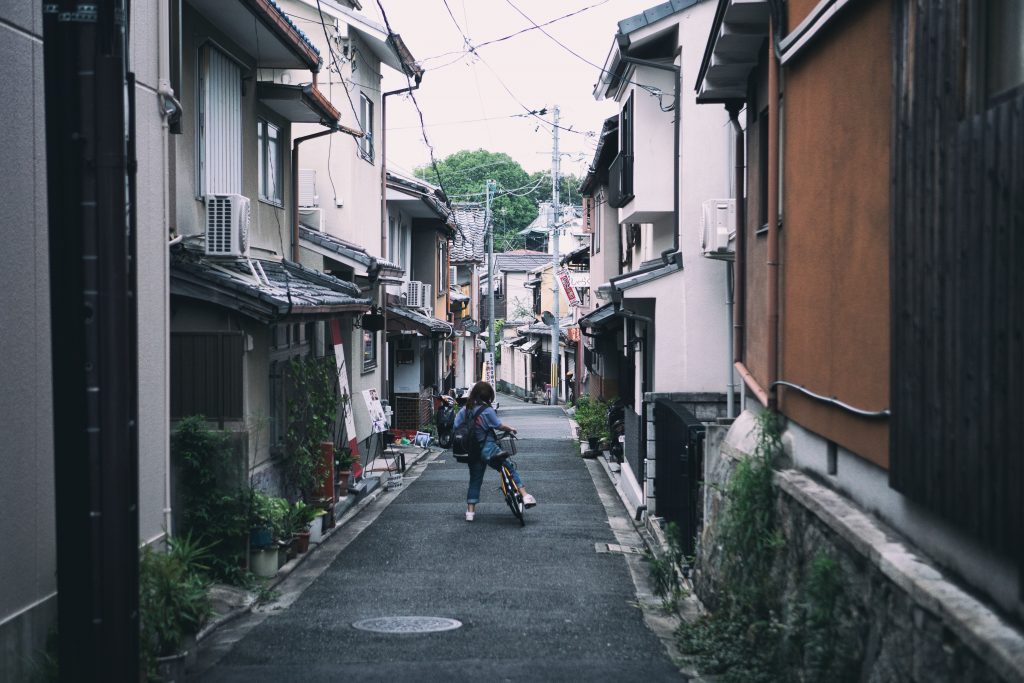
Kyoto, Japan: a hotbed of CSS activity (Photo by Jisu Han)
You don’t know CSS
I’m not only talking about obscure CSS properties here, or even new up-and-coming ones, but about how CSS itself is developed. For example, did you know that the development of the CSS Grid spec was sponsored by Bloomberg, because they needed a way to port the layout of their famous terminal to the web?
Did you ever stop to wonder what top: 30px is supposed to mean on a circular screen, such as the one on a smartwatch? Or did you know that some people are laying out entire printed books in CSS, effectively replacing software like InDesign?
Talking with Florian really expanded my mind to how broad and interesting CSS truly is, and convinced me doing the survey was worth it.
„What do you mean, ‘Make the <table> circular’?” Photo by Artur Łuczka
Myself, personally, I’ve always enjoyed being a generalist in the sense that I happily hop from one side of the great divide to another whenever I feel like it. At the same time, I’m also wholly convinced that the world needs specialists like Florian; people who dedicate their lives to championing and improving a single aspect of the web.
Devaluing the work the work of generalists is not only unfair, but it’s also counter-productive — after all, HTML and CSS are the foundation on which all modern JavaScript frameworks are built; and on the other hand, new patterns and approaches pioneered by CSS-in-JS libraries will hopefully find their way back into vanilla CSS sooner or later.
Thankfully, I feel like a minority of developers hold those views, and those who do generally hold them do so out of ignorance for what the „other side” really stands for more than any well-informed opinion.
So that’s where the survey comes in: I’m not saying I can fill up the divide, but maybe I can throw a couple walkways across, or distribute some jetpacks — you know, whatever works. 🚀
If that sounds good, then the first step is — you guessed it — taking the survey!