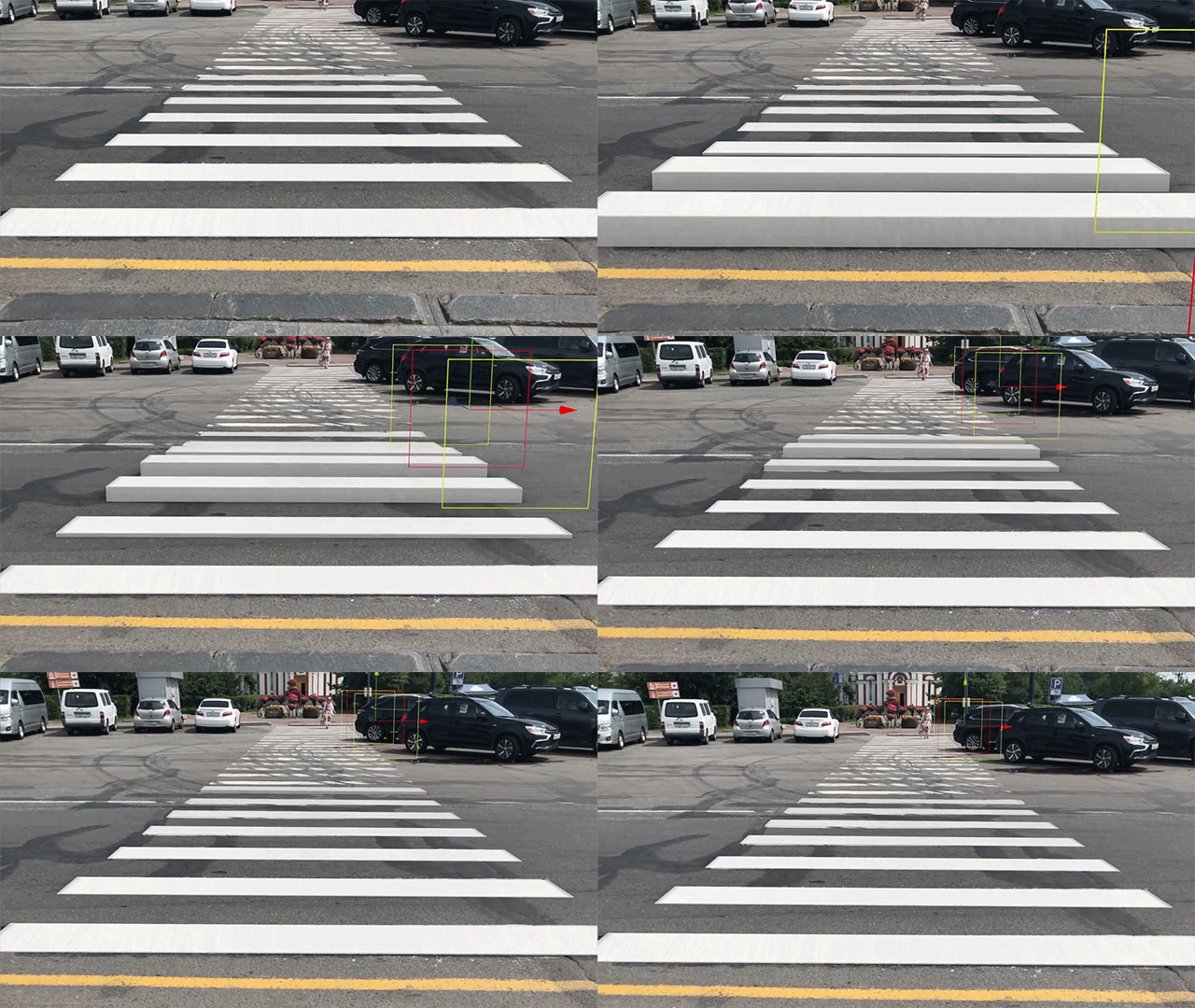
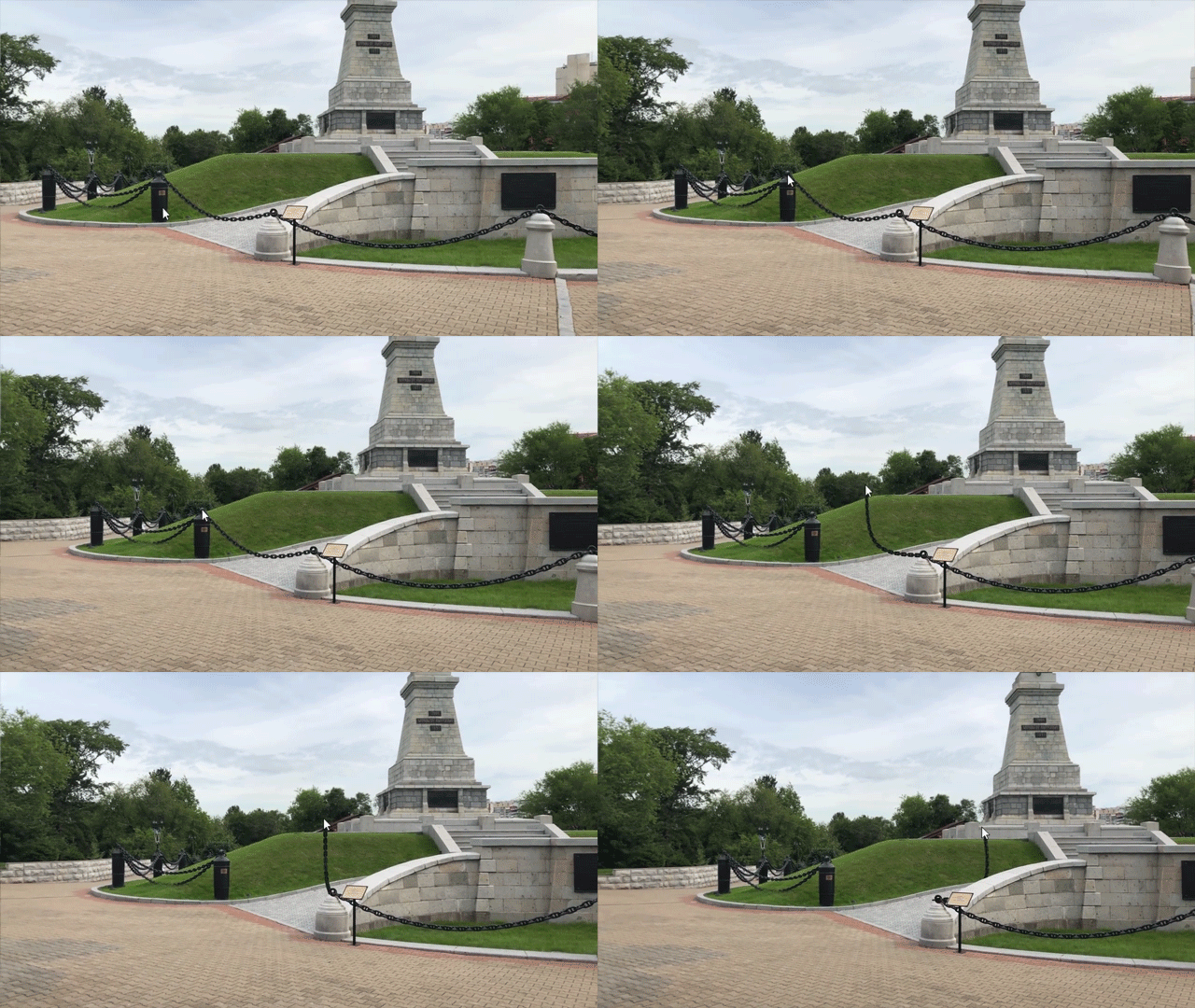
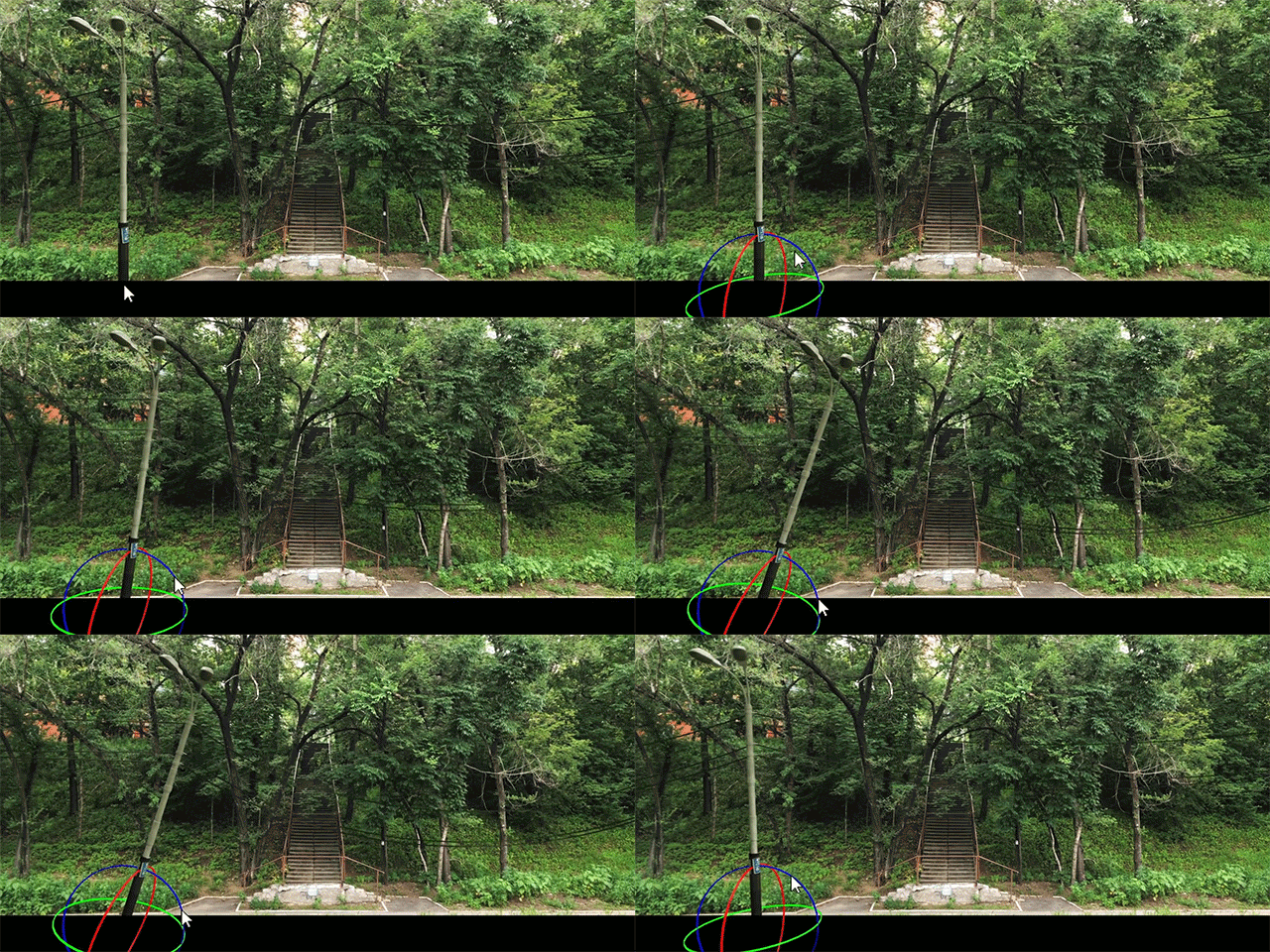
Vladimir Tomin is a creative motion designer whose work can bee viewed on Tomin.Works, his personal portfolio. Last month, Tomin shared a video with several demo reels that are reality-bending, with simple scenes totally editing to become surreal. The result is impressive both technically and visually.
Refs make it possible to access DOM nodes directly within React. This comes in handy in situations where, just as one example, you want to change the child of a component. Let’s say you want to change the value of an <input> element, but without using props or re-rendering the whole component.
That’s the sort of thing refs are good for and what we’ll be digging into in this post.
How to create a ref
createRef() is a new API that shipped with React 16.3. You can create a ref by calling React.createRef() and attaching a React element to it using the ref attribute on the element.
class Example extends React.Component {
  constructor(props) {
    super(props)

    // Create the ref
    this.exampleRef = React.createRef()
  }

  render() {
    return (
      <div>
        // Call the ref with the `ref` attribute
        <input type="text" ref={this.exampleRef} />
      </div>
    )
  }
}
We can „refer” to the node of the ref created in the render method with access to the current attribute of the ref. From the example above, that would be this.exampleRef.current.
class App extends React.Component {
  constructor(props) {
    super(props)

    // Create the ref
    this.textInput = React.createRef();
    this.state = {
      value: ''
    }
  }

  // Set the state for the ref
  handleSubmit = e => {
    e.preventDefault();
    this.setState({ value: this.textInput.current.value})
  };

  render() {
    return (
      <div>
        <h1>React Ref - createRef</h1>
        // This is what will update
        <h3>Value: {this.state.value}</h3>
        <form onSubmit={this.handleSubmit}>
          // Call the ref on <input> so we can use it to update the <h3> value
          <input type="text" ref={this.textInput} />
          <button>Submit</button>
        </form>
      </div>
    );
  }
}
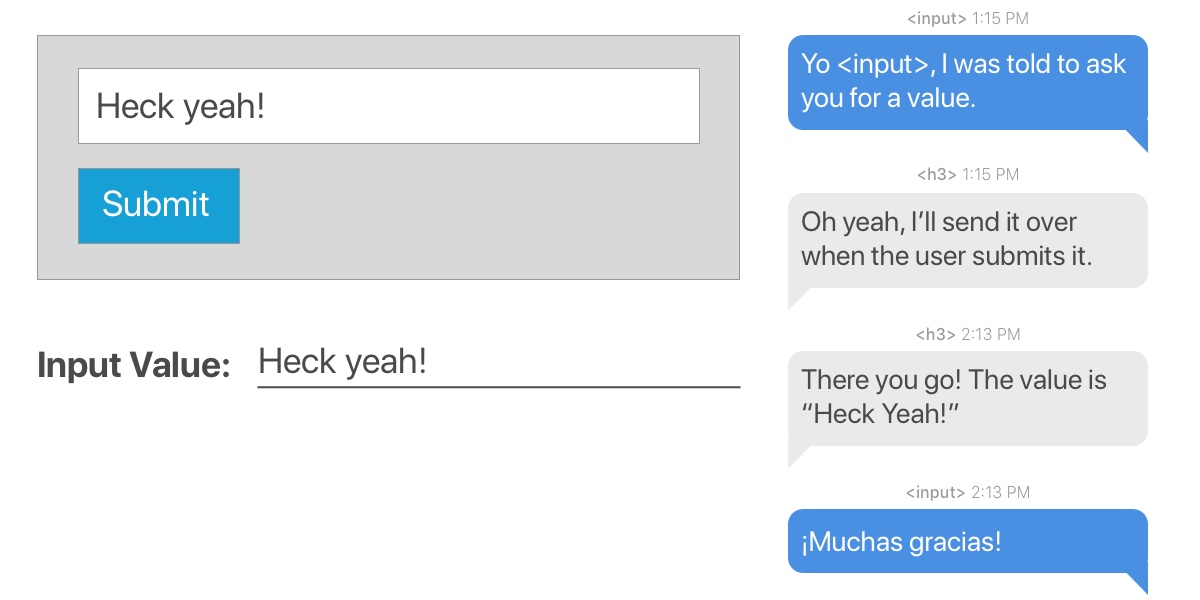
How a conversation between a child component and an element containing the ref might go down.
This is a component that renders some text, an input field and a button. The ref is created in the constructor and then attached to the input element when it renders. When the button is clicked, the value submitted from the input element (which has the ref attached) is used to update the state of the text (contained in an H3 tag). We make use of this.textInput.current.value to access the value and the new state is then rendered to the screen.
Passing a callback function to ref
React allows you to create a ref by passing a callback function to the ref attribute of a component. Here is how it looks:
When you make use of callback like we did above, React will call the ref callback with the DOM node when the component mounts, when the component un-mounts, it will call it with null.
It is also possible to pass ref from a parent component to a child component using callbacks.
In the App component, we want to obtain the text that is entered in the input field (which is in the child component) so we can render it. The ref is created using a callback like we did in the first example of this section. The key lies in how we access the DOM of the input element in the Input component from the App component. If you look closely, we access it using this.inputElement. So, when updating the state of value in the App component, we get the text that was entered in the input field using this.inputElement.value.
The ref attribute as a string
This is the old way of creating a ref and it will likely be removed in a future release because of some issues associated with it. The React team advises against using it, going so far as to label it as „legacy” in the documentation. We’re including it here anyway because there’s a chance you could come across it in a codebase.
The component is initialized and we start with a default state value set to an empty string (value='’). The component renders the text and form, as usual and, like before, the H3 text updates its state when the form is submitted with the contents entered in the input field.
We created a ref by setting the ref prop of the input field to textInput. That gives us access to the value of the input in the handleSubmit() method using this.refs.textInput.value.
Forwarding a ref from one component to another
**Ref forwarding is the technique of passing a ref from a component to a child component by making use of the React.forwardRef() method.
We’ve created the ref in this example with inputRef, which we want to pass to the child component as a ref attribute that we can use to update the state of our text.
We all know that form validation is super difficult but something React is well-suited for. You know, things like making sure a form cannot be submitted with an empty input value. Or requiring a password with at least six characters. Refs can come in handy for these types of situations.
class App extends React.Component {
  constructor(props) {
    super(props);

    this.username = React.createRef();
    this.password = React.createRef();
    this.state = {
      errors: []
    };
  }

  handleSubmit = (event) => {
    event.preventDefault();
    const username = this.username.current.value;
    const password = this.password.current.value;
    const errors = this.handleValidation(username, password);

    if (errors.length > 0) {
      this.setState({ errors });
      return;
    }
    // Submit data
  };

  handleValidation = (username, password) => {
    const errors = [];
    // Require username to have a value on submit
    if (username.length === 0) {
      errors.push("Username cannot be empty");
    }

    // Require at least six characters for the password
    if (password.length < 6) {
      errors.push("Password should be at least 6 characters long");
    }

    // If those conditions are met, then return error messaging
    return errors;
  };

  render() {
    const { errors } = this.state;
    return (
      <div>
        <h1>React Ref Example</h1>
        <form onSubmit={this.handleSubmit}>
          // If requirements are not met, then display errors
          {errors.map(error => <p key={error}>{error}</p>)}
          <div>
            <label>Username:</label>
            // Input for username containing the ref
            <input type="text" ref={this.username} />
          </div>
          <div>
            <label>Password:</label>
            // Input for password containing the ref
            <input type="text" ref={this.password} />
          </div>
          <div>
            <button>Submit</button>
          </div>
        </form>
      </div>
    );
  }
}
We used the createRef() to create refs for the inputs which we then passed as parameters to the validation method. We populate the errors array when either of the input has an error, which we then display to the user.
That’s a ref… er, a wrap!
Hopefully this walkthrough gives you a good understanding of how powerful refs can be. They’re an excellent way to update part of a component without the need to re-render the entire thing. That’s convenient for writing leaner code and getting better performance.
At the same time, it’s worth heeding the advice of the React docs themselves and avoid using ref too much:
Your first inclination may be to use refs to „make things happen” in your app. If this is the case, take a moment and think more critically about where state should be owned in the component hierarchy. Often, it becomes clear that the proper place to „own” that state is at a higher level in the hierarchy.
In this tutorial, you will learn how to create an amazing photo effect inspired by the Grand Theft Auto V video game art style. I will explain everything in so much detail that everyone can create it, even those who have just opened Photoshop for the first time.
The effect shown above is the one I will show you how to create in this tutorial. If you would like to create the even more advanced effect shown below that you can also animate if you want, using just a single click and in only a few minutes, then check out my Grandiose 3 Photoshop Action.
What You’ll Need
To recreate the design above, you will need the following resources:
First, open the photo that you want to work with. To open your photo, go to File > Open, choose your photo, and click Open. Now, before we get started, just check a couple of things:
Your photo should be in RGB Color mode, 8 Bits/Channel. To check this, go to Image > Mode.
For best results, your photo size should be 2000–4000 px wide/high. To check this, go to Image > Image Size.
Your photo should be the Background layer. If it is not, go to Layer > New > Background from Layer.
Step 2
Now we need to expand the canvas on the top so we have more space around the subject on this side. Go to Image > Canvas Size and use the settings below:
2. How to Select the Subject
Step 1
In this section, we are going to make a selection of our subject and then copy the subject to a separate layer. Choose the Quick Selection Tool(W) and select the background of the photo. Use the Shift-Alt buttons on your keyboard to add or subtract areas from the selection. After you’ve made a perfect selection, press Control-Shift-I on your keyboard to invert the selection.
Step 2
Now go to Select > Modify > Smooth and set the Sample Radius to 5 px. Then, go to Select > Modify > Contract andset Contract By to 1 px. After that, go to Select > Modify > Feather and set the Feather Radius to 1 px.
Step 3
Press Control-J on your keyboard to create a new layer using the selection, and name this layer Subject.
3. How to Create the Background
Step 1
In this section, we are going to create the background. Select the Background layer, go to Layer > New Fill Layer > Solid Color to create a new solid color fill layer, name it Background Color, and choose the color #000000 as shown below:
Step 2
Now go to File > Place Embedded, select theimage from the second stock image link, and click Place. Then, set the Width and Height of the texture to 180% as shown below, and name this layer Background Image.
Step 3
Right-click on this layer and choose Rasterize Layer. Then, go to Filter > Filter Gallery > Artistic > Cutout, and set the Number of Levels to 8, Edge Simplicity to 10, and Edge Fidelity to 3.
Step 4
Now press Control-A on your keyboard to make a selection of the whole canvas. After that, go to Layer > Layer Mask > Reveal Selection to add a layer mask that reveals the selected area of the photo.
Step 5
Right-click on the layer mask and choose Apply Layer Mask. Then, press Control-T on your keyboard, Right-click anywhere inside the canvas, choose Distort, and transform this layer as shown below:
Step 6
Go to Layer > New Adjustment Layer > Hue/Saturation to create a new hue/saturation adjustment layer and name it BI_Saturation/Brightness.
Step 7
Now press Control-Alt-G on your keyboard to create a clipping mask. Double-click on this layer thumbnail and, in the Properties panel, set the Saturation to -40 and Brightness to +20 as shown below:
4. How to Create the Subject Art Style
Step 1
In this section, we are going to create the subject art style. Select the Subject layer, go to Filter > Sharpen > Unsharp Mask, and set the Amount to 500%, Radius to 1 px, and Threshold to 0 levels.
Step 2
Now go to Filter > Stylize > Diffuse and set the Mode to Anisotropic.
Step 3
Go to Filter > Stylize > Oil Paint, set the Stylization to 2 and Cleanliness to 10, and uncheck the Lighting.
Step 4
Now go to Filter > Sharpen > Unsharp Mask, and set the Amount to 100%, Radius to 3 px, and Threshold to 0 levels.
Step 5
Go to Filter > Stylize > Diffuse and set the Mode to Anisotropic.
Step 6
Go to Filter > Sharpen > Unsharp Mask, and set the Amount to 100%, Radius to 1 px, and Threshold to 0 levels.
Step 7
Go to Filter > Noise > Reduce Noise and use the settings below:
Step 8
Now go to Filter > Blur > Surface Blur, and set the Radius to 2 px and Threshold to 15.
Step 9
Press Control-J on your keyboard to duplicate this layer. Then, go to Filter > Filter Gallery > Artistic > Cutout, and set the Number of Levels to 8, Edge Simplicity to 3, and Edge Fidelity to 3.
Step 10
Now change the Opacity of this layer to 25% and name it Subject_Adjustment.
Step 11
Control-click on this layer thumbnail to make a selection of this layer. Then, go to Select > Modify > Smooth and set the Sample Radius to 5 px.
Step 12
Now go to Layer > New > Layer to create a new layer, and name it Subject Stroke.
Step 13
Choose the Rectangular Marquee Tool (M), set the foreground color to #000000, Right-click anywhere inside the canvas, and choose Stroke. Set the Width to 4 px, Location to Outside, Mode to Normal, and Opacity to 100%.
Step 14
Choose the Rectangular Marquee Tool (M) again, set the foreground color to #000000, Right-click anywhere inside the canvas, and choose Stroke. This time, set the Width to 2 px, Location to Center, Mode to Normal, and Opacity to 100% as shown below:
Step 15
Press Control-D on your keyboard to deselect the selection.
5. How to Make the Final Adjustments
Step 1
In this section, we are going to make final adjustments to the design. Go to Layer > New Adjustment Layer > Photo Filter to create a new photo filter adjustment layer, and name it Photo Tint.
Step 2
Now Double-click on this layer thumbnail and, in the Properties panel, set the Filter to Orange and Density to 15% as shown below:
Step 3
Press D on your keyboard to reset the swatches, go to Layer > New Adjustment Layer > Gradient Map to create a new gradient map adjustment layer, and name it Overall Contrast.
Step 4
Now change the Blending Mode of this layer to Luminosity and set the Opacity to 28%.
Step 5
Go to Layer > New Adjustment Layer > Vibrance to create a new vibrance adjustment layer and name it Overall Vibrance/Saturation.
Step 6
Now Double-click on this layer thumbnail and, in the Properties panel, set Vibrance to +31 and Saturation to +20.
Step 7
Go to Layer > New Adjustment Layer > Levels to create a new levels adjustment layer and name it Overall Brightness.
Step 8
Now Double-click on this layer thumbnail and, in the Properties panel, enter the settings below:
Step 9
Press Control-Alt-Shift-E on your keyboard to make a screenshot, and then press Control-Shift-U to desaturate this layer. Then, go to Filter > Other > High Pass and set the Radius to 2 px.
Step 10
Now change the Blending Mode of this layer to Hard Light and name it Overall Sharpening.
You Made It!
Congratulations, you have succeeded! Here is our final result:
If you would like to create the even more advanced effect shown below, which you can also animate if you want, using just a single click and in
only a few minutes, then check out my Grandiose 3 Photoshop Action.
Using this action, you can transform your photos into amazing GTA inspired art style
with no work at all! Simply fill in your subject with a color and just
play the action. It’s really that simple! The action will do all the
work for you, leaving you fully layered and customizable results. The action also creates 20 preset color looks that you can choose from.
There are also 16 background shape actions, an action to add more elements to the design, an action to create a GTA inspired text effect using your own text, and an action to animate the results included!
It comes with a detailed video tutorial that demonstrates how to use the action and customize the results to get the most out of the effect.
In this tutorial you will learn how to create an amazing text effect inspired by the Grand Theft Auto video game. It’s suitable for Photoshop beginners.
In this tutorial you will learn how to create an amazing, artistic effect inspired by art style of the Grand Theft Auto video game, using Adobe Photoshop.
In
this tutorial, you will learn how to create a wafer-inspired text
effect with the help of the 3D options and the Transform effect to
obtain the wafer layers in Adobe Illustrator. You will also create the wafer pattern from
scratch using a custom pattern brush, and you’ll finish with the shiny
melted chocolate running down on the letters. Sounds delicious!
Launch Illustrator and
go to File
> New to
open a blank document. Type a name for your file, set the
dimensions, and then select Pixels as Units and RGB as Color
Mode.
Next,
go to Edit
> Preferences > General and
set the Keyboard
Increment to 1
px and, while there, go to Units to
make sure they are set as in the following image. I usually work with
these settings, and they will help you throughout the drawing process.
2. How
to Prepare the Text
Step
1
Grab
the Type Tool (T) and write “WAFER” on your artboard using the Bob Font from Envato Elements. After that, choose Expand and Ungroup (Shift-Control-G)
from the Object menu to get the individual letters.
Step
2
Now,
take the Direct Selection Tool (A) and use it to move some of the
anchor points in order to make the indicated areas a little wider.
3. How
to Create the Wafer Layers
Step
1
Now
that the letters are ready, you can select all of them and go to Effect
> 3D > Extrude & Bevel.
Set the Rotation Coordinates and settings as shown, and then hit OK.
Step
2
Focus
on the letter “A”. Choose Expand Appearance from the Object menu
and then Ungroup (Shift-Control-G) a few times until you get all the
shapes separated. Now, select only the four thin brown shapes (the
first wafer layer) and go to Effect > Distort & Transform >
Transform. Type 2.6 px in the Vertical Move field, choose 6 Copies, and then hit OK. As a result, you will get seven wafer layers, but because they’re filled with the same color, they are not clearly visible at this
point.
Repeat
the same thing for the other four letters.
Step
3
While
the seven wafer layers for the letter “A”
are still selected, choose Expand Appearance from the Object menu to
expand the Transform effect. Now, you can select each layer
separately with the Direct Selection Tool (A) and recolor them.
Repeat
the same thing for the other letters.
4. How
to Create and Apply a Wafer Pattern Brush
Step
1
Use
the Rectangle Tool (M) to draw a small 25 x 5 px rectangle filled
with gray (1). Now, use the Direct Selection Tool (A) to select only
the top corner points and move them inwards by pressing the
Arrow keys on your keyboard five times (2).
While
the new gray shape stays selected, go to Object > Transform >
Reflect, check Horizontal, and then hit Copy. Align the second shape
to the bottom of the first one, and change the fill color to
pink (3).
Drag
the gray and pink shapes into the Brushes panel and choose New
Pattern Brush. In the Pattern Brush Options window, just type a name
for your new brush and set the Colorization Method to Tints and
Shades.
Step
2
Use
the Line Segment Tool (\) or the Pen Tool (P) to draw a straight path
over the letter “W” and stroke it with the new Wafer Pattern
Brush. Reduce the Stroke Weight to 0.5 pt and use pink as the stroke
color (1).
While
the pink path stays selected, go to Object > Transform >
Reflect, check Horizontal, and hit Copy in order to get a second path.
Choose a different stroke color, such as green (2). Align the two
paths so the pink and green shapes match perfectly (see close-up).
Step
3
Multiply
the pink path and arrange the copies between the green shapes. You
may need to zoom to make sure they all match perfectly. Keep making
copies of the pink path until the letter “W” is covered (1).
Now,
multiply the green path and arrange all the copies between the pink
ones. Make sure they are matching, and this will be the wafer pattern
(2).
Step 4
Select
all the pink and green paths and choose Expand Appearance from the Object menu to get the individual small shapes. Now, use the Direct
Selection Tool (A) to select only one of the pink shapes, and go to Select > Same > Fill Color. As a result, Illustrator will
select all the pink shapes for you, and you can easily change the fill
color to cream (1).
Next,
use the Direct Selection Tool (A) to select only one of the purple
shapes, and then go to Select > Same > Fill Color. Illustrator
will select all the purple shapes for you, and you can change the fill
color to beige (2).
Step
5
Follow
the same technique and recolor all the light green shapes with the
color indicated (1); then recolor the darker green shapes to brown
(2).
Step
6
Select
the W shape and Copy and Paste in Place (Shift-Control-V) to make a
copy of it in front of the wafer pattern. Set this copy to
stroke-none and fill-none.
Now,
select the wafer pattern along with the copy of the letter and go to Object > Clipping Mask > Make (Control-7).
I’ve
explained the process of creating the wafer pattern for the letter
“W”. Apply the same method to create the pattern on the rest of
the letters.
5. How
to Color the Wafer Pattern Squares
Step
1
First,
select the W shape, and then Copy and Paste in Place (Shift-Control-V)
to make a copy of it. Give it any fill color (1).
Now,
select the two groups of shapes that make up the wafer pattern from
under the existing mask and Copy and Paste in Place (Shift-Control-V)
to make copies of them. Press Unite in the Pathfinder panel, and then
go to Object > Compound Path > Make (Control-8). Fill the
resulting wafer
compound path
with pink (2). Before you continue, make two copies of it for
later use, but hide them for the moment.
Select
the blue W shape along with the wafer compound path and press Minus
Front in the Pathfinder panel. You will get a group of blue squares
(3).
Step
2
Follow
the technique explained above to obtain the blue squares on the other
four letters as well (1). After you are done, fill each group of
squares with the linear gradient shown at a 90º Angle (2).
Drag these groups of squares between the wafer pattern and the actual
letters in the Layers panel.
6. How
to Create Shading on the Wafer Pattern Squares
Step
1
Focus
on the letter „W” and make a copy of the wafer compound path visible
again (1). Copy and Paste
in Front (Control-F)
this compound path and move it 1 px upwards by pressing the Up Arrow
key on your keyboard once (2).
While
both wafer compound paths stay selected, press Minus Front in the Pathfinder panel. As a result, you will get a group of reversed
V-like shapes at the top of the wafer squares (3).
Step 2
Fill
the group of shapes obtained in the previous step with brown; then go
to Effect > Blur > Gaussian Blur and apply a Radius of 1 px
(1).
Name
this group “shading” and drag it under the existing mask and
under the wafer pattern in the Layers panel (2).
7. How
to Create Highlights on the Wafer Pattern Squares
Step
1
Make
the second copy of the wafer compound path visible again (1). Copy and Paste
in Front (Control-F)
this compound path, and this time, move it 1 px downwards by pressing
the Down Arrow key on your keyboard once (2).
While
both compound paths stay selected, press Minus Front in the Pathfinder panel. You will get a group of V-like shapes at the bottom
of the wafer squares (3).
Step
2
Fill
the group of shapes obtained at the previous step with the color
indicated, and apply a 1 px Gaussian Blur (1).
Name
this group “highlight” and drag it under the existing mask and
under the wafer pattern in the Layers panel (2).
Step
3
I’ve
explained how to color and how to add shading and highlights on the
wafer squares for the letter “W”. Apply the same method to add
details on the other four letters.
8. How
to Create Texture on the Wafer Letters
Step
1
First,
let’s create a mask shape. Select all the wafer layers and then Copy and Paste in Place (Shift-Control-V) to make copies of them in front
of everything. Press Unite in the Pathfinder panel and, after that, go
to Object > Compound Path > Make (Control-8).
Step
2
Next,
select the letters and Copy and Paste in Place (Shift-Control-V)
to make copies of them. Go to Object > Compound Path > Make
(Control-8) to obtain a new compound path out of them (1).
While
the red and pink compound paths stay selected, press Minus Front in
the Pathfinder panel; then go to Object > Compound Path > Make
(Control-8). We’ll use the resulting compound path to mask the
texture next (2).
Step
3
Use
the Rectangle Tool (M) to draw a rectangle that covers the letters.
Select gray as the fill color; then go to Effect > Texture >
Texturizer and apply the settings shown (1).
While
this rectangle stays selected, also select the mask shape obtained in the previous step and go to Object > Clipping Mask > Make
(Control-7) (2). Set the rectangle to Blending Mode Soft Light (3).
Step
4
Make
copies of the five letters and then go to Object > Compound Path >
Make (Control-8). Fill the new compound path with gray and apply the Texturizer effect using the same settings (1). Set the Blending Mode
to Overlay and reduce the Opacity to 40%.
Make
a copy of the same compound path in front and remove all existing
appearances. Use it to mask the texture to get sharp edges (2).
9. How
to Create the Melted Chocolate
Step
1
Let’s
cover the top of the wafer letters with delicious melted chocolate.
Look
at the wafer letters and imagine chocolate running down on them. Use
the Pen Tool (P) to define that melted chocolate on each letter (1).
Next, join the paths between them (2) and, at the end, close the
shape at the top to cover the letters (3).
Step
2
While
the chocolate shape stays selected, add a New Fill in the Appearance panel above the existing brown one. Use the radial gradient shown;
then go to Effect > Sketch > Chrome and apply the settings
shown. Set the Blending Mode to Soft Light.
Step
3
With
the chocolate shape still selected, add a New Fill at the top of the Appearance panel and use white as the fill color. Go to Effect >
Stylize > Inner Glow and apply the settings shown. Set the Blending Mode to Multiply (white becomes transparent).
Step
4
Make
a compound path out of the wafer layers and another compound path out
of the letters, as you did before (1). While both shapes stay
selected, press Unite in the Pathfinder panel, and then go to Object >
Compound Path > Make (Control-8) (2).
Step
5
Select
the chocolate shape and Copy and Paste in Place (Shift-Control-V) to
make a copy of it in front of everything. Remove all existing
appearances and just give it a fill color (1).
While
the blue and pink shapes stay selected, press Intersect in the Pathfinder panel and then go to Object > Compound Path > Make
(Control-8) (2).
Use
the Delete Anchor Point Tool (-) and the Add Anchor Point Tool (+) to
distort the resulting shape, especially at the top. Add a lot more
anchor points and move them randomly to create an irregular edge (3).
Step
6
Select
the chocolate shape along with the pink compound path from the
previous step (stroke-none, fill-none) and go to Object > Clipping
Mask > Make (Control-7).
10. How
to Create a Shadow Under the Melted Chocolate
Step
1
Make
a copy of the chocolate shape and move it behind the original
chocolate but in front of the wafer letters. Remove the existing
appearances because we have new ones. Select dark brown as the fill
color and apply the Drop Shadow effect using the settings shown.
Step
2
We
need a mask shape now. Make a compound path out of the wafer layers
and another compound path out of the letters, as you did before (1).
While both shapes stay selected, press Unite in the Pathfinder panel
and then go to Object > Compound Path > Make (Control-8) (2).
Step
3
Go
to the Layers panel and find the mask shape that you used for
the chocolate. Copy and Paste it in Place (Shift-Control-V) because
we need a copy of it (the orange shape) (1).
While
the blue and orange shapes stay selected, press Unite in the Pathfinder panel and then go to Object > Compound Path > Make
(Control-8) (2). Use this new compound path to mask the copy of the
chocolate shape with the Drop Shadow effect applied to it (3).
11. How
to Add Details and Shine on the Melted Chocolate
Step
1
Grab
the Pen Tool (P) and draw a few paths following the top edge of the
chocolate (1). Give all of them a 5 pt black Stroke and use Width
Profile 1 in the Stroke panel. Next, go to Effect > Blur >
Gaussian Blur and apply a Radius of 2 px; then set the Blending Mode
to Multiply and reduce the Opacity to 25% (2).
Group
(Control-G) all these paths and drag the group under the existing
mask used for the chocolate in order to mask the blur that goes over
the top edge.
Step
2
Take
a closer look at the chocolate and at the details created by the Chrome effect (1). Follow those details and draw a few paths on top using the Pen Tool
(P) (2).
Give all of them a 2 pt white Stroke and
use Width Profile 1 again. Apply a 2 px Gaussian Blur; then set
the Blending Mode to Overlay and 75% Opacity (3).
Step
3
Draw
more paths on the chocolate as shown in the image below, where there is a
bigger empty space (1). Give them a 4 pt white Stroke and use Width Profile 1 again. Apply a 4 px Gaussian Blur; then set the Blending Mode to Overlay and 25% Opacity (2).
Step
4
Let’s
add more shine. Draw a few paths following the bottom edge of the
chocolate (1) with the Pen Tool (P). Give them a 4 pt Stroke using
the color indicated and use the Black Blend Art Brush 100×3 (info
below). Next, go to Effect > Stylize > Feather and apply a Radius of 4 px (2).
I
have an entire tutorial dedicated to Blend
Art Brushes and
how useful they are. I use them in my drawings all the time. You can
find out how to create and save the Black
Blend Art Brush 100×3 that
we are using today in How
to Create a Set of Multi-Use Blend Brushes in Adobe Illustrator. Since
the Colorization of the brush is set to Tints, when you select
another stroke color, the brush becomes that color as well, despite
its name.
Step
5
Let’s
add even more shine. Draw more paths closer to the edges of the
chocolate (1) using the Pen Tool (P). Give all of them a 3 pt Stroke
and use the Black Blend Art Brush 100×3 again. Go to Effect >
Stylize > Feather and apply a Radius of 4 px to make them smoother
(2).
12. How
to Add a Shadow Under the Wafer Letters
Go
to the Layers panel and find the shape that you have used to mask the
shadow under the melted chocolate. Copy and Paste it in Place
(Shift-Control-V) because we need it again (the gray compound path).
Move
this copy to a new layer called “Shadow” under the letters, and
then apply the Drop Shadow effect twice.
These
are the settings for the Drop Shadow effects:
Congratulations!
You’re Done
Here
is the final image of the wafer text effect that gets covered with
delicious melted chocolate. I hope you enjoyed this sweet tutorial and
learned new techniques. Don’t forget to share an image with us if you
decide to recreate it.
Keep on drawing and learning with the recommended tutorials from below.
Do you want to learn how to make a high-quality flyer in Photoshop, in under an hour? Then take our new short course, How to Make a Flyer.
What You’ll Learn
In this short course, Envato Tuts+ Instructor Melody Nieves will show you exactly how to make a flyer in Photoshop. You’ll learn how to use high-quality stock items, 3D assets, and the powerful tools in Adobe Photoshop to create two stunning flyer designs.
After getting to grips with the basics of flyer templates, you’ll set out to design your own. You’ll learn how to make a flyer for an event and create a music festival flyer and Art Deco party invitation.
This short course consists of eight videos, with a total viewing time of just 42 minutes. So even though it’s the middle of summer vacation time, you can easily fit it in amid the barbecues and beach trips!
Watch the Introduction
Take the Course
You can take our new course straight away with a subscription to Envato Elements. For a single low monthly fee, you get access not only to this course, but also to our growing library of over 1,000 video courses and industry-leading eBooks on Envato Tuts+.
Plus you now get unlimited downloads from the huge Envato Elements library of 650,000+ creative assets. Create with unique fonts, photos, graphics and templates, and deliver better projects faster.