The right kind of graphic design tools can easily modernize your workflow, assisting you to execute in a smart way and more proficiently. You are actually investing your time and energy in crafting wonderful, eye-catchy designs for your clients’ satisfaction and to the delight of your regular users. So the graphic designers though being busy; need to stay updated with the new design tools of 2018 that will help them become more fruitful and creative in the coming year, thus saving their time. Mentioned here are 10 brand new graphic design tools that can bring out the best in your projects!
1. Photoshop CC’s Curvature Pen Tool
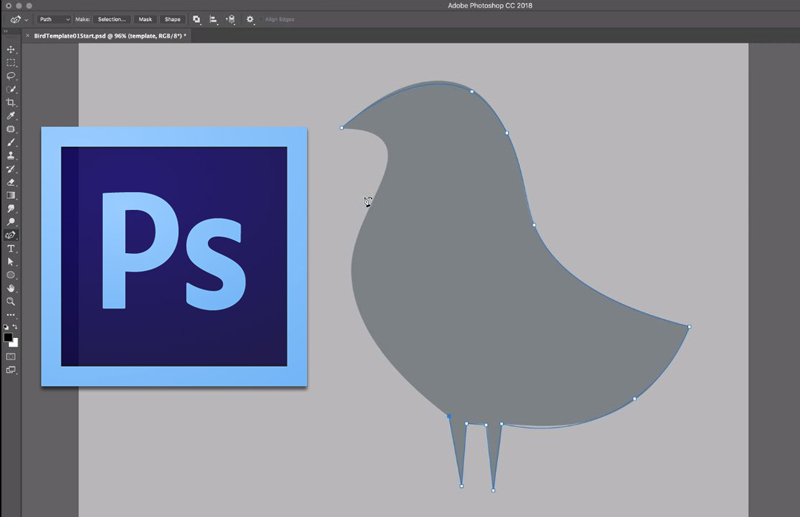
If you are having a Creative Cloud subscription, then a cool new pen tool is accessible in the Tools panel to create curved lines in Photoshop CC much simpler. With the help of this Curvature Pen tool, you can click to add points which will directly make drawing curves between them. The push and pull the segments of the curve purely to modify it for better.
2. Lightwell
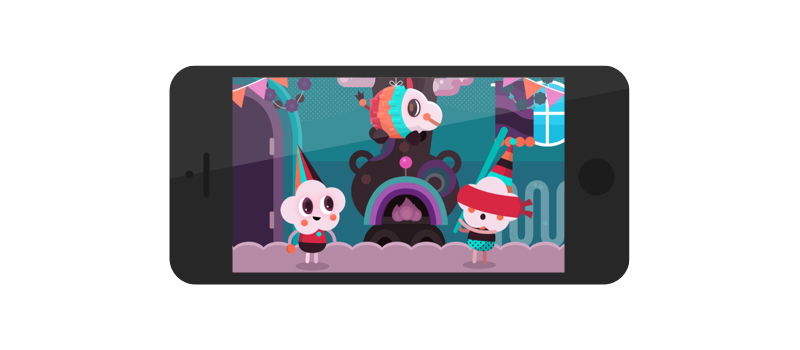
Available for iPad, iPhone, and OS X, the Lightwell tool allows you to upload your 2D designs superbly and spin them into interactive storytelling apps. Currently free on Apple Store and reaching Google Play Store in 2018, this tool offers a prospective easy and quick method to bring all the stories and media to life.
3. Sketch
Sketch is a Bohemian Coding’s vector UI design tool that has small size documents and provides hundreds of plugins to makes the workflow smoother and simpler for a designer. The Sketch features a great built-in grid system and user-friendly and creates interface design much simpler.
4. Adobe XD
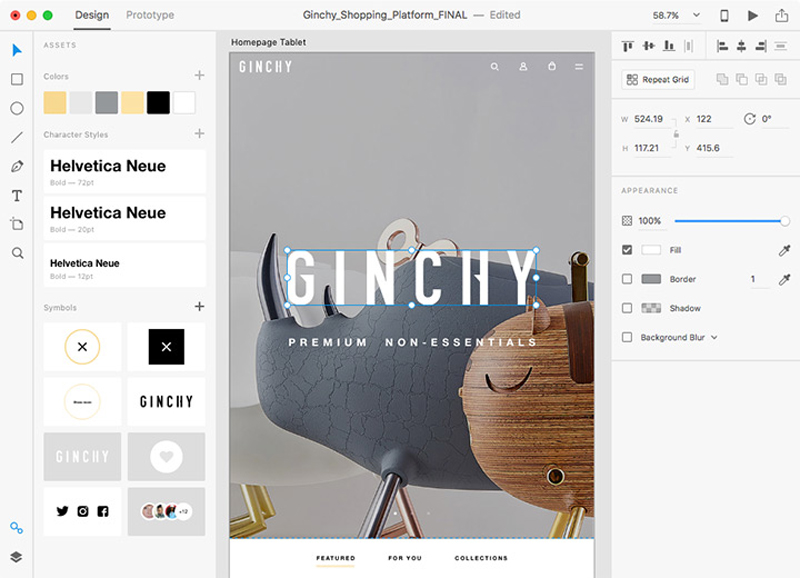
Adobe XD covers drawing tools that enable the designer to choose a device-precise art-board size to start a project and can also import a trendy UI kit like Google’s Material Design. XD is also a light interface along with multiple photos loaded in it, and good for mood-boards.
5. Canva
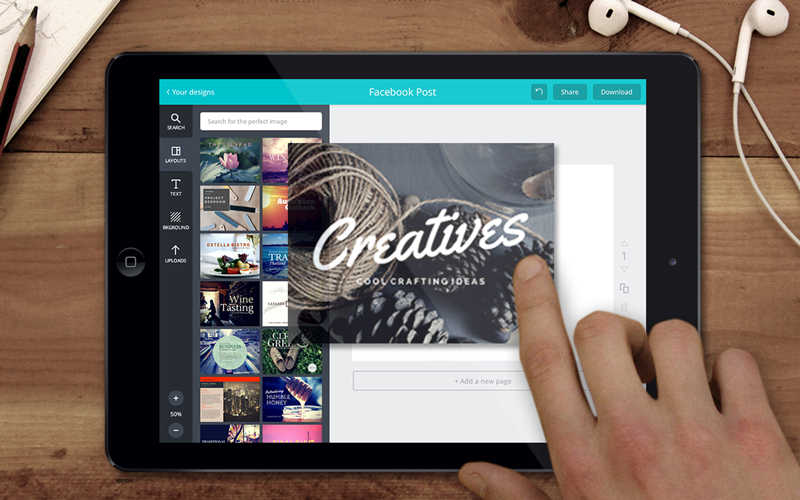
Canva is the most popular and free tool used for creating amazing designs, brochures, and logos. The graphic designers can easily utilize this browser-based tool to craft graphics for print as well as the web. Canva is just perfect for carving superb images for your website and social media. One can apply the drag-and-drop feature of Canva and specialized layouts to design striking graphics always.
6. Type Nugget
Type Nugget deals with CSS typography. This is known to be an online typesetting tool which offers you good control of typestyles. Type Nugget exhibits a wide range of text samples on the page that can be easily live-tweaked in a panel on the right side. Thus the panel allows the graphic designer to choose the font size, style, weight, letter spacing, text decoration, and much more for individual features of the page, like headings, global styles, links, paragraphs, and HTML lists.
7. Parallax SVG Animation Tools
SVG Animation Tools is available in the form of a Python script which is crafted by Gareth Battensby of Parallax. This tool helps in creating long or complex sequence SVG animations in a very easy way. The Parallax SVG Animation tools are ideal for the front-end developers who do the animation of SVG graphics along with GSAP or related animation libraries.
8. Figma
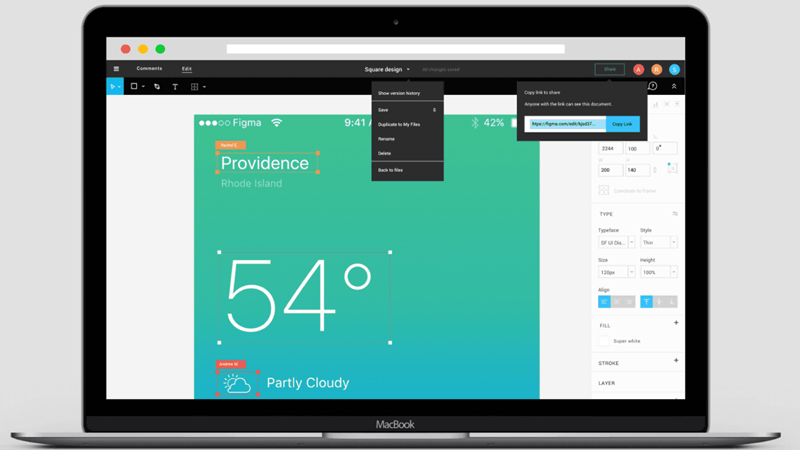
Accessible in the browser, or on Mac, Linux, or Windows, the Figma has free and paid versions which depend on what you apply it for. It is an interface design tool which allows numerous designers to team up in real-time. One can get discount & coupons at Couponobox.com for premium tools. You can use Figma to craft a couple of icons for articles that you want to publish on your website as its workflow is exceptional.
9. Affinity Designer
Serif’s Affinity Designer has been amazingly well-designed and is a unique graphic design tool. You can enjoy using its features that include nondestructive, adjustable layers where you can easily adjust vectors or images sans smashing them.
10. Pattern Lab
Pattern Lab is a stunning pattern-driven design tool that is based on Atomic Design concept. It is a language-and-tool-agnostic and also a static site generator which sews up UI components together. Pattern Lab allows the designer to layer the UI patterns inside each other and even design along with dynamic data.
Hence, save your budget, energy and time in your future webs design projects with these above new graphic design tools.
It’s been a very productive year for the web community, and as all of us here at CSS-Tricks roamed around to conferences, read posts, and built projects, there were some highlights of contributions that really stuck out to us. Each of us picked 5 resources that were either the most helpful, the most unique, or are things you might have missed that we think are worth checking out.
Sarah’s Picks
The Miracle of Generators
I quite like when someone takes a deep dive on a particular subject and does it well. I had the honor of seeing Bodil Stokke give this talk at Frontend Conference Zurich and it’s as charming and entertaining as it is educational.
An update since this talk has come out: Grid has also shipped in Microsoft Edge.
Vue Apollo
This is more like two things I’m interested in wrapped up in a single thing. Guillaume Chau has done a great job of creating an Apollo/GraphQL integration for Vue, including a few great demos to explore.
The Coding Train
This resource has been out for a while, but Dan now has such a great collection that it’s a great time to mention it.
Coding Train are small, half-hour chunks of tutorials- everything from creating a star field to learning how Neural Networks work. Dan is an incredibly engaging and lovable instructor and makes you feel very welcome when exploring new concepts.
It can be really tough to communicate animation because you necessarily need to collaborate between design and engineering. Val gives you some tools to make this process function well.
Robin’s Picks
Design Systems
Design Systems by Alla Kholmatova was one of the best design books I read in 2017.
It’s a book all about how to collaborate with a team and reveals that code quality is only one part of designing great systems on the web. The book isn’t so much about design as much as it’s about learning how to communicate across large groups of people and how we can better communicate with everyone in an organization.
Web Typography
Another great book I read this year was Web Typography by Richard Rutter, this time focusing a great deal more on the relationship between CSS and typesetting.
My favorite part of the book though is where Richard describes that web typography is fundamentally different from other forms of typesetting and requires a series of new skills. It makes for exciting reading.
Purple.pm
For most of this year I’ve been focusing on improving my UX and product design skills and I have to say that Purple was the most useful tool for organizing large amounts of data and research. I used it as an archive that stored every document I made, every Balsamiq wireframe and hi-fi Figma mockup I created all in one place. This made it so much easier to communicate with other teams and explain my thinking on a project.
Figma
This year I switched to using the web-based design tool Figma full time. It’s been so very useful because my day job work requires collaborating with dozens of engineers, product managers and other designers — so being able to quickly share a mockup with them and get feedback has exponentially improved my design chops. Plus, it reminds me of Fireworks which is probably one of the best apps ever made.
Inkwell
This year Hoefler & Co. released Inkwell, a new family of typefaces that mimics a variety of handwriting styles and I can’t stop thinking about them. One great example of their use is on Chris’ blog where all these weird styles shouldn’t work at all but somehow they just do.
Chris’ Picks
A Design System for All Americans by Mina Markham
A masterclass in public speaking if you ask me. Funny, personal, and right on target for the kind of work a lot of us are doing.
Notion
Notion is probably the most significant bit of new software I’ve switched to this year. It’s a notes app at it’s core and it’s feature-rich in that regard. One of my favorites features is that every note is also a folder, so you can get as nested as you like with your organization. If you give it a shot, I bet you’ll be able to see how it quickly can replace lots of other apps.
Most significant to a list like this, is that it’s built for the web, but also has native apps on a variety of platforms. I think 2017 was significant in that we started to really feel a blurring between what is web and what is platform native. I suspect it will get harder and hard to tell, and then with all the advantages the web has inherently, it will make less and less sense to build anywhere else.
CSS
CSS had a banner year. CSS Grid, of course, but we also got font-display starting to ship, which is wonderful for performance. We got landmark selectors like :focus-within that prove parent selectors aren’t impossible. Vector graphics has moved it way into CSS with a collection of properties, including animation and movement. You might say CSS has gotten more capable and easier. I enjoyed writing posts like this one about a slider that shows how far you can get in CSS these days.
RIP Firebug
I think it’s nice the Firebug homepage is an homage, goodbye, and short history to Firebug. Firebug laid the foundation for what good DevTools could be. I’m glad browsers have taken them in-house and turned them into the powerhouses we use now, but that’s all thanks to Firebug.
If I had to pick the most significant three things that have made the web the development platform it is today: 1) DevTooling, started by Firebug 2) The agreement from all browsers that web standards benefit everyone and actually being disciplined about applying that thinking 3) Evergreen browsers.
PWAs
I feel like Progressive Web Apps are essentially good marketing for a collection of good ideas that benefit any website. That’s exactly the case Jason Grigsby makes:
That makes it an easy pick for 2017. HTTPS! Service workers for offline friendliness! Performance focused! Do these things, and be rewarded with more features that native apps enjoy, like a position on the home screen on mobile devices. Blur them lines, y’all! Even if you don’t do everything on the list, there are big advantages for every step along the way.
Geoff’s Picks
CSS Grid
This one comes as no surprise but it’s certainly worthy of multiple mentions. Grid has really rejuvenated my love for CSS. Not only does it take a lot of the complexity of out layouts that used to require creative uses of floats, displays and positioning, but it has allowed me to cut CSS frameworks completely out of my workflow. I mean, it’s that frameworks are bad or should not be used, but I personally leaned on them a lot for their grid systems. That’s no longer the case and the result is one less dependency in my stack and the liberty to write more vanilla CSS.
Prototyping Tools
Robin already mentioned Figma and that is totally in line with what I’m referring to. There seemed to be an explosion of innovation in prototyping tools. Sketch, Figma, InVision and, yes, Adobe all upped their games this year and web designers were the beneficiaries. These tools have opened up have made it easier to collaborate with other designs, critique work, get client feedback, and ultimately get into the browser faster. I have never spent less time in graphic design software and it’s been awesome.
Often when we talk about accessibility, the focus is on things like semantics, document structure, screen readers ARIA roles. It can get super complicated. That’s why I really enjoyed Lara’s recent post advocating for accessible UI. Aside from being extremely well-written, she presents commonsense approaches to improving accessibility in ways that go beyond code.
One of her suggestions to check color contrasts in the design to ensure good legibility. This one really resonated with me because I recently worked on a project with a visual brand that includes a lot of greens and yellows. Running our designs through the tools Lara recommends revealed that our work failed many accessibility checks. It also taught me that accessibility really does not favor greens and yellows.
Web Typography: Designing Tables to be Read, Not Looked At
If you didn’t catch Richard Rutter’s post on A List Apart, I’ll please go read that right now. Don’t worry, I’ll wait right here for you.
You back? Great!
This one was a splash of cold water in my face. Richard not only convicted me to honestly assess whether I over-design tables but also turned all my preconceptions about what a table is and what a good one looks like. Good design is problem solving and this post is one that reminds me design for solutions before aesthetics.
place-items
Chris snuck this property into a demo and I had no idea it existed. I had to forgive myself a little when I saw that browser support on it is low, but it is a really nice shortcut that combines the align-items and justify-items properties. You may have guessed why I love this: it comes in super handy with Grid and Flexbox. While support is limited it Chrome 59+ and Firefox 45+, I am stoked to see more browsers hop on board.
Let’s take a look at the before and after. I love this part.
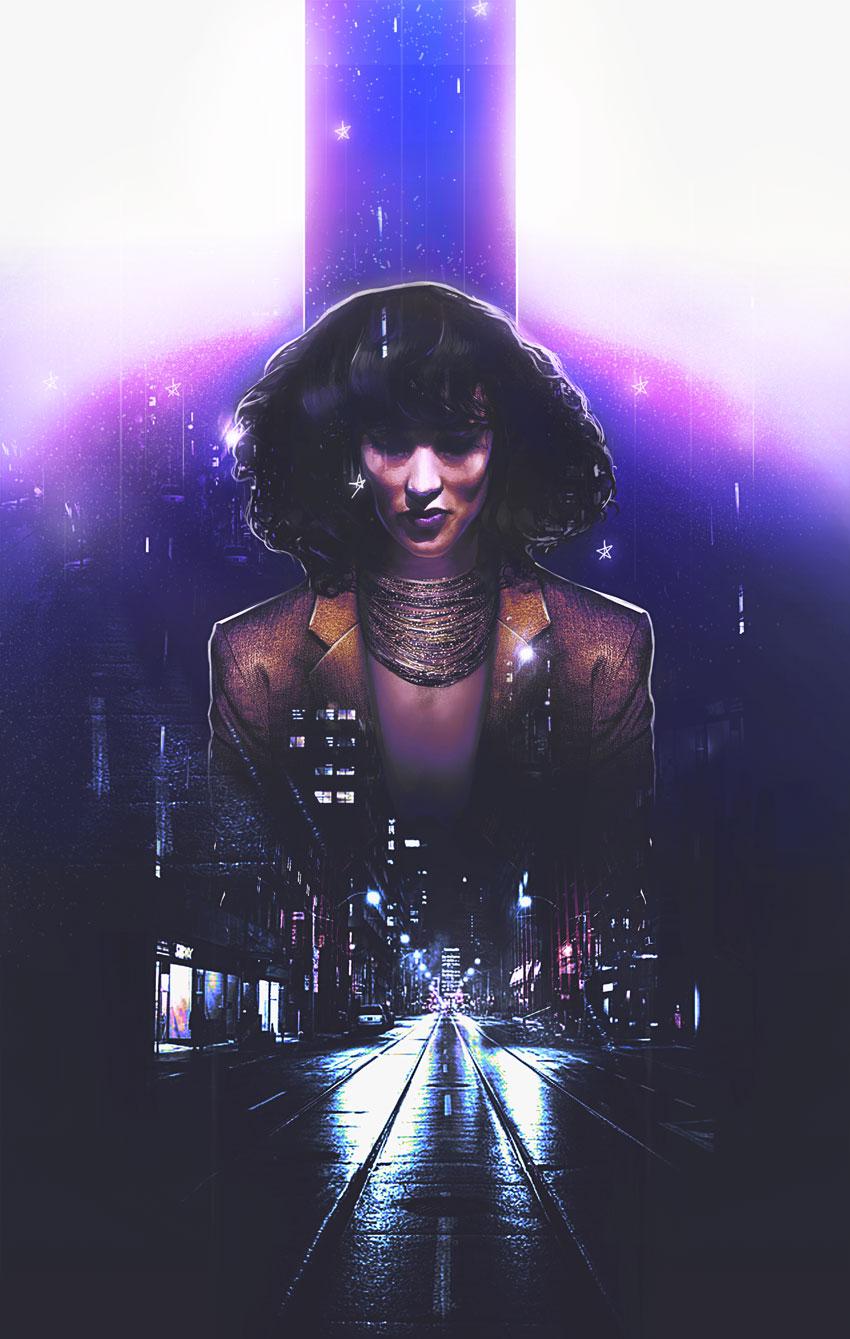
This manipulation combines a few of my favorite trends from the past
year. It mixes a double exposure effect with a 1980s vibe for a cool
movie-poster-like effect.
Pictures always shape the result! So make sure you pick photos that fit the vibe you’re trying to achieve. I was inspired by this simple Business Woman stock because she reminds of Jennifer Beals in the movie Flashdance.
And I just know we can do magic with that hair!
With that in mind, I’ve also gathered cityscape images to fit the retro 80s vibe because of their bright lights and neon colors. Always bookmark extra stocks for more variations.
Now for the tutorial! Let’s begin.
1. How to Style and Manipulate Your Subject
Step 1
Our subject seems a little distracted, so we’ll have to restyle the photo a bit for a fierce look. First, create a New Document at 1780 x 2800 pixels and 100 dpi.
Note: these dimensions are not traditional poster dimensions by any means (though it resembles a poster), so make sure you alter the numbers accordingly.
Use the Magnetic Lasso Tool (L) to extract the subject from the photo. Copy and Paste it into your document, Free Transforming (Control-T) her body slightly to make it straighter.
Step 2
For this next part, we want to create powerful, boss chick body language. Let’s make her shoulders more forward!
Use the Polygonal Lasso Tool (L) to create a selection around the right side of her suit. Since this side is the straighter of the two, we’ll use it to create stronger body language.
Copy and Paste the right side of the suit onto its own New Layer. Then Control-J to Duplicate it. Flip the copy by going to Edit > Transform > Flip Horizontal.
Here is the result so far with the new shoulders in position.
Step 3
Continue to modify her suit and style.
Use the Rectangular Marquee Tool (M) to cut the top half of her body off, specifically the area right above her collar. We’ll need to insert a necklace here soon.
Her
blouse makes her look super corporate, so let’s add another realm of
fierceness with some Grace Jones vibes! Create a New Layer below the suit layers and use a Hard Round Brush to paint tan #be9b84 below her neck. Use the Eraser Tool (E) at a low Opacity (10-20%) to erase the color for a subtle skin-like gradient.
Step 4
Let’s add that necklace!
Copy and Paste a selection of this Beaded Necklace onto the canvas.
Position it onto a New Layer above the skin before adding a Layer Mask. Mask away any remnants from the previous photo until there’s only the necklace left.
Don’t worry—we’ll fill any gaps left over later!
Step 5
Time for her curls!
Have fun with this step—it’ll add a lot of personality to the manipulation.
Make a selection of her hair using the Polygonal Lasso Tool (L). Copy and Paste this selection onto a New Layer. Resize her hair using the Free Transform Tool (Control-T).
Pull her hair wider and taller for voluminous 80s hair!
For even more volume, consider using Liquify. Select the hair layer and go to Filter > Liquify. Use the Forward Warp Tool (W) to push her hair, stretching the curls out until it looks full and teased.
Here is the result when we’re through. Epic 80s hair!
Feel free to use a Layer Mask to feather out the edges.
Step 6
This next step is optional. So let me first say, there is nothing wrong with her face. I just want it to look more symmetrical.
To do this, we’ll first Copy and Paste a selection of the left side of her face onto a New Layer. Then Flip this side to mirror the other by going to Edit > Transform > Flip Horizontal. Use the Eraser Tool (E) to blend any harsh edges.
2. How to Adjust the Skin
Step 1
Before we move on to the double exposure effect, let’s adjust the colors.
Create a New Layer and set it to Saturation. Use the Brush Tool (B) to paint a golden yellow color #b37f1a over the subject’s skin. This will make her appear more tanned. Lower the Opacity to 38%.
Step 2
On another New Layer above the model, smooth out her skin with a Soft Round Brush.
Paint a light tan color #dd9364 over her skin to minimize the uneven light hitting her face.
Keep the brush Opacity low (15-30%) as well as the Hardness (0%) for the best result.
3. How to Set Up the Graphic Elements
Step 1
Let’s start piecing together the rest of this scene!
Create a New Layer underneath the model.
Use the Rectangular Marquee Tool (M) to make a selection in the shape of a skinny rectangle above her head. Fill this section in with a light #959aa1 to medium gray #8b909a gradient using the Paint Bucket Tool (G).
This top bar will draw the focus to our subject for more drama.
Step 2
Do the same for the bottom, this time creating a medium gray #383938 to dark gray #1c1e1d gradient.
4. How to Create the Double Exposure Effect
Step 1
The magic of this manipulation is behind the double exposure look. We’ll be creating this by blending our two city photos together.
Let’s start with the first photo.
Copy and Paste the City #1 stock onto a New Layer above all the others.
Set the Layer Blend Mode to Lighten. Add a Layer Mask to mask out the top portions with a Soft Round Brush.
Step 2
Control-J this layer to create a Duplicate. Set the Layer Blend Mode to Lighten.
Now turn it upside down. Go to Edit > Transform > Flip Vertical.
Position this copy layer (named „flip” below) higher than the other. Try to make some of the lights from the buildings blend into her hair. Adjust the Layer Mask accordingly.
Step 3
Now add the second city.
All we really need from this photo is a subtle hint of those bright red buildings.
So Copy and Paste the City #2 stock onto a New Layer above the others. Position it to align with the first city photo.
Set the Layer Blend Mode to Color Dodge, and then add a Layer Mask to mask out everything else besides the red buildings.
Continue experimenting with this method, add more bits of glittery city lights to her face as well as the top gray bar.
5. How to Blend All the Colors Together
I’ve tried to set up this tutorial in the order that would work best for this effect.
Some parts might look a little trippy at first, but these next steps will help bring all the colors of the manipulation together.
It’s a lot. But you’ll love it, I promise!
Step 1
Let’s start with the background.
Create a New Layer above the white background layer. Use the Gradient Tool (G) to create an upward-moving, gray #484847 to transparent Linear Gradient.
Create another New Layer above the gradient. Use a Soft Round Brush to paint a blue #5674ae circle behind the model.
Step 2
Adjustment Layers are the best way to get cool results!
Add a New Adjustment Layer of Color Lookup above all the other layers in the panel.
Set the 3DLUT File to:
FoggyNight.3DL
Step 3
Create two New Layers above the Color Lookup layer.
Set the first one to Overlay. Create a white to transparent downward-moving Linear Gradient (30-50% Opacity).
On the layer above it, Fill it with purple #362f58 using the Paint Bucket Tool (G). Adjust the Opacity to 74% and set the Blend Mode to Lighten.
Step 4
Time for more adjustments!
Add a New Adjustment Layer of Curves. Adjust the curves for the RGB, Blue, and Green Channels for a cool color effect.
Step 5
Add a second Curves adjustment. This time, adjust the curves for the Blue and RGB Channels like the following ones below.
Follow up with a New Adjustment Layer for Levels.
Add the following values for the RGB and Blue Channels.
Blue Channel:
0, 0.76, 162
0, 255
RGB Channel:
26, 0.84, 204
21, 255
Here’s the result.
6. How to Add the Final Touches
Step 1
Ready to finish? Me too!
Create a New Layer above all the others. Set the Blend Mode to Hue and paint purple #1c083b across the top to recolor the yellow parts.
This layer will also add some shadow to the bar, so play with the softness for more depth.
Step 2
Add some color to the suit too! We’ll use Layer Styles.
Remember to keep some of your layers separated. Right-click the right suit layer and go to Blending Options. Add a yellow #ffbb35Color Overlay and black Satin Effect with the following settings.
Recreate this easily on the left side! Simply Right-click the right suit layer and go to Copy Layer Style. Then Paste this style onto the left layer.
Here’s the result below.
Step 3
Take some time to add crisp white highlights to the edges of the model and top bar.
Use a tapered Hard Round Brush to create the backlight, and then add some vertical lines in varying Opacities for a surreal look.
Step 4
Continue the highlights onto her hair and suit.
I love adding texture! Use this Star Brush from our essential Photoshop Brush pack to create tiny areas of grainy white texture which blend into the rest of the composition.
Get creative! Draw some fun stars by hand for a cool graphic effect!
Step 5
Almost there!
Add some beautiful glow to the manipulation.
Create a New Layer and set it to Overlay. Use a Soft Round Brush to paint soft yellow #e6d98f onto the model’s hair and suit. Paint some yellow onto the white background for a beautiful effect too!
Finish with a New Adjustment Layer for Gradient Map.
Use the Gold-Copper preset, and then set the Layer Blend Mode to Luminosity and the Opacity to 40%.
Check out the final result below!
7. How to Add a Quick 80s Text Effect
Turn this look into an epic 80s movie poster with a quick text effect! Just download one of the many amazing premade text effects from Envato Elements.
I have seen various implementations of the Voronoi Diagram. Perhaps you’ve seen one without knowing what it was. It almost looks like random stained glass:
My idea is to chop up a video into fragmented parts (called cells) and put them into 3D space on a slightly different z-axis. Then, by moving the mouse, you would rotate the whole experience so you would see the cells in different depths.
The Code
Building on top of Raymond Hill’s and Larix Kortbeek’s JavaScript implementation, the first thing I needed to was split up the cells.
I choose to use the <canvas> element, and put each of the cells on different canvas on a differnet 3D plane through CSS.
The Voronoi library takes care of computing all the sites to cells and creating objects with the vertices and edges for us to work with.
Cells to Canvases
First we create the canvases to match the number of Voronoi cells. These will be rendered to the DOM. The canvases and their respective contexts will be saved to an array.
var canv = document.createElement('canvas');

canv.id = 'mirror-'+i;
canv.width = canvasWidth;
canv.height = canvasHeight;

// Append to DOM
document.body.appendChild(canv);
document.getElementById('container-mirrors').appendChild(canv);

// Push to array
canvasArray.push(canv);
contextArray.push(canv.getContext('2d'));
Masking
All of the canvases are now a copy of the video.
The desired effect is to show one cell per canvas. The Voronoi library provides us with a compute function. When providing the sites with the bounds we get a detailed object where we extract all of the cells edges. These will be used to create a cut out to each section using the globalCompositeOperation.
// Compute
diagram = voronoi.compute(sites, bounds);

// Find cell
for (i=0;i<sites.length;i++) {
  if (!found) {
    cell = diagram.cells[i];
if (sites[j].voronoiId === cell.site.voronoiId) {
      found = 1;
    }
  }
}

// Create mask to only show the current cell
ctx.globalCompositeOperation = 'destination-in';
ctx.globalAlpha = 1;

ctx.beginPath();

var halfedges = cell.halfedges,
nHalfedges = halfedges.length,
v = halfedges[0].getStartpoint();

ctx.moveTo(v.x,v.y);

for (var iHalfedge=0; iHalfedge<nHalfedges; iHalfedge++) {
  v = halfedges[iHalfedge].getEndpoint();
  ctx.lineTo(v.x,v.y);
}

ctx.fillStyle = sites[j].c;
ctx.fill();
Adding Video
Displaying video to the canvas only takes a couple of lines of code. This will be executed on requestAnimationFrame:
v = document.getElementById('video');
ctx.drawImage(v,0,0,960,540);
It’s also possible to use a video input source (like a webcam), but I didn’t like the result as much for this demo. If you would like to know how to use the webcam to draw to canvas using the getUserMedia() method you can read about it here.
To optimise video drawing performance skip a few frames in between the requestAnimationFrame. Videos for the web are usually encoded with a frame rate not higher than 30 fps.
Demos like this are my favorite things to do. Seeing what’s out there and adding your own layer of interactivity to it. I’m looking forward to seeing what other people will be doing with this nice visual algorithm.
The Web Hypertext Application Technology Working Group (WHATWG) announced that it has adopted a formal governance structure:
The WHATWG has operated successfully since 2004 with no formal governance structure, guided by a strong culture of pragmatism and collaboration. Although this has worked well for driving the web forward, we realized that we could get broader participation by being clear about what rights and responsibilities members of the community have. Concretely, this involves creating an IPR Policy and governance structure.
WHATWG was founded by folks at Apple, Mozilla and Opera. The new structure will be comprised of individuals from Apple, Google, Microsoft and Mozilla. The Big Four, you might say.
I find this interesting because we often think of the Web as a wild west where standards are always evolving and adopted at a different pace. This change largely keeps public contributions to the Living Standards in tact, but establishes a clearer line of communication between working groups and provides a path to appeal and resolve disputes over standards.
Living Standards are informed by input from contributors, driven by workstream participants, articulated by editors, and coordinated by the Steering Group. If necessary, controversies are resolved by the Steering Group with members appointed from the organizations that develop browser engines.
And, with representatives from leading browsers at the table, we may see more agreement with adoption. I’m speculating here, but it seems reasonable.
If you’re like me and are fuzzy on the differences between WHATWG and W3C, Bruce Lawson has a pretty simple explanation. It still kinda blows my mind that they’re both standards we often refer to but come from two completely different groups.
Mina Markham on refactoring a large and complex codebase into an agile design system, slowly over time:
If you’re not lucky enough to be able to start a new design system from scratch, you can start small and work on a single feature or component. With each new project comes a new opportunity to flesh out a new part of the system, and another potential case study to secure buy-in and showcase its value. Make sure to carefully and thoroughly document each new portion of the system as it’s built. After a few projects, you’ll find yourself with a decent start to a design system.
As a side note, Mina’s point here also reminds me of an old blog post called „Things You Should Never Do” by Joel Spolsky where he talks about how all this work and all this code you feel you needs to be refactored is actually solving a problem. Deleting everything and starting from scratch is almost never a good idea:
When you throw away code and start from scratch, you are throwing away all that knowledge. All those collected bug fixes. Years of programming work.
I’m not entirely sure that Joel’s piece about programming fits snuggly with Mina’s point but I think it’s an interesting one to make nonetheless: new code doesn’t necessarily mean that it’s better.
Every week, we’ll give you an overview of the best deals for designers, make sure you don’t miss any by subscribing to our deals feed. You can also follow the recently launched website Type Deals if you are looking for free fonts or font deals.
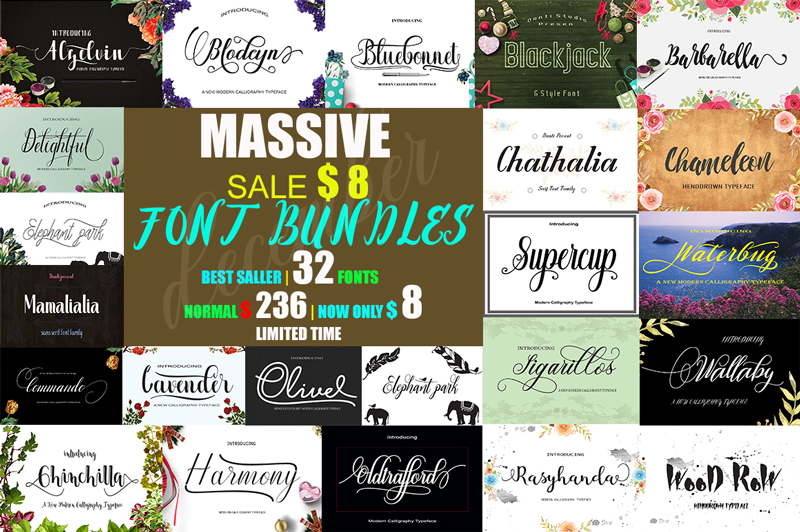
December massive font bundle
This package contains 32 Font Scripts,brush & font regular. Includes some best-selling fonts. Harmony Script, Lavender Script, Barbarella Script, Bluebonnet Script, Chameleon Script, Commando Dll Script & regular, with hundreds of glyphs, including alternates, ligatures, swashes, contextual alternatives and international language support. It can be accessed by using OpenType smart programs like Adobe Illustrator, Adobe InDesign, CorelDraw X6-X7, Microsoft Word.
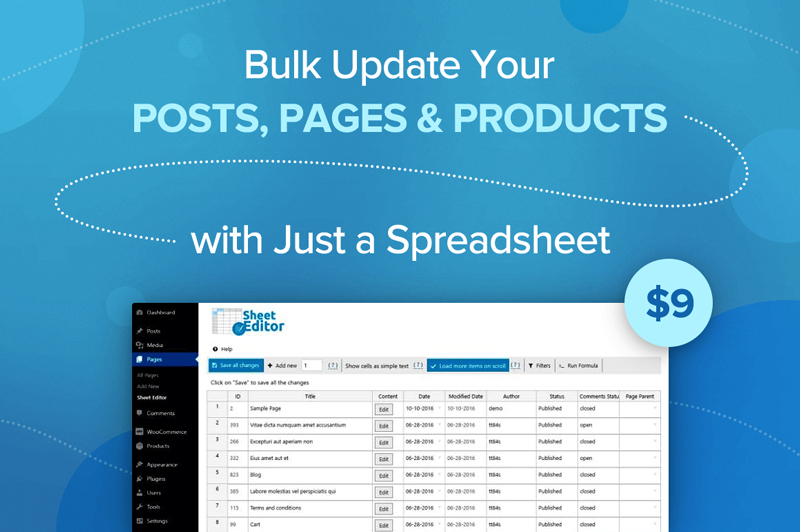
Bulk Update Your Posts, Pages and Products with Just a Spreadsheet
Whether you run a WooCommerce website or have tons of posts on a WordPress platform, you know how frustratingly slow it can be to update information. What if prices change by 10%? What if you want to add the same text or photo to every single post? Well now you can do it all in a snap thanks to Sheet Editor! Easily create, customize and edit your posts, pages and product in bulk all through a simple spreadsheet.
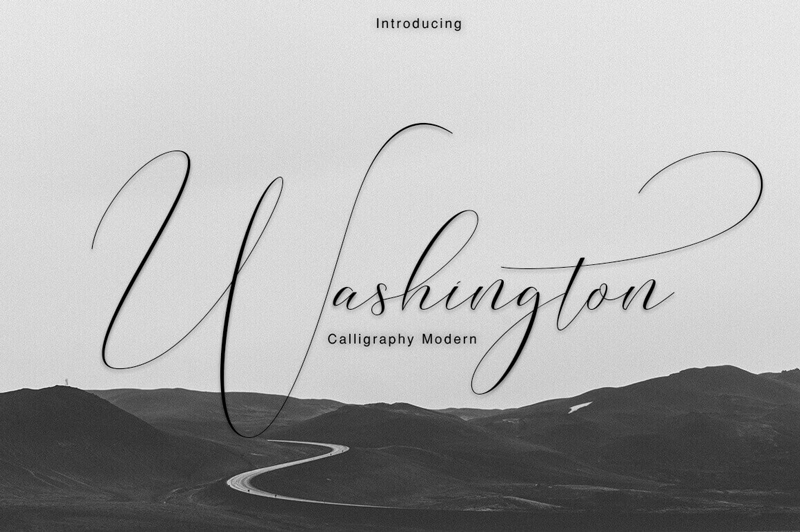
Professional Washington Calligraphy Modern with 450+ Glyphs
You don’t need to be a Founding Father to use this elegant and professional typeface. But you’ll certainly feel like one! The Washington Calligraphy Modern Typeface is an incredibly elegant font that practically flows off the end of a calligraphy pen. Packed with more than 450 glyphs, multi-lingual support and extras from swashes to ligatures, you can practically feel the power flowing out of this font.
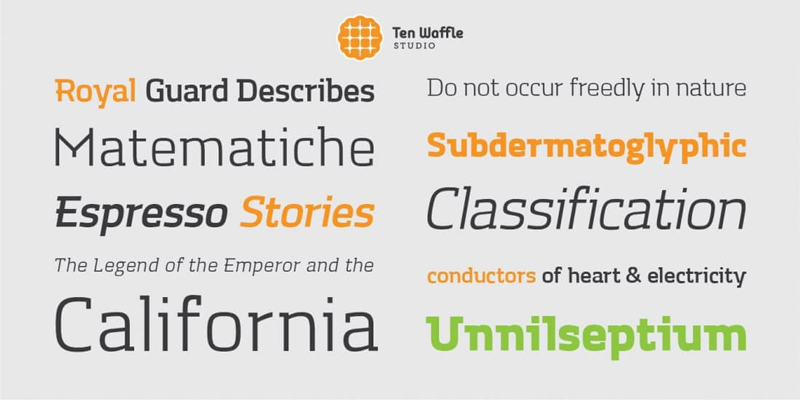
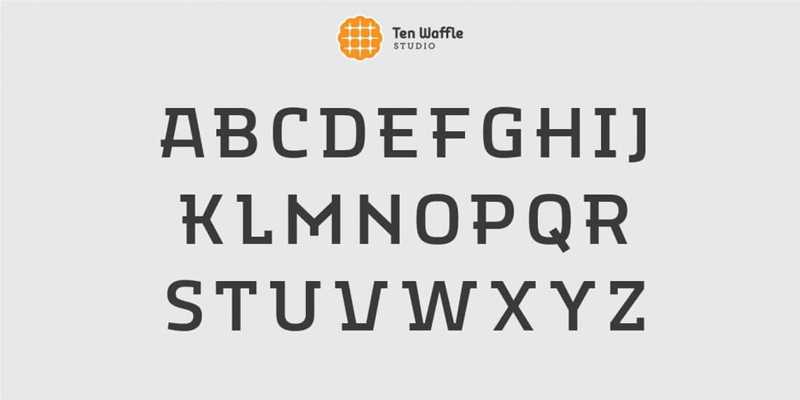
If you’re in need of a modern, display slab font family, you’ve come to the right place. The TWS Mora font family is as flexible as it is multifaceted, mixing up geometric shapes with humanistic strokes. It’s the perfect choice to use for projects centered around classical literature, music and other creativity.
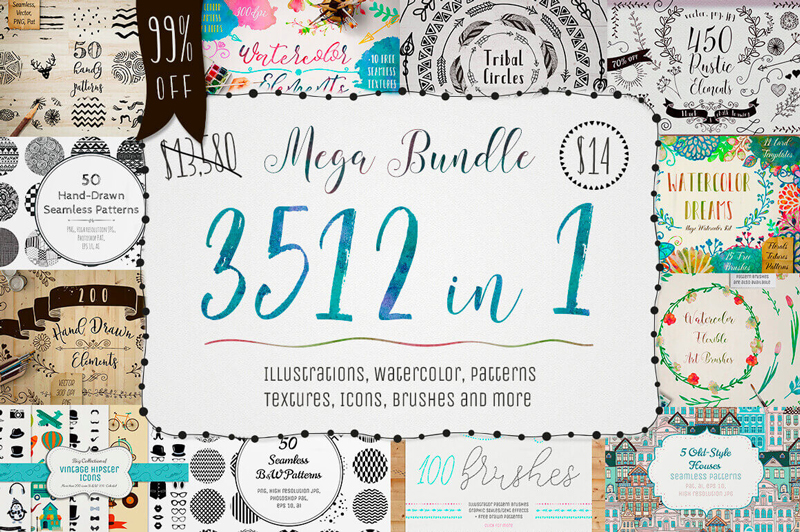
3500+ Textures, Brushes, Icons, Watercolors & More Graphic Elements
Designers are always looking for more. More graphics. More textures. More brushes. Well, with this Mega Bundle of a Mighty Deal, you’ll get all that and more! Packed with more than 3,500 professional graphic elements, you’ll get everything from patterns to textures to brushes to icons. No matter your latest project, you’re sure to find some new design elements in this bundle that fit the bill perfectly for you.
Adobe recently unveiled a suite of new additions to Creative Cloud for 2018. Today, we’ll go over a few of the latest updates dedicated to Photoshop’s Brush panel.
Check out this quick video below to see a few of the new features explained, like folders for custom brushes and so much more!
Photoshop’s Brush Panel Features for 2018
Here are a few of the new features now available for the Brush panel in Adobe Photoshop.
Brush Management and Setup
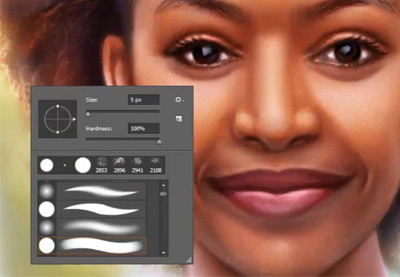
You can now drag and drop any brush preset to a new location. Easily toggle different views to understand which brush you’re using and see additional settings like the Brush Tip, Stroke, and Name for a better workflow.
Importing Brushes
Photoshop has also made it easier to download and install brushes! Choose the Get More Brushes option from the flyout menu to use awesome brushes from Adobe’s acquisition of illustrator Kyle Webster’s brush packs. Once you’ve downloaded a pack, just click on the ABR file whilePhotoshop is still running to use it right away.
Stroke Smoothing
Photoshop now has advanced Stroke Smoothing to help artists and designers avoid jittery strokes. Enable different modes by clicking the gear icon, and experiment with the Smoothing value for the best results.
Learn More With Our Tutorials!
Inspired to learn more about Photoshop brushes? Start with one of our
tutorials! Continue to grow your skills over time with easy to follow lessons.
Check out these tutorials to learn more from our experts: