Simplifying CSS Cubes with Custom Properties

Post pobrano z: Simplifying CSS Cubes with Custom Properties

I know there are a ton of pure CSS cube tutorials out there. I’ve done a few myself. But for mid-2017, when CSS Custom Properties are supported in all major desktop browsers, they all feel… outdated and very WET. I thought I should do something to fix this problem, so this article was born. It’s going to show you the most efficient path towards building a CSS cube that’s possible today, while also explaining what common, but less than ideal cube coding patterns you should steer clear of. So let’s get started!

HTML structure

The HTML structure is the following: a .cube element with .cube__face children (6 of them). We’re using Haml so that we write the least amount of code possible:

.cube
  - 6.times do
    .cube__face

We’re not using .front, .back and classes like that. They’re not useful because they bloat the code and make it less logical. Instead, we’ll use :nth-child() to target the faces. We don’t need to worry about browser support for that, since we’re building something with 3D transforms here, which assumes much newer browser support!

Basic styles

All these elements are absolutely positioned:

[class*='cube'] { position: absolute }

The .cube is the child of a scene element which is the body in our case because we want to keep things as simple as possible. If we had multiple 3D shapes within the scene and we wanted them to interact in a 3D manner, then our cube would have been a child of that assembly and the assembly would have been a child of the scene.

We make the body cover the entire viewport and set a perspective on it so that whatever is closer looks bigger and whatever is further away looks smaller.

body {
  height: 100vh;
  perspective: 25em
}

Something else that I often like to do when the full-height body is the scene is to set the font-size on the .cube such that it depends on the minimum viewport dimension. This makes our whole cube scale nicely with the viewport if I then set the cube dimensions in em units.

.cube { font-size: 8vmin }

The reason why I’m not setting the cube dimensions directly in vmin units is an Edge bug.

We then give the .cube element a transform-style of preserve-3d so that its cube children don’t get flattened into its plane in case we decide to animate it and we put it in the middle of the scene using top and left offsets. This is the initial positioning of the cube and it’s best to use offsets, not a translate() transform for this. I’ve seen that sometimes people get confused about this because they’ve heard that, for performance reasons, it’s better to use transforms, not offsets… that’s true, but it applies for animating the position, not for the initial positioning. The very simple rule here is: use offsets or margins, whichever is more convenient at that point for initial positioning, use transforms from animating the position starting from that initial position.

.cube {
  top: 50%; left: 50%;
  transform-style: preserve-3d;
}

We then pick a cube edge length and set it as the width and height of the cube faces. We also give the faces a negative margin of minus half the cube edge so that they’re dead in the middle. Again, this is related to the initial positioning the cube faces. We also give them a box-shadow just so that we can see them.

$cube-edge: 8em;

.cube__face {
  margin: -.5*$cube-edge;
  width: $cube-edge; height: $cube-edge;
  box-shadow: 0 0 0 2px;
}

I often see code where transform-style: preserve-3d has been set on everything. That’s unnecessary and a misunderstanding of how preserve-3d works. It’s only necessary to set it on something that’s going to have a 3D transform applied (right away, following user interaction, via an auto-running animation… doesn’t matter how) and has 3D transformed children. In our particular case, that’s just the .cube element. The scene doesn’t get transformed in 3D and the .cube__face elements don’t have children.

Another unnecessary thing I see is setting explicit dimensions on the .cube element. This element isn’t visible. We don’t have any text directly in it, we’re not setting and backgrounds, borders or shadows on it. Its only purpose here is to serve as a container whose position we can animate in order to easily move all its face children at once, in the same way. Not setting any dimensions on this absolutely positioned .cube element means that its dimensions are computed to 0x0, so it’s also pointless to set any %-value offsets on its face children. top: 0 is the exact same thing as top: 50% or as any other percent value for an element whose parent has 0x0 dimensions. The same is valid for all the other offsets (right, bottom, left).

I’ve been asked why not set top and left for the .cube to calc(50% - #{.5*$cube-edge}) and remove the margin from the .cube__face altogether if I care about compacting code so much. Well, that’s because the two don’t really produce the same result, even though the .cube__face elements do end up in the middle of the screen in both cases. To illustrate this, let’s give our .cube element a red box-shadow just so that we can see it and check out the two cases side by side:

See the Pen by thebabydino (@thebabydino) on CodePen.

In the above demo, our .cube element is positioned differently in the two cases. When using the calc() value for its offsets and skipping the margin on its children, its position doesn’t coincide with the middle of the scene anymore, but with the top left corner of its face children. So what? It’s not going to be visible in our actual demo anyway…

While that’s true, a different position also means a different transform-origin. And that changes things if we decide to rotate or scale our .cube (and that’s something we decided we’d do). So consider the following keyframe animation for our cube:

@keyframes rot { to { transform: rotateY(1turn) } }

This is a rotation around the cube’s y axis. The result is not the same for the two cases:

See the Pen by thebabydino (@thebabydino) on CodePen.

In both cases, the faces rotate around the y axis of their parent cube, but the position of this y axis relative to the faces is different. It coincides with the faces’ y axes in the initial case, and with the faces’ left edges in the second case. This is the reason why I’m not bringing the negative margin of the cube faces into the offsets of the parent cube: it would impact animating the cube in 3D.

Building the cube with transforms

What we have in the demos above isn’t a cube yet. In order to do that, we need to position the faces in 3D. There are multiple transform combinations that achieve the same effect, but the most efficient and logical one is to start by rotating the first four faces in increments of 90° around one of the axes in their plane (x or y) and the remaining two faces by ±90° around the other axis in the same plane. Then we chain a translation of half the cube edge length along the axis that’s perpendicular onto their plane (their z) axis.

A very detailed explanation of how translations and rotations work as well as how we get the transform chains for creating a cuboid can be found in this older article. The case of a cube is a simplified version where all dimensions along the three axes are equal.

Considering we choose to rotate the first four faces around their y axes, our transform chains look as follows:

.cube__face:nth-child(1) {
  transform: rotateY(  0deg) translateZ(.5*$cube-edge)
}
.cube__face:nth-child(2) {
  transform: rotateY( 90deg) translateZ(.5*$cube-edge)
}
.cube__face:nth-child(3) {
  transform: rotateY(180deg) translateZ(.5*$cube-edge)
}
.cube__face:nth-child(4) {
  transform: rotateY(270deg) translateZ(.5*$cube-edge)
}
.cube__face:nth-child(5) {
  transform: rotateX( 90deg) translateZ(.5*$cube-edge)
}
.cube__face:nth-child(6) {
  transform: rotateX(-90deg) translateZ(.5*$cube-edge)
}

Now we replace the rotateY(ay) and rotateX(ax) components with their rotate3d(i, j, k, a) equivalents. The i, j and k in the rotate3d() function are the components of the unit vector of the rotation axis along the x, y and z axes of coordinates, while a is the rotation angle around that rotation axis.

Since the rotation axis in the case of a rotateY() is the y axis, the components of the unit vector along the other two axes (i along the x axis and k along the z axis) are 0, while the component along the y axis (j) is 1. Also, a is ay in this case.

Similarly, in the case of a rotateX(), we have that i is 1, j and k are 0 and a is ax. So our equivalent chains using rotate3d would be:

.cube__face:nth-child(1) {
  transform: rotate3d(0 /* i */, 1 /* j */, 0 /* k */,   0deg /*  0*90° */) 
    translateZ(.5*$cube-edge)
}
.cube__face:nth-child(2) {
  transform: rotate3d(0 /* i */, 1 /* j */, 0 /* k */,  90deg /*  1*90° */) 
    translateZ(.5*$cube-edge)
}
.cube__face:nth-child(3) {
  transform: rotate3d(0 /* i */, 1 /* j */, 0 /* k */, 180deg /*  2*90° */) 
    translateZ(.5*$cube-edge)
}
.cube__face:nth-child(4) {
  transform: rotate3d(0 /* i */, 1 /* j */, 0 /* k */, 270deg /*  3*90° */) 
    translateZ(.5*$cube-edge)
}
.cube__face:nth-child(5) {
  transform: rotate3d(1 /* i */, 0 /* j */, 0 /* k */,  90deg /*  1*90° */) 
    translateZ(.5*$cube-edge)
}
.cube__face:nth-child(6) {
  transform: rotate3d(1 /* i */, 0 /* j */, 0 /* k */, -90deg /* -1*90° */) 
    translateZ(.5*$cube-edge)
}

We notice a few things in the code above. First of all, the k component is always 0. Then, the i component is 0 for the first four faces and 1 for the remaining two, while the j component is 1 for the first four faces and 0 for the last two. Finally, the angle value can always be written as a multiplier times 90°.

This means we can introduce CSS variables into our code so we don’t have to repeat those transform functions:

.cube__face {
  transform: rotate3d(var(--i), var(--j), 0, calc(var(--m)*90deg)) 
    translateZ(.5*$cube-edge);
	
  &:nth-child(1) { --i: 0; --j: 1; --m:  0; }
  &:nth-child(2) { --i: 0; --j: 1; --m:  1; }
  &:nth-child(3) { --i: 0; --j: 1; --m:  2; }
  &:nth-child(4) { --i: 0; --j: 1; --m:  3; }
  &:nth-child(5) { --i: 1; --j: 0; --m:  1; }
  &:nth-child(6) { --i: 1; --j: 0; --m: -1; }
}

Since both --i and --j each keep the same value for the first four faces and get a different one only for the last two, we can set their defaults to be 0 and 1 respectively and then switch them to 1 and 0 respectively for faces 5 and 6. These two faces can be selected by :nth-child(n + 5). Also, we can set the default for --m to be 0 and thus completely eliminate the need for the :nth-child(1) rule.

.cube__face {
  transform: rotate3d(var(--i, 0), var(--j, 1), 0, calc(var(--m, 0)*90deg)) 
    translateZ(.5*$cube-edge);
	
  &:nth-child(n + 5) { --i: 1; --j: 0 }

  &:nth-child(2 /* 2 = 1 + 1 */) { --m:  1 }
  &:nth-child(3 /* 3 = 2 + 1 */) { --m:  2 }
  &:nth-child(4 /* 4 = 3 + 1 */) { --m:  3 }
  &:nth-child(5 /* 5 = 4 + 1 */) { --m:  1 /*  1 = pow(-1, 4) */ }
  &:nth-child(6 /* 6 = 5 + 1 */) { --m: -1 /* -1 = pow(-1, 5) */ }
}

Pushing things a bit further, we notice that, whether it’s 1 or 0, --j can be replaced with calc(1 - var(--i)) and that --m is either the face index for the first four faces or -1 raised to the face index for the last two faces. This allows us to eliminate the --j variable and set the multiplier --m within a loop:

.cube__face {
  --i: 0;
  transform: rotate3d(var(--i), calc(1 - var(--i)), 0, calc(var(--m, 0)*90deg)) 
    translateZ(.5*$cube-edge);
  
  &:nth-child(n + 5) { --i: 1 }
  
  @for $f from 1 to 6 {
    &:nth-child(#{$f + 1}) { --m: if($f < 4, $f, pow(-1, $f)) }
  }
}

The result can be seen below:

Black cube wireframe.
The static cube (live demo).

The biggest difference here is when it comes to the compiled code. With this CSS variables method we only write the transform functions once:

.cube__face {
  --i: 0;
  transform: rotate3d(var(--i), calc(1 - var(--i)), 0, calc(var(--m, 0)*90deg)) 
    translateZ(4em);
}

.cube__face:nth-child(n + 5) { --i: 1 }

.cube__face:nth-child(2) { --m: 1 }
.cube__face:nth-child(3) { --m: 2 }
.cube__face:nth-child(4) { --m: 3 }
.cube__face:nth-child(5) { --m: 1 }
.cube__face:nth-child(6) { --m: -1 }

Without CSS variables, the best we could have done still involved repeating the transform functions for each and every face:

.cube__face:nth-child(1) {
  transform: rotateY(0deg) translateZ(4em)
}
.cube__face:nth-child(2) {
  transform: rotateY(90deg) translateZ(4em)
}
.cube__face:nth-child(3) {
  transform: rotateY(180deg) translateZ(4em)
}
.cube__face:nth-child(4) {
  transform: rotateY(270deg) translateZ(4em)
}
.cube__face:nth-child(5) {
  transform: rotateX(90deg) translateZ(4em)
}
.cube__face:nth-child(6) {
  transform: rotateX(-90deg) translateZ(4em)
}

Animating the cube

We can add a keyframe animation to our .cube element:

.cube { animation: ani 2s ease-in-out infinite }

@keyframes ani {
  50% { transform: rotateY(90deg) rotateX(90deg) scale3d(.5, .5, .5) }
  100% { transform: rotateY(180deg) rotateX(180deg) }
}

The result can be seen below:

Animated gif. Black cube wireframe, scaling down and then back up as it rotates around its vertical axis.
The animated cube (live demo).

Current support status and cross-browser version

Those of you not using a WebKit browser may have noticed that the above demos don’t work. This is because, currently, Firefox and Edge don’t support using calc() values in place of much else other than length values. This includes the unitless and angle values within rotate3d(). A way to make things cross-browser would be not to replace --j with the calc(1 - var(--i)) equivalent and use an angle --a custom property instead of the calc(var(--m)*90deg):

.cube__face {
  transform: rotate3d(var(--i, 0), var(--j, 1), 0, var(--a)) 
    translateZ(.5*$cube-edge);
  
  &:nth-child(n + 5) { --i: 1; --j: 0 }
  
  @for $f from 1 to 6 {
    &:nth-child(#{$f + 1}) { --a: if($f < 4, $f, pow(-1, $f))*90deg }
  }
}

This does mean we now have a bit of redundancy, but it’s not that bad and our result is now cross-browser.

Adding text and backgrounds

Next, we can add text to the cube faces. Either the same for all of them:

.cube
  - 6.times do
    .cube__face Boo!

… or a different one for each (we’re switching to Pug here because it allows us to write a bit less code than Haml would in this case):

- var txt = ['ginger', 'anise', 'nutmeg', 'cinnamon', 'vanilla', 'cloves'];
- var n = txt.length;

.cube
  while n--
    .cube__face #{txt[n]}

In this case, we also set text-align: center, the line-height to $cube-edge and tweak the $cube-edge and the font-size values for the best text fit:

$cube-edge: 5em;

.cube {
 font: 8vmin/ #{$cube-edge} cookie, cursive;
 text-align: center;
}

We get the following result:

Black cube wireframe rotated in 3D with text on every one of the cube faces.
The cube with text (live demo, animated).

We could also give our faces some pastel gradient backgrounds:

$pastels: (#feffaa, #b2ff90) (#fbc2eb, #a6c1ee) (#84fab0, #8fd3f4) (#a1c4fd, #c2e9fb) 
  (#f6d365, #fda085) (#ffecd2, #fcb69f);

.cube__face {
  background: linear-gradient(var(--ga), var(--gs));
  
  @for $f from 0 to 6 {
    &:nth-child(#{$i + 1}) {
      --ga: random(360)*1deg; /* gradient angle */
      --gs: nth($pastels, $f + 1); /* gradient stops */
    }
  }
}

The above gives us a nice pastel cube:

Cube rotated in 3D with a different pastel gradient background for each of its faces.
The pastel cube (live demo, animated).

A use case

I’ve used this method of creating cuboids in a demo inspired by an animation loop by Dave Whyte.

Animated gif. Cuboidal bricks are falling one by one to form the uppermost circular ring on top of a structure
Build the factories (live demo, WebKit only)

Rotating the cube on drag

After this, there’s one more itch to scratch: what about not having the cube auto-animated using CSS keyframes, but instead rotated on drag? Let’s see how we can do that!

We start by selecting our .cube element and we establish what happens during the stages of the drag. On mousedown/ touchstart, we lock everything into place for the cube rotation. This means setting a drag flag to true and reading the coordinates of the point where this happens, which are also the coordinates where the first movement detected by mousemove/ touchmove is going to start. On mousemove/ touchmove, if the drag flag is true, we rotate our cube. On mouseup/ touchend and again, only if the drag flag is true, we perform a release-like action: we set the drag flag to false again and we clear the initial coordinates.

const _C = document.querySelector('.cube');

let drag = false, x0 = null, y0 = null;

/* helper function to handle both mouse and touch */
function getE(ev) { return ev.touches ? ev.touches[0] : ev };

function lock(ev) {
  let e = getE(ev);
      drag = true;
      x0 = e.clientX;
      y0 = e.clientY;
};

function rotate(ev) {
  if(drag) { /* rotation happens here */ }
};

function release(ev) {
  if(drag) {
    drag = false;
    x0 = y0 = null;
  }
};

addEventListener('mousedown', lock, false);
addEventListener('touchstart', lock, false);

addEventListener('mousemove', rotate, false);
addEventListener('touchmove', rotate, false);

addEventListener('mouseup', release, false);
addEventListener('touchend', release, false);

Now all that’s left to do is fill up the contents of the rotate() function!

For every little movement caught by the mousemove/ touchmove listeners, we have a start point and an end point. The coordinates of the end point (x,y) are those we read via clientX and clientY every time the mousemove/ touchmove fires. The coordinates of the start point (x0,y0) are either the same as those of the end point of the previous little movement or, if there was no previous movement, those of the point where mousedown/ touchstart fired. This means that, after doing everything else we need to do within the rotate() function, we set x0 to x and y0 to y:

function rotate(ev) {
  if(drag) {
    let e = getE(ev), 
        x = e.clientX, y = e.clientY;
    
    /* rotation code here */
    	
    x0 = x;
    y0 = y;
  }
};

Next, we compute the coordinate differences between the end point and the start point of the current little movement along the two axes (dx and dy), as well as diagonally (d). If d is 0, then we haven’t really moved (and maybe nothing should fire, but just in case), so we just exit the function without doing anything else, not even setting x0 and y0 to x and y respectively – they’re the same in this case anyway.

function rotate(ev) {
  if(drag) {
    let e = getE(ev), 
        x = e.clientX, y = e.clientY, 
        dx = x - x0, dy = y - y0, 
        d = Math.hypot(dx, dy);
		
    if(d) {
      /* actual rotation happens here */
      
      x0 = x;
      y0 = y;
    }
  }
};

The way we handle rotation on drag starting from the previous state which may be transformed in some way is the following: we chain a rotate3d() corresponding to the current little movement to the computed transform value of our cube at the start of the current little movement. That is, unless the computed transform value is none, in which case we chain it to nothing. We could write this whole transform chain into a stylesheet or as an inline style or… we could again use CSS variables!

In the CSS, we set the transform property of the .cube element to a rotate3d(var(--i), var(--j), 0, var(--a)) chained to a previous value of the transform chain var(--p). In order to simplify things, we keep the component of the unit vector of the axis of rotation along the z axis fixed to 0.

.cube {
  transform: rotate3d(var(--i), var(--j), 0, var(--a)) var(--p);
}

Because we’ve done the above and CSS variables are inherited, we now need to explicitly set --i and --j for the .cube__face elements to 0 and 1 respectively. Otherwise, the values inherited from the .cube element get applied, not the defaults specified within var().

.cube__face {
  --i: 0; --j: 1;
  transform: rotate3d(var(--i), var(--j), 0, var(--a)) 
    translateZ(.5*$cube-edge);
}

Going back to the JavaScript, we read the computed transform value and set it to the --p variable. The angle of rotation depends on the distance d between the start and end points of our current little movement and a constant A. We limit this result to two decimals. For a direction of motion towards the top, in the negative direction of the y axis, we rotate the cube clockwise around the x axis. This means we take the --i component to be -dy. For a direction of motion towards the right, in the positive direction of the x axis, we rotate the cube clockwise around the y axis, which means we take the --j component to be dx.

const A = .2;

function rotate(ev) {
  if(drag) {
    let e = getE(ev), 
        x = e.clientX, y = e.clientY, 
        dx = x - x0, dy = y - y0, 
        d = Math.hypot(dx, dy);
		
    if(d) {
      _C.style.setProperty('--p', getComputedStyle(_C).transform.replace('none', ''));
      _C.style.setProperty('--a', `${+(A*d).toFixed(2)}deg`);
      _C.style.setProperty('--i', +(-dy).toFixed(2));
      _C.style.setProperty('--j', +(dx).toFixed(2));
      
      x0 = x;
      y0 = y;
    }
  }
};

Finally, we can set some arbitrary defaults for these custom properties such that the initial position of our cube makes it look a bit more 3D than viewing it right from the front would.

.cube {
  transform: rotate3d(var(--i, -7), var(--j, 8), 0, var(--a, 47deg)) 
    var(--p, unquote(' '));
}

The unquote(' ') value is due to using Sass. While an empty space is a perfectly valid value for a CSS custom property in plain CSS, Sass throws an error when seeing stuff like var(--p, ), so we need to introduce that „no value” default using unquote().

The result of all the above is a cube we can drag using both mouse and touch:

See the Pen by thebabydino (@thebabydino) on CodePen.


Simplifying CSS Cubes with Custom Properties is a post from CSS-Tricks

Enforcing CSS Syntax Style (and more!)

Post pobrano z: Enforcing CSS Syntax Style (and more!)

I bet you have a style that you write CSS in, for the most part. You like 4-spaces, say. You always have a space after braces and colons. You always put a space after rulesets. You only ever put one declaration on a line, and the only declarations that can be multi-line are when they are big blocks like a gradient or a comma-separated box-shadow.

You might take this a little further and codify this. Perhaps you have a team meeting about it and decide on how you want to style code. You write up a guide and make it available for everybody on the team to see.

GitHub’s Primer contains „code guidelines” like this.

Clean code is important, you say. While style differences in code don’t actually matter in the final output (most of us have build processes in place that compress the code anyway), it matters for day to day work. A messy inconsistent codebase is hard to look at and hard to reason about. Jumping into clean code makes it quicker to stay in the right frame of mind and get to working on the problem at hand, not waste cycles being frustrated by the mess.

Harry Roberts recently even called it an litmus test for developers:

[Tidy code] seems like a very superficial thing to worry about, but to my mind, tidy code signals something more important: I would assume that a tidy developer has better attention to detail, is more likely to follow process, and is more likely to spot mistakes. Rightly or wrongly, I see it as a litmus test for more general approaches and attitudes.

Automated Style Checking/Warning

A step beyond just agreeing on standards is having your computer actually help you make sure you’re doing it right.

I’d wager this is a far more common thing for JavaScript or server-side language programmers. For example, ESLint is very popular. You configure it with loads of rules based on what your team decides is good syntax.

ESLint running in Sublime Text through SublimeLinter

ESLint goes a litttttle further than just style checking, in that, for example, it knows if you use a function or not, or try to use a variable that is undefined. Tools like Rubocop for Ruby code are simliar. You can use them for style checking, but do more.

Style checking doesn’t have to happen in code editor itself. It’s pretty useful if it is, so you can fix problems immediately as you are authoring, but it doesn’t have to be. It might be more practical for a large and technologically-diverse team to make style checking part of the task running / build process setup.

For example, ESlint can be integrated into Grunt or Gulp, so when JavaScript files are processed, you see error output:

So there are multiple ways to incorporate style checking:

  • Within a local IDE
  • As part of a local task runner setup
  • As part of automated testing
  • Some combination of these

And you can take it even further. For example, treating linting errors like failing tests and preventing git workflow stuff. Like you can’t complete a merge request until everything passes.

Wait! We’re talking about CSS here!

Indeed. As far as I know, stylelint is the big player here. David Clark wrote all about it here on CSS-Tricks last year.

stylelint is very much like ESlint. You can incorporate it in the same ways: like as part of a task runner workflow, or right in your code editor.

Command line output for stylelint.
Example of stylelint working in side Atom.

At the moment I’m using Sublime Text, and here’s me using stylelint with SublimeLinter, the same exact linter UI thing I use for ESlint:

You’ll also probably do well by starting with a standard config.

What about opinionated CSS choices?

You could say that stylelint (and ESlint) are unopinionated. They are intentionally super flexible. You can incorporate whatever rules you want to (or leave out rules), and even when you add rules, they are designed to be flexible by either enforcing the rule one way or another and even allowing exceptions.

More importantly, I’d call them unopinionated because they aren’t exactly passing judgment on your code. But what if you want a tool to pass judgment on your code?

„Hey, you’re using too many floats!”

„Hey, that property isn’t particularly well supported!”

„Hey, @import is pretty bad for performance!”

That’s more like CSSLint territory, which has a variety of fairly opinionated rules.

Example rules of CSS Lint, like disallowing ID and disallowing too many web fonts.

There is some crossover for sure. CSSLint, for example, can check for duplicate properties just like stylelint can.

Can you use them together? Probably. Certainly, at the command line / task runner level you can. I’m not entirely sure how it would work to integrate them both into an IDE linter at the same time. Try it!

Maybe a comparison is helpful to wrap this part up:

Can’t these things be actually automated? Like actually fix the problems for me?

This is what got me thinking about this stuff in the first place. I like IDE-level linting quite a bit, but I think I like the idea of the automated fixing of style even more.

We’re essentially talking about „prettifying” here (also known as „code tidying” or „beautifying”).

The new super popular kid on the block for JavaScript is Prettier, which I’d say is a good choice. But that doesn’t help us with CSS.

There is another one, JS Beautifier, that does work with CSS (and HTML!)

Example of CSS options for JS Beautify

CSS Comb is another tool right up this alley. It is has far fewer options than stylelint (your call if that’s good or bad), and has a cool config builder for setting those rules. CSS Comb looks quite popular and well done, but I’m not going to recommend it any further, as it looks like they have stepped away from the project:

The tool is no longer being developed though we may still fix parsing errors and critical bugs. That means that you should not expect any new features or options.

CSS is changing plenty fast these days, so I’d be nervous incorporating a tool that won’t be changed. Kind of a bummer, because CSS Comb can do some things that others can’t, like re-ordering properties how you want them, which is pretty cool (although as always, there are options).

There might be a better option than these two…

stylefmt

Since the best bet for CSS style checking is stylelint, why not use the exact stylelint config for actually fixing the CSS! (Well, almost exact.)

That’s what stylefmt does. And, like most of these other tools that we’ve talked about, it can be integrated at the on-demand IDE level, or as part of task runners / build processes.

Here’s an example of me in Sublime Text with a SCSS file that has stylelint errors, and them being fixed with stylefmt:

Niiice.

stylefmt isn’t the only option, there is also perfectionist.

In Closing

Style checking is pretty cool. Not only can it be done, it can be highly customized to your liking. It can be incorporated anyplace into your process that works best for you and your team. For CSS, you’ll do well with stylelint. You can even automatically fix problems with tools like stylefmt. You can get pretty good coverage across your entire codebase as well, with things like ESlint for JavaScript and Rubocop for Ruby.


Enforcing CSS Syntax Style (and more!) is a post from CSS-Tricks

41 Creative YouTube Banner Templates

Post pobrano z: 41 Creative YouTube Banner Templates

Every budding YouTube star needs a professional banner that matches their awesome channel. So explore these 41 creative premium templates to find the one that works for you!

41 YouTube Banner Templates

Want to be the next best YouTube sensation? Build your brand with an exciting banner that fits your unique style. Boost your social media game with a banner template that’s fun and easy to use!

In this collection of premium assets, we’re presenting you with 41 creative YouTube banner templates curated from GraphicRiver and Envato Elements.

Modify these templates yourself or enlist the help of a design professional from Envato Studio for all your social media needs.

Youtube Creative Cover V.1

Make the most out of your social media presence with beautiful covers that show off your creative side! Suitable for any corporate, creative, or music business, this download features six amazing layouts that can be customized in Photoshop.

Youtube Creative Cover V1

YouTube Channel Cover Art

Stay on trend with elegant YouTube cover designs that are simply phenomenal. Offering you a range of designs to fit your personal needs, this pack features four Photoshop files with elements you can easily update. Set your own image as the main background to leave a lasting impression.

YouTube Channel Cover Art

Modern YouTube Channel

Launch your YouTube channel with a stunning modern design everyone will love! This package features four gorgeous designs with beautiful, fashionable elements. Enjoy the clean, minimalist theme to get the most out of your top banner.

Modern YouTube Channel

YouTube Music Channel Art

Create stunning cover art that matches your creative music. This design is great for any musician or DJ hoping to launch their brand on YouTube. Download this file to get access to three incredible layouts with fully editable layers and a simple instructional guide.

Youtube Music Channel Art

Modern Art YouTube

Stop your audience dead in their tracks with this brilliant YouTube cover art. This design features five amazing layouts to choose from, with a wide range of colors and themes. This template was created with a large 2120×1192 document size, so you’ll also get access to high-resolution images and amazing details.

Modern Art YouTube

YouTube Channel Art – MAIA

Are you into fashion? Then you’ll want to take advantage of this stylish YouTube cover art. This template features a polished, modern design with minimalist elements to highlight your brand. Also included are detailed instructions to make your life a whole lot easier!

Youtube Channel Art - MAIA

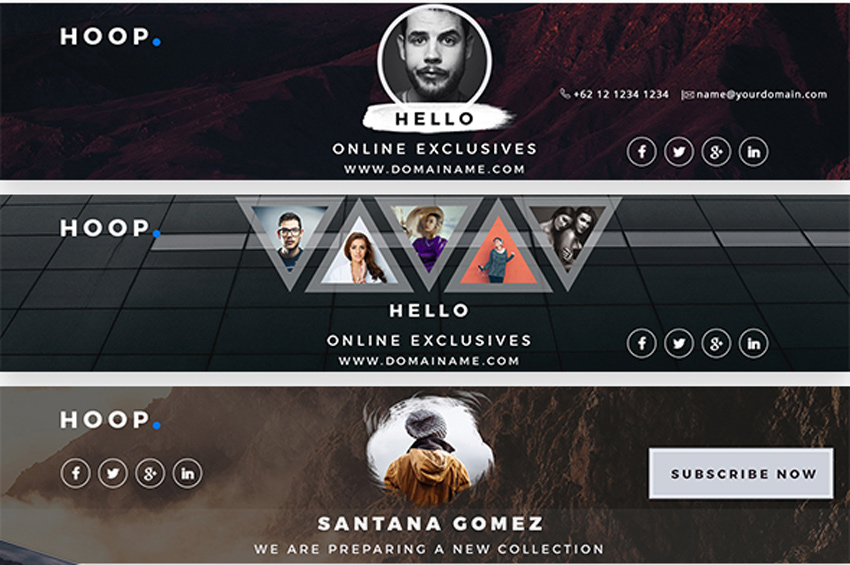
Hoop – YouTube Channel Art

You’ll be destined for success with this stunning pack of Youtube channel covers. This pack features three exquisite designs with bold backgrounds and geometric elements. Switch out the main images for stocks you love for an out-of-this-world cover design!

Hoop - YouTube Channel Art

YouTube Music Channel Art

From Justin Bieber to Tori Kelly, many incredible musicians get their start on YouTube. And you can achieve the look of a music professional with a modern banner template. This template features high-resolution images created at 300 dpi with multipurpose layouts to let your imagination run wild.

YouTube Music Channel Art

YouTube Banners Channel

Keep up with the latest trends in banner design! Feature a YouTube cover that highlights your channel in a creative, professional way. This epic template, for instance, includes eight Photoshop files with free fonts and a polished layout. Customize this template with your own landscape photography for a pretty wicked upgrade.

Youtube Banners Channel

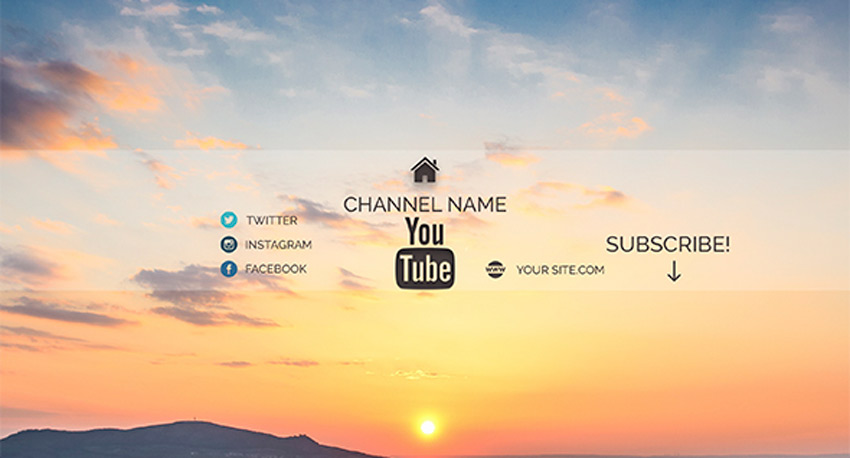
Minimalist Design YouTube Channel Art

Sit back and relax with a beautiful set of YouTube covers featuring sublime color schemes. The idea behind this template is to center your design around a gorgeous image with simplistic elements added for social media links and more. Subscribe to this design for an awesome layout today!

Minimalist Design YouTube Channel Art

5 – Multipurpose YouTube Channel Art

Multipurpose styles allow your brand to grow with your
channel. So check out this wicked template, featuring five professional
designs all created in Adobe Photoshop. Plug in your details and images
to get started with your new channel right away!

5 - Multipurpose YouTube Channel Art

Creative YouTube Channel Banner

Change the YouTube game with impressive cover art that highlights your personality. This cool design comes complete with two different layouts, smart objects, and fully editable text layers. It’s a high-quality template that is sure to stand out, so download this cover art today!

Creative Youtube Channel Banner

6 Elegant YouTube Banners

Become an industry expert with a gorgeous YouTube
banner that matches your expertise! This incredible bundle features six
vibrant YouTube covers bursting with stylish colors and layouts.
They also include fully responsive designs that work with any device, and
free fonts you can download easily.

6 Elegant YouTube Banners

Business YouTube Channel Art Covers

Step up your marketing game with this brilliant
business-themed banner package. This pack includes three high-quality
YouTube banner designs created in their own separate Photoshop files.
Use the handy smart objects to update your templates, and enjoy the
clean, fully responsive design.

Business YouTube Channel Art Covers

YouTube Cover Art Template

Can’t get enough of these templates? Then feast your eyes on the next exciting design. This cover art is perfect for the avid photographer or any other expert creative. Included in this template are three bold color schemes with easy-to-use smart objects for your personal photos.

Youtube Cover Art Template

Photography & Game YouTube Covers

Teach
your viewers the latest tips and tricks in photography or gaming! This
wicked bundle features 27 amazing themes for two creative industries.
Whether you love shooting photos or conquering a wild adventure, you
can dive into these fun templates with fully editable layers and colors.

Photography  Game YouTube Covers

Royal YouTube Banner

Create
a royal banner design that reflects your personal style. This unique
template features a vivid red and green color scheme with social media
icons and so much more! Enjoy the awesome minimalist background and
customize the center image with one of your own.

Royal YouTube Banner

Colorart YouTube Channel

Upload a YouTube cover with a minimal and laid-back
design. With this simple template, you get access to three creative
layouts you can customize for more design options. Download the clean
design and enjoy the vibrant colors for your special channel.

Colorart YouTube Channel

5 YouTube Channel Arts

Banner bundles are the perfect way for you to get many design options for one low price! And this pack features five elegant designs we’re sure you’ll love! They’re created as multipurpose layouts that work with a variety of industries, so download this pack today to get started!

5 YouTube Channel Arts

4 Collage YouTube Banners

Win over your viewers with a fun photo collage featuring your favorite moments! This collection of YouTube banners includes four colorful designs that will instantly uplift the appearance of your channel. Download this bundle today to get access to high-resolution elements and fully responsive designs.

4 Collage YouTube Banners

Gym and Fitness YouTube Covers

Become the next big name in fitness! Upload a phenomenal YouTube cover design that is as intense as your workouts! This set features files that are 100% editable and fully responsive. Enjoy a beautiful design that looks great no matter which device you use.

Gym and Fitness YouTube Covers

YouTube Channel Banner

Step out of the box with this minimalist design inspired by traditional brush strokes. This pack features two phenomenal YouTube cover styles with a light and dark version available for your convenience. Choose a stock that best complements the design, or switch it for one of your own for optimal impact!

YouTube Channel Banner

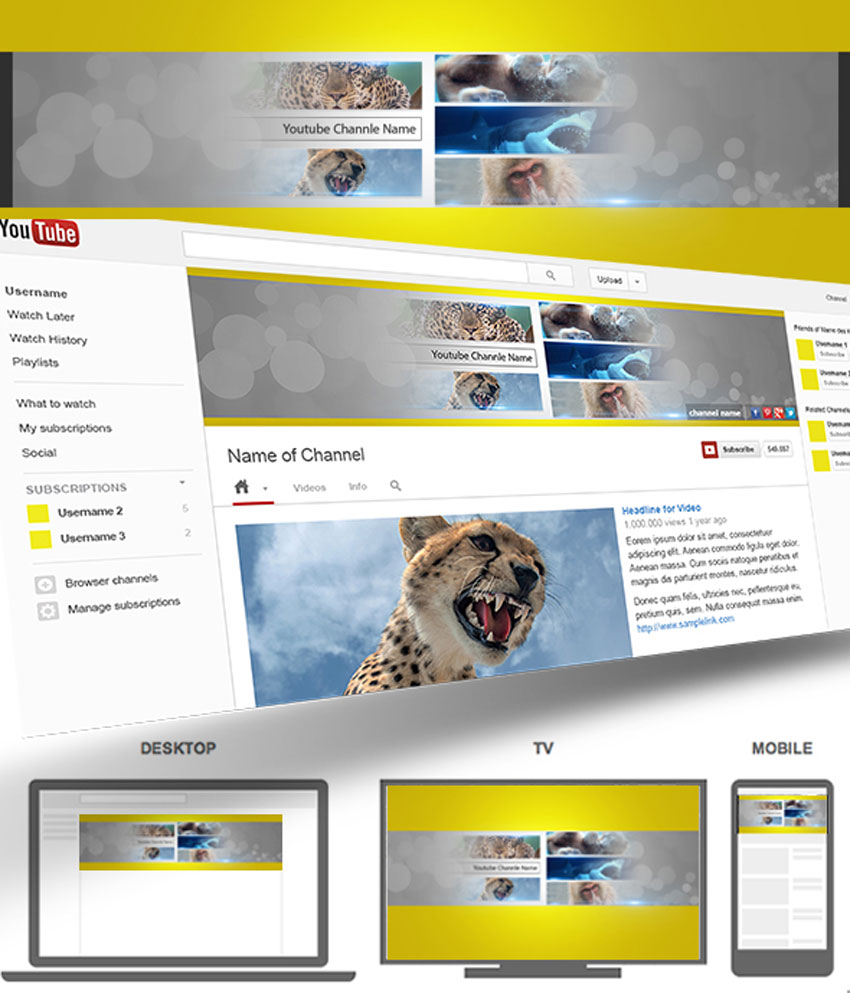
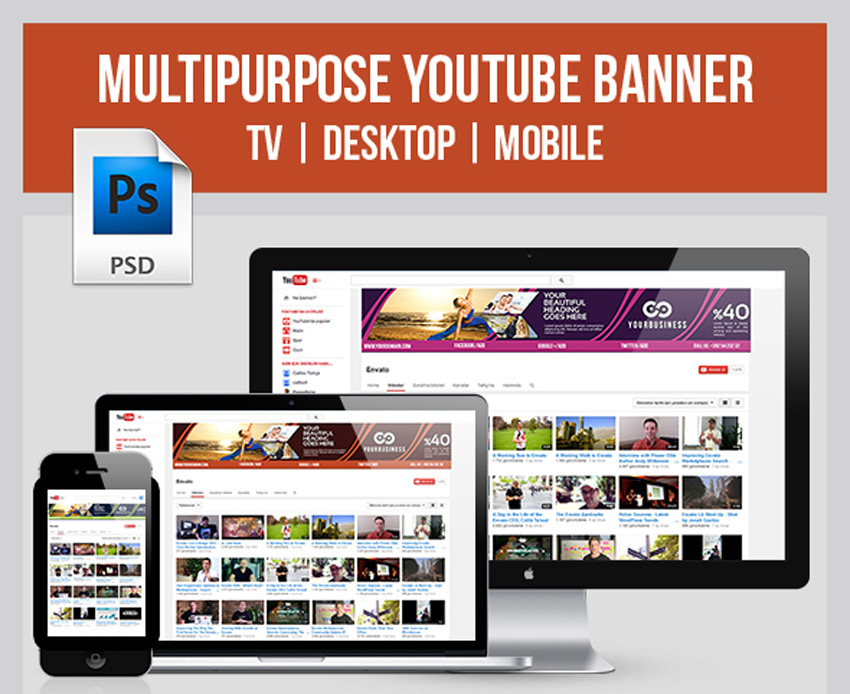
Ultimate YouTube Banner

Still looking for the right cover? Then check out this ultimate YouTube banner. This banner features a fully responsive design with three color variations to choose from. Enjoy stunning banners that look great on your TV, desktop, or mobile devices.

Ultimate You Tube Banner

2 Collage YouTube Banners

Fill your banner with a brilliant photo collage with this amazing template! This design features organized smart objects that were created in an easy-to-use file that supports RGB mode. Though the preview images are not included, you can modify them yourself with all new stocks.

2 Collage YouTube Banners

YouTube Gamer Channel Art

Create a minimalist YouTube banner inspired by your favorite video games! This download includes three incredible design variations with beautiful blurred backgrounds for more visual impact. Also included are free Google fonts and free icons to make your design experience so much better!

YouTube Gamer Channel Art

Gaming YouTube Channel Banner

Kick off your gaming channel with an incredible background featuring your favorite video game art! This template features five striking designs with creative layouts that are sure to make you stand out. Download this pack today to get access to fully editable files and even free badges!

Gaming YouTube Channel Banner

10 Multipurpose YouTube Channel Banners

Or download 10 brilliant Youtube banners for one
affordable price! This bundle is packed with amazing designs featuring
multipurpose layouts, free icons, and so much more! Make the most of your
wallet with a banner bundle that is suitable for any industry!

10 Multipurpose YouTube Channel Banners

Dortoretto Youtube Background

Hungry for results? Step up your culinary game
with a YouTube channel banner that fits your brand. This tasty template
features two incredible styles created at a high resolution so that you
don’t miss out on any yummy details. Enjoy the free fonts included in
this ready-to-use file.

Dortoretto Youtube Background

10 Vintage YouTube Banners

Get the most bang for your buck with this collection of 10 vintage-themed YouTube banners. Enjoy vivid colors that look attractive across many devices and fully editable files that are easy to use. Suitable for any business or personal channel, this pack will set you up with official cover art in no time at all!

10 Vintage Youtube Banners

Modern YouTube Banner

A creative YouTube banner can turn you into an
instant professional. Try out this lovely red template, for instance,
which features a modern design you can easily edit. Simply drag and drop
your photo into the appropriate smart objects and edit the text layers
with your information.

 Modern Youtube Banner

3 Clean YouTube Banners

Love the color red? Then check out this bold collection of three YouTube banners. This pack includes fully editable layers where you can modify the text or colors easily. Also included are social media icons to link to your personal profiles.

3 Clean YouTube Banners

Corporate YouTube Banner Template

Upgrade your boring corporate YouTube covers with a clean, modern design. Set up links for direct contact to your services with this resourceful template. This template features an elegant blue theme with cool geometric lines for that added edge.

Corporate Youtube Banner Template

YouTube Cover V-1

Make sure your banner works perfectly across all devices! This classic template features a professional design that is suitable for multiple Photoshop versions. Customize the main image with one of your own and update the text fast!

YouTube Cover V-1

Travel YouTube Channel Art – 6 Designs

Set out on your next travel adventure inspired by
these banner designs. This template includes six retina-ready YouTube
banner covers with free fonts packaged into fully editable files. Update
your cover quickly in Photoshop or dive into the convenient help files
for more instruction.

Travel Youtube Channel Art - 6 Designs

YouTube Cover Template

Rock out with some of the best YouTube covers the market has to offer! This download includes 10 extraordinary layouts featuring beautiful colors and stylish elements. Replace the images with just one click to enjoy your template right away!

Youtube Cover Template

Business YouTube Banner

Branding is important, so make sure all your social
media profiles stand out with a clean, corporate layout. This
professional template features a fully editable file created in RGB mode
in Photoshop. Update the layers with facts about your business, and
enjoy this template in just a few short clicks!

Business YouTube Banner

YouTube Soccer Banner

Soccer, or football, is the world’s most popular
sport. And if you’re a die-hard fan then you’ll love to celebrate your
fandom with this incredible YouTube cover art. Get access to one modern
design with an amazing beehive design inspired by the classic soccer
ball.

YouTube Soccer Banner

3 Multipurpose YouTube Channel Banners

Does your current banner miss the mark? Upgrade it with an awesome template that features three multipurpose layouts. This template also includes a set of vectorized elements and fully editable layers for one affordable package.

3 Multipurpose YouTube Channel Banners

Gaming Channel YouTube Banner V2

Explore wonderful, creative possibilities with this set of YouTube banners. This design is centered around a cool 3D city with six amazing color options to choose from. Use the original multi-colored version or choose a brilliant monochromatic palette instead.

Gaming Channel YouTube Banner V2

Glitch – YouTube One Channel Design Banner

One of the hottest trends in design today is the glitch effect. And you can get a cool tech-inspired YouTube banner with this amazing download. This template features one high-resolution banner design that incorporates geometric elements and vibrant colors. Keep the free font used or switch it out for one of your favorites.

Glitch - YouTube One Channel Design Banner

3 Retro YouTube Channel Art Banners

Download a vibrant banner design that packs a powerful punch! This epic template features a colorful retro theme with three incredible designs to choose from. Also included are free fonts and photos so you know you’ll pay for exactly what you see!

3 Retro YouTube Channel Art Banners

Conclusion

This list features exciting resources for the avid designer
familiar with Adobe Photoshop. For additional help with all your social media needs, enlist the skills of a talented
professional by choosing one of the amazing designers from Envato Studio.

And with hundreds of YouTube banners available at your fingertips, chances are we’ve missed a few to add to your personal collection. Be sure to browse GraphicRiver and Envato Elements for more resources, and let us know your favorites in the comments below!

Advanced Photo Manipulation Techniques: Working With Patterns

Post pobrano z: Advanced Photo Manipulation Techniques: Working With Patterns

This is part three of our seven-part video series on Advanced Photo Manipulation Techniques.

If you haven’t already, make sure you check out Part Two of this series to learn how to build the initial foreground elements.

Find more incredible Design & Illustration Courses on Envato Tuts+.

How to Work With Patterns

In the next part, Lewis Moorhead will show you how to finish the main composition by adjusting the landscape and sky elements. Then you’ll learn how to create the realistic lava effect by using a simple lava pattern. 


How to Use Perspective Tools

In order for the lava to blend into the rock elements, we’ll need to adjust the perspective. Using the Free Transform Tool (Control-T), adjust the shape and position of the lava pattern with options like Distort, Warp, and Perspective.


How to Use Color Dodge

Brighten up the lava by using a New Layer set to Color Dodge. This will help make the lava pop for an incredible effect. Follow up this effect by creating the central rock element and covering it with more lava.


Want More?

Continue this manipulation in our next lesson, where we’ll add realistic cracks and smoke to the composition.

And for more amazing lessons, check out these articles:

Giveaway: Win 1 of 3 Template Monster’s Flagships

Post pobrano z: Giveaway: Win 1 of 3 Template Monster’s Flagships
first image of the post

Website launching is a thing that requires careful consideration and a great amount of professionalism. If you’re a layman in web design, you’ll have to order web design services from one of the professionals in the area. As getting a person work on creation of your website is pretty costly, you can just be smart and go for a website template.

Why are modern templates handy in website creation? The market of modern themes offers templates for different branches of industry, as well as multipurpose ones that let you create literally every website you need. The themes are pre-packed with rich sets of plugins that you get free and save you hundreds of dollars. You can tune up literally every pixel of your website with advanced customization options and simple-to-use WYSIWIG editors. Moreover, they have valid, well-structured code, and are SEO-optimized and well-tested in terms of responsiveness and cross-browser compatibility.

Today, you’ve got a great chance to get one of top-notch website templates of this year absolutely free! TemplateMonster, one of the well-established template provides, is giving away 1 of the 3 their flagship templates to you. Let’s see what are the prized that wait for the winner of this giveaway.

What templates can you win?

Monstroid2: Groundbreaking Multipurpose WordPress Theme

Monstroid2 – Multipurpose WordPress Theme

Details | Demo

Monstroid2 is a real masterpiece in terms of design and functionality that took almost a year to be produced. This theme is a clean and smooth-functioning multipurpose website template with a great set of premium features. The template comes with 9 niche skins that serve as website templates for different branches of industry. There will be more skins coming soon and all the template owner will get them absolutely free. Monstroid2 is issued under GPLv3. This means that you can install the template as many times as you wish on an unlimited number of domains and modify its source code up to your wish. Make use of one of 20+ prebuilt plugins (e.g. BuddyPress, BbPress, MotoPress Menu, Cherry Projects, Booked Appointment, etc.) and edit the theme trouble-free with Power Builder and Live Customizer editors that provide for WYSIWYG template editing and live preview of the changes. Monstroid2 is WooCommerce-ready and lets you run an e-store based on one of Monstroid2 niche skin that best fits your needs.

Eveprest: All-in-one Multipurpose PrestaShop Template

Details | Demo

Those of you, who always stay at the edge of e-commerce innovations, would just admire Eveprest theme that’s got all you can imagine and even more. This premium PrestaShop theme comes with 10 ready-made themes for different industries: clothes, interior design and furniture, electronics and gadgets, jewelry and accessories, lingerie, spare parts, etc. With the theme, you get a pack of premium modules that are actually worth $1357. Among them, you’ll find modules for creating collections of goods, lookbooks, 360 product views, advanced filters, product mosaics, layouts, etc. You can also change the color scheme of your theme in one click to foster the unique style of your e-store. Don’t miss your chance to take your e-commerce up a notch with this theme ad you’ll be exited at your skyrocketing revenues.

WooStroid: Feature-rich WooCommerce E-store

Details | Demo

WooStroid is a feature-leaded premium WooCommerce template that reflects on top web design trends of 2017. Its design is user-centered: the template ensures good readability on different devices and provides for convenient shopping experience. Five skins of the theme are created for websites that sell clothes, jewelry, lingerie and tools. Woostroid has ultra-responsive design: you can upload images in 4K resolution and let shoppers-on-the-go see the finest details of the products that you offer. With WooStroid, you can run the shop not only on WooCommerce, but also on Ecwid, which is another comprehensive e-commerce solution for trouble-free e-store creation and management. The template lets your shoppers create wish lists and compare tables, use ajax product filters and navigate your website using MegaMenu. Moreover, the theme is SEO-optimized and will please you in terms of loading speed and smooth performance.

How to enter the giveaway?

The rules of the contest are very simple. You just need to leave a comment below, specifying which one of the three templates you would like to get. The deadline is the 26 of May, 2017. The winner will be selected randomly among those entrants, whose comments met the deadline and contained the name of the desired theme.

Don’t lose your time! Check out the templates’ Details and Live Demos using the links below the template screenshots and leave your Comment to don’t miss your chance to get one of these great templates free.

I wish you all good luck participating in the giveaway. If you have any questions concerning the rules of the contest or the themes presented above, do not hesitate to drop me a line in the Comments section below.

Stay tuned!

Making Money with TemplateMonster

Agregator najlepszych postów o designie, webdesignie, cssie i Internecie