In this tutorial, we’ll look at different ways of drawing cartoon noses. We’ll start with the nose’s construction, and then use this in the context of experimenting with stylistic renditions of this part of the face.
When in doubt, I recommend looking at references, even when drawing stylistically! They can be a valuable resource not only in observing how parts of the face „work”, but also in discovering how you might experiment with your interpretation. Remember to make sure your references are properly sourced!
1. Understanding Cartoon Nose Basics
Step 1
Even when creating a cartoon nose drawing, it’s still important to understand how the nose itself works. Before we focus on stylizing this part of the face, let’s observe the basic shapes that compose the nose. Think of this like reviewing the rules, so we can more effectively break them.
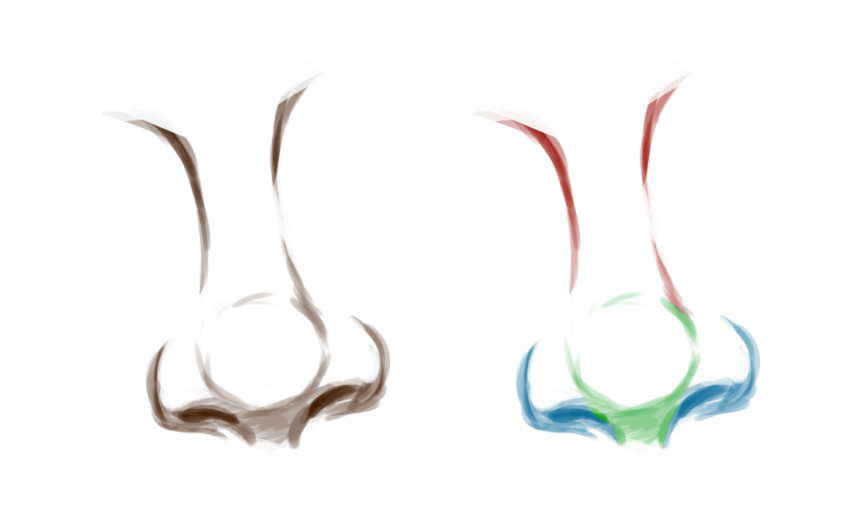
I like to think about the nose in three parts: the bridge (in red), the ball (in green), and the nostrils (in blue). Let’s start by looking at the nose from the side or profile view.
Step 2
Now, let’s look at the nose from a different perspective. Instead of drawing shapes on the nose, the different parts are indicated in the same color key.
Step 3
When looking at the nose from a realistic perspective rather than stylized, you’ll notice that these regions aren’t necessarily flat—they have depth. To help visualize and understand this, it can be helpful to think about the shape of the nose in terms of planes.
As an example, let’s break down our example nose.
Step 4
Most of us typically don’t draw noses independently—we draw them on a face! Let’s take a look at how the nose typically relates to the face, in terms of proportions.
Generally speaking, the nose tends to fall about two-thirds of the way down the face. I like to use the other parts of the face as visual references.
Step 5
Keep in mind, however, that noses can come in a variety of shapes and sizes. This can mean the depth of the bridge, the size of the ball, the width of the nostrils, and more! When in doubt, take some time to look at references. Remember to use references that are properly sourced, or even take some reference photos of your own!
Step 6
Finally, let’s take a look at perspective in relation to the nose on the face. Notice that the premise from earlier still stands—we still need to keep those planes in mind. Here’s how I visualize these planes when looking at the face from different angles.
2. How to Draw a Simplified Cartoon Nose
Step 1
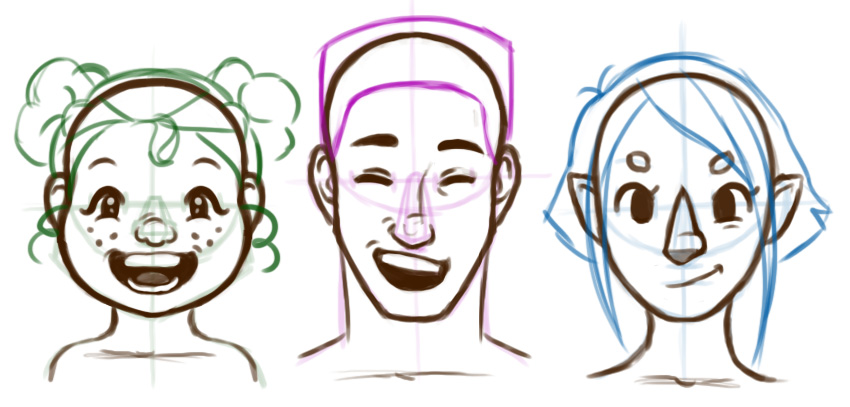
Cartoon styles often simplify features, including cartoon noses. This can include things like simplified contours or even complete omission of parts of the nose. How, then, does the viewer know that it’s the character’s nose, if it deviates from what a human nose actually looks like? A stuffy nose cartoon or a cartoon character with a long nose likely isn’t true to life, but we still make the association.
Let’s take a look at three different characters, each with a simplified depiction of the character’s nose. Notice that, even though they are simple and stylistic, they still visually „read” as the character’s nose.
Step 2
I like to think that a key part of this is our viewer’s preconceived ideas. We all have an idea of how noses work, how they look, and where we expect to see a nose on a human face. We can use the preconceived ideas of our audience to make visual associations and communicate ideas, even if they aren’t true to realism.
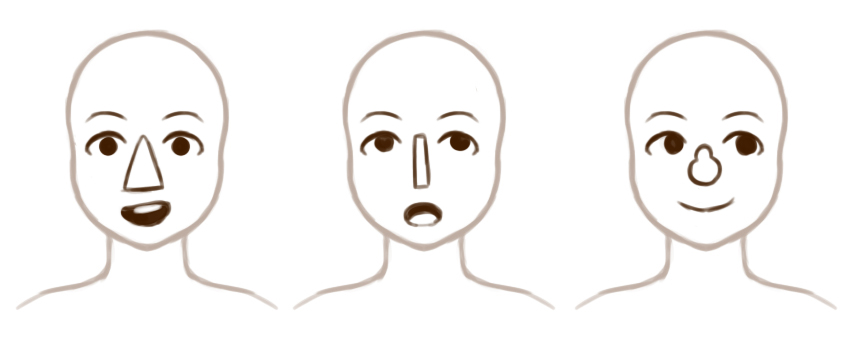
For example, let’s try some unusual shapes on the face that aren’t true to realistic contours or proportions. By association, they still generally and visually read as the character’s nose.
Step 3
Let’s try simplifying even further, with some highly simplified examples. These noses fall below the eyes, yet above the mouth. While they might be abstract, they’re still generally associated with the nose area of the face.
Step 4
But what happens when we break too many rules—can we? I like to think that this is a key question to consider, when experimenting with things like abstraction and simplification.
If you’re trying to find or develop a stylistic means of illustrating the nose and face, I’d recommend experimenting—and doing so a lot! Don’t be afraid to break the rules, but also keep in mind how things might communicate to your audience.
Here are some simple yet abstracted examples—have fun with them! While they use unnatural themes and shapes, they still generally communicate that they are faces.
3. How to Draw a Stylized Cartoon Nose
Step 1
However, drawing a cartoon nose often involves more than simplifying the nose’s features. Exaggeration and artistic interpretation can also be utilized to our advantage. For example, we could do so to accentuate features or push an expression further.
Let’s take this premise and specifically apply it to the different parts of the nose that we discussed earlier: the bridge, the ball, and the nostrils. We could place emphasis on one or more of these parts and indicate them with stylized lines.
Step 2
We could also focus our exaggeration on the proportions of the nose and face. For example, we could greatly elongate both the bridge and the entire skull—or we could squish them.
Step 3
The nose might not necessarily be one of the most expressive parts of the face—but it’s still subjected to the „squash and stretch” we might see on the human face as expressions change. For example, frowning might result in the „wrinkling of one’s nose”. Nostrils can be flared. Scenarios like these could be emphasized with exaggeration or communicated in a stylized way.
4. Bringing It All Together
Step 1
Let’s take everything we’ve covered and put it together in a step-by-step example.
First, begin by laying out the basic proportions of the face. We’re going to take a stylized approach, so these proportions do not have to be true to real life. Included are three different examples, with three different example proportions.
Step 2
Even though the proportions are varied, each considers the features in a way that generally associates with preconceived ideas about the human face.
Step 3
Remember to think about the area that the nose occupies in terms of three-dimensional space.
I don’t necessarily draw out simplified geometric shapes every time I draw a cartoon nose—this is just an example—but breaking things down into basic shapes can also be great practice!
Step 4
Using the foundation that we’ve built, let’s experiment with which aspects of the nose we’d like to include, which we might like to exaggerate, and which we might omit. For example, perhaps you’d like to focus on the nostrils and ball of the nose, but leave the bridge implied.
Step 5
Finally, refine your work, keeping the other parts of the face in mind.
Step 6
I would not normally draw the nose first (or exclusively)—that’s just for the sake of example, in this tutorial. As mentioned earlier, I often like to use the different parts of the face as units of measurement and/or visual guidance. Here’s an example of how one might continue to push these faces further.
Step 7
As an additional example, building on this premise, remember: the nose, and all the other parts of the face, are not independent. They work together! So, for example, a smirk might squish the cheeks to one side, and the nose might just nudge along with it.
And There You Have It!
We’ve looked at multiple ways you might approach drawing a cartoon nose. Remember, when in doubt, take a look at references—they are not a resource exclusive to realism. They can be great for inspiration and guidance when drawing stylistically too! Good luck and happy drawing!
If you enjoyed this tutorial, here are some others you should check out!
Visual content is king on social media. Whether you’re an individual or brand, if you want to establish your online identity and get noticed, you need to use eye-catching and engaging social media graphics.
In this post, we’ll look at some important elements of successful social media graphics, and then we’ll look at some simple ways to design them.
7 Elements of Awesome Social Media Graphics
1. Keep It Simple
Newbies to design often think they need to add loads of stuff to make their design effective. But with all design, including when you create images for social media, your best strategy should be to use a few key elements well.
2. Get Your Dimensions Right
With social media, one size doesn’t fit all. So if you’ve designed a great Facebook cover, you can’t just apply it as is to your Instagram stories or use it in your YouTube channel art because they all use different dimensions. We’ll talk about this a bit more later, but it’s something for you to be aware of and keep in mind.
3. Incorporate Your Brand
Your social media graphics are an extension of your company’s identity, so your designs should be consistent across all media and match your company’s brand identity. If you’re an individual and not a business, this idea still applies, in that you want your designs to be consistent across all media so that your friends and fans can recognise your accounts easily.
4. A Picture Is Worth a Thousand Words
Of course, this doesn’t mean you always have to use pictures when creating a graphic, but if you do, they should be beautiful, luscious images that complement your message.
5. Make the Most Important Text Stand Out
Whether your main text is a quote, your name, or a sale’s announcement, make it stand out so that it’s the first thing that your target audience sees.
6. Use Secondary Text Smartly
If you use secondary text, it should be smaller than your headline text, easily readable, and less than ten words, giving just enough information to get the readers interested and leave them wanting more.
7. Don’t Forget a Call to Action
A call to action is a message that makes the reader want to act, like ‘Subscribe’, ‘Contact us’, ‘Enter to win’, ‘Buy now’, etc. A call to action lets your readers know how to act on what they have been reading. Not every social media graphic will need a call to action, but for those that do, it’s important to remember to add one.
Use a Social Media Image Maker
But how to combine all these components into a perfect graphic for your Instagram Stories or Facebook Page? If you don’t have a design background, this can seem quite challenging.
One way to ensure that you create images for social media right is to use an image maker like this one by Placeit.
This social media image maker puts hundreds of layouts at your disposal so that you can easily make social media images for a variety of platforms. Here’s how you use it.
How to Use the Social Media Image Maker
Say you want to create the perfect banner for your YouTube channel. All you need to do is follow these five simple steps to have your own cool YouTube banner ready in minutes. Though I’m using the YouTube Banner Makers in my example, the other makers for Instagram Stories or Facebook Banner work the same, so you can apply the same steps I’ll cover to them as well.
You’ll find the YouTube Banner Maker option in the menu column on the left of your screen under Social Media Image Maker. Once you have selected it by clicking on it, uncheck the tick next to the Social Media Image Maker so that only YouTube Banners will appear in the grid.
3. Select a YouTube Banner Template
Review the YouTube Banner templates available and select the one you like by double-clicking it. This will open up the YouTube Banner Maker. I chose the YouTube Banner Maker for Gamer Girls template for this example.
4. Customise Your Banner Template
Starting with the controls on the left and working your way down from the top, you can add your text, change the font style and colour, and change the frame icons used. I changed ‘Girls Who Play’ to ‘Girls Who Code’, and I also changed the frame icons and their colour.
Moving to the controls on the right and working from the top, you can change the type of arrow used and its colour. If you choose not to use an image for the background, you can change the background colour. If you decide to use a background image, you can choose from one of the several great images provided or upload one of your own.
Additionally, you can move or scale any element in the template, and if you aren’t happy with your changes, just hit the Reset Layout button in the upper right corner of your template. Using the controls on the right, I changed the arrow to one with a similar style to the headline, and I scaled it up to make it bigger. I kept the background image as is.
Scrolling down the page, you can try one of the presets on offer if you get stuck while you’re customising your design. They are all different versions of the image maker template you choose and can help you see how your template would look with different settings applied.
Alternatively, below the presets, you can view your settings applied to different templates.
5. Download Your Creation
Once you’re satisfied with your design, hit the Download button at the top of the screen and download your design for a small fee. Alternatively, if you regularly need to create social media graphics, flyers, posters, social media banners, etc., then the monthly plan may be the best deal for you.
20 Terrific Social Media Image Maker Templates
Now that you know how easy it is to use Placeit’s Social Media Image Maker, these 20 fabulous templates will get you even more excited about creating your own graphics for Instagram, Facebook, YouTube, Twitter, and more.
Instagram Stories are a great way for businesses to promote themselves and their products and services. The Spring Sales Insta Story Template makes sure you use the right dimensions to let your products shine. Upload your images and your text and brand with your fonts and colours, and you’re Insta-ready.
Show your lighter side in your Instagram Stories with the Instagram Story Maker Fun Instagram Quiz. Let your creativity shine by adding your own questions/statements, add textures, change colours, and voila! Your graphic is ready to download and share.
Have you written a super useful article that you want people to know about? The Instagram Story Template is set up for you to simply add the title of your article and direct people to where it’s published. You can use one of the colourful abstract backgrounds or upload your own.
It’s a tradition on Instagram to thank your followers when you hit a landmark number. The Instagram Post Maker for Thanking Your Followers template uses a combination of bold fonts, colourful shapes, and beautiful gradient backgrounds that you can customise and combine as you like. The result will be stunning social media images that guarantee that your followers don’t miss your show of gratitude.
Great quotes speak for themselves, but that doesn’t mean that you can’t complement their written wisdom by framing them with visual flair. The Instagram Quote Template does just that.
Simulating the effect of a note stuck to the wall with tape, this template replaces the tape with different coloured paint strokes. You can customise it by selecting your own fonts and their colours, changing the note’s background colour and the paint stroke colour, and choosing from a selection of note papers—or you can upload your own!
You don’t have to confine your giveaways to your Instagram Stories. Now you can create fabulous giveaway posts that look terrific in your timeline with the Insta Giveaway Post Maker template. The template offers funky background graphics and great icons for highlighting your product. Upload a photo of your giveaway, add your text and play around with the graphics and colours, and you’ve got yourself a beautiful giveaway image.
Gamers will love the Gaming Crew Channel Banner Template. This social media image maker, which is designed specifically to fit the YouTube channel banner dimensions, provides tons of edgy image composites and war-themed icons, as well as the usual customisation tools.
The YouTube Banner Template for Artists is designed for the thousands of crafters and artists who produce great how-to content on YouTube. No need to spend your precious time creating your own banners from scratch. Simply write in your own text in the image maker, apply your colour settings, and use one of the photos featuring various arts and crafts imagery (or upload your own), and you’re done. Now get back to doing what you love best.
If your YouTube channel is all about our feline friends—or any other animal, really—the YouTube Banner Maker for Cat Channels can help you create the perfect channel banner. It includes a wide selection of images of cats, dogs, birds and various reptiles, but why not take a still from one of your own videos and upload it. Then use the image maker to customise the rest of the template as usual.
Pinterest is the repository for all things beautiful, so of course we have a collection of stunning social media image maker downloads just for you users of Pinterest. First up is the Pinterest Pin Maker for Tutorials, a template designed for those of you who want to advertise your tutorials and classes using Pinterest. The template has loads of gorgeous images and customisable features to guarantee that you create an eye-catching Pin.
The next image maker on my list is Baking Recipe Post Template for Pinterest, dedicated to the culinary masters out there who want to create riveting Pins for their recipes. Just enter your text in the allotted spaces, change colours as needed, use one of the images provided or upload your own, play around with the settings until you’re happy, and you’re done. Easy Peasy!
As quote templates go, the Pinterest Pin Template for Success Quotes is quite simple, but it’s that simplicity that makes it so attractive. The template offers a plain background in a large variety of colours and a range of bold fonts, as well as text frames in a variety of styles to make the words in the quotation stand out. You can customise it by recombining these elements in various ways. A great template that you will come back to again and again.
For travellers who want to create travel-related images for social media that will stand out, there is the Pinterest Pin Template for European Travel Tips. The template offers a lovely array of choice graphics to customise your travel Pins. And if the photos you took didn’t come out just the way you wanted, there’s a great selection of travel images on offer too.
Planning to live stream an event? Use the FB Post Template for Event Promo to create a compelling reminder that you can add as a post on your Facebook page to make sure everyone has the details of when and who.
The Quote for Facebook Image Maker is just the template you need for creating wonderful quotation graphics for your next Facebook post. Just enter your quote text, change the font and colour as you like, adjust the image gradient, add a speech balloon if you like, and finish up by selecting an image or uploading one of your own. A fabulous way to complement a great quote visually.
Want a great way to announce the winner of your last giveaway? Use the Giveaway Winner Announcement for FB, a beautiful template which will not only celebrate the winner but arrest any eyes as they scroll through their feed. This Facebook image maker provides lots of possibilities for customisation.
Set up with the perfect dimensions for your Twitter feed, the Twitter Post Template for a Giveaway is a super cool template for your giveaways. The template offers plenty of fabulous options to customise your template, and as with most templates featured here, you can make use of the great images on offer or upload your own.
No ordinary template will do for your Valentine’s Sale or Giveaway, and that’s why we’ve included the Valentine’s Day Giveaway Twitter Post Template complete with heart graphics. In truth, this template offers such a wide range of images and graphics that you could customise it for other uses as well.
Looking for the perfect template with the right dimensions to hold your Twitter quote? Check out the Twitter Post Maker for a Motivational Quote. The template offers loads of lovely images and a range of customisation options.
Lastly, we take a look at Gaming Banner Template for Twitch Channel. If you’re looking to freshen up your banner, this template is a fabulous choice. It offers the usual customisation options found on the other templates in this article, but if it isn’t quite your cup of tea, scroll down the page and take a look at the great range of presets on offer. They are just a few of the hundred of Twitch social media image maker templates available.
The Swimming Lessons Social Media Pack
offers a staggering 24 different templates for use on Twitter,
Facebook, Instagram, YouTube, LinkedIn, and more. Of these templates, 13 are for post formats, and the other 11 are header and cover formats. The
templates are presented in layered psd files. To use them, just download the
templates and customise them using Adobe Photoshop.
Travel has always been a big industry, but it seems to have gotten bigger with the advent of social media. The Travel Social Media Pack
is designed specifically for travel companies, and travel and
lifestyle bloggers who are active on several social media platforms. The
templates in this package can be used for business, sales, and events on
Facebook, Pinterest, Instagram, and Twitter. The templates have been
created in Adobe Photoshop, are presented in layered psd files, and are
completely customisable. A PDF help file is included, with links to the fonts
used.
The Social Media Pack
offers 20 banner designs. Each template comes in three sizes for use on
Instagram, Facebook and Twitter to ensure a cohesive branding experience
across your social networks. The templates are created in Photoshop and
presented layered psd files which are easy to customise to suit your
needs. A help file is also included with this pack.
Of course, these are just a few of the thousands of fabulous image maker templates to be found at Envato Elements. What’s more, one of the things that makes Elements so incredible is that for one affordable price you can download as many of these templates as you like. And not just social media templates. Once you sign up, you also get access to thousands of other creative graphics and templates to use as often as you like.
Create Images for Social Media
It is estimated that over 3 billion people globally use some form of social media or the other. If you want to differentiate yourself and have your voice heard, you don’t just need great content but also interesting and engaging graphics that stop your potential audience in their tracks.
These 20+ social media image maker templates I’ve shared with you are just a few of the tons of templates available at both Placeit and Envato Elements, so you have no excuse for not creating great social media images.
We’d love to know which designs featured here are your favourites and which ones you actually use, so after you’ve uploaded your graphic, take a screen grab from your social media and share it with us in the comments below. We’d love to see what you’ve come up with.
Visual content is king on social media. Whether you’re an individual or brand, if you want to establish your online identity and get noticed, you need to use eye-catching and engaging social media graphics.
In this post, we’ll look at some important elements of successful social media graphics, and then we’ll look at some simple ways to design them.
7 Elements of Awesome Social Media Graphics
1. Keep It Simple
Newbies to design often think they need to add loads of stuff to make their design effective. But with all design, including when you create images for social media, your best strategy should be to use a few key elements well.
2. Get Your Dimensions Right
With social media, one size doesn’t fit all. So if you’ve designed a great Facebook cover, you can’t just apply it as is to your Instagram stories or use it in your YouTube channel art because they all use different dimensions. We’ll talk about this a bit more later, but it’s something for you to be aware of and keep in mind.
3. Incorporate Your Brand
Your social media graphics are an extension of your company’s identity, so your designs should be consistent across all media and match your company’s brand identity. If you’re an individual and not a business, this idea still applies, in that you want your designs to be consistent across all media so that your friends and fans can recognise your accounts easily.
4. A Picture Is Worth a Thousand Words
Of course, this doesn’t mean you always have to use pictures when creating a graphic, but if you do, they should be beautiful, luscious images that complement your message.
5. Make the Most Important Text Stand Out
Whether your main text is a quote, your name, or a sale’s announcement, make it stand out so that it’s the first thing that your target audience sees.
6. Use Secondary Text Smartly
If you use secondary text, it should be smaller than your headline text, easily readable, and less than ten words, giving just enough information to get the readers interested and leave them wanting more.
7. Don’t Forget a Call to Action
A call to action is a message that makes the reader want to act, like ‘Subscribe’, ‘Contact us’, ‘Enter to win’, ‘Buy now’, etc. A call to action lets your readers know how to act on what they have been reading. Not every social media graphic will need a call to action, but for those that do, it’s important to remember to add one.
Use a Social Media Image Maker
But how to combine all these components into a perfect graphic for your Instagram Stories or Facebook Page? If you don’t have a design background, this can seem quite challenging.
One way to ensure that you create images for social media right is to use an image maker like this one by Placeit.
This social media image maker puts hundreds of layouts at your disposal so that you can easily make social media images for a variety of platforms. Here’s how you use it.
How to Use the Social Media Image Maker
Say you want to create the perfect banner for your YouTube channel. All you need to do is follow these five simple steps to have your own cool YouTube banner ready in minutes. Though I’m using the YouTube Banner Makers in my example, the other makers for Instagram Stories or Facebook Banner work the same, so you can apply the same steps I’ll cover to them as well.
You’ll find the YouTube Banner Maker option in the menu column on the left of your screen under Social Media Image Maker. Once you have selected it by clicking on it, uncheck the tick next to the Social Media Image Maker so that only YouTube Banners will appear in the grid.
3. Select a YouTube Banner Template
Review the YouTube Banner templates available and select the one you like by double-clicking it. This will open up the YouTube Banner Maker. I chose the YouTube Banner Maker for Gamer Girls template for this example.
4. Customise Your Banner Template
Starting with the controls on the left and working your way down from the top, you can add your text, change the font style and colour, and change the frame icons used. I changed ‘Girls Who Play’ to ‘Girls Who Code’, and I also changed the frame icons and their colour.
Moving to the controls on the right and working from the top, you can change the type of arrow used and its colour. If you choose not to use an image for the background, you can change the background colour. If you decide to use a background image, you can choose from one of the several great images provided or upload one of your own.
Additionally, you can move or scale any element in the template, and if you aren’t happy with your changes, just hit the Reset Layout button in the upper right corner of your template. Using the controls on the right, I changed the arrow to one with a similar style to the headline, and I scaled it up to make it bigger. I kept the background image as is.
Scrolling down the page, you can try one of the presets on offer if you get stuck while you’re customising your design. They are all different versions of the image maker template you choose and can help you see how your template would look with different settings applied.
Alternatively, below the presets, you can view your settings applied to different templates.
5. Download Your Creation
Once you’re satisfied with your design, hit the Download button at the top of the screen and download your design for a small fee. Alternatively, if you regularly need to create social media graphics, flyers, posters, social media banners, etc., then the monthly plan may be the best deal for you.
20 Terrific Social Media Image Maker Templates
Now that you know how easy it is to use Placeit’s Social Media Image Maker, these 20 fabulous templates will get you even more excited about creating your own graphics for Instagram, Facebook, YouTube, Twitter, and more.
Instagram Stories are a great way for businesses to promote themselves and their products and services. The Spring Sales Insta Story Template makes sure you use the right dimensions to let your products shine. Upload your images and your text and brand with your fonts and colours, and you’re Insta-ready.
Show your lighter side in your Instagram Stories with the Instagram Story Maker Fun Instagram Quiz. Let your creativity shine by adding your own questions/statements, add textures, change colours, and voila! Your graphic is ready to download and share.
Have you written a super useful article that you want people to know about? The Instagram Story Template is set up for you to simply add the title of your article and direct people to where it’s published. You can use one of the colourful abstract backgrounds or upload your own.
It’s a tradition on Instagram to thank your followers when you hit a landmark number. The Instagram Post Maker for Thanking Your Followers template uses a combination of bold fonts, colourful shapes, and beautiful gradient backgrounds that you can customise and combine as you like. The result will be stunning social media images that guarantee that your followers don’t miss your show of gratitude.
Great quotes speak for themselves, but that doesn’t mean that you can’t complement their written wisdom by framing them with visual flair. The Instagram Quote Template does just that.
Simulating the effect of a note stuck to the wall with tape, this template replaces the tape with different coloured paint strokes. You can customise it by selecting your own fonts and their colours, changing the note’s background colour and the paint stroke colour, and choosing from a selection of note papers—or you can upload your own!
You don’t have to confine your giveaways to your Instagram Stories. Now you can create fabulous giveaway posts that look terrific in your timeline with the Insta Giveaway Post Maker template. The template offers funky background graphics and great icons for highlighting your product. Upload a photo of your giveaway, add your text and play around with the graphics and colours, and you’ve got yourself a beautiful giveaway image.
Gamers will love the Gaming Crew Channel Banner Template. This social media image maker, which is designed specifically to fit the YouTube channel banner dimensions, provides tons of edgy image composites and war-themed icons, as well as the usual customisation tools.
The YouTube Banner Template for Artists is designed for the thousands of crafters and artists who produce great how-to content on YouTube. No need to spend your precious time creating your own banners from scratch. Simply write in your own text in the image maker, apply your colour settings, and use one of the photos featuring various arts and crafts imagery (or upload your own), and you’re done. Now get back to doing what you love best.
If your YouTube channel is all about our feline friends—or any other animal, really—the YouTube Banner Maker for Cat Channels can help you create the perfect channel banner. It includes a wide selection of images of cats, dogs, birds and various reptiles, but why not take a still from one of your own videos and upload it. Then use the image maker to customise the rest of the template as usual.
Pinterest is the repository for all things beautiful, so of course we have a collection of stunning social media image maker downloads just for you users of Pinterest. First up is the Pinterest Pin Maker for Tutorials, a template designed for those of you who want to advertise your tutorials and classes using Pinterest. The template has loads of gorgeous images and customisable features to guarantee that you create an eye-catching Pin.
The next image maker on my list is Baking Recipe Post Template for Pinterest, dedicated to the culinary masters out there who want to create riveting Pins for their recipes. Just enter your text in the allotted spaces, change colours as needed, use one of the images provided or upload your own, play around with the settings until you’re happy, and you’re done. Easy Peasy!
As quote templates go, the Pinterest Pin Template for Success Quotes is quite simple, but it’s that simplicity that makes it so attractive. The template offers a plain background in a large variety of colours and a range of bold fonts, as well as text frames in a variety of styles to make the words in the quotation stand out. You can customise it by recombining these elements in various ways. A great template that you will come back to again and again.
For travellers who want to create travel-related images for social media that will stand out, there is the Pinterest Pin Template for European Travel Tips. The template offers a lovely array of choice graphics to customise your travel Pins. And if the photos you took didn’t come out just the way you wanted, there’s a great selection of travel images on offer too.
Planning to live stream an event? Use the FB Post Template for Event Promo to create a compelling reminder that you can add as a post on your Facebook page to make sure everyone has the details of when and who.
The Quote for Facebook Image Maker is just the template you need for creating wonderful quotation graphics for your next Facebook post. Just enter your quote text, change the font and colour as you like, adjust the image gradient, add a speech balloon if you like, and finish up by selecting an image or uploading one of your own. A fabulous way to complement a great quote visually.
Want a great way to announce the winner of your last giveaway? Use the Giveaway Winner Announcement for FB, a beautiful template which will not only celebrate the winner but arrest any eyes as they scroll through their feed. This Facebook image maker provides lots of possibilities for customisation.
Set up with the perfect dimensions for your Twitter feed, the Twitter Post Template for a Giveaway is a super cool template for your giveaways. The template offers plenty of fabulous options to customise your template, and as with most templates featured here, you can make use of the great images on offer or upload your own.
No ordinary template will do for your Valentine’s Sale or Giveaway, and that’s why we’ve included the Valentine’s Day Giveaway Twitter Post Template complete with heart graphics. In truth, this template offers such a wide range of images and graphics that you could customise it for other uses as well.
Looking for the perfect template with the right dimensions to hold your Twitter quote? Check out the Twitter Post Maker for a Motivational Quote. The template offers loads of lovely images and a range of customisation options.
Lastly, we take a look at Gaming Banner Template for Twitch Channel. If you’re looking to freshen up your banner, this template is a fabulous choice. It offers the usual customisation options found on the other templates in this article, but if it isn’t quite your cup of tea, scroll down the page and take a look at the great range of presets on offer. They are just a few of the hundred of Twitch social media image maker templates available.
The Swimming Lessons Social Media Pack
offers a staggering 24 different templates for use on Twitter,
Facebook, Instagram, YouTube, LinkedIn, and more. Of these templates, 13 are for post formats, and the other 11 are header and cover formats. The
templates are presented in layered psd files. To use them, just download the
templates and customise them using Adobe Photoshop.
Travel has always been a big industry, but it seems to have gotten bigger with the advent of social media. The Travel Social Media Pack
is designed specifically for travel companies, and travel and
lifestyle bloggers who are active on several social media platforms. The
templates in this package can be used for business, sales, and events on
Facebook, Pinterest, Instagram, and Twitter. The templates have been
created in Adobe Photoshop, are presented in layered psd files, and are
completely customisable. A PDF help file is included, with links to the fonts
used.
The Social Media Pack
offers 20 banner designs. Each template comes in three sizes for use on
Instagram, Facebook and Twitter to ensure a cohesive branding experience
across your social networks. The templates are created in Photoshop and
presented layered psd files which are easy to customise to suit your
needs. A help file is also included with this pack.
Of course, these are just a few of the thousands of fabulous image maker templates to be found at Envato Elements. What’s more, one of the things that makes Elements so incredible is that for one affordable price you can download as many of these templates as you like. And not just social media templates. Once you sign up, you also get access to thousands of other creative graphics and templates to use as often as you like.
Create Images for Social Media
It is estimated that over 3 billion people globally use some form of social media or the other. If you want to differentiate yourself and have your voice heard, you don’t just need great content but also interesting and engaging graphics that stop your potential audience in their tracks.
These 20+ social media image maker templates I’ve shared with you are just a few of the tons of templates available at both Placeit and Envato Elements, so you have no excuse for not creating great social media images.
We’d love to know which designs featured here are your favourites and which ones you actually use, so after you’ve uploaded your graphic, take a screen grab from your social media and share it with us in the comments below. We’d love to see what you’ve come up with.
Visual content is king on social media. Whether you’re an individual or brand, if you want to establish your online identity and get noticed, you need to use eye-catching and engaging social media graphics.
In this post, we’ll look at some important elements of successful social media graphics, and then we’ll look at some simple ways to design them.
7 Elements of Awesome Social Media Graphics
1. Keep It Simple
Newbies to design often think they need to add loads of stuff to make their design effective. But with all design, including when you create images for social media, your best strategy should be to use a few key elements well.
2. Get Your Dimensions Right
With social media, one size doesn’t fit all. So if you’ve designed a great Facebook cover, you can’t just apply it as is to your Instagram stories or use it in your YouTube channel art because they all use different dimensions. We’ll talk about this a bit more later, but it’s something for you to be aware of and keep in mind.
3. Incorporate Your Brand
Your social media graphics are an extension of your company’s identity, so your designs should be consistent across all media and match your company’s brand identity. If you’re an individual and not a business, this idea still applies, in that you want your designs to be consistent across all media so that your friends and fans can recognise your accounts easily.
4. A Picture Is Worth a Thousand Words
Of course, this doesn’t mean you always have to use pictures when creating a graphic, but if you do, they should be beautiful, luscious images that complement your message.
5. Make the Most Important Text Stand Out
Whether your main text is a quote, your name, or a sale’s announcement, make it stand out so that it’s the first thing that your target audience sees.
6. Use Secondary Text Smartly
If you use secondary text, it should be smaller than your headline text, easily readable, and less than ten words, giving just enough information to get the readers interested and leave them wanting more.
7. Don’t Forget a Call to Action
A call to action is a message that makes the reader want to act, like ‘Subscribe’, ‘Contact us’, ‘Enter to win’, ‘Buy now’, etc. A call to action lets your readers know how to act on what they have been reading. Not every social media graphic will need a call to action, but for those that do, it’s important to remember to add one.
Use a Social Media Image Maker
But how to combine all these components into a perfect graphic for your Instagram Stories or Facebook Page? If you don’t have a design background, this can seem quite challenging.
One way to ensure that you create images for social media right is to use an image maker like this one by Placeit.
This social media image maker puts hundreds of layouts at your disposal so that you can easily make social media images for a variety of platforms. Here’s how you use it.
How to Use the Social Media Image Maker
Say you want to create the perfect banner for your YouTube channel. All you need to do is follow these five simple steps to have your own cool YouTube banner ready in minutes. Though I’m using the YouTube Banner Makers in my example, the other makers for Instagram Stories or Facebook Banner work the same, so you can apply the same steps I’ll cover to them as well.
You’ll find the YouTube Banner Maker option in the menu column on the left of your screen under Social Media Image Maker. Once you have selected it by clicking on it, uncheck the tick next to the Social Media Image Maker so that only YouTube Banners will appear in the grid.
3. Select a YouTube Banner Template
Review the YouTube Banner templates available and select the one you like by double-clicking it. This will open up the YouTube Banner Maker. I chose the YouTube Banner Maker for Gamer Girls template for this example.
4. Customise Your Banner Template
Starting with the controls on the left and working your way down from the top, you can add your text, change the font style and colour, and change the frame icons used. I changed ‘Girls Who Play’ to ‘Girls Who Code’, and I also changed the frame icons and their colour.
Moving to the controls on the right and working from the top, you can change the type of arrow used and its colour. If you choose not to use an image for the background, you can change the background colour. If you decide to use a background image, you can choose from one of the several great images provided or upload one of your own.
Additionally, you can move or scale any element in the template, and if you aren’t happy with your changes, just hit the Reset Layout button in the upper right corner of your template. Using the controls on the right, I changed the arrow to one with a similar style to the headline, and I scaled it up to make it bigger. I kept the background image as is.
Scrolling down the page, you can try one of the presets on offer if you get stuck while you’re customising your design. They are all different versions of the image maker template you choose and can help you see how your template would look with different settings applied.
Alternatively, below the presets, you can view your settings applied to different templates.
5. Download Your Creation
Once you’re satisfied with your design, hit the Download button at the top of the screen and download your design for a small fee. Alternatively, if you regularly need to create social media graphics, flyers, posters, social media banners, etc., then the monthly plan may be the best deal for you.
20 Terrific Social Media Image Maker Templates
Now that you know how easy it is to use Placeit’s Social Media Image Maker, these 20 fabulous templates will get you even more excited about creating your own graphics for Instagram, Facebook, YouTube, Twitter, and more.
Instagram Stories are a great way for businesses to promote themselves and their products and services. The Spring Sales Insta Story Template makes sure you use the right dimensions to let your products shine. Upload your images and your text and brand with your fonts and colours, and you’re Insta-ready.
Show your lighter side in your Instagram Stories with the Instagram Story Maker Fun Instagram Quiz. Let your creativity shine by adding your own questions/statements, add textures, change colours, and voila! Your graphic is ready to download and share.
Have you written a super useful article that you want people to know about? The Instagram Story Template is set up for you to simply add the title of your article and direct people to where it’s published. You can use one of the colourful abstract backgrounds or upload your own.
It’s a tradition on Instagram to thank your followers when you hit a landmark number. The Instagram Post Maker for Thanking Your Followers template uses a combination of bold fonts, colourful shapes, and beautiful gradient backgrounds that you can customise and combine as you like. The result will be stunning social media images that guarantee that your followers don’t miss your show of gratitude.
Great quotes speak for themselves, but that doesn’t mean that you can’t complement their written wisdom by framing them with visual flair. The Instagram Quote Template does just that.
Simulating the effect of a note stuck to the wall with tape, this template replaces the tape with different coloured paint strokes. You can customise it by selecting your own fonts and their colours, changing the note’s background colour and the paint stroke colour, and choosing from a selection of note papers—or you can upload your own!
You don’t have to confine your giveaways to your Instagram Stories. Now you can create fabulous giveaway posts that look terrific in your timeline with the Insta Giveaway Post Maker template. The template offers funky background graphics and great icons for highlighting your product. Upload a photo of your giveaway, add your text and play around with the graphics and colours, and you’ve got yourself a beautiful giveaway image.
Gamers will love the Gaming Crew Channel Banner Template. This social media image maker, which is designed specifically to fit the YouTube channel banner dimensions, provides tons of edgy image composites and war-themed icons, as well as the usual customisation tools.
The YouTube Banner Template for Artists is designed for the thousands of crafters and artists who produce great how-to content on YouTube. No need to spend your precious time creating your own banners from scratch. Simply write in your own text in the image maker, apply your colour settings, and use one of the photos featuring various arts and crafts imagery (or upload your own), and you’re done. Now get back to doing what you love best.
If your YouTube channel is all about our feline friends—or any other animal, really—the YouTube Banner Maker for Cat Channels can help you create the perfect channel banner. It includes a wide selection of images of cats, dogs, birds and various reptiles, but why not take a still from one of your own videos and upload it. Then use the image maker to customise the rest of the template as usual.
Pinterest is the repository for all things beautiful, so of course we have a collection of stunning social media image maker downloads just for you users of Pinterest. First up is the Pinterest Pin Maker for Tutorials, a template designed for those of you who want to advertise your tutorials and classes using Pinterest. The template has loads of gorgeous images and customisable features to guarantee that you create an eye-catching Pin.
The next image maker on my list is Baking Recipe Post Template for Pinterest, dedicated to the culinary masters out there who want to create riveting Pins for their recipes. Just enter your text in the allotted spaces, change colours as needed, use one of the images provided or upload your own, play around with the settings until you’re happy, and you’re done. Easy Peasy!
As quote templates go, the Pinterest Pin Template for Success Quotes is quite simple, but it’s that simplicity that makes it so attractive. The template offers a plain background in a large variety of colours and a range of bold fonts, as well as text frames in a variety of styles to make the words in the quotation stand out. You can customise it by recombining these elements in various ways. A great template that you will come back to again and again.
For travellers who want to create travel-related images for social media that will stand out, there is the Pinterest Pin Template for European Travel Tips. The template offers a lovely array of choice graphics to customise your travel Pins. And if the photos you took didn’t come out just the way you wanted, there’s a great selection of travel images on offer too.
Planning to live stream an event? Use the FB Post Template for Event Promo to create a compelling reminder that you can add as a post on your Facebook page to make sure everyone has the details of when and who.
The Quote for Facebook Image Maker is just the template you need for creating wonderful quotation graphics for your next Facebook post. Just enter your quote text, change the font and colour as you like, adjust the image gradient, add a speech balloon if you like, and finish up by selecting an image or uploading one of your own. A fabulous way to complement a great quote visually.
Want a great way to announce the winner of your last giveaway? Use the Giveaway Winner Announcement for FB, a beautiful template which will not only celebrate the winner but arrest any eyes as they scroll through their feed. This Facebook image maker provides lots of possibilities for customisation.
Set up with the perfect dimensions for your Twitter feed, the Twitter Post Template for a Giveaway is a super cool template for your giveaways. The template offers plenty of fabulous options to customise your template, and as with most templates featured here, you can make use of the great images on offer or upload your own.
No ordinary template will do for your Valentine’s Sale or Giveaway, and that’s why we’ve included the Valentine’s Day Giveaway Twitter Post Template complete with heart graphics. In truth, this template offers such a wide range of images and graphics that you could customise it for other uses as well.
Looking for the perfect template with the right dimensions to hold your Twitter quote? Check out the Twitter Post Maker for a Motivational Quote. The template offers loads of lovely images and a range of customisation options.
Lastly, we take a look at Gaming Banner Template for Twitch Channel. If you’re looking to freshen up your banner, this template is a fabulous choice. It offers the usual customisation options found on the other templates in this article, but if it isn’t quite your cup of tea, scroll down the page and take a look at the great range of presets on offer. They are just a few of the hundred of Twitch social media image maker templates available.
The Swimming Lessons Social Media Pack
offers a staggering 24 different templates for use on Twitter,
Facebook, Instagram, YouTube, LinkedIn, and more. Of these templates, 13 are for post formats, and the other 11 are header and cover formats. The
templates are presented in layered psd files. To use them, just download the
templates and customise them using Adobe Photoshop.
Travel has always been a big industry, but it seems to have gotten bigger with the advent of social media. The Travel Social Media Pack
is designed specifically for travel companies, and travel and
lifestyle bloggers who are active on several social media platforms. The
templates in this package can be used for business, sales, and events on
Facebook, Pinterest, Instagram, and Twitter. The templates have been
created in Adobe Photoshop, are presented in layered psd files, and are
completely customisable. A PDF help file is included, with links to the fonts
used.
The Social Media Pack
offers 20 banner designs. Each template comes in three sizes for use on
Instagram, Facebook and Twitter to ensure a cohesive branding experience
across your social networks. The templates are created in Photoshop and
presented layered psd files which are easy to customise to suit your
needs. A help file is also included with this pack.
Of course, these are just a few of the thousands of fabulous image maker templates to be found at Envato Elements. What’s more, one of the things that makes Elements so incredible is that for one affordable price you can download as many of these templates as you like. And not just social media templates. Once you sign up, you also get access to thousands of other creative graphics and templates to use as often as you like.
Create Images for Social Media
It is estimated that over 3 billion people globally use some form of social media or the other. If you want to differentiate yourself and have your voice heard, you don’t just need great content but also interesting and engaging graphics that stop your potential audience in their tracks.
These 20+ social media image maker templates I’ve shared with you are just a few of the tons of templates available at both Placeit and Envato Elements, so you have no excuse for not creating great social media images.
We’d love to know which designs featured here are your favourites and which ones you actually use, so after you’ve uploaded your graphic, take a screen grab from your social media and share it with us in the comments below. We’d love to see what you’ve come up with.
A short story about a HomeServe engineer who looks a lot like Father Christmas. Children think it’s him, but when he returns home, we find out the real truth.
A short story about a HomeServe engineer who looks a lot like Father Christmas. Children think it’s him, but when he returns home, we find out the real truth.





 DrawingHow to Draw a NoseMonika Zagrobelna
 DrawingHow to Draw Natural, Textured, Afro Hairstyles (Afros, Locs, Braids, Twists)Daisy Ein
 DrawingHow to Draw PeopleMonika Zagrobelna


