How to Design Your Own Gaming Clan Logo

Post pobrano z: How to Design Your Own Gaming Clan Logo

Final product image
What You’ll Be Creating

Looking for a gaming clan logo maker? Need a gaming clan logo for your competitive group or guild? Well, in this tutorial, we’ll look at how to make a clan logo right from the comfort of your browser, no software required. It’s simple, easy, and you can get started right now.

clan logo maker

For this tutorial, we’re going to use Placeit—an awesome online tool where you can create and design all kinds of mockups, logos, and more within your browser. 

There’s a big collection of cool logos for clans, created with gaming in mind, but they’re all customizable too—change up the text, the font, the colors, and even the imagery. Create and customize the perfect logo for your clan, and then download it as a high-resolution image, perfect for any project—from T-shirts to video overlays.

Placeit has an entire section for gaming—gaming logos, Twitch banners, avatars, and a lot more! The best part is, it’s free to dig in and start customizing designs, right now.

Want to see for yourself? Follow along with this tutorial on our Envato Tuts+ YouTube channel:

1. How to Use a Gaming Clan Logo Maker

Step 1

Start by navigating to the Logo portion of Placeit. You can do this by either going to the Logos or Gaming sections of the site. 

If you think you might like to look at other genres or industries for your logo design, feel free to check out the general Logos section. Otherwise, let’s head right over to Gaming.

In these sections, make sure to select the appropriate category, such as Gaming Teams or Logos, depending on which starting point you choose.

PlaceIt

Step 2

Next, browse through the selection of premade clan logo template designs. If something catches your eye, jump right in—you can customize the content. Think of this as your starting point, rather than your final design.

In this tutorial, we’ll work with this one, so follow that link if you’d like to work along with me.

Gaming Clan Logo Maker

Step 3

And here we are, ready to jump right in and customize our logo. Before we do so, make sure to note the save and favorite buttons, on the right-hand side of your browser’s window.

It’s free to sign up for Placeit—and you’ll need an account to save your drafts.

Online Logo Maker

2. How to Create a Gaming Clan Logo Using a Gaming Clan Logo Maker

Step 1

Now, let’s dig right into how to make a clan logo!

On the left-hand side, we can make adjustments to our text. For example, we can change what the text says, the font itself, and the color of the text. 

Try out different fonts and colors! Your logo will update in the browser as you make changes. 

gaming clan logo

Step 2

Speaking of color, we can also change the colors within the logo itself. In this example design, we have three colors: a main color, an accent, and the background color. Experiment with the color scheme, and Placeit will update the colors in the logo, right in your browser. Cool, right?

Note that you can also choose a transparent background. This is really handy if you plan to make things like stickers or use the logo in your Twitch overlay.

Transparent Logo Maker

Step 3

Then, we can also change up the imagery—and this is more than changing the image itself. We can also tweak the image’s colors. 

Note that some images have a small play icon preview on them. This indicates that this image also has a unique animation. So, if you know you want an animated logo, you might want to keep an eye out for this option. The other images use a more standard animation.

However, if you prefer one of the static images, don’t worry—we can still use it in an animation too, right here in Placeit. You have plenty of options. 

Here’s our sample logo with a new image, adjusted color scheme, and some adjusted text. Remember, you can freely adjust all of these attributes as much as you want, until you come up with the perfect logo. 

Gaming Logo Design Maker

Step 4

Happy with your logo? Remember, you can save your draft, if you’re not sure yet.

However, if you’re ready to download, it’s as simple as clicking Download, at the top of the screen. You’ll be presented with your download options—a single low fee, or a subscription that allows you to create and download as much as you like. 

When creating logos, the subscription is super price effective (and often lower than a single purchase) especially if you know you’d like to download and create variants of your logo.

gaming clan logo maker

3. How to Create an Animated Gaming Clan Logo

Step 1

So, you can make some pretty cool clan logos on Placeit—but there’s even more to see. You can also make animated gaming clan logos, perfect for video introductions, highlight videos, and so much more. If you’re curious about how to create a gaming clan logo that animates, stay tuned.

Many of the static logos also have an animated variant, just like this one we’ve been working on.

gaming clan logo maker

Step 2

Just like when we were working with static imagery, it’s simple to start customizing our animated logo. For example, let’s change up the imagery. There’s plenty to choose from here, and it’s all available for commercial use. 

Again, just as we did earlier, simply browse and select any image you would like to preview.

gaming clan logo

Step 3

After you choose a new image, Placeit will automatically update your video preview for you. Be patient on this—it might need a moment’s wait. Then, go ahead and preview your animation.

make a clan logo

Step 4

But let’s say you made a static logo that you really fell in love with—or you already have a logo design you love. No problem, we can upload your logo—either the static one you made on Placeit or an image logo from elsewhere—and add it to our animation too!

How? Well, we can also add additional slides to our animations here. Let’s test this out.

Click where it says Add Slide to add more video content to your animated logo. 

cool clan logos

Step 5

Next, choose a video template to work with. For this example, let’s try out this animated introduction, highlighted below. It already has a place ready for us to upload our static image logo.

Online Video Maker

Step 6

Once you’ve selected it, click where it says Upload Image to go ahead and upload a static image. It’ll add your image to the animated template. It’s really that simple!

clan logo template

Step 7

I’m going to test this out with the original, static image logo concept we created and downloaded earlier. Placeit allows you to crop and adjust your image before it imports it into the animation.

When you’re happy with how your upload looks, just click Crop.

cool logos for clans

Step 8

And now the placeholder in the animation will be replaced with our upload. Simple, right? Just click on Preview Video to check out what your work looks like. 

clan logo maker

Step 9

We can continue to push this further with even more slides. For example, we could try out this animated background with animated text. We could use it to describe the match, list the players, and give other important information about the game at hand. 

Just like our logo, we can change the text, the colors, the fonts, and more!

how to make a clan logo

Step 10

You can preview your adjustments individually, in each slide, or you can watch them all together, as one finished video. 

To do so, mouse over the video preview and click on the triangle to display more options. Choose either Single Slide or All Slides, depending on the preview you’d like to see.

gaming clan logo maker

Step 11

You can also rearrange and delete your slides.

Click and drag on a slide to rearrange it in your timeline, shown at the bottom of your screen. So, for example, we could slide the first slide to the end, if we wanted to.

good clan logos

Step 12

To delete a slide, simply mouse over the slide and then select Delete. It’s that simple! 

You can also duplicate slides from the menu that appears here, if you’d like to.

gaming clan logo maker

Step 13

Remember, you can also save drafts of your work. This gets extra important to note when you’re working with video. Click the icon in the right-hand corner of the screen, or add the template you’re customizing to your favorites, so you can work with it again later, too.

You’ll need a free Placeit account to save your work.

 clan logo design

Step 14

Once you’re happy with your video, it’s as simple as clicking Download. Your video will need to process, and you’ll need to choose your purchase options. Then, your video creation is all yours—ready to use for personal, professional, and commercial use.

Not sure if your video is just right? Grab a free, watermarked low-res version of your video if you need to test it out first. 

Guild logo maker

And There You Have It!

We’ve created a gaming clan logo using a clan logo template. Of course, good clan logos are going to depend on what your guild or team is all about. What genre do you play? What kind of personality or aesthetic do you want to associate with your professional brand?

But, thankfully, it’s never been easier to make a clan logo! Whether you’re an experienced designer or brand new to design, Placeit makes it easy, fun, and free to start designing. 

Gaming Logo Template Design

Check Out These Gaming Clan Logo Designs on Placeit!

Remember, these are all starting points—you can totally customize these designs and take them in any direction you want! Change colors, move elements, and add entirely new ones! There’s so much you can do with Placeit’s animation templates too, and there are plenty of cool clan logos to see.

The choice is yours, and it’s easy to give it a shot in your browser, right now, with Placeit. Check out these other cool logos for clans, teams, streamers, and more.

1. Squid Gaming Clan Logo Template Design

Squid Gaming Clan Logo Template Design

Looking to splat some toons? I have an inkling that this logo design might just fit the bill. Video-game references side, there’s plenty you could do with this design. Give it a spin today, right in the comfort of your browser.

2. Funny Gaming Clan Logo Template Design

Funny Gaming Clan Logo Template Design

Whether you’re a grumpy cat or you’re just looking for a logo with a light-hearted mood, this design has a lot of potential. This imagery has a custom animation too—check it out! It could look awesome in front of your next highlight video.

3. Gaming Character Logo Clan Template Design

Gaming Character Logo Clan Template Design

Made of tougher stuff and looking to let your competition know it? Check out this logo design template. Not feeling this mascot? There are so many others to choose from! Just jump in and start testing them out today.

4. Competitive Fighting Game Logo Clan Template

Competitive Fighting Game Logo Clan Template

Whether you’re looking to do some street fighting or you’re more into smashing some brothers (please excuse the cheesy video-game references), this logo design template might be right up your alley. Give it a spin with your brand’s colors and customizations.

5. FPS Team Clan Logo Design Template

FPS Team Clan Logo Design Template

There’s plenty to see on Placeit—from gunslinging characters to creepy zombies, from cutesy avatars to ghosts and ghouls. Check out this logo design template and plenty of other ones today. There are loads of good clan logos to check out.

Want to Learn More?

Looking for even more design tools and tips to boost your professional gaming brand? Maybe you’re looking for something for your live stream, or your gaming clan is working on a YouTube channel. 

Check out these free tutorials from Envato Tuts+ for even more inspiration and walkthroughs. From tips and tricks that’ll help teach you how to create a gaming clan logo to other design insights, there’s plenty to learn in these tutorials.

How to Design Your Own Gaming Clan Logo

Post pobrano z: How to Design Your Own Gaming Clan Logo

Final product image
What You’ll Be Creating

Looking for a gaming clan logo maker? Need a gaming clan logo for your competitive group or guild? Well, in this tutorial, we’ll look at how to make a clan logo right from the comfort of your browser, no software required. It’s simple, easy, and you can get started right now.

clan logo maker

For this tutorial, we’re going to use Placeit—an awesome online tool where you can create and design all kinds of mockups, logos, and more within your browser. 

There’s a big collection of cool logos for clans, created with gaming in mind, but they’re all customizable too—change up the text, the font, the colors, and even the imagery. Create and customize the perfect logo for your clan, and then download it as a high-resolution image, perfect for any project—from T-shirts to video overlays.

Placeit has an entire section for gaming—gaming logos, Twitch banners, avatars, and a lot more! The best part is, it’s free to dig in and start customizing designs, right now.

Want to see for yourself? Follow along with this tutorial on our Envato Tuts+ YouTube channel:

1. How to Use a Gaming Clan Logo Maker

Step 1

Start by navigating to the Logo portion of Placeit. You can do this by either going to the Logos or Gaming sections of the site. 

If you think you might like to look at other genres or industries for your logo design, feel free to check out the general Logos section. Otherwise, let’s head right over to Gaming.

In these sections, make sure to select the appropriate category, such as Gaming Teams or Logos, depending on which starting point you choose.

PlaceIt

Step 2

Next, browse through the selection of premade clan logo template designs. If something catches your eye, jump right in—you can customize the content. Think of this as your starting point, rather than your final design.

In this tutorial, we’ll work with this one, so follow that link if you’d like to work along with me.

Gaming Clan Logo Maker

Step 3

And here we are, ready to jump right in and customize our logo. Before we do so, make sure to note the save and favorite buttons, on the right-hand side of your browser’s window.

It’s free to sign up for Placeit—and you’ll need an account to save your drafts.

Online Logo Maker

2. How to Create a Gaming Clan Logo Using a Gaming Clan Logo Maker

Step 1

Now, let’s dig right into how to make a clan logo!

On the left-hand side, we can make adjustments to our text. For example, we can change what the text says, the font itself, and the color of the text. 

Try out different fonts and colors! Your logo will update in the browser as you make changes. 

gaming clan logo

Step 2

Speaking of color, we can also change the colors within the logo itself. In this example design, we have three colors: a main color, an accent, and the background color. Experiment with the color scheme, and Placeit will update the colors in the logo, right in your browser. Cool, right?

Note that you can also choose a transparent background. This is really handy if you plan to make things like stickers or use the logo in your Twitch overlay.

Transparent Logo Maker

Step 3

Then, we can also change up the imagery—and this is more than changing the image itself. We can also tweak the image’s colors. 

Note that some images have a small play icon preview on them. This indicates that this image also has a unique animation. So, if you know you want an animated logo, you might want to keep an eye out for this option. The other images use a more standard animation.

However, if you prefer one of the static images, don’t worry—we can still use it in an animation too, right here in Placeit. You have plenty of options. 

Here’s our sample logo with a new image, adjusted color scheme, and some adjusted text. Remember, you can freely adjust all of these attributes as much as you want, until you come up with the perfect logo. 

Gaming Logo Design Maker

Step 4

Happy with your logo? Remember, you can save your draft, if you’re not sure yet.

However, if you’re ready to download, it’s as simple as clicking Download, at the top of the screen. You’ll be presented with your download options—a single low fee, or a subscription that allows you to create and download as much as you like. 

When creating logos, the subscription is super price effective (and often lower than a single purchase) especially if you know you’d like to download and create variants of your logo.

gaming clan logo maker

3. How to Create an Animated Gaming Clan Logo

Step 1

So, you can make some pretty cool clan logos on Placeit—but there’s even more to see. You can also make animated gaming clan logos, perfect for video introductions, highlight videos, and so much more. If you’re curious about how to create a gaming clan logo that animates, stay tuned.

Many of the static logos also have an animated variant, just like this one we’ve been working on.

gaming clan logo maker

Step 2

Just like when we were working with static imagery, it’s simple to start customizing our animated logo. For example, let’s change up the imagery. There’s plenty to choose from here, and it’s all available for commercial use. 

Again, just as we did earlier, simply browse and select any image you would like to preview.

gaming clan logo

Step 3

After you choose a new image, Placeit will automatically update your video preview for you. Be patient on this—it might need a moment’s wait. Then, go ahead and preview your animation.

make a clan logo

Step 4

But let’s say you made a static logo that you really fell in love with—or you already have a logo design you love. No problem, we can upload your logo—either the static one you made on Placeit or an image logo from elsewhere—and add it to our animation too!

How? Well, we can also add additional slides to our animations here. Let’s test this out.

Click where it says Add Slide to add more video content to your animated logo. 

cool clan logos

Step 5

Next, choose a video template to work with. For this example, let’s try out this animated introduction, highlighted below. It already has a place ready for us to upload our static image logo.

Online Video Maker

Step 6

Once you’ve selected it, click where it says Upload Image to go ahead and upload a static image. It’ll add your image to the animated template. It’s really that simple!

clan logo template

Step 7

I’m going to test this out with the original, static image logo concept we created and downloaded earlier. Placeit allows you to crop and adjust your image before it imports it into the animation.

When you’re happy with how your upload looks, just click Crop.

cool logos for clans

Step 8

And now the placeholder in the animation will be replaced with our upload. Simple, right? Just click on Preview Video to check out what your work looks like. 

clan logo maker

Step 9

We can continue to push this further with even more slides. For example, we could try out this animated background with animated text. We could use it to describe the match, list the players, and give other important information about the game at hand. 

Just like our logo, we can change the text, the colors, the fonts, and more!

how to make a clan logo

Step 10

You can preview your adjustments individually, in each slide, or you can watch them all together, as one finished video. 

To do so, mouse over the video preview and click on the triangle to display more options. Choose either Single Slide or All Slides, depending on the preview you’d like to see.

gaming clan logo maker

Step 11

You can also rearrange and delete your slides.

Click and drag on a slide to rearrange it in your timeline, shown at the bottom of your screen. So, for example, we could slide the first slide to the end, if we wanted to.

good clan logos

Step 12

To delete a slide, simply mouse over the slide and then select Delete. It’s that simple! 

You can also duplicate slides from the menu that appears here, if you’d like to.

gaming clan logo maker

Step 13

Remember, you can also save drafts of your work. This gets extra important to note when you’re working with video. Click the icon in the right-hand corner of the screen, or add the template you’re customizing to your favorites, so you can work with it again later, too.

You’ll need a free Placeit account to save your work.

 clan logo design

Step 14

Once you’re happy with your video, it’s as simple as clicking Download. Your video will need to process, and you’ll need to choose your purchase options. Then, your video creation is all yours—ready to use for personal, professional, and commercial use.

Not sure if your video is just right? Grab a free, watermarked low-res version of your video if you need to test it out first. 

Guild logo maker

And There You Have It!

We’ve created a gaming clan logo using a clan logo template. Of course, good clan logos are going to depend on what your guild or team is all about. What genre do you play? What kind of personality or aesthetic do you want to associate with your professional brand?

But, thankfully, it’s never been easier to make a clan logo! Whether you’re an experienced designer or brand new to design, Placeit makes it easy, fun, and free to start designing. 

Gaming Logo Template Design

Check Out These Gaming Clan Logo Designs on Placeit!

Remember, these are all starting points—you can totally customize these designs and take them in any direction you want! Change colors, move elements, and add entirely new ones! There’s so much you can do with Placeit’s animation templates too, and there are plenty of cool clan logos to see.

The choice is yours, and it’s easy to give it a shot in your browser, right now, with Placeit. Check out these other cool logos for clans, teams, streamers, and more.

1. Squid Gaming Clan Logo Template Design

Squid Gaming Clan Logo Template Design

Looking to splat some toons? I have an inkling that this logo design might just fit the bill. Video-game references side, there’s plenty you could do with this design. Give it a spin today, right in the comfort of your browser.

2. Funny Gaming Clan Logo Template Design

Funny Gaming Clan Logo Template Design

Whether you’re a grumpy cat or you’re just looking for a logo with a light-hearted mood, this design has a lot of potential. This imagery has a custom animation too—check it out! It could look awesome in front of your next highlight video.

3. Gaming Character Logo Clan Template Design

Gaming Character Logo Clan Template Design

Made of tougher stuff and looking to let your competition know it? Check out this logo design template. Not feeling this mascot? There are so many others to choose from! Just jump in and start testing them out today.

4. Competitive Fighting Game Logo Clan Template

Competitive Fighting Game Logo Clan Template

Whether you’re looking to do some street fighting or you’re more into smashing some brothers (please excuse the cheesy video-game references), this logo design template might be right up your alley. Give it a spin with your brand’s colors and customizations.

5. FPS Team Clan Logo Design Template

FPS Team Clan Logo Design Template

There’s plenty to see on Placeit—from gunslinging characters to creepy zombies, from cutesy avatars to ghosts and ghouls. Check out this logo design template and plenty of other ones today. There are loads of good clan logos to check out.

Want to Learn More?

Looking for even more design tools and tips to boost your professional gaming brand? Maybe you’re looking for something for your live stream, or your gaming clan is working on a YouTube channel. 

Check out these free tutorials from Envato Tuts+ for even more inspiration and walkthroughs. From tips and tricks that’ll help teach you how to create a gaming clan logo to other design insights, there’s plenty to learn in these tutorials.

How to Design Your Own Gaming Clan Logo

Post pobrano z: How to Design Your Own Gaming Clan Logo

Final product image
What You’ll Be Creating

Looking for a gaming clan logo maker? Need a gaming clan logo for your competitive group or guild? Well, in this tutorial, we’ll look at how to make a clan logo right from the comfort of your browser, no software required. It’s simple, easy, and you can get started right now.

clan logo maker

For this tutorial, we’re going to use Placeit—an awesome online tool where you can create and design all kinds of mockups, logos, and more within your browser. 

There’s a big collection of cool logos for clans, created with gaming in mind, but they’re all customizable too—change up the text, the font, the colors, and even the imagery. Create and customize the perfect logo for your clan, and then download it as a high-resolution image, perfect for any project—from T-shirts to video overlays.

Placeit has an entire section for gaming—gaming logos, Twitch banners, avatars, and a lot more! The best part is, it’s free to dig in and start customizing designs, right now.

Want to see for yourself? Follow along with this tutorial on our Envato Tuts+ YouTube channel:

1. How to Use a Gaming Clan Logo Maker

Step 1

Start by navigating to the Logo portion of Placeit. You can do this by either going to the Logos or Gaming sections of the site. 

If you think you might like to look at other genres or industries for your logo design, feel free to check out the general Logos section. Otherwise, let’s head right over to Gaming.

In these sections, make sure to select the appropriate category, such as Gaming Teams or Logos, depending on which starting point you choose.

PlaceIt

Step 2

Next, browse through the selection of premade clan logo template designs. If something catches your eye, jump right in—you can customize the content. Think of this as your starting point, rather than your final design.

In this tutorial, we’ll work with this one, so follow that link if you’d like to work along with me.

Gaming Clan Logo Maker

Step 3

And here we are, ready to jump right in and customize our logo. Before we do so, make sure to note the save and favorite buttons, on the right-hand side of your browser’s window.

It’s free to sign up for Placeit—and you’ll need an account to save your drafts.

Online Logo Maker

2. How to Create a Gaming Clan Logo Using a Gaming Clan Logo Maker

Step 1

Now, let’s dig right into how to make a clan logo!

On the left-hand side, we can make adjustments to our text. For example, we can change what the text says, the font itself, and the color of the text. 

Try out different fonts and colors! Your logo will update in the browser as you make changes. 

gaming clan logo

Step 2

Speaking of color, we can also change the colors within the logo itself. In this example design, we have three colors: a main color, an accent, and the background color. Experiment with the color scheme, and Placeit will update the colors in the logo, right in your browser. Cool, right?

Note that you can also choose a transparent background. This is really handy if you plan to make things like stickers or use the logo in your Twitch overlay.

Transparent Logo Maker

Step 3

Then, we can also change up the imagery—and this is more than changing the image itself. We can also tweak the image’s colors. 

Note that some images have a small play icon preview on them. This indicates that this image also has a unique animation. So, if you know you want an animated logo, you might want to keep an eye out for this option. The other images use a more standard animation.

However, if you prefer one of the static images, don’t worry—we can still use it in an animation too, right here in Placeit. You have plenty of options. 

Here’s our sample logo with a new image, adjusted color scheme, and some adjusted text. Remember, you can freely adjust all of these attributes as much as you want, until you come up with the perfect logo. 

Gaming Logo Design Maker

Step 4

Happy with your logo? Remember, you can save your draft, if you’re not sure yet.

However, if you’re ready to download, it’s as simple as clicking Download, at the top of the screen. You’ll be presented with your download options—a single low fee, or a subscription that allows you to create and download as much as you like. 

When creating logos, the subscription is super price effective (and often lower than a single purchase) especially if you know you’d like to download and create variants of your logo.

gaming clan logo maker

3. How to Create an Animated Gaming Clan Logo

Step 1

So, you can make some pretty cool clan logos on Placeit—but there’s even more to see. You can also make animated gaming clan logos, perfect for video introductions, highlight videos, and so much more. If you’re curious about how to create a gaming clan logo that animates, stay tuned.

Many of the static logos also have an animated variant, just like this one we’ve been working on.

gaming clan logo maker

Step 2

Just like when we were working with static imagery, it’s simple to start customizing our animated logo. For example, let’s change up the imagery. There’s plenty to choose from here, and it’s all available for commercial use. 

Again, just as we did earlier, simply browse and select any image you would like to preview.

gaming clan logo

Step 3

After you choose a new image, Placeit will automatically update your video preview for you. Be patient on this—it might need a moment’s wait. Then, go ahead and preview your animation.

make a clan logo

Step 4

But let’s say you made a static logo that you really fell in love with—or you already have a logo design you love. No problem, we can upload your logo—either the static one you made on Placeit or an image logo from elsewhere—and add it to our animation too!

How? Well, we can also add additional slides to our animations here. Let’s test this out.

Click where it says Add Slide to add more video content to your animated logo. 

cool clan logos

Step 5

Next, choose a video template to work with. For this example, let’s try out this animated introduction, highlighted below. It already has a place ready for us to upload our static image logo.

Online Video Maker

Step 6

Once you’ve selected it, click where it says Upload Image to go ahead and upload a static image. It’ll add your image to the animated template. It’s really that simple!

clan logo template

Step 7

I’m going to test this out with the original, static image logo concept we created and downloaded earlier. Placeit allows you to crop and adjust your image before it imports it into the animation.

When you’re happy with how your upload looks, just click Crop.

cool logos for clans

Step 8

And now the placeholder in the animation will be replaced with our upload. Simple, right? Just click on Preview Video to check out what your work looks like. 

clan logo maker

Step 9

We can continue to push this further with even more slides. For example, we could try out this animated background with animated text. We could use it to describe the match, list the players, and give other important information about the game at hand. 

Just like our logo, we can change the text, the colors, the fonts, and more!

how to make a clan logo

Step 10

You can preview your adjustments individually, in each slide, or you can watch them all together, as one finished video. 

To do so, mouse over the video preview and click on the triangle to display more options. Choose either Single Slide or All Slides, depending on the preview you’d like to see.

gaming clan logo maker

Step 11

You can also rearrange and delete your slides.

Click and drag on a slide to rearrange it in your timeline, shown at the bottom of your screen. So, for example, we could slide the first slide to the end, if we wanted to.

good clan logos

Step 12

To delete a slide, simply mouse over the slide and then select Delete. It’s that simple! 

You can also duplicate slides from the menu that appears here, if you’d like to.

gaming clan logo maker

Step 13

Remember, you can also save drafts of your work. This gets extra important to note when you’re working with video. Click the icon in the right-hand corner of the screen, or add the template you’re customizing to your favorites, so you can work with it again later, too.

You’ll need a free Placeit account to save your work.

 clan logo design

Step 14

Once you’re happy with your video, it’s as simple as clicking Download. Your video will need to process, and you’ll need to choose your purchase options. Then, your video creation is all yours—ready to use for personal, professional, and commercial use.

Not sure if your video is just right? Grab a free, watermarked low-res version of your video if you need to test it out first. 

Guild logo maker

And There You Have It!

We’ve created a gaming clan logo using a clan logo template. Of course, good clan logos are going to depend on what your guild or team is all about. What genre do you play? What kind of personality or aesthetic do you want to associate with your professional brand?

But, thankfully, it’s never been easier to make a clan logo! Whether you’re an experienced designer or brand new to design, Placeit makes it easy, fun, and free to start designing. 

Gaming Logo Template Design

Check Out These Gaming Clan Logo Designs on Placeit!

Remember, these are all starting points—you can totally customize these designs and take them in any direction you want! Change colors, move elements, and add entirely new ones! There’s so much you can do with Placeit’s animation templates too, and there are plenty of cool clan logos to see.

The choice is yours, and it’s easy to give it a shot in your browser, right now, with Placeit. Check out these other cool logos for clans, teams, streamers, and more.

1. Squid Gaming Clan Logo Template Design

Squid Gaming Clan Logo Template Design

Looking to splat some toons? I have an inkling that this logo design might just fit the bill. Video-game references side, there’s plenty you could do with this design. Give it a spin today, right in the comfort of your browser.

2. Funny Gaming Clan Logo Template Design

Funny Gaming Clan Logo Template Design

Whether you’re a grumpy cat or you’re just looking for a logo with a light-hearted mood, this design has a lot of potential. This imagery has a custom animation too—check it out! It could look awesome in front of your next highlight video.

3. Gaming Character Logo Clan Template Design

Gaming Character Logo Clan Template Design

Made of tougher stuff and looking to let your competition know it? Check out this logo design template. Not feeling this mascot? There are so many others to choose from! Just jump in and start testing them out today.

4. Competitive Fighting Game Logo Clan Template

Competitive Fighting Game Logo Clan Template

Whether you’re looking to do some street fighting or you’re more into smashing some brothers (please excuse the cheesy video-game references), this logo design template might be right up your alley. Give it a spin with your brand’s colors and customizations.

5. FPS Team Clan Logo Design Template

FPS Team Clan Logo Design Template

There’s plenty to see on Placeit—from gunslinging characters to creepy zombies, from cutesy avatars to ghosts and ghouls. Check out this logo design template and plenty of other ones today. There are loads of good clan logos to check out.

Want to Learn More?

Looking for even more design tools and tips to boost your professional gaming brand? Maybe you’re looking for something for your live stream, or your gaming clan is working on a YouTube channel. 

Check out these free tutorials from Envato Tuts+ for even more inspiration and walkthroughs. From tips and tricks that’ll help teach you how to create a gaming clan logo to other design insights, there’s plenty to learn in these tutorials.

A “new direction” in the struggle against rightward scrolling

Post pobrano z: A “new direction” in the struggle against rightward scrolling

You know those times you get a horizontal scrollbar when accidentally placing an element off the right edge of the browser window? It might be a menu that slides in or the like. Sometimes we to overflow-x: hidden; on the body to fix that, but that can sometimes wreck stuff like position: sticky;.

Well, you know how if you place an element off the left edge of a browser window, it doesn’t do that? That’s “data loss” and just how things work around here. It actually has to do with the direction of the page. If you were in a RTL situation, it would be the left edge of the browser window causing the overflow situation and the right edge where it doesn’t.

Emerson Loustau leverages that idea to solve a problem here. I’d be way too nervous messing with direction like this because I just don’t know what the side effects would be. But, hey, at least it doesn’t break position: sticky;.

Direct Link to ArticlePermalink

The post A “new direction” in the struggle against rightward scrolling appeared first on CSS-Tricks.

Business graphs with flags / Une copie? On stats…

Post pobrano z: Business graphs with flags / Une copie? On stats…

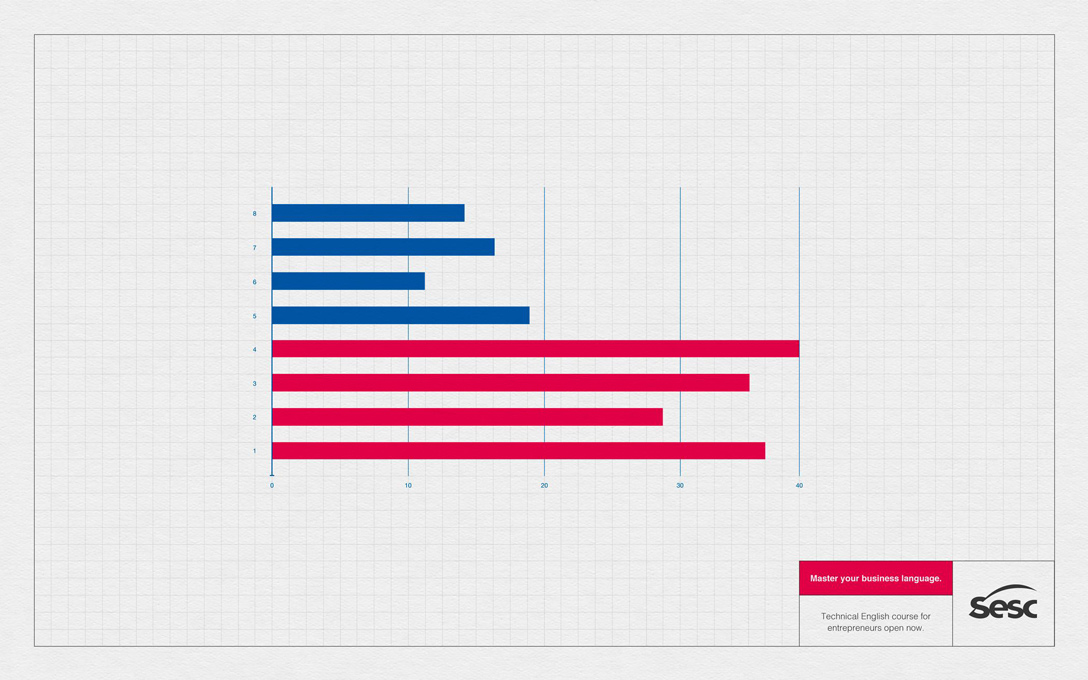
THE ORIGINAL?
Sesc English Course – 2017
“Master your business language”
Click on the image to enlarge
Source : Adeevee
Agency : Competence, Florianópolis (Brazil)
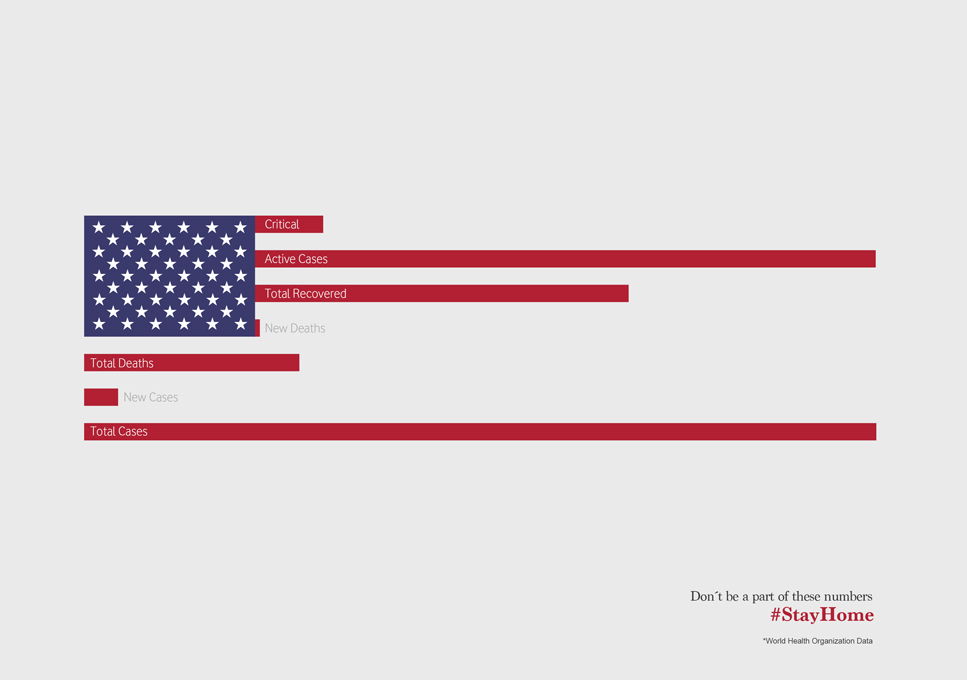
LESS ORIGINAL
Covid-19 #StayHome – 2020
“Numbers are sending us a very direct message”
Click on the image to enlarge
Source : Adsoftheworld
Agency : Wunderman Thompson (Portugal)

Business graphs with flags / Une copie? On stats…

Post pobrano z: Business graphs with flags / Une copie? On stats…

THE ORIGINAL?
Sesc English Course – 2017
“Master your business language”
Click on the image to enlarge
Source : Adeevee
Agency : Competence, Florianópolis (Brazil)
LESS ORIGINAL
Covid-19 #StayHome – 2020
“Numbers are sending us a very direct message”
Click on the image to enlarge
Source : Adsoftheworld
Agency : Wunderman Thompson (Portugal)

Business graphs with flags / Une copie? On stats…

Post pobrano z: Business graphs with flags / Une copie? On stats…

THE ORIGINAL?
Sesc English Course – 2017
“Master your business language”
Click on the image to enlarge
Source : Adeevee
Agency : Competence, Florianópolis (Brazil)
LESS ORIGINAL
Covid-19 #StayHome – 2020
“Numbers are sending us a very direct message”
Click on the image to enlarge
Source : Adsoftheworld
Agency : Wunderman Thompson (Portugal)

CSS fix for 100vh in mobile WebKit

Post pobrano z: CSS fix for 100vh in mobile WebKit

A surprisingly common response when asking people about things they’d fix about anything in CSS, is to improve the handling of viewport units.

One thing that comes up often is how they relate to scrollbars. For example, if an element is sized to 100vw and stretches edge-to-edge, that’s fine so long as the page doesn’t have a vertical scrollbar. If it does have a vertical scrollbar, then 100vw is too wide, and the presence of that vertical scrollbar triggers a horizontal scrollbar because viewport units don’t have an elegant/optional way of handling that. So you might be hiding overflow on the body when you otherwise wouldn’t need to, for example. (Demo)

Another scenario involves mobile browsers. You might use viewport units to help you position a fixed footer along the bottom of the screen. But then browser chrome might come up (e.g. navigation, keyboard, etc), and it may cover the footer, because the mobile browser doesn’t consider anything changed about the viewport size.

Matt Smith documents this problem:

On the left, the browser navigation bar (considered browser chrome) is covering up the footer making it appear that the footer is beyond 100vh when it is not. On the right, the -webkit-fill-available property is being used rather than viewport units to fix the problem.

And a solution of sorts:

body {
  min-height: 100vh;
  /* mobile viewport bug fix */
  min-height: -webkit-fill-available;
}

Does this really work? […] I’ve had no problems with any of the tests I’ve run and I’m using this method in production right now. But I did receive a number of responses to my tweet pointing to other possible problems with using this (the effects of rotating devices, Chrome not completely ignoring the property, etc.)

It would be better to get some real cross-browser solution for this someday, but I don’t see any issues using this as an improvement. It’s weird to use a vendor-prefixed property as a progressive enhancement, but hey, the world is weird.

Direct Link to ArticlePermalink

The post CSS fix for 100vh in mobile WebKit appeared first on CSS-Tricks.

Comparing Social Media Outlets for Developer Tips

Post pobrano z: Comparing Social Media Outlets for Developer Tips

As a little experiment, I shared a development tip on three different social networks. I also tried to post it in a format that was most suitable for that particular social network:

How did each of them “do”? Let’s take a look. But bear in mind… this ain’t scientific. This is just me having a glance at one isolated example to get a feel for things across different social media sites.

The Twitter Thread

The Tweet

A little journey with lists, as a 🧵 thread.

`list-style-position: outside;` is the default for lists, and is a pretty decent default. The best part about it is that both the markers *and* the content are aligned. pic.twitter.com/CkQv1hIt6q

— CSS-Tricks (@css) April 27, 2020

Twitter is probably our largest social media outlet. Despite the fact that I’ve done absolutely nothing with it this year other than auto-tweeting posts from this site (via our Jetpack Integration), those tweets do just about as well as it ever did when I was writing each tweet. These numbers are bound to change, but at the time of writing:

Views

102,501

Followers

~446,000

Retweets

108

Engagements

3,753

Likes

428 (first tweet)

Tweet Analytics showing 102,501 Impressions, 3,753 engagements and a few other more fine-grained stats.
Twitter provides analytics on tweets

Going off that engagements number, a little bit less than 1% of the followers had anything to do with it. I’d say this was a very average tweet for us, if not on the low side.

The Instagram Post

The Post

Instagram is by far the smallest of our social media outlets, being newer and not something I stay particularly active or consistent on. No auto-posting there just yet.

Followers

~2,800

Likes

308

Reached

2,685

Instagram provides analytics (“insights”) on posts.

Using Reach, that’s 96% of the followers. That’s pretty incredible compared t 1% of followers on Twitter. Although, on Twitter. I can easily put URLs to tweets and send people places, where my only options on Instagram are “check out the link in my profile” or use a swipe-up thing in an Instagram Story. So, despite the high engagement of Instagram, I’m mostly just getting the satisfaction of teaching something as well as a little brand awareness. It’s much harder for me to get you to directly do something from Instagram.

The YouTube Video

The Video

YouTube is in the middle for us, much bigger than Instagram but not as big as Twitter. YouTube is a little unique in that there can be (and are) advertising directly on the videos and that get’s a “revenue share” from YouTube. That’s very much not driving motivation for using YouTube (I make 50 cents a day, but it is unique compared to the others.

Subscribers

51,300

Likes

116

Views

2,455

YouTube analytics page showing 2.4K views, 192.8 hours of watch time, and a chart showing a graph that this video has more views than typical over time.
YouTube provides video analytics

Facebook?

We do have a Facebook page but it’s the most neglected of all of them. We auto-post new articles to it, but this experiment didn’t really have a blog post. I published the video to our site, but that doesn’t get auto-posted to Facebook, so the tip never made it there.

I used to feel a little guilty about not taking as much advantage of Facebook as I could, but whenever I look at overall analytics, I’m reminded that all of social media accounts combine for ~2% of traffic to this site. Spending any more time on this stuff is foolish for me, when that time could be spent on content for this site and information architecture for what we already have. And for Facebook specifically, whatever time we have spent there has never seemed to pan out. Just not a hive for developers.

CodePen?

I probably should have factored CodePen into this more, since it’s something of a social network itself with similar metrics. I worked on the examples in CodePen and the whole video was done in CodePen. But in this case, it was more about the journey than the destination. I did ultimately link to a demo at the end of the Twitter thread, but Instagram can’t link to it and I wasn’t as compelled to link to it on YouTube as the video itself to me was the important information.

If I was trying to compare CodePen stats here, I would have created the Pen in a step-by-step educational format so I could deliver the same idea. That actually sounds fun and I should probably still do that!

Winner?

Eh.

The problem is that there isn’t anything particularly useful to measure. What would have been way more interesting is if I had some really important call to action in each one where I’m like trying to sell you something or get you to sign up for something or whatever. I feel like that’s the real world of developer marketing. You gotta do 100 things for someone for free if you want them to do something for you on that 101st time. And on the 101st time, you should probably measure it somehow to see if the effort is worth it.

Here’s the very basic data together though…

Followers Engagements %
Twitter ~446,000 3,753 0.08%
Instagram ~2,800 2,685 96%
YouTube ~51,300 2,455 5%

One interesting thing is that I find the effort was about equal for all of them. You’d think a video would be hardest, but at least that’s just hit-record-hit-stop and minor editing. The other formats take longer to craft with custom text and graphics.

These would be my takeaways from this limited experiment:

  • You need big numbers on Twitter to do much. That’s because the engagement is pretty low. Still, it’s probably our best outlet for getting people to click a link and do something.
  • Instagram has amazing engagement, but it’s hard to send anyone anywhere. It’s still no wonder why people use it. You really do reach your audience there. If you had a strong call to action, I bet you could still get people do to it even with the absence of links (since people know how to search for stuff on the web).
  • While I mentioned that for this example the effort level was fairly even, in general, YouTube is going to require much higher effort. Video production just isn’t the same as farting out a couple of words or a screenshot. With that, and knowing that you’d need absolutely massive numbers to earn anything directly from YouTube, it’s pretty similar to other social networks in that you need to derive value from it abstractly.
  • This was not an idea that “went viral” in any sense. This is just standard-grade engagement, which was good for this experiment. I’m always super surprised at the type of developer tips that go viral. It’s always something I don’t expect, and often something I’m like awwwww we have an article about that too! I’d never bet on or expect anything going viral. Making stuff that your normal audience likes is the ticket.
  • Being active is pretty important. Any chart I’ve seen has big peaks when posts go out regularly and valleys when they don’t. Post regularly = riding the peaks.
  • None of this compares anywhere close to the real jewel of making things: blogging. Blogging is where you have full control and full benefit. The most important thing social media can do is get people over to your own site.

The post Comparing Social Media Outlets for Developer Tips appeared first on CSS-Tricks.

How to Tame Line Height in CSS

Post pobrano z: How to Tame Line Height in CSS

In CSS, line-height is probably one of the most misunderstood, yet commonly-used attributes. As designers and developers, when we think about line-height, we might think about the concept of leading from print design — a term, interestingly enough, that comes from literally putting pieces of lead between lines of type. 

Leading and line-height, however similar, have some important differences. To understand those differences, we first have to understand a bit more about typography. 

An overview of typography terms

In traditional Western type design, a line of text is comprised of several parts: 

  • Baseline: This is the imaginary line on which the type sits. When you write in a ruled notebook, the baseline is the line on which you write.
  • Descender: This line sits just below the baseline. It is the line that some characters — like lowercase g, j, q, y and p  — touch below the baseline. 
  • X-height: This is (unsurprisingly) the height of a normal, lowercase x in a line of text. Generally, this is the height of other lowercase letters, although some may have parts of their characters that will exceed the x-height. For all intents and purposes, it servers as the perceived height of lowercase letters.
  • Cap-height: This is the height of most capital letters on a given line of text.
  • Ascender: A line that oftentimes appears just above the cap height where some characters like a lowercase h or b might exceed the normal cap height.
Illustrating the ascender, cap height, x-height, baseline and descender of the Lato font with The quick fox as sample text.

Each of the parts of text described above are intrinsic to the font itself. A font is designed with each of these parts in mind; however, there are some parts of typography that are left up to the type setter (like you and me!) rather than the designer. One of these is leading.

Leading is defined as the distance between two baselines in a set of type.

Two lines of text with an order box around the second line ofd text indicating the leading.

A CSS developer might think, “OK, leading is the line-height, let’s move on.” While the two are related, they are also different in some very important ways.

Let’s take a blank document and add a classic “CSS reset” to it:

* {
  margin: 0;
  padding: 0;
}

This removes the margin and padding from every single element.

We’ll also use Lato from Google Fonts as our font-family.

We will need some content, so let’s an create an <h1> tag with some text and set the line-height to something obnoxiously huge, like 300px. The result is a single line of text with a surprising amount of space both above and below the single line of text.

CodePen Embed Fallback

When a browser encounters the line-height property, what it actually does is take the line of text and place it in the middle of a “line box” which has a height matching the element’s line-height. Instead of setting the leading on a font, we get something akin to padding one either side of the line box.

Two lines of text with orange borders around each line of text, indicating the line box for each line. The bottom border of the first line and the top border of the second line are touching.

As illustrated above, the line box wraps around a line of text where leading is created by using space below one line of text and above the next. This means that for every text element on a page there will be half of the leading above the first line of text and after the last line of text in a particular text block.

What might be more surprising is that explicitly setting the line-height and font-size on an element with the same value will leave extra room above and below the text. We can see this by adding a background color to our elements.

CodePen Embed Fallback

This is because even though the font-size is set to 32px, the actual text size is something less than that value because of the generated spacing.

Getting CSS to treat line-height like leading

If we want CSS to use a more traditional type setting style instead of the line box, we’ll want a single line of text to have no space either above or below it — but allow for multi-line elements to maintain their entire line-height value. 

It is possible to teach CSS about leading with a little bit of effort. Michael Taranto released a tool called Basekick that solves this very issue. It does so by applying a negative top margin to the ::before pseudo-elementand a translateY to the element itself. The end result is a line of text without any extra space around it.

The most up-to-date version of Basekick’s formula can be found in the source code for the Braid Design System from SEEK. In the example below, we are writing a Sass mixin to do the heavy lifting for us, but the same formula can be used with JavaScript, Less, PostCSS mixins, or anything else that provides these kinds of math features.

@function calculateTypeOffset($lh, $fontSize, $descenderHeightScale) {
  $lineHeightScale: $lh / $fontSize;
  @return ($lineHeightScale - 1) / 2 + $descenderHeightScale;
}


@mixin basekick($typeSizeModifier, $baseFontSize, $descenderHeightScale, $typeRowSpan, $gridRowHeight, $capHeight) {
  $fontSize: $typeSizeModifier * $baseFontSize;
  $lineHeight: $typeRowSpan * $gridRowHeight;
  $typeOffset: calculateTypeOffset($lineHeight, $fontSize, $descenderHeightScale);
  $topSpace: $lineHeight - $capHeight * $fontSize;
  $heightCorrection: 0;
  
  @if $topSpace > $gridRowHeight {
    $heightCorrection: $topSpace - ($topSpace % $gridRowHeight);
  }
  
  $preventCollapse: 1;
  
  font-size: #{$fontSize}px;
  line-height: #{$lineHeight}px;
  transform: translateY(#{$typeOffset}em);
  padding-top: $preventCollapse;


  &::before {
    content: "";
    margin-top: #{-($heightCorrection + $preventCollapse)}px;
    display: block;
    height: 0;
  }
}

At first glance, this code definitely looks like a lot of magic numbers cobbled together. But it can be broken down considerably by thinking of it in the context of a particular system. Let’s take a look at what we need to know:

  • $baseFontSize:This is the normal font-size for our system around which everything else will be managed. We’ll use 16px as the default value.
  • $typeSizeModifier: This is a multiplier that is used in conjunction with the base font size to determine the font-size rule. For example, a value of 2 coupled with our base font size of 16px will give us font-size: 32px.
  • $descenderHeightScale: This is the height of the font’s descender expressed as a ratio. For Lato, this seems to be around 0.11.
  • $capHeight: This is the font’s specific cap height expressed as a ratio. For Lato, this is around 0.75.
  • $gridRowHeight: Layouts generally rely on default a vertical rhythm to make a nice and consistently spaced reading experience. For example, all elements on a page might be spaced apart in multiples of four or five pixels. We’ll be using 4 as the value because it divides easily into our $baseFontSize of 16px.
  • $typeRowSpan: Like $typeSizeModifier, this variable serves as a multiplier to be used with the grid row height to determine the rule’s line-height value. If our default grid row height is 4 and our type row span is 8, that would leave us with line-height: 32px.

Now we can then plug those numbers into the Basekick formula above (with the help of SCSS functions and mixins) and that will give us the result below.

CodePen Embed Fallback

That’s just what we’re looking for. For any set of text block elements without margins, the two elements should bump against each other. This way, any margins set between the two elements will be pixel perfect because they won’t be fighting with the line box spacing.

Refining our code

Instead of dumping all of our code into a single SCSS mixin, let’s organize it a bit better. If we’re thinking in terms of systems, will notice that there are three types of variables we are working with:

Variable Type Description Mixin Variables
System Level These values are properties of the design system we’re working with. $baseFontSize
$gridRowHeight
Font Level These values are intrinsic to the font we’re using. There might be some guessing and tweaking involved to get the perfect numbers. $descenderHeightScale
$capHeight
Rule Level These values will are specific to the CSS rule we’re creating $typeSizeMultiplier
$typeRowSpan

Thinking in these terms will help us scale our system much easier. Let’s take each group in turn.

First off, the system level variables can be set globally as those are unlikely to change during the course of our project. That reduces the number of variables in our main mixin to four:

$baseFontSize: 16;
$gridRowHeight: 4;

@mixin basekick($typeSizeModifier, $typeRowSpan, $descenderHeightScale, $capHeight) {
  /* Same as above */
}

We also know that the font level variables are specific to their given font family. That means it would be easy enough to create a higher-order mixin that sets those as constants:

@mixin Lato($typeSizeModifier, $typeRowSpan) {
  $latoDescenderHeightScale: 0.11;
  $latoCapHeight: 0.75;
  
  @include basekick($typeSizeModifier, $typeRowSpan, $latoDescenderHeightScale, $latoCapHeight);
  font-family: Lato;
}

Now, on a rule basis, we can call the Lato mixin with little fuss:

.heading--medium {
  @include Lato(2, 10);
}

That output gives us a rule that uses the Lato font with a font-size of 32px and a line-height of 40px with all of the relevant translates and margins. This allows us to write simple style rules and utilize the grid consistency that designers are accustomed to when using tools like Sketch and Figma.

As a result, we can easily create pixel-perfect designs with little fuss. See how well the example aligns to our base 4px grid below. (You’ll likely have to zoom in to see the grid.)

CodePen Embed Fallback

Doing this gives us a unique superpower when it comes to creating layouts on our websites: We can, for the first time in history, actually create pixel-perfect pages. Couple this technique with some basic layout components and we can begin creating pages in the same way we would in a design tool.

CodePen Embed Fallback

Moving toward a standard

While teaching CSS to behave more like our design tools does take a little effort, there is potentially good news on the horizon. An addition to the CSS specification has been proposed to toggle this behavior natively. The proposal, as it stands now, would add an additional property to text elements similar to line-height-trim or leading-trim

One of the amazing things about web languages is that we all have an ability to participate. If this seems like a feature you would like to see as part of CSS, you have the ability to drop in and add a comment to that thread to let your voice be heard.

The post How to Tame Line Height in CSS appeared first on CSS-Tricks.