Falling snowflakes are a great way to make your winter photography much more interesting. Sometimes the weather doesn’t cooperate, however, and you have to…
Digitally created snow can often be quite difficult to generate in Photoshop, in a realistic-looking way. We recently published a tutorial showing how to add…
In this quick video from our Photoshop in 60 seconds series, learn how to install and load custom brushes to use for your designs and digital paintings.
Tutorial Assets
The following assets were used in the production of this tutorial:
Press Control-N to create a new document and use the following settings: 1000 x 1000 px; 300 dpi.
Step 2
Click U and select the Rounded Rectangle Tool. Create a shape with the following settings: Width: 30 px; Height: 720 px.
Step 3
After that, we need to create a duplicate of the shape using Right Click > Duplicate.
Step 4
Hit Control-T and change the Height to 20%.
Step 5
Rotate the shape by 45° while holding Shift.
Step 6
While holding Shift, move the layer 305 px up and 40 px to the right.
Step 7
Create a duplicate of the layer, and then go to Edit > Transform > Flip Horizontal.
Step 8
Move the duplicate of the shape 80 px to the left.
Step 9
Select the small shapes while holding Shift and then Right Click > Merge.
Step 10
Create two duplicates of this new layer, and move each new shape 70px down.
Step 11
Merge all the shape layers and create a duplicate of your new layer. Then rotate it 180° while holding Shift.
Step 12
Merge the shapes again, and create two duplicates of the layer. Rotate these duplicates by 60° and -60°, and then merge these shapes into a snowflake.
2. How to Create a Snowflake Brush Using the Shape Layers
Step 1
Now we can start to create our brush. Make the background layer Invisible, and then go to Edit > Define Brush Preset, select any name you want to use, and hit the OK button.
Step 2
Now we need to change the brush’s settings to create a complex brush texture. Select the Brush Instrument and hit the Brush Settings icon.
Step 3
Go to the Shape Dynamics panel and set the Size Jitter to 100% and Angle Jitter to 100%.
Step 4
Go to the Scattering panel, set the Scatter to 1000%, and put a tick on Both Axes. Our snowflake brush Photoshop settings are almost ready now—we just need to add some dynamics to the opacity of the snow brush Photoshop preset.
Step 5
Go to the Transfer panel and set the Opacity Jitter to 100%.
Step 6
Click on New Brush Preset to save the settings for the brush.
3. How to Create an Overlay Using a Custom Snowflake Photoshop Brush
Step 1
Open the image you want to use for overlaying, and then create two layers using Shift-Control-N.
Step 2
Select the brush, change the size to 250 px, and draw with this brush on the first empty layer to create an overlaying brush texture.
Step 3
Draw some more snowflakes on the second layer, and finally, to add some motion to the image, go to Filter > Blur > Motion Blur and use the following settings:
Angle: 90°
Distance: 25 px
Awesome Work, You’re Now Done!
Congratulations! You have created snowflake brushes and snow overlays for an image using Photoshop shapes and brush instruments. Here is our final result:
Looking for some more snowflake or sparkle brush Photoshop items? Check these products from GraphicRiver:
This pack contains 60 hi-res snowflakes brushes with different brush textures. It could be extremely useful for creating Christmas and winter pictures.
If you want something more realistic, check this 17 snow brush Photoshop pack. This item will work well for adding snow to your images. These brushes could be also useful if you need to create sparkle brush Photoshop presets, as it gives you realistic-looking particles.
This „30 snow decoration brushes” item contains a complex snowflake brush Photoshop pack with different complex shapes, great for creating elements of your Christmas background.
This brushes pack contains six Photoshop snowflake brushes with crystal effect brush textures. A great choice for creating winter and Christmas decoration elements or backgrounds.
Want to learn snowflake brush Photoshop techniques, or maybe how to create illustrator vector snowflake shapes? Check these awesome tutorials:
Falling snowflakes are a great way to make your winter photography much more interesting. Sometimes the weather doesn’t cooperate, however, and you have to…
Digitally created snow can often be quite difficult to generate in Photoshop, in a realistic-looking way. We recently published a tutorial showing how to add…
In this quick video from our Photoshop in 60 seconds series, learn how to install and load custom brushes to use for your designs and digital paintings.
Tutorial Assets
The following assets were used in the production of this tutorial:
Press Control-N to create a new document and use the following settings: 1000 x 1000 px; 300 dpi.
Step 2
Click U and select the Rounded Rectangle Tool. Create a shape with the following settings: Width: 30 px; Height: 720 px.
Step 3
After that, we need to create a duplicate of the shape using Right Click > Duplicate.
Step 4
Hit Control-T and change the Height to 20%.
Step 5
Rotate the shape by 45° while holding Shift.
Step 6
While holding Shift, move the layer 305 px up and 40 px to the right.
Step 7
Create a duplicate of the layer, and then go to Edit > Transform > Flip Horizontal.
Step 8
Move the duplicate of the shape 80 px to the left.
Step 9
Select the small shapes while holding Shift and then Right Click > Merge.
Step 10
Create two duplicates of this new layer, and move each new shape 70px down.
Step 11
Merge all the shape layers and create a duplicate of your new layer. Then rotate it 180° while holding Shift.
Step 12
Merge the shapes again, and create two duplicates of the layer. Rotate these duplicates by 60° and -60°, and then merge these shapes into a snowflake.
2. How to Create a Snowflake Brush Using the Shape Layers
Step 1
Now we can start to create our brush. Make the background layer Invisible, and then go to Edit > Define Brush Preset, select any name you want to use, and hit the OK button.
Step 2
Now we need to change the brush’s settings to create a complex brush texture. Select the Brush Instrument and hit the Brush Settings icon.
Step 3
Go to the Shape Dynamics panel and set the Size Jitter to 100% and Angle Jitter to 100%.
Step 4
Go to the Scattering panel, set the Scatter to 1000%, and put a tick on Both Axes. Our snowflake brush Photoshop settings are almost ready now—we just need to add some dynamics to the opacity of the snow brush Photoshop preset.
Step 5
Go to the Transfer panel and set the Opacity Jitter to 100%.
Step 6
Click on New Brush Preset to save the settings for the brush.
3. How to Create an Overlay Using a Custom Snowflake Photoshop Brush
Step 1
Open the image you want to use for overlaying, and then create two layers using Shift-Control-N.
Step 2
Select the brush, change the size to 250 px, and draw with this brush on the first empty layer to create an overlaying brush texture.
Step 3
Draw some more snowflakes on the second layer, and finally, to add some motion to the image, go to Filter > Blur > Motion Blur and use the following settings:
Angle: 90°
Distance: 25 px
Awesome Work, You’re Now Done!
Congratulations! You have created snowflake brushes and snow overlays for an image using Photoshop shapes and brush instruments. Here is our final result:
Looking for some more snowflake or sparkle brush Photoshop items? Check these products from GraphicRiver:
This pack contains 60 hi-res snowflakes brushes with different brush textures. It could be extremely useful for creating Christmas and winter pictures.
If you want something more realistic, check this 17 snow brush Photoshop pack. This item will work well for adding snow to your images. These brushes could be also useful if you need to create sparkle brush Photoshop presets, as it gives you realistic-looking particles.
This „30 snow decoration brushes” item contains a complex snowflake brush Photoshop pack with different complex shapes, great for creating elements of your Christmas background.
This brushes pack contains six Photoshop snowflake brushes with crystal effect brush textures. A great choice for creating winter and Christmas decoration elements or backgrounds.
Want to learn snowflake brush Photoshop techniques, or maybe how to create illustrator vector snowflake shapes? Check these awesome tutorials:
If you’ve created an app that works on different devices, it’s good to let your potential users know about it by showing the app on a responsive mockup. You can do it easily with the online responsive mockup generator at Placeit.
How to Make a Responsive Mockup for the iPhone Without Photoshop
Step 1
Go to Placeit.net. Navigate to Mockups and find the Responsive Devices tab.
Step 2
Here you can see a whole library of potential mockups for your app. There are many devices available, but if you’re particularly interested in one, you can narrow down the search using the filters on the left.
Step 3
Even after applying the filter, you’ve got over 100 propositions to choose from. You can show your app on many screens at the same time, either in a neutral setting or inside a photographed scene. Place your cursor over the mockup to see an example of it being used. After you find the one you like, just click it to start editing. I used this mockup template.
Step 4
Believe it or not, you’ve done most of the work already! Once you’ve chosen your mockup, you just need to upload the screenshots of your app to it. Depending on the mockup, you’ll find a couple of Upload Image buttons on the left. Click the first one—here it will be the iPhone screen.
Step 5
Select your iPhone screenshot and crop it to the size of the screen. Click Crop when you’re done.
Step 6
Give it a second to upload. After it appears on the mockup iPhone screen, you’re ready to add another screenshot. Click the other button and repeat the process, this time selecting your iPad screenshot.
Step 7
After you upload your screenshots, you can remove them or crop them again. You can also add some text or a graphic.
Step 8
Once you’re done, just scroll up and click Download. You can purchase this one design, or download it for free as part of your unlimited subscription.
Responsive Mockup Templates
See how easy it is? Now let me show you a couple of mockups that you can use to present your app to potential customers.
If you’re going to sell your app in the Google Play store, you need something eye-catching! This mockup template offers you dozens of modern-looking backgrounds, along with different fonts for the text.
Create a neat screenshot for App Store in seconds with this mockup template. Play with different colors, fonts, and graphics to create a perfect presentation for your app.
If you need something more dynamic, you’ll like this one! Here the screen is angled, which gives an organic feel to the presentation. Combine it with a cool background and a clean font for the best look!
That’s All!
Now you know how to make a responsive mockup for the iPhone without Photoshop.
If you want to learn more about using Placeit for your designs, try these tutorials as well:
If you’ve created an app that works on different devices, it’s good to let your potential users know about it by showing the app on a responsive mockup. You can do it easily with the online responsive mockup generator at Placeit.
How to Make a Responsive Mockup for the iPhone Without Photoshop
Step 1
Go to Placeit.net. Navigate to Mockups and find the Responsive Devices tab.
Step 2
Here you can see a whole library of potential mockups for your app. There are many devices available, but if you’re particularly interested in one, you can narrow down the search using the filters on the left.
Step 3
Even after applying the filter, you’ve got over 100 propositions to choose from. You can show your app on many screens at the same time, either in a neutral setting or inside a photographed scene. Place your cursor over the mockup to see an example of it being used. After you find the one you like, just click it to start editing. I used this mockup template.
Step 4
Believe it or not, you’ve done most of the work already! Once you’ve chosen your mockup, you just need to upload the screenshots of your app to it. Depending on the mockup, you’ll find a couple of Upload Image buttons on the left. Click the first one—here it will be the iPhone screen.
Step 5
Select your iPhone screenshot and crop it to the size of the screen. Click Crop when you’re done.
Step 6
Give it a second to upload. After it appears on the mockup iPhone screen, you’re ready to add another screenshot. Click the other button and repeat the process, this time selecting your iPad screenshot.
Step 7
After you upload your screenshots, you can remove them or crop them again. You can also add some text or a graphic.
Step 8
Once you’re done, just scroll up and click Download. You can purchase this one design, or download it for free as part of your unlimited subscription.
Responsive Mockup Templates
See how easy it is? Now let me show you a couple of mockups that you can use to present your app to potential customers.
If you’re going to sell your app in the Google Play store, you need something eye-catching! This mockup template offers you dozens of modern-looking backgrounds, along with different fonts for the text.
Create a neat screenshot for App Store in seconds with this mockup template. Play with different colors, fonts, and graphics to create a perfect presentation for your app.
If you need something more dynamic, you’ll like this one! Here the screen is angled, which gives an organic feel to the presentation. Combine it with a cool background and a clean font for the best look!
That’s All!
Now you know how to make a responsive mockup for the iPhone without Photoshop.
If you want to learn more about using Placeit for your designs, try these tutorials as well:
If you’ve created an app that works on different devices, it’s good to let your potential users know about it by showing the app on a responsive mockup. You can do it easily with the online responsive mockup generator at Placeit.
How to Make a Responsive Mockup for the iPhone Without Photoshop
Step 1
Go to Placeit.net. Navigate to Mockups and find the Responsive Devices tab.
Step 2
Here you can see a whole library of potential mockups for your app. There are many devices available, but if you’re particularly interested in one, you can narrow down the search using the filters on the left.
Step 3
Even after applying the filter, you’ve got over 100 propositions to choose from. You can show your app on many screens at the same time, either in a neutral setting or inside a photographed scene. Place your cursor over the mockup to see an example of it being used. After you find the one you like, just click it to start editing. I used this mockup template.
Step 4
Believe it or not, you’ve done most of the work already! Once you’ve chosen your mockup, you just need to upload the screenshots of your app to it. Depending on the mockup, you’ll find a couple of Upload Image buttons on the left. Click the first one—here it will be the iPhone screen.
Step 5
Select your iPhone screenshot and crop it to the size of the screen. Click Crop when you’re done.
Step 6
Give it a second to upload. After it appears on the mockup iPhone screen, you’re ready to add another screenshot. Click the other button and repeat the process, this time selecting your iPad screenshot.
Step 7
After you upload your screenshots, you can remove them or crop them again. You can also add some text or a graphic.
Step 8
Once you’re done, just scroll up and click Download. You can purchase this one design, or download it for free as part of your unlimited subscription.
Responsive Mockup Templates
See how easy it is? Now let me show you a couple of mockups that you can use to present your app to potential customers.
If you’re going to sell your app in the Google Play store, you need something eye-catching! This mockup template offers you dozens of modern-looking backgrounds, along with different fonts for the text.
Create a neat screenshot for App Store in seconds with this mockup template. Play with different colors, fonts, and graphics to create a perfect presentation for your app.
If you need something more dynamic, you’ll like this one! Here the screen is angled, which gives an organic feel to the presentation. Combine it with a cool background and a clean font for the best look!
That’s All!
Now you know how to make a responsive mockup for the iPhone without Photoshop.
If you want to learn more about using Placeit for your designs, try these tutorials as well:
If you’ve created an app that works on different devices, it’s good to let your potential users know about it by showing the app on a responsive mockup. You can do it easily with the online responsive mockup generator at Placeit.
How to Make a Responsive Mockup for the iPhone Without Photoshop
Step 1
Go to Placeit.net. Navigate to Mockups and find the Responsive Devices tab.
Step 2
Here you can see a whole library of potential mockups for your app. There are many devices available, but if you’re particularly interested in one, you can narrow down the search using the filters on the left.
Step 3
Even after applying the filter, you’ve got over 100 propositions to choose from. You can show your app on many screens at the same time, either in a neutral setting or inside a photographed scene. Place your cursor over the mockup to see an example of it being used. After you find the one you like, just click it to start editing. I used this mockup template.
Step 4
Believe it or not, you’ve done most of the work already! Once you’ve chosen your mockup, you just need to upload the screenshots of your app to it. Depending on the mockup, you’ll find a couple of Upload Image buttons on the left. Click the first one—here it will be the iPhone screen.
Step 5
Select your iPhone screenshot and crop it to the size of the screen. Click Crop when you’re done.
Step 6
Give it a second to upload. After it appears on the mockup iPhone screen, you’re ready to add another screenshot. Click the other button and repeat the process, this time selecting your iPad screenshot.
Step 7
After you upload your screenshots, you can remove them or crop them again. You can also add some text or a graphic.
Step 8
Once you’re done, just scroll up and click Download. You can purchase this one design, or download it for free as part of your unlimited subscription.
Responsive Mockup Templates
See how easy it is? Now let me show you a couple of mockups that you can use to present your app to potential customers.
If you’re going to sell your app in the Google Play store, you need something eye-catching! This mockup template offers you dozens of modern-looking backgrounds, along with different fonts for the text.
Create a neat screenshot for App Store in seconds with this mockup template. Play with different colors, fonts, and graphics to create a perfect presentation for your app.
If you need something more dynamic, you’ll like this one! Here the screen is angled, which gives an organic feel to the presentation. Combine it with a cool background and a clean font for the best look!
That’s All!
Now you know how to make a responsive mockup for the iPhone without Photoshop.
If you want to learn more about using Placeit for your designs, try these tutorials as well:
If you’ve created an app that works on different devices, it’s good to let your potential users know about it by showing the app on a responsive mockup. You can do it easily with the online responsive mockup generator at Placeit.
How to Make a Responsive Mockup for the iPhone Without Photoshop
Step 1
Go to Placeit.net. Navigate to Mockups and find the Responsive Devices tab.
Step 2
Here you can see a whole library of potential mockups for your app. There are many devices available, but if you’re particularly interested in one, you can narrow down the search using the filters on the left.
Step 3
Even after applying the filter, you’ve got over 100 propositions to choose from. You can show your app on many screens at the same time, either in a neutral setting or inside a photographed scene. Place your cursor over the mockup to see an example of it being used. After you find the one you like, just click it to start editing. I used this mockup template.
Step 4
Believe it or not, you’ve done most of the work already! Once you’ve chosen your mockup, you just need to upload the screenshots of your app to it. Depending on the mockup, you’ll find a couple of Upload Image buttons on the left. Click the first one—here it will be the iPhone screen.
Step 5
Select your iPhone screenshot and crop it to the size of the screen. Click Crop when you’re done.
Step 6
Give it a second to upload. After it appears on the mockup iPhone screen, you’re ready to add another screenshot. Click the other button and repeat the process, this time selecting your iPad screenshot.
Step 7
After you upload your screenshots, you can remove them or crop them again. You can also add some text or a graphic.
Step 8
Once you’re done, just scroll up and click Download. You can purchase this one design, or download it for free as part of your unlimited subscription.
Responsive Mockup Templates
See how easy it is? Now let me show you a couple of mockups that you can use to present your app to potential customers.
If you’re going to sell your app in the Google Play store, you need something eye-catching! This mockup template offers you dozens of modern-looking backgrounds, along with different fonts for the text.
Create a neat screenshot for App Store in seconds with this mockup template. Play with different colors, fonts, and graphics to create a perfect presentation for your app.
If you need something more dynamic, you’ll like this one! Here the screen is angled, which gives an organic feel to the presentation. Combine it with a cool background and a clean font for the best look!
That’s All!
Now you know how to make a responsive mockup for the iPhone without Photoshop.
If you want to learn more about using Placeit for your designs, try these tutorials as well:
Today, we’re taking a look at over 50 of the best rose art files available at Envato Elements and Envato Market that you can and should use in your projects. And if you’re interested in learning how to draw a rose, check out this fabulous tutorial:
Unlimited Premium Rose Vector Art From Envato Elements
Envato Elements is the perfect place to find a wide range of stunning rose vector files. And the great news is that you can download as manyas you want for one low price. Let’s take a look at some of the premium rose vectors you can find at Envato Elements.
A gorgeous rose ornament vector for you to use on your stationery, DIY projects, wallpaper, posters, blogs, and more. The file contains four beautiful patterns in both EPS and JPEG files.
This beautiful watercolour collection of rose background vectors, rose wreath vectors and other decorative elements is a rose lover’s dream. The collection offers over 50 EPS, PSD and PNG files that are quick to download and easy to apply to the project of your choice.
Discover 64 fabulous rose ornament vectors in vintage style for you to download and apply to your product designs, patterns, logo designs, etc. The files are available in both EPS and PNG, and the colour can be easily changed to suit your needs.
These watercolour vector rosebuds are an excellent choice for your custom-made cards, invitations, DIY projects, and a host of other projects. The package consists of 12 seamless patterns, and each flower is presented in a separate EPS and PNG file.
If you’re looking for red rose clip art or vector rosebuds, check out these awesome single red roses in various stages of bloom, from tight bud to full bloom. The editable vector AI and EPS files are also presented in PNG and JPG and all can be used for print templates, emblems, cards, branding, print, stickers, and much more.
This kit of rose ornament vectors contains seven different elements in EPS, PNG, and JPEG. Use it to create beautiful borders and flourishes on any number of products.
If you’re looking for rose background vectors, my are you going to love this collection. It features six seamless rose background vectors for use on fabric, clothing, wallpaper, wrapping paper, etc. If you’re on the lookout specifically for a rose black and white vector, note that this collection includes one that you will love.
Looking for a rose tattoo vector? You may not have had a whale swimming in roses in mind, but once you’ve set eyes on this whale and rose line art image, you won’t be able to resist it. One file each in EPS, SVG, PNG, and JPEG included for your convenience.
Looking for a field of roses combined with other flowers for your blog or website? This rose background vector may be just what you need. It contains one EPS vector file, and all flowers are presented separately in a PNG file.
Okay, so this may be a bit cheesy, but when you’re in love, all roses are red might seem like good poetry. Go ahead and use this rose vector to tell someone you love them in no uncertain terms. You can use Adobe Illustrator to edit the EPS file or Photoshop to edit the JPEG file included.
Another nod to love and Valentine’s Day. Use this rose black and white vector and red rose clip art to create your own greeting card, banner, decal, poster, invitation, flyer, etc.
Red rose clip art that everyone will love. This collection contains nine watercolour EPS and PNG files for you to use as a beautiful rose background vector in your next project.
An awesome watercolour rose vector that is perfect for invitations, greeting cards and the like. The package contains ten EPS files that are quick to download and easy to apply to your next project.
Need a rose tattoo vector? These next two items are for you. First up is this vintage hand-drawn rose tattoo vector featuring three different illustrations, with only one of them being a rose. The package comes with editable vector AI and EPS files as well as PNG and JPEG files.
This soft and lovely rose blush vector offers ten separate watercolour clipart files, one watercolour background, and two floral arrangements. They are presented in EPS, PNG, and JPEG files. Use them to add beauty and variety to any project.
Another rose vector file for Valentine’s Day. Just download the zipped files containing two fully editable EPS and JPEG files and edit them to create a special Valentine’s surprise for your loved one.
Bring a bit of romance to your next project with this collection of rose wreath vector files. The collection includes flowers with the roses which help them to shine even brighter. Also included is the wooden background, which will bring a nice earthy quality to your project.
Another gorgeous floral background filled with roses and other gorgeous flowers. The single vector file can be downloaded and applied to just about any project.
If you have a fondness for rose line art, you’ll love this collection, which features the most beautiful and whimsical line art floral arrangements in EPS and PNG files. Add to your invitations, photos, albums, blog posts, etc., to bring a soft romantic touch to your project.
Doodles are a fun and playful way to add a bit of lightheartedness to a project. Why not try out this rose vector silhouette with your next project? It offers a vector rosebud and drawings of loads of other flowers, leaves, and seeds besides.
If you love the beautiful rose black and white vector above, you’ll love the rose art to be found among the other flora and fauna here as well. The collection contains EPS, JPEG, and PNG files.
Tea and roses are a perfect combination, so it makes sense that so many china tea sets would have illustrations of roses on them. If you’re looking for your own tea and rose art, try this collection, which contains an EPS, AI, and JPEG file.
For those who celebrate Mothering Sunday, there are these four rose vector illustrations that can be used to create cards and unique items for the special day. The set includes four EPS files and four JPEGs.
Rose PSD, JPEG, and PNG Art From Envato Elements
Most of the rose vector art collections above also contained PSD, JPEG, and PNG files, but the focus was on rose vector files. Now we’ll take a look specifically at rose art presented in PSD and JPEG files.
A beautiful and delicate piece of rose art which presents roses in various stages of bloom, from a closed bud to maturity. It’s rendered in beautiful colours, and you can use this layered PSD file for stationery, websites, posters, etc.
This set of 37 hand-painted watercolour roses and other flowers is bound to bring a touch of freshness and colour to any project. Just download and use as you would any other Photoshop file.
If you’re looking for a beautiful seamless floral background that is filled with roses, then this elegant collection of ten patterns is bound to make you happy. Perfect for packaging design, fabric, posters, and many other projects, these files come in PSD, JPEG, and PNG for easy use.
This seamless pattern contains 18 seamless files featuring delicately hand-painted watercolour roses as well as dots and stripes in six pastel colours. Try them out.
This soft and romantic set of 28 hand-painted roses and leaves in various configurations is offered in PNG files so that you can integrate them easily into any background of your choosing.
We’ve featured a lot of watercolour rose art here, so we thought it only fair to include oil-painted rose art to even things up. This collection contains several templates in layered PSD and PNG files that you can use for cover designs, stationery, and all sorts of backgrounds.
If you regularly create projects for weddings, Valentine’s, engagements, or any other theme to do with love and relationships, this set of 50 red rose isolated photo-realistic petals is indispensable. Just download the PSD and PNG files and place them on any background.
This collection of rose art PSD files contains four ready-to-use backgrounds that allow you full customisation. The backgrounds also include text that you can edit to match your brand or colour scheme.
More watercolour goodness for watercolour lovers. Here are 15 gorgeous rose art illustrations to brighten up your next project. The files are presented in both JPEG and PNG.
An Instagram-ready rose art file for rose lovers, this one template lets you create 12 unique posts. It contains a layered and fully editable PSD file.
These 22 stunning watercolour roses are presented as hi-res PNG files with transparent backgrounds that allow you to place them in any scene you want to. The files offer a lot of variety as they are divided into branches, leaves, petals, roses of varying sizes, and wreathes. A versatile and useful package.
One-Off Rose Vector Art From Envato Market
GraphicRiver is another resource that offers a large selection of excellent rose art files. If you need a one-off resource and your budget is tight, GraphicRiver is a great option for high-quality graphics. Let’s take a look at the the best rose vector art found there.
These terrific rose black and white vectors are great addition for any project. They feature vector rosebuds as well as young and mature blooms. The files are presented in EPS, AI, and JPEG.
If you need more rose vector silhouettes, check out these 13 rose black and white vectors. This elegant collection includes a few selections of vector rosebuds and some fully opened roses. The files are both EPS and JPEG.
Looking for a yellow rose vector for a special project? This collection of four roses offers four colours to choose from, including a yellow rose vector. If, of course, you need another colour—for example, a purple rose vector—you can always modify the colour of any of the roses here to the colour you need.
This red rose clip art is part of a sugar skull combo which includes guns on either side of the skull, between the roses. A cool spin on the rose theme.
Those who are interested in rose line art will appreciate this collection of delicate line drawings of roses and other flowers. The file is presented in vector EPS and AI, as well as PSD and JPEG.
This beautiful pink rose would complement any project. Just download the rose ornament vector, which is presented in both AI and EPS files, and apply it to any project.
This beautifully illustrated rose vector silhouette comes in vector EPS and AI as well as JPEG. Choose it when you need a silhouette or rose black and white vector for that special project.
If you regularly create resources with wedding, engagement or romance themes, you should keep your toolbox stocked with a variety of vectors of rose petals like this one. It is offered in EPS, AI, and JPEG, so you have a range of files to work with.
Another gorgeous rose black and white vector, Four Black and White Roses—as the name indicates—offers users four beautifully executed roses in EPS and JPEG file formats.
This set of four high-quality, detailed rose vector illustrations is perfect for creating floral background patterns for stationery, wedding invitations, thank you cards, etc. The collection consists of four separate rose vector illustrations and one combined bunch of roses presented in EPS and PSD files.
For those times when you need a border of roses to add to stationery, a web page, or a poster, there is this rose ornament vector. File downloads are available in vector AI, EPS, or JPEG.
One-Off Rose PSD, JPEG and PNG Art From Envato Market
This cheeky rose art, featuring a skull with a beautiful red rose between its teeth, would make an excellent graphic for a poster, T-shirt, or banner. Download the PSD file and let your imagination run wild.
Use this beautiful rose art illustration to create stunning backgrounds for wallpaper, stationery, websites, fabric, etc. Once you download the files, you can decide whether you want to use the editable EPS or PSD formats.
This rose vector silhouette is another terrific seamless pattern you can use for wallpaper, as a background for stationery, etc. It is offered in both PSD and vector EPS and AI, so take your pick of whichever works best for your project.
Finally, this collection of nine red rose clip art illustrations offers a nice variety of styles to choose from. Some are rose line art, while others offer beautiful shading in soft colours. Download the collection, which is offered in PSD, JPEG, EPS, AI, and PNG files, and use the format that works best for your project.
Select Your Favourite Rose Art Files Today
This is just a small sample of the terrific rose vector art files available at Envato Elements and Envato Market. So if you haven’t found just the right one for you here, head on over to both sites and have a browse to find one that suits your needs.
And if you’re interested in learning how to create your own rose illustrations, check out these great 'How to’ articles below:
In this tutorial, learn how to make a 3D effect Photoshop action to create a simple 3D text effect.
Photoshop in 60 Seconds: 3D Text Action
The 3D functions available in Adobe Photoshop open up a world of endless possibilities for creators. And you can apply amazing 3D text effects to your designs with a fast Photoshop action. In this short video, I’ll show you how to create a Photoshop action that creates a stunning 3D effect you can use for any project.
Create a New Document at any size; mine is at 1000×750 pixels. Then go to Window >Actions and create a new Group and Action dedicated to your 3D effect. Hit the Record button when you’re ready to record the next steps.
Fill the background with a dark gray color using the Paint Bucket Tool (G). Use the TextTool (T) to write out your light gray text at a Size of 300 pt. Make a Duplicate(Control-J) of your text, and then Hide the copy for later.
Right-click the background layer and select Postcard. Then select the text layer and go to 3D > New 3D Extrusion From Selected Layer. Select both visible layers and hold Control-E to Merge them together.
For a simple effect, go to Environment on the 3D panel, adjusting the Color Intensity to 164% and the Shadow Softness to 25%. Next, select 3D > Render 3D Layer and allow the text to render before Rasterizing the 3D layer.
When it’s complete, unhide the 3D text copy, adjust the size to fit, and use the Blending Options to add color, shadows, or colorful gradients. And don’t forget to hit Stop on the Actions palette to use this action for later projects.
Here’s the final result.
5 Premium Text Effect Actions & Layer Styles
Want more actions? For mind-blowing text effects and more, browse the amazing
selection of Text Effect Actions available to you through GraphicRiver and Envato Elements. And check out a few of our favorites below!
Create gorgeous metallic text effects in only a few clicks! This brilliant package features six different actions with a superb selection of shadows and reflections to choose from. A help file is also included to guide you through the process with an informative video.
Short on time? Make the most out of your efforts with a Photoshop action that gets the job done with just one click! This well-rounded action includes five stunning styles for six different actions. An additional brush set is also included to help complete this effect.
Make life a whole lot easier with this pack of 3D Photoshop actions. Designed to give your text or vector shapes a realistic wood finish, this pack includes 36 high-resolution actions with four wooden styles. You can even change the depth and perspective for more fun options!
Mix your love of retro design with exciting 3D styles. This pack includes 10 vintage-inspired graphic styles perfect for headers, logos, and so much more. Customize your text easily with these fully editable files and enjoy additional vintage backgrounds to complete your next project.
Create fancy text effects that dazzle your audience! This amazing pack includes 10 beautiful gold and metal layer styles we’re sure you’ll love! Just add your text to the easy-to-use smart objects and enjoy wonderful metallic effects in no time at all!
60 Seconds?!
This is part of a series of quick video tutorials on
Envato Tuts+ in which we introduce a range of subjects, all in 60
seconds—just enough to whet your appetite. Let us know in the comments
what you thought of this video and what else you’d like to see explained
in 60 seconds!
Getting into graphic design and don’t know what resources you need? Here is a recommended graphic design pack for you where you can pick which items you want. There are a lot of tools and assets you can use to kick up your design standards or speed up your work. Take the guesswork out of choosing what you need in order to create and present graphic content that’s not only fantastically polished, but also on trend with this content-filled resource pack of digital assets from Envato Market and Envato Elements!
17 Stunning Modern Fonts
We’ll start with essential serif and sans-serif fonts that are usable in a variety of programs and contexts. Here’s an assortment of display and creative styles perfect for web and print use alike.
Bold and angular, MOAM is a sans-serif that brings architecture to mind. Whether in regular, slim, or engraved style, MOAM remains fairly simple, with a few surprises in its letterforms (see the styling of the „W” below).
A strong, condensed sans-serif, Robinson isn’t just a typeface that’s perfect for poster designs, having been inspired by vintage newspaper titles, but it also features 18 styles, from regular to rough to corroded and more!
A wonderful alternative to the usual suspects for streamlined sans-serifs, Pine has some fun rounded features while remaining monospaced. It’s a wonderful typeface for branding projects, posters, and more!
A bold, branding font, Sovereign won me over for inclusion in this resource pack for the fantastic curve of its „S” and the way it flows into the other, well-crafted letters.
Falco, a fantastic addition to bold display fonts and branding content, really shines where its inline styles are concerned. See below for just one of the ways Falco really makes a mark.
Anastasya Confession is a beautifully designed script font that features not only letterforms that flow into each other wonderfully, but also additional ligatures within the glyph set to really make typographic designs pop!
This list would be quite incomplete if it didn’t include a selection of fantastic vintage-inspired fonts. With this font bundle, you get just that: three fantastic fonts ready for packaging, t-shirts, and more! This font bundle may be just a starting point for you and your design needs.
Serenity is a sans-serif typeface created with 370+ glyphs. Included in this file are regular and bold versions, latin characters, and so much more to fulfill your extraordinary design needs.
A clean font with minimalist characteristics, Minimalust will perfectly complement most design projects. Ideal for anyone looking for clean, minimalist designs, download this file to gain access to the full uppercase alphabet, numbers, and more.
This sans-serif font family features a clean design that comes in two distinct versions. To make any presentation stand out, and add more professionalism to your design, download this font for clear, memorable designs.
Take your designs to a whole new level with this clean and vintage-inspired typeface. Perfect for logos, headlines, and even posters, you’ll be able to easily incorporate this font into a variety of design projects.
You can never have enough clean sans-serif fonts in your design collection! This divine font family combines geometric shapes and a grotesque mood to achieve a harmonic look. Influenced by modernist design, this typeface will be a great addition to your collection.
A modern typeface inspired by Rationalism and Modernism, the Lorano Font Family offers a strong geometric typeface with an essential clean look, to work perfectly on any design. Included in this file are 13 different weights, web fonts, and support for multiple languages.
Adobe Illustrator Assets
Starting in the realm of all things vector, let’s break down several categories for must-have digital assets.
9 Awesome Illustrator Brushes
Brushes are fantastic for adding a fun touch to vector objects or allow designers to create and draw within Adobe Illustrator. From art brushes to pattern brushes, the uses for brushes are numerous when creating print and web media. Below, I’ve collected several sets of useful Illustrator brushes that will step up almost every graphic designer’s game.
Featuring 104 custom brushes, this vector brush set is the perfect addition to your Brushes panel when creating textured, vintage-style graphics within Adobe Illustrator.
Whether you’re creating poster images or labeling for a brewery, having a comprehensive set of laurel wreath brushes and similarly styled vector brushes is a must for the graphic designer’s resource kit.
This set of art brushes kicks up the hand-drawn look several notches. From ink to charcoal to acrylic and more, this set offers a huge compilation of real-media style brushes in vector form. Easily transform icon sets from a flat style to a hand-drawn model or create new work in a sketched style quickly.
Recently updated with even more Illustrator goodies, this amazing set of brushes includes sketch lines created with various sized quill pens and brushes. It’s perfect for giving your vectors that inky look, so enjoy this set of 32 incredible Adobe Illustrator brushes.
If you love adding unique details to your vector designs then you’re sure to love this rope pattern brush. This set of nine ready-to-use objects includes ropes for every occasion. Choose from rectangular, circular, and even star styles to add a realistic touch to your work.
Show your viewers where to look with this fun set of arrow-shaped Illustrator brushes. Designed to look like hand-drawn arrows created with a pencil, this item lets you simply draw a path with any shape and apply the brush for instant results.
You won’t have to miss out on beautiful ink designs with this incredible pack of 120 brush pens. Inspired by brush pen lettering, this remarkable collection is full of brushes with different sizes, pressure sensitivities, and textures.
Create a super realistic linocut look with this set of Adobe Illustrator brushes. Included in this pack are 24 top of the line brushes to achieve that linocut look without all the mess and hassle.
Explore wondrous seas of design and lands of creativity with this vintage pen and ink brush set. Included in this package are 50 remarkable art brushes carefully crafted to ensure that perfect vintage aesthetic for your designs and illustrations.
11 Must-Have Illustrator Actions
Adobe Illustrator actions allow you to record your process and save it to be applied to content again and again. Having actions at the ready for design trends or a design process that’s often asked for from a client means you get to spend more time designing creatively versus doing the same thing over and over. Check out these fantastic Illustrator actions collected below!
Speed up your time working on icon sets or creating graphic banners with a quick and easy Adobe Illustrator action for creating long shadows! Various lengths and angles are included in the asset as well, making this a must-have resource.
A great action set for logos, icons, infographics, and more, this 3D extruder action pack not only speeds up your design process, but does so in a beautifully designed way.
Make the most of your pattern-making time and speed up the process with this pattern-making action! Perfect for a quick background or an additional asset in a graphic pack, this action will allow you to create a wide variety of pattern types from a single image.
When time is not on your side or you want a place from which to build a more complex design, text effect actions are here for you! In this case, vintage-styled text effects, eight in all, can transform any text, font, or even vector shape into one of the fantastic styles seen below!
Create a vibrant, flowing vector flag in no time at all with this vector flag maker. Included in this incredible pack are 10 cool flag actions and even the original vector flag from the preview. Download this file to gain access to this unique Illustrator action.
If you love the look of hand-drawn art, then you’re sure to love this vector action pack. Included in this set are seven hand-drawn action styles with three different style types to choose from.
Illuminate your designs with this unique fairy light generator. With one simple click, you can turn a path into a lovely string of lights that are perfect for any holiday design. Simply load all the appropriate files to enjoy this fun action.
Meeting your deadlines as a creative professional is all about balance. And you can shave off extra time from your workflow with these incredible shadow actions. With over 40 amazing shadow effects to choose from, you’ll be ecstatic you equipped yourself with this time-saving generator.
Add a lovely rustic aesthetic to your work with this awesome woodcraft action. This Illustrator pack is perfect for lettering artists and font makers. Choose from 35 classic styles that give your art the feeling of vintage woodwork.
Even in modern times the look of vintage design adds instant class and refinement to all your artwork. And you can achieve that great letterpress feel with this unique Illustrator action. Made up of 10 graphic styles for one action, there are no particular tweaks necessary or required.
Instantly add speckles to your type and logos with this fun Adobe Illustrator action. With 24 different styles to choose from your designs will get that instant vintage look in absolutely no time at all.
12 Creative Illustrator Graphic Styles
There’s nothing more satisfying than simply opening a Graphic Style set and applying a completed effect with a simple click of a button. Speed up your design process and keep on trend with these amazing Graphic Styles listed below!
Kick your infographic design up a notch with this simple and visually pleasing 3D city and map generator. Transform any vector shape into a 3D map piece and choose from over 200 additional assets included in the resource to complete your map, or use the assets as a jumping-off point for more personalized content.
Whether you’re designing wedding invitations, party flyers, or stationery, chalkboard text and vector styles will speed up your design process and keep you on trend.
Instantly transform any text or vector object into a watercolor-themed design with the click of a button thanks to this Graphic Style pack. Save on file space and time while creating poster designs, stationery, or an assortment of wedding graphics.
Create luxurious text and vector object designs with this gold-themed Graphic Style. Perfect for home decor, posters, and stationery, this Graphic Style set boasts 32 different gold styles along with an additional set of patterns to complement the aesthetic of the set.
Whether you need a quick logo for a mock-up product or a style to serve as a jumping-off point, having a large set of logo styles on hand makes for quick work. From candy packaging to mobile games and more, there are 80 different styles included in this pack, giving users the most bang for their buck.
Shine bright like a diamond with these amazing Adobe Illustrator graphic styles. Created to add instant shine and sparkle to your work, you can add these styles to your text or even vector objects.
In this great pack of vintage and retro-inspired graphic styles, you’ll have access to 10 incredible Illustrator files each with uniquely different designs. Add a bit of retro flair into your look with only just the click of a button.
Do you love the 80s? Well, you’re sure to love this amazing 1980s-inspired graphic style. Send your artwork back in time with these awesome styles that work perfectly with text or vector shapes.
In this set of Adobe Illustrator graphic styles, you’ll find 26 unique retro styles that instantly add that vintage city look to your designs. Simply highlight your text, choose the style you want, and then you’re all finished in only a matter of seconds!
Perfect for that time of the year when it’s a little frosty outside, these knitted graphic styles are sure to warm your heart. This package comes complete with 20 graphic styles that are easily customizable with 11 seamless knit patterns.
If you love one-click graphic effects then you’ll definitely want to add this set to your kit. Get that freshly inked look with this set of 10 different layer styles with varying levels of ink density.
Mess up your headlines a bit or add a little grunge to your next lettering project with this fun set of grunge layer styles. Included in this package are eight different design variations with seamless repetitive patterns that are sure to greatly weather your next design project.
11 Amazing Graphic Packs for Illustrator
From icon sets to infographic packs, having an on-hand resource for all design needs is a must for many designers, especially when you’re working with a short deadline or in need of an asset to supplement a small budget. Check out these Illustrator Graphic Packs that are sure to be an asset to your needs below!
Whether you’re putting the finishing touches on a web design or in need of some icons for a flyer, having a large set of ready-made simple line icons in your arsenal will not only complete your project simply and easily, but also allow you to unify the aesthetic quickly.
Simplicity is never out of style. Having a huge set of flat icons ready for infographics, posters, and more means you have that portion of your design work already solved. These ones are easily editable with color changes, so you can mix and match icons since they’re already the same design style, having been crafted and collected before your project began.
Speaking of speeding up your design process, when creating mockups for branding or showcasing a product, you may need a quick and easy logo design at the ready. With this logo design creation kit, you have elements ready to mix and match, giving your presentations a quick boost.
Infographic creation can take a huge chunk of time, and when a client needs a large report filtered down into digestible graphics or you want to quickly illustrate a point for a website, having a large bundle of infographic assets at the ready will not only cut down on your headaches, but also mean happier clients who are looking for a professional product on the fly.
If you’re looking to get the most out of any graphics pack then you’ll definitely want to try this infographic elements pack. This huge template pack features charts, graphics, shapes, icons, and so much more to create stunning, informative designs.
Enjoy this remarkable set of retro vector badges. Carefully handcrafted from primitive vector shapes, these badges have been inspired by serene and sublime design. Download this pack to gain access to a single well-organized file, complete with easily customizable elements.
This pretty graphic kit is perfect for the watercolor enthusiast at heart. If you’re crazy about watercolor resources, then I’m sure you’ll enjoy this incredible graphic kit complete with watercolor flowers, leaves, and so much more!
Explore countless design possibilities with this versatile graphic line elements pack. This package goes perfectly with the Amorie Font Family and includes additional bonus elements like arrows, lines, and wreaths.
Another extension to the lovely Amorie Font Family, this pack of graphic frames will highlight any art or picture. Enjoy multiple designs with a handcrafted charm that is sure to complete your desired look.
Could you use a couple of vector people to make your designs more interesting? Then give this adorable people vector pack a try! This unique vector package includes 21 flat illustrations of a variety of people with different occupations.
As simple as the title goes, this cute vector pack includes 15 pristine fruit icons and flat vector graphics. Choose from a variety of different fruits to add a juicy element to your next designs.
10 Gorgeous Illustrator Textures
Now it’s time for our final category of Adobe Illustrator assets: textures. Whether you need to limit your color use or want to add a retro touch, Vector Textures can complete an image as well as cut down on the time you’re creating extra bits for an illustration, poster design, and more. Check out the fantastic possibilities for your texture needs below!
With over 300 grunge patterns included, you’ll find retro-looking graphics are a breeze when using a ready-made set of patterns within your design work. Consider adding them to an icon set to create a simple and quick variation, or using the patterns as object overlays with various blending modes in order to apply a different style to an already existing design.
One of my favorite styles of adding texture to a vector image is through the use of engraved patterns. Consider the multitude of patterns on paper money or printed images within an old book. Cut your time down making vintage creations with an engraved pattern set, and transport your icon set into the past quickly and easily.
When you need to limit the number of colors used within an image or when you want another fantastic retro look, halftone is there for you. While Adobe Illustrator has some halftone patterns in its default pattern files, it’s definitely incomplete. Combine dots, lines, and textures included in the pack for a variety of screen-printed style imagery in your graphic design work!
Add a bit of sparkle to your designs with this fun vector pack of 10 glitter patterns. Use it to fill any shape with an amazing glittery sparkle pattern and enjoy the endless design possibilities!
Take a bite out of this unique vector pack, and choose from 10 uniquely different animal print swatches. Whether you love to rock a cheetah print or want to experiment with modern zebra lines, you’re sure to love this amazing vector pack!
What could you do with this interesting wood pattern? Explore the possibilities with this amazing hand-illustrated texture pack. Give your designs that authentic hand-crafted look with this package of three wooden patterns.
Add a beautiful abstract element to your designs with this painted wave texture. Included in this package are 10 individual full-page textures available in both EPS and PNG formats.
Derived from high-resolution photography, this vector pack includes ten high-quality halftone textures to capture the feel of old school prints. Use these textures to amp up your designs as backgrounds and so much more!
Give your photography an instant distressed look with one of these amazing vector background textures. Choose from 40 unique designs that are resolution independent and enjoy the freedom of designs that can be scaled to any size.
Add a geometric element to your posters, photos, and so much more with these geometric vector textures. This package comes complete with 40 outstanding vectors that are compatible with both Illustrator and Photoshop.
Adobe Photoshop Assets
Our third and final section breaks down several categories for Adobe Photoshop Assets. Many of those listed will give you an alternative asset set to the vector list above while some others are specific to Photoshop, being something you can really only create and use in raster form. Check it out and enjoy!
10 Must-Have Photoshop Brushes
Adobe Photoshop Brushes are a must. From various effects to textures, brushes can speed up the process of creating and designing an event flyer or any project, really, allowing you to focus more on concept and less on execution. Check out three fun brush options below!
What event flyer or band poster would be complete without lighting effects? What about product mock-ups or movie posters? Sure, you could make such light effects by hand, but having a large set of brushes at the ready means you spend more time designing and less time fighting with materials or illustrating something by hand.
Additionally, brushes like these can go beyond their intended use and be used for a variety of painting needs outside the realm of graphic design! Please note that the image below only shows a small section of the bundle’s offerings, which include over 600 effects and other assets.
With handmade content so popular in graphic design today, having a huge kit of brushes and elements at the ready within Adobe Photoshop is a must for many designers. Check out the set below, which makes all sorts of web content, stationery design, poster design work and more a quick study in transforming digital content into a handmade-looking creation, whether you’re familiar with watercolors or not.
Much like the vector assets above, vintage and retro styles are still well in use in graphic design (what’s old is new). Whether you’re looking to add noise, scratch marks, or even a distressed paper look to your final design, this bundle of brushes has your back.
Explore your creativity with these remarkable gouache and acrylic Photoshop brushes. Perfect for the avid digital painter and traditional art enthusiast, this set lets you choose from 30 different brushes to get that amazing traditional art effect.
Instantly add smoke to your designs with these creative Photoshop smoke brushes. Choose from 19 high-quality brushes with a variety of styles and smoke density.
Create amazing particle effects with this set of 30 Photoshop particle brushes. A great addition to any designer’s toolkit, this set of Photoshop brushes was painstakingly crafted to create cool displacement effects.
Whether you love to paint in Photoshop or you just like the look of traditional art, these Photoshop stroke brushes will definitely add a unique, realistic style to your work. Suitable for textures, patterns, and decorative elements, this brush pack will work for all your art needs.
Add a bit of sparkle and shine to your photo manipulations or digital paintings with these lens flare brushes. This pack includes 42 high-quality optical lens flares and star brushes. Get a great result in just two simple clicks!
Sure, you could take the time to create watercolor art traditionally, but it’ll take lots of time and will create an even bigger mess. Bypass all the hassle with this set of 69 watercolor brushes featuring splashes, colorful blobs, and so much more!
Are you looking to get into the art of children’s book illustrations? Well, give these beautiful natural shade brushes a try! This package includes 40 unique brushes in a variety of styles to use when painting your illustrations.
13 Amazing Photoshop Actions
What better way to speed up the process of design than to make use of a pre-recorded action in order to transform a layer and its contents from a simple design into something fantastically rendered? Below you’ll find several Photoshop Action Sets ready to speed up your design process.
Similar to some of the Adobe Illustrator content seen above, these vintage text effects quickly transform your text from a flat line of text into one of 10 three-dimensional styles, perfect for poster designs or whatever your advertising needs may be.
This action transforms a stock photo into a dream-like watercolor styled image quickly and easily. It, and actions like it, make for quick social media banners or backgrounds, event flyers, business cards, and more.
As the image below says, this action instantly transforms images and text into 3D content. It’s simple and easy, and is optimized for older versions of Photoshop. This design style, which is usually done in vector format when it looks this good, is now accessible with a quick click of the button. Imagine its use for a variety of web graphics or advertising content.
You’re running against the clock, have a fist full of stock images, and need them to look as though you had the budget for a professionally lit shoot: photo editing bundle to the rescue! This bundle of effects features 30 fantastic professional styles that will easily fire up a social media campaign, blog content, editorial spreads, and more.
Combining two images into an ethereal double exposure shot is made incredibly easy with this action. From promotional flyers to editorial use, effects like these can be a fantastic asset to your resource kit.
One of the most popular actions of the current year, this effect is a fantastic asset to posters for events and movies, or for the action-packed packaging design of a video game. Layer multiple effects to expand the effect creating something fun and unique. When your resource kit includes quick, go-to actions like this one, you’ve made quick work for trending effects that clients may be after for their projects.
Get that custom shimmery look with this sparkly Photoshop action. This package includes 10 preset color looks that are easy to customize and simple to use.
Enjoy the warmth of the sun on your face with this explosive Photoshop action. Simply fill your subject with any color then play the action to create a remarkable effect like the one below.
Vanquish into a beautiful trail of smoke with this lovely Photoshop action. To create this easy look, simply brush over your photo in the area where you would like the effect to take place, then hit play. It’s really that simple!
Show off your street art-inspired designs with this awesome Photoshop action. Even a helpful video tutorial is included with additional instructions to ensure your design success.
This amazing set of Photoshop actions includes 18 unique styles to simulate that beautiful cinematic look. Enhance your photography with the click of a button and enjoy a variety of dramatic styles.
Do you love photo effects? Double exposures are a great way to create unique digital art by mashing two or more photos together. And you can create that look yourself by downloading this Photoshop action pack complete with 80 double exposure effects!
Black and white photography never goes out of style. And you can turn your colorful photos into dramatic black and white images with this set of professional Photoshop actions. Choose from 31 different styles to add instant drama to your photography.
11 Creative Photoshop Layer Styles
Most of the Photoshop Layer Styles collected below are shown as text effects, but they can be applied to an assortment of shapes and paths. Having a few sets of go-to layer styles speeds up your work process, allowing for graphic trends to be replicated quickly so you spend more time creating and conceptualizing and less time figuring out how to create embossed text in a client’s advertising campaign.
This set is huge, collecting 100 special effect styles together, making them quick and easy for you to access while creating a variety of web and print content. Whether you need metallic text for an event promo or candy-like text for a blog layout, you’re ready with a pre-made bundle.
Like the vector-based Graphic Style above, this Layer Style allows you to make quick work of creating gilded hand-drawn creations for home decor, stationery, and more!
This layer style pack is quite the twofer, giving you both embossed and pressed styles for text and icons in a style that looks as if it’s vector-based while remaining entirely rasterized. Perfect for displaying logos or creating branding mock-ups, this layer style is elegant and makes quick work of presenting content within your portfolio or in a client presentation.
In contrast with the numerous vintage design styles throughout this list, these 3D text effects are perfect for showcasing new, fresh design without trying to mimic the design styles of yesteryear. Another wonderful way to present logos and branding content within a portfolio or presentation, this layer style set features five different styles and bonus materials, allowing for more value for money spent on design resources.
Any bad design is grounds for war, but you can keep the peace with this amazing set of war-inspired Photoshop layer styles. Choose from a variety of styles and dramatic metal effects to give your text that badass look.
Create the look of white text against a black chalkboard with this fun layer style. Great for your next typography project, these layer styles are perfect for retro illustrations, vintage print designs, and so much.
If you love doodling then you’re sure to love this adorable layer style. With full control over the colors and styles of your artwork, add a personal artistic flair to your next creative project.
Another great chalkboard effect, this package includes 15 different layer styles and seamless patterns to complete that chalkboard look. Use these styles for easy, one-click effects and instantly enhance any design or illustration.
This professionally looking and concrete design simulates the beautiful texture of stone. With a choice of three different high-quality concrete textures and six high-resolution backgrounds, you can elevate any look with these remarkable layer styles.
Incredibly easy to use, this awesome layer style features four different high-quality wood textures. Guaranteed to give the highest level of detail possible, you’re sure to impress with these wooden layer styles.
Achieve that beautiful look of a vintage book with these amazing layer styles. Included in this package are a wide range of layer styles, helpful instructions, and even preview examples for additional inspiration.
16 Professional Photoshop Mock-Up Packs
One of the advantages of working in raster-based imagery is having access to high-quality photographic content. Mock-ups and scene generators allow you to present your own work or the products of your clients in a professional way on a much smaller budget than by organizing photo shoots or creating product samples yourself. Spend more time designing and enjoy these fantastic mock-up bundles below!
Show off t-shirt designs in your portfolio or give your client a variety of options for seeing your design work in action with this bundle of t-shirt mock-up images. I like this set for being a bit more editorial than the usual stock images you’ll find for creating comps of your work.
You have a variety of choices for product mock-ups. We could be here all day running through possibilities from cosmetics to food packaging. Whether you’re showing possibilities to a client for their branding or showing off comps of your own work in a portfolio, product mock-up sets like the one below give viewers something to connect with when looking at pages of graphic design.
Whether you’re running a print-on-demand service or showing off your latest poster design, being able to show your work finished and framed without having to set up a scene yourself can be a huge asset to your design business.
Perhaps you don’t have the space to create such a scene or you lack the funding for a good DSLR camera in order to capture it. Framed work mock-ups like this one give you what you need in order to show off your creations without cutting into your work hours heavily.
You’re hard at work on a book cover design for a client and want to give them options with a bit of a punch: a photorealistic book mock-up is ready for you. You can find a variety of book types (standard novel, coffee table book, a square book, and more) at the ready for your customizing needs. Consider having such assets at the ready in a variety of sizes within your graphic designer’s resource kit.
A must-have for any graphic designer is a branding-identity mock-up (or two, or three). These allow you to showcase your work for various clients, creating logos, business cards, letterheads, and more. They also allow your clients to connect with your logo options in an elegant and corporate-ready presentation.
This set offers up a one-two punch for showcasing rough work in your portfolio or when sharing with a client. Consider how handy it would be to run through your digital sketches in a hand-made format in your website’s gallery or on an Instagram account. I chose this asset in particular for its elegance and options for customizing your content into a simple scene.
This one is perfect for catalogs, magazines, brochures, and more. Many a graphic designer has to spend time laying out content in Adobe InDesign, and what better way to show it off in their portfolio or share it with their client than through a mock-up such as the one seen below.
Show off poster designs or use such an image for an advertising or even social media campaign. Mock-ups like this allow users to connect with the work in a tangible way. They can understand the size of your design as well as connect with the person in the image holding the poster up.
You’ll also find other options featuring different models or no models at all. In this pack, you have a lot of size and orientation options, even if the model is the same throughout the entire resource file.
Logo clients can be a little tricky. So the one way to instantly win over any client is to place your final logos on a photorealistic mockup. This particular package features a stunning collection of 10 designs that will definitely impress even the most stubborn client.
The number one best-selling brochure mockup on GraphicRiver has been improved to be even better! This amazing package features 13 brochure mockups, advanced paper reflections, and five additional background textures.
Display your art in style with these unique poster markups. This package features 10 pre-made Photoshop mockups, complete with advanced shadow controls and changeable background layers.
Love fashion? Explore your favorite styles with this easy to use and super fashionable hoodie mockup. Download this file to gain access to seven different files with easily editable elements for photorealistic results.
Display your art on this modern wall with this playful picture frame mockup. Included in this package is one Photoshop file with photorealistic backgrounds shown in a variety of angles.
Save much needed time during your design workflow by placing modern identities on this stunning brand mockup. This package includes nine high-quality mockups with an easily editable background that you can change to virtually any color!
Want to display your logo designs in a cool and unique way? Well give these hip logo mockups a try! This huge collection of 50 modern vintage photographs includes everything from vintage trays to hipster equipment and so much more!
10 High-Resolution Image Packs
Finally, we get to raster-based texture packs. There are a lot of options out there, and below I’ve selected several assets that I find useful based on their trendiness as well as usability for a graphic designer and their general day-to-day needs.
This bundle features several space images, in high resolution, ready for print and web media. Consider them a fantastic background to present typographic content or something to add to icon designs in order to stay on trend with galaxy-themed content. Backgrounds like these can also be combined with some of the actions listed above in order to create fun, complex imagery.
Whether you’re aiming to use paper textures as a background for your design needs or to be applied to existing graphics, paper textures can give a variety of imagery a retro look. Combine these textures with some of the content above, such as real-media style brushes, to create digitally created graphics with a traditional media style.
Create thrilling designs with these amazing cinematic background textures. This set of textures includes eight high-resolution background images that are perfect for book covers, motion graphics, and more!
If you’re looking for high-resolution metal textures, then look no further! This collection of six pristine images features metal designs with vertical, horizontal, and circular textures.
The great thing about Photoshop is that you can achieve high-quality wood-burning effects without all the danger! With this amazing pyrography pack, you’ll have access to high-quality wooden backgrounds and even unique layer styles to achieve realistic burn effects.
Winter is that festive time of the year when holidays are near and sweaters are warm and fuzzy. And you can achieve that cold, snowy look with this assortment of 20 snowy overlay textures. Instantly create the look of a frosty blizzard in a few short clicks!
You can never have enough watercolor packs! This amazing package includes hand-painted watercolor textures that are perfect for a variety of handcrafting projects. Enhance your designs with a choice of 20 different high-resolution files.
Putting your designs on a low poly background is one of the easiest ways to give it an instantly modern look. Enjoy this collection of 20 high-definition landscapes with creative layouts and vibrant beautiful colors.
Last but not least in this article of amazing resources is this incredible package of polygonal backgrounds. Enjoy 12 uniquely designed backgrounds perfect for websites, apps, and so much more!
Conclusion
This resource kit aims to highlight current design trends and some must-have assets for every graphic designer. Need a more hands-on approach to your designs? Consider enlisting the help of the good folks at Envato Studio for your creative needs.
Chances are we’ve missed some Envato Market and Envato Elements items that you think would be an excellent asset to any graphic designer’s toolbox. Share those links in the comment section below, and let this kit be a jumping-off point for building your ultimate digital asset set.
Check out more of the best graphic design templates from Envato Elements as recommended by our Envato YouTube team:
Agregator najlepszych postów o designie, webdesignie, cssie i Internecie




 WinterHow to Draw a SnowflakeMonika Zagrobelna
 WinterHow to Create a Set of Snowflake Icons in Adobe IllustratorAndrei Stefan
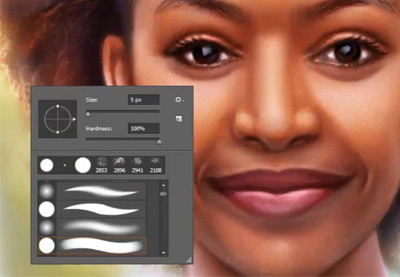
 Adobe PhotoshopPhotoshop in 60 Seconds: Create 4 Unique Custom BrushesMelody Nieves
 WatercolorHow to Create Realistic Watercolor Photoshop Brushes From ScratchIvan Gromov


