In this tutorial, we’ll create a clean, stylish InDesign portfolio template, suitable for architectural work, with lots of emphasis on imagery and geometry. These concepts will also apply to a variety of brochure design scenarios. So grab your favorite portfolio pieces, and let’s dig right in.
What You Will Need
You will need the following assets in order to complete this project:
First, let’s start up a New Document. We’ll need to decide the orientation and dimensions of our portfolio template.
Portfolios are particularly fun to design, because you often have a lot of freedom to decide on the best way to feature your work. You might choose to go with something traditional, or maybe you’ll go with a square shape or even a long format. Consider your options and what might be the best way to present your work.
In this example, we’re going to work in a square format, 10″ Wide by 10″ High.
Step 2
Before we finalize our document setup, let’s address a few additional attributes.
I set my Margins to 0.5″ on the Top, Bottom, and Outside. On the Inside, I set my Margins to 0.75″, just a little extra, to accommodate the space that may be lost between my pages.
Step 3
I also wanted to add a 0.125″ Bleed to my document.
If an image is „Full Bleed”, it generally means that the imagery/content goes to the edge of the page, without any border or „white space”. If we want something to be full bleed, we often have to extend our work to the bleed area, to allow for trimming when our work is printed and prepared.
Once you’re happy with your settings, click Create to accept and start up your document.
If you’ve made a mistake or you change your mind, don’t worry—you can always go back and change these settings via File > Document Setup.
2. How to Create Our Interior
Step 1
Let’s start creating our portfolio interior within a Master Page.
Master Pages are often used as a template of sorts—we can apply elements that we lay out in our Master Pages to the Active Pages in our document.
Master Pages are located within the top portion of the Pages panel. If you don’t see the Pages panel, you can open it up via Window > Pages.
Step 2
Go „inside” of A-Master, our first Master Page, by double-clicking on it. That’s where we’ll start laying out our composition.
Portfolio pages essentially need to show off our work—there needs to be an emphasis on the portfolio piece itself. However, we also want to do so in a visually engaging and interesting way.
Before I started placing imagery, I decided to „block out” my composition with gray rectangles, using the Rectangle Tool. The Fill is set to 25% gray. I find this to be a simple way to experiment with your composition or create a thumbnail.
Step 3
Once I had some rectangles placed, I created Guides, based on my layout elements. To do so, Click and Drag from the Document Rulers at the sides of your document.
These Guides are inspired by the gray rectangles I placed.
Step 4
Next, I started placing text based on the Guides I had created. Use the Text Tool to place text.
Keep in mind the text that you’d want featured in your portfolio. It’s generally a good idea to have the title of the piece, the date it was created, and a description. You might also want an artist’s statement of some kind, to further explain your process or intention.
Let’s start with our title. In terms of hierarchy, it should likely be the text with the most visual importance—so I’d like it to be rather large on the page.
Step 5
I decided to add supplemental text, under the title, using the Text Tool. This felt like a great place to have key information that the viewer would need to know right away—like a brief description of what it is and the date of creation.
Again, think about hierarchy. This is more supplemental type, so I made it smaller.
Step 6
Now, let’s add two spaces for some more supplemental type—this could be a great place for additional comments, insights, or statements on the work. Again, use the Text Tool. I wanted this type to be the smallest, because it is meant to be the most supplemental—it’s our body copy.
Step 7
To push the aesthetic further, I decided to add some lines using the Line Tool. Note that they are inspired by the existing layout elements.
The Guides, in the example below, have been Hidden (via View > Grids and Guides > Hide Guides) so it’s easier to see the lines.
Step 8
The footer area could include any supplemental information you like. In the case of my composition, I decided I wanted to stick with page numbers.
To insert page numbers, firstcreate a Text Box using the Text Tool.
Then, go to Type > Insert Special Character > Markers > Current Page Number.
You’ll notice that they read „A”—this is OK! Remember, we’re working in A-Master, a Master Page, so that technically is the page number.
I decided to make my page numbers large, but a light gray, so their low contrast helps keep them supplemental in the hierarchy.
Step 9
Finally, let’s insert some imagery. Select the Rectangle Frame that you want to place your imagery into. Then, go to File > Place, and select your image.
Double-click on the Rectangle Frame to toggle between selecting the frame itself and the contents inside it. You’ll know you’ve selected the contents when the border around it is in red.
Resize and adjust your imageryuntil you’re happy with how it’s cropped.
Step 10
Repeat this process for your other rectangle frames. You could use these spaces for close-ups or other shots of your work.
3. How to Apply Our Master Pages
Step 1
Now that we’ve created a layout within a Master Page, let’s apply our Master Pages to our Active Pages.
First, Create New Pages. Let’s make sure we havethree pages in our Pages panel. Click on the New Page icon in the Pages panel to create a new page.
Step 2
Notice that your pages have an „A” Icon on them. This means they are derived from our A-Master Page.
To further illustrate this idea, select thefirst page in your document. Then Select [None] in your list of Master Pages and drag it to your active page. You’ll notice that it goes blank—because, now, it isn’t derived from any Master Page.
Step 3
Let’s go to Page 2 and 3 of our document. You’ll notice that these two pages are derived from A-Master Page.
However, when you try to click on parts of your layout, nothing will happen. It’s all locked up.
To make edits locally, within individual pages, hold down Shift-Command (on Mac) or Shift-Control (on PC) while clicking on an element of your layout. This will make it editable.
Step 4
Let’s test this premise out by inserting new portfolio imagery into pages 4 and 5 of our portfolio.
First, create two New Pages.
Step 5
Then, select the image areas by holding down Shift-Command (on Mac) or Shift-Control (on PC) while clicking.
Double-Click to select the contents of the Rectangle Frame and Delete it.
Remember, we’re deleting the contents here—not the frame itself!
Step 6
Now, let’s insert our imagery. Select the rectangular frame. Go to File > Place, and then select your image file.
Now, you should have a new image in this rectangular frame—the one from our template has been replaced.
Step 7
Repeat this process in the other image areas in your layout. You could use the same image, close-up shots, or a different, applicable supplement here. Again, it’s up to you and what’s best for your portfolio presentation.
4. How to Create a Cover
Step 1
Now that we’ve created our interior pages and practiced editing them for different portfolio pieces, let’s make a cover for our work.
Before we begin, just a note—make sure to ask your printer about any questions or file requirements that might apply to your project. For example, your cover will vary from your interior, as it has a spine. Adapt your composition as needed.
Let’s start by creating a New Master Page. It should be called B-Master, and it will likely appear as a two-page spread by default.
Step 2
Delete one of the pages in B-Master, so you’re left with a one-page spread. This is going to be our front cover.
I wanted the front cover to feature some compelling imagery. A cover often has to compel the reader to open the book up—so it’s time to shine!
Place the imagery by going File > Place. Adjust the rectangle frame and Crop your work as desired.
Step 3
Then, I added a rectangle frame on top of the imagery with a White Fill.
To add transparency, select the rectangle frame and Right Click (on PC) or Control Click (on Mac). From the resulting dropdown menu, select Effects > Transparency.
I set my Transparency to 90%.
Step 4
Next, I added some type using the Text Tool and a line using the Line Tool.
You could place any type here that you find most appropriate—but feel free to follow my example on this! Remember, there’s no wrong answer—you know what’s best for your work! This is your time to shine.
Step 5
I decided I wanted the back cover to be more supplemental.
Create another New Master Page for the back cover. This one will be called C-Master.
Again, delete one of the pages in C-Master, so we have a one-page spread.
Step 6
Since this is the back of the booklet, I placed an imagebut left it small, and reused the contact info from the front cover, using the Text Tool.
My goal was to create something supplemental yet uniform with the rest of the book.
Step 7
Now, just like with our other Master Pages, we can apply B-Master and C-Master by clicking and dragging them to an active page.
Create a New Page, so our document ends with Page 6.
Page 1 and Page 6 are single pages—apply the front and back cover to these pages.
5. How to Use Your Template
Step 1
Now that we’re wrapping up our template, how do we use it?
You could save your work as an InDesign File (or indd file), but you could also save it as an InDesign Template file (or indt file).
When you go to save your work (by going File > Save), you can find these options under Format.
Step 2
What’s the difference? Unlike a „standard” InDesign file, an InDesign Template file can either be opened as an „original” (where you edit the template itself) or as a copy—where a new, untitled document is opened, based on your template.
See how that could come in handy?
And There You Have It!
Thanks so much for joining me on this InDesign portfolio walkthrough! Hopefully, you have some extra insight into how to create a portfolio or how to make a brochure design. I hope you found these techniques helpful—good luck with your portfolio, and your creative projects!
Looking for some extra inspiration, or even some extra help? Check out these InDesign templates—they’re ready to go, and they could make a great addition to anyone’s collection. Brochure templates can prove to be really versatile, too!
With 20 different pages, this InDesign template is not only a great fit for architectural work—its clean design could work for a multitude of varied projects, from illustration to graphic design. Check it out!
This beautiful, stylish magazine layout could be easily adapted for your portfolio or other print project. If you’re looking for layout inspiration or a jump start on your project, this could fit the bill.
I love the long, horizontal orientation featured in this portfolio booklet. There’s so much space here to showcase your work in a clean and well-organized way. As far as InDesign brochure templates go, this one is a winner.
Warm colors, transparencies, and clean design—this template is ready to use. Just drop in your content, and you’re ready to go—or use it as a springboard for a new take on this composition.
I love all the negative space in this portfolio design! It’s a classy, timeless look that would suit almost any kind of work—architectural or not! It’s large format, at 8.5″ x 11″, and includes 16 different pages.
If you enjoyed this tutorial, here are some others to check out!
In this tutorial, we’ll create a clean, stylish InDesign portfolio template, suitable for architectural work, with lots of emphasis on imagery and geometry. These concepts will also apply to a variety of brochure design scenarios. So grab your favorite portfolio pieces, and let’s dig right in.
What You Will Need
You will need the following assets in order to complete this project:
First, let’s start up a New Document. We’ll need to decide the orientation and dimensions of our portfolio template.
Portfolios are particularly fun to design, because you often have a lot of freedom to decide on the best way to feature your work. You might choose to go with something traditional, or maybe you’ll go with a square shape or even a long format. Consider your options and what might be the best way to present your work.
In this example, we’re going to work in a square format, 10″ Wide by 10″ High.
Step 2
Before we finalize our document setup, let’s address a few additional attributes.
I set my Margins to 0.5″ on the Top, Bottom, and Outside. On the Inside, I set my Margins to 0.75″, just a little extra, to accommodate the space that may be lost between my pages.
Step 3
I also wanted to add a 0.125″ Bleed to my document.
If an image is „Full Bleed”, it generally means that the imagery/content goes to the edge of the page, without any border or „white space”. If we want something to be full bleed, we often have to extend our work to the bleed area, to allow for trimming when our work is printed and prepared.
Once you’re happy with your settings, click Create to accept and start up your document.
If you’ve made a mistake or you change your mind, don’t worry—you can always go back and change these settings via File > Document Setup.
2. How to Create Our Interior
Step 1
Let’s start creating our portfolio interior within a Master Page.
Master Pages are often used as a template of sorts—we can apply elements that we lay out in our Master Pages to the Active Pages in our document.
Master Pages are located within the top portion of the Pages panel. If you don’t see the Pages panel, you can open it up via Window > Pages.
Step 2
Go „inside” of A-Master, our first Master Page, by double-clicking on it. That’s where we’ll start laying out our composition.
Portfolio pages essentially need to show off our work—there needs to be an emphasis on the portfolio piece itself. However, we also want to do so in a visually engaging and interesting way.
Before I started placing imagery, I decided to „block out” my composition with gray rectangles, using the Rectangle Tool. The Fill is set to 25% gray. I find this to be a simple way to experiment with your composition or create a thumbnail.
Step 3
Once I had some rectangles placed, I created Guides, based on my layout elements. To do so, Click and Drag from the Document Rulers at the sides of your document.
These Guides are inspired by the gray rectangles I placed.
Step 4
Next, I started placing text based on the Guides I had created. Use the Text Tool to place text.
Keep in mind the text that you’d want featured in your portfolio. It’s generally a good idea to have the title of the piece, the date it was created, and a description. You might also want an artist’s statement of some kind, to further explain your process or intention.
Let’s start with our title. In terms of hierarchy, it should likely be the text with the most visual importance—so I’d like it to be rather large on the page.
Step 5
I decided to add supplemental text, under the title, using the Text Tool. This felt like a great place to have key information that the viewer would need to know right away—like a brief description of what it is and the date of creation.
Again, think about hierarchy. This is more supplemental type, so I made it smaller.
Step 6
Now, let’s add two spaces for some more supplemental type—this could be a great place for additional comments, insights, or statements on the work. Again, use the Text Tool. I wanted this type to be the smallest, because it is meant to be the most supplemental—it’s our body copy.
Step 7
To push the aesthetic further, I decided to add some lines using the Line Tool. Note that they are inspired by the existing layout elements.
The Guides, in the example below, have been Hidden (via View > Grids and Guides > Hide Guides) so it’s easier to see the lines.
Step 8
The footer area could include any supplemental information you like. In the case of my composition, I decided I wanted to stick with page numbers.
To insert page numbers, firstcreate a Text Box using the Text Tool.
Then, go to Type > Insert Special Character > Markers > Current Page Number.
You’ll notice that they read „A”—this is OK! Remember, we’re working in A-Master, a Master Page, so that technically is the page number.
I decided to make my page numbers large, but a light gray, so their low contrast helps keep them supplemental in the hierarchy.
Step 9
Finally, let’s insert some imagery. Select the Rectangle Frame that you want to place your imagery into. Then, go to File > Place, and select your image.
Double-click on the Rectangle Frame to toggle between selecting the frame itself and the contents inside it. You’ll know you’ve selected the contents when the border around it is in red.
Resize and adjust your imageryuntil you’re happy with how it’s cropped.
Step 10
Repeat this process for your other rectangle frames. You could use these spaces for close-ups or other shots of your work.
3. How to Apply Our Master Pages
Step 1
Now that we’ve created a layout within a Master Page, let’s apply our Master Pages to our Active Pages.
First, Create New Pages. Let’s make sure we havethree pages in our Pages panel. Click on the New Page icon in the Pages panel to create a new page.
Step 2
Notice that your pages have an „A” Icon on them. This means they are derived from our A-Master Page.
To further illustrate this idea, select thefirst page in your document. Then Select [None] in your list of Master Pages and drag it to your active page. You’ll notice that it goes blank—because, now, it isn’t derived from any Master Page.
Step 3
Let’s go to Page 2 and 3 of our document. You’ll notice that these two pages are derived from A-Master Page.
However, when you try to click on parts of your layout, nothing will happen. It’s all locked up.
To make edits locally, within individual pages, hold down Shift-Command (on Mac) or Shift-Control (on PC) while clicking on an element of your layout. This will make it editable.
Step 4
Let’s test this premise out by inserting new portfolio imagery into pages 4 and 5 of our portfolio.
First, create two New Pages.
Step 5
Then, select the image areas by holding down Shift-Command (on Mac) or Shift-Control (on PC) while clicking.
Double-Click to select the contents of the Rectangle Frame and Delete it.
Remember, we’re deleting the contents here—not the frame itself!
Step 6
Now, let’s insert our imagery. Select the rectangular frame. Go to File > Place, and then select your image file.
Now, you should have a new image in this rectangular frame—the one from our template has been replaced.
Step 7
Repeat this process in the other image areas in your layout. You could use the same image, close-up shots, or a different, applicable supplement here. Again, it’s up to you and what’s best for your portfolio presentation.
4. How to Create a Cover
Step 1
Now that we’ve created our interior pages and practiced editing them for different portfolio pieces, let’s make a cover for our work.
Before we begin, just a note—make sure to ask your printer about any questions or file requirements that might apply to your project. For example, your cover will vary from your interior, as it has a spine. Adapt your composition as needed.
Let’s start by creating a New Master Page. It should be called B-Master, and it will likely appear as a two-page spread by default.
Step 2
Delete one of the pages in B-Master, so you’re left with a one-page spread. This is going to be our front cover.
I wanted the front cover to feature some compelling imagery. A cover often has to compel the reader to open the book up—so it’s time to shine!
Place the imagery by going File > Place. Adjust the rectangle frame and Crop your work as desired.
Step 3
Then, I added a rectangle frame on top of the imagery with a White Fill.
To add transparency, select the rectangle frame and Right Click (on PC) or Control Click (on Mac). From the resulting dropdown menu, select Effects > Transparency.
I set my Transparency to 90%.
Step 4
Next, I added some type using the Text Tool and a line using the Line Tool.
You could place any type here that you find most appropriate—but feel free to follow my example on this! Remember, there’s no wrong answer—you know what’s best for your work! This is your time to shine.
Step 5
I decided I wanted the back cover to be more supplemental.
Create another New Master Page for the back cover. This one will be called C-Master.
Again, delete one of the pages in C-Master, so we have a one-page spread.
Step 6
Since this is the back of the booklet, I placed an imagebut left it small, and reused the contact info from the front cover, using the Text Tool.
My goal was to create something supplemental yet uniform with the rest of the book.
Step 7
Now, just like with our other Master Pages, we can apply B-Master and C-Master by clicking and dragging them to an active page.
Create a New Page, so our document ends with Page 6.
Page 1 and Page 6 are single pages—apply the front and back cover to these pages.
5. How to Use Your Template
Step 1
Now that we’re wrapping up our template, how do we use it?
You could save your work as an InDesign File (or indd file), but you could also save it as an InDesign Template file (or indt file).
When you go to save your work (by going File > Save), you can find these options under Format.
Step 2
What’s the difference? Unlike a „standard” InDesign file, an InDesign Template file can either be opened as an „original” (where you edit the template itself) or as a copy—where a new, untitled document is opened, based on your template.
See how that could come in handy?
And There You Have It!
Thanks so much for joining me on this InDesign portfolio walkthrough! Hopefully, you have some extra insight into how to create a portfolio or how to make a brochure design. I hope you found these techniques helpful—good luck with your portfolio, and your creative projects!
Looking for some extra inspiration, or even some extra help? Check out these InDesign templates—they’re ready to go, and they could make a great addition to anyone’s collection. Brochure templates can prove to be really versatile, too!
With 20 different pages, this InDesign template is not only a great fit for architectural work—its clean design could work for a multitude of varied projects, from illustration to graphic design. Check it out!
This beautiful, stylish magazine layout could be easily adapted for your portfolio or other print project. If you’re looking for layout inspiration or a jump start on your project, this could fit the bill.
I love the long, horizontal orientation featured in this portfolio booklet. There’s so much space here to showcase your work in a clean and well-organized way. As far as InDesign brochure templates go, this one is a winner.
Warm colors, transparencies, and clean design—this template is ready to use. Just drop in your content, and you’re ready to go—or use it as a springboard for a new take on this composition.
I love all the negative space in this portfolio design! It’s a classy, timeless look that would suit almost any kind of work—architectural or not! It’s large format, at 8.5″ x 11″, and includes 16 different pages.
If you enjoyed this tutorial, here are some others to check out!
In this tutorial, we’ll create a clean, stylish InDesign portfolio template, suitable for architectural work, with lots of emphasis on imagery and geometry. These concepts will also apply to a variety of brochure design scenarios. So grab your favorite portfolio pieces, and let’s dig right in.
What You Will Need
You will need the following assets in order to complete this project:
First, let’s start up a New Document. We’ll need to decide the orientation and dimensions of our portfolio template.
Portfolios are particularly fun to design, because you often have a lot of freedom to decide on the best way to feature your work. You might choose to go with something traditional, or maybe you’ll go with a square shape or even a long format. Consider your options and what might be the best way to present your work.
In this example, we’re going to work in a square format, 10″ Wide by 10″ High.
Step 2
Before we finalize our document setup, let’s address a few additional attributes.
I set my Margins to 0.5″ on the Top, Bottom, and Outside. On the Inside, I set my Margins to 0.75″, just a little extra, to accommodate the space that may be lost between my pages.
Step 3
I also wanted to add a 0.125″ Bleed to my document.
If an image is „Full Bleed”, it generally means that the imagery/content goes to the edge of the page, without any border or „white space”. If we want something to be full bleed, we often have to extend our work to the bleed area, to allow for trimming when our work is printed and prepared.
Once you’re happy with your settings, click Create to accept and start up your document.
If you’ve made a mistake or you change your mind, don’t worry—you can always go back and change these settings via File > Document Setup.
2. How to Create Our Interior
Step 1
Let’s start creating our portfolio interior within a Master Page.
Master Pages are often used as a template of sorts—we can apply elements that we lay out in our Master Pages to the Active Pages in our document.
Master Pages are located within the top portion of the Pages panel. If you don’t see the Pages panel, you can open it up via Window > Pages.
Step 2
Go „inside” of A-Master, our first Master Page, by double-clicking on it. That’s where we’ll start laying out our composition.
Portfolio pages essentially need to show off our work—there needs to be an emphasis on the portfolio piece itself. However, we also want to do so in a visually engaging and interesting way.
Before I started placing imagery, I decided to „block out” my composition with gray rectangles, using the Rectangle Tool. The Fill is set to 25% gray. I find this to be a simple way to experiment with your composition or create a thumbnail.
Step 3
Once I had some rectangles placed, I created Guides, based on my layout elements. To do so, Click and Drag from the Document Rulers at the sides of your document.
These Guides are inspired by the gray rectangles I placed.
Step 4
Next, I started placing text based on the Guides I had created. Use the Text Tool to place text.
Keep in mind the text that you’d want featured in your portfolio. It’s generally a good idea to have the title of the piece, the date it was created, and a description. You might also want an artist’s statement of some kind, to further explain your process or intention.
Let’s start with our title. In terms of hierarchy, it should likely be the text with the most visual importance—so I’d like it to be rather large on the page.
Step 5
I decided to add supplemental text, under the title, using the Text Tool. This felt like a great place to have key information that the viewer would need to know right away—like a brief description of what it is and the date of creation.
Again, think about hierarchy. This is more supplemental type, so I made it smaller.
Step 6
Now, let’s add two spaces for some more supplemental type—this could be a great place for additional comments, insights, or statements on the work. Again, use the Text Tool. I wanted this type to be the smallest, because it is meant to be the most supplemental—it’s our body copy.
Step 7
To push the aesthetic further, I decided to add some lines using the Line Tool. Note that they are inspired by the existing layout elements.
The Guides, in the example below, have been Hidden (via View > Grids and Guides > Hide Guides) so it’s easier to see the lines.
Step 8
The footer area could include any supplemental information you like. In the case of my composition, I decided I wanted to stick with page numbers.
To insert page numbers, firstcreate a Text Box using the Text Tool.
Then, go to Type > Insert Special Character > Markers > Current Page Number.
You’ll notice that they read „A”—this is OK! Remember, we’re working in A-Master, a Master Page, so that technically is the page number.
I decided to make my page numbers large, but a light gray, so their low contrast helps keep them supplemental in the hierarchy.
Step 9
Finally, let’s insert some imagery. Select the Rectangle Frame that you want to place your imagery into. Then, go to File > Place, and select your image.
Double-click on the Rectangle Frame to toggle between selecting the frame itself and the contents inside it. You’ll know you’ve selected the contents when the border around it is in red.
Resize and adjust your imageryuntil you’re happy with how it’s cropped.
Step 10
Repeat this process for your other rectangle frames. You could use these spaces for close-ups or other shots of your work.
3. How to Apply Our Master Pages
Step 1
Now that we’ve created a layout within a Master Page, let’s apply our Master Pages to our Active Pages.
First, Create New Pages. Let’s make sure we havethree pages in our Pages panel. Click on the New Page icon in the Pages panel to create a new page.
Step 2
Notice that your pages have an „A” Icon on them. This means they are derived from our A-Master Page.
To further illustrate this idea, select thefirst page in your document. Then Select [None] in your list of Master Pages and drag it to your active page. You’ll notice that it goes blank—because, now, it isn’t derived from any Master Page.
Step 3
Let’s go to Page 2 and 3 of our document. You’ll notice that these two pages are derived from A-Master Page.
However, when you try to click on parts of your layout, nothing will happen. It’s all locked up.
To make edits locally, within individual pages, hold down Shift-Command (on Mac) or Shift-Control (on PC) while clicking on an element of your layout. This will make it editable.
Step 4
Let’s test this premise out by inserting new portfolio imagery into pages 4 and 5 of our portfolio.
First, create two New Pages.
Step 5
Then, select the image areas by holding down Shift-Command (on Mac) or Shift-Control (on PC) while clicking.
Double-Click to select the contents of the Rectangle Frame and Delete it.
Remember, we’re deleting the contents here—not the frame itself!
Step 6
Now, let’s insert our imagery. Select the rectangular frame. Go to File > Place, and then select your image file.
Now, you should have a new image in this rectangular frame—the one from our template has been replaced.
Step 7
Repeat this process in the other image areas in your layout. You could use the same image, close-up shots, or a different, applicable supplement here. Again, it’s up to you and what’s best for your portfolio presentation.
4. How to Create a Cover
Step 1
Now that we’ve created our interior pages and practiced editing them for different portfolio pieces, let’s make a cover for our work.
Before we begin, just a note—make sure to ask your printer about any questions or file requirements that might apply to your project. For example, your cover will vary from your interior, as it has a spine. Adapt your composition as needed.
Let’s start by creating a New Master Page. It should be called B-Master, and it will likely appear as a two-page spread by default.
Step 2
Delete one of the pages in B-Master, so you’re left with a one-page spread. This is going to be our front cover.
I wanted the front cover to feature some compelling imagery. A cover often has to compel the reader to open the book up—so it’s time to shine!
Place the imagery by going File > Place. Adjust the rectangle frame and Crop your work as desired.
Step 3
Then, I added a rectangle frame on top of the imagery with a White Fill.
To add transparency, select the rectangle frame and Right Click (on PC) or Control Click (on Mac). From the resulting dropdown menu, select Effects > Transparency.
I set my Transparency to 90%.
Step 4
Next, I added some type using the Text Tool and a line using the Line Tool.
You could place any type here that you find most appropriate—but feel free to follow my example on this! Remember, there’s no wrong answer—you know what’s best for your work! This is your time to shine.
Step 5
I decided I wanted the back cover to be more supplemental.
Create another New Master Page for the back cover. This one will be called C-Master.
Again, delete one of the pages in C-Master, so we have a one-page spread.
Step 6
Since this is the back of the booklet, I placed an imagebut left it small, and reused the contact info from the front cover, using the Text Tool.
My goal was to create something supplemental yet uniform with the rest of the book.
Step 7
Now, just like with our other Master Pages, we can apply B-Master and C-Master by clicking and dragging them to an active page.
Create a New Page, so our document ends with Page 6.
Page 1 and Page 6 are single pages—apply the front and back cover to these pages.
5. How to Use Your Template
Step 1
Now that we’re wrapping up our template, how do we use it?
You could save your work as an InDesign File (or indd file), but you could also save it as an InDesign Template file (or indt file).
When you go to save your work (by going File > Save), you can find these options under Format.
Step 2
What’s the difference? Unlike a „standard” InDesign file, an InDesign Template file can either be opened as an „original” (where you edit the template itself) or as a copy—where a new, untitled document is opened, based on your template.
See how that could come in handy?
And There You Have It!
Thanks so much for joining me on this InDesign portfolio walkthrough! Hopefully, you have some extra insight into how to create a portfolio or how to make a brochure design. I hope you found these techniques helpful—good luck with your portfolio, and your creative projects!
Looking for some extra inspiration, or even some extra help? Check out these InDesign templates—they’re ready to go, and they could make a great addition to anyone’s collection. Brochure templates can prove to be really versatile, too!
With 20 different pages, this InDesign template is not only a great fit for architectural work—its clean design could work for a multitude of varied projects, from illustration to graphic design. Check it out!
This beautiful, stylish magazine layout could be easily adapted for your portfolio or other print project. If you’re looking for layout inspiration or a jump start on your project, this could fit the bill.
I love the long, horizontal orientation featured in this portfolio booklet. There’s so much space here to showcase your work in a clean and well-organized way. As far as InDesign brochure templates go, this one is a winner.
Warm colors, transparencies, and clean design—this template is ready to use. Just drop in your content, and you’re ready to go—or use it as a springboard for a new take on this composition.
I love all the negative space in this portfolio design! It’s a classy, timeless look that would suit almost any kind of work—architectural or not! It’s large format, at 8.5″ x 11″, and includes 16 different pages.
If you enjoyed this tutorial, here are some others to check out!
In this tutorial, we’ll create a clean, stylish InDesign portfolio template, suitable for architectural work, with lots of emphasis on imagery and geometry. These concepts will also apply to a variety of brochure design scenarios. So grab your favorite portfolio pieces, and let’s dig right in.
What You Will Need
You will need the following assets in order to complete this project:
First, let’s start up a New Document. We’ll need to decide the orientation and dimensions of our portfolio template.
Portfolios are particularly fun to design, because you often have a lot of freedom to decide on the best way to feature your work. You might choose to go with something traditional, or maybe you’ll go with a square shape or even a long format. Consider your options and what might be the best way to present your work.
In this example, we’re going to work in a square format, 10″ Wide by 10″ High.
Step 2
Before we finalize our document setup, let’s address a few additional attributes.
I set my Margins to 0.5″ on the Top, Bottom, and Outside. On the Inside, I set my Margins to 0.75″, just a little extra, to accommodate the space that may be lost between my pages.
Step 3
I also wanted to add a 0.125″ Bleed to my document.
If an image is „Full Bleed”, it generally means that the imagery/content goes to the edge of the page, without any border or „white space”. If we want something to be full bleed, we often have to extend our work to the bleed area, to allow for trimming when our work is printed and prepared.
Once you’re happy with your settings, click Create to accept and start up your document.
If you’ve made a mistake or you change your mind, don’t worry—you can always go back and change these settings via File > Document Setup.
2. How to Create Our Interior
Step 1
Let’s start creating our portfolio interior within a Master Page.
Master Pages are often used as a template of sorts—we can apply elements that we lay out in our Master Pages to the Active Pages in our document.
Master Pages are located within the top portion of the Pages panel. If you don’t see the Pages panel, you can open it up via Window > Pages.
Step 2
Go „inside” of A-Master, our first Master Page, by double-clicking on it. That’s where we’ll start laying out our composition.
Portfolio pages essentially need to show off our work—there needs to be an emphasis on the portfolio piece itself. However, we also want to do so in a visually engaging and interesting way.
Before I started placing imagery, I decided to „block out” my composition with gray rectangles, using the Rectangle Tool. The Fill is set to 25% gray. I find this to be a simple way to experiment with your composition or create a thumbnail.
Step 3
Once I had some rectangles placed, I created Guides, based on my layout elements. To do so, Click and Drag from the Document Rulers at the sides of your document.
These Guides are inspired by the gray rectangles I placed.
Step 4
Next, I started placing text based on the Guides I had created. Use the Text Tool to place text.
Keep in mind the text that you’d want featured in your portfolio. It’s generally a good idea to have the title of the piece, the date it was created, and a description. You might also want an artist’s statement of some kind, to further explain your process or intention.
Let’s start with our title. In terms of hierarchy, it should likely be the text with the most visual importance—so I’d like it to be rather large on the page.
Step 5
I decided to add supplemental text, under the title, using the Text Tool. This felt like a great place to have key information that the viewer would need to know right away—like a brief description of what it is and the date of creation.
Again, think about hierarchy. This is more supplemental type, so I made it smaller.
Step 6
Now, let’s add two spaces for some more supplemental type—this could be a great place for additional comments, insights, or statements on the work. Again, use the Text Tool. I wanted this type to be the smallest, because it is meant to be the most supplemental—it’s our body copy.
Step 7
To push the aesthetic further, I decided to add some lines using the Line Tool. Note that they are inspired by the existing layout elements.
The Guides, in the example below, have been Hidden (via View > Grids and Guides > Hide Guides) so it’s easier to see the lines.
Step 8
The footer area could include any supplemental information you like. In the case of my composition, I decided I wanted to stick with page numbers.
To insert page numbers, firstcreate a Text Box using the Text Tool.
Then, go to Type > Insert Special Character > Markers > Current Page Number.
You’ll notice that they read „A”—this is OK! Remember, we’re working in A-Master, a Master Page, so that technically is the page number.
I decided to make my page numbers large, but a light gray, so their low contrast helps keep them supplemental in the hierarchy.
Step 9
Finally, let’s insert some imagery. Select the Rectangle Frame that you want to place your imagery into. Then, go to File > Place, and select your image.
Double-click on the Rectangle Frame to toggle between selecting the frame itself and the contents inside it. You’ll know you’ve selected the contents when the border around it is in red.
Resize and adjust your imageryuntil you’re happy with how it’s cropped.
Step 10
Repeat this process for your other rectangle frames. You could use these spaces for close-ups or other shots of your work.
3. How to Apply Our Master Pages
Step 1
Now that we’ve created a layout within a Master Page, let’s apply our Master Pages to our Active Pages.
First, Create New Pages. Let’s make sure we havethree pages in our Pages panel. Click on the New Page icon in the Pages panel to create a new page.
Step 2
Notice that your pages have an „A” Icon on them. This means they are derived from our A-Master Page.
To further illustrate this idea, select thefirst page in your document. Then Select [None] in your list of Master Pages and drag it to your active page. You’ll notice that it goes blank—because, now, it isn’t derived from any Master Page.
Step 3
Let’s go to Page 2 and 3 of our document. You’ll notice that these two pages are derived from A-Master Page.
However, when you try to click on parts of your layout, nothing will happen. It’s all locked up.
To make edits locally, within individual pages, hold down Shift-Command (on Mac) or Shift-Control (on PC) while clicking on an element of your layout. This will make it editable.
Step 4
Let’s test this premise out by inserting new portfolio imagery into pages 4 and 5 of our portfolio.
First, create two New Pages.
Step 5
Then, select the image areas by holding down Shift-Command (on Mac) or Shift-Control (on PC) while clicking.
Double-Click to select the contents of the Rectangle Frame and Delete it.
Remember, we’re deleting the contents here—not the frame itself!
Step 6
Now, let’s insert our imagery. Select the rectangular frame. Go to File > Place, and then select your image file.
Now, you should have a new image in this rectangular frame—the one from our template has been replaced.
Step 7
Repeat this process in the other image areas in your layout. You could use the same image, close-up shots, or a different, applicable supplement here. Again, it’s up to you and what’s best for your portfolio presentation.
4. How to Create a Cover
Step 1
Now that we’ve created our interior pages and practiced editing them for different portfolio pieces, let’s make a cover for our work.
Before we begin, just a note—make sure to ask your printer about any questions or file requirements that might apply to your project. For example, your cover will vary from your interior, as it has a spine. Adapt your composition as needed.
Let’s start by creating a New Master Page. It should be called B-Master, and it will likely appear as a two-page spread by default.
Step 2
Delete one of the pages in B-Master, so you’re left with a one-page spread. This is going to be our front cover.
I wanted the front cover to feature some compelling imagery. A cover often has to compel the reader to open the book up—so it’s time to shine!
Place the imagery by going File > Place. Adjust the rectangle frame and Crop your work as desired.
Step 3
Then, I added a rectangle frame on top of the imagery with a White Fill.
To add transparency, select the rectangle frame and Right Click (on PC) or Control Click (on Mac). From the resulting dropdown menu, select Effects > Transparency.
I set my Transparency to 90%.
Step 4
Next, I added some type using the Text Tool and a line using the Line Tool.
You could place any type here that you find most appropriate—but feel free to follow my example on this! Remember, there’s no wrong answer—you know what’s best for your work! This is your time to shine.
Step 5
I decided I wanted the back cover to be more supplemental.
Create another New Master Page for the back cover. This one will be called C-Master.
Again, delete one of the pages in C-Master, so we have a one-page spread.
Step 6
Since this is the back of the booklet, I placed an imagebut left it small, and reused the contact info from the front cover, using the Text Tool.
My goal was to create something supplemental yet uniform with the rest of the book.
Step 7
Now, just like with our other Master Pages, we can apply B-Master and C-Master by clicking and dragging them to an active page.
Create a New Page, so our document ends with Page 6.
Page 1 and Page 6 are single pages—apply the front and back cover to these pages.
5. How to Use Your Template
Step 1
Now that we’re wrapping up our template, how do we use it?
You could save your work as an InDesign File (or indd file), but you could also save it as an InDesign Template file (or indt file).
When you go to save your work (by going File > Save), you can find these options under Format.
Step 2
What’s the difference? Unlike a „standard” InDesign file, an InDesign Template file can either be opened as an „original” (where you edit the template itself) or as a copy—where a new, untitled document is opened, based on your template.
See how that could come in handy?
And There You Have It!
Thanks so much for joining me on this InDesign portfolio walkthrough! Hopefully, you have some extra insight into how to create a portfolio or how to make a brochure design. I hope you found these techniques helpful—good luck with your portfolio, and your creative projects!
Looking for some extra inspiration, or even some extra help? Check out these InDesign templates—they’re ready to go, and they could make a great addition to anyone’s collection. Brochure templates can prove to be really versatile, too!
With 20 different pages, this InDesign template is not only a great fit for architectural work—its clean design could work for a multitude of varied projects, from illustration to graphic design. Check it out!
This beautiful, stylish magazine layout could be easily adapted for your portfolio or other print project. If you’re looking for layout inspiration or a jump start on your project, this could fit the bill.
I love the long, horizontal orientation featured in this portfolio booklet. There’s so much space here to showcase your work in a clean and well-organized way. As far as InDesign brochure templates go, this one is a winner.
Warm colors, transparencies, and clean design—this template is ready to use. Just drop in your content, and you’re ready to go—or use it as a springboard for a new take on this composition.
I love all the negative space in this portfolio design! It’s a classy, timeless look that would suit almost any kind of work—architectural or not! It’s large format, at 8.5″ x 11″, and includes 16 different pages.
If you enjoyed this tutorial, here are some others to check out!
You might think that brochures are an afterthought these days due to the penetration of digital marketing, but that couldn’t be further from the truth.
Let’s take a look at the creative options you’ve got in 2019 when it comes to InDesign brochure design. We’ll explore some of the best InDesign templates available from Envato Elements and GraphicRiver.
The Best InDesign Brochure Templateson Envato Elements (With Unlimited Use)
Discover tons of well-designed Adobe InDesign brochure templates on Envato Elements, with a great offer: download as many as you want for one low price.
Each of these top creative brochure templates for marketing from Envato Elements has tons of professional and creative design options. While stacked with pro design features, they’re also quick and easy to work with.
When using a premium template, you’re sure to get a high-quality template. When you use a free template, you don’t know what kind of quality you’re going to get. So, download a premium template from Envato Elements to save time to be sure that you’re getting a high-quality template.
Creative Brochure Templates for Marketing on Envato Elements, for 2019.
Brochures help you get more customers by boosting your credibility. They’re still one of the most effective ways to market your business. Here are just of few uses for brochures:
Local clients that you meet with in person will expect you to hand them printed ad material like brochures because that’s what a legitimate business does. They want something visually engaging to take home with them, that they can easily refer to, which highlights your best messaging and key offers. Without brochures as part of your marketing arsenal, your trustworthiness and effectiveness simply drop off.
Smart small business owners use brochures in conjunction with a well-planned digital-marketing campaign for the greatest effectiveness. You can also attach brochures as PDFs to your emails or distribute them from your website.
Entrepreneurs, designers, marketers and creative agencies can all benefit from using brochures as part of their advertising, too. Why not use one marketing tactic to complement another?
Grab one of these best InDesign templates and increase your marketing results. These easy to customize and editable Adobe brochure templates help you create clean and modern brochures.
Just add your company logo, text, images and preferred colors to these already visually-impactful creative business brochures. Swiftly complete your marketing project with one of these professionally created creative business brochures. Print your brochure and you’re all ready to impress. It’s that easy!
5 Creative Marketing Brochure Ideas (New From Envato Elements – For 2019)
Here are a handful of Adobe brochure templates for 2019 (with creative and professional designs to represent your brand) that are trending on Envato Elements:
This creative business brochures template is based on a 12-column grid. It was designed as a universal template. Use it for any type of business content. Contains the components you need to create a professional brochure. Free InDesign brochure templates online fall short in comparison to a premium template like this.
With its top-notch professional design, the Creative Business Brochures template will help you to effectively promote your business. Use 12-page design for any type of promotional project. Don’t take the risk by using InDesign brochure templates free download out there. A premium template is always the best bet.
This professional and clean InDesign brochure template is a great choice for many different types of businesses. All 20 A5 pages can be edited and customized to meet your needs. You’ll love how easy it is to use and customize this template compared to many free InDesign brochure templates online.
Use the Creative Agency brochure InDesign template Vol2 for any type of creative business where a portfolio is needed such as in photography, design studio, web development and many more. The minimalist information flyer template and clean-cut design also works for many other industries.
This brochure will effectively showcase the work you’ve done. It comes with a 24-page catalog portfolio that includes an about section, a portfolio section, an illustrator section, and a photography quote. Customize the template colors according to your brand.
Here’s one of our most elegant Adobe brochure templates. This creative, clean, minimal and professional tri fold brochure template InDesign works well for modern companies, businesses, groups, organizations and corporations. This template is a wonderful multipurpose InDesign brochure design. Use this creative business brochure for various marketing projects such as catalogs, products, art, portfolios, photography, food—or any other need you’ve got.
Envato Elements (Unlimited Design Assets)
Envato Elements – Unlimited digital assets for one low price.
Envato Elements has a single compelling (all inclusive) offer:
Get unlimited downloads from a massive digital warehouse of creative assets.
That’s right! Download as many creative brochure templates, graphics and royalty free audio as you want, then customize them to fit any of your project needs.
While Envato Elements is a powerful option, if you prefer to buy a new InDesign brochure design templates one at a time (instead of getting unlimited access to hundreds of creative designs), check out the selection from our Envato Market below.
Best InDesign Brochure Templates for 2019 on Envato Market (Buy It One At A Time)
We also have you covered if you need to buy best brochure templates one at a time, in our brochure InDesign template category of GraphicRiver, which is part of our Envato Market. Here are a few of the best InDesign templates from our best-selling creative brochure templates for marketing from this year (2019):
This brochure has a modern and elegant design. With the flexible design of this premium business proposal template brochure, you can easily customize the information flyer template to fit your needs unlike many free InDesign brochure templates online. This template comes with 16 pages. This template comes in two sizes A4 and letter size and is print ready. You can use this template in Adobe InDesign CS4 and above.
This premium business brochure template is perfect for any company just starting out or an established company that’s looking to rebrand. All 20 pages of this brochure are customizable. This is an A4 brochure template InDesign that comes in landscape style. Any colors can be changed with just one click. Save loads of edit time with a well-created premium template like this. Don’t risk trying to make do with free InDesign brochure templates found online.
Impress your leads and clients with this powerful and effective marketing brochure. With a minimalist design and a contrasting color scheme, its bold look will capture the attention of your readers in no time flat.
Easily communicate what your small business is all about and what your product or service can do for your target market. It comes in two sizes, A4 and Letter, and is compatible with Adobe InDesign CS4, CS5, CS5.5 and CS6.
Creative and clean in its presentation style, this professional brochure is a highly effective way of conveying your marketing message. Featuring generous white space and padding, the layout makes it easy for your readers to absorb and retain information.
Its creative layout is ideal for any type of small business, agency, designer or marketer to use to land more clients. It’s print-ready design is set up in both A4 and US letter sizes. It’s compatible with Adobe InDesign CS4, CS5, CS5.5 & CS6. It also has vector graphics, free fonts, and more packaged inside the information flyer template files for easy customization.
If you’re looking for a unique take on the marketing brochure, try this square company flyer template in all its aesthetic effectiveness. Its grid-column layout increases the readability of your marketing message, making it likelier that your audience remembers key points of information.
Its bright and eye-catching design is suitable for showcasing the creativity of your small business. With 20 customizable pages, this square brochure puts you in control of your print marketing.
As far as Adobe brochure templates go, this one has you covered with 20 pages and three, unique covers. Showcase your latest products or services to your target market, or simply humanize your small business by featuring various employees that work for you.
Whatever you choose to do, this brochure’s clean and sophisticated look makes your marketing message more attractive and persuasive. You can even extend its use as a PDF email attachment or distribute it as an online brochure.
This creative company brochure template features 24 pages of fully customizable content, is print-ready, and requires a minimum of Adobe InDesign CS4.
Its easy editing capacity makes it quick to use, as you can tailor your marketing approach to how you see fit in snagging more leads and clients. Its cool, blue, color tones, and triangular design elements make it stand out with a modern creative design. This is an A4 brochure template InDesign.
With a classic quality InDesign leaflet template design, this tri fold brochure template InDesign layout has stood the test of time and is still ideal for your marketing efforts. Put the power of your messaging communication directly into the hands of your clients and customers with this clean and well-thought-out design.
Readers will appreciate the beautiful tracking in between letters of the typeface for maximum legibility. Don’t make do with InDesign brochure templates free download that you find online that’ll fall short in comparison to a premium InDesign leaflet template like this. Featuring full editing capabilities and two fonts (Roboto and Montserrat), this creative InDesign leaflet template is ready to go!
Available in bold, striking cover colors, this InDesign brochure template satisfies both your marketing and report-tracking needs. It comes with 36 pages in total, all of which are subject to full customization, so that you can get your marketing message across just the way you want it!
Some of its attributes are three unique color schemes, four distinct fonts, print-ready status, and various character and paragraph styles from which to choose.
A premium template like this is by far a better pick rather than many InDesign brochure templates free download out there that could lack in customization abilities and professionalism.
Suitable for all sorts of small businesses, this InDesign corporate brochure template is the difference between delivering your marketing effectively and failing to successfully tell the marketplace about your product or service.
Everything on this company flyer template can be efficiently customized to your liking, from the typography to the content’s messaging. The designs inclusion of many images adds to the legible quality and creative feel. It’s available in Letter and A4 sizes.
Empowering you to create or delete pages at will, this handy brochure template comes with 20 unique pages overall. This makes it well-suited to handle your marketing message, whether that’s explaining your newest product launch or simply telling customers about the culture at your small business! You only need a minimum Adobe InDesign version of CS3 to make this work, and it comes with print-ready colors. InDesign brochure templates free download out there may not have creative and professional brochure designs and customization options like premium templates do. Why take the risk? Pick the premium template, save loads of edit time and create exactly that you have in mind.
Using copious color contrast to highlight the most important elements on a page and guide the readers’ eyes, the Business Brochure is a great example of both a creative and clean template that’s designed for multipurpose use.
It features free fonts, 24 pages in total, a six-column grid layout, full customization of text and colors, and Letter and A4 sizes. Educate your consumers about your products just as easily as you share your company profile and spread your brand!
This 16-page document is sure to solve your promotional needs. Presented in a 6/12 grid column and armed with various free fonts, this brochure template has quality appeal to your prospects’ aesthetic side.
Since this brochure design is fully editable, you can be sure to communicate your small business brand exactly the way you want to your leads and customers. With generous white space and tracking between letters, your marketing message comes through loud and clear!
This layered document gives you the opportunity to make your business shine. Its 16 pages are totally customizable, so you’re in 100% control of your print advertising campaign.
Show off this brochure to leads, or even use it as part of a strategic, direct-mail campaign to increase your brand awareness for your small business. However you use it, know that it’s going to make a great impression for your brand in the marketplace.
Modern, sophisticated and eye-catching, this tri fold brochure template InDesign relies on a classic layout and combines it with today’s sleek design to create a great product pamphlet template InDesign for your print advertising campaign.
Due to its multipurpose design, this pamphlet template InDesign is a great fit for any small business in any industry. Its fully editable scheme lets you customize it to the marketing message that you want to send out to your developing client base. It comes with free fonts and in size A4.
With a classic style of pamphlet template InDesign, this trifold layout is easy to handle and turn over in your readers’ hands. This brochure is a convenient way to promote your small business and control your marketing message.
Its stand-out, red color strongly contrasts with the neutral tones of the brochure, ensuring that your message pops and can’t be missed by your target audience! It features easy-to-edit pages, organized layers in pamphlet template InDesign and print-readiness.
No matter what industry your small business is in, you can efficiently adapt this brochure template to your marketing message and target customers. Adobe InDesign brochure templates like this one are completely customizable, so that you can ensure full control of your promotional advertising.
Tell your customers about new products, services and your small business philosophy. It comes with four free fonts and is print-ready for immediate use.
Every business comes to the point of growing and scaling. To keep your message and standards consistent, you must establish a clear brand manual. You can do that with this brand manual and identity template with 40 different pages and detailed documentation.
If you’re looking for a clean and professional look to represent your business, look no further. Use this minimal and professional 36-page proposal brochure template designed for creative businesses. It’s compatible with Adobe InDesign, Microsoft Word and Apple Pages in International DIN US Letter and A4 brochure template InDesign sizes.
You can’t go wrong with this professional, clean and modern 16-page InDesign corporate brochure template. Just drop in your own pictures and texts, and it’s ready for print. Or use it as a professional online PDF or email attachment.
An annual report is a comprehensive report on a company’s activities throughout the preceding year. Annual reports are intended to give shareholders and other interested people information about the company’s activities and financial performance. With this 26-page InDesign template, you’ll have your report ready in no time.
Here’s another brand manual InDesign template you can use for your business. The brochure template includes logo, color, typography and style guide pages so you can easily customize to fit your needs.
This business proposal template can be bifold or trifold. Along with the brochure you get an information flyer template and business card template. This presentation flyer template set ensures that all of your materials match. This template can be used in Adobe InDesign, Photoshop and Adobe Illustrator. This template has a nice clean design that makes it easy to read.
This brochure template is a four-page template that comes with a bifold brochure and trifold brochure. Along with the bifold and trifold brochure you get a company flyer template and a business card template. This gives you the chance to have all your media match your brand. You can easily edit this print ready brochure in Adobe InDesign, Photoshop and Adobe Illustrator.
This brochure template is an eye-catching multi-purpose template. You can fully edit the template from the layout to the colors. This brochure is great if you’re looking for a minimal and clean design. You can easily edit this print ready brochure in Adobe InDesign, Photoshop and Adobe Illustrator.
How to Design a Brochure for Powerful Marketing Results
Our wonderful collection of Envato Market Adobe InDesign brochure templates offers small businesses of all industries the marketing tools they need to succeed.
Even in today’s digital marketing-obsessed world, print ads like brochures are still consistently effective. By placing something palpable and substantial into your customers’ hands, they can easily refer to it and get in touch with your small business at any time.
But even with a high-quality template, you still need the design savvy to correctly frame your marketing message within your brochure.
Here are a few quick pointers to ensure you’ve got the best brochure design:
1. Design for Your Prospects
When designing for your prospects don’t forget to keep their interests in your mind instead of your preferences.
Make the brochure about your leads and potential customers instead of all about your brand. By positioning your small business as the solution to your prospects’ problem, you stand to persuade them to choose your business with greater success.
2. Write Stellar Sales Copy
Often an afterthought in brochure design, nailing the copy is essential to your messaging success. What does that mean? Make sure the font is readable, there’s adequate spacing between letters, the copy is chunked into smaller paragraphs, and sentences communicate your brand’s benefits and value proposition clearly.
Focus on timeless information if possible and make it so useful that your readers want to keep or share the brochure. Some things you may want to include are checklists, cheat sheets and any other useful information in your industry that’ll be relevant in the years to come.
4. Include a Strong Call-To-Action
No matter how beautiful your brochure design and smart your copy, always include a clear call to action. Don’t leave it to chance and make sure your potential clients take action right away before they forget about you forever.
5. Present With High-Quality Graphics
Wow your readers right off the bat. Use high-quality, professional images in your brochure, and ensure that your brochure’s appearance is appropriate for your brand positioning. For instance:
If you’re an established financial business, you may want a more conservative and reserved layout, such as with this clean, creatively restrained, company profile InDesign brochure template.
Learn more about how to make a creative business brochure in this ultimate guide, whether from a template, or from scratch in InDesign:
Learn More About Brochures & Other Print Documents
Still have questions? Still looking for an information flyer template that catches your eye? If you want to learn more about brochures check out the links below:
Where to Find the Best InDesign Brochure Design Templates in 2019 (Envato Elements vs GraphicRiver)
Both Envato Elements and GraphicRiver have trendy, popular Adobe InDesign brochure templates with high-quality visual designs. They lead the pack in 2019. But, should you use GraphicRiver or Envato Elements? And, what are the key benefits of each?
1. Key Benefits of Envato Elements
Envato Elements is a premium subscription service that gives you unlimited creative template downloads for a single monthly fee. That’s a powerful offer.
You can download and use as many best InDesign templates you need to use at any time, as well as: web templates, fonts, add-ons, and graphic assets. There are loads of quality best brochure templates with on-trend designs available on Envato Elements:
Best Creative Business Brochures on Envato Elements (2019).
2. Key Benefits of GraphicRiver (& Envato Market)
GraphicRiver is the leading digital marketplace for purchasing single-use graphics and visual assets. It’s part of the Envato Market suite of online marketplaces that cater to numerous creative digital asset needs.
Best Brochure InDesign Templates on GraphicRiver (2019).
Your Choice (What’s Right for You?)
If you’re a serial entrepreneur launching new brands regularly, a digital marketer with multiple projects to promote, or a graphic or web designer with numerous clients to serve and in need for multiple digital assets monthly, then Envato Elements offers a great bang for your buck. Sign up for Envato Elements now.
Or, if you just need a best premium InDesign brochure template or another file type to download right now and only need a minimal number of digital assets in a year, then head over to GraphicRiver (or another Envato Market site) to find just what you need.
Grab Creative Brochure Templates Today!
Now’s a great time to add marketing best brochure templates to your pipeline. Put together a piece of sales literature that your potential clients can take home with them, or that you can email to their inbox.
There are plenty of ways to create that professional and modern brochure with these easy to use brochure design best InDesign templates. Browse our wide-selection of brochure design InDesign templates for 2019 from Envato Elements, or Envato Market and grab the ones that are right for you and get to market your brand with a creative professional touch.
Editorial Note: Our staff updates this post regularly—adding best brochure templates InDesign with new creative and professional designs.
You might think that brochures are an afterthought these days due to the penetration of digital marketing, but that couldn’t be further from the truth.
Let’s take a look at the creative options you’ve got in 2019 when it comes to InDesign brochure design. We’ll explore some of the best InDesign templates available from Envato Elements and GraphicRiver.
The Best InDesign Brochure Templateson Envato Elements (With Unlimited Use)
Discover tons of well-designed Adobe InDesign brochure templates on Envato Elements, with a great offer: download as many as you want for one low price.
Each of these top creative brochure templates for marketing from Envato Elements has tons of professional and creative design options. While stacked with pro design features, they’re also quick and easy to work with.
When using a premium template, you’re sure to get a high-quality template. When you use a free template, you don’t know what kind of quality you’re going to get. So, download a premium template from Envato Elements to save time to be sure that you’re getting a high-quality template.
Creative Brochure Templates for Marketing on Envato Elements, for 2019.
Brochures help you get more customers by boosting your credibility. They’re still one of the most effective ways to market your business. Here are just of few uses for brochures:
Local clients that you meet with in person will expect you to hand them printed ad material like brochures because that’s what a legitimate business does. They want something visually engaging to take home with them, that they can easily refer to, which highlights your best messaging and key offers. Without brochures as part of your marketing arsenal, your trustworthiness and effectiveness simply drop off.
Smart small business owners use brochures in conjunction with a well-planned digital-marketing campaign for the greatest effectiveness. You can also attach brochures as PDFs to your emails or distribute them from your website.
Entrepreneurs, designers, marketers and creative agencies can all benefit from using brochures as part of their advertising, too. Why not use one marketing tactic to complement another?
Grab one of these best InDesign templates and increase your marketing results. These easy to customize and editable Adobe brochure templates help you create clean and modern brochures.
Just add your company logo, text, images and preferred colors to these already visually-impactful creative business brochures. Swiftly complete your marketing project with one of these professionally created creative business brochures. Print your brochure and you’re all ready to impress. It’s that easy!
5 Creative Marketing Brochure Ideas (New From Envato Elements – For 2019)
Here are a handful of Adobe brochure templates for 2019 (with creative and professional designs to represent your brand) that are trending on Envato Elements:
This creative business brochures template is based on a 12-column grid. It was designed as a universal template. Use it for any type of business content. Contains the components you need to create a professional brochure. Free InDesign brochure templates online fall short in comparison to a premium template like this.
With its top-notch professional design, the Creative Business Brochures template will help you to effectively promote your business. Use 12-page design for any type of promotional project. Don’t take the risk by using InDesign brochure templates free download out there. A premium template is always the best bet.
This professional and clean InDesign brochure template is a great choice for many different types of businesses. All 20 A5 pages can be edited and customized to meet your needs. You’ll love how easy it is to use and customize this template compared to many free InDesign brochure templates online.
Use the Creative Agency brochure InDesign template Vol2 for any type of creative business where a portfolio is needed such as in photography, design studio, web development and many more. The minimalist information flyer template and clean-cut design also works for many other industries.
This brochure will effectively showcase the work you’ve done. It comes with a 24-page catalog portfolio that includes an about section, a portfolio section, an illustrator section, and a photography quote. Customize the template colors according to your brand.
Here’s one of our most elegant Adobe brochure templates. This creative, clean, minimal and professional tri fold brochure template InDesign works well for modern companies, businesses, groups, organizations and corporations. This template is a wonderful multipurpose InDesign brochure design. Use this creative business brochure for various marketing projects such as catalogs, products, art, portfolios, photography, food—or any other need you’ve got.
Envato Elements (Unlimited Design Assets)
Envato Elements – Unlimited digital assets for one low price.
Envato Elements has a single compelling (all inclusive) offer:
Get unlimited downloads from a massive digital warehouse of creative assets.
That’s right! Download as many creative brochure templates, graphics and royalty free audio as you want, then customize them to fit any of your project needs.
While Envato Elements is a powerful option, if you prefer to buy a new InDesign brochure design templates one at a time (instead of getting unlimited access to hundreds of creative designs), check out the selection from our Envato Market below.
Best InDesign Brochure Templates for 2019 on Envato Market (Buy It One At A Time)
We also have you covered if you need to buy best brochure templates one at a time, in our brochure InDesign template category of GraphicRiver, which is part of our Envato Market. Here are a few of the best InDesign templates from our best-selling creative brochure templates for marketing from this year (2019):
This brochure has a modern and elegant design. With the flexible design of this premium business proposal template brochure, you can easily customize the information flyer template to fit your needs unlike many free InDesign brochure templates online. This template comes with 16 pages. This template comes in two sizes A4 and letter size and is print ready. You can use this template in Adobe InDesign CS4 and above.
This premium business brochure template is perfect for any company just starting out or an established company that’s looking to rebrand. All 20 pages of this brochure are customizable. This is an A4 brochure template InDesign that comes in landscape style. Any colors can be changed with just one click. Save loads of edit time with a well-created premium template like this. Don’t risk trying to make do with free InDesign brochure templates found online.
Impress your leads and clients with this powerful and effective marketing brochure. With a minimalist design and a contrasting color scheme, its bold look will capture the attention of your readers in no time flat.
Easily communicate what your small business is all about and what your product or service can do for your target market. It comes in two sizes, A4 and Letter, and is compatible with Adobe InDesign CS4, CS5, CS5.5 and CS6.
Creative and clean in its presentation style, this professional brochure is a highly effective way of conveying your marketing message. Featuring generous white space and padding, the layout makes it easy for your readers to absorb and retain information.
Its creative layout is ideal for any type of small business, agency, designer or marketer to use to land more clients. It’s print-ready design is set up in both A4 and US letter sizes. It’s compatible with Adobe InDesign CS4, CS5, CS5.5 & CS6. It also has vector graphics, free fonts, and more packaged inside the information flyer template files for easy customization.
If you’re looking for a unique take on the marketing brochure, try this square company flyer template in all its aesthetic effectiveness. Its grid-column layout increases the readability of your marketing message, making it likelier that your audience remembers key points of information.
Its bright and eye-catching design is suitable for showcasing the creativity of your small business. With 20 customizable pages, this square brochure puts you in control of your print marketing.
As far as Adobe brochure templates go, this one has you covered with 20 pages and three, unique covers. Showcase your latest products or services to your target market, or simply humanize your small business by featuring various employees that work for you.
Whatever you choose to do, this brochure’s clean and sophisticated look makes your marketing message more attractive and persuasive. You can even extend its use as a PDF email attachment or distribute it as an online brochure.
This creative company brochure template features 24 pages of fully customizable content, is print-ready, and requires a minimum of Adobe InDesign CS4.
Its easy editing capacity makes it quick to use, as you can tailor your marketing approach to how you see fit in snagging more leads and clients. Its cool, blue, color tones, and triangular design elements make it stand out with a modern creative design. This is an A4 brochure template InDesign.
With a classic quality InDesign leaflet template design, this tri fold brochure template InDesign layout has stood the test of time and is still ideal for your marketing efforts. Put the power of your messaging communication directly into the hands of your clients and customers with this clean and well-thought-out design.
Readers will appreciate the beautiful tracking in between letters of the typeface for maximum legibility. Don’t make do with InDesign brochure templates free download that you find online that’ll fall short in comparison to a premium InDesign leaflet template like this. Featuring full editing capabilities and two fonts (Roboto and Montserrat), this creative InDesign leaflet template is ready to go!
Available in bold, striking cover colors, this InDesign brochure template satisfies both your marketing and report-tracking needs. It comes with 36 pages in total, all of which are subject to full customization, so that you can get your marketing message across just the way you want it!
Some of its attributes are three unique color schemes, four distinct fonts, print-ready status, and various character and paragraph styles from which to choose.
A premium template like this is by far a better pick rather than many InDesign brochure templates free download out there that could lack in customization abilities and professionalism.
Suitable for all sorts of small businesses, this InDesign corporate brochure template is the difference between delivering your marketing effectively and failing to successfully tell the marketplace about your product or service.
Everything on this company flyer template can be efficiently customized to your liking, from the typography to the content’s messaging. The designs inclusion of many images adds to the legible quality and creative feel. It’s available in Letter and A4 sizes.
Empowering you to create or delete pages at will, this handy brochure template comes with 20 unique pages overall. This makes it well-suited to handle your marketing message, whether that’s explaining your newest product launch or simply telling customers about the culture at your small business! You only need a minimum Adobe InDesign version of CS3 to make this work, and it comes with print-ready colors. InDesign brochure templates free download out there may not have creative and professional brochure designs and customization options like premium templates do. Why take the risk? Pick the premium template, save loads of edit time and create exactly that you have in mind.
Using copious color contrast to highlight the most important elements on a page and guide the readers’ eyes, the Business Brochure is a great example of both a creative and clean template that’s designed for multipurpose use.
It features free fonts, 24 pages in total, a six-column grid layout, full customization of text and colors, and Letter and A4 sizes. Educate your consumers about your products just as easily as you share your company profile and spread your brand!
This 16-page document is sure to solve your promotional needs. Presented in a 6/12 grid column and armed with various free fonts, this brochure template has quality appeal to your prospects’ aesthetic side.
Since this brochure design is fully editable, you can be sure to communicate your small business brand exactly the way you want to your leads and customers. With generous white space and tracking between letters, your marketing message comes through loud and clear!
This layered document gives you the opportunity to make your business shine. Its 16 pages are totally customizable, so you’re in 100% control of your print advertising campaign.
Show off this brochure to leads, or even use it as part of a strategic, direct-mail campaign to increase your brand awareness for your small business. However you use it, know that it’s going to make a great impression for your brand in the marketplace.
Modern, sophisticated and eye-catching, this tri fold brochure template InDesign relies on a classic layout and combines it with today’s sleek design to create a great product pamphlet template InDesign for your print advertising campaign.
Due to its multipurpose design, this pamphlet template InDesign is a great fit for any small business in any industry. Its fully editable scheme lets you customize it to the marketing message that you want to send out to your developing client base. It comes with free fonts and in size A4.
With a classic style of pamphlet template InDesign, this trifold layout is easy to handle and turn over in your readers’ hands. This brochure is a convenient way to promote your small business and control your marketing message.
Its stand-out, red color strongly contrasts with the neutral tones of the brochure, ensuring that your message pops and can’t be missed by your target audience! It features easy-to-edit pages, organized layers in pamphlet template InDesign and print-readiness.
No matter what industry your small business is in, you can efficiently adapt this brochure template to your marketing message and target customers. Adobe InDesign brochure templates like this one are completely customizable, so that you can ensure full control of your promotional advertising.
Tell your customers about new products, services and your small business philosophy. It comes with four free fonts and is print-ready for immediate use.
Every business comes to the point of growing and scaling. To keep your message and standards consistent, you must establish a clear brand manual. You can do that with this brand manual and identity template with 40 different pages and detailed documentation.
If you’re looking for a clean and professional look to represent your business, look no further. Use this minimal and professional 36-page proposal brochure template designed for creative businesses. It’s compatible with Adobe InDesign, Microsoft Word and Apple Pages in International DIN US Letter and A4 brochure template InDesign sizes.
You can’t go wrong with this professional, clean and modern 16-page InDesign corporate brochure template. Just drop in your own pictures and texts, and it’s ready for print. Or use it as a professional online PDF or email attachment.
An annual report is a comprehensive report on a company’s activities throughout the preceding year. Annual reports are intended to give shareholders and other interested people information about the company’s activities and financial performance. With this 26-page InDesign template, you’ll have your report ready in no time.
Here’s another brand manual InDesign template you can use for your business. The brochure template includes logo, color, typography and style guide pages so you can easily customize to fit your needs.
This business proposal template can be bifold or trifold. Along with the brochure you get an information flyer template and business card template. This presentation flyer template set ensures that all of your materials match. This template can be used in Adobe InDesign, Photoshop and Adobe Illustrator. This template has a nice clean design that makes it easy to read.
This brochure template is a four-page template that comes with a bifold brochure and trifold brochure. Along with the bifold and trifold brochure you get a company flyer template and a business card template. This gives you the chance to have all your media match your brand. You can easily edit this print ready brochure in Adobe InDesign, Photoshop and Adobe Illustrator.
This brochure template is an eye-catching multi-purpose template. You can fully edit the template from the layout to the colors. This brochure is great if you’re looking for a minimal and clean design. You can easily edit this print ready brochure in Adobe InDesign, Photoshop and Adobe Illustrator.
How to Design a Brochure for Powerful Marketing Results
Our wonderful collection of Envato Market Adobe InDesign brochure templates offers small businesses of all industries the marketing tools they need to succeed.
Even in today’s digital marketing-obsessed world, print ads like brochures are still consistently effective. By placing something palpable and substantial into your customers’ hands, they can easily refer to it and get in touch with your small business at any time.
But even with a high-quality template, you still need the design savvy to correctly frame your marketing message within your brochure.
Here are a few quick pointers to ensure you’ve got the best brochure design:
1. Design for Your Prospects
When designing for your prospects don’t forget to keep their interests in your mind instead of your preferences.
Make the brochure about your leads and potential customers instead of all about your brand. By positioning your small business as the solution to your prospects’ problem, you stand to persuade them to choose your business with greater success.
2. Write Stellar Sales Copy
Often an afterthought in brochure design, nailing the copy is essential to your messaging success. What does that mean? Make sure the font is readable, there’s adequate spacing between letters, the copy is chunked into smaller paragraphs, and sentences communicate your brand’s benefits and value proposition clearly.
Focus on timeless information if possible and make it so useful that your readers want to keep or share the brochure. Some things you may want to include are checklists, cheat sheets and any other useful information in your industry that’ll be relevant in the years to come.
4. Include a Strong Call-To-Action
No matter how beautiful your brochure design and smart your copy, always include a clear call to action. Don’t leave it to chance and make sure your potential clients take action right away before they forget about you forever.
5. Present With High-Quality Graphics
Wow your readers right off the bat. Use high-quality, professional images in your brochure, and ensure that your brochure’s appearance is appropriate for your brand positioning. For instance:
If you’re an established financial business, you may want a more conservative and reserved layout, such as with this clean, creatively restrained, company profile InDesign brochure template.
Learn more about how to make a creative business brochure in this ultimate guide, whether from a template, or from scratch in InDesign:
Learn More About Brochures & Other Print Documents
Still have questions? Still looking for an information flyer template that catches your eye? If you want to learn more about brochures check out the links below:
Where to Find the Best InDesign Brochure Design Templates in 2019 (Envato Elements vs GraphicRiver)
Both Envato Elements and GraphicRiver have trendy, popular Adobe InDesign brochure templates with high-quality visual designs. They lead the pack in 2019. But, should you use GraphicRiver or Envato Elements? And, what are the key benefits of each?
1. Key Benefits of Envato Elements
Envato Elements is a premium subscription service that gives you unlimited creative template downloads for a single monthly fee. That’s a powerful offer.
You can download and use as many best InDesign templates you need to use at any time, as well as: web templates, fonts, add-ons, and graphic assets. There are loads of quality best brochure templates with on-trend designs available on Envato Elements:
Best Creative Business Brochures on Envato Elements (2019).
2. Key Benefits of GraphicRiver (& Envato Market)
GraphicRiver is the leading digital marketplace for purchasing single-use graphics and visual assets. It’s part of the Envato Market suite of online marketplaces that cater to numerous creative digital asset needs.
Best Brochure InDesign Templates on GraphicRiver (2019).
Your Choice (What’s Right for You?)
If you’re a serial entrepreneur launching new brands regularly, a digital marketer with multiple projects to promote, or a graphic or web designer with numerous clients to serve and in need for multiple digital assets monthly, then Envato Elements offers a great bang for your buck. Sign up for Envato Elements now.
Or, if you just need a best premium InDesign brochure template or another file type to download right now and only need a minimal number of digital assets in a year, then head over to GraphicRiver (or another Envato Market site) to find just what you need.
Grab Creative Brochure Templates Today!
Now’s a great time to add marketing best brochure templates to your pipeline. Put together a piece of sales literature that your potential clients can take home with them, or that you can email to their inbox.
There are plenty of ways to create that professional and modern brochure with these easy to use brochure design best InDesign templates. Browse our wide-selection of brochure design InDesign templates for 2019 from Envato Elements, or Envato Market and grab the ones that are right for you and get to market your brand with a creative professional touch.
Editorial Note: Our staff updates this post regularly—adding best brochure templates InDesign with new creative and professional designs.
You might think that brochures are an afterthought these days due to the penetration of digital marketing, but that couldn’t be further from the truth.
Let’s take a look at the creative options you’ve got in 2019 when it comes to InDesign brochure design. We’ll explore some of the best InDesign templates available from Envato Elements and GraphicRiver.
The Best InDesign Brochure Templateson Envato Elements (With Unlimited Use)
Discover tons of well-designed Adobe InDesign brochure templates on Envato Elements, with a great offer: download as many as you want for one low price.
Each of these top creative brochure templates for marketing from Envato Elements has tons of professional and creative design options. While stacked with pro design features, they’re also quick and easy to work with.
When using a premium template, you’re sure to get a high-quality template. When you use a free template, you don’t know what kind of quality you’re going to get. So, download a premium template from Envato Elements to save time to be sure that you’re getting a high-quality template.
Creative Brochure Templates for Marketing on Envato Elements, for 2019.
Brochures help you get more customers by boosting your credibility. They’re still one of the most effective ways to market your business. Here are just of few uses for brochures:
Local clients that you meet with in person will expect you to hand them printed ad material like brochures because that’s what a legitimate business does. They want something visually engaging to take home with them, that they can easily refer to, which highlights your best messaging and key offers. Without brochures as part of your marketing arsenal, your trustworthiness and effectiveness simply drop off.
Smart small business owners use brochures in conjunction with a well-planned digital-marketing campaign for the greatest effectiveness. You can also attach brochures as PDFs to your emails or distribute them from your website.
Entrepreneurs, designers, marketers and creative agencies can all benefit from using brochures as part of their advertising, too. Why not use one marketing tactic to complement another?
Grab one of these best InDesign templates and increase your marketing results. These easy to customize and editable Adobe brochure templates help you create clean and modern brochures.
Just add your company logo, text, images and preferred colors to these already visually-impactful creative business brochures. Swiftly complete your marketing project with one of these professionally created creative business brochures. Print your brochure and you’re all ready to impress. It’s that easy!
5 Creative Marketing Brochure Ideas (New From Envato Elements – For 2019)
Here are a handful of Adobe brochure templates for 2019 (with creative and professional designs to represent your brand) that are trending on Envato Elements:
This creative business brochures template is based on a 12-column grid. It was designed as a universal template. Use it for any type of business content. Contains the components you need to create a professional brochure. Free InDesign brochure templates online fall short in comparison to a premium template like this.
With its top-notch professional design, the Creative Business Brochures template will help you to effectively promote your business. Use 12-page design for any type of promotional project. Don’t take the risk by using InDesign brochure templates free download out there. A premium template is always the best bet.
This professional and clean InDesign brochure template is a great choice for many different types of businesses. All 20 A5 pages can be edited and customized to meet your needs. You’ll love how easy it is to use and customize this template compared to many free InDesign brochure templates online.
Use the Creative Agency brochure InDesign template Vol2 for any type of creative business where a portfolio is needed such as in photography, design studio, web development and many more. The minimalist information flyer template and clean-cut design also works for many other industries.
This brochure will effectively showcase the work you’ve done. It comes with a 24-page catalog portfolio that includes an about section, a portfolio section, an illustrator section, and a photography quote. Customize the template colors according to your brand.
Here’s one of our most elegant Adobe brochure templates. This creative, clean, minimal and professional tri fold brochure template InDesign works well for modern companies, businesses, groups, organizations and corporations. This template is a wonderful multipurpose InDesign brochure design. Use this creative business brochure for various marketing projects such as catalogs, products, art, portfolios, photography, food—or any other need you’ve got.
Envato Elements (Unlimited Design Assets)
Envato Elements – Unlimited digital assets for one low price.
Envato Elements has a single compelling (all inclusive) offer:
Get unlimited downloads from a massive digital warehouse of creative assets.
That’s right! Download as many creative brochure templates, graphics and royalty free audio as you want, then customize them to fit any of your project needs.
While Envato Elements is a powerful option, if you prefer to buy a new InDesign brochure design templates one at a time (instead of getting unlimited access to hundreds of creative designs), check out the selection from our Envato Market below.
Best InDesign Brochure Templates for 2019 on Envato Market (Buy It One At A Time)
We also have you covered if you need to buy best brochure templates one at a time, in our brochure InDesign template category of GraphicRiver, which is part of our Envato Market. Here are a few of the best InDesign templates from our best-selling creative brochure templates for marketing from this year (2019):
This brochure has a modern and elegant design. With the flexible design of this premium business proposal template brochure, you can easily customize the information flyer template to fit your needs unlike many free InDesign brochure templates online. This template comes with 16 pages. This template comes in two sizes A4 and letter size and is print ready. You can use this template in Adobe InDesign CS4 and above.
This premium business brochure template is perfect for any company just starting out or an established company that’s looking to rebrand. All 20 pages of this brochure are customizable. This is an A4 brochure template InDesign that comes in landscape style. Any colors can be changed with just one click. Save loads of edit time with a well-created premium template like this. Don’t risk trying to make do with free InDesign brochure templates found online.
Impress your leads and clients with this powerful and effective marketing brochure. With a minimalist design and a contrasting color scheme, its bold look will capture the attention of your readers in no time flat.
Easily communicate what your small business is all about and what your product or service can do for your target market. It comes in two sizes, A4 and Letter, and is compatible with Adobe InDesign CS4, CS5, CS5.5 and CS6.
Creative and clean in its presentation style, this professional brochure is a highly effective way of conveying your marketing message. Featuring generous white space and padding, the layout makes it easy for your readers to absorb and retain information.
Its creative layout is ideal for any type of small business, agency, designer or marketer to use to land more clients. It’s print-ready design is set up in both A4 and US letter sizes. It’s compatible with Adobe InDesign CS4, CS5, CS5.5 & CS6. It also has vector graphics, free fonts, and more packaged inside the information flyer template files for easy customization.
If you’re looking for a unique take on the marketing brochure, try this square company flyer template in all its aesthetic effectiveness. Its grid-column layout increases the readability of your marketing message, making it likelier that your audience remembers key points of information.
Its bright and eye-catching design is suitable for showcasing the creativity of your small business. With 20 customizable pages, this square brochure puts you in control of your print marketing.
As far as Adobe brochure templates go, this one has you covered with 20 pages and three, unique covers. Showcase your latest products or services to your target market, or simply humanize your small business by featuring various employees that work for you.
Whatever you choose to do, this brochure’s clean and sophisticated look makes your marketing message more attractive and persuasive. You can even extend its use as a PDF email attachment or distribute it as an online brochure.
This creative company brochure template features 24 pages of fully customizable content, is print-ready, and requires a minimum of Adobe InDesign CS4.
Its easy editing capacity makes it quick to use, as you can tailor your marketing approach to how you see fit in snagging more leads and clients. Its cool, blue, color tones, and triangular design elements make it stand out with a modern creative design. This is an A4 brochure template InDesign.
With a classic quality InDesign leaflet template design, this tri fold brochure template InDesign layout has stood the test of time and is still ideal for your marketing efforts. Put the power of your messaging communication directly into the hands of your clients and customers with this clean and well-thought-out design.
Readers will appreciate the beautiful tracking in between letters of the typeface for maximum legibility. Don’t make do with InDesign brochure templates free download that you find online that’ll fall short in comparison to a premium InDesign leaflet template like this. Featuring full editing capabilities and two fonts (Roboto and Montserrat), this creative InDesign leaflet template is ready to go!
Available in bold, striking cover colors, this InDesign brochure template satisfies both your marketing and report-tracking needs. It comes with 36 pages in total, all of which are subject to full customization, so that you can get your marketing message across just the way you want it!
Some of its attributes are three unique color schemes, four distinct fonts, print-ready status, and various character and paragraph styles from which to choose.
A premium template like this is by far a better pick rather than many InDesign brochure templates free download out there that could lack in customization abilities and professionalism.
Suitable for all sorts of small businesses, this InDesign corporate brochure template is the difference between delivering your marketing effectively and failing to successfully tell the marketplace about your product or service.
Everything on this company flyer template can be efficiently customized to your liking, from the typography to the content’s messaging. The designs inclusion of many images adds to the legible quality and creative feel. It’s available in Letter and A4 sizes.
Empowering you to create or delete pages at will, this handy brochure template comes with 20 unique pages overall. This makes it well-suited to handle your marketing message, whether that’s explaining your newest product launch or simply telling customers about the culture at your small business! You only need a minimum Adobe InDesign version of CS3 to make this work, and it comes with print-ready colors. InDesign brochure templates free download out there may not have creative and professional brochure designs and customization options like premium templates do. Why take the risk? Pick the premium template, save loads of edit time and create exactly that you have in mind.
Using copious color contrast to highlight the most important elements on a page and guide the readers’ eyes, the Business Brochure is a great example of both a creative and clean template that’s designed for multipurpose use.
It features free fonts, 24 pages in total, a six-column grid layout, full customization of text and colors, and Letter and A4 sizes. Educate your consumers about your products just as easily as you share your company profile and spread your brand!
This 16-page document is sure to solve your promotional needs. Presented in a 6/12 grid column and armed with various free fonts, this brochure template has quality appeal to your prospects’ aesthetic side.
Since this brochure design is fully editable, you can be sure to communicate your small business brand exactly the way you want to your leads and customers. With generous white space and tracking between letters, your marketing message comes through loud and clear!
This layered document gives you the opportunity to make your business shine. Its 16 pages are totally customizable, so you’re in 100% control of your print advertising campaign.
Show off this brochure to leads, or even use it as part of a strategic, direct-mail campaign to increase your brand awareness for your small business. However you use it, know that it’s going to make a great impression for your brand in the marketplace.
Modern, sophisticated and eye-catching, this tri fold brochure template InDesign relies on a classic layout and combines it with today’s sleek design to create a great product pamphlet template InDesign for your print advertising campaign.
Due to its multipurpose design, this pamphlet template InDesign is a great fit for any small business in any industry. Its fully editable scheme lets you customize it to the marketing message that you want to send out to your developing client base. It comes with free fonts and in size A4.
With a classic style of pamphlet template InDesign, this trifold layout is easy to handle and turn over in your readers’ hands. This brochure is a convenient way to promote your small business and control your marketing message.
Its stand-out, red color strongly contrasts with the neutral tones of the brochure, ensuring that your message pops and can’t be missed by your target audience! It features easy-to-edit pages, organized layers in pamphlet template InDesign and print-readiness.
No matter what industry your small business is in, you can efficiently adapt this brochure template to your marketing message and target customers. Adobe InDesign brochure templates like this one are completely customizable, so that you can ensure full control of your promotional advertising.
Tell your customers about new products, services and your small business philosophy. It comes with four free fonts and is print-ready for immediate use.
Every business comes to the point of growing and scaling. To keep your message and standards consistent, you must establish a clear brand manual. You can do that with this brand manual and identity template with 40 different pages and detailed documentation.
If you’re looking for a clean and professional look to represent your business, look no further. Use this minimal and professional 36-page proposal brochure template designed for creative businesses. It’s compatible with Adobe InDesign, Microsoft Word and Apple Pages in International DIN US Letter and A4 brochure template InDesign sizes.
You can’t go wrong with this professional, clean and modern 16-page InDesign corporate brochure template. Just drop in your own pictures and texts, and it’s ready for print. Or use it as a professional online PDF or email attachment.
An annual report is a comprehensive report on a company’s activities throughout the preceding year. Annual reports are intended to give shareholders and other interested people information about the company’s activities and financial performance. With this 26-page InDesign template, you’ll have your report ready in no time.
Here’s another brand manual InDesign template you can use for your business. The brochure template includes logo, color, typography and style guide pages so you can easily customize to fit your needs.
This business proposal template can be bifold or trifold. Along with the brochure you get an information flyer template and business card template. This presentation flyer template set ensures that all of your materials match. This template can be used in Adobe InDesign, Photoshop and Adobe Illustrator. This template has a nice clean design that makes it easy to read.
This brochure template is a four-page template that comes with a bifold brochure and trifold brochure. Along with the bifold and trifold brochure you get a company flyer template and a business card template. This gives you the chance to have all your media match your brand. You can easily edit this print ready brochure in Adobe InDesign, Photoshop and Adobe Illustrator.
This brochure template is an eye-catching multi-purpose template. You can fully edit the template from the layout to the colors. This brochure is great if you’re looking for a minimal and clean design. You can easily edit this print ready brochure in Adobe InDesign, Photoshop and Adobe Illustrator.
How to Design a Brochure for Powerful Marketing Results
Our wonderful collection of Envato Market Adobe InDesign brochure templates offers small businesses of all industries the marketing tools they need to succeed.
Even in today’s digital marketing-obsessed world, print ads like brochures are still consistently effective. By placing something palpable and substantial into your customers’ hands, they can easily refer to it and get in touch with your small business at any time.
But even with a high-quality template, you still need the design savvy to correctly frame your marketing message within your brochure.
Here are a few quick pointers to ensure you’ve got the best brochure design:
1. Design for Your Prospects
When designing for your prospects don’t forget to keep their interests in your mind instead of your preferences.
Make the brochure about your leads and potential customers instead of all about your brand. By positioning your small business as the solution to your prospects’ problem, you stand to persuade them to choose your business with greater success.
2. Write Stellar Sales Copy
Often an afterthought in brochure design, nailing the copy is essential to your messaging success. What does that mean? Make sure the font is readable, there’s adequate spacing between letters, the copy is chunked into smaller paragraphs, and sentences communicate your brand’s benefits and value proposition clearly.
Focus on timeless information if possible and make it so useful that your readers want to keep or share the brochure. Some things you may want to include are checklists, cheat sheets and any other useful information in your industry that’ll be relevant in the years to come.
4. Include a Strong Call-To-Action
No matter how beautiful your brochure design and smart your copy, always include a clear call to action. Don’t leave it to chance and make sure your potential clients take action right away before they forget about you forever.
5. Present With High-Quality Graphics
Wow your readers right off the bat. Use high-quality, professional images in your brochure, and ensure that your brochure’s appearance is appropriate for your brand positioning. For instance:
If you’re an established financial business, you may want a more conservative and reserved layout, such as with this clean, creatively restrained, company profile InDesign brochure template.
Learn more about how to make a creative business brochure in this ultimate guide, whether from a template, or from scratch in InDesign:
Learn More About Brochures & Other Print Documents
Still have questions? Still looking for an information flyer template that catches your eye? If you want to learn more about brochures check out the links below:
Where to Find the Best InDesign Brochure Design Templates in 2019 (Envato Elements vs GraphicRiver)
Both Envato Elements and GraphicRiver have trendy, popular Adobe InDesign brochure templates with high-quality visual designs. They lead the pack in 2019. But, should you use GraphicRiver or Envato Elements? And, what are the key benefits of each?
1. Key Benefits of Envato Elements
Envato Elements is a premium subscription service that gives you unlimited creative template downloads for a single monthly fee. That’s a powerful offer.
You can download and use as many best InDesign templates you need to use at any time, as well as: web templates, fonts, add-ons, and graphic assets. There are loads of quality best brochure templates with on-trend designs available on Envato Elements:
Best Creative Business Brochures on Envato Elements (2019).
2. Key Benefits of GraphicRiver (& Envato Market)
GraphicRiver is the leading digital marketplace for purchasing single-use graphics and visual assets. It’s part of the Envato Market suite of online marketplaces that cater to numerous creative digital asset needs.
Best Brochure InDesign Templates on GraphicRiver (2019).
Your Choice (What’s Right for You?)
If you’re a serial entrepreneur launching new brands regularly, a digital marketer with multiple projects to promote, or a graphic or web designer with numerous clients to serve and in need for multiple digital assets monthly, then Envato Elements offers a great bang for your buck. Sign up for Envato Elements now.
Or, if you just need a best premium InDesign brochure template or another file type to download right now and only need a minimal number of digital assets in a year, then head over to GraphicRiver (or another Envato Market site) to find just what you need.
Grab Creative Brochure Templates Today!
Now’s a great time to add marketing best brochure templates to your pipeline. Put together a piece of sales literature that your potential clients can take home with them, or that you can email to their inbox.
There are plenty of ways to create that professional and modern brochure with these easy to use brochure design best InDesign templates. Browse our wide-selection of brochure design InDesign templates for 2019 from Envato Elements, or Envato Market and grab the ones that are right for you and get to market your brand with a creative professional touch.
Editorial Note: Our staff updates this post regularly—adding best brochure templates InDesign with new creative and professional designs.
You might think that brochures are an afterthought these days due to the penetration of digital marketing, but that couldn’t be further from the truth.
Let’s take a look at the creative options you’ve got in 2019 when it comes to InDesign brochure design. We’ll explore some of the best InDesign templates available from Envato Elements and GraphicRiver.
The Best InDesign Brochure Templateson Envato Elements (With Unlimited Use)
Discover tons of well-designed Adobe InDesign brochure templates on Envato Elements, with a great offer: download as many as you want for one low price.
Each of these top creative brochure templates for marketing from Envato Elements has tons of professional and creative design options. While stacked with pro design features, they’re also quick and easy to work with.
When using a premium template, you’re sure to get a high-quality template. When you use a free template, you don’t know what kind of quality you’re going to get. So, download a premium template from Envato Elements to save time to be sure that you’re getting a high-quality template.
Creative Brochure Templates for Marketing on Envato Elements, for 2019.
Brochures help you get more customers by boosting your credibility. They’re still one of the most effective ways to market your business. Here are just of few uses for brochures:
Local clients that you meet with in person will expect you to hand them printed ad material like brochures because that’s what a legitimate business does. They want something visually engaging to take home with them, that they can easily refer to, which highlights your best messaging and key offers. Without brochures as part of your marketing arsenal, your trustworthiness and effectiveness simply drop off.
Smart small business owners use brochures in conjunction with a well-planned digital-marketing campaign for the greatest effectiveness. You can also attach brochures as PDFs to your emails or distribute them from your website.
Entrepreneurs, designers, marketers and creative agencies can all benefit from using brochures as part of their advertising, too. Why not use one marketing tactic to complement another?
Grab one of these best InDesign templates and increase your marketing results. These easy to customize and editable Adobe brochure templates help you create clean and modern brochures.
Just add your company logo, text, images and preferred colors to these already visually-impactful creative business brochures. Swiftly complete your marketing project with one of these professionally created creative business brochures. Print your brochure and you’re all ready to impress. It’s that easy!
5 Creative Marketing Brochure Ideas (New From Envato Elements – For 2019)
Here are a handful of Adobe brochure templates for 2019 (with creative and professional designs to represent your brand) that are trending on Envato Elements:
This creative business brochures template is based on a 12-column grid. It was designed as a universal template. Use it for any type of business content. Contains the components you need to create a professional brochure. Free InDesign brochure templates online fall short in comparison to a premium template like this.
With its top-notch professional design, the Creative Business Brochures template will help you to effectively promote your business. Use 12-page design for any type of promotional project. Don’t take the risk by using InDesign brochure templates free download out there. A premium template is always the best bet.
This professional and clean InDesign brochure template is a great choice for many different types of businesses. All 20 A5 pages can be edited and customized to meet your needs. You’ll love how easy it is to use and customize this template compared to many free InDesign brochure templates online.
Use the Creative Agency brochure InDesign template Vol2 for any type of creative business where a portfolio is needed such as in photography, design studio, web development and many more. The minimalist information flyer template and clean-cut design also works for many other industries.
This brochure will effectively showcase the work you’ve done. It comes with a 24-page catalog portfolio that includes an about section, a portfolio section, an illustrator section, and a photography quote. Customize the template colors according to your brand.
Here’s one of our most elegant Adobe brochure templates. This creative, clean, minimal and professional tri fold brochure template InDesign works well for modern companies, businesses, groups, organizations and corporations. This template is a wonderful multipurpose InDesign brochure design. Use this creative business brochure for various marketing projects such as catalogs, products, art, portfolios, photography, food—or any other need you’ve got.
Envato Elements (Unlimited Design Assets)
Envato Elements – Unlimited digital assets for one low price.
Envato Elements has a single compelling (all inclusive) offer:
Get unlimited downloads from a massive digital warehouse of creative assets.
That’s right! Download as many creative brochure templates, graphics and royalty free audio as you want, then customize them to fit any of your project needs.
While Envato Elements is a powerful option, if you prefer to buy a new InDesign brochure design templates one at a time (instead of getting unlimited access to hundreds of creative designs), check out the selection from our Envato Market below.
Best InDesign Brochure Templates for 2019 on Envato Market (Buy It One At A Time)
We also have you covered if you need to buy best brochure templates one at a time, in our brochure InDesign template category of GraphicRiver, which is part of our Envato Market. Here are a few of the best InDesign templates from our best-selling creative brochure templates for marketing from this year (2019):
This brochure has a modern and elegant design. With the flexible design of this premium business proposal template brochure, you can easily customize the information flyer template to fit your needs unlike many free InDesign brochure templates online. This template comes with 16 pages. This template comes in two sizes A4 and letter size and is print ready. You can use this template in Adobe InDesign CS4 and above.
This premium business brochure template is perfect for any company just starting out or an established company that’s looking to rebrand. All 20 pages of this brochure are customizable. This is an A4 brochure template InDesign that comes in landscape style. Any colors can be changed with just one click. Save loads of edit time with a well-created premium template like this. Don’t risk trying to make do with free InDesign brochure templates found online.
Impress your leads and clients with this powerful and effective marketing brochure. With a minimalist design and a contrasting color scheme, its bold look will capture the attention of your readers in no time flat.
Easily communicate what your small business is all about and what your product or service can do for your target market. It comes in two sizes, A4 and Letter, and is compatible with Adobe InDesign CS4, CS5, CS5.5 and CS6.
Creative and clean in its presentation style, this professional brochure is a highly effective way of conveying your marketing message. Featuring generous white space and padding, the layout makes it easy for your readers to absorb and retain information.
Its creative layout is ideal for any type of small business, agency, designer or marketer to use to land more clients. It’s print-ready design is set up in both A4 and US letter sizes. It’s compatible with Adobe InDesign CS4, CS5, CS5.5 & CS6. It also has vector graphics, free fonts, and more packaged inside the information flyer template files for easy customization.
If you’re looking for a unique take on the marketing brochure, try this square company flyer template in all its aesthetic effectiveness. Its grid-column layout increases the readability of your marketing message, making it likelier that your audience remembers key points of information.
Its bright and eye-catching design is suitable for showcasing the creativity of your small business. With 20 customizable pages, this square brochure puts you in control of your print marketing.
As far as Adobe brochure templates go, this one has you covered with 20 pages and three, unique covers. Showcase your latest products or services to your target market, or simply humanize your small business by featuring various employees that work for you.
Whatever you choose to do, this brochure’s clean and sophisticated look makes your marketing message more attractive and persuasive. You can even extend its use as a PDF email attachment or distribute it as an online brochure.
This creative company brochure template features 24 pages of fully customizable content, is print-ready, and requires a minimum of Adobe InDesign CS4.
Its easy editing capacity makes it quick to use, as you can tailor your marketing approach to how you see fit in snagging more leads and clients. Its cool, blue, color tones, and triangular design elements make it stand out with a modern creative design. This is an A4 brochure template InDesign.
With a classic quality InDesign leaflet template design, this tri fold brochure template InDesign layout has stood the test of time and is still ideal for your marketing efforts. Put the power of your messaging communication directly into the hands of your clients and customers with this clean and well-thought-out design.
Readers will appreciate the beautiful tracking in between letters of the typeface for maximum legibility. Don’t make do with InDesign brochure templates free download that you find online that’ll fall short in comparison to a premium InDesign leaflet template like this. Featuring full editing capabilities and two fonts (Roboto and Montserrat), this creative InDesign leaflet template is ready to go!
Available in bold, striking cover colors, this InDesign brochure template satisfies both your marketing and report-tracking needs. It comes with 36 pages in total, all of which are subject to full customization, so that you can get your marketing message across just the way you want it!
Some of its attributes are three unique color schemes, four distinct fonts, print-ready status, and various character and paragraph styles from which to choose.
A premium template like this is by far a better pick rather than many InDesign brochure templates free download out there that could lack in customization abilities and professionalism.
Suitable for all sorts of small businesses, this InDesign corporate brochure template is the difference between delivering your marketing effectively and failing to successfully tell the marketplace about your product or service.
Everything on this company flyer template can be efficiently customized to your liking, from the typography to the content’s messaging. The designs inclusion of many images adds to the legible quality and creative feel. It’s available in Letter and A4 sizes.
Empowering you to create or delete pages at will, this handy brochure template comes with 20 unique pages overall. This makes it well-suited to handle your marketing message, whether that’s explaining your newest product launch or simply telling customers about the culture at your small business! You only need a minimum Adobe InDesign version of CS3 to make this work, and it comes with print-ready colors. InDesign brochure templates free download out there may not have creative and professional brochure designs and customization options like premium templates do. Why take the risk? Pick the premium template, save loads of edit time and create exactly that you have in mind.
Using copious color contrast to highlight the most important elements on a page and guide the readers’ eyes, the Business Brochure is a great example of both a creative and clean template that’s designed for multipurpose use.
It features free fonts, 24 pages in total, a six-column grid layout, full customization of text and colors, and Letter and A4 sizes. Educate your consumers about your products just as easily as you share your company profile and spread your brand!
This 16-page document is sure to solve your promotional needs. Presented in a 6/12 grid column and armed with various free fonts, this brochure template has quality appeal to your prospects’ aesthetic side.
Since this brochure design is fully editable, you can be sure to communicate your small business brand exactly the way you want to your leads and customers. With generous white space and tracking between letters, your marketing message comes through loud and clear!
This layered document gives you the opportunity to make your business shine. Its 16 pages are totally customizable, so you’re in 100% control of your print advertising campaign.
Show off this brochure to leads, or even use it as part of a strategic, direct-mail campaign to increase your brand awareness for your small business. However you use it, know that it’s going to make a great impression for your brand in the marketplace.
Modern, sophisticated and eye-catching, this tri fold brochure template InDesign relies on a classic layout and combines it with today’s sleek design to create a great product pamphlet template InDesign for your print advertising campaign.
Due to its multipurpose design, this pamphlet template InDesign is a great fit for any small business in any industry. Its fully editable scheme lets you customize it to the marketing message that you want to send out to your developing client base. It comes with free fonts and in size A4.
With a classic style of pamphlet template InDesign, this trifold layout is easy to handle and turn over in your readers’ hands. This brochure is a convenient way to promote your small business and control your marketing message.
Its stand-out, red color strongly contrasts with the neutral tones of the brochure, ensuring that your message pops and can’t be missed by your target audience! It features easy-to-edit pages, organized layers in pamphlet template InDesign and print-readiness.
No matter what industry your small business is in, you can efficiently adapt this brochure template to your marketing message and target customers. Adobe InDesign brochure templates like this one are completely customizable, so that you can ensure full control of your promotional advertising.
Tell your customers about new products, services and your small business philosophy. It comes with four free fonts and is print-ready for immediate use.
Every business comes to the point of growing and scaling. To keep your message and standards consistent, you must establish a clear brand manual. You can do that with this brand manual and identity template with 40 different pages and detailed documentation.
If you’re looking for a clean and professional look to represent your business, look no further. Use this minimal and professional 36-page proposal brochure template designed for creative businesses. It’s compatible with Adobe InDesign, Microsoft Word and Apple Pages in International DIN US Letter and A4 brochure template InDesign sizes.
You can’t go wrong with this professional, clean and modern 16-page InDesign corporate brochure template. Just drop in your own pictures and texts, and it’s ready for print. Or use it as a professional online PDF or email attachment.
An annual report is a comprehensive report on a company’s activities throughout the preceding year. Annual reports are intended to give shareholders and other interested people information about the company’s activities and financial performance. With this 26-page InDesign template, you’ll have your report ready in no time.
Here’s another brand manual InDesign template you can use for your business. The brochure template includes logo, color, typography and style guide pages so you can easily customize to fit your needs.
This business proposal template can be bifold or trifold. Along with the brochure you get an information flyer template and business card template. This presentation flyer template set ensures that all of your materials match. This template can be used in Adobe InDesign, Photoshop and Adobe Illustrator. This template has a nice clean design that makes it easy to read.
This brochure template is a four-page template that comes with a bifold brochure and trifold brochure. Along with the bifold and trifold brochure you get a company flyer template and a business card template. This gives you the chance to have all your media match your brand. You can easily edit this print ready brochure in Adobe InDesign, Photoshop and Adobe Illustrator.
This brochure template is an eye-catching multi-purpose template. You can fully edit the template from the layout to the colors. This brochure is great if you’re looking for a minimal and clean design. You can easily edit this print ready brochure in Adobe InDesign, Photoshop and Adobe Illustrator.
How to Design a Brochure for Powerful Marketing Results
Our wonderful collection of Envato Market Adobe InDesign brochure templates offers small businesses of all industries the marketing tools they need to succeed.
Even in today’s digital marketing-obsessed world, print ads like brochures are still consistently effective. By placing something palpable and substantial into your customers’ hands, they can easily refer to it and get in touch with your small business at any time.
But even with a high-quality template, you still need the design savvy to correctly frame your marketing message within your brochure.
Here are a few quick pointers to ensure you’ve got the best brochure design:
1. Design for Your Prospects
When designing for your prospects don’t forget to keep their interests in your mind instead of your preferences.
Make the brochure about your leads and potential customers instead of all about your brand. By positioning your small business as the solution to your prospects’ problem, you stand to persuade them to choose your business with greater success.
2. Write Stellar Sales Copy
Often an afterthought in brochure design, nailing the copy is essential to your messaging success. What does that mean? Make sure the font is readable, there’s adequate spacing between letters, the copy is chunked into smaller paragraphs, and sentences communicate your brand’s benefits and value proposition clearly.
Focus on timeless information if possible and make it so useful that your readers want to keep or share the brochure. Some things you may want to include are checklists, cheat sheets and any other useful information in your industry that’ll be relevant in the years to come.
4. Include a Strong Call-To-Action
No matter how beautiful your brochure design and smart your copy, always include a clear call to action. Don’t leave it to chance and make sure your potential clients take action right away before they forget about you forever.
5. Present With High-Quality Graphics
Wow your readers right off the bat. Use high-quality, professional images in your brochure, and ensure that your brochure’s appearance is appropriate for your brand positioning. For instance:
If you’re an established financial business, you may want a more conservative and reserved layout, such as with this clean, creatively restrained, company profile InDesign brochure template.
Learn more about how to make a creative business brochure in this ultimate guide, whether from a template, or from scratch in InDesign:
Learn More About Brochures & Other Print Documents
Still have questions? Still looking for an information flyer template that catches your eye? If you want to learn more about brochures check out the links below:
Where to Find the Best InDesign Brochure Design Templates in 2019 (Envato Elements vs GraphicRiver)
Both Envato Elements and GraphicRiver have trendy, popular Adobe InDesign brochure templates with high-quality visual designs. They lead the pack in 2019. But, should you use GraphicRiver or Envato Elements? And, what are the key benefits of each?
1. Key Benefits of Envato Elements
Envato Elements is a premium subscription service that gives you unlimited creative template downloads for a single monthly fee. That’s a powerful offer.
You can download and use as many best InDesign templates you need to use at any time, as well as: web templates, fonts, add-ons, and graphic assets. There are loads of quality best brochure templates with on-trend designs available on Envato Elements:
Best Creative Business Brochures on Envato Elements (2019).
2. Key Benefits of GraphicRiver (& Envato Market)
GraphicRiver is the leading digital marketplace for purchasing single-use graphics and visual assets. It’s part of the Envato Market suite of online marketplaces that cater to numerous creative digital asset needs.
Best Brochure InDesign Templates on GraphicRiver (2019).
Your Choice (What’s Right for You?)
If you’re a serial entrepreneur launching new brands regularly, a digital marketer with multiple projects to promote, or a graphic or web designer with numerous clients to serve and in need for multiple digital assets monthly, then Envato Elements offers a great bang for your buck. Sign up for Envato Elements now.
Or, if you just need a best premium InDesign brochure template or another file type to download right now and only need a minimal number of digital assets in a year, then head over to GraphicRiver (or another Envato Market site) to find just what you need.
Grab Creative Brochure Templates Today!
Now’s a great time to add marketing best brochure templates to your pipeline. Put together a piece of sales literature that your potential clients can take home with them, or that you can email to their inbox.
There are plenty of ways to create that professional and modern brochure with these easy to use brochure design best InDesign templates. Browse our wide-selection of brochure design InDesign templates for 2019 from Envato Elements, or Envato Market and grab the ones that are right for you and get to market your brand with a creative professional touch.
Editorial Note: Our staff updates this post regularly—adding best brochure templates InDesign with new creative and professional designs.
You might think that brochures are an afterthought these days due to the penetration of digital marketing, but that couldn’t be further from the truth.
Let’s take a look at the creative options you’ve got in 2019 when it comes to InDesign brochure design. We’ll explore some of the best InDesign templates available from Envato Elements and GraphicRiver.
The Best InDesign Brochure Templateson Envato Elements (With Unlimited Use)
Discover tons of well-designed Adobe InDesign brochure templates on Envato Elements, with a great offer: download as many as you want for one low price.
Each of these top creative brochure templates for marketing from Envato Elements has tons of professional and creative design options. While stacked with pro design features, they’re also quick and easy to work with.
When using a premium template, you’re sure to get a high-quality template. When you use a free template, you don’t know what kind of quality you’re going to get. So, download a premium template from Envato Elements to save time to be sure that you’re getting a high-quality template.
Creative Brochure Templates for Marketing on Envato Elements, for 2019.
Brochures help you get more customers by boosting your credibility. They’re still one of the most effective ways to market your business. Here are just of few uses for brochures:
Local clients that you meet with in person will expect you to hand them printed ad material like brochures because that’s what a legitimate business does. They want something visually engaging to take home with them, that they can easily refer to, which highlights your best messaging and key offers. Without brochures as part of your marketing arsenal, your trustworthiness and effectiveness simply drop off.
Smart small business owners use brochures in conjunction with a well-planned digital-marketing campaign for the greatest effectiveness. You can also attach brochures as PDFs to your emails or distribute them from your website.
Entrepreneurs, designers, marketers and creative agencies can all benefit from using brochures as part of their advertising, too. Why not use one marketing tactic to complement another?
Grab one of these best InDesign templates and increase your marketing results. These easy to customize and editable Adobe brochure templates help you create clean and modern brochures.
Just add your company logo, text, images and preferred colors to these already visually-impactful creative business brochures. Swiftly complete your marketing project with one of these professionally created creative business brochures. Print your brochure and you’re all ready to impress. It’s that easy!
5 Creative Marketing Brochure Ideas (New From Envato Elements – For 2019)
Here are a handful of Adobe brochure templates for 2019 (with creative and professional designs to represent your brand) that are trending on Envato Elements:
This creative business brochures template is based on a 12-column grid. It was designed as a universal template. Use it for any type of business content. Contains the components you need to create a professional brochure. Free InDesign brochure templates online fall short in comparison to a premium template like this.
With its top-notch professional design, the Creative Business Brochures template will help you to effectively promote your business. Use 12-page design for any type of promotional project. Don’t take the risk by using InDesign brochure templates free download out there. A premium template is always the best bet.
This professional and clean InDesign brochure template is a great choice for many different types of businesses. All 20 A5 pages can be edited and customized to meet your needs. You’ll love how easy it is to use and customize this template compared to many free InDesign brochure templates online.
Use the Creative Agency brochure InDesign template Vol2 for any type of creative business where a portfolio is needed such as in photography, design studio, web development and many more. The minimalist information flyer template and clean-cut design also works for many other industries.
This brochure will effectively showcase the work you’ve done. It comes with a 24-page catalog portfolio that includes an about section, a portfolio section, an illustrator section, and a photography quote. Customize the template colors according to your brand.
Here’s one of our most elegant Adobe brochure templates. This creative, clean, minimal and professional tri fold brochure template InDesign works well for modern companies, businesses, groups, organizations and corporations. This template is a wonderful multipurpose InDesign brochure design. Use this creative business brochure for various marketing projects such as catalogs, products, art, portfolios, photography, food—or any other need you’ve got.
Envato Elements (Unlimited Design Assets)
Envato Elements – Unlimited digital assets for one low price.
Envato Elements has a single compelling (all inclusive) offer:
Get unlimited downloads from a massive digital warehouse of creative assets.
That’s right! Download as many creative brochure templates, graphics and royalty free audio as you want, then customize them to fit any of your project needs.
While Envato Elements is a powerful option, if you prefer to buy a new InDesign brochure design templates one at a time (instead of getting unlimited access to hundreds of creative designs), check out the selection from our Envato Market below.
Best InDesign Brochure Templates for 2019 on Envato Market (Buy It One At A Time)
We also have you covered if you need to buy best brochure templates one at a time, in our brochure InDesign template category of GraphicRiver, which is part of our Envato Market. Here are a few of the best InDesign templates from our best-selling creative brochure templates for marketing from this year (2019):
This brochure has a modern and elegant design. With the flexible design of this premium business proposal template brochure, you can easily customize the information flyer template to fit your needs unlike many free InDesign brochure templates online. This template comes with 16 pages. This template comes in two sizes A4 and letter size and is print ready. You can use this template in Adobe InDesign CS4 and above.
This premium business brochure template is perfect for any company just starting out or an established company that’s looking to rebrand. All 20 pages of this brochure are customizable. This is an A4 brochure template InDesign that comes in landscape style. Any colors can be changed with just one click. Save loads of edit time with a well-created premium template like this. Don’t risk trying to make do with free InDesign brochure templates found online.
Impress your leads and clients with this powerful and effective marketing brochure. With a minimalist design and a contrasting color scheme, its bold look will capture the attention of your readers in no time flat.
Easily communicate what your small business is all about and what your product or service can do for your target market. It comes in two sizes, A4 and Letter, and is compatible with Adobe InDesign CS4, CS5, CS5.5 and CS6.
Creative and clean in its presentation style, this professional brochure is a highly effective way of conveying your marketing message. Featuring generous white space and padding, the layout makes it easy for your readers to absorb and retain information.
Its creative layout is ideal for any type of small business, agency, designer or marketer to use to land more clients. It’s print-ready design is set up in both A4 and US letter sizes. It’s compatible with Adobe InDesign CS4, CS5, CS5.5 & CS6. It also has vector graphics, free fonts, and more packaged inside the information flyer template files for easy customization.
If you’re looking for a unique take on the marketing brochure, try this square company flyer template in all its aesthetic effectiveness. Its grid-column layout increases the readability of your marketing message, making it likelier that your audience remembers key points of information.
Its bright and eye-catching design is suitable for showcasing the creativity of your small business. With 20 customizable pages, this square brochure puts you in control of your print marketing.
As far as Adobe brochure templates go, this one has you covered with 20 pages and three, unique covers. Showcase your latest products or services to your target market, or simply humanize your small business by featuring various employees that work for you.
Whatever you choose to do, this brochure’s clean and sophisticated look makes your marketing message more attractive and persuasive. You can even extend its use as a PDF email attachment or distribute it as an online brochure.
This creative company brochure template features 24 pages of fully customizable content, is print-ready, and requires a minimum of Adobe InDesign CS4.
Its easy editing capacity makes it quick to use, as you can tailor your marketing approach to how you see fit in snagging more leads and clients. Its cool, blue, color tones, and triangular design elements make it stand out with a modern creative design. This is an A4 brochure template InDesign.
With a classic quality InDesign leaflet template design, this tri fold brochure template InDesign layout has stood the test of time and is still ideal for your marketing efforts. Put the power of your messaging communication directly into the hands of your clients and customers with this clean and well-thought-out design.
Readers will appreciate the beautiful tracking in between letters of the typeface for maximum legibility. Don’t make do with InDesign brochure templates free download that you find online that’ll fall short in comparison to a premium InDesign leaflet template like this. Featuring full editing capabilities and two fonts (Roboto and Montserrat), this creative InDesign leaflet template is ready to go!
Available in bold, striking cover colors, this InDesign brochure template satisfies both your marketing and report-tracking needs. It comes with 36 pages in total, all of which are subject to full customization, so that you can get your marketing message across just the way you want it!
Some of its attributes are three unique color schemes, four distinct fonts, print-ready status, and various character and paragraph styles from which to choose.
A premium template like this is by far a better pick rather than many InDesign brochure templates free download out there that could lack in customization abilities and professionalism.
Suitable for all sorts of small businesses, this InDesign corporate brochure template is the difference between delivering your marketing effectively and failing to successfully tell the marketplace about your product or service.
Everything on this company flyer template can be efficiently customized to your liking, from the typography to the content’s messaging. The designs inclusion of many images adds to the legible quality and creative feel. It’s available in Letter and A4 sizes.
Empowering you to create or delete pages at will, this handy brochure template comes with 20 unique pages overall. This makes it well-suited to handle your marketing message, whether that’s explaining your newest product launch or simply telling customers about the culture at your small business! You only need a minimum Adobe InDesign version of CS3 to make this work, and it comes with print-ready colors. InDesign brochure templates free download out there may not have creative and professional brochure designs and customization options like premium templates do. Why take the risk? Pick the premium template, save loads of edit time and create exactly that you have in mind.
Using copious color contrast to highlight the most important elements on a page and guide the readers’ eyes, the Business Brochure is a great example of both a creative and clean template that’s designed for multipurpose use.
It features free fonts, 24 pages in total, a six-column grid layout, full customization of text and colors, and Letter and A4 sizes. Educate your consumers about your products just as easily as you share your company profile and spread your brand!
This 16-page document is sure to solve your promotional needs. Presented in a 6/12 grid column and armed with various free fonts, this brochure template has quality appeal to your prospects’ aesthetic side.
Since this brochure design is fully editable, you can be sure to communicate your small business brand exactly the way you want to your leads and customers. With generous white space and tracking between letters, your marketing message comes through loud and clear!
This layered document gives you the opportunity to make your business shine. Its 16 pages are totally customizable, so you’re in 100% control of your print advertising campaign.
Show off this brochure to leads, or even use it as part of a strategic, direct-mail campaign to increase your brand awareness for your small business. However you use it, know that it’s going to make a great impression for your brand in the marketplace.
Modern, sophisticated and eye-catching, this tri fold brochure template InDesign relies on a classic layout and combines it with today’s sleek design to create a great product pamphlet template InDesign for your print advertising campaign.
Due to its multipurpose design, this pamphlet template InDesign is a great fit for any small business in any industry. Its fully editable scheme lets you customize it to the marketing message that you want to send out to your developing client base. It comes with free fonts and in size A4.
With a classic style of pamphlet template InDesign, this trifold layout is easy to handle and turn over in your readers’ hands. This brochure is a convenient way to promote your small business and control your marketing message.
Its stand-out, red color strongly contrasts with the neutral tones of the brochure, ensuring that your message pops and can’t be missed by your target audience! It features easy-to-edit pages, organized layers in pamphlet template InDesign and print-readiness.
No matter what industry your small business is in, you can efficiently adapt this brochure template to your marketing message and target customers. Adobe InDesign brochure templates like this one are completely customizable, so that you can ensure full control of your promotional advertising.
Tell your customers about new products, services and your small business philosophy. It comes with four free fonts and is print-ready for immediate use.
Every business comes to the point of growing and scaling. To keep your message and standards consistent, you must establish a clear brand manual. You can do that with this brand manual and identity template with 40 different pages and detailed documentation.
If you’re looking for a clean and professional look to represent your business, look no further. Use this minimal and professional 36-page proposal brochure template designed for creative businesses. It’s compatible with Adobe InDesign, Microsoft Word and Apple Pages in International DIN US Letter and A4 brochure template InDesign sizes.
You can’t go wrong with this professional, clean and modern 16-page InDesign corporate brochure template. Just drop in your own pictures and texts, and it’s ready for print. Or use it as a professional online PDF or email attachment.
An annual report is a comprehensive report on a company’s activities throughout the preceding year. Annual reports are intended to give shareholders and other interested people information about the company’s activities and financial performance. With this 26-page InDesign template, you’ll have your report ready in no time.
Here’s another brand manual InDesign template you can use for your business. The brochure template includes logo, color, typography and style guide pages so you can easily customize to fit your needs.
This business proposal template can be bifold or trifold. Along with the brochure you get an information flyer template and business card template. This presentation flyer template set ensures that all of your materials match. This template can be used in Adobe InDesign, Photoshop and Adobe Illustrator. This template has a nice clean design that makes it easy to read.
This brochure template is a four-page template that comes with a bifold brochure and trifold brochure. Along with the bifold and trifold brochure you get a company flyer template and a business card template. This gives you the chance to have all your media match your brand. You can easily edit this print ready brochure in Adobe InDesign, Photoshop and Adobe Illustrator.
This brochure template is an eye-catching multi-purpose template. You can fully edit the template from the layout to the colors. This brochure is great if you’re looking for a minimal and clean design. You can easily edit this print ready brochure in Adobe InDesign, Photoshop and Adobe Illustrator.
How to Design a Brochure for Powerful Marketing Results
Our wonderful collection of Envato Market Adobe InDesign brochure templates offers small businesses of all industries the marketing tools they need to succeed.
Even in today’s digital marketing-obsessed world, print ads like brochures are still consistently effective. By placing something palpable and substantial into your customers’ hands, they can easily refer to it and get in touch with your small business at any time.
But even with a high-quality template, you still need the design savvy to correctly frame your marketing message within your brochure.
Here are a few quick pointers to ensure you’ve got the best brochure design:
1. Design for Your Prospects
When designing for your prospects don’t forget to keep their interests in your mind instead of your preferences.
Make the brochure about your leads and potential customers instead of all about your brand. By positioning your small business as the solution to your prospects’ problem, you stand to persuade them to choose your business with greater success.
2. Write Stellar Sales Copy
Often an afterthought in brochure design, nailing the copy is essential to your messaging success. What does that mean? Make sure the font is readable, there’s adequate spacing between letters, the copy is chunked into smaller paragraphs, and sentences communicate your brand’s benefits and value proposition clearly.
Focus on timeless information if possible and make it so useful that your readers want to keep or share the brochure. Some things you may want to include are checklists, cheat sheets and any other useful information in your industry that’ll be relevant in the years to come.
4. Include a Strong Call-To-Action
No matter how beautiful your brochure design and smart your copy, always include a clear call to action. Don’t leave it to chance and make sure your potential clients take action right away before they forget about you forever.
5. Present With High-Quality Graphics
Wow your readers right off the bat. Use high-quality, professional images in your brochure, and ensure that your brochure’s appearance is appropriate for your brand positioning. For instance:
If you’re an established financial business, you may want a more conservative and reserved layout, such as with this clean, creatively restrained, company profile InDesign brochure template.
Learn more about how to make a creative business brochure in this ultimate guide, whether from a template, or from scratch in InDesign:
Learn More About Brochures & Other Print Documents
Still have questions? Still looking for an information flyer template that catches your eye? If you want to learn more about brochures check out the links below:
Where to Find the Best InDesign Brochure Design Templates in 2019 (Envato Elements vs GraphicRiver)
Both Envato Elements and GraphicRiver have trendy, popular Adobe InDesign brochure templates with high-quality visual designs. They lead the pack in 2019. But, should you use GraphicRiver or Envato Elements? And, what are the key benefits of each?
1. Key Benefits of Envato Elements
Envato Elements is a premium subscription service that gives you unlimited creative template downloads for a single monthly fee. That’s a powerful offer.
You can download and use as many best InDesign templates you need to use at any time, as well as: web templates, fonts, add-ons, and graphic assets. There are loads of quality best brochure templates with on-trend designs available on Envato Elements:
Best Creative Business Brochures on Envato Elements (2019).
2. Key Benefits of GraphicRiver (& Envato Market)
GraphicRiver is the leading digital marketplace for purchasing single-use graphics and visual assets. It’s part of the Envato Market suite of online marketplaces that cater to numerous creative digital asset needs.
Best Brochure InDesign Templates on GraphicRiver (2019).
Your Choice (What’s Right for You?)
If you’re a serial entrepreneur launching new brands regularly, a digital marketer with multiple projects to promote, or a graphic or web designer with numerous clients to serve and in need for multiple digital assets monthly, then Envato Elements offers a great bang for your buck. Sign up for Envato Elements now.
Or, if you just need a best premium InDesign brochure template or another file type to download right now and only need a minimal number of digital assets in a year, then head over to GraphicRiver (or another Envato Market site) to find just what you need.
Grab Creative Brochure Templates Today!
Now’s a great time to add marketing best brochure templates to your pipeline. Put together a piece of sales literature that your potential clients can take home with them, or that you can email to their inbox.
There are plenty of ways to create that professional and modern brochure with these easy to use brochure design best InDesign templates. Browse our wide-selection of brochure design InDesign templates for 2019 from Envato Elements, or Envato Market and grab the ones that are right for you and get to market your brand with a creative professional touch.
Editorial Note: Our staff updates this post regularly—adding best brochure templates InDesign with new creative and professional designs.
Are you eyeing a new position a creative field? If so, is your resume design current? And will it represent you creatively—allowing you to stand out distinctively in a crowded pool of applicants?
If you’ve recently seen a compelling job ad, or you worked your contacts to find an irresistible open position, now is the moment to act. You can’t let a career opportunity pass you by! Now’s a great time to level-up your resume, and make sure it represents your experience and skill set effectively.
A good place to begin is with any of the creative resume templates on Envato Elements or Envato GraphicRiver. When building your resume or CV, creative templates are your best friends!
The Best Creative Resume Templateson Envato Elements (With Unlimited Use)
Discover tons of professional creative resume templates on Envato Elements, with a great offer: download as many as you want for one low price.
Each of these top creative resume ideas from Envato Elements has tons of professional and creative design options. While stacked with pro design features, they’re also quick and easy to work with.
Browse through the awesome resumes for creatives to find one that resonates with your personal brand and goals. They’re set up to work with popular software, like Photoshop, InDesign, Illustrator, or Word. They’re also print-ready and designed for quick customization.
Showcase your innovative portfolio alongside your work skills. Just add your text, images and preferred colors to these already visually-impactful CV creative resume templates. Work smart and fast by leveraging off visual features like subtle infographics, organized layouts, and multiple page options. Print your resume and you’re all ready to impress. It’s that easy!
5 Creative Resume Ideas (New From Envato Elements – For 2019)
Here are a handful of resumes for creatives for 2019 (with creative and professional designs to represent your personal brand) that’s trending on Envato Elements:
This is a template of a resume for creatives. It comes in handy when you need to showcase your portfolio or creative projects while not being restricted by the number of pages. Creative Resume Template InDesign consists of 10 fully editable and customizable pages that can be turned in to a resume or portfolio booklet.
This single page creative resume design is one of those unique resume templates that just screams fun! It’s perfect if you’re looking for something to help you stand out from the crowd. Simple, fun, and fully layered illustrations are included in this Photoshop template. This creative resume design can be used to display your key information like; contact details, educational background and work experience in a concise manner. Potential employers can then be directed to a personal website to view your extensive portfolio.
Creative Professional Resume template is a six-page printable resume that’s organized, clean, simple, modern and impressive. Though it was created for someone in the creative profession, it’s also suitable for anyone in the job market.
This professional creative resume design helps present your info as simple, fun and vibrant infographics. Making it easier to comprehend and remember. This creative business resume template comes with 140 icon sets that’ll help create that resume that’s visually appealing.
Summarize your entire professional career with a unique timeline infographic, plot your international work experience on a map, highlight your skills visually and easily show your level of competence for each of them. Fast track your job search with a resume as professional, creative, and versatile as you are! This resume template for creatives makes it easy.
Envato Elements (Design Without Limits)
Envato Elements – Unlimited creative template downloads for one low price.
Envato Elements has a single compelling (all inclusive) offer:
Get unlimited downloads from a massive digital warehouse of creative assets.
That’s right! Download as many creative resume templates, graphics and royalty-free audio as you want, then customize them to fit any of your project needs.
While Envato Elements is a powerful option, if you prefer to buy a new creative marketing resume template one at a time (instead of getting unlimited access to hundreds of creative designs), check out the selection from our Envato Market below.
Best Creative Resume Examples for 2019 on Envato GraphicRiver (Buy It One At A Time)
We also have you covered if you need to buy a resume template for creatives one at a time, in our creative business resume template category, which is part of our Envato GraphicRiver. Here are a few creative resume examples from our best-selling creative marketing resume templates from the last year (2019):
Your resume is sure to stand out with the illustrations in the Professional Creative Resume. It comes with vector icons and is fully editable in Adobe InDesign and Photoshop. It also comes in both A4 and US letter sizes to conform to the standards of various countries. If you select this creative resume template, you’ll also get a template for a matching cover letter.
Wow the hiring team with a resume that communicates with infographics, charts, and maps. This unique resume template shows creativity without being over-the-top. Each design element performs an essential function. Available in both A4 and US letter sizes, this creative resume template is fully compatible with Photoshop, InDesign, and Microsoft Word. The template package includes a single-page resume, cover letter, over 50 social media icons, and a handy help guide.
The Premium Creative Resume Pack offers four templates for different parts of your resume or CV: front page, education, skills, and cover letter. The file has well-organized layers for easy editing in Adobe InDesign. The files are print-ready at 300 DPI and include Photoshop vector icons.
This One-Page Resume Template will help you keep your resume concise by sticking to the most relevant information. That’s right, resumes for creatives need not be long! However, if you ever need additional pages, let the designer know and they’ll help you out.
This package includes a cover letter template as well, and you can edit the files in Microsoft Word, Mac Pages, Photoshop, and Illustrator.
Consider the Clean Resume template if you’re applying for a more traditional job but want to express your creativity without going overboard. The use of columns and color blocks helps keep your details organized and never gets overbearing.
This is a template for a two-page resume and cover letter. You can edit all the pages easily with either Adobe Illustrator or Microsoft Word.
This is a professional creative resume with a sharp design set in PSD, AI, and MS Word formats. It’s packed with multiple color variations, a full assortment of cover letter, resume, and portfolio templates, as well as infographic and icons options.
You can display your photo to make a personal connection, include your visual work in the portfolio page, and make a professional impression with this elegant resume design set.
This is a beautiful modern resume design. It’s got a flat web style, with understated highlighted white boxes, set against a mid-gray background. If you’re a marketer, digital creative, or web professional, this is a resume template design to take notice of.
Packed with a full assortment of features and files, this set has resume page, cover letter, portfolio work page, and business cards as well. There are 11 files in total. They’re all 100% customizable in MS Word or Photoshop and fully print-ready. It includes a number of subtle infographic details and featured area to display your headshot and stand out as a creative applicant.
If you’re applying for a creative position, or want to stand out from job applicants visually, this modern resume is a distinctive option. It’s got a minimal design with a clean box and bold line style that punctuates your job history and skills.
In addition to a resume, cover letter, and references pages, this design pack also includes a portfolio page for displaying your work. It comes in A4 / US Letter size. Also, the files come with both InDesign (INDD) and MS Word template options.
It’s set up with organized layers, character styles, and easy to customize features. Using this set, you can get your resume ready, and out to potential employers fast!
If you’re a graphic designer, looking to land a creative job, this is the resume made just for you. It’s got a distinctive modern design with a highlighted visual theme that drives the eye to key areas of each page.
It includes a distinctive cover, resume, letter, portfolio display options, and more. There are 24 pro pages that are fully editable in InDesign or Photoshop. You can use a dark or light version. Just add your own career info and folio images, then print or export to PDF.
If you’re a digital worker, this creative template has a clean, modern design that feels on-style for professionals working online. It’s great for web designers, UI/UX experts, or marketing pros.
It comes packed with resume/CV, cover letter, portfolio page, and matching business card template. It’s ready to work with Photoshop (PSD), Illustrator (AI), or MS Word (DOC). There’s also a matching material style site template (HTML5/LESS CSS) you can grab as well, so you present a cohesive brand when applying for jobs.
This professional creative resume template has a clean, structured design that highlights relevant job info, and is made to read easily. It’s attractive to present your work and has a minimal intuitive design flow. It presents all your career detail in an organized, orderly manner—with subtle design details and infographic callouts.
This professional resume template set is packed with InDesign and Word files. It includes four different pages: cover page, cover letter, resume, and portfolio. You only get that first chance to spark interest as an applicant, make the right first impression with a great resume design!
With a classic modern design, and ample visual options, this resume template pack has a full assortment of files to build a creative resume with. It comes with 12 vintage logo styles, 24 retro images with effects, customizable resume pages, business cards, icons, and more.
The files come in Adobe Illustrator (AI), Adobe Photoshop (PSD) and Microsoft Word (DOCX). Create your identity and resume quickly, and stand out with sharp, bold graphics and clean typography.
This minimal resume template has a strong baseline grid, that makes great use of font choices and whitespace. Present your resume and cover letter professionally, with subtle visual details, and simple infographics and icon options.
With InDesign, Photoshop, and MS Word file options, this clean modern template is ready to customize with your details. Fonts and colors are editable, it’s set with paragraph and object styles, print-ready, and comes with extensive PDF help files. Highlight your creative work history and personal brand with minimal style!
Whether you’re a photographer or want to make use of extensive portfolio display options, this resume is a visually engaging template for creatives. Work with the 10 pages it comes packed with, such as: cover, distinctive quote, cover letter, multiple resume pages, portfolio, and back cover.
This minimal concept, with its clean-cut design, is made to help land you that creative job and elevate your career progress. You can even use this as a PDF portfolio to help land gigs as a freelancer. It’s as much a creative booklet as a resume. It comes with InDesign and Illustrator files. It’s print-ready and has 17 pre-made color options. Make use of this fully loaded pack today!
This resume template has strong typographic features, infographic options, clean professional structure, distinctive icons, and diamond offset boxes. It comes with both light and dark versions.
It’s also packed with files to work with, such as resume templates, cover letter, portfolio, and business cards as well. The resume is print ready and easy to customize. The files are ready to work within Photoshop, Illustrator, or MS Word.
This professional resume, cover letter, and portfolio template set has a clean minimal design. It includes multiple color versions, infographic features, paragraph styles, easy to use files, and is set with free fonts.
You’ve got three creative resume format options: Photoshop, Illustrator, or MS Word. So, you can work in the software you’re most comfortable in. The flexible page designs are ready to add your details to, so you can land that creative job you’re aiming for!
If you’re a creative, needing a full package of resume files, then this minimal style set is a great option. It comes with 52 files, with multiple color options, and resume, cover letter, portfolio pages, and matching business cards. Work in PSD, AI, or MS Word. Whether you’re aiming for a design job, or a creative online position, you want to stand out visually as a professional applicant.
This responsive resume design is a big pack with 80 files in AI, EPS, PSD, DOCX, and DOC formats. It’s professional and easy to edit with your details. Includes: resume, cover letter, thank you card, business cards, icons and more.
This unique resume is double-sided and can fold up for mailing. It also features a distinctive modern design with unique centered photo area to display your creative self-portrait—whether that’s you smiling, busy working, or zoomed-in holding your tools. Make an instant connection when applying for creative jobs or gigs.
This is a professional resume template set with two dynamic portfolio page options. You can impress new clients or potential employers by showcasing your best work samples. Provide three large thumbnails with titles and detailed descriptions.
Also included are resume and cover letter pages with distinctive header design, as well as matching business cards. Work in Word, Illustrator, or Photoshop, to add your custom work and summarize your skills and abilities. Then apply for that creative job you’re eyeing!
If you’re a web professional, whether a marketer, coder or designer, this is a great way to stand out in modern style. This minimal resume template set has a number of creative features. It’s designed with bold type, and flat design illustrations, to showcase your personality and professionalism.
It includes A4 and US Letter print-ready files in Illustrator, Photoshop, and InDesign. With templates for a resume, cover letter, Facebook templates, icons, and business cards. You can build your own resume and brand set in a few steps and easily customize with your own logo and screen design illustrations. It comes with all the instruction and asset you need!
This template has a number of great user comments, such as:
“I really enjoy this template. I have researched over 50 templates for resumes and this one is comprehensive and professional. Thank you for this design.”
If you’re needing to visually make an impression as a creative job candidate, Omni Resume is a professional choice. You get a full assortment of resume, cover letter, reference sheet, and portfolio pages in AI and PSD, as well as icons and infographic options to work with.
This is a modern resume with a unique style that features icons, flat graphics, and infographics to visually engage potential employers a creative applicant. This high-energy resume design comes with Photoshop, Illustrator, InDesign, and MS Word files. It includes a resume, cover letter, portfolio page, business card templates, and distinctive design features.
This is a clean, modern resume with a creative design. It features minimal infographics, a black and white monochrome design, great use of whitespace, a portfolio page, business cards and icons. It’s bold, simple, and clear.
Prep these resume files in Illustrator, InDesign, Photoshop, or MS Word. Add your accomplishments and emphasize your skills. Display your creative brand, showcase your best work, and make an impact that’ll land your next position as a creative pro!
When applying for any new job, you need to make the right initial impression, and that starts with your resume. With two creative resume design options, this graphics pack comes loaded with options.
Either of these Photoshop sets can readily be customized to your brand. They come with resume, portfolio displays, infographics, photo areas, business cards, covers and more. Two awesome resume style options in one affordable set.
This web design style resume, with a digital-inspired theme, features both light and dark options and neon pops of color. It’s designed in Photoshop (PSD) and the files are made to customize fast.
If you’ve got a job to apply for this week, then you need an attractive resume that’s easy to update with your info and is on-style for the position. This clean-cut design has clear sections to display your work experience, education, profile, and data-like icons to highlight your strongest skills.
This clean resume template design has an organized layout with clear columns to structure your work experience and achievements. The sharp design highlights your headshot and information about your profile on the left side with a large rectangular strip.
There are four pieces in this set with two resume options, cover letter, portfolio page, and also both light and dark versions. You can edit them in Photoshop, Illustrator, InDesign, or Word. Then get them off to the printers or exported as a PDF.
Ready to knock the socks off a potential employer! This visually striking resume template is made for individuals that work in creative fields. If you need to include portfolio images with your written resume or CV, then this InDesign brochure template is an appealing design to use.
It includes resume page, cover page, cover letter, and portfolio page. It’s set up with master pages, character styles, editable text, a 12-column grid, and ready to customize features. Use this creative resume to land a coveted new position!
Make a statement and visual impression with this creative infographic resume. This modern template is designed to highlight your experience, showcase your work, and demonstrate your creative talent.
It’s packed as a multi-page design with introduction page, timelines, work experience, multiple portfolio pages, brands experience folio, awards, testimonials, contact page, and covers. It’s more a booklet presentation, than a standard resume.
It comes with multiple color options, clean infographics, over 50 icons, light and dark versions, and ready to work within InDesign (INDD). If you need to shoot a PDF off to an art director or contact at an agency, this template set is packaged with the design files that’ll help you land that job!
For creativity that doesn’t sacrifice professionalism, consider the Swiss Miss resume template. Its clean design makes the resume easy to read, while the use of typography, spot colors, and icons add visual interest. Swiss Miss comes in InDesign, Photoshop, and Microsoft Word files in both A4 and US letter sizes. You get two CV/resume creative templates, along with templates for a cover letter and references page.
This versatile resume template works for both creative and traditional jobs. Spot colors, icons, and small infographics give visual energy. The symmetrical layout keeps the design balanced and easy on the eyes. You can edit this US letter-sized template with Adobe InDesign.
Trends for Creative Resume Templates
As a jobseeker, you want your resume to take advantage of the latest resume trends. Here are a few to be aware of:
While you’re aiming for a creative resume, it is possible to get overly creative with your fonts. Avoid this by sticking to two different types of fonts at the most. Consider combining one serif font with a sans serif font. Or, use a high-impact font for titles and headers and a regular font for the rest of the text. Whichever fonts you do select, make sure they look good together. Most of all, choose fonts that are readable.
When you’re applying for a job, you’re selling a brand: you. Today’s employers realize this. A current trend is to use design strategies, such as a larger font size, colors, or another design element, to draw attention to your name. It may seem like a small matter, but this simple design choice can help embed your name in the hiring manager’s mind.
3. Make It Scannable for Both Humans and Machines
Contrast, color, and lots of empty spaces make this creative resume format easy to scan.
Clean resume layouts with plenty of white spaces continue to be on-trend. This type of creative resume format makes it easy for hiring managers to scan. Another consideration to make when designing your creative resume is to ensure that it’s scannable by Applicant Tracking Systems (more on ATS below). One-column resume designs usually perform best in an ATS. You can assess your resume by uploading it to a free ATS on the web. Do a Google search to find one.
Five Ways to Make Your Creative Resume Stand Out
You want your creative resume to stand out. Here are some methods you can use:
1. Don’t Be Generic
If you’re sending exactly the same resume to different job applications, then your applications are too generic. Instead, tailor the resume to each specific job and company you apply for.
The Summary Section of your resume is a prime spot. Don’t waste it! Forget about using vague words in the summary. If it can be used to describe someone else, then it’s not specific enough. Use this space to highlight the key achievements and highlights of your career.
3. Use Appropriate Keywords
Sprinkle your creative resume with keywords from the job description.
Study the job description carefully and highlight keywords that appear to be important to the employer. Include them as many times as possible in your resume. As mentioned above, many companies today use ATS or Applicant Tracking Systems that scan resumes for desired keywords. If the software doesn’t find them on your resume, the hiring manager may not even see it at all.
4. Show Results, Not Responsibilities
In the job experience section, don’t just talk about the responsibilities or tasks you’ve had. Mention the measurable results you’ve gotten for previous employers. If you can back up your accomplishments with data, your resume becomes even more powerful.
Even if you’ve been working for decades, you can distill your experience and experience in two pages, at the most. Remove details that are irrelevant. Move some items to your cover letter. And save some specifics for the job interview.
Find More CV/Resume Templates
The creative CV/resume templates we highlighted in this post are only a small sample of what you can find on Envato Elements and GraphicRiver. If you’re looking for even more creative resume ideas, we’ve got more resume template roundups for you. These articles feature even more unique resume templates to help you create awesome resumes:
As you can see, it isn’t hard to have creative resume formats, if you’re using unique premium templates like the ones we featured above. Just keep a few best practices and current trends in mind. You’ll be in a good position to take your creative resume ideas and bring them to life without starting from scratch.
To make any resume format creative, try the tips and tricks in these posts:
If you’ve got an important job you’re considering applying to, then you should take some time to craft a visually engaging resume and position yourself to stand out as a suitable candidate for the role.
There are plenty of ways to create that professional and modern CV for creative jobs with these easy to use templates. Browse our wide selection of creative business resume templates for 2019 from Envato Elements, or GraphicRiver and grab the best creative resume that’s right for you. Start marketing your personal brand with a creative professional touch to land that new job in style and level-up your career.
Editorial Note: Our staff updates this post regularly—adding creative marketing resume templates with the best, creative and professional designs.
Agregator najlepszych postów o designie, webdesignie, cssie i Internecie


 InDesign TemplatesHow to Make Stylish Layouts for a Portfolio Template in InDesignLaura Keung
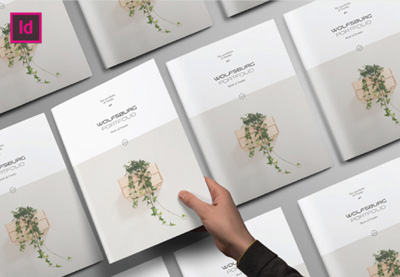 Brochure23 Creative InDesign Portfolio Templates (Best for 2019)Melody Nieves
 PortfoliosHow to Make a Portfolio Brochure Template in InDesignGrace Fussell
 PhotographyHow to Make an Attractive PDF Photography PortfolioChamira Young
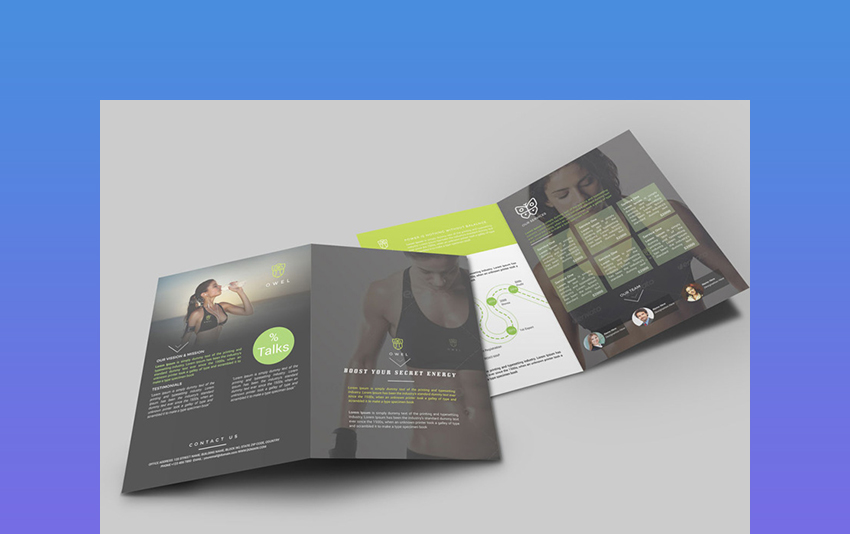
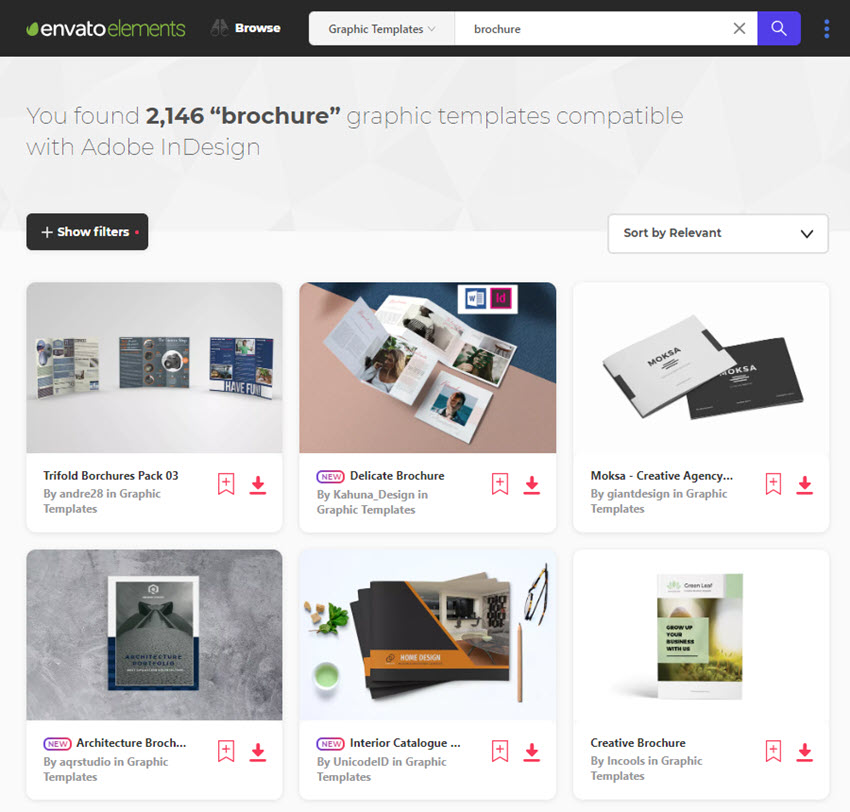
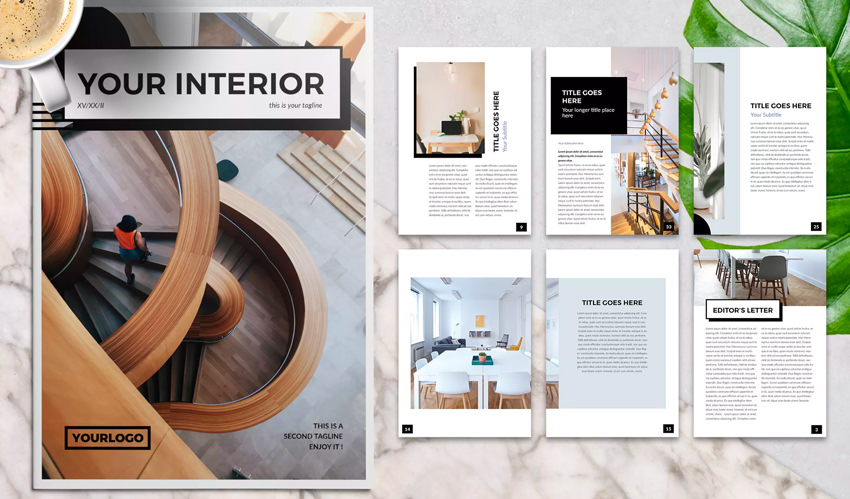
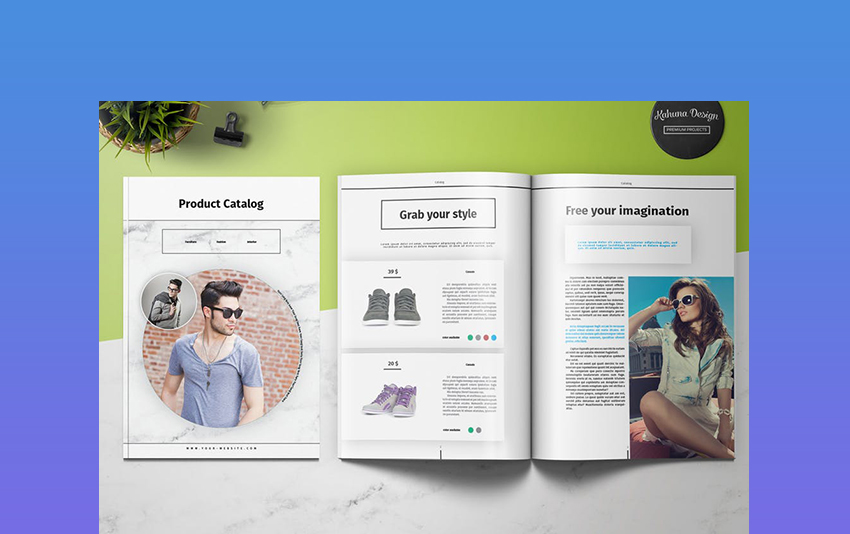


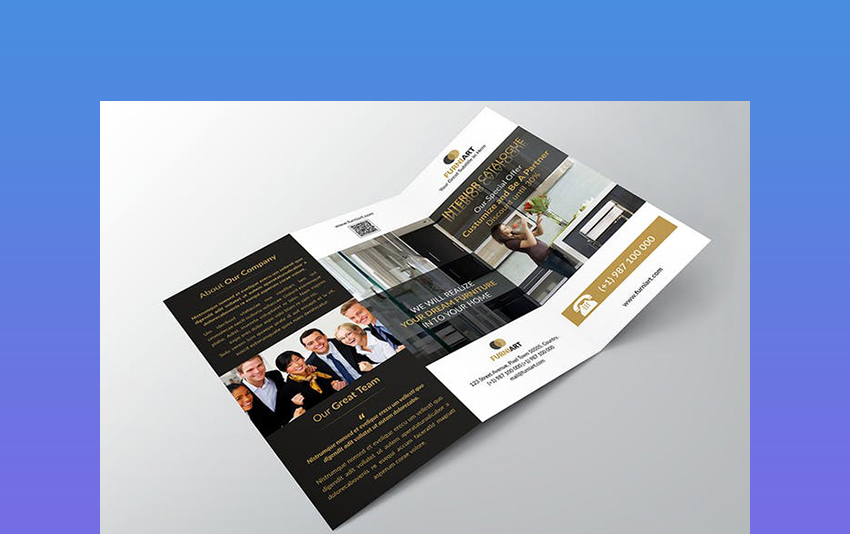


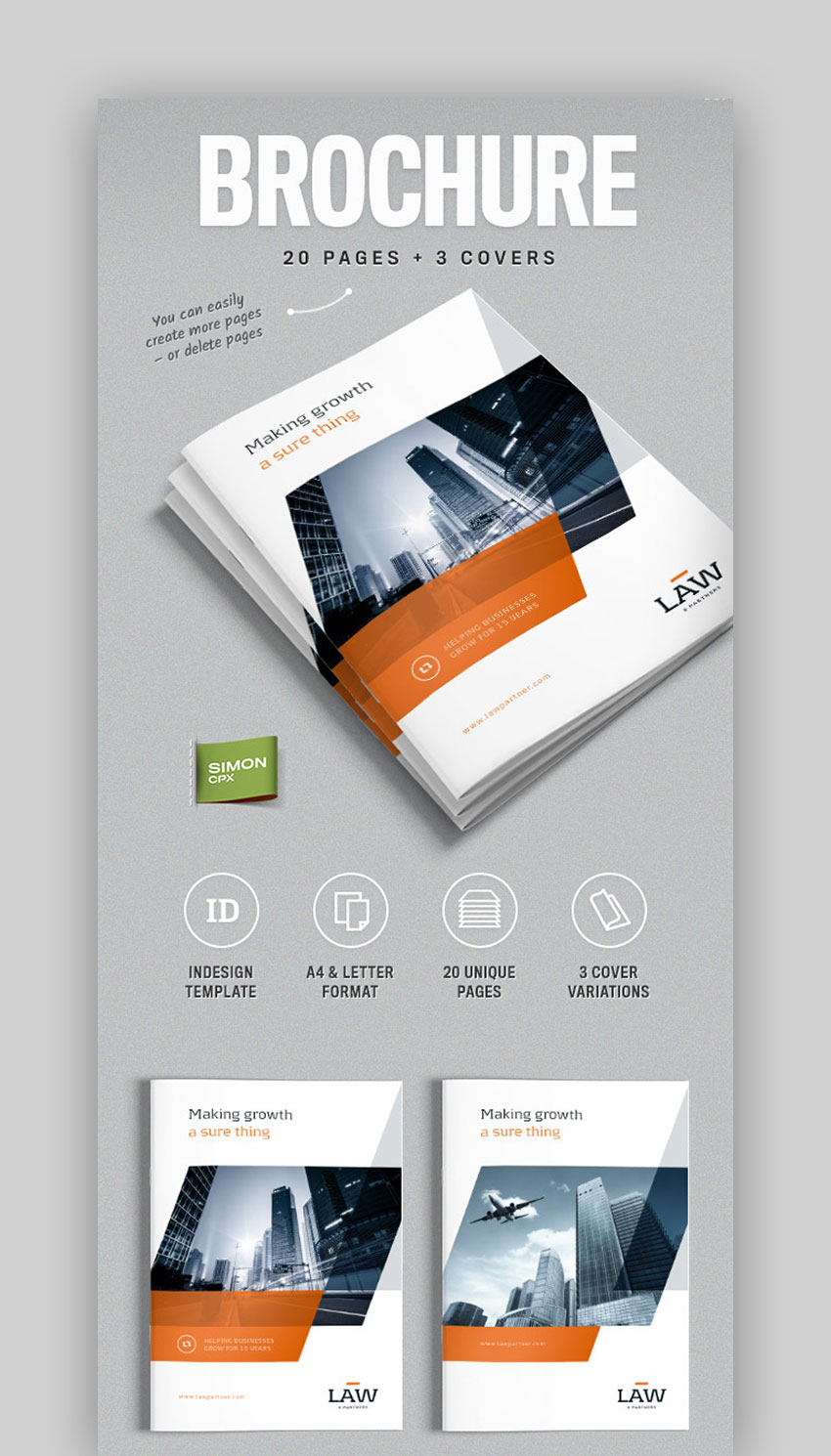


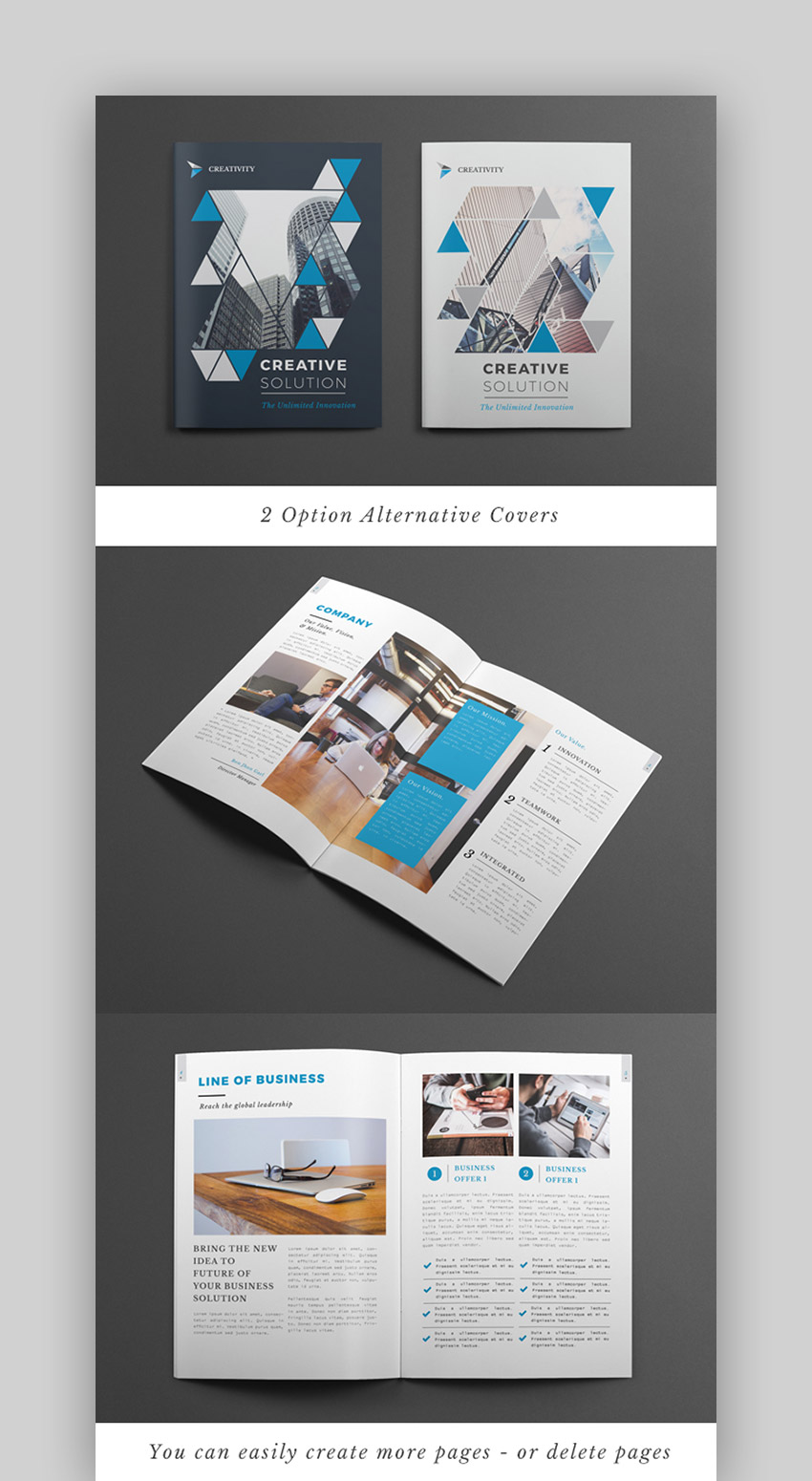


.jpg)


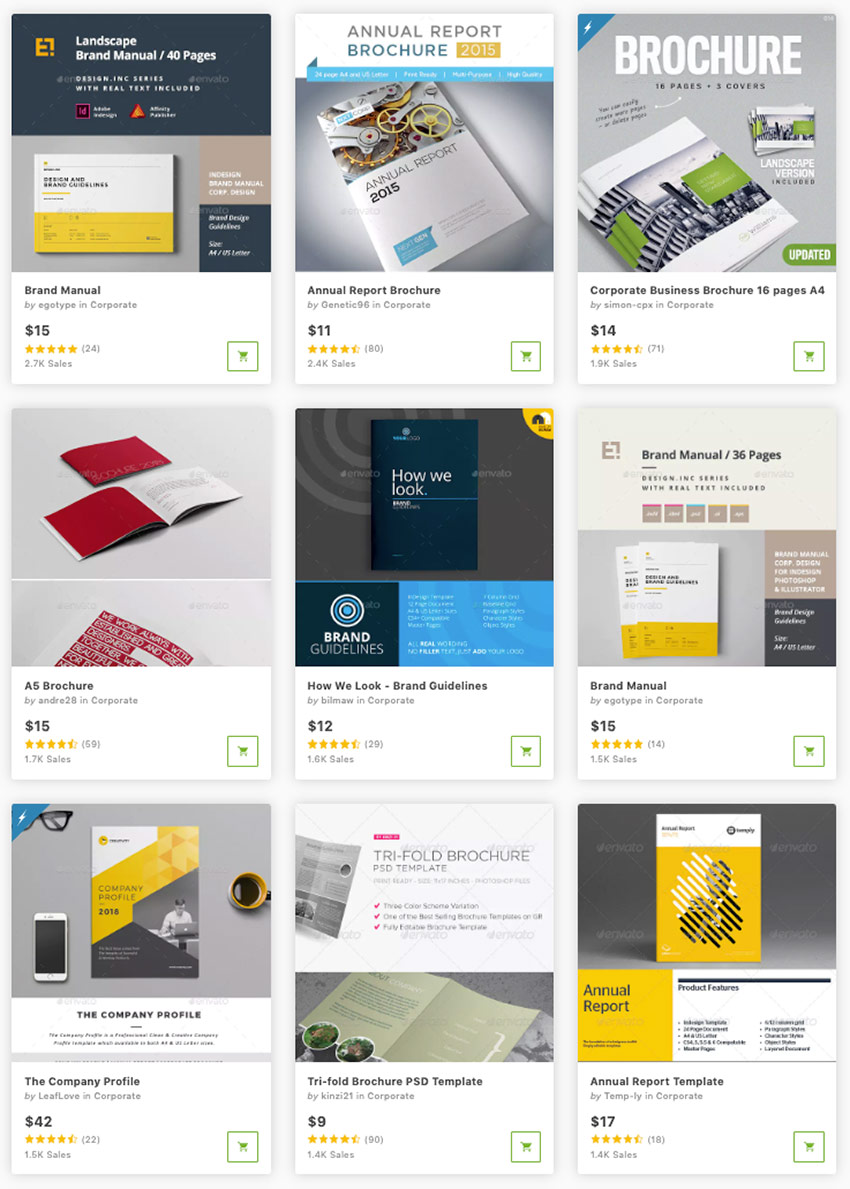


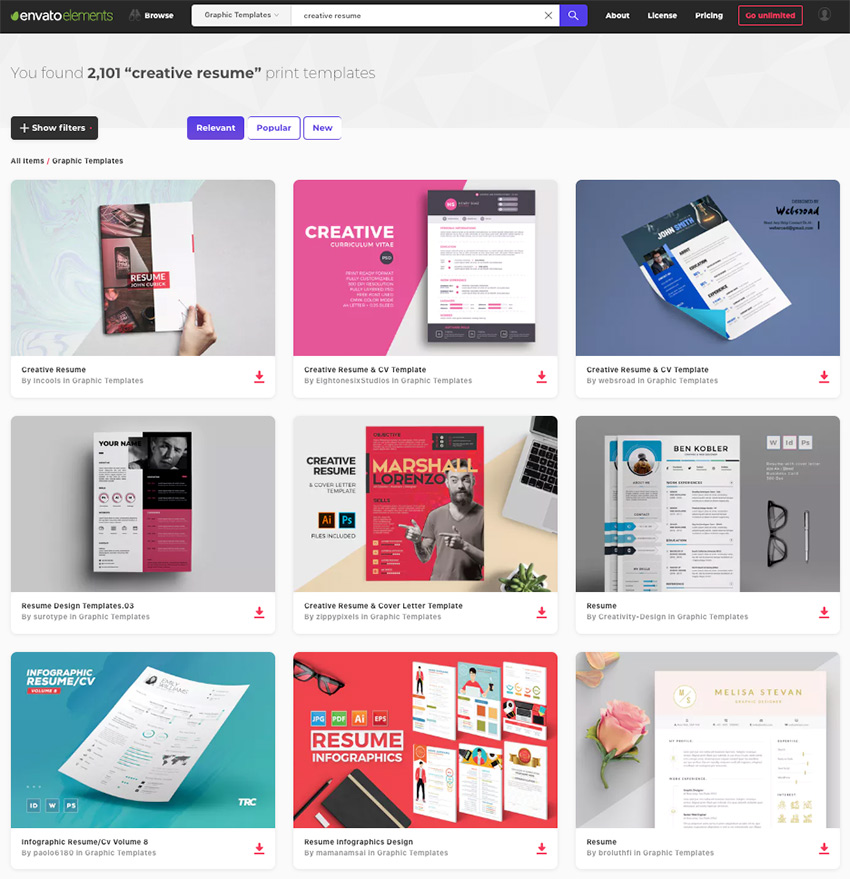


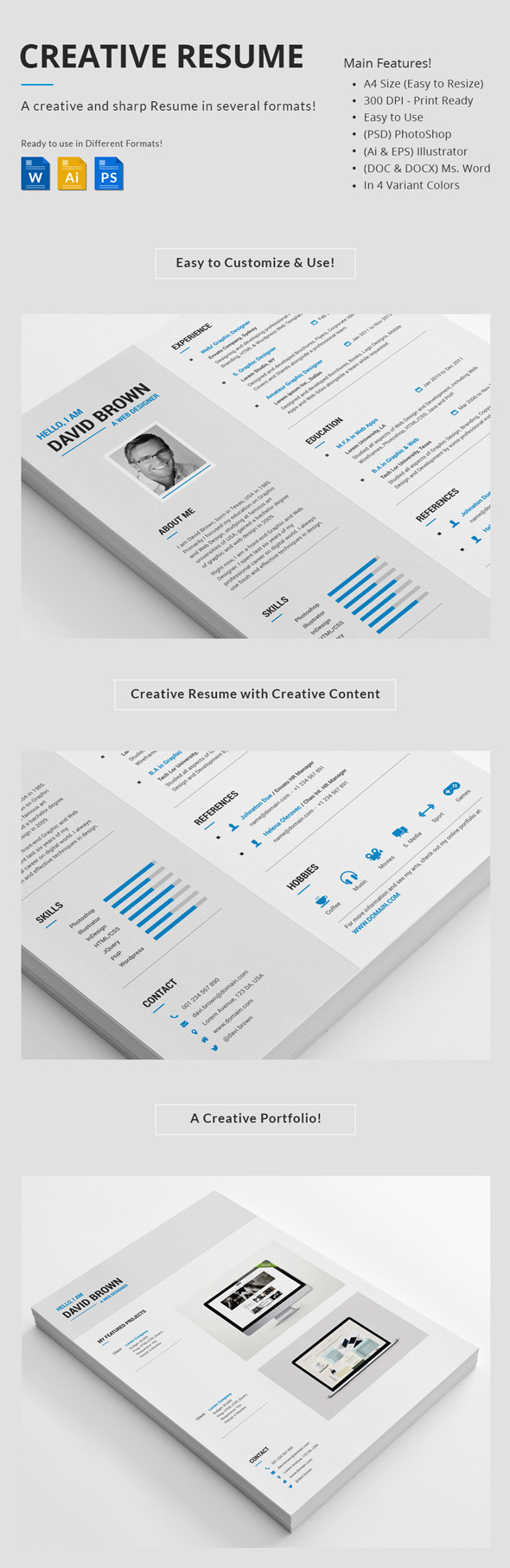

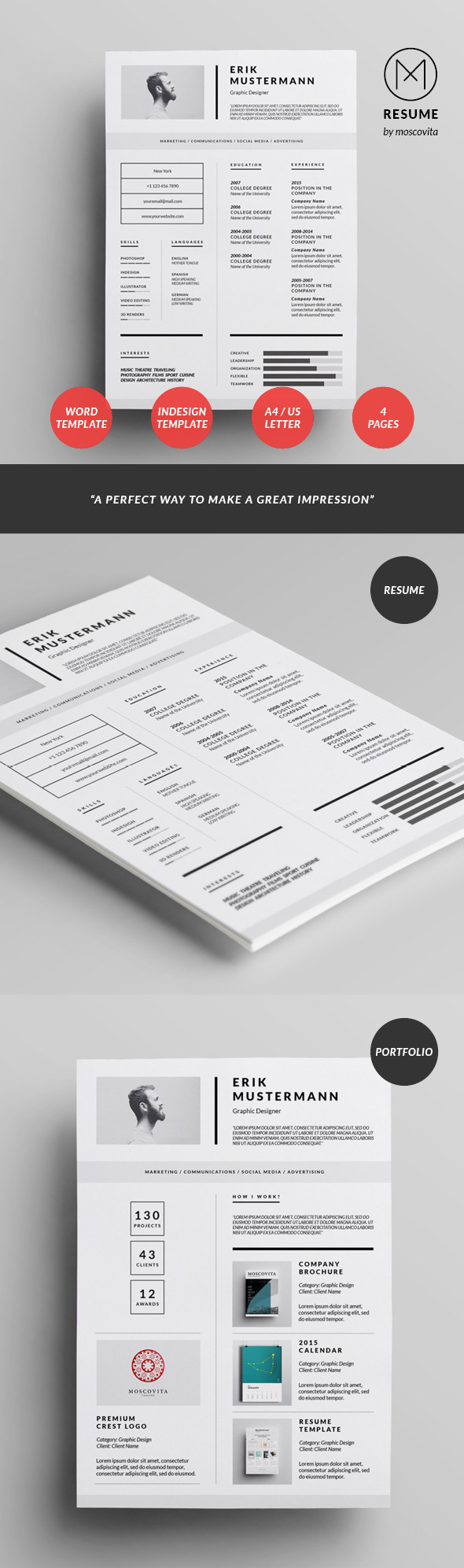
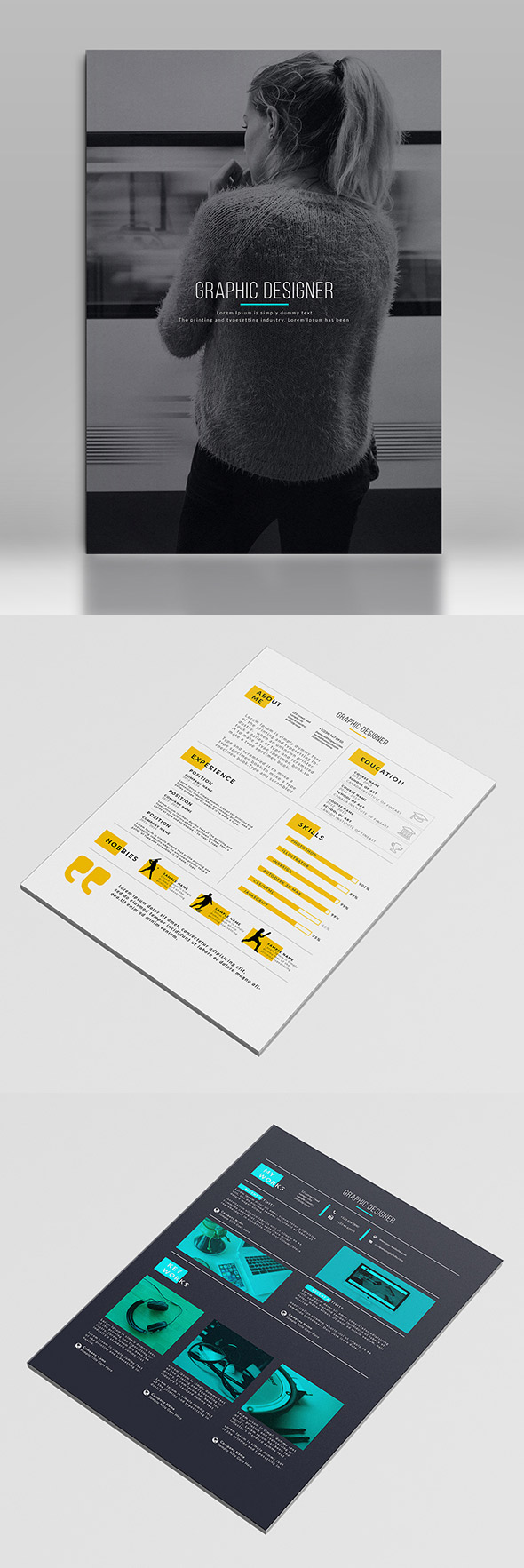

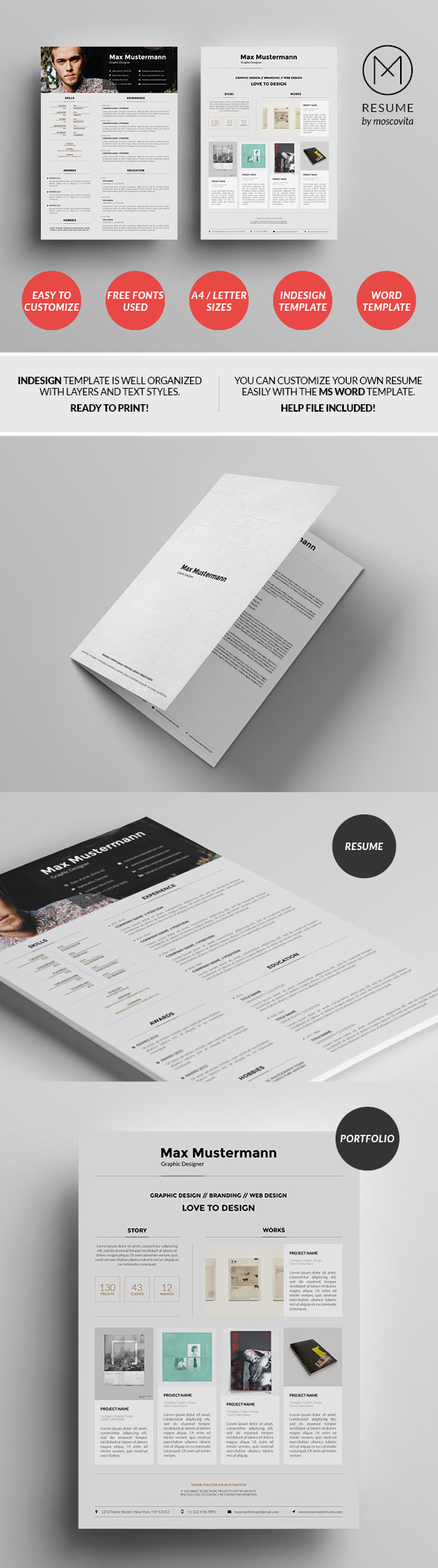
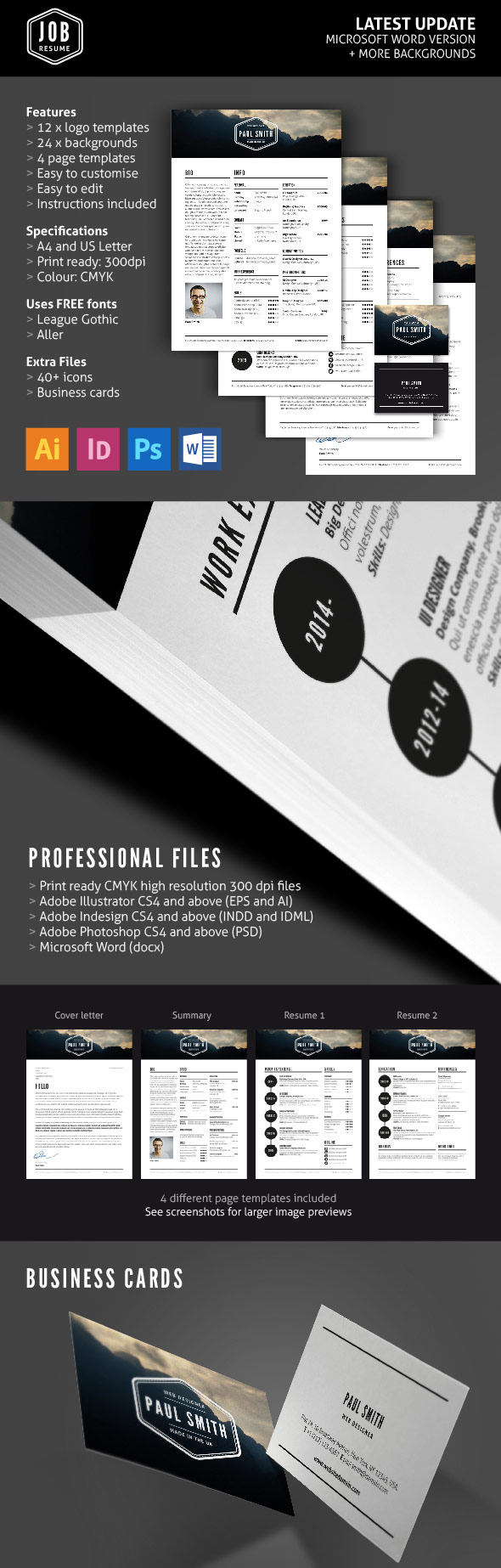


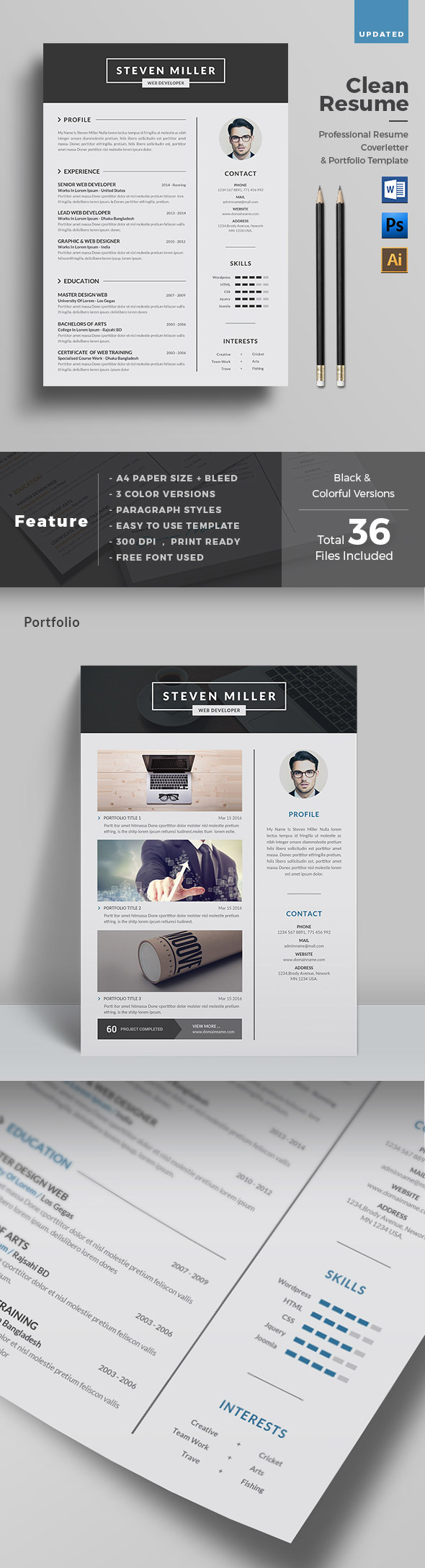

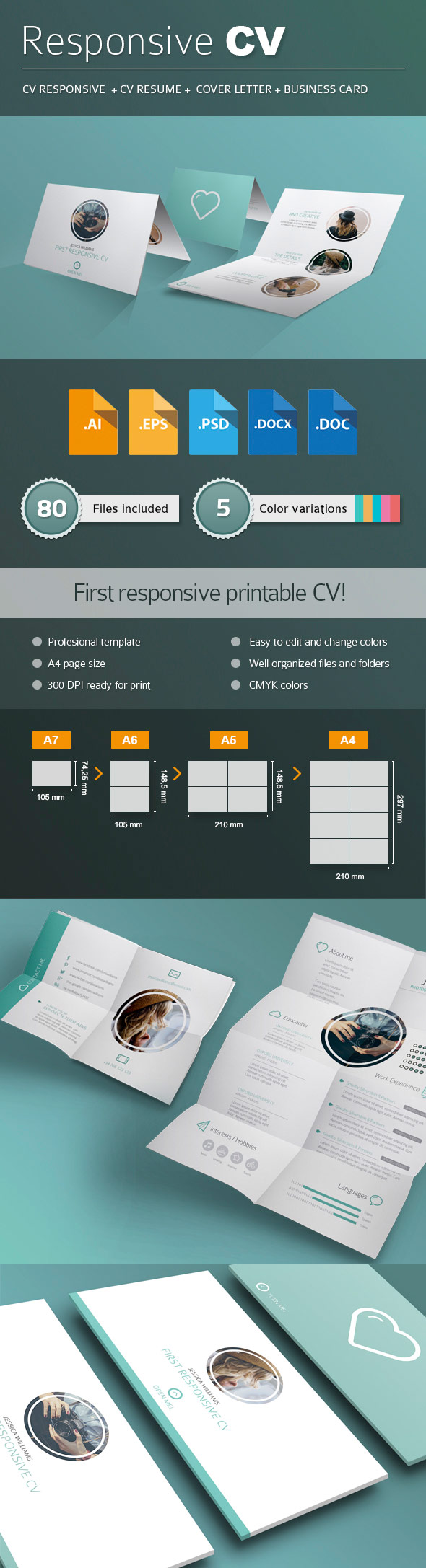
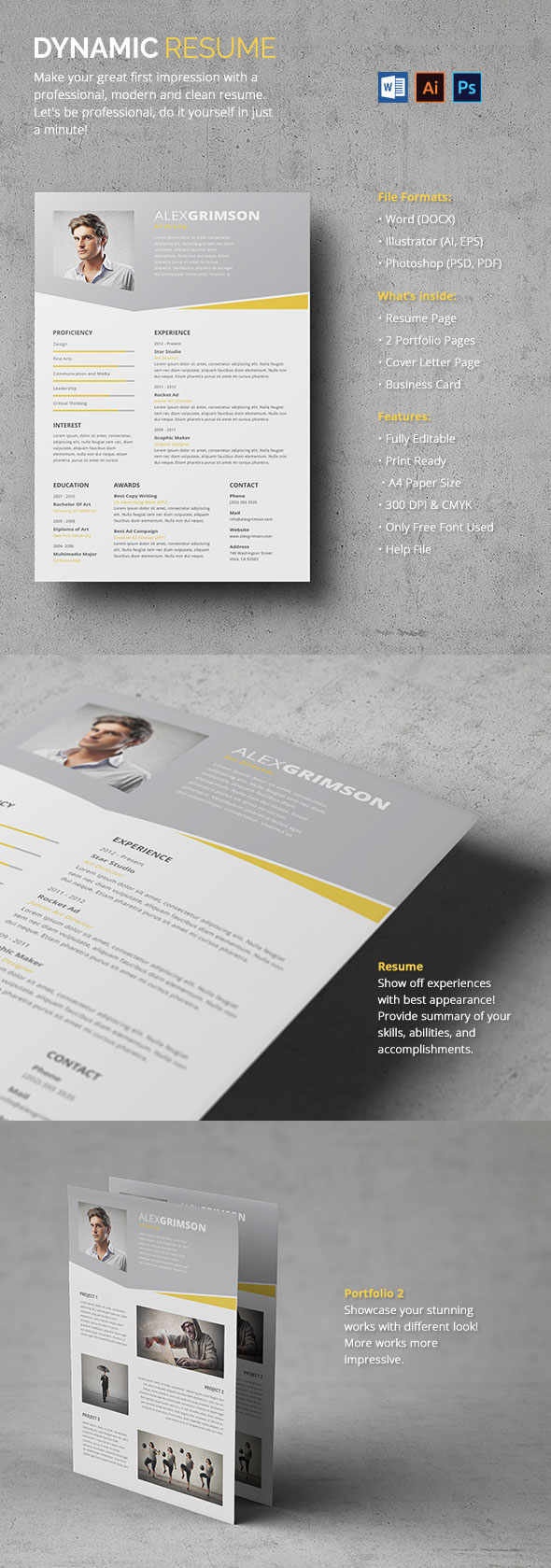
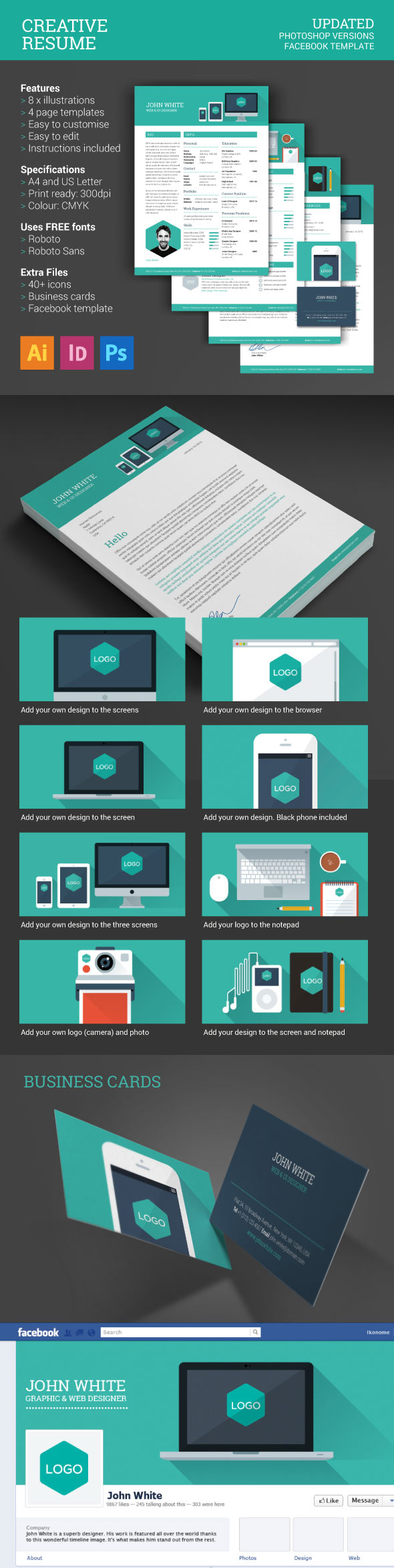

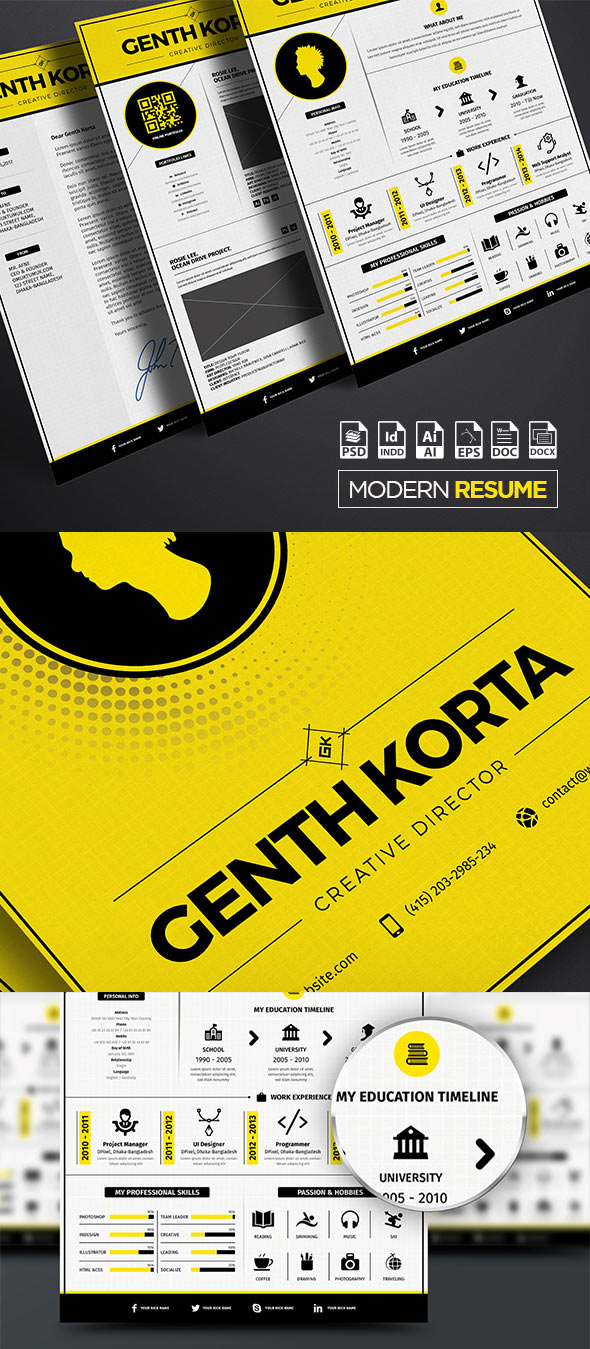


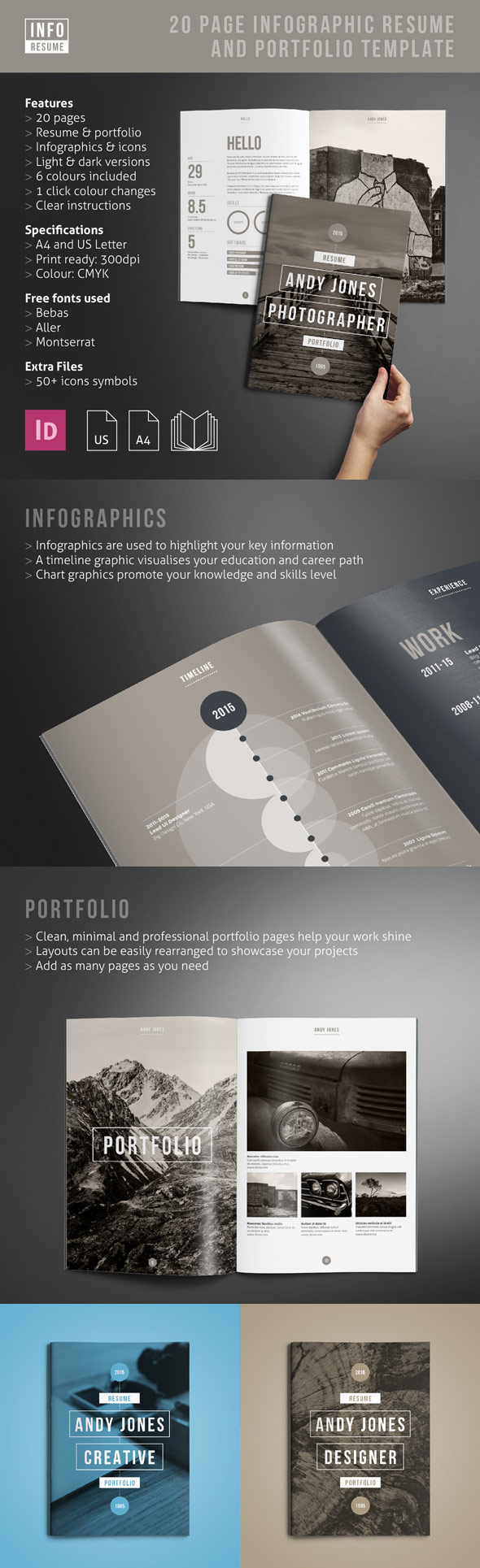


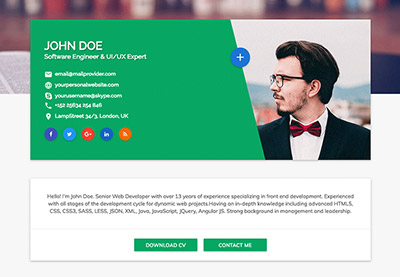
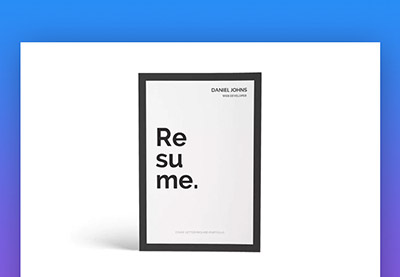


.jpg)
