Although retouching is an art that requires time and skill, Photoshop actions can automate some of the repetitive tasks. In this tutorial, I’ll show you how to create an action in Photoshop to automate one such task. Frequency separation allows you to edit the colors and textures separately, to retouch the skin without turning it into a plastic mask. With a frequency separation action, you’ll be able to do retouching much faster!
If you want to learn how to use Photoshop actions or what Photoshop actions are, you may want to check these tutorials first:
Open your photo in Photoshop. Make sure your image is the background layer. If not, go to Layer > New > Background from Layer.
Step 2
Create a New Action.
Step 3
Give it a name.
Step 4
Duplicate the layer twice by pressing Control-J. Name the lower layer Low Frequency and the upper one High Frequency. Hide the High Frequency layer.
Step 5
Select the Low Frequency layer and go to Filter > Blur > Gaussian Blur. Adjust the Radius to remove most of the details. We want this layer to contain colors, but not texture.
Step 6
Show the other layer and change its Blend Mode to Linear Light.
Step 7
Go to Filter > Other > High Pass. Adjust the Radius to bring the texture back. Keep it subtle, trying to avoid the glow.
Step 8
Click Stop Recording.
Step 9
The problem with this action is that every photo needs a different radius for blur and high pass. To make it more universal, check the square next to these positions on the list.
Step 10
Now, every time you play the action, you’ll be asked to adjust the Radius manually.
Step 11
Here’s where the action ends. Now you have two layers: Low Frequency contains colors, and High Frequency contains texture. You can edit them separately.
First, hide the High Frequency layer. Use the Healing Brush Tool(J) or the Clone Stamp Tool (S) to replace the colors and tones that you don’t want to see with colors from other areas. It may take a while, but with this method you don’t have to worry about losing texture in the process. You can focus completely on the colors.
Step 12
Next, show the High Frequency layer. Make sure that your Healing Brush is set to Current Layer only. Then repeat the process, this time filling the unwanted areas with the proper texture. Again, it may be time-consuming, depending on the task, but here you don’t need to care about the colors. You can borrow the texture from any area, regardless of its background. This makes the process much easier.
As you can see, Photoshop actions can make the process of retouching easier and faster. But more powerful actions can even do most of the work for you! For example, this set contains highly intelligent actions that utilize face detection to create frequency separation, and it offers an auto-retouch feature as well.
These actions let you retouch portraits in a fraction of the time
with only a beginner’s knowledge of Photoshop. You can mattify, airbrush,
and heal skin using the same techniques professionals use. This set contains tools like mattifier, lip enhancer, teeth whitener, and more.
From high-end magazine-quality editing to quick retouching for
everyday use, the “Beauty Box” is all you will need! This collection has
gone above and beyond any other beauty retouching set on the market, by
bringing you one-of-a-kind skin shade matching techniques and an
array of beautifully blended digital cosmetics.
This set offers a variety of effects that are easy to use and customize. After playing an action, simply open the action folder in the
layers palette and adjust each individual layer’s opacity and blending mode. You have the power to adjust as necessary to fine tune each action for
your personal needs.
Good Job!
Now you know how to create a frequency separation action in Photoshop. If you want to learn how to create other Photoshop actions, check out our tutorials:
Although retouching is an art that requires time and skill, Photoshop actions can automate some of the repetitive tasks. In this tutorial, I’ll show you how to create an action in Photoshop to automate one such task. Frequency separation allows you to edit the colors and textures separately, to retouch the skin without turning it into a plastic mask. With a frequency separation action, you’ll be able to do retouching much faster!
If you want to learn how to use Photoshop actions or what Photoshop actions are, you may want to check these tutorials first:
Open your photo in Photoshop. Make sure your image is the background layer. If not, go to Layer > New > Background from Layer.
Step 2
Create a New Action.
Step 3
Give it a name.
Step 4
Duplicate the layer twice by pressing Control-J. Name the lower layer Low Frequency and the upper one High Frequency. Hide the High Frequency layer.
Step 5
Select the Low Frequency layer and go to Filter > Blur > Gaussian Blur. Adjust the Radius to remove most of the details. We want this layer to contain colors, but not texture.
Step 6
Show the other layer and change its Blend Mode to Linear Light.
Step 7
Go to Filter > Other > High Pass. Adjust the Radius to bring the texture back. Keep it subtle, trying to avoid the glow.
Step 8
Click Stop Recording.
Step 9
The problem with this action is that every photo needs a different radius for blur and high pass. To make it more universal, check the square next to these positions on the list.
Step 10
Now, every time you play the action, you’ll be asked to adjust the Radius manually.
Step 11
Here’s where the action ends. Now you have two layers: Low Frequency contains colors, and High Frequency contains texture. You can edit them separately.
First, hide the High Frequency layer. Use the Healing Brush Tool(J) or the Clone Stamp Tool (S) to replace the colors and tones that you don’t want to see with colors from other areas. It may take a while, but with this method you don’t have to worry about losing texture in the process. You can focus completely on the colors.
Step 12
Next, show the High Frequency layer. Make sure that your Healing Brush is set to Current Layer only. Then repeat the process, this time filling the unwanted areas with the proper texture. Again, it may be time-consuming, depending on the task, but here you don’t need to care about the colors. You can borrow the texture from any area, regardless of its background. This makes the process much easier.
As you can see, Photoshop actions can make the process of retouching easier and faster. But more powerful actions can even do most of the work for you! For example, this set contains highly intelligent actions that utilize face detection to create frequency separation, and it offers an auto-retouch feature as well.
These actions let you retouch portraits in a fraction of the time
with only a beginner’s knowledge of Photoshop. You can mattify, airbrush,
and heal skin using the same techniques professionals use. This set contains tools like mattifier, lip enhancer, teeth whitener, and more.
From high-end magazine-quality editing to quick retouching for
everyday use, the “Beauty Box” is all you will need! This collection has
gone above and beyond any other beauty retouching set on the market, by
bringing you one-of-a-kind skin shade matching techniques and an
array of beautifully blended digital cosmetics.
This set offers a variety of effects that are easy to use and customize. After playing an action, simply open the action folder in the
layers palette and adjust each individual layer’s opacity and blending mode. You have the power to adjust as necessary to fine tune each action for
your personal needs.
Good Job!
Now you know how to create a frequency separation action in Photoshop. If you want to learn how to create other Photoshop actions, check out our tutorials:
Adobe Illustrator has many powerful tools and unique features. And one among them is Illustrator’s Paintbrush Tool (B). Brushes can be applied to paths and strokes, and they are great for creating stunning stroked designs in seconds. And the best part about Illustrator’s brushes is that they are vectors and can be completely modified to suit your needs by changing their colors, stroke width, weight, and more. Let’s take a look at a massive selection of Illustrator brushes available on the web!
If you’re looking for premium quality brushes, though, choose from the assortment of creative and unique Illustrator brushes available on Envato Elements.
In this article, you will find a huge compilation of excellent and
stunning sets of free Illustrator brushes on the web, such as floral
flourishes, swirls, foliage brushes, sketch brushes, watercolor brushes,
chains, ropes, beautiful border brushes, Christmas themes, snowflakes,
beads, gem brushes, and more. You name it, we’ve got it! And we’ve brought them all here just for you!
Here’s a cute set of hand-drawn ink borders perfect for any creative. Enjoy various styles and shapes for your design projects. These are a great set of Illustrator ink brushes.
Travel the world through your creative projects. This set of Japanese-inspired brushes includes textural calligraphy brushes intended for designers and creatives.
A brush to make your strokes look as if they were drawn with a pencil. Thin where the stroke begins, wider in the middle, and back to thin where the stroke ends.
Here’s a great set of pastel-inspired watercolor vector brushes for every Illustrator lover. Enjoy colorful shapes and abstract designs for print, web, and so much more.
Created by designer Ray Dombroski, this hand-drawn vector brush includes a highly detailed rope design. It also works well with versions of Adobe Illustrator CC.
Create a realistic wire fence with this set of razor wire brushes. Inspired by metal roping, this vector set includes ten curvy and straight razor wire brushes.
If you’re looking for a great investment then why not give these premium Illustrator brushes a shot? Designed by talented creative professionals, these brushes have been hand-picked from both GraphicRiver and Envato Elements.
Need a one-stop shop for great Illustrator brushes? Check out this amazing pack of 56 varied styles to cover everything you need to work digitally. It includes everything from traditional art textures to clean patterns and shapes, so you’ll be able to use this brush pack in many creative projects.
If you like the serene feel of sailing on the open seas then you’ll probably fancy these Illustrator brushes as well. Inspired by the classic rope styles found in nautical designs, this package features eight different brushes perfectly created with no gaps or glitches!
Create amazing vintage shading effects with this incredible set of stipple brushes. Designed for both Adobe Illustrator and Photoshop, this brush set lets you create authentic stippling textures in just seconds! Use it for print, web, and app design.
Are you having trouble creating hair in Illustrator? Then give these wonderful brushes a try! This awesome package comes with 17 easy hair brushes that can create a variety of hairstyles and work well with different colors. No professional graphics tablet necessary—you can enjoy these brushes with your regular mouse too!
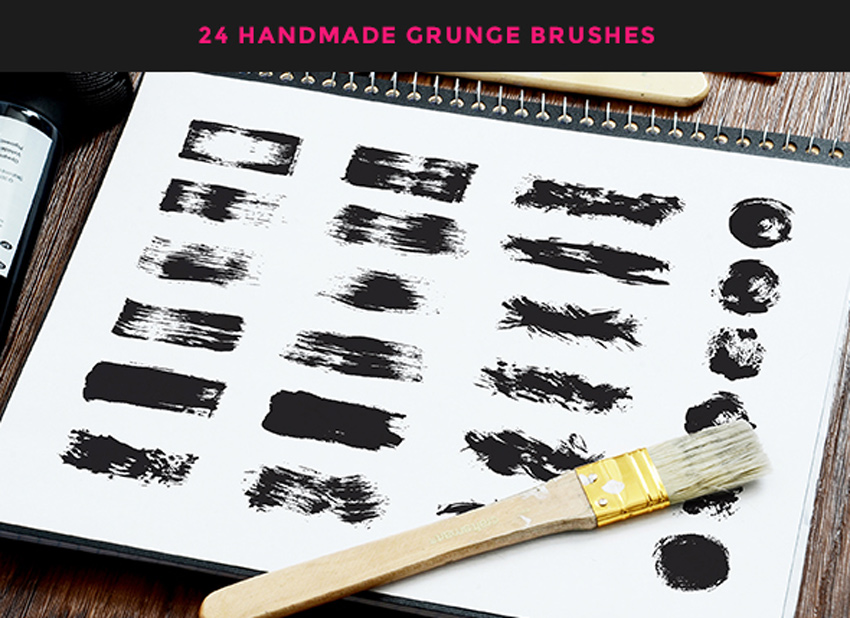
Set up your projects with incredible details with this set of handmade grunge brushes for Illustrator. This pack of Adobe Illustrator assets includes 24 hand-drawn designs created with real dry paint brush textures. Enjoy!
Realistic smoke effects may seem hard to create in Adobe Illustrator. Now you can mimic the real thing with this set of Illustrator smoke brushes. This set includes eight high-quality vector brushes for Adobe Illustrator CS5 or higher.
Borders can be a great finishing detail to any design. And now you have 105 amazing border brushes to choose from! In this incredible package, you’ll find an array of border brushes, from pattern brushes to separators and so much more!
Achieve that gorgeous halftone look with this Illustrator brush set! This amazing package includes 26 halftone brushes that come in two unique styles. Decorate your designs with that messy screen-tone look, or distribute the effect evenly with cleaner lines.
Love traditional art textures? Enjoy high-quality distressing brushes with this set of sponge-inspired Adobe Illustrator assets. This massive pack includes 56 highly textured art and scatter brushes for all your creative projects.
Cool down your designs with this fun icicle Illustrator brush set. This set of brushes comes with five incredible frozen variations that are extremely easy to use! Turn your paths into a string of icicles with just one simple click!
If you have a soft spot for fashion design then you’ll definitely love these lace brushes. These unique vector brushes simulate realistic lace trim details to add that extra pop to your designs. Included are seven different laces to add style to your fashion illustrations.
Ideal for type effects, this pack of Adobe Illustrator scatter brushes features grit, grain and grudge designs. Use them for illustrations like the image below or for subtle decorations on your work. Included in this pack are 24 Illustrator brushes and a quick help guide.
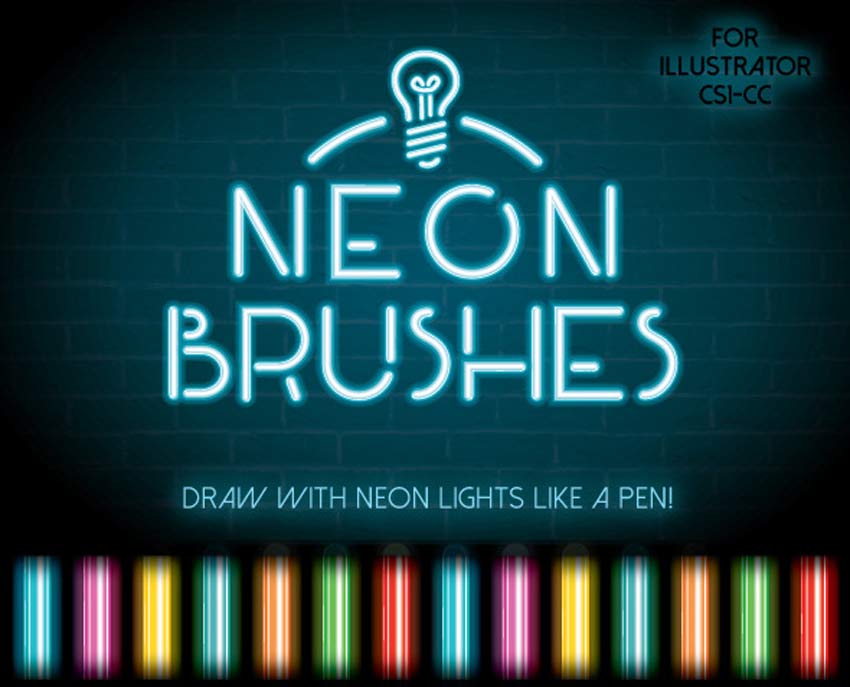
Illuminate your designs with these professional neon brushes! Carefully crafted to help draw bright neon lines just like a pen, these brushes come in a variety of glows, contrasts, and line types to satisfy all your design needs.
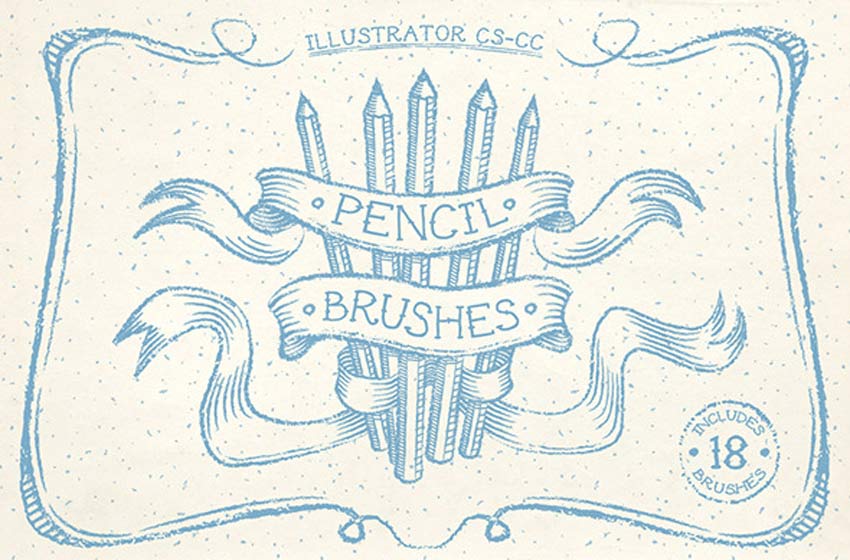
If you’re an artist who loves to draw with the classic pencil and paper setup, then you’re sure to love these brushes! Designed to give you that traditional feel, this set includes 18 art brushes hand-drawn to give your designs that handmade look!
Ribbons are a great way to make an announcement, highlight an important headline, or display a new sale. And you have the choice between 21 amazing ribbon styles with this flat Illustrator brush set. Simply create a curve, set the brush and color, and change the thickness for the perfect ribbon!
Create beautiful handmade illustrations with this set of gorgeous Illustrator brushes. Included in this package are 35 awesome lino-cut brushes designed to give your illustrations that rustic, hand-carved look.
Create gorgeous wooden backgrounds or pristine flooring with these wooden Illustrator brushes. This awesome set features 60 wood brushes created by hand, to give your art a beautiful natural finish.
Try not to cut yourself with this awesome set of 52 cut-edge Illustrator brushes. The ultimate set for achieving that digital woodcut look, this package features amazing lino-cut brushes that work great for line art too!
Every artist could use a selection of the essentials in their design kit. And you’ll be happy you went with this incredible set of essential art brushes for Adobe Illustrator. Download this package to gain access to 28 artistic brushes to add texture to your designs.
Add subtle gradients and shadows to your illustrations with ease. This amazing set of high-quality brushes was designed to help you easily make texture shades. Choose from 22 unique brushes to shade, add texture, or create line art for your illustrative work.
Add a little imperfection to your designs with this awesome print texture brush set. With special attention paid to the flaws and subtle marks left over from under-inked printing, these brushes are ideal for adding texture to your work. Choose from dozens of brushes to give your designs that vintage look.
Get crafty with this fun set of Illustrator stitch brushes! If you need an easy way to add instant charm to your designs, add a little stitching to your work. This set of 19 highly detailed pattern brushes allows you to apply the effect fast and easily to your own brush work. Bonus Christmas and Valentine-themed stitches also included!
You’ll be tempted to let your work dry after using these realistic painted canvas brushes. Designed to give you that traditional painterly feel, this set of 67 brushes comes complete with standard, angled, and messy brushes to fulfill your artistic needs.
Feeling a little chained to your designs? Well you can add a unique realistic chain to your work with these fun Illustrator chain brushes. Choose from a variety of brush styles and add that extra pizazz to your borders, dividers, or illustrations.
The beauty of working digitally is that you can still achieve the look of traditional art but with scalable elements. In this set of amazing watercolor brushes, choose from 83 high-quality handmade brushes to fit a variety of occasions.
Adobe Illustrator Brush Resources
If you need a professional solution, our vector Illustrator Brushes are available for purchase on GraphicRiver. We have a large, premium assortment to choose from, with straightforward usage rights and excellent creative options. But here are a few more free Adobe Illustrator Brush resources as well, if you just can’t get enough of them:
Adobe Illustrator has many powerful tools and unique features. And one among them is Illustrator’s Paintbrush Tool (B). Brushes can be applied to paths and strokes, and they are great for creating stunning stroked designs in seconds. And the best part about Illustrator’s brushes is that they are vectors and can be completely modified to suit your needs by changing their colors, stroke width, weight, and more. Let’s take a look at a massive selection of Illustrator brushes available on the web!
If you’re looking for premium quality brushes, though, choose from the assortment of creative and unique Illustrator brushes available on Envato Elements.
In this article, you will find a huge compilation of excellent and
stunning sets of free Illustrator brushes on the web, such as floral
flourishes, swirls, foliage brushes, sketch brushes, watercolor brushes,
chains, ropes, beautiful border brushes, Christmas themes, snowflakes,
beads, gem brushes, and more. You name it, we’ve got it! And we’ve brought them all here just for you!
Here’s a cute set of hand-drawn ink borders perfect for any creative. Enjoy various styles and shapes for your design projects. These are a great set of Illustrator ink brushes.
Travel the world through your creative projects. This set of Japanese-inspired brushes includes textural calligraphy brushes intended for designers and creatives.
A brush to make your strokes look as if they were drawn with a pencil. Thin where the stroke begins, wider in the middle, and back to thin where the stroke ends.
Here’s a great set of pastel-inspired watercolor vector brushes for every Illustrator lover. Enjoy colorful shapes and abstract designs for print, web, and so much more.
Created by designer Ray Dombroski, this hand-drawn vector brush includes a highly detailed rope design. It also works well with versions of Adobe Illustrator CC.
Create a realistic wire fence with this set of razor wire brushes. Inspired by metal roping, this vector set includes ten curvy and straight razor wire brushes.
If you’re looking for a great investment then why not give these premium Illustrator brushes a shot? Designed by talented creative professionals, these brushes have been hand-picked from both GraphicRiver and Envato Elements.
Need a one-stop shop for great Illustrator brushes? Check out this amazing pack of 56 varied styles to cover everything you need to work digitally. It includes everything from traditional art textures to clean patterns and shapes, so you’ll be able to use this brush pack in many creative projects.
If you like the serene feel of sailing on the open seas then you’ll probably fancy these Illustrator brushes as well. Inspired by the classic rope styles found in nautical designs, this package features eight different brushes perfectly created with no gaps or glitches!
Create amazing vintage shading effects with this incredible set of stipple brushes. Designed for both Adobe Illustrator and Photoshop, this brush set lets you create authentic stippling textures in just seconds! Use it for print, web, and app design.
Are you having trouble creating hair in Illustrator? Then give these wonderful brushes a try! This awesome package comes with 17 easy hair brushes that can create a variety of hairstyles and work well with different colors. No professional graphics tablet necessary—you can enjoy these brushes with your regular mouse too!
Set up your projects with incredible details with this set of handmade grunge brushes for Illustrator. This pack of Adobe Illustrator assets includes 24 hand-drawn designs created with real dry paint brush textures. Enjoy!
Realistic smoke effects may seem hard to create in Adobe Illustrator. Now you can mimic the real thing with this set of Illustrator smoke brushes. This set includes eight high-quality vector brushes for Adobe Illustrator CS5 or higher.
Borders can be a great finishing detail to any design. And now you have 105 amazing border brushes to choose from! In this incredible package, you’ll find an array of border brushes, from pattern brushes to separators and so much more!
Achieve that gorgeous halftone look with this Illustrator brush set! This amazing package includes 26 halftone brushes that come in two unique styles. Decorate your designs with that messy screen-tone look, or distribute the effect evenly with cleaner lines.
Love traditional art textures? Enjoy high-quality distressing brushes with this set of sponge-inspired Adobe Illustrator assets. This massive pack includes 56 highly textured art and scatter brushes for all your creative projects.
Cool down your designs with this fun icicle Illustrator brush set. This set of brushes comes with five incredible frozen variations that are extremely easy to use! Turn your paths into a string of icicles with just one simple click!
If you have a soft spot for fashion design then you’ll definitely love these lace brushes. These unique vector brushes simulate realistic lace trim details to add that extra pop to your designs. Included are seven different laces to add style to your fashion illustrations.
Ideal for type effects, this pack of Adobe Illustrator scatter brushes features grit, grain and grudge designs. Use them for illustrations like the image below or for subtle decorations on your work. Included in this pack are 24 Illustrator brushes and a quick help guide.
Illuminate your designs with these professional neon brushes! Carefully crafted to help draw bright neon lines just like a pen, these brushes come in a variety of glows, contrasts, and line types to satisfy all your design needs.
If you’re an artist who loves to draw with the classic pencil and paper setup, then you’re sure to love these brushes! Designed to give you that traditional feel, this set includes 18 art brushes hand-drawn to give your designs that handmade look!
Ribbons are a great way to make an announcement, highlight an important headline, or display a new sale. And you have the choice between 21 amazing ribbon styles with this flat Illustrator brush set. Simply create a curve, set the brush and color, and change the thickness for the perfect ribbon!
Create beautiful handmade illustrations with this set of gorgeous Illustrator brushes. Included in this package are 35 awesome lino-cut brushes designed to give your illustrations that rustic, hand-carved look.
Create gorgeous wooden backgrounds or pristine flooring with these wooden Illustrator brushes. This awesome set features 60 wood brushes created by hand, to give your art a beautiful natural finish.
Try not to cut yourself with this awesome set of 52 cut-edge Illustrator brushes. The ultimate set for achieving that digital woodcut look, this package features amazing lino-cut brushes that work great for line art too!
Every artist could use a selection of the essentials in their design kit. And you’ll be happy you went with this incredible set of essential art brushes for Adobe Illustrator. Download this package to gain access to 28 artistic brushes to add texture to your designs.
Add subtle gradients and shadows to your illustrations with ease. This amazing set of high-quality brushes was designed to help you easily make texture shades. Choose from 22 unique brushes to shade, add texture, or create line art for your illustrative work.
Add a little imperfection to your designs with this awesome print texture brush set. With special attention paid to the flaws and subtle marks left over from under-inked printing, these brushes are ideal for adding texture to your work. Choose from dozens of brushes to give your designs that vintage look.
Get crafty with this fun set of Illustrator stitch brushes! If you need an easy way to add instant charm to your designs, add a little stitching to your work. This set of 19 highly detailed pattern brushes allows you to apply the effect fast and easily to your own brush work. Bonus Christmas and Valentine-themed stitches also included!
You’ll be tempted to let your work dry after using these realistic painted canvas brushes. Designed to give you that traditional painterly feel, this set of 67 brushes comes complete with standard, angled, and messy brushes to fulfill your artistic needs.
Feeling a little chained to your designs? Well you can add a unique realistic chain to your work with these fun Illustrator chain brushes. Choose from a variety of brush styles and add that extra pizazz to your borders, dividers, or illustrations.
The beauty of working digitally is that you can still achieve the look of traditional art but with scalable elements. In this set of amazing watercolor brushes, choose from 83 high-quality handmade brushes to fit a variety of occasions.
Adobe Illustrator Brush Resources
If you need a professional solution, our vector Illustrator Brushes are available for purchase on GraphicRiver. We have a large, premium assortment to choose from, with straightforward usage rights and excellent creative options. But here are a few more free Adobe Illustrator Brush resources as well, if you just can’t get enough of them:
Adobe Illustrator has many powerful tools and unique features. And one among them is Illustrator’s Paintbrush Tool (B). Brushes can be applied to paths and strokes, and they are great for creating stunning stroked designs in seconds. And the best part about Illustrator’s brushes is that they are vectors and can be completely modified to suit your needs by changing their colors, stroke width, weight, and more. Let’s take a look at a massive selection of Illustrator brushes available on the web!
If you’re looking for premium quality brushes, though, choose from the assortment of creative and unique Illustrator brushes available on Envato Elements.
In this article, you will find a huge compilation of excellent and
stunning sets of free Illustrator brushes on the web, such as floral
flourishes, swirls, foliage brushes, sketch brushes, watercolor brushes,
chains, ropes, beautiful border brushes, Christmas themes, snowflakes,
beads, gem brushes, and more. You name it, we’ve got it! And we’ve brought them all here just for you!
Here’s a cute set of hand-drawn ink borders perfect for any creative. Enjoy various styles and shapes for your design projects. These are a great set of Illustrator ink brushes.
Travel the world through your creative projects. This set of Japanese-inspired brushes includes textural calligraphy brushes intended for designers and creatives.
A brush to make your strokes look as if they were drawn with a pencil. Thin where the stroke begins, wider in the middle, and back to thin where the stroke ends.
Here’s a great set of pastel-inspired watercolor vector brushes for every Illustrator lover. Enjoy colorful shapes and abstract designs for print, web, and so much more.
Created by designer Ray Dombroski, this hand-drawn vector brush includes a highly detailed rope design. It also works well with versions of Adobe Illustrator CC.
Create a realistic wire fence with this set of razor wire brushes. Inspired by metal roping, this vector set includes ten curvy and straight razor wire brushes.
If you’re looking for a great investment then why not give these premium Illustrator brushes a shot? Designed by talented creative professionals, these brushes have been hand-picked from both GraphicRiver and Envato Elements.
Need a one-stop shop for great Illustrator brushes? Check out this amazing pack of 56 varied styles to cover everything you need to work digitally. It includes everything from traditional art textures to clean patterns and shapes, so you’ll be able to use this brush pack in many creative projects.
If you like the serene feel of sailing on the open seas then you’ll probably fancy these Illustrator brushes as well. Inspired by the classic rope styles found in nautical designs, this package features eight different brushes perfectly created with no gaps or glitches!
Create amazing vintage shading effects with this incredible set of stipple brushes. Designed for both Adobe Illustrator and Photoshop, this brush set lets you create authentic stippling textures in just seconds! Use it for print, web, and app design.
Are you having trouble creating hair in Illustrator? Then give these wonderful brushes a try! This awesome package comes with 17 easy hair brushes that can create a variety of hairstyles and work well with different colors. No professional graphics tablet necessary—you can enjoy these brushes with your regular mouse too!
Set up your projects with incredible details with this set of handmade grunge brushes for Illustrator. This pack of Adobe Illustrator assets includes 24 hand-drawn designs created with real dry paint brush textures. Enjoy!
Realistic smoke effects may seem hard to create in Adobe Illustrator. Now you can mimic the real thing with this set of Illustrator smoke brushes. This set includes eight high-quality vector brushes for Adobe Illustrator CS5 or higher.
Borders can be a great finishing detail to any design. And now you have 105 amazing border brushes to choose from! In this incredible package, you’ll find an array of border brushes, from pattern brushes to separators and so much more!
Achieve that gorgeous halftone look with this Illustrator brush set! This amazing package includes 26 halftone brushes that come in two unique styles. Decorate your designs with that messy screen-tone look, or distribute the effect evenly with cleaner lines.
Love traditional art textures? Enjoy high-quality distressing brushes with this set of sponge-inspired Adobe Illustrator assets. This massive pack includes 56 highly textured art and scatter brushes for all your creative projects.
Cool down your designs with this fun icicle Illustrator brush set. This set of brushes comes with five incredible frozen variations that are extremely easy to use! Turn your paths into a string of icicles with just one simple click!
If you have a soft spot for fashion design then you’ll definitely love these lace brushes. These unique vector brushes simulate realistic lace trim details to add that extra pop to your designs. Included are seven different laces to add style to your fashion illustrations.
Ideal for type effects, this pack of Adobe Illustrator scatter brushes features grit, grain and grudge designs. Use them for illustrations like the image below or for subtle decorations on your work. Included in this pack are 24 Illustrator brushes and a quick help guide.
Illuminate your designs with these professional neon brushes! Carefully crafted to help draw bright neon lines just like a pen, these brushes come in a variety of glows, contrasts, and line types to satisfy all your design needs.
If you’re an artist who loves to draw with the classic pencil and paper setup, then you’re sure to love these brushes! Designed to give you that traditional feel, this set includes 18 art brushes hand-drawn to give your designs that handmade look!
Ribbons are a great way to make an announcement, highlight an important headline, or display a new sale. And you have the choice between 21 amazing ribbon styles with this flat Illustrator brush set. Simply create a curve, set the brush and color, and change the thickness for the perfect ribbon!
Create beautiful handmade illustrations with this set of gorgeous Illustrator brushes. Included in this package are 35 awesome lino-cut brushes designed to give your illustrations that rustic, hand-carved look.
Create gorgeous wooden backgrounds or pristine flooring with these wooden Illustrator brushes. This awesome set features 60 wood brushes created by hand, to give your art a beautiful natural finish.
Try not to cut yourself with this awesome set of 52 cut-edge Illustrator brushes. The ultimate set for achieving that digital woodcut look, this package features amazing lino-cut brushes that work great for line art too!
Every artist could use a selection of the essentials in their design kit. And you’ll be happy you went with this incredible set of essential art brushes for Adobe Illustrator. Download this package to gain access to 28 artistic brushes to add texture to your designs.
Add subtle gradients and shadows to your illustrations with ease. This amazing set of high-quality brushes was designed to help you easily make texture shades. Choose from 22 unique brushes to shade, add texture, or create line art for your illustrative work.
Add a little imperfection to your designs with this awesome print texture brush set. With special attention paid to the flaws and subtle marks left over from under-inked printing, these brushes are ideal for adding texture to your work. Choose from dozens of brushes to give your designs that vintage look.
Get crafty with this fun set of Illustrator stitch brushes! If you need an easy way to add instant charm to your designs, add a little stitching to your work. This set of 19 highly detailed pattern brushes allows you to apply the effect fast and easily to your own brush work. Bonus Christmas and Valentine-themed stitches also included!
You’ll be tempted to let your work dry after using these realistic painted canvas brushes. Designed to give you that traditional painterly feel, this set of 67 brushes comes complete with standard, angled, and messy brushes to fulfill your artistic needs.
Feeling a little chained to your designs? Well you can add a unique realistic chain to your work with these fun Illustrator chain brushes. Choose from a variety of brush styles and add that extra pizazz to your borders, dividers, or illustrations.
The beauty of working digitally is that you can still achieve the look of traditional art but with scalable elements. In this set of amazing watercolor brushes, choose from 83 high-quality handmade brushes to fit a variety of occasions.
Adobe Illustrator Brush Resources
If you need a professional solution, our vector Illustrator Brushes are available for purchase on GraphicRiver. We have a large, premium assortment to choose from, with straightforward usage rights and excellent creative options. But here are a few more free Adobe Illustrator Brush resources as well, if you just can’t get enough of them:
Adobe Illustrator has many powerful tools and unique features. And one among them is Illustrator’s Paintbrush Tool (B). Brushes can be applied to paths and strokes, and they are great for creating stunning stroked designs in seconds. And the best part about Illustrator’s brushes is that they are vectors and can be completely modified to suit your needs by changing their colors, stroke width, weight, and more. Let’s take a look at a massive selection of Illustrator brushes available on the web!
If you’re looking for premium quality brushes, though, choose from the assortment of creative and unique Illustrator brushes available on Envato Elements.
In this article, you will find a huge compilation of excellent and
stunning sets of free Illustrator brushes on the web, such as floral
flourishes, swirls, foliage brushes, sketch brushes, watercolor brushes,
chains, ropes, beautiful border brushes, Christmas themes, snowflakes,
beads, gem brushes, and more. You name it, we’ve got it! And we’ve brought them all here just for you!
Here’s a cute set of hand-drawn ink borders perfect for any creative. Enjoy various styles and shapes for your design projects. These are a great set of Illustrator ink brushes.
Travel the world through your creative projects. This set of Japanese-inspired brushes includes textural calligraphy brushes intended for designers and creatives.
A brush to make your strokes look as if they were drawn with a pencil. Thin where the stroke begins, wider in the middle, and back to thin where the stroke ends.
Here’s a great set of pastel-inspired watercolor vector brushes for every Illustrator lover. Enjoy colorful shapes and abstract designs for print, web, and so much more.
Created by designer Ray Dombroski, this hand-drawn vector brush includes a highly detailed rope design. It also works well with versions of Adobe Illustrator CC.
Create a realistic wire fence with this set of razor wire brushes. Inspired by metal roping, this vector set includes ten curvy and straight razor wire brushes.
If you’re looking for a great investment then why not give these premium Illustrator brushes a shot? Designed by talented creative professionals, these brushes have been hand-picked from both GraphicRiver and Envato Elements.
Need a one-stop shop for great Illustrator brushes? Check out this amazing pack of 56 varied styles to cover everything you need to work digitally. It includes everything from traditional art textures to clean patterns and shapes, so you’ll be able to use this brush pack in many creative projects.
If you like the serene feel of sailing on the open seas then you’ll probably fancy these Illustrator brushes as well. Inspired by the classic rope styles found in nautical designs, this package features eight different brushes perfectly created with no gaps or glitches!
Create amazing vintage shading effects with this incredible set of stipple brushes. Designed for both Adobe Illustrator and Photoshop, this brush set lets you create authentic stippling textures in just seconds! Use it for print, web, and app design.
Are you having trouble creating hair in Illustrator? Then give these wonderful brushes a try! This awesome package comes with 17 easy hair brushes that can create a variety of hairstyles and work well with different colors. No professional graphics tablet necessary—you can enjoy these brushes with your regular mouse too!
Set up your projects with incredible details with this set of handmade grunge brushes for Illustrator. This pack of Adobe Illustrator assets includes 24 hand-drawn designs created with real dry paint brush textures. Enjoy!
Realistic smoke effects may seem hard to create in Adobe Illustrator. Now you can mimic the real thing with this set of Illustrator smoke brushes. This set includes eight high-quality vector brushes for Adobe Illustrator CS5 or higher.
Borders can be a great finishing detail to any design. And now you have 105 amazing border brushes to choose from! In this incredible package, you’ll find an array of border brushes, from pattern brushes to separators and so much more!
Achieve that gorgeous halftone look with this Illustrator brush set! This amazing package includes 26 halftone brushes that come in two unique styles. Decorate your designs with that messy screen-tone look, or distribute the effect evenly with cleaner lines.
Love traditional art textures? Enjoy high-quality distressing brushes with this set of sponge-inspired Adobe Illustrator assets. This massive pack includes 56 highly textured art and scatter brushes for all your creative projects.
Cool down your designs with this fun icicle Illustrator brush set. This set of brushes comes with five incredible frozen variations that are extremely easy to use! Turn your paths into a string of icicles with just one simple click!
If you have a soft spot for fashion design then you’ll definitely love these lace brushes. These unique vector brushes simulate realistic lace trim details to add that extra pop to your designs. Included are seven different laces to add style to your fashion illustrations.
Ideal for type effects, this pack of Adobe Illustrator scatter brushes features grit, grain and grudge designs. Use them for illustrations like the image below or for subtle decorations on your work. Included in this pack are 24 Illustrator brushes and a quick help guide.
Illuminate your designs with these professional neon brushes! Carefully crafted to help draw bright neon lines just like a pen, these brushes come in a variety of glows, contrasts, and line types to satisfy all your design needs.
If you’re an artist who loves to draw with the classic pencil and paper setup, then you’re sure to love these brushes! Designed to give you that traditional feel, this set includes 18 art brushes hand-drawn to give your designs that handmade look!
Ribbons are a great way to make an announcement, highlight an important headline, or display a new sale. And you have the choice between 21 amazing ribbon styles with this flat Illustrator brush set. Simply create a curve, set the brush and color, and change the thickness for the perfect ribbon!
Create beautiful handmade illustrations with this set of gorgeous Illustrator brushes. Included in this package are 35 awesome lino-cut brushes designed to give your illustrations that rustic, hand-carved look.
Create gorgeous wooden backgrounds or pristine flooring with these wooden Illustrator brushes. This awesome set features 60 wood brushes created by hand, to give your art a beautiful natural finish.
Try not to cut yourself with this awesome set of 52 cut-edge Illustrator brushes. The ultimate set for achieving that digital woodcut look, this package features amazing lino-cut brushes that work great for line art too!
Every artist could use a selection of the essentials in their design kit. And you’ll be happy you went with this incredible set of essential art brushes for Adobe Illustrator. Download this package to gain access to 28 artistic brushes to add texture to your designs.
Add subtle gradients and shadows to your illustrations with ease. This amazing set of high-quality brushes was designed to help you easily make texture shades. Choose from 22 unique brushes to shade, add texture, or create line art for your illustrative work.
Add a little imperfection to your designs with this awesome print texture brush set. With special attention paid to the flaws and subtle marks left over from under-inked printing, these brushes are ideal for adding texture to your work. Choose from dozens of brushes to give your designs that vintage look.
Get crafty with this fun set of Illustrator stitch brushes! If you need an easy way to add instant charm to your designs, add a little stitching to your work. This set of 19 highly detailed pattern brushes allows you to apply the effect fast and easily to your own brush work. Bonus Christmas and Valentine-themed stitches also included!
You’ll be tempted to let your work dry after using these realistic painted canvas brushes. Designed to give you that traditional painterly feel, this set of 67 brushes comes complete with standard, angled, and messy brushes to fulfill your artistic needs.
Feeling a little chained to your designs? Well you can add a unique realistic chain to your work with these fun Illustrator chain brushes. Choose from a variety of brush styles and add that extra pizazz to your borders, dividers, or illustrations.
The beauty of working digitally is that you can still achieve the look of traditional art but with scalable elements. In this set of amazing watercolor brushes, choose from 83 high-quality handmade brushes to fit a variety of occasions.
Adobe Illustrator Brush Resources
If you need a professional solution, our vector Illustrator Brushes are available for purchase on GraphicRiver. We have a large, premium assortment to choose from, with straightforward usage rights and excellent creative options. But here are a few more free Adobe Illustrator Brush resources as well, if you just can’t get enough of them:
Adobe Illustrator has many powerful tools and unique features. And one among them is Illustrator’s Paintbrush Tool (B). Brushes can be applied to paths and strokes, and they are great for creating stunning stroked designs in seconds. And the best part about Illustrator’s brushes is that they are vectors and can be completely modified to suit your needs by changing their colors, stroke width, weight, and more. Let’s take a look at a massive selection of Illustrator brushes available on the web!
If you’re looking for premium quality brushes, though, choose from the assortment of creative and unique Illustrator brushes available on Envato Elements.
In this article, you will find a huge compilation of excellent and
stunning sets of free Illustrator brushes on the web, such as floral
flourishes, swirls, foliage brushes, sketch brushes, watercolor brushes,
chains, ropes, beautiful border brushes, Christmas themes, snowflakes,
beads, gem brushes, and more. You name it, we’ve got it! And we’ve brought them all here just for you!
Here’s a cute set of hand-drawn ink borders perfect for any creative. Enjoy various styles and shapes for your design projects. These are a great set of Illustrator ink brushes.
Travel the world through your creative projects. This set of Japanese-inspired brushes includes textural calligraphy brushes intended for designers and creatives.
A brush to make your strokes look as if they were drawn with a pencil. Thin where the stroke begins, wider in the middle, and back to thin where the stroke ends.
Here’s a great set of pastel-inspired watercolor vector brushes for every Illustrator lover. Enjoy colorful shapes and abstract designs for print, web, and so much more.
Created by designer Ray Dombroski, this hand-drawn vector brush includes a highly detailed rope design. It also works well with versions of Adobe Illustrator CC.
Create a realistic wire fence with this set of razor wire brushes. Inspired by metal roping, this vector set includes ten curvy and straight razor wire brushes.
If you’re looking for a great investment then why not give these premium Illustrator brushes a shot? Designed by talented creative professionals, these brushes have been hand-picked from both GraphicRiver and Envato Elements.
Need a one-stop shop for great Illustrator brushes? Check out this amazing pack of 56 varied styles to cover everything you need to work digitally. It includes everything from traditional art textures to clean patterns and shapes, so you’ll be able to use this brush pack in many creative projects.
If you like the serene feel of sailing on the open seas then you’ll probably fancy these Illustrator brushes as well. Inspired by the classic rope styles found in nautical designs, this package features eight different brushes perfectly created with no gaps or glitches!
Create amazing vintage shading effects with this incredible set of stipple brushes. Designed for both Adobe Illustrator and Photoshop, this brush set lets you create authentic stippling textures in just seconds! Use it for print, web, and app design.
Are you having trouble creating hair in Illustrator? Then give these wonderful brushes a try! This awesome package comes with 17 easy hair brushes that can create a variety of hairstyles and work well with different colors. No professional graphics tablet necessary—you can enjoy these brushes with your regular mouse too!
Set up your projects with incredible details with this set of handmade grunge brushes for Illustrator. This pack of Adobe Illustrator assets includes 24 hand-drawn designs created with real dry paint brush textures. Enjoy!
Realistic smoke effects may seem hard to create in Adobe Illustrator. Now you can mimic the real thing with this set of Illustrator smoke brushes. This set includes eight high-quality vector brushes for Adobe Illustrator CS5 or higher.
Borders can be a great finishing detail to any design. And now you have 105 amazing border brushes to choose from! In this incredible package, you’ll find an array of border brushes, from pattern brushes to separators and so much more!
Achieve that gorgeous halftone look with this Illustrator brush set! This amazing package includes 26 halftone brushes that come in two unique styles. Decorate your designs with that messy screen-tone look, or distribute the effect evenly with cleaner lines.
Love traditional art textures? Enjoy high-quality distressing brushes with this set of sponge-inspired Adobe Illustrator assets. This massive pack includes 56 highly textured art and scatter brushes for all your creative projects.
Cool down your designs with this fun icicle Illustrator brush set. This set of brushes comes with five incredible frozen variations that are extremely easy to use! Turn your paths into a string of icicles with just one simple click!
If you have a soft spot for fashion design then you’ll definitely love these lace brushes. These unique vector brushes simulate realistic lace trim details to add that extra pop to your designs. Included are seven different laces to add style to your fashion illustrations.
Ideal for type effects, this pack of Adobe Illustrator scatter brushes features grit, grain and grudge designs. Use them for illustrations like the image below or for subtle decorations on your work. Included in this pack are 24 Illustrator brushes and a quick help guide.
Illuminate your designs with these professional neon brushes! Carefully crafted to help draw bright neon lines just like a pen, these brushes come in a variety of glows, contrasts, and line types to satisfy all your design needs.
If you’re an artist who loves to draw with the classic pencil and paper setup, then you’re sure to love these brushes! Designed to give you that traditional feel, this set includes 18 art brushes hand-drawn to give your designs that handmade look!
Ribbons are a great way to make an announcement, highlight an important headline, or display a new sale. And you have the choice between 21 amazing ribbon styles with this flat Illustrator brush set. Simply create a curve, set the brush and color, and change the thickness for the perfect ribbon!
Create beautiful handmade illustrations with this set of gorgeous Illustrator brushes. Included in this package are 35 awesome lino-cut brushes designed to give your illustrations that rustic, hand-carved look.
Create gorgeous wooden backgrounds or pristine flooring with these wooden Illustrator brushes. This awesome set features 60 wood brushes created by hand, to give your art a beautiful natural finish.
Try not to cut yourself with this awesome set of 52 cut-edge Illustrator brushes. The ultimate set for achieving that digital woodcut look, this package features amazing lino-cut brushes that work great for line art too!
Every artist could use a selection of the essentials in their design kit. And you’ll be happy you went with this incredible set of essential art brushes for Adobe Illustrator. Download this package to gain access to 28 artistic brushes to add texture to your designs.
Add subtle gradients and shadows to your illustrations with ease. This amazing set of high-quality brushes was designed to help you easily make texture shades. Choose from 22 unique brushes to shade, add texture, or create line art for your illustrative work.
Add a little imperfection to your designs with this awesome print texture brush set. With special attention paid to the flaws and subtle marks left over from under-inked printing, these brushes are ideal for adding texture to your work. Choose from dozens of brushes to give your designs that vintage look.
Get crafty with this fun set of Illustrator stitch brushes! If you need an easy way to add instant charm to your designs, add a little stitching to your work. This set of 19 highly detailed pattern brushes allows you to apply the effect fast and easily to your own brush work. Bonus Christmas and Valentine-themed stitches also included!
You’ll be tempted to let your work dry after using these realistic painted canvas brushes. Designed to give you that traditional painterly feel, this set of 67 brushes comes complete with standard, angled, and messy brushes to fulfill your artistic needs.
Feeling a little chained to your designs? Well you can add a unique realistic chain to your work with these fun Illustrator chain brushes. Choose from a variety of brush styles and add that extra pizazz to your borders, dividers, or illustrations.
The beauty of working digitally is that you can still achieve the look of traditional art but with scalable elements. In this set of amazing watercolor brushes, choose from 83 high-quality handmade brushes to fit a variety of occasions.
Adobe Illustrator Brush Resources
If you need a professional solution, our vector Illustrator Brushes are available for purchase on GraphicRiver. We have a large, premium assortment to choose from, with straightforward usage rights and excellent creative options. But here are a few more free Adobe Illustrator Brush resources as well, if you just can’t get enough of them:
Adobe Illustrator has many powerful tools and unique features. And one among them is Illustrator’s Paintbrush Tool (B). Brushes can be applied to paths and strokes, and they are great for creating stunning stroked designs in seconds. And the best part about Illustrator’s brushes is that they are vectors and can be completely modified to suit your needs by changing their colors, stroke width, weight, and more. Let’s take a look at a massive selection of Illustrator brushes available on the web!
If you’re looking for premium quality brushes, though, choose from the assortment of creative and unique Illustrator brushes available on Envato Elements.
In this article, you will find a huge compilation of excellent and
stunning sets of free Illustrator brushes on the web, such as floral
flourishes, swirls, foliage brushes, sketch brushes, watercolor brushes,
chains, ropes, beautiful border brushes, Christmas themes, snowflakes,
beads, gem brushes, and more. You name it, we’ve got it! And we’ve brought them all here just for you!
Here’s a cute set of hand-drawn ink borders perfect for any creative. Enjoy various styles and shapes for your design projects. These are a great set of Illustrator ink brushes.
Travel the world through your creative projects. This set of Japanese-inspired brushes includes textural calligraphy brushes intended for designers and creatives.
A brush to make your strokes look as if they were drawn with a pencil. Thin where the stroke begins, wider in the middle, and back to thin where the stroke ends.
Here’s a great set of pastel-inspired watercolor vector brushes for every Illustrator lover. Enjoy colorful shapes and abstract designs for print, web, and so much more.
Created by designer Ray Dombroski, this hand-drawn vector brush includes a highly detailed rope design. It also works well with versions of Adobe Illustrator CC.
Create a realistic wire fence with this set of razor wire brushes. Inspired by metal roping, this vector set includes ten curvy and straight razor wire brushes.
If you’re looking for a great investment then why not give these premium Illustrator brushes a shot? Designed by talented creative professionals, these brushes have been hand-picked from both GraphicRiver and Envato Elements.
Need a one-stop shop for great Illustrator brushes? Check out this amazing pack of 56 varied styles to cover everything you need to work digitally. It includes everything from traditional art textures to clean patterns and shapes, so you’ll be able to use this brush pack in many creative projects.
If you like the serene feel of sailing on the open seas then you’ll probably fancy these Illustrator brushes as well. Inspired by the classic rope styles found in nautical designs, this package features eight different brushes perfectly created with no gaps or glitches!
Create amazing vintage shading effects with this incredible set of stipple brushes. Designed for both Adobe Illustrator and Photoshop, this brush set lets you create authentic stippling textures in just seconds! Use it for print, web, and app design.
Are you having trouble creating hair in Illustrator? Then give these wonderful brushes a try! This awesome package comes with 17 easy hair brushes that can create a variety of hairstyles and work well with different colors. No professional graphics tablet necessary—you can enjoy these brushes with your regular mouse too!
Set up your projects with incredible details with this set of handmade grunge brushes for Illustrator. This pack of Adobe Illustrator assets includes 24 hand-drawn designs created with real dry paint brush textures. Enjoy!
Realistic smoke effects may seem hard to create in Adobe Illustrator. Now you can mimic the real thing with this set of Illustrator smoke brushes. This set includes eight high-quality vector brushes for Adobe Illustrator CS5 or higher.
Borders can be a great finishing detail to any design. And now you have 105 amazing border brushes to choose from! In this incredible package, you’ll find an array of border brushes, from pattern brushes to separators and so much more!
Achieve that gorgeous halftone look with this Illustrator brush set! This amazing package includes 26 halftone brushes that come in two unique styles. Decorate your designs with that messy screen-tone look, or distribute the effect evenly with cleaner lines.
Love traditional art textures? Enjoy high-quality distressing brushes with this set of sponge-inspired Adobe Illustrator assets. This massive pack includes 56 highly textured art and scatter brushes for all your creative projects.
Cool down your designs with this fun icicle Illustrator brush set. This set of brushes comes with five incredible frozen variations that are extremely easy to use! Turn your paths into a string of icicles with just one simple click!
If you have a soft spot for fashion design then you’ll definitely love these lace brushes. These unique vector brushes simulate realistic lace trim details to add that extra pop to your designs. Included are seven different laces to add style to your fashion illustrations.
Ideal for type effects, this pack of Adobe Illustrator scatter brushes features grit, grain and grudge designs. Use them for illustrations like the image below or for subtle decorations on your work. Included in this pack are 24 Illustrator brushes and a quick help guide.
Illuminate your designs with these professional neon brushes! Carefully crafted to help draw bright neon lines just like a pen, these brushes come in a variety of glows, contrasts, and line types to satisfy all your design needs.
If you’re an artist who loves to draw with the classic pencil and paper setup, then you’re sure to love these brushes! Designed to give you that traditional feel, this set includes 18 art brushes hand-drawn to give your designs that handmade look!
Ribbons are a great way to make an announcement, highlight an important headline, or display a new sale. And you have the choice between 21 amazing ribbon styles with this flat Illustrator brush set. Simply create a curve, set the brush and color, and change the thickness for the perfect ribbon!
Create beautiful handmade illustrations with this set of gorgeous Illustrator brushes. Included in this package are 35 awesome lino-cut brushes designed to give your illustrations that rustic, hand-carved look.
Create gorgeous wooden backgrounds or pristine flooring with these wooden Illustrator brushes. This awesome set features 60 wood brushes created by hand, to give your art a beautiful natural finish.
Try not to cut yourself with this awesome set of 52 cut-edge Illustrator brushes. The ultimate set for achieving that digital woodcut look, this package features amazing lino-cut brushes that work great for line art too!
Every artist could use a selection of the essentials in their design kit. And you’ll be happy you went with this incredible set of essential art brushes for Adobe Illustrator. Download this package to gain access to 28 artistic brushes to add texture to your designs.
Add subtle gradients and shadows to your illustrations with ease. This amazing set of high-quality brushes was designed to help you easily make texture shades. Choose from 22 unique brushes to shade, add texture, or create line art for your illustrative work.
Add a little imperfection to your designs with this awesome print texture brush set. With special attention paid to the flaws and subtle marks left over from under-inked printing, these brushes are ideal for adding texture to your work. Choose from dozens of brushes to give your designs that vintage look.
Get crafty with this fun set of Illustrator stitch brushes! If you need an easy way to add instant charm to your designs, add a little stitching to your work. This set of 19 highly detailed pattern brushes allows you to apply the effect fast and easily to your own brush work. Bonus Christmas and Valentine-themed stitches also included!
You’ll be tempted to let your work dry after using these realistic painted canvas brushes. Designed to give you that traditional painterly feel, this set of 67 brushes comes complete with standard, angled, and messy brushes to fulfill your artistic needs.
Feeling a little chained to your designs? Well you can add a unique realistic chain to your work with these fun Illustrator chain brushes. Choose from a variety of brush styles and add that extra pizazz to your borders, dividers, or illustrations.
The beauty of working digitally is that you can still achieve the look of traditional art but with scalable elements. In this set of amazing watercolor brushes, choose from 83 high-quality handmade brushes to fit a variety of occasions.
Adobe Illustrator Brush Resources
If you need a professional solution, our vector Illustrator Brushes are available for purchase on GraphicRiver. We have a large, premium assortment to choose from, with straightforward usage rights and excellent creative options. But here are a few more free Adobe Illustrator Brush resources as well, if you just can’t get enough of them:
Want to convey statistics, facts or survey information in a more exciting way than using text alone? Infographic templates are a beautiful and compelling way to present data, and they are fantastic for making complicated or even dull concepts clearer and more exciting.
In this article, you’ll discover ten top tips for creating infographic design templates that are easy to read and look amazing too. From choosing the right software to create your infographic layout to sourcing stylish icons and charts, this is your one-stop shop for getting started with creating your own infographic template.
1. Get Started With Publishing and Vector Software
An infographic template can be created using a wide range of programs, but generally software that supports vector graphics will be the wisest choice.
Vector programs like Adobe Illustrator or Inkscape will give you maximum control over importing, editing and creating vector graphics and type, allowing you to scale designs easily without compromising on quality.
Publishing software like Adobe InDesign and QuarkXPress also allow you to treat an infographic design as a complete layout, which can be helpful if you’re creating designs for print or multi-page documents like reports. These tutorials show you how you can create beautifully designed infographics using InDesign:
Learn how to put together this stylish infographic in Adobe InDesign. In this tutorial for relative beginners to InDesign, we’ll look at how to set up a…
You can also find a wide range of infographic templates for Keynote and PowerPoint, which can be adapted into dynamic presentations with animations and transitions.
At the core of every great infographic design is a narrative.
You might be handling a large range of data, but it’s likely that the information will have a common unifying theme. Ask yourself—what message do you want to convey to your viewers? How can I condense this range of data into a single idea or concept?
If you have a single strong message to convey, such as an environmental message, or have a single topic in mind, such as education, choosing a graphic to represent the theme can be a helpful starting point.
These infographic templates use this idea effectively, using a single Earth or pencil illustration at the core of the design, before structuring the data around it.
Perhaps a single image doesn’t feel like quite the right choice for your infographic design. If you’re dealing instead with a wide range of data that can’t be condensed into one visual element, you can look into alternative ways of presenting the information.
Timeline infographics are a tried-and-tested, effective style that works particularly well for communicating progression, such as history or travel.
A timeline is also simple to set up and is a helpful method for structuring your infographic design. Begin by drafting a line or arrow down the center of your layout, and build up your data around the perimeter.
Alternatively, you may want to use a grid-based layout for your design, which can include a variety of charts, icons, and callouts. This is particularly effective when you are dealing with a large quantity of varied data, or data that is more statistical, such as quantities or percentages.
Simply break your layout up into square sections, rows or columns and place a single item of data, whether a graph, icon or statistic, inside each section.
4. Size Your Infographic Template for Online Sharing
Before you begin putting your infographic design together, take a moment to consider the end purpose of your design. Who is the infographic intended for? Will it need to be adapted for multiple purposes?
For example, you might want to incorporate your infographic into a PowerPoint presentation as well as a print poster. With this in mind, you will need to make sure your design can be adapted to a slide size as well as to a portrait sheet of paper.
Infographics are also fantastic for communicating concepts to an online audience. With the ability to quickly catch a browser’s eye and hold their attention for longer than a text-based article, infographics can be a clever way to raise awareness about a topic or issue.
Your infographic design could be competing with lots of other designs on social media sites like Pinterest, so it’s important to carefully consider the size of your design, as well as the size of text and graphics.
If you would like to share your finished infographic online, you will need to size your page appropriately before you start designing. Visual social media like Pinterest will automatically readjust the size of your images to fit them into their feed, so it’s key to ensure your images aren’t going to be warped or too difficult to read.
Expanded pins on Pinterest are sized to 735 pixels in width, but pins in the feed are reduced even further to a minuscule width of 238 px.
Images that are too tall will also lose their visual impact on a Pinterest feed, so it’s important to ensure your infographic looks just as good with a 238 px width as it does at full size.
5. You Don’t Have to Create Everything From Scratch!
Infographics can be very complex, with one design often made up of numerous icons, charts, and other images. If you’re happy to create all your graphics from scratch, then good for you, but you’ll need to put aside a decent chunk of time to do so.
Most infographic designers opt instead to incorporate and adapt ready-made graphics into their designs to save time. Downloading a set of simple vector icons or charts can save you a ton of time and effort, and help to create an overall more polished and professional effect.
As you start working on your infographic design, you might start to feel a little overwhelmed with the sheer amount of stuff on the layout.
Don’t panic! A simple, sensible tactic for tackling any infographic template is to layer your design, splitting the design into easily separated and lockable layers, allowing you to edit individual elements without mistakenly moving or deleting other items on your design.
In Illustrator or InDesign, you can create layers in the Layers panel. Begin with a background layer, before building up separate layers for images, icons, and text. It’s a simple tip, but it will really help you to organise your work process and avoid any hair-pulling moments.
In this example, the infographic template is split into a large number of layers, which separates everything from the cars to the trees to the color of the buildings.
While infographics might be in large part visual and image-based, text is actually a really intrinsic part of any successful infographic design.
The visual elements might entice the viewer to take a closer look, but it’s the facts and figures that will really hammer your point home. With this in mind, it’s important to give just as much attention to the presentation of your text as you do to the visuals.
For starters, a clear and well-sized header is arguably one of the most important elements on your infographic design. After all, if a viewer can’t read your title, the theme and meaning of the infographic will be lost on them. Place your header at the top of your infographic (centered or to the left side for English-language designs), and make the sizing nice and generous.
This space travel infographic uses a bold and creative header title, which has been converted to outlines and filled with a starry sky image.
Choosing the right font to use on your infographic can be tricky. The choice of fonts can be overwhelming, and some fonts which look beautiful on other types of layouts can suddenly look illegible or clunky on an infographic design.
A good tip is to always stick to ultra-clear and minimal sans serif typefaces. This is an almost universal feature of good infographic designs, because sans serifs are super easy to read and look clean and modern. They allow the visuals to take center stage too, while serif fonts can feel a little distracting and fussy.
8. Use Eye-Catching Color on Your Infographic Template
Color plays such a key part in attracting a viewer’s eye, but it’s often one of the last things designers consider when creating infographics. Stand out in a sea of washed-out browns and greys with an attention-grabbing color palette.
This infographic template uses a simple and striking combination of primary colors to create a stylish and on-trend effect.
Gradient swatches are another fantastic technique for both catching the eye and building a sense of depth on your infographic layout.
In this tutorial, I show you how you can create a multi-colored gradient swatch in InDesign to create a rainbow road effect for a Pride infographic.
Color can also be a helpful tool for making your design more readable and compelling. Color coding elements on your design is a great idea for giving order and legibility to complex designs.
In this example, a detailed religious calendar infographic is given more structure and order with a color-coded key at the bottom of the design.
9. Experiment With 3D and Photographic Elements
Infographic trends have recently been dominated by illustration, with flat design being the most popular with designers of late.
However, new approaches to infographic design are now presenting fresh and novel ways to craft an infographic style. If you want a break from the dominance of flat design, look to emerging trends in infographic illustration, such as isometric design and 3D styles, to give your design an aesthetic overhaul.
These 3D infographic elements use shadows and highlights to merge the legible appeal of flat design with a more immersive style.
You certainly don’t need to take a purely illustrated approach to your infographic designs either. Photography might be less commonly used, but it can be incredibly effective, especially when blended with illustrated elements and softened with overlay effects.
This climate change infographic uses a striking photo at the top of the design to create a visual anchor to the whole design. When teamed with condensed typography and flat illustration, it looks particularly contemporary.
When you’ve finished working on your infographic layout template, it’s time to export it and share it with others.
The final stage in creating an effective infographic design is to make it visible to the right audience. Marketers often use infographics as an effective tool in building brand awareness or to raise awareness of key topics and issues.
The final tip to take away from this article is to know your audience and target them effectively using a marketing strategy. For example, an infographic celebrating International Women’s Day might have more impact and views on a social media channel that is female-dominated, and it would also be wiser to share and promote the infographic in the days leading up to the event.
Themed infographics will also benefit from a captive audience. For example, try sharing a beer-themed infographic with breweries on Twitter, or share with craft ale groups on Facebook.
Conclusion: Ready to Share Your Infographic With the World?
In this article, we’ve looked at ten tips and tricks for designing amazing infographic templates. Infographics can be as conceptual and creative as you like, as long as the information content is clear, so design with confidence and you’ll be sure to catch someone’s eye.
Looking for a fantastic infographic template to help you get started? You can find a wide range of infographic templates on Envato Elements and GraphicRiver to help you make a quick start on creating your own infographic designs.
Don’t miss these infographic tutorials for InDesign and Illustrator:
Do you need to tell a compelling story with your data? A well-designed infographic is a great way to visualize a concept in your marketing, present numerical…
This infographic looks at how organisations worldwide are battling to improve education for girls. Here we’ll learn how to put together the infographic in…
Want to convey statistics, facts or survey information in a more exciting way than using text alone? Infographic templates are a beautiful and compelling way to present data, and they are fantastic for making complicated or even dull concepts clearer and more exciting.
In this article, you’ll discover ten top tips for creating infographic design templates that are easy to read and look amazing too. From choosing the right software to create your infographic layout to sourcing stylish icons and charts, this is your one-stop shop for getting started with creating your own infographic template.
1. Get Started With Publishing and Vector Software
An infographic template can be created using a wide range of programs, but generally software that supports vector graphics will be the wisest choice.
Vector programs like Adobe Illustrator or Inkscape will give you maximum control over importing, editing and creating vector graphics and type, allowing you to scale designs easily without compromising on quality.
Publishing software like Adobe InDesign and QuarkXPress also allow you to treat an infographic design as a complete layout, which can be helpful if you’re creating designs for print or multi-page documents like reports. These tutorials show you how you can create beautifully designed infographics using InDesign:
Learn how to put together this stylish infographic in Adobe InDesign. In this tutorial for relative beginners to InDesign, we’ll look at how to set up a…
You can also find a wide range of infographic templates for Keynote and PowerPoint, which can be adapted into dynamic presentations with animations and transitions.
At the core of every great infographic design is a narrative.
You might be handling a large range of data, but it’s likely that the information will have a common unifying theme. Ask yourself—what message do you want to convey to your viewers? How can I condense this range of data into a single idea or concept?
If you have a single strong message to convey, such as an environmental message, or have a single topic in mind, such as education, choosing a graphic to represent the theme can be a helpful starting point.
These infographic templates use this idea effectively, using a single Earth or pencil illustration at the core of the design, before structuring the data around it.
Perhaps a single image doesn’t feel like quite the right choice for your infographic design. If you’re dealing instead with a wide range of data that can’t be condensed into one visual element, you can look into alternative ways of presenting the information.
Timeline infographics are a tried-and-tested, effective style that works particularly well for communicating progression, such as history or travel.
A timeline is also simple to set up and is a helpful method for structuring your infographic design. Begin by drafting a line or arrow down the center of your layout, and build up your data around the perimeter.
Alternatively, you may want to use a grid-based layout for your design, which can include a variety of charts, icons, and callouts. This is particularly effective when you are dealing with a large quantity of varied data, or data that is more statistical, such as quantities or percentages.
Simply break your layout up into square sections, rows or columns and place a single item of data, whether a graph, icon or statistic, inside each section.
4. Size Your Infographic Template for Online Sharing
Before you begin putting your infographic design together, take a moment to consider the end purpose of your design. Who is the infographic intended for? Will it need to be adapted for multiple purposes?
For example, you might want to incorporate your infographic into a PowerPoint presentation as well as a print poster. With this in mind, you will need to make sure your design can be adapted to a slide size as well as to a portrait sheet of paper.
Infographics are also fantastic for communicating concepts to an online audience. With the ability to quickly catch a browser’s eye and hold their attention for longer than a text-based article, infographics can be a clever way to raise awareness about a topic or issue.
Your infographic design could be competing with lots of other designs on social media sites like Pinterest, so it’s important to carefully consider the size of your design, as well as the size of text and graphics.
If you would like to share your finished infographic online, you will need to size your page appropriately before you start designing. Visual social media like Pinterest will automatically readjust the size of your images to fit them into their feed, so it’s key to ensure your images aren’t going to be warped or too difficult to read.
Expanded pins on Pinterest are sized to 735 pixels in width, but pins in the feed are reduced even further to a minuscule width of 238 px.
Images that are too tall will also lose their visual impact on a Pinterest feed, so it’s important to ensure your infographic looks just as good with a 238 px width as it does at full size.
5. You Don’t Have to Create Everything From Scratch!
Infographics can be very complex, with one design often made up of numerous icons, charts, and other images. If you’re happy to create all your graphics from scratch, then good for you, but you’ll need to put aside a decent chunk of time to do so.
Most infographic designers opt instead to incorporate and adapt ready-made graphics into their designs to save time. Downloading a set of simple vector icons or charts can save you a ton of time and effort, and help to create an overall more polished and professional effect.
As you start working on your infographic design, you might start to feel a little overwhelmed with the sheer amount of stuff on the layout.
Don’t panic! A simple, sensible tactic for tackling any infographic template is to layer your design, splitting the design into easily separated and lockable layers, allowing you to edit individual elements without mistakenly moving or deleting other items on your design.
In Illustrator or InDesign, you can create layers in the Layers panel. Begin with a background layer, before building up separate layers for images, icons, and text. It’s a simple tip, but it will really help you to organise your work process and avoid any hair-pulling moments.
In this example, the infographic template is split into a large number of layers, which separates everything from the cars to the trees to the color of the buildings.
While infographics might be in large part visual and image-based, text is actually a really intrinsic part of any successful infographic design.
The visual elements might entice the viewer to take a closer look, but it’s the facts and figures that will really hammer your point home. With this in mind, it’s important to give just as much attention to the presentation of your text as you do to the visuals.
For starters, a clear and well-sized header is arguably one of the most important elements on your infographic design. After all, if a viewer can’t read your title, the theme and meaning of the infographic will be lost on them. Place your header at the top of your infographic (centered or to the left side for English-language designs), and make the sizing nice and generous.
This space travel infographic uses a bold and creative header title, which has been converted to outlines and filled with a starry sky image.
Choosing the right font to use on your infographic can be tricky. The choice of fonts can be overwhelming, and some fonts which look beautiful on other types of layouts can suddenly look illegible or clunky on an infographic design.
A good tip is to always stick to ultra-clear and minimal sans serif typefaces. This is an almost universal feature of good infographic designs, because sans serifs are super easy to read and look clean and modern. They allow the visuals to take center stage too, while serif fonts can feel a little distracting and fussy.
8. Use Eye-Catching Color on Your Infographic Template
Color plays such a key part in attracting a viewer’s eye, but it’s often one of the last things designers consider when creating infographics. Stand out in a sea of washed-out browns and greys with an attention-grabbing color palette.
This infographic template uses a simple and striking combination of primary colors to create a stylish and on-trend effect.
Gradient swatches are another fantastic technique for both catching the eye and building a sense of depth on your infographic layout.
In this tutorial, I show you how you can create a multi-colored gradient swatch in InDesign to create a rainbow road effect for a Pride infographic.
Color can also be a helpful tool for making your design more readable and compelling. Color coding elements on your design is a great idea for giving order and legibility to complex designs.
In this example, a detailed religious calendar infographic is given more structure and order with a color-coded key at the bottom of the design.
9. Experiment With 3D and Photographic Elements
Infographic trends have recently been dominated by illustration, with flat design being the most popular with designers of late.
However, new approaches to infographic design are now presenting fresh and novel ways to craft an infographic style. If you want a break from the dominance of flat design, look to emerging trends in infographic illustration, such as isometric design and 3D styles, to give your design an aesthetic overhaul.
These 3D infographic elements use shadows and highlights to merge the legible appeal of flat design with a more immersive style.
You certainly don’t need to take a purely illustrated approach to your infographic designs either. Photography might be less commonly used, but it can be incredibly effective, especially when blended with illustrated elements and softened with overlay effects.
This climate change infographic uses a striking photo at the top of the design to create a visual anchor to the whole design. When teamed with condensed typography and flat illustration, it looks particularly contemporary.
When you’ve finished working on your infographic layout template, it’s time to export it and share it with others.
The final stage in creating an effective infographic design is to make it visible to the right audience. Marketers often use infographics as an effective tool in building brand awareness or to raise awareness of key topics and issues.
The final tip to take away from this article is to know your audience and target them effectively using a marketing strategy. For example, an infographic celebrating International Women’s Day might have more impact and views on a social media channel that is female-dominated, and it would also be wiser to share and promote the infographic in the days leading up to the event.
Themed infographics will also benefit from a captive audience. For example, try sharing a beer-themed infographic with breweries on Twitter, or share with craft ale groups on Facebook.
Conclusion: Ready to Share Your Infographic With the World?
In this article, we’ve looked at ten tips and tricks for designing amazing infographic templates. Infographics can be as conceptual and creative as you like, as long as the information content is clear, so design with confidence and you’ll be sure to catch someone’s eye.
Looking for a fantastic infographic template to help you get started? You can find a wide range of infographic templates on Envato Elements and GraphicRiver to help you make a quick start on creating your own infographic designs.
Don’t miss these infographic tutorials for InDesign and Illustrator:
Do you need to tell a compelling story with your data? A well-designed infographic is a great way to visualize a concept in your marketing, present numerical…
This infographic looks at how organisations worldwide are battling to improve education for girls. Here we’ll learn how to put together the infographic in…

 Photoshop ActionsWhat Are Photoshop Actions and How to Install Photoshop ActionsKirk Nelson
 Adobe PhotoshopHow to Install Photoshop ActionsMelody Nieves
 Photoshop ActionsHow to Use Photoshop ActionsMelody Nieves


 PhotographyHow to Create a Basic Photoshop Action for Your PhotographyMarie Gardiner
 Photoshop ActionsHow to Create a Photoshop Action to Blur the Background in a PhotographMonika Zagrobelna
 Adobe PhotoshopHow to Customize a Photoshop ActionMelody Nieves
 Photoshop ActionsHow to Create a Photoshop Action to Turn a Photo Into a DrawingMonika Zagrobelna
 Photoshop ActionsHow to Create a Photo to Watercolor Photoshop ActionMarko Kožokar