The main strategic goal of every company
is to grow by attracting more and more customers. Arguably, one of the most
important ways to do so is to focus on user experience (UX). The
primary reason for this is that the more appealing reliable the product is, the
more chances that customers will buy it. As a result, for a company, an ability
to make the best UX is nothing but an ability to compete in a particular market
successfully.
Sometimes looking for specific ways of UX design improvement may take much
time, especially if a company only begins to develop. The main advantage of
such podcasts is that they can be accessed at any time and any place via any
modern digital device. For this reason,
the WritingCheap team prepared
a list of five best UX design podcasts for beginners.
The first podcast is 99% Invisible
by Roman Mars. The reason for such a title is that, as the author explains, the
vast majority of the design work is focused on making things which are barely
noticeable, yet crucial for an effective design. This podcast can be recommended
as a must-have for every company’s designer’s team, interested in improving
user experience effectively.
In its turn, Wireframe podcast,
created and hosted by Adobe principal designer Khoi Vinh, draws one’s attention
to the concept of design in general. Every episode of this podcast explains
what makes UX design good and which aspects a company should focus on to
improve it. Furthermore, Wireframe shares ideas regarding cool designs
which can be easily implemented by most companies.
The next podcast is the User Defenders
podcast, hosted by UX designer Jason Ogle. While the first two podcasts
emphasize UX from the perspective of design elements, the User Defenders
aims at explaining the customer’s psychological specifics. Indeed, an ability
to understand the needs and desires of the target audience helps a company to
make the most appropriate UX design, and the Users Defenders podcast is
a useful tool to do so.
For companies, which are familiar with the
basics of UX design but want to keep up with all the trends and innovations in
this area, UX Podcast, hosted by Per Axbom and James Royal-Lawson can be
recommended. After listening to this podcast, one may learn more about how to
use information architecture, cognitive neuroscience, and the most recent UX
strategies to create a decent and appealing product.
In other words, UX Podcast is a
nearly irreplaceable tool for those who want to balance business, advanced
technologies, and effective UX within the realm of digital media.
Finally, there is The Big Web Show.
Unlike the previous picks on the list, this podcast does not focus on
particular elements or aspects of UX. Instead, The Big Web Show’s format
relies on interviews with UX industry leaders, who educate their listeners
about a broad range of topics related to UX and web design, in general.
This
podcast features a limited series that spotlights the 25 world’s leading web
design virtuosos. To be more specific, these leaders run the iconic tech
companies such as Google, Facebook, Behance, Spotify, Airbnb, Ebay, and many
others. High Resolution focuses on the two key goals – teaching the viewers how
to approach web design and sharing the unique experience of the CEOs.
As an essentially “creative” and
humor-laden podcast, Creative Pep Talk is a true discovery in this industry.
Driven by the lively acumen of its founder, Andy J. Miller, the podcast aims to
educate the listeners by inspiring and entertaining them. This podcast series
features Andy’s amusing life stories, his interviews with other designers, and
reveals some must-know techniques for reaching ultimate success in UX design
development. The episodes of this podcast are sometimes dedicated to the street art
from around the world.
This
podcast is hosted by two cult women in web design – Laura Klein and Kate
Runner. The series adopts a rather casual and carefree format, and features the
women holding a drink and discussing the current trends, problems, and
innovations of UX design. The laid-back atmosphere of each episode of this
podcast is its distinctive highlight, as it separates the series from most dull
and featureless shows.
Two formidable design masterminds, Chris Coiler, and Dave Rupert, took up a pretty interesting and immersive project on UX design project they named Shop Talk. In the podcast, the viewers are introduced to the overview of the latest trends in the industry and are offered the expert opinion of the hosts. In addition, Shop Talk features a question-answer section, where the viewers can send their inquiries about UX design and receive comprehensive answers to them.
The
history of this legendary podcast dates back to 2016. The endless enthusiasm
and expertise of its creators allowed it to have lasted for so long. Dollars to
Donuts gives a viewer a good insight into the curiosities of the UX design
realm, responding to their most frequent and complicated questions. The podcast
even provides some worthy portfolio examples!
Of course, there are also many other high-quality, informative podcasts that offer the look at some important elements of UX design like typography blogs or design software. Still, these five picks are the most suitable for beginners who just undertook the art of developing cool designs. So, if you have troubles with finding the most appropriate UX design podcast, try something of this list, and you will not be disappointed!
The main strategic goal of every company
is to grow by attracting more and more customers. Arguably, one of the most
important ways to do so is to focus on user experience (UX). The
primary reason for this is that the more appealing reliable the product is, the
more chances that customers will buy it. As a result, for a company, an ability
to make the best UX is nothing but an ability to compete in a particular market
successfully.
Sometimes looking for specific ways of UX design improvement may take much
time, especially if a company only begins to develop. The main advantage of
such podcasts is that they can be accessed at any time and any place via any
modern digital device. For this reason,
the WritingCheap team prepared
a list of five best UX design podcasts for beginners.
The first podcast is 99% Invisible
by Roman Mars. The reason for such a title is that, as the author explains, the
vast majority of the design work is focused on making things which are barely
noticeable, yet crucial for an effective design. This podcast can be recommended
as a must-have for every company’s designer’s team, interested in improving
user experience effectively.
In its turn, Wireframe podcast,
created and hosted by Adobe principal designer Khoi Vinh, draws one’s attention
to the concept of design in general. Every episode of this podcast explains
what makes UX design good and which aspects a company should focus on to
improve it. Furthermore, Wireframe shares ideas regarding cool designs
which can be easily implemented by most companies.
The next podcast is the User Defenders
podcast, hosted by UX designer Jason Ogle. While the first two podcasts
emphasize UX from the perspective of design elements, the User Defenders
aims at explaining the customer’s psychological specifics. Indeed, an ability
to understand the needs and desires of the target audience helps a company to
make the most appropriate UX design, and the Users Defenders podcast is
a useful tool to do so.
For companies, which are familiar with the
basics of UX design but want to keep up with all the trends and innovations in
this area, UX Podcast, hosted by Per Axbom and James Royal-Lawson can be
recommended. After listening to this podcast, one may learn more about how to
use information architecture, cognitive neuroscience, and the most recent UX
strategies to create a decent and appealing product.
In other words, UX Podcast is a
nearly irreplaceable tool for those who want to balance business, advanced
technologies, and effective UX within the realm of digital media.
Finally, there is The Big Web Show.
Unlike the previous picks on the list, this podcast does not focus on
particular elements or aspects of UX. Instead, The Big Web Show’s format
relies on interviews with UX industry leaders, who educate their listeners
about a broad range of topics related to UX and web design, in general.
This
podcast features a limited series that spotlights the 25 world’s leading web
design virtuosos. To be more specific, these leaders run the iconic tech
companies such as Google, Facebook, Behance, Spotify, Airbnb, Ebay, and many
others. High Resolution focuses on the two key goals – teaching the viewers how
to approach web design and sharing the unique experience of the CEOs.
As an essentially “creative” and
humor-laden podcast, Creative Pep Talk is a true discovery in this industry.
Driven by the lively acumen of its founder, Andy J. Miller, the podcast aims to
educate the listeners by inspiring and entertaining them. This podcast series
features Andy’s amusing life stories, his interviews with other designers, and
reveals some must-know techniques for reaching ultimate success in UX design
development. The episodes of this podcast are sometimes dedicated to the street art
from around the world.
This
podcast is hosted by two cult women in web design – Laura Klein and Kate
Runner. The series adopts a rather casual and carefree format, and features the
women holding a drink and discussing the current trends, problems, and
innovations of UX design. The laid-back atmosphere of each episode of this
podcast is its distinctive highlight, as it separates the series from most dull
and featureless shows.
Two formidable design masterminds, Chris Coiler, and Dave Rupert, took up a pretty interesting and immersive project on UX design project they named Shop Talk. In the podcast, the viewers are introduced to the overview of the latest trends in the industry and are offered the expert opinion of the hosts. In addition, Shop Talk features a question-answer section, where the viewers can send their inquiries about UX design and receive comprehensive answers to them.
The
history of this legendary podcast dates back to 2016. The endless enthusiasm
and expertise of its creators allowed it to have lasted for so long. Dollars to
Donuts gives a viewer a good insight into the curiosities of the UX design
realm, responding to their most frequent and complicated questions. The podcast
even provides some worthy portfolio examples!
Of course, there are also many other high-quality, informative podcasts that offer the look at some important elements of UX design like typography blogs or design software. Still, these five picks are the most suitable for beginners who just undertook the art of developing cool designs. So, if you have troubles with finding the most appropriate UX design podcast, try something of this list, and you will not be disappointed!
The main strategic goal of every company
is to grow by attracting more and more customers. Arguably, one of the most
important ways to do so is to focus on user experience (UX). The
primary reason for this is that the more appealing reliable the product is, the
more chances that customers will buy it. As a result, for a company, an ability
to make the best UX is nothing but an ability to compete in a particular market
successfully.
Sometimes looking for specific ways of UX design improvement may take much
time, especially if a company only begins to develop. The main advantage of
such podcasts is that they can be accessed at any time and any place via any
modern digital device. For this reason,
the WritingCheap team prepared
a list of five best UX design podcasts for beginners.
The first podcast is 99% Invisible
by Roman Mars. The reason for such a title is that, as the author explains, the
vast majority of the design work is focused on making things which are barely
noticeable, yet crucial for an effective design. This podcast can be recommended
as a must-have for every company’s designer’s team, interested in improving
user experience effectively.
In its turn, Wireframe podcast,
created and hosted by Adobe principal designer Khoi Vinh, draws one’s attention
to the concept of design in general. Every episode of this podcast explains
what makes UX design good and which aspects a company should focus on to
improve it. Furthermore, Wireframe shares ideas regarding cool designs
which can be easily implemented by most companies.
The next podcast is the User Defenders
podcast, hosted by UX designer Jason Ogle. While the first two podcasts
emphasize UX from the perspective of design elements, the User Defenders
aims at explaining the customer’s psychological specifics. Indeed, an ability
to understand the needs and desires of the target audience helps a company to
make the most appropriate UX design, and the Users Defenders podcast is
a useful tool to do so.
For companies, which are familiar with the
basics of UX design but want to keep up with all the trends and innovations in
this area, UX Podcast, hosted by Per Axbom and James Royal-Lawson can be
recommended. After listening to this podcast, one may learn more about how to
use information architecture, cognitive neuroscience, and the most recent UX
strategies to create a decent and appealing product.
In other words, UX Podcast is a
nearly irreplaceable tool for those who want to balance business, advanced
technologies, and effective UX within the realm of digital media.
Finally, there is The Big Web Show.
Unlike the previous picks on the list, this podcast does not focus on
particular elements or aspects of UX. Instead, The Big Web Show’s format
relies on interviews with UX industry leaders, who educate their listeners
about a broad range of topics related to UX and web design, in general.
This
podcast features a limited series that spotlights the 25 world’s leading web
design virtuosos. To be more specific, these leaders run the iconic tech
companies such as Google, Facebook, Behance, Spotify, Airbnb, Ebay, and many
others. High Resolution focuses on the two key goals – teaching the viewers how
to approach web design and sharing the unique experience of the CEOs.
As an essentially “creative” and
humor-laden podcast, Creative Pep Talk is a true discovery in this industry.
Driven by the lively acumen of its founder, Andy J. Miller, the podcast aims to
educate the listeners by inspiring and entertaining them. This podcast series
features Andy’s amusing life stories, his interviews with other designers, and
reveals some must-know techniques for reaching ultimate success in UX design
development. The episodes of this podcast are sometimes dedicated to the street art
from around the world.
This
podcast is hosted by two cult women in web design – Laura Klein and Kate
Runner. The series adopts a rather casual and carefree format, and features the
women holding a drink and discussing the current trends, problems, and
innovations of UX design. The laid-back atmosphere of each episode of this
podcast is its distinctive highlight, as it separates the series from most dull
and featureless shows.
Two formidable design masterminds, Chris Coiler, and Dave Rupert, took up a pretty interesting and immersive project on UX design project they named Shop Talk. In the podcast, the viewers are introduced to the overview of the latest trends in the industry and are offered the expert opinion of the hosts. In addition, Shop Talk features a question-answer section, where the viewers can send their inquiries about UX design and receive comprehensive answers to them.
The
history of this legendary podcast dates back to 2016. The endless enthusiasm
and expertise of its creators allowed it to have lasted for so long. Dollars to
Donuts gives a viewer a good insight into the curiosities of the UX design
realm, responding to their most frequent and complicated questions. The podcast
even provides some worthy portfolio examples!
Of course, there are also many other high-quality, informative podcasts that offer the look at some important elements of UX design like typography blogs or design software. Still, these five picks are the most suitable for beginners who just undertook the art of developing cool designs. So, if you have troubles with finding the most appropriate UX design podcast, try something of this list, and you will not be disappointed!
If you ever
dreamed of having a job in the field of art, you might have been disappointed
by how hard it is to find a job. Being a
Designer and making cool designs for money is not the same as working as a
cashier in a grocery store because the specificity of tasks you perform is much
higher. It can simply be hard to fit your skill into
the needs of a particular employer, so clever people have developed Internet
platforms created for designers to find project jobs with ease.
If you feel extremely competent or passionate about design, this is the platform of choice. The website conducts ferocious screening procedures which leads to an extremely tight selection procedure that allows only a small portion of candidates to work on the platform. Understandably, your competitors will be experienced and qualified professionals, so be prepared for it. Thus, good portfolio examples are a must in using this platform. Obviously, such great complexity leads to great rewards, so claim them if you dare.
This website is a global job finding platform that offers the design category for its users. Here, you can find positions all over the world, which also includes long-lasting projects for long-term employment.
This is a convenient service for graphics designers, as it offers a part-by-part payment release system that allows to receive money as the project moves towards its completion. The downsides are that you have to pass a paid test upon signing up and pay an extra monthly fee to receive more bids. However, if you are ready to pay $10-30 per month to make over $1000, then it can be worth it. Platforms like Guru motivate people to be loyal to their platform by such slight paywalls, but you can always try and test your luck and skills on this platform before choosing another. Plus, if the number of competitors is cut by a paywall, you have an easier time competing with them.
Behance is one of the world’s most famous designer platforms. Made by Adobe, this website is fit to work with designers, which is why it offers a social element of displaying the works for others to like and share. So, it is interesting for designers to proactively create their portfolios and show it to others, which will lead to more projects. Magazine designs, street art from all around the world, and many other expressions of your art can be displayed and appreciated by users of the website. So, if you seek modern, social-fueled experience of a freelance designer, Behance might be your platform of choice.
This platform is specialized in finding long-term employees by big companies. If you do not want to be a freelancer, you can find a long-term job via this platform. Surely, freedom can be the most valuable asset for some, but stable employment can also be the goal people seek. With a user-friendly interface, Working Not Working offers convenient ways for employers to find talented people of art, not only designers.
Upwork is a platform known for its pairing system which connects the customer and the freelancer in minutes judging by certain criteria of skill, experience, complexity, and more. Even big businesses and enterprises use Upwork, so there is a chance not only to find small projects but a company to work for years.
As “.io” in the domain section of the address suggests, this website is gimmicky. It pushes a revolutionary idea of not standing between the customer and the designer. In short, there is no middleman and fees for using the service. As unbelievable as it might sound, it can be one of the most profitable platforms for both parties, as the prices do not have to be high to cover up the service fees. However, there is moderation and designers and freelancers have to be approved before they can find each other.
This platform offers the crowdfunding option for designers and other experts. It has no geographic restrictions, so the chances are that it fits anybody. So, you can present your ideas to the public and they can fund it if they deem it worthy and profitable for them. If the standard approaches of freelancing and working for a company do not fit your style, then it might make sense to go ahead and try to crowdfund your own project. Maybe then you will be the one looking for designers to work for your idea.
As could be
seen, there are plenty of platforms for designers to choose from. Edward
Nickelson, an HR from Assignment.Essayshark, says that the company was inspired by the designer
freelance websites. Contacts between skilled people and people in need of
skilled people is a basic function which is performed brilliantly by the
Internet. So, if you feel that you are truly interested in design, then you
should waste no more time and
go and try any platform on the list. Do not, however, limit yourself to the
list, as the crucial skill is to find the information by yourself, which I
think is why you came here to read this article.
If you ever
dreamed of having a job in the field of art, you might have been disappointed
by how hard it is to find a job. Being a
Designer and making cool designs for money is not the same as working as a
cashier in a grocery store because the specificity of tasks you perform is much
higher. It can simply be hard to fit your skill into
the needs of a particular employer, so clever people have developed Internet
platforms created for designers to find project jobs with ease.
If you feel extremely competent or passionate about design, this is the platform of choice. The website conducts ferocious screening procedures which leads to an extremely tight selection procedure that allows only a small portion of candidates to work on the platform. Understandably, your competitors will be experienced and qualified professionals, so be prepared for it. Thus, good portfolio examples are a must in using this platform. Obviously, such great complexity leads to great rewards, so claim them if you dare.
This website is a global job finding platform that offers the design category for its users. Here, you can find positions all over the world, which also includes long-lasting projects for long-term employment.
This is a convenient service for graphics designers, as it offers a part-by-part payment release system that allows to receive money as the project moves towards its completion. The downsides are that you have to pass a paid test upon signing up and pay an extra monthly fee to receive more bids. However, if you are ready to pay $10-30 per month to make over $1000, then it can be worth it. Platforms like Guru motivate people to be loyal to their platform by such slight paywalls, but you can always try and test your luck and skills on this platform before choosing another. Plus, if the number of competitors is cut by a paywall, you have an easier time competing with them.
Behance is one of the world’s most famous designer platforms. Made by Adobe, this website is fit to work with designers, which is why it offers a social element of displaying the works for others to like and share. So, it is interesting for designers to proactively create their portfolios and show it to others, which will lead to more projects. Magazine designs, street art from all around the world, and many other expressions of your art can be displayed and appreciated by users of the website. So, if you seek modern, social-fueled experience of a freelance designer, Behance might be your platform of choice.
This platform is specialized in finding long-term employees by big companies. If you do not want to be a freelancer, you can find a long-term job via this platform. Surely, freedom can be the most valuable asset for some, but stable employment can also be the goal people seek. With a user-friendly interface, Working Not Working offers convenient ways for employers to find talented people of art, not only designers.
Upwork is a platform known for its pairing system which connects the customer and the freelancer in minutes judging by certain criteria of skill, experience, complexity, and more. Even big businesses and enterprises use Upwork, so there is a chance not only to find small projects but a company to work for years.
As “.io” in the domain section of the address suggests, this website is gimmicky. It pushes a revolutionary idea of not standing between the customer and the designer. In short, there is no middleman and fees for using the service. As unbelievable as it might sound, it can be one of the most profitable platforms for both parties, as the prices do not have to be high to cover up the service fees. However, there is moderation and designers and freelancers have to be approved before they can find each other.
This platform offers the crowdfunding option for designers and other experts. It has no geographic restrictions, so the chances are that it fits anybody. So, you can present your ideas to the public and they can fund it if they deem it worthy and profitable for them. If the standard approaches of freelancing and working for a company do not fit your style, then it might make sense to go ahead and try to crowdfund your own project. Maybe then you will be the one looking for designers to work for your idea.
As could be
seen, there are plenty of platforms for designers to choose from. Edward
Nickelson, an HR from Assignment.Essayshark, says that the company was inspired by the designer
freelance websites. Contacts between skilled people and people in need of
skilled people is a basic function which is performed brilliantly by the
Internet. So, if you feel that you are truly interested in design, then you
should waste no more time and
go and try any platform on the list. Do not, however, limit yourself to the
list, as the crucial skill is to find the information by yourself, which I
think is why you came here to read this article.
If you ever
dreamed of having a job in the field of art, you might have been disappointed
by how hard it is to find a job. Being a
Designer and making cool designs for money is not the same as working as a
cashier in a grocery store because the specificity of tasks you perform is much
higher. It can simply be hard to fit your skill into
the needs of a particular employer, so clever people have developed Internet
platforms created for designers to find project jobs with ease.
If you feel extremely competent or passionate about design, this is the platform of choice. The website conducts ferocious screening procedures which leads to an extremely tight selection procedure that allows only a small portion of candidates to work on the platform. Understandably, your competitors will be experienced and qualified professionals, so be prepared for it. Thus, good portfolio examples are a must in using this platform. Obviously, such great complexity leads to great rewards, so claim them if you dare.
This website is a global job finding platform that offers the design category for its users. Here, you can find positions all over the world, which also includes long-lasting projects for long-term employment.
This is a convenient service for graphics designers, as it offers a part-by-part payment release system that allows to receive money as the project moves towards its completion. The downsides are that you have to pass a paid test upon signing up and pay an extra monthly fee to receive more bids. However, if you are ready to pay $10-30 per month to make over $1000, then it can be worth it. Platforms like Guru motivate people to be loyal to their platform by such slight paywalls, but you can always try and test your luck and skills on this platform before choosing another. Plus, if the number of competitors is cut by a paywall, you have an easier time competing with them.
Behance is one of the world’s most famous designer platforms. Made by Adobe, this website is fit to work with designers, which is why it offers a social element of displaying the works for others to like and share. So, it is interesting for designers to proactively create their portfolios and show it to others, which will lead to more projects. Magazine designs, street art from all around the world, and many other expressions of your art can be displayed and appreciated by users of the website. So, if you seek modern, social-fueled experience of a freelance designer, Behance might be your platform of choice.
This platform is specialized in finding long-term employees by big companies. If you do not want to be a freelancer, you can find a long-term job via this platform. Surely, freedom can be the most valuable asset for some, but stable employment can also be the goal people seek. With a user-friendly interface, Working Not Working offers convenient ways for employers to find talented people of art, not only designers.
Upwork is a platform known for its pairing system which connects the customer and the freelancer in minutes judging by certain criteria of skill, experience, complexity, and more. Even big businesses and enterprises use Upwork, so there is a chance not only to find small projects but a company to work for years.
As “.io” in the domain section of the address suggests, this website is gimmicky. It pushes a revolutionary idea of not standing between the customer and the designer. In short, there is no middleman and fees for using the service. As unbelievable as it might sound, it can be one of the most profitable platforms for both parties, as the prices do not have to be high to cover up the service fees. However, there is moderation and designers and freelancers have to be approved before they can find each other.
This platform offers the crowdfunding option for designers and other experts. It has no geographic restrictions, so the chances are that it fits anybody. So, you can present your ideas to the public and they can fund it if they deem it worthy and profitable for them. If the standard approaches of freelancing and working for a company do not fit your style, then it might make sense to go ahead and try to crowdfund your own project. Maybe then you will be the one looking for designers to work for your idea.
As could be
seen, there are plenty of platforms for designers to choose from. Edward
Nickelson, an HR from Assignment.Essayshark, says that the company was inspired by the designer
freelance websites. Contacts between skilled people and people in need of
skilled people is a basic function which is performed brilliantly by the
Internet. So, if you feel that you are truly interested in design, then you
should waste no more time and
go and try any platform on the list. Do not, however, limit yourself to the
list, as the crucial skill is to find the information by yourself, which I
think is why you came here to read this article.
It is technically true that anyone can cook. But there’s a difference between actually knowing how to prepare a delicious meal and hoping for the best as you throw a few ingredients in a pot. Just like web development, you might know the ingredients—<span>, background-color, .heading-1—but not everyone knows how to turn those ingredients into a beautiful, easy-to-use website.
Whenever you use HTML and CSS, you are designing—giving form and structure to content so it can be understood by someone else. People have been designing for centuries and have developed principles along the way that are applicable to digital interfaces today. These principles manifest in three key areas: how words are displayed (typography), how content is arranged (spacing), and how personalty is added (color). Let’s discover how to use each of these web design ingredients through the mindset of a developer with CSS properties and guidelines to take the guesswork out of web design.
Websites that are easy to read don’t happen by mistake. In fact, Taimur Abdaal wrote an entire article on the topic that’s chock-full of advice for developers working with type. We’re going to focus specifically on two fundamental principles of design that can help you display words in a more visually pleasing and easy-to-read way: repetition and hierarchy.
Use repetition for consistency and maintainability
Repetition comes fairly naturally on the web thanks to the importance of reusability in software. For example, CSS classes allow you to define a particular style for text and then reuse that style across the site. This results in repeating, consistent text styles for similar content which helps users navigate the site.
If, for example, you are working on styles for a new paragraph, first consider if there is existing content that has a similar style and try to use the same CSS class. If not, you can create a new class with a generic name that can be repeated elsewhere in your site. Think .paragraph--emphasize as opposed to .footer__paragraph--emphasize or .heading-1 as opposed to .hero__site-title. The first examples can be used across your site as opposed to the second which are scoped to specific components. You can even add a prefix like text- to indicate that the class is used specifically for text styles. This method will reduce the CSS file size and complexity while making it much easier to update global styles in the future.
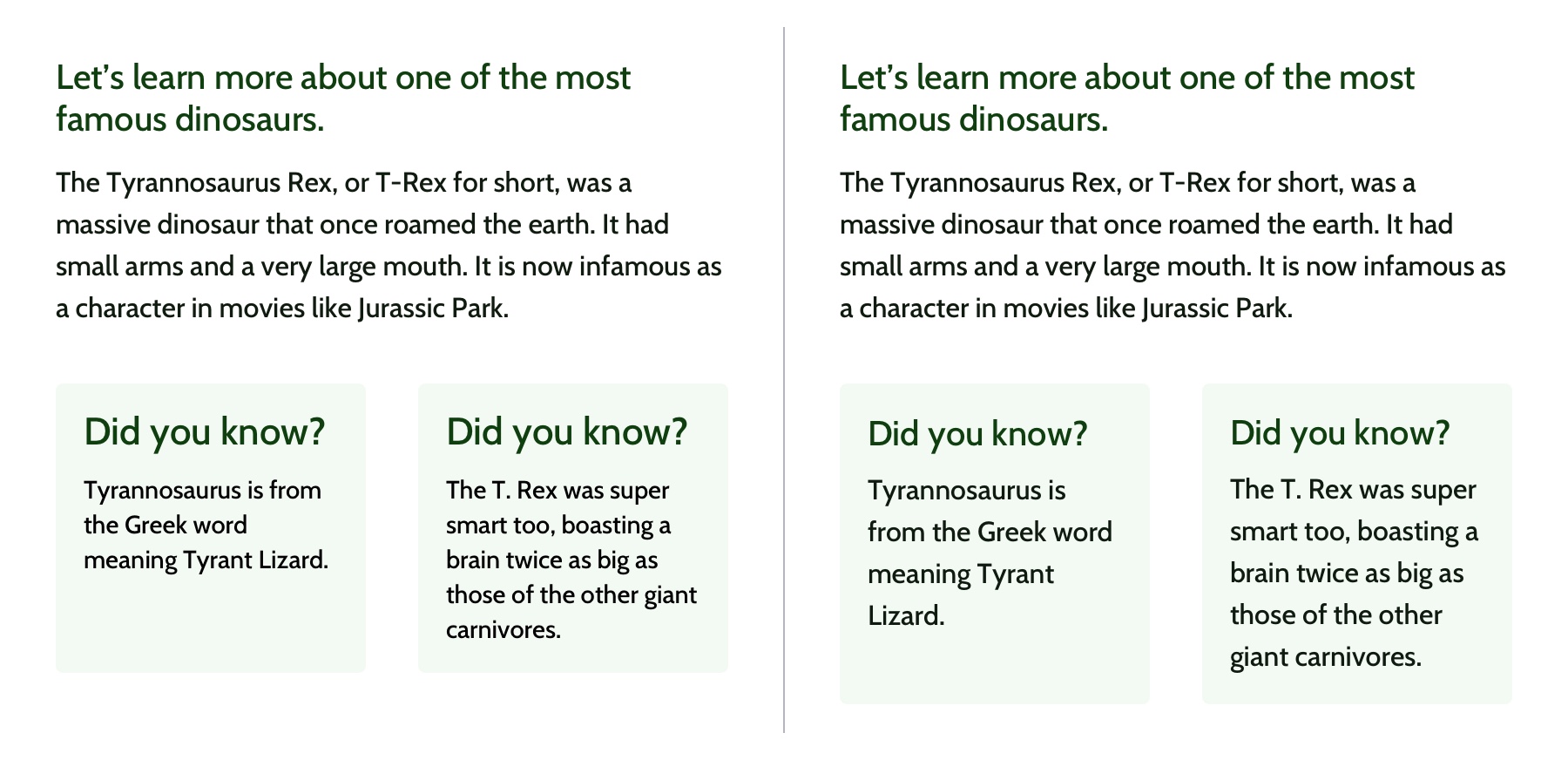
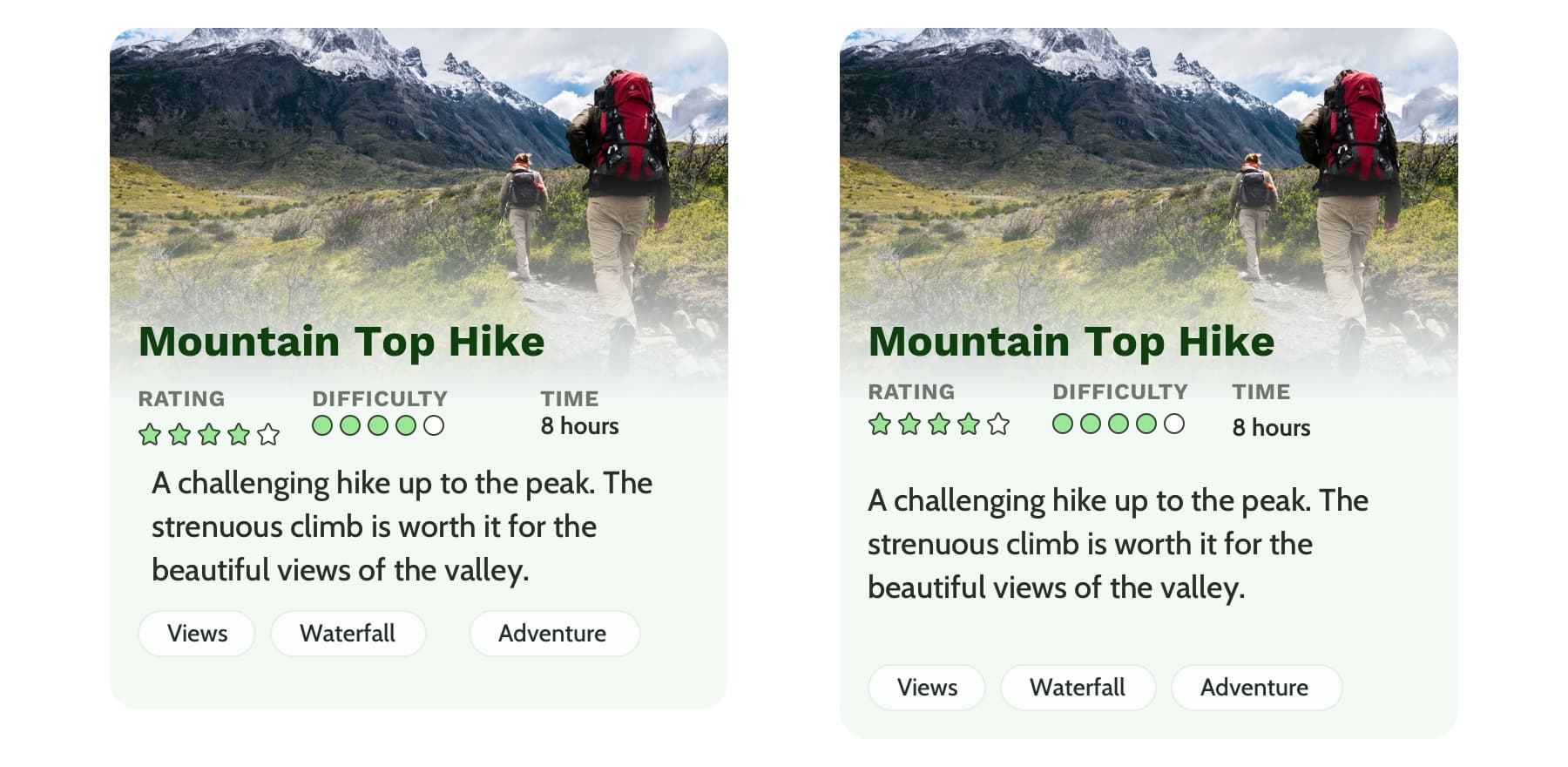
Left: The black text is similar but uses a slightly different font size and line height. Right: The black text uses the same styles and therefore can use the same CSS class. Reducing the amount of CSS needed and adding repetition and consistency.
In design, there are endless ways to experiment with styles. Designers can sometimes go a little crazy with their font styles by creating numerous slight variations of similar styles. However, in code, it’s valuable to restrict text styles to a minimum. Developers should urge designers to combine similar styles in order to reduce code weight and increase reusability and consistency.
These headings look very similar but are slightly different and would require three separate CSS classes to style them. They could probably be combined into one and styled with a single class.
Hierarchy provides a clear visual order to content
Hierarchy is something you really only notice when it’s not there. In typography, hierarchy refers to the visual difference between various pieces of text. It’s the distinction between headings, paragraphs, links, and other text styles. This distinction is made by choosing different fonts, colors, size, capitalization, and other properties for each type of text content. Good hierarchy makes complex information easier to digest and guides users through your content.
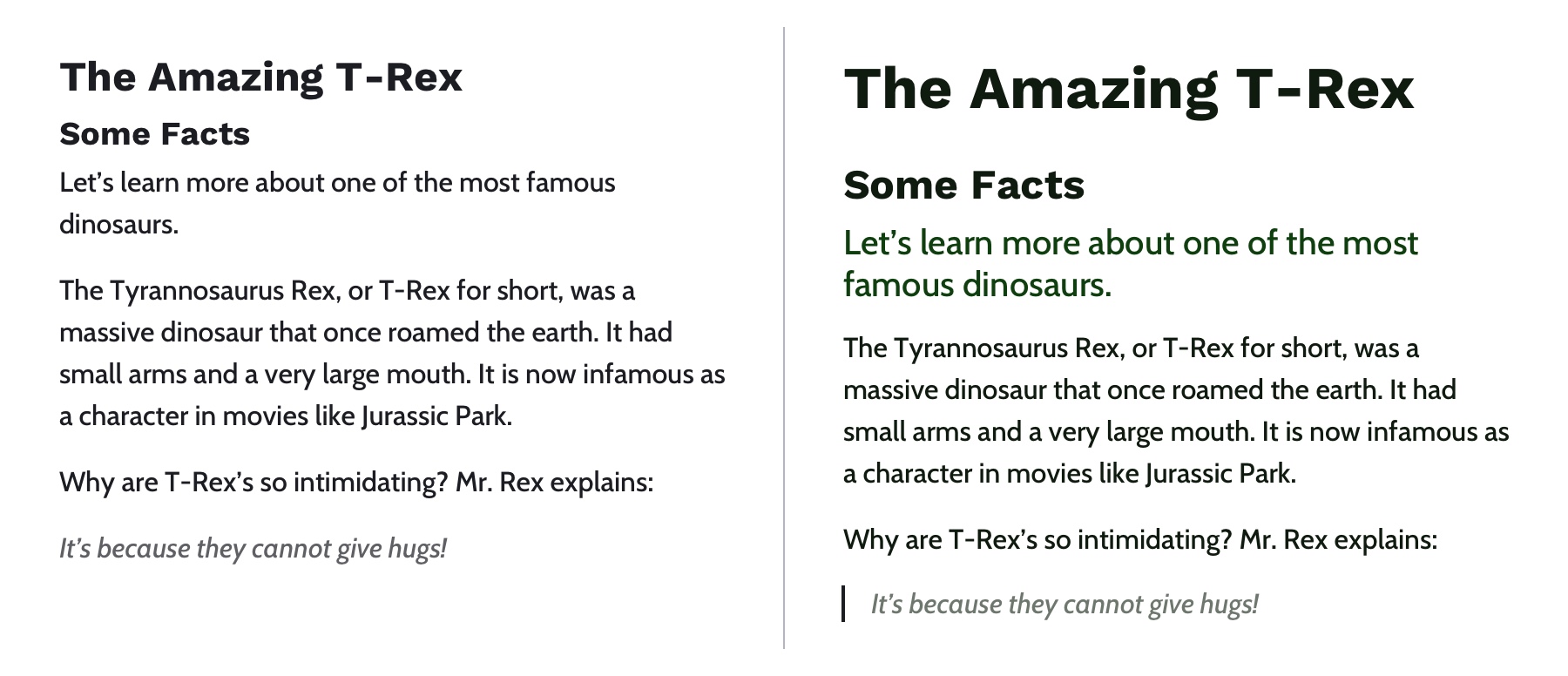
Left: Poor hierarchy. There’s not much differentiation in the size or color of the text to help users digest the content. Right: Better hierarchy that uses more variety in font size, color, and spacing to help users quickly navigate the content.
Out of the box, HTML provides some hierarchy (like how the font size of headings gets smaller as you go from <h1> to <h6>), but CSS opens the door for even more creativity. By giving <h1> tags an even larger font size, you can quickly establish greater difference in size between heading levels—and therefore more hierarchy. To create more variety, you can also change the color, text-align, and text-transform properties.
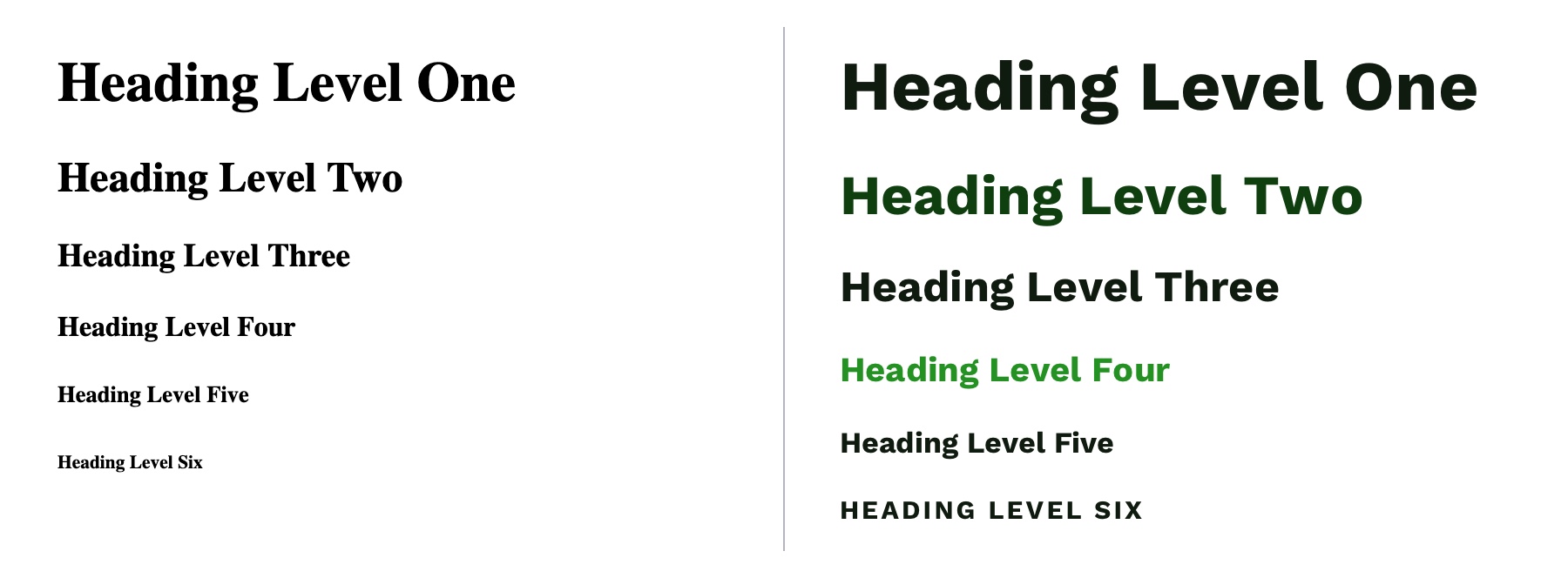
A comparison of the way HTML headings look without styles versus adding more contrast with CSS.
A note on choosing fonts
With typography, we need to make sure it is as easy to read as possible. The greatest overall factor in readability is the font you choose—which is a huge topic. There are many factors that determine how „readable” a font is. Some fonts are made specifically to be used as headings or short lines of text; these are called „display” fonts, and they often have more personality than fonts designed to be used for text. Unique flourishes and quirks make display fonts harder to read at small sizes and when part of a large paragraph. As a rule of thumb, use a more straightforward font for text and only use display fonts for headings.
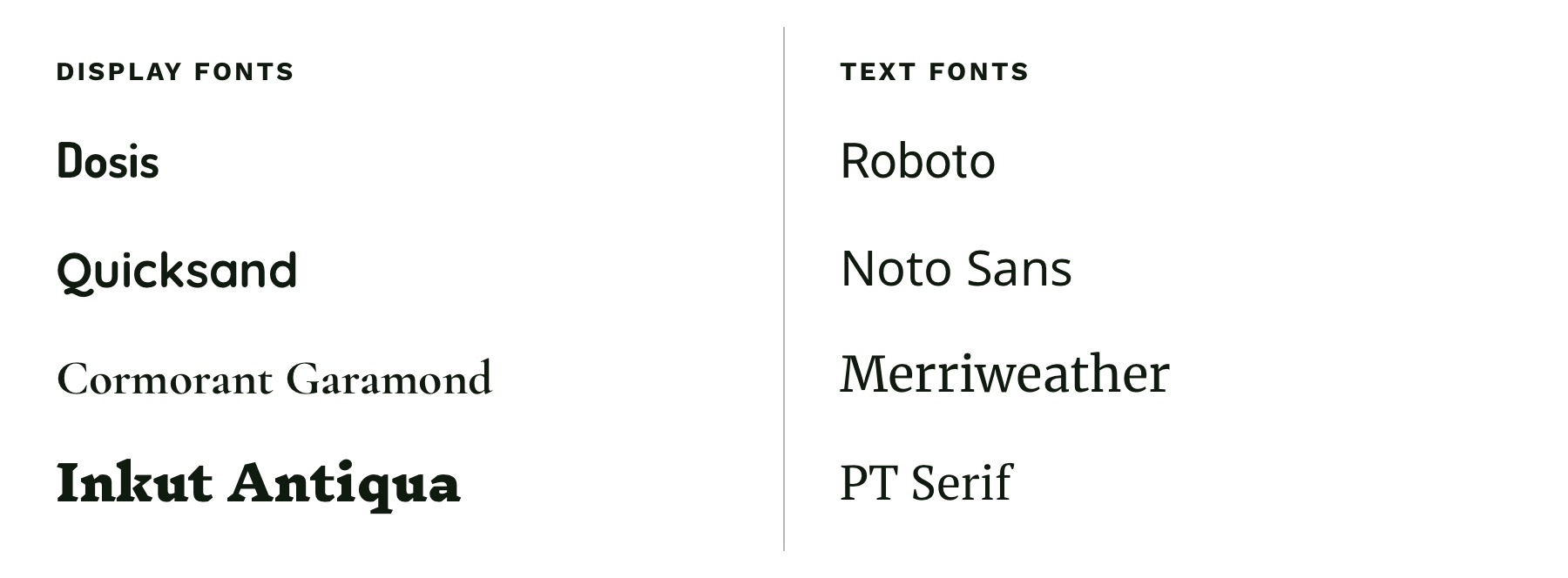
Left: Examples of display fonts that work better as headings. Right: Examples of text fonts that are more readable and can be used for headings, paragraphs, and any other text that needs to be easy to read.
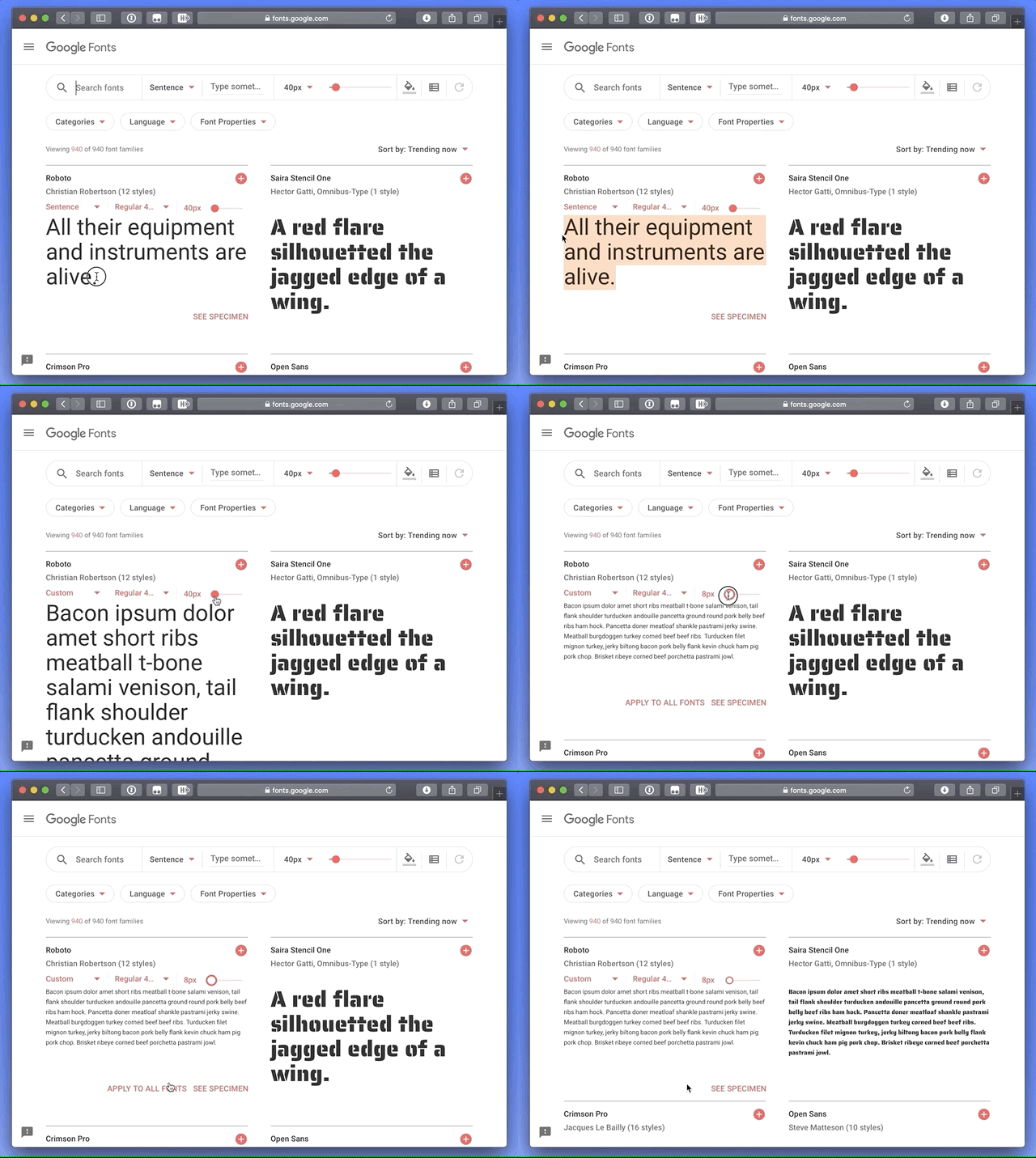
If you’re in a pinch and need a readable font, try Google Fonts. Add a paragraph of text to the preview field and size it roughly how it will display on your website. You can then narrow down your results to serif or sans-serif and scan the list of fonts for one that is easy to read. Roboto, Noto Sans, Merriweather, and PT Serif are all very readable options.
CSS properties for better readability
The main paragraph font-size should be between 16pxand 18px (1em and 1.25em) depending on the font you choose.
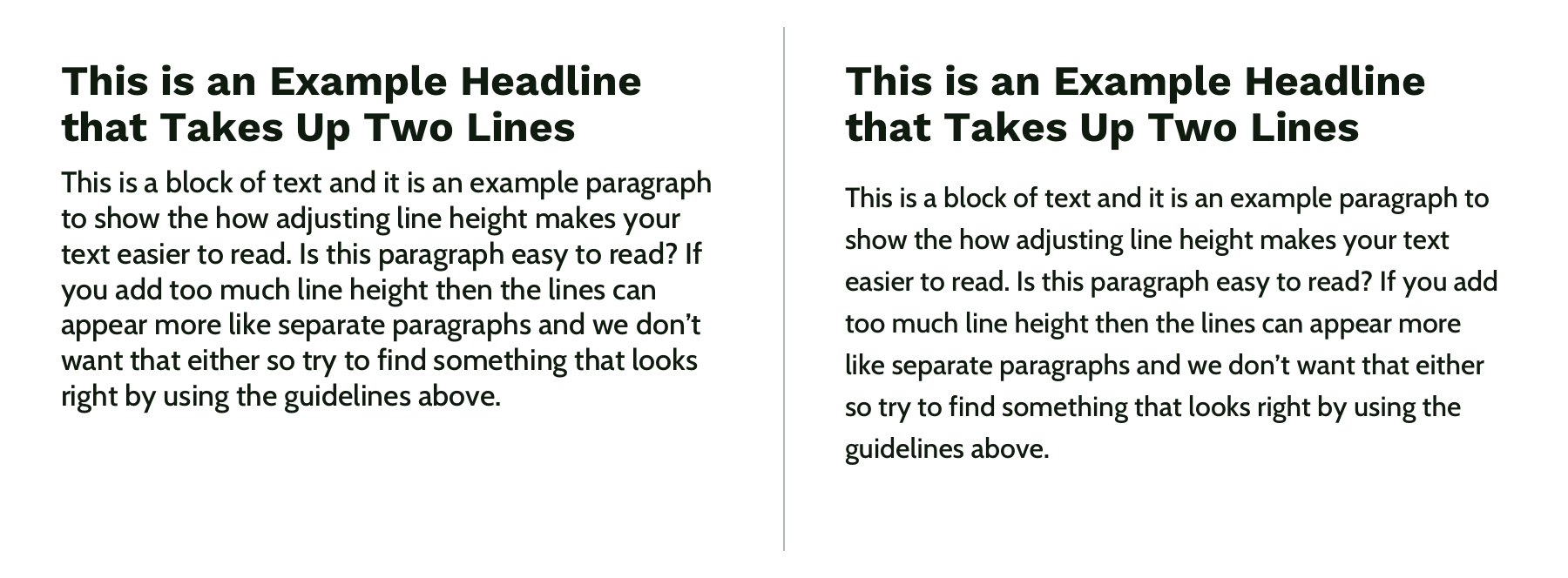
Manually set line-height (the vertical space between two lines of text) to make your text less cramped and easier to read. Start with line-height: 1.25 (that is 1.25 times the font-size) for headings and at least 1.5 for paragraphs (but no more than 1.9) and adjust from there. The longer the line of text, the larger the line-height should be. To keep your text flexible, avoid adding a unit to your line-height. Without a unit the line-height you set will be proportional to your font-size. For example, line-height: 1.5 and font-size: 18px would give you a line height of 27 pixels. If you changed your font size to font-size: 16px on smaller screens, the computed line height would then change to 24 pixels automatically.
Left: line-height is 1.1 for the heading and 1.2 for the paragraph, which is roughly the default setting. Right: line-height is 1.25 for the headings and 1.5 for the paragraph.
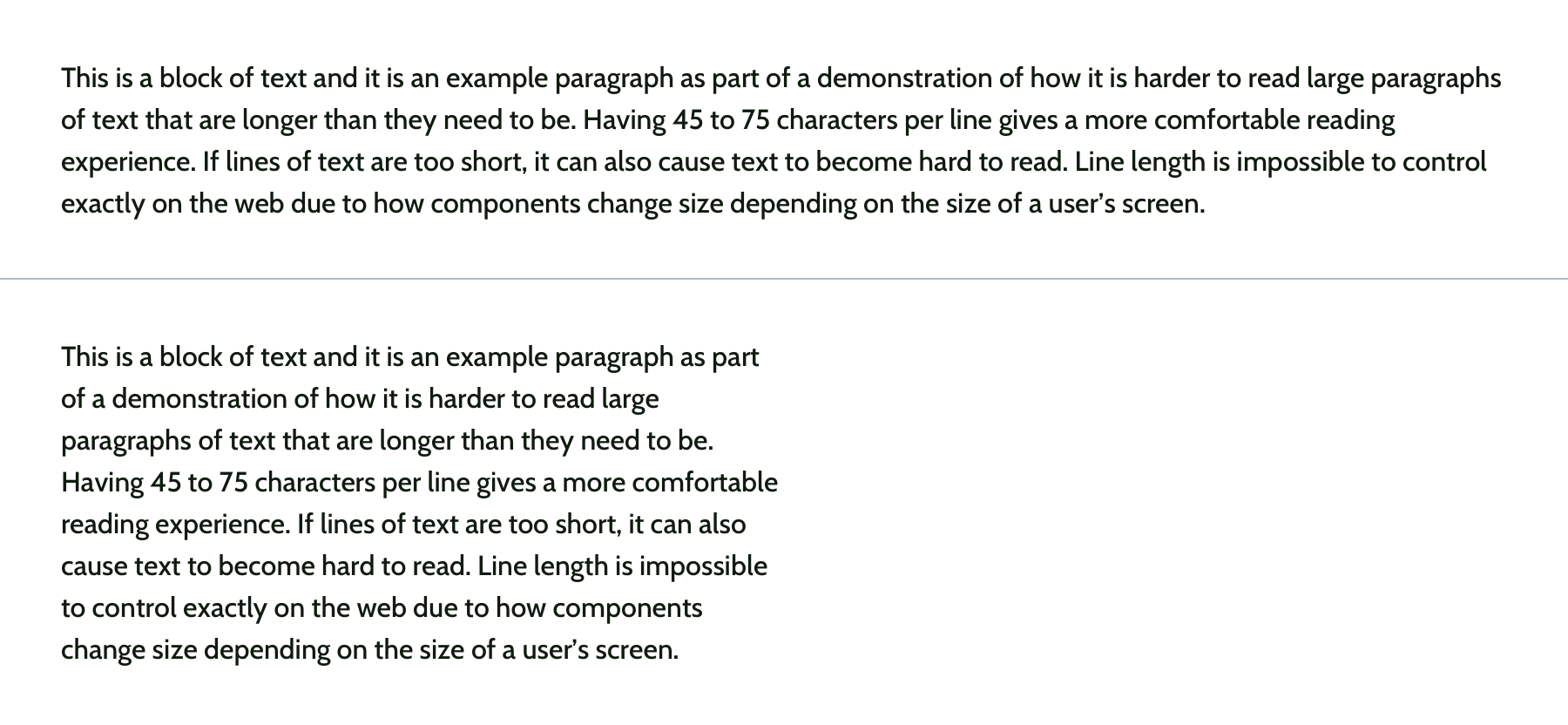
Pay attention to how many characters are in a line of text and aim for 45 and 75 characters long (including punctuation and spaces). Doing so reduces reading fatigue for your users by limiting the eye and head movement needed to follow a line of text. With the variable nature of the web, it’s impossible to completely control line length, but you can use max-width values and breakpoints to prevent lines of text from getting too long. Generally speaking, the shorter the line of text, the faster it will be to scan for quick reading. And don’t worry too much about counting the characters in every line. Once you do it a few times, you’ll develop a sense for what looks right.
Top: line length of around 125 characters. Bottom: line length of around 60 characters.
Spacing
After looking at typography, you can take a step back and examine the layout, or spacing, of your content. Movement and proximity are two design principles that relate to spacing.
Movement is about content flow
Movement refers to how your eye moves through the page or the flow of the page. You can use movement to direct a user’s eye in order to tell a story, point to a main action item, or encourage them to scroll. This is done by structuring the content within individual components and then arranging those components to form the layout of the page. By paying attention to how your eye moves through content, you can help users know where to look as they scan the page.
Unlike books, which tend to have very linear structure, websites can be more creative with their layout—in literally endless ways. It is important to make sure you are intentional with how you layout content and do so in a way which guides users through your content as easily as possible.
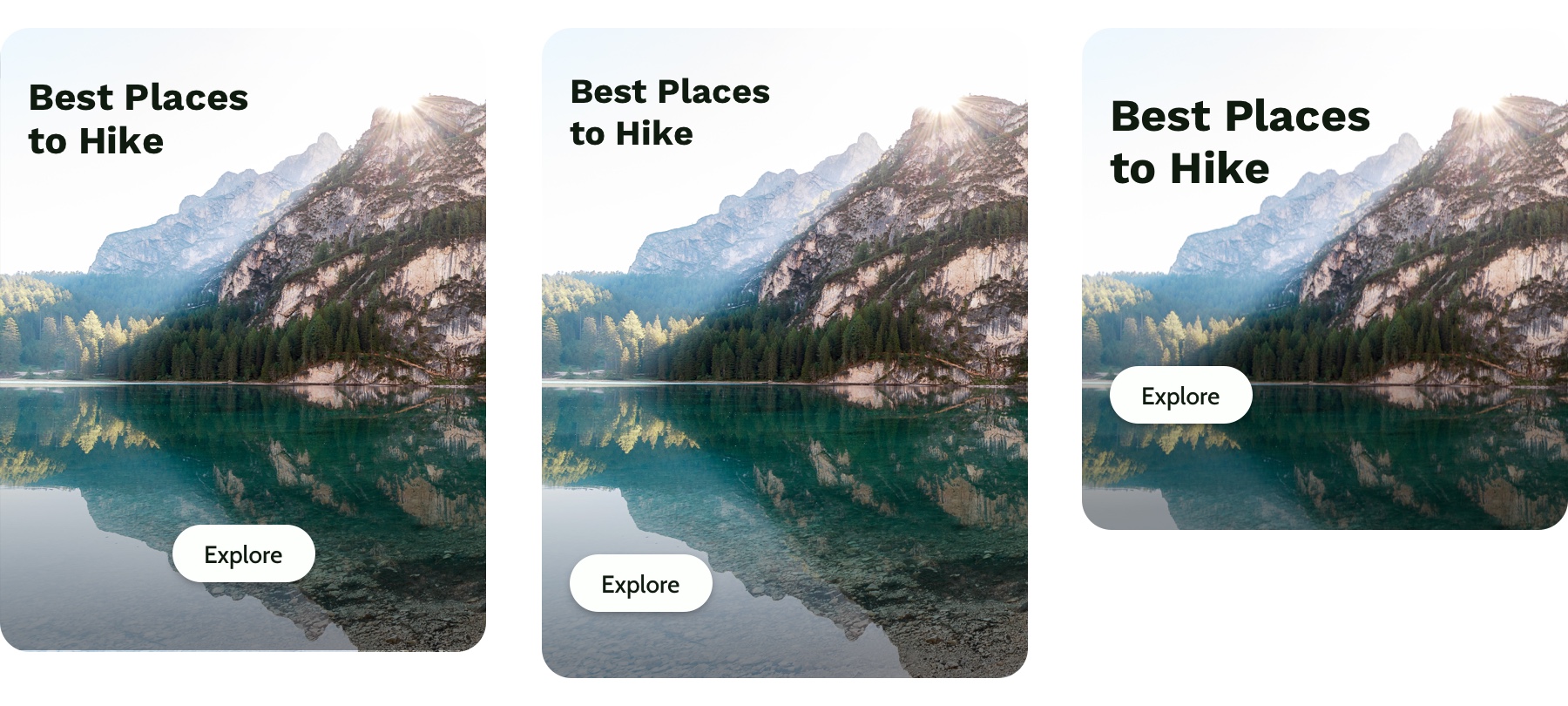
Three potential ways to arrange a heading, image, and button.
Consider these three examples above. Which is the easiest to follow? The arrangement on the left draws your eye off the screen to the left due to how the image is positioned which makes it hard to find the button. In the center option, it’s easy to skip over the headline because the image is too large in comparison. On the right, the heading draws your attention first and the image is composed so that it points to the main action item—the button.
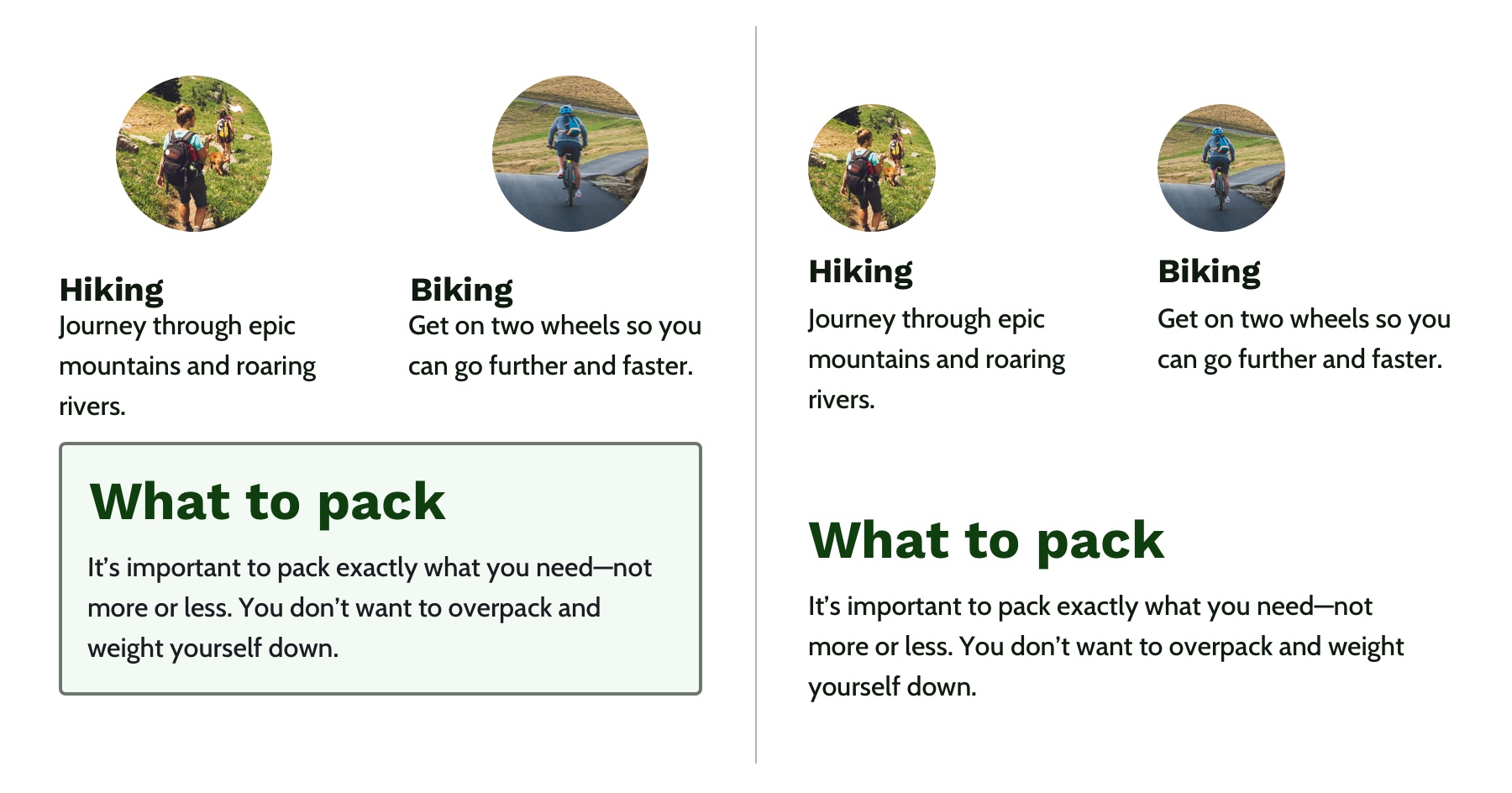
White space is a helpful tool for creating strong movement, but it’s easy to use too much or too little. Think about how you are using it to direct the user’s eye and divide your content. When used well, users won’t notice the whitespace itself but will be able to better focus on the content you are presenting. For example, you can use whitespace to separate content (instead of a colored box) which results in a less cluttered layout.
Left: Using a graphic element to separate content and aligning images in the center. Right: Using whitespace to separate content and aligning images on the left to let the whitespace flow better around groups of related content and create a cleaner layout.
Proximity establishes relationships
When objects are closer together, they are perceived as being related. By controlling spacing around elements, you can imply relationships between them. It can be helpful to create a system for spacing to help build consistency through repetition and avoid the use of random numbers. This system is based off the default browser font size (1rem or 16px) and uses distinct values that cover most scenarios:
0.25rem (4px)
0.5rem (8px)
1rem (16px)
2rem (32px)
4rem (64px)
You can use Sass or CSS variables so that the values are kept consistent across the project. A system might look like this—but use whatever you’re comfortable with because naming things is hard:
$space-sm
$space-med
$space-lg
$space-xl
$space-xxl
Left: A component with uneven spacing between elements. Right: A component that uses consistent spacing.
Color conveys personality and calls attention
Color greatly affects a website’s personality. When used well, it gives pages life and emotion; used poorly, it can distract from the content, or worse, make it inaccessible. Color goes hand in hand with most design principles. It can be used to create movement by directing users’ eyes and can be used to create emphasis by calling attention to the most important action items.
A note on choosing colors
With color, it can be hard to know where to start. To help, you can use a four-step process to guide your color choices and build a color palette for the site.
Step 1: Know your mood
You have to know the mood or attitude of your site and brand before choosing colors. Look at your content and decide what you are trying to communicate. Is it funny, informative, retro, loud, somber? Typically, you can boil down the mood of your site to a few adjectives. For example, you might summarize The North Face as adventurous and rugged while Apple would be minimalistic and beautiful.
Step 2: Find your main color
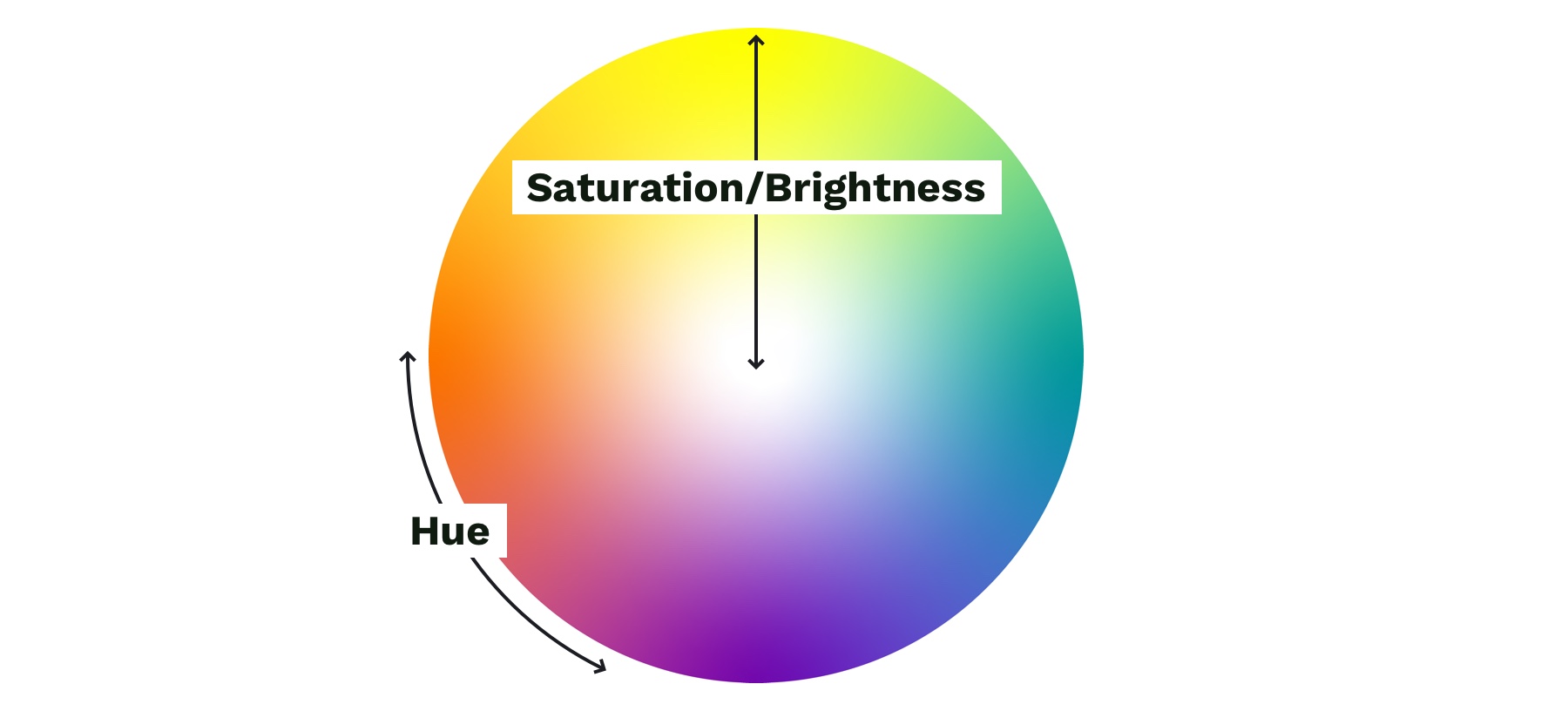
With your mood in mind, try to visualize a color that represents it. Start with the color’s saturation (how intense the color is) and brightness (how close the color is to white or black). If your mood is upbeat or flashy, a lighter (more saturated) color is probably best. If your mood is serious or reserved, a darker (less saturated) color is better.
Next, choose a hue. Hue refers to what most people think of as colors—where does is fall on the rotation of the color wheel? The hue of a color is what gives it the most meaning. People tend to associate hues with certain ideas. For instance, red is often associated with power or danger and green relates to money or nature. It can be helpful to look at similar websites or brands to see what colors they use—although you don’t need to follow their lead. Don’t be afraid to experiment!
Color wheel showing saturation and brightness versus hue.
Step 3: Add supporting colors
Sometimes, two or three main colors are needed, but this is not necessary. Think about the colors of different brands. Some use a single color, and others have a main color and one or two that support it. Coca-Cola uses its distinct red. IKEA is mostly blue with some yellow. Tide is orange with some blue and yellow. Depending on your site’s mood, you might need a few colors. Try using a tool like Adobe Color or Coolors), both of which allow you to add a main color and then try different color relationships, like complementary or monochromatic, to quickly see if any work well.
Step 4: Expand your palette
Now that you’ve narrowed things down and found your main color(s), it’s time to expand your scope with a palette that gives your project versatility and constraint—here’s a methodology I’ve found helpful. Tints and shades are the trick here. Tints are made by mixing your main color(s) with white, and shades are made by mixing with black. You can quickly create an organized system with Sass color functions:
A palette of color options created with Sass color functions. Make sure to use percent values for the functions that create distinct colors—not too similar to the main color.
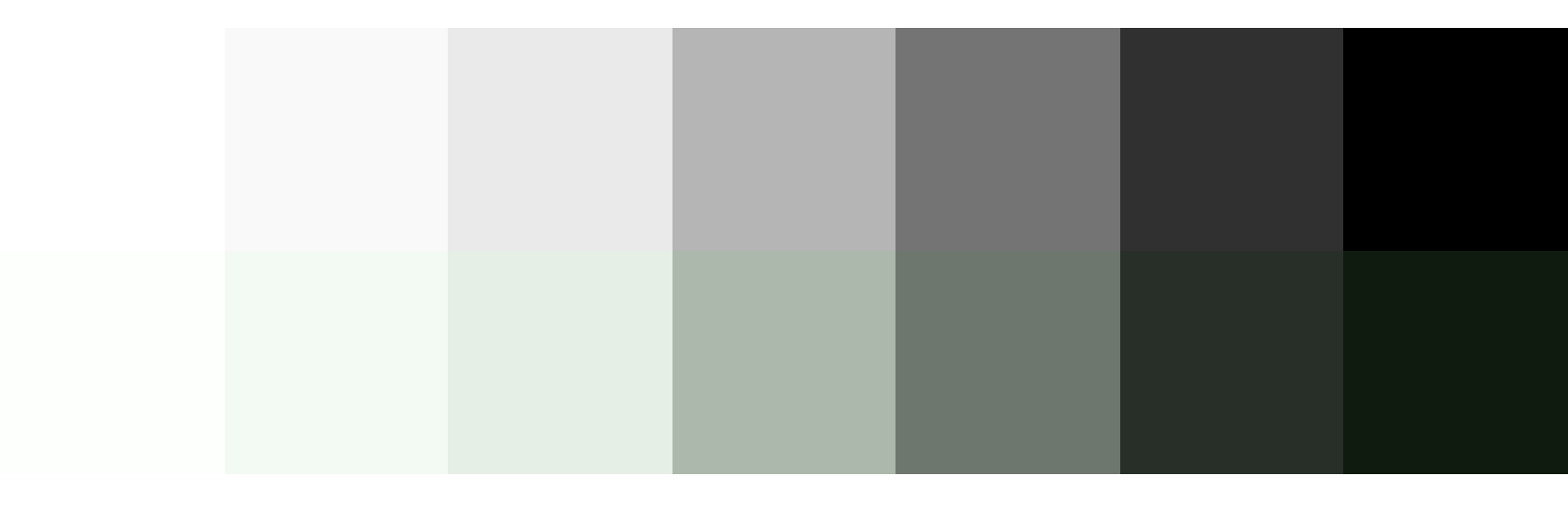
To round out your palette, you’ll need a few more colors, like a white and black. Try creating a „rich black” using a dark, almost black shade of your main color and, on the other end of the spectrum, pick a few light grays that are tinted with your main color. Tinting the white and black adds a little more personality to your page and helps create a cohesive look and feel.
Top: Basic white, gray, and black. Bottom: Tinted white, grays, and black to match the main color.
Last but not least, if you are working on an interactive product, you should add colors for success, warning, and error states. Typically a green, yellow, and red work for these but consider how you can adjust the hue to make them fit better with your palette. For example, if your mood is friendly and your base color is green, you might want to desaturate the error state colors to make the red feel less negative.
You can do this with the mix Sass color function by giving it your base color, the default error color, and the percentage of base color that you want to mix in with the error color. Adding desaturate functions helps tone down the colors:
Top: Default colors for success, warning, and error states. Bottom: Tinted and desaturated colors for the success, warning and error states.
When it comes to the web, there’s one color principle that you have to pay extra attention to: contrast. That’s what we’ll cover next.
Contrast
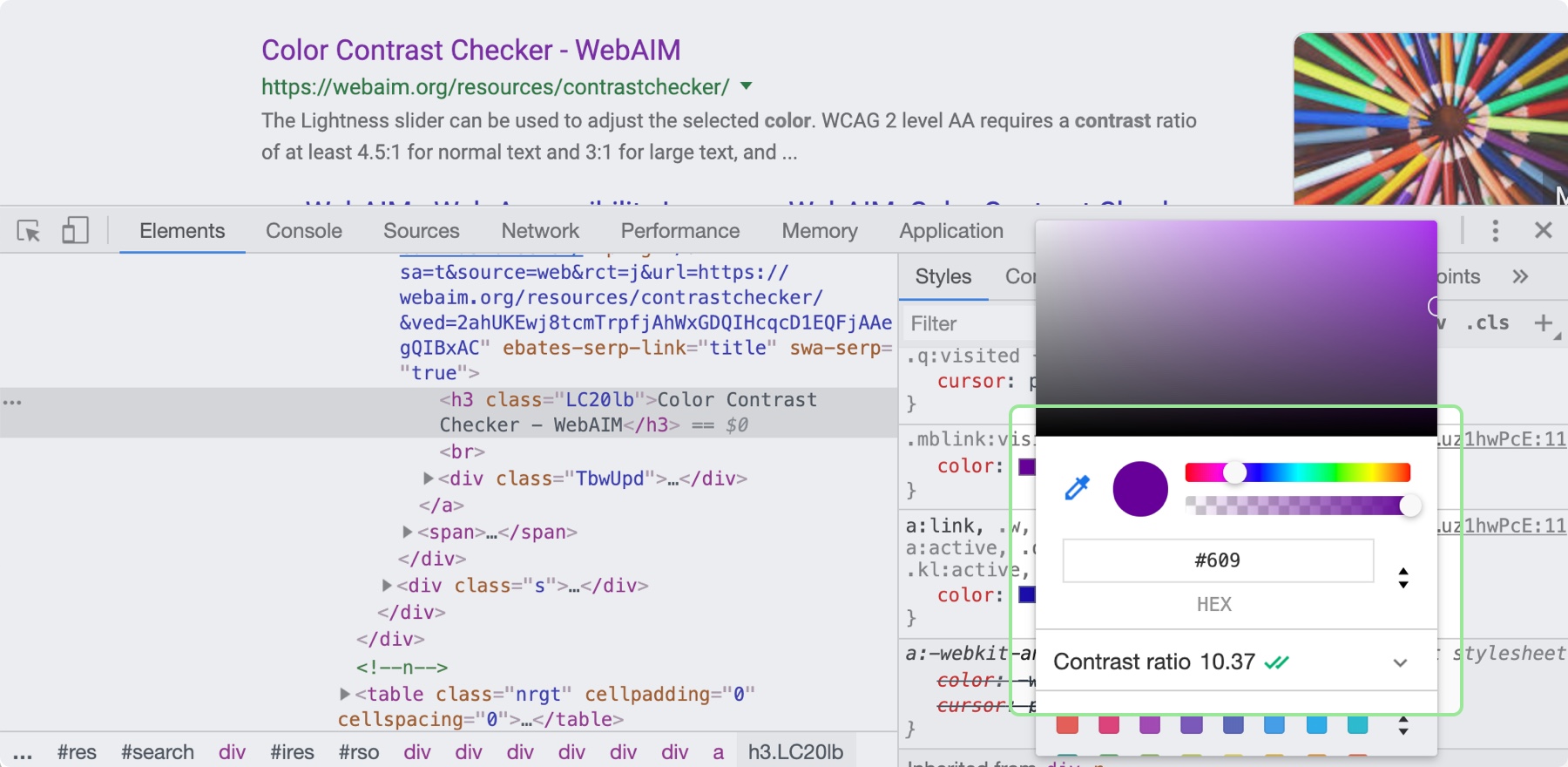
Color contrast—the difference in saturation, brightness, and hue between two colors—is an important design principle for ensuring the web is accessible to those with low vision or color blindness. By ensuring there is enough contrast between your text and whatever is behind it on your site will be more accessible for all sighted users. When looking at accessibility, be sure to follow the color contrast guidelines provided by W3C’s Web Content Accessibility Guidelines (WCAG). There are many tools that can help you follow these guidelines, including the inspect panel in Chrome’s dev tools.
By clicking on the color property in the Chrome Inspect tool, you can see the contrast ratio and whether it is passing.
Now, it’s time to put these principles to practice! You can use these processes and CSS tips to help take the guesswork out of design and create better solutions. Start with what you are familiar with, and eventually, the design principles mentioned here will become second nature.
It is technically true that anyone can cook. But there’s a difference between actually knowing how to prepare a delicious meal and hoping for the best as you throw a few ingredients in a pot. Just like web development, you might know the ingredients—<span>, background-color, .heading-1—but not everyone knows how to turn those ingredients into a beautiful, easy-to-use website.
Whenever you use HTML and CSS, you are designing—giving form and structure to content so it can be understood by someone else. People have been designing for centuries and have developed principles along the way that are applicable to digital interfaces today. These principles manifest in three key areas: how words are displayed (typography), how content is arranged (spacing), and how personalty is added (color). Let’s discover how to use each of these web design ingredients through the mindset of a developer with CSS properties and guidelines to take the guesswork out of web design.
Websites that are easy to read don’t happen by mistake. In fact, Taimur Abdaal wrote an entire article on the topic that’s chock-full of advice for developers working with type. We’re going to focus specifically on two fundamental principles of design that can help you display words in a more visually pleasing and easy-to-read way: repetition and hierarchy.
Use repetition for consistency and maintainability
Repetition comes fairly naturally on the web thanks to the importance of reusability in software. For example, CSS classes allow you to define a particular style for text and then reuse that style across the site. This results in repeating, consistent text styles for similar content which helps users navigate the site.
If, for example, you are working on styles for a new paragraph, first consider if there is existing content that has a similar style and try to use the same CSS class. If not, you can create a new class with a generic name that can be repeated elsewhere in your site. Think .paragraph--emphasize as opposed to .footer__paragraph--emphasize or .heading-1 as opposed to .hero__site-title. The first examples can be used across your site as opposed to the second which are scoped to specific components. You can even add a prefix like text- to indicate that the class is used specifically for text styles. This method will reduce the CSS file size and complexity while making it much easier to update global styles in the future.
Left: The black text is similar but uses a slightly different font size and line height. Right: The black text uses the same styles and therefore can use the same CSS class. Reducing the amount of CSS needed and adding repetition and consistency.
In design, there are endless ways to experiment with styles. Designers can sometimes go a little crazy with their font styles by creating numerous slight variations of similar styles. However, in code, it’s valuable to restrict text styles to a minimum. Developers should urge designers to combine similar styles in order to reduce code weight and increase reusability and consistency.
These headings look very similar but are slightly different and would require three separate CSS classes to style them. They could probably be combined into one and styled with a single class.
Hierarchy provides a clear visual order to content
Hierarchy is something you really only notice when it’s not there. In typography, hierarchy refers to the visual difference between various pieces of text. It’s the distinction between headings, paragraphs, links, and other text styles. This distinction is made by choosing different fonts, colors, size, capitalization, and other properties for each type of text content. Good hierarchy makes complex information easier to digest and guides users through your content.
Left: Poor hierarchy. There’s not much differentiation in the size or color of the text to help users digest the content. Right: Better hierarchy that uses more variety in font size, color, and spacing to help users quickly navigate the content.
Out of the box, HTML provides some hierarchy (like how the font size of headings gets smaller as you go from <h1> to <h6>), but CSS opens the door for even more creativity. By giving <h1> tags an even larger font size, you can quickly establish greater difference in size between heading levels—and therefore more hierarchy. To create more variety, you can also change the color, text-align, and text-transform properties.
A comparison of the way HTML headings look without styles versus adding more contrast with CSS.
A note on choosing fonts
With typography, we need to make sure it is as easy to read as possible. The greatest overall factor in readability is the font you choose—which is a huge topic. There are many factors that determine how „readable” a font is. Some fonts are made specifically to be used as headings or short lines of text; these are called „display” fonts, and they often have more personality than fonts designed to be used for text. Unique flourishes and quirks make display fonts harder to read at small sizes and when part of a large paragraph. As a rule of thumb, use a more straightforward font for text and only use display fonts for headings.
Left: Examples of display fonts that work better as headings. Right: Examples of text fonts that are more readable and can be used for headings, paragraphs, and any other text that needs to be easy to read.
If you’re in a pinch and need a readable font, try Google Fonts. Add a paragraph of text to the preview field and size it roughly how it will display on your website. You can then narrow down your results to serif or sans-serif and scan the list of fonts for one that is easy to read. Roboto, Noto Sans, Merriweather, and PT Serif are all very readable options.
CSS properties for better readability
The main paragraph font-size should be between 16pxand 18px (1em and 1.25em) depending on the font you choose.
Manually set line-height (the vertical space between two lines of text) to make your text less cramped and easier to read. Start with line-height: 1.25 (that is 1.25 times the font-size) for headings and at least 1.5 for paragraphs (but no more than 1.9) and adjust from there. The longer the line of text, the larger the line-height should be. To keep your text flexible, avoid adding a unit to your line-height. Without a unit the line-height you set will be proportional to your font-size. For example, line-height: 1.5 and font-size: 18px would give you a line height of 27 pixels. If you changed your font size to font-size: 16px on smaller screens, the computed line height would then change to 24 pixels automatically.
Left: line-height is 1.1 for the heading and 1.2 for the paragraph, which is roughly the default setting. Right: line-height is 1.25 for the headings and 1.5 for the paragraph.
Pay attention to how many characters are in a line of text and aim for 45 and 75 characters long (including punctuation and spaces). Doing so reduces reading fatigue for your users by limiting the eye and head movement needed to follow a line of text. With the variable nature of the web, it’s impossible to completely control line length, but you can use max-width values and breakpoints to prevent lines of text from getting too long. Generally speaking, the shorter the line of text, the faster it will be to scan for quick reading. And don’t worry too much about counting the characters in every line. Once you do it a few times, you’ll develop a sense for what looks right.
Top: line length of around 125 characters. Bottom: line length of around 60 characters.
Spacing
After looking at typography, you can take a step back and examine the layout, or spacing, of your content. Movement and proximity are two design principles that relate to spacing.
Movement is about content flow
Movement refers to how your eye moves through the page or the flow of the page. You can use movement to direct a user’s eye in order to tell a story, point to a main action item, or encourage them to scroll. This is done by structuring the content within individual components and then arranging those components to form the layout of the page. By paying attention to how your eye moves through content, you can help users know where to look as they scan the page.
Unlike books, which tend to have very linear structure, websites can be more creative with their layout—in literally endless ways. It is important to make sure you are intentional with how you layout content and do so in a way which guides users through your content as easily as possible.
Three potential ways to arrange a heading, image, and button.
Consider these three examples above. Which is the easiest to follow? The arrangement on the left draws your eye off the screen to the left due to how the image is positioned which makes it hard to find the button. In the center option, it’s easy to skip over the headline because the image is too large in comparison. On the right, the heading draws your attention first and the image is composed so that it points to the main action item—the button.
White space is a helpful tool for creating strong movement, but it’s easy to use too much or too little. Think about how you are using it to direct the user’s eye and divide your content. When used well, users won’t notice the whitespace itself but will be able to better focus on the content you are presenting. For example, you can use whitespace to separate content (instead of a colored box) which results in a less cluttered layout.
Left: Using a graphic element to separate content and aligning images in the center. Right: Using whitespace to separate content and aligning images on the left to let the whitespace flow better around groups of related content and create a cleaner layout.
Proximity establishes relationships
When objects are closer together, they are perceived as being related. By controlling spacing around elements, you can imply relationships between them. It can be helpful to create a system for spacing to help build consistency through repetition and avoid the use of random numbers. This system is based off the default browser font size (1rem or 16px) and uses distinct values that cover most scenarios:
0.25rem (4px)
0.5rem (8px)
1rem (16px)
2rem (32px)
4rem (64px)
You can use Sass or CSS variables so that the values are kept consistent across the project. A system might look like this—but use whatever you’re comfortable with because naming things is hard:
$space-sm
$space-med
$space-lg
$space-xl
$space-xxl
Left: A component with uneven spacing between elements. Right: A component that uses consistent spacing.
Color conveys personality and calls attention
Color greatly affects a website’s personality. When used well, it gives pages life and emotion; used poorly, it can distract from the content, or worse, make it inaccessible. Color goes hand in hand with most design principles. It can be used to create movement by directing users’ eyes and can be used to create emphasis by calling attention to the most important action items.
A note on choosing colors
With color, it can be hard to know where to start. To help, you can use a four-step process to guide your color choices and build a color palette for the site.
Step 1: Know your mood
You have to know the mood or attitude of your site and brand before choosing colors. Look at your content and decide what you are trying to communicate. Is it funny, informative, retro, loud, somber? Typically, you can boil down the mood of your site to a few adjectives. For example, you might summarize The North Face as adventurous and rugged while Apple would be minimalistic and beautiful.
Step 2: Find your main color
With your mood in mind, try to visualize a color that represents it. Start with the color’s saturation (how intense the color is) and brightness (how close the color is to white or black). If your mood is upbeat or flashy, a lighter (more saturated) color is probably best. If your mood is serious or reserved, a darker (less saturated) color is better.
Next, choose a hue. Hue refers to what most people think of as colors—where does is fall on the rotation of the color wheel? The hue of a color is what gives it the most meaning. People tend to associate hues with certain ideas. For instance, red is often associated with power or danger and green relates to money or nature. It can be helpful to look at similar websites or brands to see what colors they use—although you don’t need to follow their lead. Don’t be afraid to experiment!
Color wheel showing saturation and brightness versus hue.
Step 3: Add supporting colors
Sometimes, two or three main colors are needed, but this is not necessary. Think about the colors of different brands. Some use a single color, and others have a main color and one or two that support it. Coca-Cola uses its distinct red. IKEA is mostly blue with some yellow. Tide is orange with some blue and yellow. Depending on your site’s mood, you might need a few colors. Try using a tool like Adobe Color or Coolors), both of which allow you to add a main color and then try different color relationships, like complementary or monochromatic, to quickly see if any work well.
Step 4: Expand your palette
Now that you’ve narrowed things down and found your main color(s), it’s time to expand your scope with a palette that gives your project versatility and constraint—here’s a methodology I’ve found helpful. Tints and shades are the trick here. Tints are made by mixing your main color(s) with white, and shades are made by mixing with black. You can quickly create an organized system with Sass color functions:
A palette of color options created with Sass color functions. Make sure to use percent values for the functions that create distinct colors—not too similar to the main color.
To round out your palette, you’ll need a few more colors, like a white and black. Try creating a „rich black” using a dark, almost black shade of your main color and, on the other end of the spectrum, pick a few light grays that are tinted with your main color. Tinting the white and black adds a little more personality to your page and helps create a cohesive look and feel.
Top: Basic white, gray, and black. Bottom: Tinted white, grays, and black to match the main color.
Last but not least, if you are working on an interactive product, you should add colors for success, warning, and error states. Typically a green, yellow, and red work for these but consider how you can adjust the hue to make them fit better with your palette. For example, if your mood is friendly and your base color is green, you might want to desaturate the error state colors to make the red feel less negative.
You can do this with the mix Sass color function by giving it your base color, the default error color, and the percentage of base color that you want to mix in with the error color. Adding desaturate functions helps tone down the colors:
Top: Default colors for success, warning, and error states. Bottom: Tinted and desaturated colors for the success, warning and error states.
When it comes to the web, there’s one color principle that you have to pay extra attention to: contrast. That’s what we’ll cover next.
Contrast
Color contrast—the difference in saturation, brightness, and hue between two colors—is an important design principle for ensuring the web is accessible to those with low vision or color blindness. By ensuring there is enough contrast between your text and whatever is behind it on your site will be more accessible for all sighted users. When looking at accessibility, be sure to follow the color contrast guidelines provided by W3C’s Web Content Accessibility Guidelines (WCAG). There are many tools that can help you follow these guidelines, including the inspect panel in Chrome’s dev tools.
By clicking on the color property in the Chrome Inspect tool, you can see the contrast ratio and whether it is passing.
Now, it’s time to put these principles to practice! You can use these processes and CSS tips to help take the guesswork out of design and create better solutions. Start with what you are familiar with, and eventually, the design principles mentioned here will become second nature.
There was a fun article in The New York Times the other day describing the fancy way Elizabeth Warren and her staff let people take a selfie with Warren. But… the pictures aren’t actually selfies because they are taken by someone else. The article has his hilarious line of text that wiggles by on a curved line as you scroll down the page.
Let’s look at how they did it.
Movie:
The curved line is drawn in SVG as a <path>, and the <text> is set upon it by a <textPath>:
The movement trick happens by adjusting the startOffset attribute of the textPath element.
I’m not 100% sure how they did it, but we can do some quick hacky math by watching the scroll position of the page and setting that attribute in a way that makes it move about as fast and far as we want.
const textPath = document.querySelector("#text-path");

const h = document.documentElement,
      b = document.body,
      st = 'scrollTop',
      sh = 'scrollHeight';

document.addEventListener("scroll", e => {
  let percent = (h[st]||b[st]) / ((h[sh]||b[sh]) - h.clientHeight) * 100;
  textPath.setAttribute("startOffset", (-percent * 40) + 1200)
});
There was a fun article in The New York Times the other day describing the fancy way Elizabeth Warren and her staff let people take a selfie with Warren. But… the pictures aren’t actually selfies because they are taken by someone else. The article has his hilarious line of text that wiggles by on a curved line as you scroll down the page.
Let’s look at how they did it.
Movie:
The curved line is drawn in SVG as a <path>, and the <text> is set upon it by a <textPath>:
The movement trick happens by adjusting the startOffset attribute of the textPath element.
I’m not 100% sure how they did it, but we can do some quick hacky math by watching the scroll position of the page and setting that attribute in a way that makes it move about as fast and far as we want.
const textPath = document.querySelector("#text-path");

const h = document.documentElement,
      b = document.body,
      st = 'scrollTop',
      sh = 'scrollHeight';

document.addEventListener("scroll", e => {
  let percent = (h[st]||b[st]) / ((h[sh]||b[sh]) - h.clientHeight) * 100;
  textPath.setAttribute("startOffset", (-percent * 40) + 1200)
});