The Magic of React-Based Multi-Step Forms

Post pobrano z: The Magic of React-Based Multi-Step Forms

One way to deal with long, complex forms is to break them up into multiple steps. You know, answer one set of questions, move on to another, then maybe another, and so on and so forth. We often refer to these as multi-step forms (for obvious reasons), but others also take to calling it a “wizard” form.

Multi-step forms can be a great idea! By only showing a few inputs on a screen at a time, the form may feel more digestible and prevent users from feeling overwhelmed by a sea of form fields. Although I haven’t looked it up, I’m willing to say no one enjoys completing a ginormous form — that’s where multiple steps can come in handy.

The problem is that multi-step forms — while reducing perceived complexity on the front end — can feel complex and overwhelming to develop. But, I’m here to tell you that it’s not only achievable, but relatively straightforward using React as the base. So, that’s what we’re going to build together today!

Here’s the final product:

See the Pen
React Simple Wizard Form
by Nathan Sebhastian (@nathansebhastian)
on CodePen.

Let’s build it!

The easiest way to create a multi-step form is to create a container form element that contains all the steps inside of it as components. Here’s a visual showing that container (<MasterForm/>), the components inside of it (<Step1/>, <Step2/>, <Step3/>) and the way states and props are passed between them.
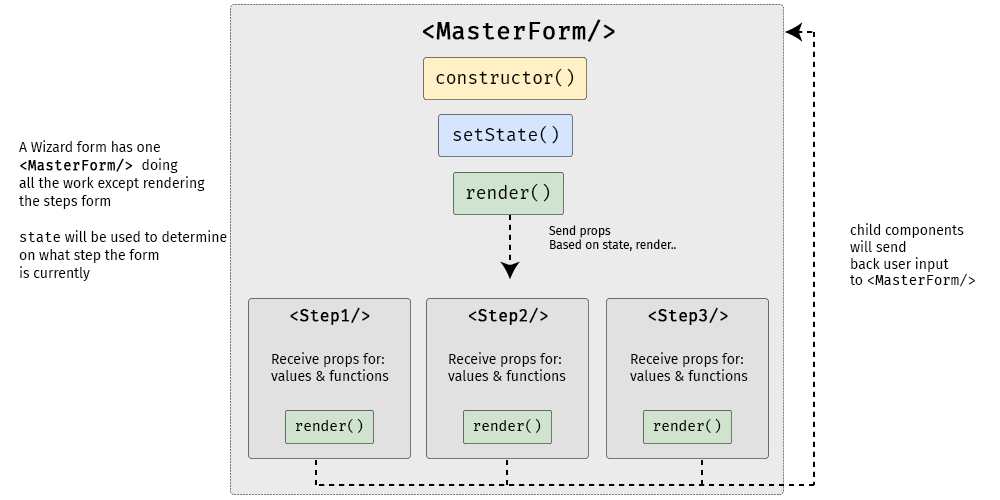
A diagram showing the master form component above three rectangles representing the three steps of the form, from left to right. Between the master form and the steps is a constructor, setState, and render.
<MasterForm/> serves as the container while three child components inside of it act as each step of the form.

Although it seems to be more complex than a regular form, a multi-step form still uses the same principles as a React form:

  • State is used for storing data and user inputs.
  • Component is used for writing methods and the interface.
  • Props are used for passing data and function into elements.

Instead of having one form component, we will have one parent component and three child components. In the diagram above, <MasterForm/> will send data and functions to the child components via props, and in turn, the child components will trigger a handleChange() function to set values in the state of <MasterForm/>. It’s one big happy family over here!

We’ll need a function to move the form from one step to another as well, and we’ll get to that a little later.

The step child (get it?) components will receive props from the <MasterForm/> parent component for value and onChange props.

  • <Step1/> component will render an email address input
  • <Step2/> will render a username input
  • <Step3/> will render a password input and a submit button

<MasterForm/> will supply both data and function into child components, and child components will pass user inputs back to the parent using its props.

Creating the step (child) components

First, we’ll create the form’s child components. We’re keeping things pretty barebones for this example by only using one input per step, but each step could really be as complex as we’d like. Since the child components look almost similar between one another, I’m just gonna show one of them here. But be sure to take a look at the demo for the full code.

class Step1 extends React.Component {
  render() {
    if (this.props.currentStep !== 1) { // Prop: The current step
      return null
    }
    // The markup for the Step 1 UI
    return(
      <div className="form-group">
        <label htmlFor="email">Email address</label>
        <input
          className="form-control"
          id="email"
          name="email"
          type="text"
          placeholder="Enter email"
          value={this.props.email} // Prop: The email input data
          onChange={this.props.handleChange} // Prop: Puts data into state
        />
      </div>
    )
  }
}

Now we can put this child component into the form’s render() function and pass in the necessary props. Just like in React’s form documentation, we can still use handleChange() to put the user’s submitted data into state with setState(). A handleSubmit() function will run on form submit.

Next up, the parent component

Let’s make the parent component — which we’re all aware by now, we’re calling <MasterForm/> — and initialize its state and methods.

We’re using a currentStep state that will be initialized with a default value of 1, indicating the first step (<Step1/>) of the form. We’ll update the state as the form progresses to indicate the current step.

class MasterForm extends Component {
  constructor(props) {
    super(props)
    // Set the initial input values
    this.state = {
      currentStep: 1, // Default is Step 1
      email: '',
      username: '',
      password: '', 
    }
    // Bind the submission to handleChange() 
    this.handleChange = this.handleChange.bind(this)
  }

  // Use the submitted data to set the state
  handleChange(event) {
    const {name, value} = event.target
    this.setState({
      [name]: value
    })    
  }
  
  // Trigger an alert on form submission
  handleSubmit = (event) => {
    event.preventDefault()
    const { email, username, password } = this.state
    alert(`Your registration detail: \n 
      Email: ${email} \n 
      Username: ${username} \n
      Password: ${password}`)
  }
  
  // Render UI will go here...
}

OK, that’s the baseline functionality we’re looking for. Next, we want to create the shell UI for the actual form add call the child components in it, including the required state props that will be passed from <MasterForm/> via handleChange().

render() {    
return (
  <React.Fragment>
  <h1>A Wizard Form!</h1>
  <p>Step {this.state.currentStep} </p> 
    
  <form onSubmit={this.handleSubmit}>
  
    // Render the form steps and pass in the required props
    <Step1 
      currentStep={this.state.currentStep} 
      handleChange={this.handleChange}
      email={this.state.email}
    />
    <Step2 
      currentStep={this.state.currentStep} 
      handleChange={this.handleChange}
      username={this.state.username}
    />
    <Step3 
      currentStep={this.state.currentStep} 
      handleChange={this.handleChange}
      password={this.state.password}
    />       

  </form>
  </React.Fragment>
)
}

One step at a time

So far, we’ve allowed users to fill the form fields, but we’ve provided no actual way to proceed to the next step or head back to the previous one. That calls for next and previous functions that check if the current step has a previous or next step; and if it does, push the currentStep prop up or down accordingly.

class MasterForm extends Component {
  constructor(props) {
    super(props)
    // Bind new functions for next and previous
    this._next = this._next.bind(this)
    this._prev = this._prev.bind(this)
  }

  // Test current step with ternary
  // _next and _previous functions will be called on button click
  _next() {
    let currentStep = this.state.currentStep
    // If the current step is 1 or 2, then add one on "next" button click
    currentStep = currentStep >= 2? 3: currentStep + 1
    this.setState({
      currentStep: currentStep
    })
  }
    
  _prev() {
    let currentStep = this.state.currentStep
    // If the current step is 2 or 3, then subtract one on "previous" button click
    currentStep = currentStep <= 1? 1: currentStep - 1
    this.setState({
      currentStep: currentStep
    })
  }
}

We’ll use a get function that will check whether the current step is 1 or 3. This is because we have three-step form. Of course, we can change these checks as more steps are added to the form. We also want to display the next and previous buttons only if there actually are next and previous steps to navigate to, respectively.

// The "next" and "previous" button functions
get previousButton(){
  let currentStep = this.state.currentStep;
  // If the current step is not 1, then render the "previous" button
  if(currentStep !==1){
    return (
      <button 
        className="btn btn-secondary" 
        type="button" onClick={this._prev}>
      Previous
      </button>
    )
  }
  // ...else return nothing
  return null;
}

get nextButton(){
  let currentStep = this.state.currentStep;
  // If the current step is not 3, then render the "next" button
  if(currentStep <3){
    return (
      <button 
        className="btn btn-primary float-right" 
        type="button" onClick={this._next}>
      Next
      </button>        
    )
  }
  // ...else render nothing
  return null;
}

All that’s left is to render those buttons:

// Render "next" and "previous" buttons
render(){
  return(
    <form onSubmit={this.handleSubmit}>
      {/* 
        ... other codes
      */}
      
      {this.previousButton}
      {this.nextButton}
      
    </form>
  )
}

Congrats, you’re a form wizard! 🧙

That was the last step in this multi-step tutorial on multi-step forms. Whoa, how meta! While we didn’t go deep into styling, hopefully this gives you a solid overview of how to go about making complex forms less… complex!

Here’s that final demo again so you can see all the code in it’s full and glorious context:

See the Pen
React Simple Wizard Form
by Nathan Sebhastian (@nathansebhastian)
on CodePen.

React was made for this sort of thing considering it makes use of states, property changes, reusable components and such. I know that React may seem like a high barrier to entry for some folks, but I’ve written a book that makes it a much lower hurdle. I hope you check it out!

The post The Magic of React-Based Multi-Step Forms appeared first on CSS-Tricks.

The #StateOfCSS 2019 Survey

Post pobrano z: The #StateOfCSS 2019 Survey

You know about the State of JavaScript survey, where thousands upon thousands of developers were surveyed about all-things-JS, from frameworks to testing and many other things in between? Well, Sacha Greif has launched one focused entirely on CSS.

This is super timely given a lot of the content we and other sites have been posting lately centered around learning, complexity, changing roles, and more. Sacha captures it nicely:

This is especially interesting since it comes at a time where many are talking about a “Great Divide” between the “front” of the front-end (HTML, CSS) and the “back” of the front-end (JavaScript and its many frameworks and libraries). […] [T]he survey will be a great chance to take a snapshot of the community as it currently exists, and see how this evolves over the next couple years.

Sounds like a good goal. Let’s help by putting some responses in there!

Take Survey

Direct Link to Article — Permalink

The post The #StateOfCSS 2019 Survey appeared first on CSS-Tricks.

Unicef: Toy Soldiers

Post pobrano z: Unicef: Toy Soldiers
Print
Unicef

Children in countries like Congo, Nigeria, Myanmar, Philippines and Syria are being recruited forcefully whether to governmental army or non-stated armed gangs. Numbers of child-soldiers around the world has increased rapidly and one out of twelve kids lives a distorted childhood. Subsequently the normal state of a kid is to play with toys, today they are just a mean to carry weapons, thereby at LEAP STUDIOS, we decided to spread awareness and shed the light on this issue by crafting this campaign from the idea all the way to sketching, modeling, texturing, lighting, rendering and creative retouching. *This is an initiative and not a real advertising campaign

Advertising Agency:LEAP Studios, Cairo, Egypt
Creative Director:Kerollos Magdy
Art Director:Kerollos Magdy, Tamer Samy
Copywriter:Amr El Massri, Kerollos Magdy
Illustrator:Mohamed Hamid
3D artists:Shadi Xeiian, Ibrahim Satour, Mohammed Nasr
Retouchers:Kerollos Magdy, Mohammed Nasr

Unicef: Toy Soldiers

Post pobrano z: Unicef: Toy Soldiers
Print
Unicef

Children in countries like Congo, Nigeria, Myanmar, Philippines and Syria are being recruited forcefully whether to governmental army or non-stated armed gangs. Numbers of child-soldiers around the world has increased rapidly and one out of twelve kids lives a distorted childhood. Subsequently the normal state of a kid is to play with toys, today they are just a mean to carry weapons, thereby at LEAP STUDIOS, we decided to spread awareness and shed the light on this issue by crafting this campaign from the idea all the way to sketching, modeling, texturing, lighting, rendering and creative retouching. *This is an initiative and not a real advertising campaign

Advertising Agency:LEAP Studios, Cairo, Egypt
Creative Director:Kerollos Magdy
Art Director:Kerollos Magdy, Tamer Samy
Copywriter:Amr El Massri, Kerollos Magdy
Illustrator:Mohamed Hamid
3D artists:Shadi Xeiian, Ibrahim Satour, Mohammed Nasr
Retouchers:Kerollos Magdy, Mohammed Nasr

Unicef: Toy Soldiers

Post pobrano z: Unicef: Toy Soldiers
Print
Unicef

Children in countries like Congo, Nigeria, Myanmar, Philippines and Syria are being recruited forcefully whether to governmental army or non-stated armed gangs. Numbers of child-soldiers around the world has increased rapidly and one out of twelve kids lives a distorted childhood. Subsequently the normal state of a kid is to play with toys, today they are just a mean to carry weapons, thereby at LEAP STUDIOS, we decided to spread awareness and shed the light on this issue by crafting this campaign from the idea all the way to sketching, modeling, texturing, lighting, rendering and creative retouching. *This is an initiative and not a real advertising campaign

Advertising Agency:LEAP Studios, Cairo, Egypt
Creative Director:Kerollos Magdy
Art Director:Kerollos Magdy, Tamer Samy
Copywriter:Amr El Massri, Kerollos Magdy
Illustrator:Mohamed Hamid
3D artists:Shadi Xeiian, Ibrahim Satour, Mohammed Nasr
Retouchers:Kerollos Magdy, Mohammed Nasr

How to Create a 3D Jewel Text Effect Action in Photoshop

Post pobrano z: How to Create a 3D Jewel Text Effect Action in Photoshop

Final product image
What You’ll Be Creating

Today I’m back to show you how to create fake 3D Photoshop actions. This text effect action was inspired by one of the text effects of the 10 Glossy Photoshop Text Effects, and it looks as if it’s made of a faceted ruby. 

You will learn that it is possible to save the information of Photoshop layer styles in Photoshop actions, making the process of saving the text effect easier since you don’t need to save any layer style. The fake 3D effect will come from a Bevel & Emboss style and a reflection layer below the text. 

At the end of this tutorial, I will link to more tutorials about how to create an action in Photoshop and Photoshop type effects. So don’t forget to check those if you’re interested in learning more 3D text effect Photoshop actions.

Check the original text effect on GraphicRiver—you might like the whole pack.

10 Glossy photoshop text effects promo image
10 Glossy Photoshop Text Effects

Tutorial Assets

The following assets were used during this tutorial:

1. How to Record the Action

Step 1

In my other tutorials, I teach how to create the layer styles first and then how to create the action using the styles. Today it will be faster, since this text effect doesn’t require any assets, to save all its settings in the action itself. So let’s begin.

Extract the zip file attached to this tutorial and then open the Background-image.jpg with Photoshop.  

Jewel Background

Step 2

Pick the Horizontal Type Tool (T) and set the font to Darktech LDR and font size to 121 pt. After that, write „JEWEL” in the center of the document.

Jewel text layer

Step 3

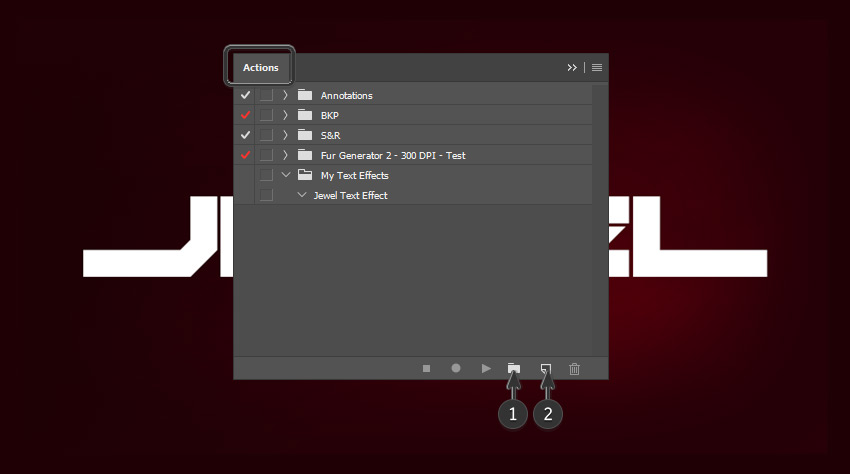
Make sure the text layer is selected on the Layers panel. After that, go to Window > Actions to open the Actions panel. Then, click on the Create new set icon and name it My Text Effects. After that, click on the Create new Action icon and name it Jewel Text Effect.

Now Photoshop will record the next steps. Keep an eye on the Actions panel. Delete any wrong step you make by dragging it to the trash bin icon.

Creating a Photoshop Action

Step 4

Rename the text layer to Jewel A. Then double-click on it to open the Layer Style panel. After that, add a Gradient Overlay with these settings:

  • Blend Mode: Normal
  • Dither: Off
  • Opacity: 100%
  • Reverse: Off
  • Style: Linear
  • Align with Layer: On
  • Angle: 90º
  • Scale: 100%

Click on the gradient bar to open the Gradient Editor. 

You can move the stops on the gradient bar and create new ones by clicking below it. Create a gradient with these settings:

  • First stop color: #1a1a1a Location: 19%
  • Second stop color: #404040 Location: 42%
  • Third stop color: #1c1c1c Location: 80%
Creating a new gradient overlay

Step 5

Add a Drop Shadow with these settings:

  • Blend Mode: Normal
  • Color: #090909
  • Opacity: 100%
  • Use Global Light: Off
  • Angle: 180º
  • Distance: 2 px
  • Spread: 100%
  • Size: 3 px
  • Contour: Linear
  • Anti-aliased: On
  • Noise: 0%
  • Layer Knocks Out Drop Shadow: On
Drop shadow settings

Step 6

Now add an Outer Glow with these settings:

  • Blend Mode: Normal
  • Opacity: 100%
  • Noise: 0%
  • Color: #181818
  • Technique: Softer
  • Spread: 0%
  • Size: 18%
  • Contour: Linear
  • Anti-aliased: Off
  • Range: 100%
  • Jitter: 0%
Outer Glow Settings

Step 7

Add an Inner Glow with these settings:

  • Blend Mode: Screen
  • Opacity: 100%
  • Noise: 0%
  • Color: #828282
  • Technique: Softer
  • Source: Edge
  • Choke: 100%
  • Size: 2 px
  • Contour: Linear
  • Anti-aliased: On
  • Range: 100%
  • Jitter: 0%
Inner Glow settings

Step 8

Now add an Inner Shadow with these settings:

  • Blend Mode: Multiply
  • Color: #383838
  • Opacity: 100%
  • Use Global Light: Off
  • Angle: -61º
  • Distance: 2 px
  • Choke: 40%
  • Size: 1 px
  • Contour: Linear
  • Anti-aliased: On
  • Noise: 0%
Inner Shadow settings

Step 9

Add a Bevel & Emboss with these settings:

  • Style: Inner Bevel
  • Technique: Smooth
  • Depth: 355%
  • Direction: Up
  • Size: 32 px
  • Soften: 0 px
  • Use Global Light: Off
  • Angle: -56º
  • Altitude: 74º
  • Anti-aliased: On
  • Highlight Mode: Screen Color: #ffffff Opacity: 45%
  • Shadow Mode: Multiply Color: #242424 Opacity: 55%

Then click on the Gloss Contour box and edit the curve with these settings:

  • First Point Input: 0% Output: 100% Corner: Off
  • Second Point Input: 24% Output: 99% Corner: Off
  • Third Point Input: 44% Output: 45% Corner: Off
  • Fourth Point Input: 100% Output: 0% Corner: Off

Now click OK to close the Layer Style panel.

Bevel and Emboss settings

This is how the text effect should look by now:

How the text effect shoul look

Step 10

Press Control-J to duplicate the layer. Then rename the copy to Jewel B. After that, right-click on the Jewel B layer and choose Clear Layer Style.

Creating another text layer

Step 11

Double-click the Jewel B layer to open the Layer Style panel. Then add a Bevel & Emboss with these settings:

  • Style: Inner Bevel
  • Technique: Chisel Hard
  • Depth: 157%
  • Direction: Down
  • Size: 250 px
  • Soften: 0 px
  • Use Global Light: Off
  • Angle: 81º
  • Altitude: 32º
  • Anti-aliased: On
  • Highlight Mode: Color Dodge Color: #ececec Opacity: 69%
  • Shadow Mode: Hard Light Color: #474747 Opacity: 9%

Then click on the Gloss Contour box and edit the curve with these settings:

  • First Point Input: 0% Output: 0% Corner: Off
  • Second Point Input: 7% Output: 100% Corner: On
  • Third Point Input: 37% Output: 55% Corner: Off
  • Fourth Point Input: 46% Output: 1% Corner: On
  • Fifth Point Input: 73% Output: 100% Corner: On
  • Sixth Point Input: 100% Output: 100% Corner: Off
Second Bevel and Emboss settings

Step 12

Add a Stroke with these settings:

  • Size: 2 px
  • Position: Outside
  • Blend Mode: Normal
  • Opacity: 100%
  • Overprint: Off
  • Fill Type: Gradient
  • Reverse: Off
  • Align with Layer: On
  • Style: Linear
  • Angle: 83º
  • Scale: 100%
  • Dither: Off

Then click on the gradient bar and edit it with these settings:

  • First stop color: #121212 Location: 0%
  • Second stop color: #5b5b5b Location: 48%
  • Third stop color: #121212 Location: 100%
Stroke settings

Step 13

Now add a Color Overlay with these settings:

  • Blend Mode: Color Dodge
  • Color: #404040
  • Opacity: 100%
Color Overlay settings

Step 14

Add an Outer Glow with these settings:

  • Blend Mode: Normal
  • Opacity: 68%
  • Noise: 0%
  • Color: #272727
  • Technique: Softer
  • Spread: 15%
  • Size: 16 px
  • Contour: Linear
  • Anti-aliased: On
  • Range: 100%
  • Jitter: 0%

After that, click OK to close the Layer Style window.

Outer Glow settings

This is how the text effect should look:

How the text effect should look

Step 15

Press Control and select both text layers. Then right-click on one of them and choose Convert to Smart Object. After that, rename the new smart object to Jewel Text Effect.

Converting the layers to a smart object

Step 16

Now go to Window > Adjustments and click on the Gradient Map icon. After that, right-click on the Gradient Map layer and choose Create Clipping Mask.

Creating a gradient map layer

Step 17

Select the Gradient Map layer and go to Window > Properties. Then click on the gradient bar to open the Gradient Editor. After that, edit the gradient with these settings:

  • First stop color: #240003 Location: 0%
  • Second stop color: #4e0009 Location: 16%
  • Third stop color: #ff0012 Location: 59%
  • Fourth stop color: #ffbe8f Location: 86%
  • Fifth stop color: #ffffff Location: 100%
Creating a new gradient

Step 18

Select both the text layer and the gradient map and convert them into a smart object. Then rename the new smart object to Jewel Text Effect. After that, go to the Actions panel and click on the Stop Recording icon to finish the action.

Converting the layers into one smart object

This is how the text effect should look:

How the text effect should look

2. How to Create the Shadow and the Reflection 

Step 1

Create a new layer below the text effect and name it Shadow. Then pick the Rectangle Tool (U) and create a thin black shape below the text.

Shadow layer

Step 2

Go to Filter > Blur > Gaussian blur and set it to 6.0 pixels. After that, change the Opacity of the Shadow layer to 35%.

Shadow layer with gaussian blur

Step 3

Select the text layer and press Control-J to duplicate it. Then rename the copy to Reflex and move it below the Shadow layer. After that, press Control-T and right-click on the Transform box and choose Flip Vertical. Then, move the layer down to make it look like a perfect reflection.

Reflex layer below the shadow layer

Step 4

Select the Reflex layer and click on the Add layer mask icon. Then pick the Gradient Tool (G) and select the Black, White gradient. After that, draw a gradient vertically from the bottom of the Reflex layer to the top of the Jewel Text Effect Layer.

Drawing the gradient mask

And We’re Done!

Jewel Text Effect Final result

In this tutorial, you learned how to record a Photoshop action and save Photoshop layer styles in it. We created two layer styles and merged them. After that, we added some colors with a gradient map, and then we added a simple shadow and a reflection below the text.

The text effect is saved in the Actions panel. Now you can apply the same effect to any word or font by selecting the action and clicking on Play. Then you just need to create the shadow and the reflection.

Don’t forget to check the original text effect.

10 Glossy photoshop text effects promo image
10 Glossy Photoshop Text Effects

If you want to keep learning, here are some tutorials that you may also like:

How to Create a 3D Jewel Text Effect Action in Photoshop

Post pobrano z: How to Create a 3D Jewel Text Effect Action in Photoshop

Final product image
What You’ll Be Creating

Today I’m back to show you how to create fake 3D Photoshop actions. This text effect action was inspired by one of the text effects of the 10 Glossy Photoshop Text Effects, and it looks as if it’s made of a faceted ruby. 

You will learn that it is possible to save the information of Photoshop layer styles in Photoshop actions, making the process of saving the text effect easier since you don’t need to save any layer style. The fake 3D effect will come from a Bevel & Emboss style and a reflection layer below the text. 

At the end of this tutorial, I will link to more tutorials about how to create an action in Photoshop and Photoshop type effects. So don’t forget to check those if you’re interested in learning more 3D text effect Photoshop actions.

Check the original text effect on GraphicRiver—you might like the whole pack.

10 Glossy photoshop text effects promo image
10 Glossy Photoshop Text Effects

Tutorial Assets

The following assets were used during this tutorial:

1. How to Record the Action

Step 1

In my other tutorials, I teach how to create the layer styles first and then how to create the action using the styles. Today it will be faster, since this text effect doesn’t require any assets, to save all its settings in the action itself. So let’s begin.

Extract the zip file attached to this tutorial and then open the Background-image.jpg with Photoshop.  

Jewel Background

Step 2

Pick the Horizontal Type Tool (T) and set the font to Darktech LDR and font size to 121 pt. After that, write „JEWEL” in the center of the document.

Jewel text layer

Step 3

Make sure the text layer is selected on the Layers panel. After that, go to Window > Actions to open the Actions panel. Then, click on the Create new set icon and name it My Text Effects. After that, click on the Create new Action icon and name it Jewel Text Effect.

Now Photoshop will record the next steps. Keep an eye on the Actions panel. Delete any wrong step you make by dragging it to the trash bin icon.

Creating a Photoshop Action

Step 4

Rename the text layer to Jewel A. Then double-click on it to open the Layer Style panel. After that, add a Gradient Overlay with these settings:

  • Blend Mode: Normal
  • Dither: Off
  • Opacity: 100%
  • Reverse: Off
  • Style: Linear
  • Align with Layer: On
  • Angle: 90º
  • Scale: 100%

Click on the gradient bar to open the Gradient Editor. 

You can move the stops on the gradient bar and create new ones by clicking below it. Create a gradient with these settings:

  • First stop color: #1a1a1a Location: 19%
  • Second stop color: #404040 Location: 42%
  • Third stop color: #1c1c1c Location: 80%
Creating a new gradient overlay

Step 5

Add a Drop Shadow with these settings:

  • Blend Mode: Normal
  • Color: #090909
  • Opacity: 100%
  • Use Global Light: Off
  • Angle: 180º
  • Distance: 2 px
  • Spread: 100%
  • Size: 3 px
  • Contour: Linear
  • Anti-aliased: On
  • Noise: 0%
  • Layer Knocks Out Drop Shadow: On
Drop shadow settings

Step 6

Now add an Outer Glow with these settings:

  • Blend Mode: Normal
  • Opacity: 100%
  • Noise: 0%
  • Color: #181818
  • Technique: Softer
  • Spread: 0%
  • Size: 18%
  • Contour: Linear
  • Anti-aliased: Off
  • Range: 100%
  • Jitter: 0%
Outer Glow Settings

Step 7

Add an Inner Glow with these settings:

  • Blend Mode: Screen
  • Opacity: 100%
  • Noise: 0%
  • Color: #828282
  • Technique: Softer
  • Source: Edge
  • Choke: 100%
  • Size: 2 px
  • Contour: Linear
  • Anti-aliased: On
  • Range: 100%
  • Jitter: 0%
Inner Glow settings

Step 8

Now add an Inner Shadow with these settings:

  • Blend Mode: Multiply
  • Color: #383838
  • Opacity: 100%
  • Use Global Light: Off
  • Angle: -61º
  • Distance: 2 px
  • Choke: 40%
  • Size: 1 px
  • Contour: Linear
  • Anti-aliased: On
  • Noise: 0%
Inner Shadow settings

Step 9

Add a Bevel & Emboss with these settings:

  • Style: Inner Bevel
  • Technique: Smooth
  • Depth: 355%
  • Direction: Up
  • Size: 32 px
  • Soften: 0 px
  • Use Global Light: Off
  • Angle: -56º
  • Altitude: 74º
  • Anti-aliased: On
  • Highlight Mode: Screen Color: #ffffff Opacity: 45%
  • Shadow Mode: Multiply Color: #242424 Opacity: 55%

Then click on the Gloss Contour box and edit the curve with these settings:

  • First Point Input: 0% Output: 100% Corner: Off
  • Second Point Input: 24% Output: 99% Corner: Off
  • Third Point Input: 44% Output: 45% Corner: Off
  • Fourth Point Input: 100% Output: 0% Corner: Off

Now click OK to close the Layer Style panel.

Bevel and Emboss settings

This is how the text effect should look by now:

How the text effect shoul look

Step 10

Press Control-J to duplicate the layer. Then rename the copy to Jewel B. After that, right-click on the Jewel B layer and choose Clear Layer Style.

Creating another text layer

Step 11

Double-click the Jewel B layer to open the Layer Style panel. Then add a Bevel & Emboss with these settings:

  • Style: Inner Bevel
  • Technique: Chisel Hard
  • Depth: 157%
  • Direction: Down
  • Size: 250 px
  • Soften: 0 px
  • Use Global Light: Off
  • Angle: 81º
  • Altitude: 32º
  • Anti-aliased: On
  • Highlight Mode: Color Dodge Color: #ececec Opacity: 69%
  • Shadow Mode: Hard Light Color: #474747 Opacity: 9%

Then click on the Gloss Contour box and edit the curve with these settings:

  • First Point Input: 0% Output: 0% Corner: Off
  • Second Point Input: 7% Output: 100% Corner: On
  • Third Point Input: 37% Output: 55% Corner: Off
  • Fourth Point Input: 46% Output: 1% Corner: On
  • Fifth Point Input: 73% Output: 100% Corner: On
  • Sixth Point Input: 100% Output: 100% Corner: Off
Second Bevel and Emboss settings

Step 12

Add a Stroke with these settings:

  • Size: 2 px
  • Position: Outside
  • Blend Mode: Normal
  • Opacity: 100%
  • Overprint: Off
  • Fill Type: Gradient
  • Reverse: Off
  • Align with Layer: On
  • Style: Linear
  • Angle: 83º
  • Scale: 100%
  • Dither: Off

Then click on the gradient bar and edit it with these settings:

  • First stop color: #121212 Location: 0%
  • Second stop color: #5b5b5b Location: 48%
  • Third stop color: #121212 Location: 100%
Stroke settings

Step 13

Now add a Color Overlay with these settings:

  • Blend Mode: Color Dodge
  • Color: #404040
  • Opacity: 100%
Color Overlay settings

Step 14

Add an Outer Glow with these settings:

  • Blend Mode: Normal
  • Opacity: 68%
  • Noise: 0%
  • Color: #272727
  • Technique: Softer
  • Spread: 15%
  • Size: 16 px
  • Contour: Linear
  • Anti-aliased: On
  • Range: 100%
  • Jitter: 0%

After that, click OK to close the Layer Style window.

Outer Glow settings

This is how the text effect should look:

How the text effect should look

Step 15

Press Control and select both text layers. Then right-click on one of them and choose Convert to Smart Object. After that, rename the new smart object to Jewel Text Effect.

Converting the layers to a smart object

Step 16

Now go to Window > Adjustments and click on the Gradient Map icon. After that, right-click on the Gradient Map layer and choose Create Clipping Mask.

Creating a gradient map layer

Step 17

Select the Gradient Map layer and go to Window > Properties. Then click on the gradient bar to open the Gradient Editor. After that, edit the gradient with these settings:

  • First stop color: #240003 Location: 0%
  • Second stop color: #4e0009 Location: 16%
  • Third stop color: #ff0012 Location: 59%
  • Fourth stop color: #ffbe8f Location: 86%
  • Fifth stop color: #ffffff Location: 100%
Creating a new gradient

Step 18

Select both the text layer and the gradient map and convert them into a smart object. Then rename the new smart object to Jewel Text Effect. After that, go to the Actions panel and click on the Stop Recording icon to finish the action.

Converting the layers into one smart object

This is how the text effect should look:

How the text effect should look

2. How to Create the Shadow and the Reflection 

Step 1

Create a new layer below the text effect and name it Shadow. Then pick the Rectangle Tool (U) and create a thin black shape below the text.

Shadow layer

Step 2

Go to Filter > Blur > Gaussian blur and set it to 6.0 pixels. After that, change the Opacity of the Shadow layer to 35%.

Shadow layer with gaussian blur

Step 3

Select the text layer and press Control-J to duplicate it. Then rename the copy to Reflex and move it below the Shadow layer. After that, press Control-T and right-click on the Transform box and choose Flip Vertical. Then, move the layer down to make it look like a perfect reflection.

Reflex layer below the shadow layer

Step 4

Select the Reflex layer and click on the Add layer mask icon. Then pick the Gradient Tool (G) and select the Black, White gradient. After that, draw a gradient vertically from the bottom of the Reflex layer to the top of the Jewel Text Effect Layer.

Drawing the gradient mask

And We’re Done!

Jewel Text Effect Final result

In this tutorial, you learned how to record a Photoshop action and save Photoshop layer styles in it. We created two layer styles and merged them. After that, we added some colors with a gradient map, and then we added a simple shadow and a reflection below the text.

The text effect is saved in the Actions panel. Now you can apply the same effect to any word or font by selecting the action and clicking on Play. Then you just need to create the shadow and the reflection.

Don’t forget to check the original text effect.

10 Glossy photoshop text effects promo image
10 Glossy Photoshop Text Effects

If you want to keep learning, here are some tutorials that you may also like:

Agregator najlepszych postów o designie, webdesignie, cssie i Internecie