One of the key changes that Gutenberg brings to the WordPress ecosystem is a heavy reliance on JavaScript. Helpfully, the WordPress team have really pushed their JavaScript framework into the present and future by leveraging the modern JavaScript stack, which is commonly referred to as ES6 in the community. It’s how we’ll refer to it as in this series too, to avoid confusion.
Let’s dig into this ES6 world a bit, as it’s ultimately going to help us understand how to structure and build a custom Gutenberg block.
ES6 is short for “EcmaScript 6” which is the 6th edition of EcmaScript. It’s official name is ES2015, which you may have also seen around. EcmaScript has since gone through many iterations, but modern JavaScript is still often referred to as ES6. As you probably guessed, the iterations have continued ES2016, ES2017 and so-on. I actually asked a question on ShopTalk show about what we could name modern JavaScript, which I the conclusion was… ES6.
I’m going to run through some key features of ES6 that are useful in the context of Gutenberg.
Functions
Functions get a heck of an update with ES6. Two changes I want to focus on are Arrow Functions and Class Methods.
Inside a class you don’t actually need to write the word function anymore in ES6. This can be confusing, so check out this example:
class Foo {
  // This is your 'bar' function
  bar() {
    return 'hello';
  }
}
You’d invoke bar() like this:
const fooInstance = new Foo();
const hi = fooInstance.bar();
This is commonplace in the land of modern JavaScript, so it’s good to clear it up.
Fun fact! ES6 Classes in JavaScript aren’t really “classes” in an object-oriented programming sense—under the hood, it’s the same old prototypical inheritance JavaScript has always had. Prior to ES6, the bar() method would be defined like so: Foo.prototype.bar = function() { ... }. React makes great use of ES6 classes, but it’s worth noting that ES6 classes are essentially syntactic sugar and hotly contested by some. If you’re interested in more details, checkout the MDN docs and this article on 2ality.
Right, let’s move on to arrow functions. 🚀
An arrow function gives us a compact syntax that is often used as a one-liner for expressions. It’s also used to maintain the value of this, as an arrow function won’t rebind this like setInterval or an event handler would usually do.
An example of an arrow function as an expression is as follows:
// Define an array of fruit objects
const fruit = [
  {
    name: 'Apple',
    color: 'red'
  },
  {
    name: 'Banana',
    color: 'yellow'
  },
  {
    name: 'Pear',
    color: 'green'
  }
];

// Select only red fruit from that collection
const redFruit = fruit.filter(fruitItem => fruitItem.color === 'red');

// Output should be something like Object { name: "Apple", color: "red" }
console.log(redFruit[0]);
As you can see above, because there was a single parameter and the function was being used as an expression, we can redact the brackets and parenthesis. This allows us to really compact our code and improve readability.
Let’s take a look at how we can use an arrow function as an event handler in our Foo class from before:
class Foo {

  // This is your 'bar' function
  bar() {
    let buttonInstance = document.querySelector('button');

    buttonInstance.addEventListener('click', evt => {
      console.log(this);
    });
  }
}

// Run the handler
const fooInstance = new Foo();
fooInstance.bar();
When the button is clicked, the output should be Foo { }, because this is the instance of Foo. If we were to replace that example with the following:
class Foo {

  // This is your 'bar' function
  bar() {
    let buttonInstance = document.querySelector('button');

    buttonInstance.addEventListener('click', function(evt) {
      console.log(this);
    });
  }
}

// Run the handler
const fooInstance = new Foo();
fooInstance.bar();
When the button is clicked, the output would be <button> because the function has bound this to be the <button> that was clicked.
You can read more about arrow functions with Wes Bos, who wrote an excellent article about them.
const, let, and var
You may have noticed that I’ve been using const and let in the above examples. These are also a part of ES6 and I’ll quickly explain what each one does.
If a value is absolutely constant and won’t change through re-assignment, or be re-declared, use a const. This would commonly be used when importing something or declaring non-changing properties such as a collection of DOM elements.
If you have a variable that you want to only be accessible in the block it was defined in, then use a let. This can be confusing to understand, so check out this little example:
function foo() {
  if (1 < 2) {
    let bar = 'always true';

    // Outputs: 'always true'
    console.log(bar);
  }

  // Outputs 'ReferenceError: bar is not defined'
  console.log(bar);
}

// Run the function so we can see our logs
foo();
This is a great way to keep control of your variables and make them disposable, in a sense.
Lastly, var is the same old friend we know and love so well. Unfortunately, between const and let, our friend is becoming more and more redundant as time goes on. Using var is totally acceptable though, so don’t be disheartened—you just won’t see it much in the rest of this tutorial!
Destructuring assignment
Destructuring allows you to extract object keys at the point where you assign them to your local variable. So, say you’ve got this object:
Traditionally, you’d extract people with foo.people. With destructuring, you can do this:
let { people } = foo;
That pulls the people array out of the the foo object, so we can dump the foo. prefix and use it as it is: people. It also means that anotherKey and heyAFunction are ignored, because we don’t need them right now. This is great when you’re working with big complex objects where being able to selectively pick stuff out is really useful.
You can also make use of destructuring to break up an object into local variables to increase code readability. Let’s update the above snippet:
let { people } = foo;
let { heyAFunction } = foo;
Now we’ve got those two separate elements from the same object, while still ignoring anotherKey. If you ran console.log(people), it’d show itself an array and if you ran console.log(heyAFunction), you guessed it, it’d show itself as a function.
JSX
Most commonly found in React JS contexts: JSX is an XML-like extension to JavaScript that is designed to be compiled by preprocessors into normal JavaScript code. Essentially, it enables us to write HTML(ish) code within JavaScript, as long as we’re preprocessing it. It’s usually associated with a framework like React JS, but it’s also used for Gutenberg block development.
Pretty cool, huh? No templating system or escaping or concatenating required. As long as you return a single element, which can have many children, you’re all good. So let’s show something a touch more complex, with a React render function:
class MyComponent extends React.Component {
  /* Other parts redacted for brevity */

  render() {
    return (
      <article>
        <h2 className="heading">{ this.props.heading }</h2>
        <p className="lead">{ this.props.summary }</p>
      </article>
    );
  }
};
You can see above that we can drop expressions in wherever we want. This is also the case with element attributes, so we can have something like this:
You might be thinking, “What are these random braces doing?”
The answer is that this is an expression, which you will see a ton of in JSX. Essentially, it’s a little inline execution of JavaScript that behaves very much like a PHP echo does.
You’ll also probably notice that it says className instead of class. Although it looks like HTML/XML, it’s still JavaScript, so reserved words naturally are avoided. Attributes are camel-cased too, so keep and eye out for that. Here’s a useful answer to why it’s like this.
JSX is really powerful as you’ll see while this series progresses. It’s a great tool in our stack and really useful to understand in general.
I like to think of JSX as made up-tag names that are actually just function calls. Pick out any of the made-up tags you see in Gutenberg, let’s use <InspectorControls /> for example, and do a „Find in Folder” for class InspectorControls and you’ll see something structured like Andy’s example here! If you don’t find it, then the JSX must be registered as functional component, and should turn up by searching for function InspectorControls.
Wrapping up
We’ve had a quick run through some of the useful features of ES6. There’s a ton more to learn, but I wanted to focus your attention on the stuff we’ll be using in this tutorial series. I’d strongly recommend your further your learning with Wes Bos’ courses, JavaScript 30 and ES6.io.
Next up, we’re going to build a mini React component!
This effect adds rustic charm to any typography, is quick and easy to create, and is a great way of mocking up logos or signage. We’ll use Adobe InDesign’s Effects window to develop depth, highlighting and shadowing.
Have 15 minutes? What are you waiting for!
If you’re on the hunt for more great fonts to use in your text effects, head on over to Envato Elements to browse a huge range of display typefaces.
What You’ll Need to Create Your Text Effect
As well as access to Adobe InDesign, you’ll also need to download the following image and font files:
1. How to Set Up the Wooden Backdrop for Your Effect
Step 1
Open up InDesign and go to File > New > Document. You can set up your page to any size, but here I’ve set it up as Landscape A3. When you’re ready, click Create.
Expand the Layers panel (Window > Layers) and double-click on Layer 1 to rename it as Background.
Create three new layers above this, in this order—Smudge, Type, and finally Highlight at the top.
Then lock all layers except Background.
Step 2
Working on Background, use the Rectangle Frame Tool (F) to create an image frame across the whole page.
File > Place, navigate to the wood texture image you downloaded earlier, and Open, allowing it to fill the whole frame.
Step 3
Lock the Background layer and unlock the Type layer.
Expand the Swatches panel (Window > Color > Swatches), and choose New Color Swatch from the panel’s drop-down menu.
Set the CMYK levels to C=71 M=79 Y=66 K=92, and click Add and then OK.
Repeat to create three more CMYK swatches:
C=26 M=75 Y=89 K=21
C=8 M=46 Y=42 K=1
C=43 M=65 Y=48 K=48
Step 4
Choose New Gradient Swatch from the Swatches panel’s menu.
Name the swatch Burn Gradient and set the Type to Radial.
Click on the left-hand stop on the Gradient Ramp, and choose your new dark swatch, C=71 M=79 Y=66 K=92, for this.
Set the right-hand stop to your pale swatch, C=8 M=46 Y=42 K=1. Then click on the ramp to add a central, third stop, setting this to C=26 M=75 Y=89 K=21.
2. How to Create Your Burn Effect
Step 1
Still working on the Type layer, use the Type Tool (T) to create a text frame centrally on the page. Type in some text and set the Font to Douglas-Calgury Block.
Here, I’ve also added text frames above and below this central text frame.
I also add a framing circle around the typography using the Ellipse Tool (L), and increase the Weight of the circle’s stroke to 23 pt from the Stroke panel (Window > Stroke).
Step 2
When you’ve finished formatting your typography, Right-Click > Group all of the elements together.
Edit > Copy and Edit > Paste the group, moving the copy over onto the pasteboard.
Step 3
To format your effect you may find it easier to Right-Click > Ungroup the original type elements sitting on the page.
Select each text frame individually and apply the Burn Gradient swatch as the Font Color of each.
Also apply the Burn Gradient to any other elements, like the circle shape here.
You can use the Gradient panel (Window > Color > Gradient) to adjust the gradient on each text frame individually. Try shifting the Angle, reversing the gradient or moving the gradient stops on the ramp at the bottom, to create a deep, dark gradient effect on each text frame.
Step 4
Select all the text frames and shapes and go to Object > Effects > Transparency. Set the Mode to Multiply and bring the Opacity down to 90%.
Step 5
Click on Inner Shadow in the Effects window’s left-hand menu.
Click on the colored square next to the Mode menu, and from here change the Effect Color to C=71 M=79 Y=66 K=92, and click OK.
Back in the Inner Shadow menu, set the Distance to 1 mm, Size to 3 mm, Choke to 25%, and Noise to around 15%.
Step 6
Click on Outer Glow in the Effects window’s menu. Adjust the Mode to Normal and Opacity to about 90%.
Change the Effect Color to C=26 M=75 Y=89 K=21.
With the Technique set to Softer, increase the Size to 5 mm, Noise to 25%, and Spread to around 45%.
Step 7
Finally, click on Inner Glow in the left-hand menu. Switch the Mode to Normal, Opacity to about 85%, and switch the Effect Color to C=8 M=46 Y=42 K=1.
Set the Technique to Softer, Source to Edge, Size to 2 mm, and Noise to around 25%.
Then click OK to exit the Effects window.
Step 8
Select the grouped elements which you moved over to the pasteboard earlier. Move this over on top of the elements sitting on the wooden background, placed slightly to the right, as shown below.
In the Layers panel, expand the Type layer by clicking on the arrow to the left of the Type name. Drag the <group> element down onto the Create New Layer button at the bottom of the panel, to duplicate it.
Then unlock the Smudge layer, and drag one of the two <group> elements down, dropping it onto the Smudge layer. Then you can lock the Type layer.
Working on the <group> now sat on the Smudge layer, apply the Burn Gradient swatch to each element of this copy of the typography. Use the Gradient panel (Window > Color > Gradient), as before, to adjust the angle and position of the gradient on each section of the type.
With the <group> selected, go to Object > Effects > Transparency. Set the Mode to Soft Light and click OK.
Step 9
Expand the Smudge layer and drag the <group> element down onto the Create New Layer button, to duplicate the <group>.
Unlock the top layer, Highlight, and drag one of the <group> elements up onto this layer.
Lock the Smudge layer, working on Highlight.
Select the group of type elements on this page and shift its position slightly to the left. Then go to Object > Effects > Transparency. Set the Mode to Screen and click OK.
Your Finished Text Effect
Your burnt wood text effect is finished—awesome job!
You can now incorporate your text effect into other InDesign work, or go to File > Export to create a JPG, PNG, or PDF version of your effect.
A great way to give a twist on a text effect is to use a different typeface style. You can find a huge range of awesome fonts to use in your text effects over on Envato Elements.
Looking for more quick InDesign text effects? Make sure to check these out:
Want to give your type an edgy, Mad Max makeover? This super-quick glitch effect only takes 10 minutes to put together, and it makes a good substitute for…
The BBC is running “History Will Be made”, a marketing campaign for the 2018 FIFA World Cup to be held in Russia. Every World Cup has a host of iconic moments and everyone has their own individual favourite that immediately takes you back to that time and place. The campaign trailer, “The Tapestry”, takes a journey through World Cup history via the skill of Diego Maradona, the flair of Zinedine Zidane and the emotion of Paul Gascoigne, with a preview of the most exciting talents of this year’s finals including Cristiano Ronaldo, Lionel Messi and Harry Kane. The BBC Tapestry film is only the beginning of a campaign which will continue through to the end of the 2018 FIFA World Cup series in Russia.
Every single frame in the BBC Tapestry film was individually embroidered. More than 227,000 metres of thread were used to create over 600 unique frames of tapestry, that if laid end-to-end would measure over 1,200 metres in length. This visual style will then become the look and feel for the BBC’s coverage, extending into programming graphics, website design, social media, BBC One’s look, and more. The idea will be fully realised in a real 7-metre long tapestry that will be put on public display. Moments from this year’s competition will be added to the tapestry after the tournament’s completion, creating a historical record of the 2018 World Cup.
The launch film’s accompanying music is Ochi Cheryne – a traditional Russian folk song in keeping with the historical theme of the campaign. The song was recorded at Abbey Road Studios, arranged by Alex Baranowski, and features distinguished bass-baritone Sir John Tomlinson alongside a 40-piece orchestra. The lyrics speak of unification and friendship – the ambition of the World Cup itself.
BBC Tapestry World Cup Credits
The BBC World Cup Tapestry campaign was developed at BBC Sport Marketing and BBC Creative by portfolio head of marketing James Parry, marketing manager John Spratt, marketing executive Helen Worsey, campaign planner David Wheadon, media portfolio lead Marc Jones, executive creative directors Aidan McClure and Laurent Simon, creative directors Tim Jones and James Cross, creatives Edward Usher and Xander Hart, producer Liz Dolan, project manager Loretta Ramkissoon, production coordinator Emma Hamilton, head of planning Mike Lean.
Filming was shot by director Nicos Livesey via Blinkink with producer Alex Halley, executive producer Bart Yates, designer Luke Carpenter, and BBC Creative head of design Laurence Honderick.
Sound was designed and mixed by Mark Hills and Anthony Moore at Factory with producer Lucy Spong.
Music, “Ochi Cheryne”, was arranged by composer Alex Baranowski, performed by Sir John Tomlinson and the London Metropolitan Orchestra, recorded at Abbey Road Studios.
In this tutorial, you will learn how to create a sliced effect in Photoshop by mimicking a 3D shape on a 2D image to give an object the illusion of being cut in pieces.
What You’ll Need
In order to complete this project, you will also need the following image:
Open the Faraglioni rocks image in Photoshop. We want to remove the background before using the rocks in the poster. To do this, in the Layers panel, Duplicate the Background layer by pressing Command-J, and Hide the visibility of the original Background layer.
Step 2
While selecting the new Layer 1 on the Layers panel, click on the Vector Mask button to add a Layer Mask to the Background copy.
Step 3
We will use the rock on the right side as it is solid compared to the one on the left. Let’s crop the image using the CropTool (C). I am maintaining the height and only closing in horizontally, as shown in the image below. Hit Enter to apply the crop.
Step 4
Select the Magic WandTool (W) and head over to the Options bar to make sure the Contiguous option is unchecked. For this specific tutorial we need to delete the sky, so click on a white part of the sky, which will select parts of the sky. In order to add to the selection, hold down Shift and click on the blue parts of the sky.
Step 5
Once all of the sky is selected, head over to the Layers panel. Select the Layer Mask we created for the new layer and hit Backspace on the keyboard to delete the parts we selected. You should have something like the image below. To deselect the parts we selected with the Magic WandTool (W), press Command-D.
Step 6
Now we need to remove the water. Using the Brush Tool (B) and black as the Foreground Colour on the Tools panel, you can hide parts of the image. If you use white as the foreground colour, you will instead reveal parts of the image. Make sure you have the Layer Mask selected on the Layers panel.
Right click to set the brush to a Size of 150 px and Hardness of 100% and start brushing parts away from the image. I like to do the big parts first, before zooming in and concentrating on the details later.
A great tool that helps here is using the backslash key (\) to get a red tint behind the image and see what parts need to be perfected.
Step 7
To soften the edges of the image, we can use the Refine Mask option. Using the Zoom Tool (Z), zoom in on the image. Head over to the Layers panel and right click on the Layer Mask> Refine Mask, and a new window will pop up. Under the Adjust Edge option, set the Feather to 2 px and Shift Edge to -30%. Click OK.
2. How to Create a New Document and Guides
Step 1
In Photoshop, go to File > New. Name the document Sliced-v1, and set the Width to 1275 px and Height to 1650 px, with Background Contents white. I am keeping the poster digital, so I will work with 72 dpi. Click OK to create the document.
Step 2
Let’s create guides in our document to make sure things are aligned. My ruler measures in inches; you can change this in Photoshop > Preferences > Units and Rulers. Head over to View > New Guide, where a new window will pop up. We want to make all of our Guides 1 inch from each edge. Select Horizontal and under Position type 1 in. Click OK.
We will do the same for the Vertical option. To add a guide to the bottom and the right side of the page, subtract 1 inch from the overall dimensions of the page. To hide and show the guides, hit Command-;.
3. How to Duplicate Layers and Add a Gradient Background
Step 1
Let’s duplicate the Layer 1 from the rocks file into our new Sliced-v1 file. To do so, Right Click > Duplicate Layers. Under As:, rename the layer to Rock, and under Destination select Document > Sliced-v1. Click OK to continue.
Step 2
In the Sliced-v1 file, resize the Rock layer by hitting Command-T to activate the Transform Tool. Resize the image to fit within the margin. Alternatively, you can head to the Options bar and set the Width and Height to 58%, making sure to activate the Maintain Aspect Ratio button. Hit Enter to proceed.
Step 3
Head over to the bottom of the Layers panel, and click on Create a New Fill or Adjustment Layer > Gradient. A new Gradient Fill window will pop up; click on the Gradient color space.
Step 4
Go to Gradient Editor > Gradient Type, double-click on the left color swatch, and use the following color code: #c5c5c5. Click OK. Double-click on the right color swatch and set the following color code: #f1f1f1. Click OK in all three windows to go back to the page. Let’s move the Gradient Fill layer under the Rock layer.
4. How to Convert a Single Layer to Black and White
Step 1
Before we start to create the effect, let’s turn the Rock layer into black and white. Select the Rock layer on the Layers panel and head over to Image > Adjustments > Black and White. An option window will pop up; click on Auto and then OK.
Step 2
The photo looks dull, so let’s add some contrast. Go to Image > Adjustments > Brightness/Contrast and set the Brightness to 35 and Contrast to 65. Click OK.
5. How to Create a Sliced Effect
Step 1
We need to cut our image into five pieces. We will be using the Pen Tool (P) to draw through the rock to create a mask. Try to follow the surface of the rock to make the effect credible.
Select the Pen Tool (P). Head over to the Options bar and make sure that Fill has no color selected.We can choose white as the Stroke at 1 pt. This is so we can see where we are slicing. Now we are all set!
Start by making the first point on the left side of the rock, and try to follow the form of the rock. You will notice I did about eight points, the last point being on the edge of the right side of the rock. Close the shape by going around the rock either around the top or bottom—I chose the top. Close the shape by clicking on the first point again. This new shape will be a new layer.
Step 2
Let’s go ahead and do the same step three more times, but lower on the rock. You can do as many points as you like with the Pen Tool (P). We should have four layers, each containing a shape like the image below.
Step 3
On the Layers panel, right click on the RockLayer Maskthumbnail and select Apply Layer Mask to delete all of the background we had on the rock layer.
Step 4
We will use the shapes we created as masks to duplicate the different parts of the rock and convert them into separate layers. On the Layers panel,press Command and click on the Shape 1 thumbnail, which will select only the shape. Click on the Rock layer and press Command-X to cut, followed by Shift-Command-V to paste in place. This will create a new layer with the first shape we created. Below, I’ve deactivated the layer so you can see which part I’ve cut from the original image.
Step 5
Repeat the same step with the other shapes. Select all the Shape layers and drag them towards the folder icon on the Layers panel to group them.Deactivate them so we don’t get confused. Below I have moved the layers to show you how they should be separated and how the Layers panel should be looking.
Step 6
Now that we have the rock as puzzle pieces, we will create the 3D effect.I am moving the Rock layer off the bottom margin to give space for the other rocks. We will work our way up. Select Layer 4 or the second layer from the bottom. Using the Pen Tool (P), we will draw on the bottom of the rock to form a 3D look. Click on the very edge of the left side, giving shape to the rock all the way to the edge of the right side (image on the left). To close the shape, this time go through the rock (right image).
If you want to change the shape, simply select the Direct Selection Tool (A) and click on the shape to bring up the points and edit. There is no right or wrong, so you can edit as much or as little as you want!
Step 7
Drag the shape under Layer 4. Head over to the Options bar and select Fill > Gradient and Stroke > None. We will worry about the color of the gradient later. Group these two layers to avoid confusion.
Step 8
Do the same step as above for the other rocks. I will organize the layers by grouping the shapes layers with their correspondent rock layers to avoid confusion and naming them numerically. You should have something like the image below.
Step 9
We want to create the illusion that the slices are falling on top of each other. In this specific image, our eyesight is at a low angle as we are looking up at the rock. The 3D parts we created need to be behind each other from bottom to top.
Let’s switch the order of the layers. Instead of going from 1 to 5, we will have 1 to 5 starting from the top. In other words, the gradient shapes we created need to be behind the rock. Below is an image of the order of the layers and how the file should be looking.
Step 10
Now that we have the layers in the right order, let’s give them a spontaneous look. Select different sections and use the Transform Tool (Command-T) to rotate them slightly. There is no right or wrong—you can move them as much as you like and resize as you wish!
Step 11
On the Layers panel, expand one of the folders. I will be expanding Rock 5, sodouble-click on the Shape 5 layer to bring up the Gradient Fill window. Here we need to change the Angle of the gradient; mine is at -100. The darker color we will choose later on needs to go on the side closest to the bottom rock, and the brighter side on the side that is farthest from the rock. On this specific layer, the closest point is on the left side, while the farthest is on the right. This will be different on all the layers. Feel free to use this as a reference.
Double-click on the Gradient color swatch. In the new Gradient Type window, double click on the left color swatch. I am using an orange color with the following code: #ef8d00. Click OK.
Double click on the right color swatch and choose a darker color than the one above; I am using #412701. Click OK on all the windows.
Step 12
Now let’s do the same for the other shapes! I am using the following codes for bright and dark shades respectively:
Purple: #5700e6 and #1a0145
Pink: #e600e6 and #49014a
Green: #0ebb98 and #004134
The image should be looking like the one below.
Congratulations! You’ve Done It!
In this tutorial, you learned to:
Create the illusion of a 3D object on a flat image.
Use the Pen Tool to create shapes that can be used as Masks on an image.
Use the Gradient Tool to create the illusion of light and shadow.
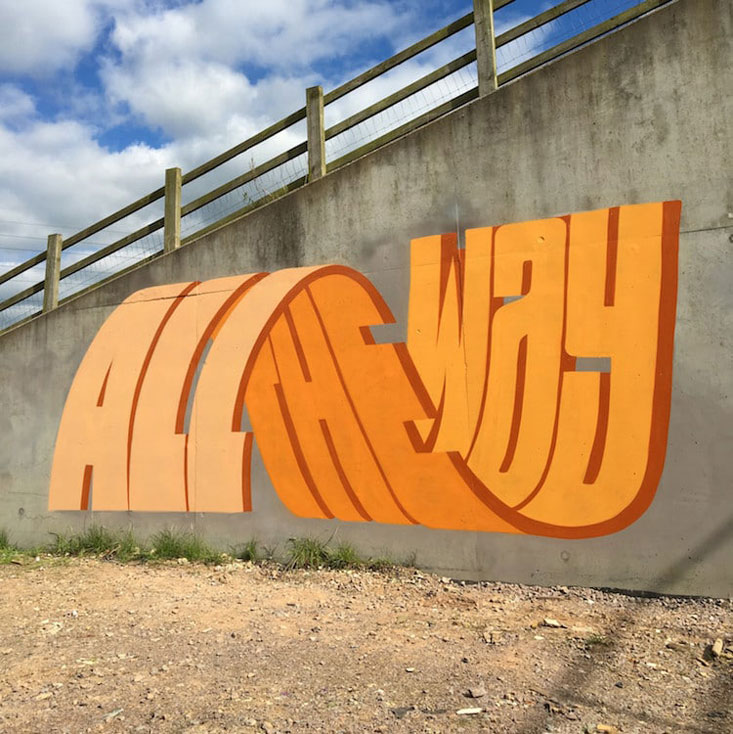
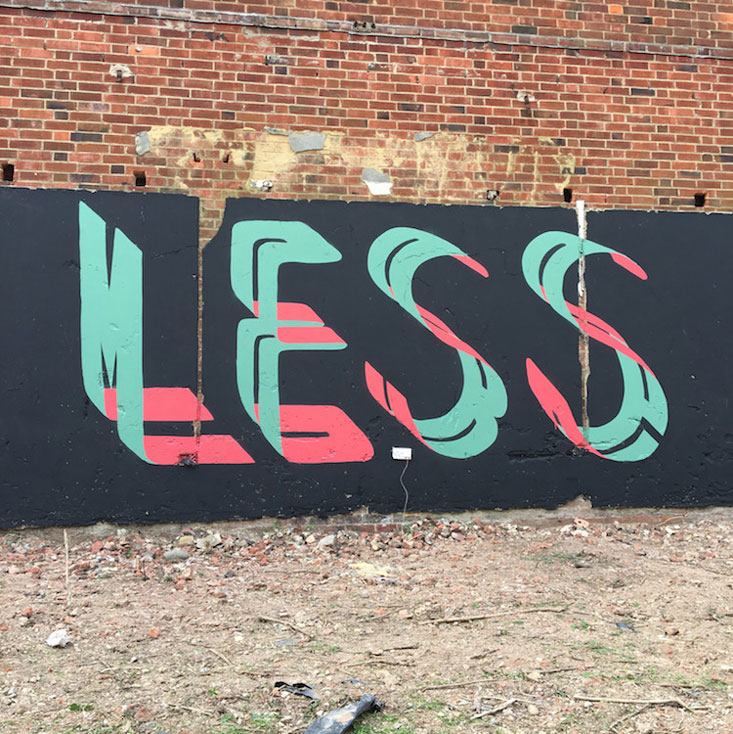
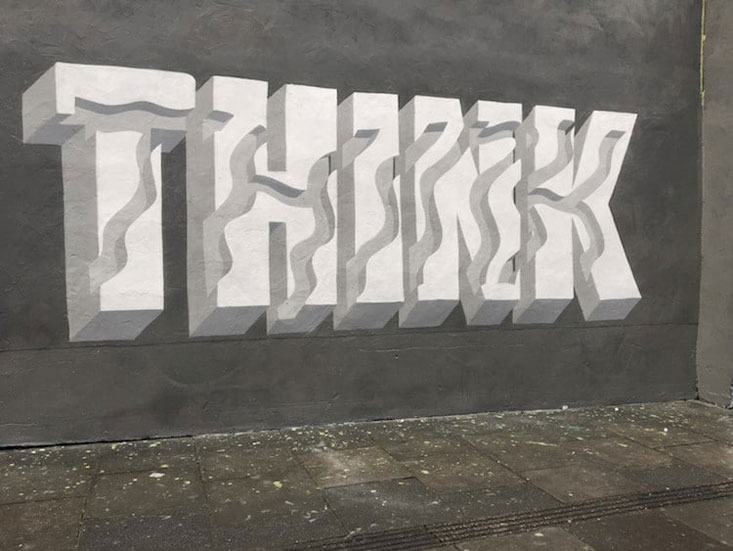
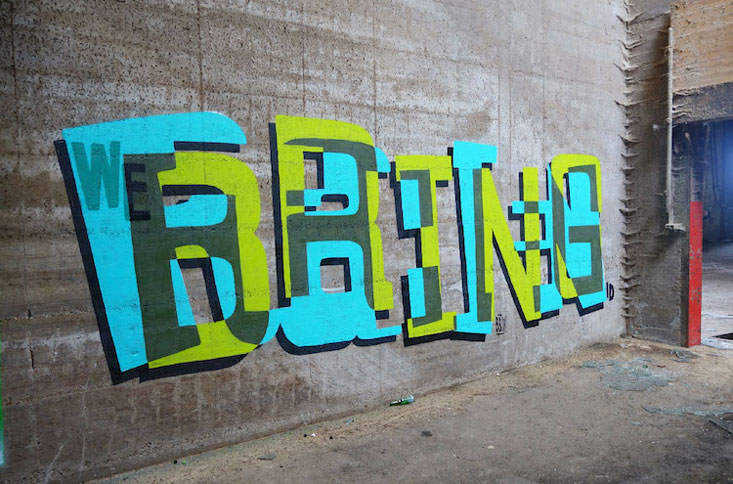
For the past twenty years, Peter Preffington (aka Pref) has been creating art that he published in his homeland, Great-Britain, or abroad. On top of the prints he exhibits in art galleries or online, the British artist also creates stunning street art that plays with type.
Playing with letter and dimensions, the street artist designs words that can be read in two ways. His multi-layered typography is not only fun and clever, it also looks great. You can obviously not purchase the designs that lay on walls, but you can buy some of his artworks as prints on his online shop.
Airbnb commissions their own new font, Cereal (complete with hype video), and then talks about how they are rolling out usage. I wonder what the price tag is for work like this. Seems like it would be both incredibly high but no-brainer worth it for big brands that are big enough.
Create a new 500 x 104 px document, and double-click the Background layer to unlock it.
Step 2
Double-click the Layer 1 layer to apply a Gradient Overlay effect with these settings:
Check the Dither box.
Use the faucet 150 gradient fill.
Step 3
Pick the Single Column Marquee Tool and click once anywhere to select a single vertical line.
Then, go to Edit > Define Pattern, and set the Name to Lines.
2. How to Create a Background Texture
Step 1
Create a new 850 x 588 px document with the Resolution value set to 300, place the Black grunge wall texture image on top of the Background layer, and resize it as needed.
Step 2
Go to Image > Adjustments > Levels, and change the Gamma value to 1.10.
Step 3
Double-click the texture layer to apply a Color Overlay effect with these settings:
Color: #3b7aab
Blend Mode: Overlay
This will add a blue color to the texture.
3. How to Create and Style Text Layers
Step 1
Create the text using the font Kenney Future, and set the Size to 50 pt.
Duplicate the text layer and change the copy’s Fill value to 0%.
Double-click the original text layer to apply the following layer style:
Step 2
Add a Bevel and Emboss with these settings:
Style: Stroke Emboss
Technique: Chisel Hard
Depth: 550
Size: 6
Uncheck the Use Global Light box
Angle: -169
Altitude: 37
Gloss Contour: Ring
Check the Anti-aliased box
Highlight Mode: Color Dodge
Opacity: 75%
Shadow Mode: Linear Burn
Opacity: 40%
Step 3
Add a Contour with these settings:
Contour: Cone – Inverted
Check the Anti-aliased box.
Range: 100%
Step 4
Add a Stroke with these settings:
Size: 3
Position: Outside
Fill Type: Gradient
Angle: 90
Click the Gradient box to create the gradient
Create the Gradient by adding alternating Color Stops of the Colors#1b5ad3 and #6db7fd.
Step 5
Add an Inner Shadow with these settings:
Blend Mode: Color Burn
Color: #0886f1
Opacity: 60%
Uncheck the Use Global Light box
Angle: 90
Distance: 0
Choke: 25
Size: 9
Step 6
Add an Inner Glow with these settings:
Blend Mode: Vivid Light
Opacity: 70%
Color: #7ffffd
Choke: 30
Size: 16
Check the Anti-aliased box
Range: 100
Step 7
Add a Gradient Overlay with these settings:
Check the Dither box
Blend Mode: Linear Burn
Opacity: 75%
Scale: 109%
Create the Gradient using the Colors#145190 to the left and #9517ff to the right.
Step 8
Add a Pattern Overlay with these settings:
Pattern: Lines
Scale: 7%
Step 9
Add an Outer Glow with these settings:
Blend Mode: Overlay
Opacity: 75%
Color: #dd69ff
Spread: 10
Size: 30
Check the Anti-aliased box
Step 10
Add a Drop Shadow with these settings:
Opacity: 100%
Uncheck the Use Global Light box
Angle: 90
Distance: 10
Spread: 30
Size: 15
Step 11
Add another instance of the Drop Shadow effect with these settings:
Opacity: 70%
Uncheck the Use Global Light box
Angle: 90
Distance: 20
Size: 35
This will create the main effect.
4. How to Add More Layer Effects
Double-click the copy text layer to apply the following layer style:
Step 1
Add a Bevel and Emboss with these settings:
Size: 49
Uncheck the Use Global Light box
Angle: 58
Altitude: 21
Gloss Contour: Cone – Inverted
Check the Anti-aliased box
Highlight Mode: Vivid Light
Opacity: 77%
Shadow Mode:
Opacity: 0%
Step 2
Add a Contour with these settings:
Contour: Rolling Slope – Descending
Check the Anti-aliased box.
Range: 100%
Step 3
Add an Inner Shadow with these settings:
Blend Mode: Soft Light
Color: #ab2eec
Opacity: 100%
Uncheck the Use Global Light box
Angle: 90
Distance: 0
Size: 21
Step 4
Add an Inner Glow with these settings:
Blend Mode: Vivid Light
Opacity: 25%
Gradient: Use the Colors #3b5e7e to the left, #588b8a in the middle, and #c5c396 to the right
Source: Center
Size: 51
Check the Anti-aliased box
Range: 100%
Step 5
Add a Gradient Overlay with these settings:
Check the Dither box
Blend Mode: Linear Light
Opacity: 50%
Scale: 109%
Create the Gradient using the Colors#98addc to the left and #9e727f to the right.
Step 6
Add a Pattern Overlay with these settings:
Blend Mode: Multiply
Pattern: Paper 2
Step 7
Add an Outer Glow with these settings:
Blend Mode: Color Dodge
Opacity: 75%
Color: #88621f
Spread: 10
Size: 20
This will finish off the text effect.
5. How to Add Finishing Touches
Step 1
If you want to add more than one line of text, just duplicate both styled text layers, and change their contents.
Step 2
Click the Create new fill or adjustment layer icon at the bottom of the Layers panel and choose Color Lookup.
Choose the Fuji REALA 500D Kodak 2392 (by Adobe).cube table from the 3DLUT File menu, and change the layer’s Opacity to 35%.
Congratulations, You’re Done!
In this tutorial, we used textures, patterns, and layer styles to create a quick and easy tech-inspired scan-lines text effect.
Please feel free to leave your comments, suggestions, and outcomes below.
Welcome back! We’ve just taken a look at what Gutenberg is and how it operates from the admin side. Gutenberg is certainly going to have a massive impact on the WordPress world. If you are just arriving here and have no idea what we’re talking about, I recommend at least skimming Part 1 to make sure you have the appropriate background.
Let’s create a custom block with a bit of help from a wonderful tool called create-guten-block. Onward!
To create a Gutenberg block, you create a WordPress plugin. Anything that affects *content*, like a Gutenberg block certain will, needs to be a plugin so that it remains active even as you change themes. Something that is very theme-specific or just affects how your site looks can be part of the theme files or functions.php file in your theme. Read more about this distinction in our article about WordPress Functionality Plugins.
That said, the blocks in themes issue is a hot topic. The WordPress Theme Review Team is discussing whether or not to allow blocks in themes at all as part of themes. A post, “Getting Ready for Gutenberg”, on the Theme Review Team’s Make page posed this question, and was met with strong opinions from both sides. The general consensus, however, is that blocks are plugin territory.
WordPress.org is comprised of various teams, each with their own homepage at make.wordpress.org/team-name, channel in the WordPress Slack, and a weekly meeting. If you are interested in getting involved in WordPress or curious about how it operates, I highly recommend browsing through a list of the teams here, joining a Slack channel, and popping into a weekly meeting to see how it all happens.
In the far future, it’s possible that themes will consist of *just a stylesheet*, while all custom functionality and content structure come from blocks in plugins. I’m paraphrasing the words of Tammie Lister, Gutenberg’s design lead, on this episode of Shoptalk Show. Very much worth a listen!
Taking a setup shortcut… for now
What’s kept me from diving head first into modern JavaScript is the dang configuration. The transpiling, the bundling, the code splitting, the tree shaking… yeesh, I’m busy! I love learning new things, but there’s a limit to my patience and, apparently, configuring a build process for a small test project is my limit.
It’s this sentiment that led to the development of a tool called create-react-app, zero-configuration build setup for, you guessed it, creating React apps. It’s brilliant. Assuming you have a functioning node and npm installation, you can run a single command and you have a project ready for you to start coding in React. The transpiling, bundling, and tree shaking is set up for you.
But wait… can we use create-react-app for Gutenberg blocks? No, but the aforementioned create-guten-block, developed and beautifully documented by Ahmad Awais, does pretty much the same thing for us! That’s what we’ll be using for our block.
create-guten-block is not the only block generating tool at our disposal! You can scaffold a block using WP-CLI, but I have chosen not to because the default setup is for ES5 (for now) and does not give us what we need for our journey into modern JavaScript. That being said, I found it helpful to dig through the ES5 implementation of a block as a way to reinforce the core concepts, so maybe give it a go after you finish here!
Yes, this is a shortcut. We are choosing to avoid understanding the core concepts of a technology by using a tool. We’ll have to learn these concepts someday. But for now, I’m totally fine bypassing this configuration step. My philosophy about using tools such as this: use them, but do so with the understanding that it *probably* won’t save you time or effort in the long run.
It’s worth noting that, like create-react-app, create-guten-block allows you to npm eject your configuration. This means exposing all of the settings the tool has created for us and making them available for customization. Note, however, that this is irreversible; if you eject and then make a mistake, you’re on your own to fix it! Like I said, you’ll have to learn it someday 🙂
Step 1: Install create-guten-block
We will first install create-guten-block globally, like so:
npm install -g create-guten-block
In theory this should work no problem, but that’s not realistic. create-guten-block requires a minimum of Node version 8 and npm 5.3, so if you haven’t updated either of them for a while, that’s one possible error (and here’s one possible solution).
I always start by pasting my console error into a search engine and removing line numbers and file names to keep my query general. In the interest of improving this tutorial, however, I am curious to hear about what went wrong so feel free to post your issue in the comments as well.
Step 2: Create that guten-block
It’s time! Let’s do it! You know what? I’m not going to tell you how because Ahmad’s documentation is so good and there’s no sense in replicating it.
Go here and follow Ahmad’s instructions to create that guten-block in your command line.
You should see something like this when running the command, create-guten-block test, where “test” is the name of my block.
Step 3: Activate the plugin
Go to your Plugins screen, activate your new block plugin — it should be called something like test-block — CGB Gutenberg Block Plugin where „test-block” is what you named your block when creating it.
Step 4: That’s it! Let’s use our custom block!
So easy! Now, go to the editor view of a post or page, locate your block, and insert it.
Although I named my block “test”, searching “test” in the block selector yielded the wrong result as you can see in the gif above. The default name of the block is instead “CGB Block” — we will change this very soon!
Text editor setup (optional)
I’ve found it very helpful to have a specific text editor setup for developing blocks. I use Visual Studio Code for my text editor, but I’m sure you can figure out something similar with whatever editor is your preference.
Here are the key ingredients:
Easy access to the command line to keep an eye on build errors (there will be build errors)
Easy access to both your plugin’s directory and Gutenberg’s source directory from #2
My VS Code setup for Gutenberg development. Notice the integrated terminal and multiple source directories on the right.
In VS Code, I accomplish this using the following features:
The integrated terminal — open with Command + ~ on Mac, or from the menu bar with View > Integrated Terminal
A Workspace containing folders for both your plugin and Gutenberg’s source from GitHub. You can doing this by opening your plugin directory in VS Code, then choosing File > Add Folder to Workspace and selecting the Gutenberg directory you downloaded from the GitHub repo. You can then save the Workspace for easy access with File > Save Workspace As (I called mine “Blocks” in the image above).
This part is optional, and you don’t have to use VS Code. The important thing is having ready access to the command line, your plugin’s source, and the Gutenberg plugin’s source for reference. You can totally reference the source on GitHub if you like, but I enjoy having the files in the same environment for side-by-side comparison and easy searching with Find In Folder.
We are using Gutenberg from the plugin repository for the actual functionality, but that instance only includes the compiled files. We want to reference the source files, so we need to use the codebase directly from GitHub. If you’d like to access updates before they are released in the plugin, you can clone the repository. It would be totally possible to build and work from the GitHub version, but for simplicity’s sake, we are using the plugin version in this tutorial.
Once you are ready to go, make sure you are cd’d into your block’s plugin folder and run npm start. You should see a satisfying message indicating the process has started:
After running npm start in our plugin folder, we are officially “Watching for changes…” (and we didn’t have to touch any config! Cheaters…)
I’m using Wes Bos’s theme for Cobalt 2 in VS Code as well as the same theme for ZSH in my Terminal and iTerm. This makes absolutely no difference in how the technology works, but it does make a difference, on a personal level, to customize your workspace and make it feel like your own (or Wes Bos’, in my case).
What’s what
Now that we are in code mode, let’s take a look at the files we’ll be working with. I’ll borrow this from the create-guten-block Readme for reference:
For the purposes of this tutorial, we are only concerned with what is inside the src directory. We will not touch anything in dist (those are compiled files), plugin.php, or any stragglers such as package.json, package-lock.json, or.eslintignore.
plugin.php officially alerts WordPress of our plugin’s existence. It requires src/init.php, which is where we’ll write any PHP we need for our block(s). In general, we won’t write anything in plugin.php — out of the box, the only code it contains are the comments to register our plugin.
The block directory contains files for single, individual block. This includes:
block/block.js — All the JavaScript for the individual block.
block/editor.scss — Sass partial for styles specific to the editor view,
block/style.scss — Sass partial for styles specific to the front-end view, i.e. what you see when you view your page/post.
Now, open up src/blocks.js:
I think of src/blocks.js as a table of contents for blocks, similar to the role of an index.scss or main.scss in a Sass project structure. If we wanted to include two blocks in our plugin — let’s say this was a suite of custom blocks — we could, in theory, duplicate the block directory, rename it, and add something like this to src/blocks.js:
import 'new-block/block.js';>
Then, whatever create-guten-block has prepared for us behind the scenes would know to include our new block’s block.js in the main script file compiled into dist (now is a good time to take a peek into dist, if you haven’t already).
Not too bad so far, right? We still haven’t really gotten to any JavaScript…
A challenge!
Okay, now it’s time for a challenge! Open up src/block/block.js and take a couple of minutes to read through the author, Ahmad’s, excellent comments.
Then, see if you can figure out how to*:
Change the name of your block, that is, the one that shows in the block selector
Change the icon of your block (❤ Dashicons)
Change the text that displays on the front end i.e. when you “View Post”
Change the text that displays on the back end i.e. editor view
Give the front end view a border radius of 30px
Give the editor view a gradient background
Make the text in first paragraph tag editable
* You should be able to work through (almost!) all of these in about 10 minutes. 😉
How was that?
What problems did you run into? Did you get tired of reloading the editor? Did you see the “This block appears to have been modified externally” message more often than you’d like? I sure did, but such is life with new technology — there’s a lot to be desired in the developer experience, but this isn’t a priority for the team at present and will come in the later stages of Gutenberg’s planned development.
Most importantly, did you get #7?
If you did, then you should be writing this tutorial! That one was a gotcha. I hope you felt at least a little confused and curious because that’s how we learn! We’ll get to that in Part 3.
Now that we have our bearings, let’s dig deeper into this notion of a block.
Skeleton of a block
Here is block.js with the comments stripped out — what we might call the skeleton of a static block:
// Stripped down version of src/block/block.js

// PART 1: Import dependencies
import './style.scss';
import './editor.scss';

// PART 2: Setup references to external functions
const { __ } = wp.i18n;
const { registerBlockType } = wp.blocks;

// PART 3: Register the block!
registerBlockType( 'cgb/block-test', {

  // Part 3.1: Block settings
  title: __( 'test - CGB Block' ),
  icon: 'shield',
  category: 'common',
  keywords: [
    __( 'test — CGB Block' ),
    __( 'CGB Example' ),
    __( 'create-guten-block' ),
  ],

  // PART 3.2: Markup in editor
  edit: function( props ) {
    return (
      <div>You’ll see this in the editor</div>
    );
  },

  // PART 3.3: Markup saved to database
  save: function( props ) {
    return (
      <div>This is saved to the database and returned with the_content();</div>
    );
  },
} );
Let’s do a side-by-side comparison with another static block, the “Separator” block from the default blocks included in Gutenberg. That file is is located in gutenberg/blocks/library/separator/index.js. If you have the folder open in either VS Code or Sublime, you can use the shortcut Command + Option + 2 on a Mac, or View > Split Editor to get the files side-by-side.
If you are following the text editor setup outlined previously, you should have something like this:
In this image, I copy/pasted the above stripped-down version of the block into an empty file to compare it without the comments. That’s optional!
What similarities do you notice? What differences? Open up a few of the other block directories inside gutenberg-master/library/, and take a peek into their files, comparing them to our block skeleton. Spend a few minutes reading the code and see if you can spot some patterns.
Here are a few patterns I noticed:
There are curly braces in variable declarations and function arguments all over the place.
Markup appears inside of return statements and often contains made-up tag names (you might recognize these as React components).
All blocks seem to have a settings object containing entires for title, icon , category, etc. In the library blocks, they appear in an export const settings = ... object, whereas in our plugin block, they are part of an argument for registerBlockType.
All blocks have functions for edit and save as part of the settings object.
The syntax for the functions is slightly different than our block’s editand save functions:
edit( { className } ) { ... } in separator/index.js
edit: function(props) { ... } in our block.js
The library blocks appear to reference attributes and instead of props
All blocks in the library contain an index.js. Some contain a block.js or other files that appear to contain a definition for a class extending a Component, e.g. class LatestPostsBlock extends Component { ....
What did you find? Feel free to contribute in the comments (but don’t stop reading here!).
A somewhat brief and relevant tangent
You probably noticed a statement importing @wordpress/i18n in every index.js and block.js file in the library, as well as a reference to wp.i18n in our plugin’s block.js. i18n stands for internationalization just like a11y stands for accessibility. Internationalization refers to the practice of developing your application to be easily translated to other languages. Since we want to prepare all static text in our blocks for translation, we assign wp.i18n to an alias of __for brevity, very much like we use the $ as an alias for good ‘ol jQuery. Read more about i18n for WordPress here
It’s also worth mentioning where that wp in wp.i18n is coming from and why it’s referenced as @wordpress/i18n in the Gutenberg source. wp is a global object — global meaning a variable available everywhere — containing all of WordPress’ publicly available JavaScript API methods. To demonstrate this, open up the console while on a page within the WordPress admin. Type wp and hit Enter. You should see something like this:
So, anytime we reference something within that wp object, all we are doing is accessing some functionality the WordPress JavaScript API provides us. @wordpress/i18n in the Gutenberg source is doing the same thing, but its importing the functions from an npm module rather than the global object. The functions in the wp global have been intentionally exposed to the public API by the WordPress core developers for use in themes and plugins.
If you are anything like my internal critic, you might be thinking, “Whatever, Lara, I don’t care about those details. Just tell me how to make a cool block with all the JavaScript already!” To which I would reply:
There are so many moving parts and new concepts in this environment that, I’ve found, the more code I take for granted, the more frustrating and time-consuming the process becomes. Approach every line of code with curiosity! If you don’t know what it does, do a Find in Folder in the Gutenberg source and see if you can find a trail to follow. For me, at least, this has been a much more enjoyable way to approach unfamiliar code than trying to build something haphazardly with copy and paste.
And with that, let’s wrap up Part 2!
Homework
What? Homework? Heck yes, there is homework! In Part 3, Andy 🍉 will dive into modern JavaScript goodies: React, JSX, and ES6 syntax. Although our series is written for those relatively new to JavaScript, it is helpful to learn the code and the concepts from many different angles and resources.
In an effort to introduce some concepts early on, here is an outline for some “Homework” prior to Part 3:
1. Spend some time (1-2 hours) on a React tutorial, or until you can explain in your own words:
The render method in React
JSX and that those made-up tag names map to JavaScript functions
Why React uses className instead of class
Recommended resources:
I really liked Learning React.js by Eve Porcello on Lynda.com. Lynda is a paid service, but you can watch for free with a library card in some cities (Los Angeles, for sure).
I’ve been working my way through Brian Holt’s Complete Intro to React course on Frontend Masters (paid) and it’s very good.
I can’t go without mentioning Wes Bos’s React for Beginners course(paid) — I haven’t done it myself, but I’ve heard only great things, and he keeps it up to date!
I’d also recommend reading React State from the Ground Up here on CSS-Tricks, by Kingsley Silas, because it specifically dives into state in React. If you are brand new to React, this will be a lot to digest, but I think it’s worth getting it into your brain ASAP even if it doesn’t make sense quite yet.
2. Understand ES6 Destructuring and find a few examples of it in both the Gutenberg source and our plugin (that won’t be hard).
3. Be comfortable with conditional or ternary operators.
In a sentence, ternary operators are shorthand for if...else statements. You’ll see these all over the Gutenberg source — find some simple examples that provide a fallback for a string’s value, as well as more robust uses like in blocks/library/paragraph/index.js, for example.
Not to get too far down this rabbit hole, but if you are extra ambitious, do some research about type coercion in JavaScript. This article on FreeCodeCamp and this chapter from You Don’t Know JS by Kyle Simpson are solid starting points.
Okay! Thank you so much for reading, and see you in Part 3 for React, JSX, and other goodies.
Comments
Was there any part of this tutorial that didn’t make sense? Did you get lost anywhere? We’d love to keep making this better, so please let us know if any part of this was hard to follow or if any information is incorrect or out of date.
Interestingly, one of the most important areas of a blog post is the comment section. This plays an important role in the success of a post or an article, as it allows proper interaction and participation from readers. This makes it inevitable for every platform with a direct comments system to handle it in realtime.
In this post, we’ll build an application with a live comment feature. This will happen in realtime as we will tap into the infrastructure made available by Pusher Channels. We will also use the sentiment analysis to measure whether comments are positive or negative, and display this information on an admin panel.