Post pobrano z: VIVO Y71

Post pobrano z: VIVO Y71
Post pobrano z: How to Create a Vector T-Shirt Mockup Template in Adobe Illustrator

In this tutorial, you will learn how to use the Mesh Tool in Adobe Illustrator to create a vector T-Shirt mockup template!
If you want to skip the tutorial and just use these shirts in your work, purchase the T-Shirt Design Template from GraphicRiver!
You can also a try a similar tutorial of mine, where you can learn how to apply patterns to these T-Shirt mockup templates!

Let’s learn how to use the Mesh Tool while creating a photo-realistic T-shirt!
Begin by drawing the shape of half of a shirt with the Pen Tool (P). Fill it in with #F3F3F3.
Create a copy of the shape! Put it aside—we will need it later.
Let’s start using a Mesh! Take the Mesh Tool (U)
and start creating a Mesh grid on the object by placing nodes.
Afterwards, select the nodes on the left edge of the shirt and
change their color to #B7B7B7.
Add some more nodes, as indicated in the screenshot below, and color the selected nodes with #F4F4F4, adding wrinkles to the shirt.

Continue coloring the nodes as indicated below. Use these colors:
#DFDFDF#E3E3E3#F7F7F7#B9B9B9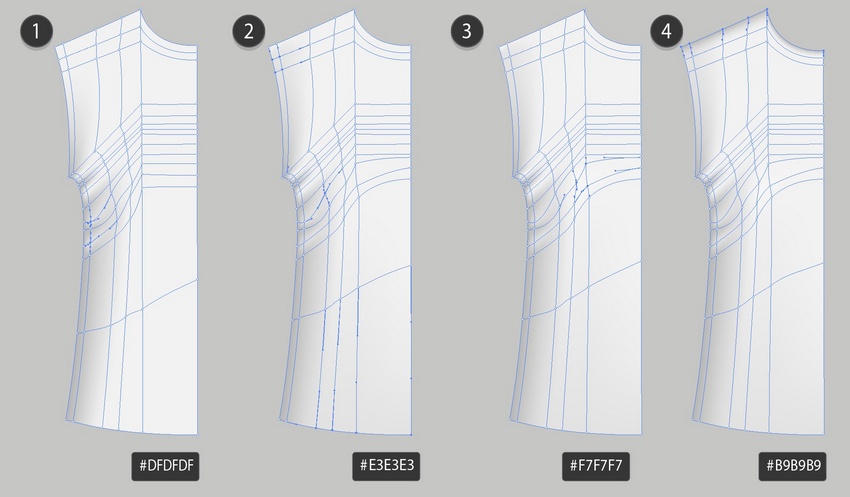
Take the second copy of the shirt, reflect it, and continue coloring.
#F3F3F3#B7B7B7#D9D9D9#EEEEEE
Finish the second half.
#CFCFCF#C4C4C4#B9B9B9#E3E3E3
Draw a sleeve.
#EAEAEA#BDBDBD#B6B6B6#CFCFCF#DADADA#BDBDBD
#E9E9E9#C0C0C0#F4F4F4
Bend the Mesh into a collar with Effect > Warp > Arc, using -85% Bend.
Object > Expand Appearance of the result.

Draw the second part of the collar.
#6A6A6A#979797
Combine the collar parts.

Assemble the T-shirt mockup!
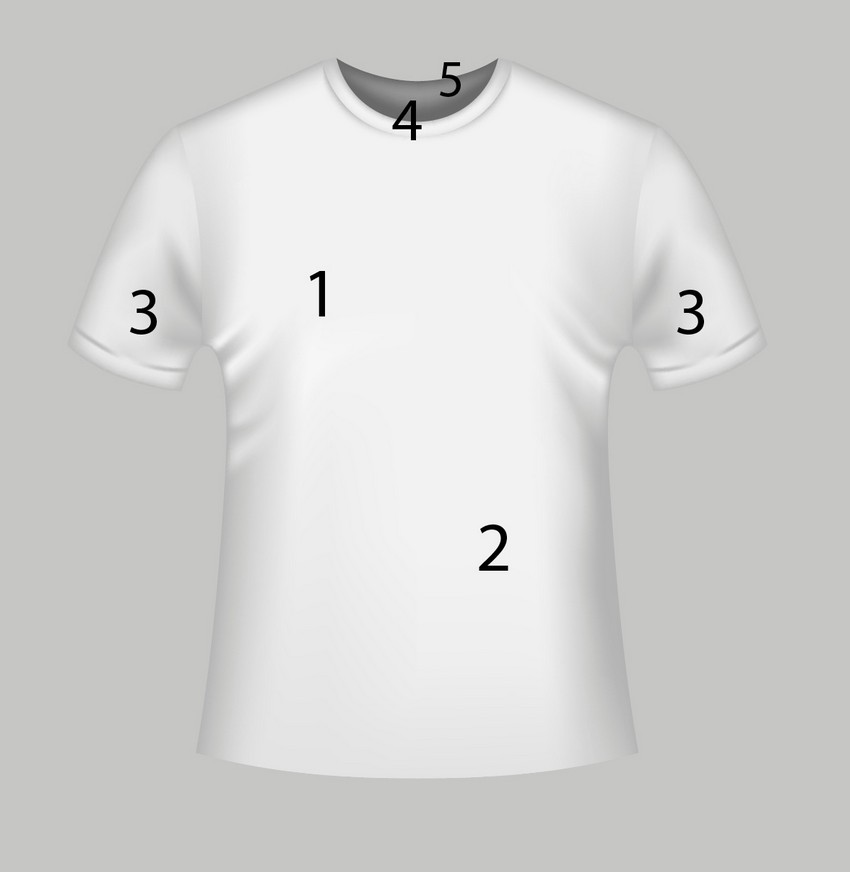
To get all the colors you can see in the thumbnail, create three more copies of the white shirt we just made.
Grab a copy and proceed to Edit > Edit Colors > Adjust Colors. Change the tab to Greyscale and apply 32% Black. Don’t forget to tick the Convert box.

Create two more copies of the grey shirt mockup we just made. Grab the original and recolor it with Edit > Edit Colors > Adjust Colors.
This time, change the tab to RGB and apply 18% Red, -30% Green, and -26% Blue. Don’t forget to tick the Convert box.

Take another copy and essentially repeat the last step by going to Edit > Edit Colors > Adjust Colors, changing the tab to RGB and applying 6% Red, 13% Green, and -60% Blue.

Take the final copy and convert it to orange with 27% Red, -5% Green, and -41% Blue.

Grab one of the original white T-Shirts and convert it to Grayscale with 40% Black.

Recolor the grey template to cyan with -9% Red, 20% Green, and 16% Blue.
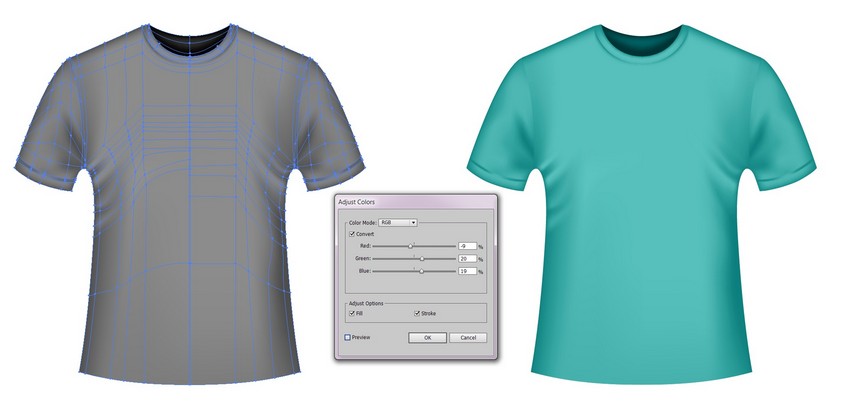
Take the last white copy and turn it black with 63% Black.

Create a copy of the black T-Shirt mockup and recolor it to dark red with 9% Red, -9% Green, and -7% Blue.

Congratulations! Your colorful set of T-Shirt mockup templates is done!
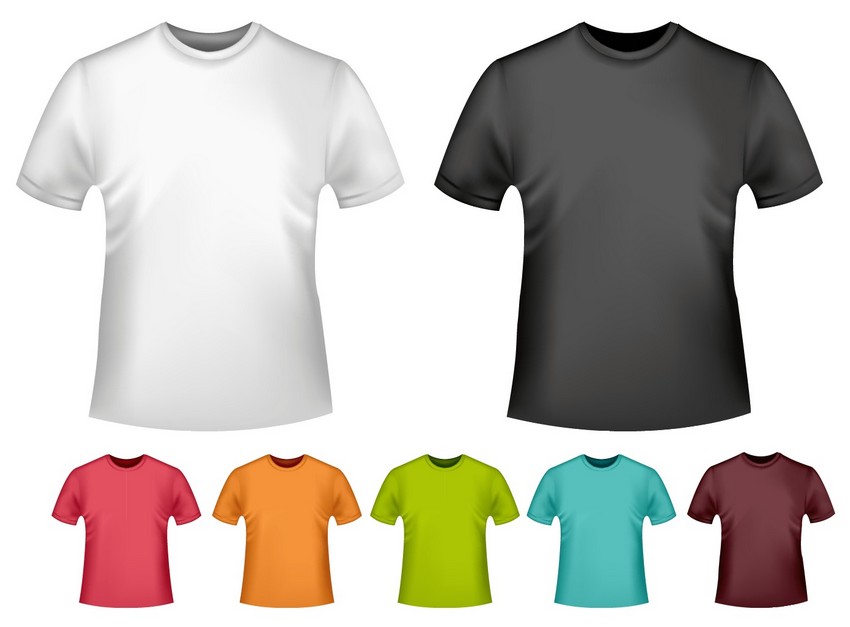
What now? You can try any of my other tutorials from my profile, or check out my portfolio on GraphicRiver, as well as the original shirts collection we recreated in this tutorial.
You can also try a similar tutorial of mine, where I show a way to apply patterns to these T-Shirt mockups!
I hope you enjoyed the tutorial, and I’ll be extremely happy to see your results in the comments below!

Post pobrano z: Two-Step

Post pobrano z: PopUp F5

We’re thrilled to announce PopUp F5, a four-hour action packed event made in partnership with PromaxBDA!
Post pobrano z: Material Manifesto

Post pobrano z: How to Create a Forest Self-Portrait Photo Manipulation in Adobe Photoshop

Photo manipulations are a fun way to test out fantasy compositions and dramatic self-portraits. And you can place yourself into one easily by using a few simple tools in Photoshop!
So in this tutorial, I’ll show you how to create a magical self-portrait using stocks and 3D assets in Adobe Photoshop.
Get inspired! Find more stocks for your photo art on Envato Market.
The following assets were used in the production of this tutorial
This year I’ve embarked on a personal project to place myself into more of my art. Not only has this been a great experience for learning about Photoshop, but it has also helped improve my overall confidence.
And if you want to make cool and creative self-portraits, you should definitely just go for it! You can see more of these self-portraits on my Instagram.
For this portrait, I wanted to place myself into something more magical—a cool forest manipulation with a bit of fantasy and allure. To facilitate this, I recently bought an LED light from Home Depot ($20) and immediately got to experimenting with new pictures.
Let’s take a before and after look at the manipulation with the stocks we’ll be using:

Feel free to use your own self-portraits for this tutorial. Even smartphone pictures will do—just make sure you have enough light and clarity.
To save time on this extensive manipulation, I’ll be giving you a pre-edited version of my self-portrait made with frequency separation techniques and the background already removed.
But if you’re looking to get inspired by the photo shoot perspective, feel free to check out my previous tutorial:
Let’s begin!
Start by opening a New Document in Photoshop at 1500 x 2217 pixels and 72 dpi.
Feel free to increase the resolution if you plan on printing your portrait.
Copy and Paste the Forest Stock (with an image size of 1920 x 1848 pixels) onto a New Layer above the white background, resizing it to make it much bigger with the Free Transform Tool (Control-T).
This will be our new background. So go ahead and Delete the white layer below it.
Position the image so that it favors the left side. This will create an interesting perspective to place the portrait and other details.

Now open the Self-Portrait Stock. Double-click the background layer to make it normal.

When I originally took these pictures, I had no clue how I was going to use them. So you’ll notice that my picture is cut off on the left side since I was leaning up against a wall.
Because of this, I have built the entire composition keeping this in mind, so we’ll need to cover up any awkwardly cut areas next.
To cover up those missing areas, we’ll use some simple leaves. Open the Leaves Stock in Photoshop. Follow the same steps as before.

For more balance, let’s create more copies of the leaves layer.
Duplicate (Control-J) the leaves layer twice, and then flip both copies. Select each layer, and go to Edit > Transform > Flip Horizontal to flip it.

Now fill in both sides of the portrait with leaves.

Now that we have the leaves all set, we can move on to adding butterflies.
A crucial part of this manipulation is the monarch butterflies. So I’ll be using amazing 3D assets from Envato Elements to help achieve this effect.
By using 3D assets, I’ll be able to position the butterflies at the exact angles I need for this composition. This means I can achieve a more believable and realistic effect for an incredible result.
Start by locating each butterfly. Here are the three stocks I’ll be using:
Now View the 3D Render for each stock. Once it loads, position the butterfly at the angle you need. Move it up, down, or sideways to see different views.
Then download that angle.

For this particular set of butterflies, here are all five angles I’ll be downloading.
You’ll receive each butterfly as a transparent PNG (with accompany shadows), which you can easily place into the manipulation.

Let’s add the butterflies!
Copy and Paste each butterfly angle onto New Layers above the rest. Resize each butterfly using the Transform Tool (Control-T).

Then add as many butterflies as you’d like. Since insects are usually drawn to light, I’ve made sure to face the butterflies towards the light. You can also rotate or even flip the images for more variation.
Continue resizing them in different areas for more depth of field. The first butterfly, for instance, is the largest because it’s closest to the viewer.

Try to tell a story with the butterflies. Rest a few on the leaves or even place one on my fingertips as shown above.
When you’re through, Merge the butterfly layers together.
The setup for our manipulation is almost complete!
Our last step before we blur, relight and color the composition is to add more hair. For this portrait, I’ve already airbrushed any imperfections and even removed my right arm for a better composition.
Now I’ll use the Polygonal Lasso Tool (L) to make a selection of the curls on the right. Hold Control-J to Paste a copy onto a New Layer, and then resize the hair using the Free Transform Tool (Control-T).

Do the same for the left side to cover my shoulder.
Then Merge the hair layers with the portrait layer. You may need to reposition the leaves layer above the portrait/hair layers to allow this effect.
Now we have glorious extensions!

Let’s move on!
With all of our elements in place, we can start to relight the composition and add depth of field. This will help create more realism and make it look as though the photo was actually taken within a forest setting.
Start with the background.
Select the forest layer and go to Filter > Blur > Gaussian Blur.
Add a Radius of 3 pixels and hit OK.

Now the leaves. Let’s slightly blur the original Leaves and Leaves copy layers next. Select each layer and go to Filter > Blur > Gaussian Blur. Then add a Radius of 2 pixels and hit OK.

Let’s make the leaves in the background appear farther away.
Select the Leaves copy 2 layer and go to Filter > Blur Gaussian Blur. Set the Radius to 4.8 pixels and hit OK.

Last, we’ll blur the front butterfly.
We’ve already made several butterflies fly out of the shot to create a lively and active scene. Now we can blur the front butterfly for even more depth.
Use the Lasso Tool (L) to make a quick selection around the front butterfly. Then go to Filter > Blur > Gaussian Blur, adding a Radius of 5 pixels.

Here’s a look at our composition so far!

Great! Let’s move on to lighting.
Now that everything is in place, it’s important to get the lighting as perfect as we can. Keep in mind that every photo manipulation requires extensive relighting for a more believable look.
If you’re using your own stocks in this case, just follow the same methods, but tweak the settings to your personal desires.
Let’s start by darkening the background.
Select the Leaves copy 2 layer. Then go to Layer > New Adjustment Layer > Curves. Adjust the curve as shown below for more darkness and contrast.
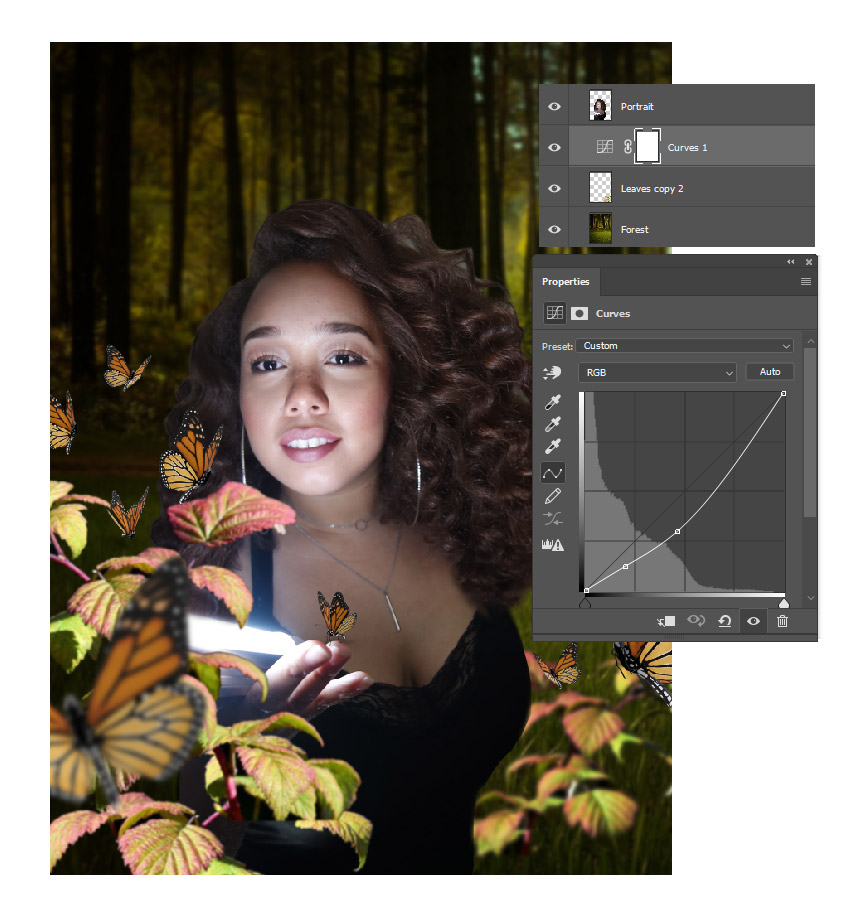
Adjust the color of the background leaves even further.
Select the Leaves copy 2 layer and go to Layer > New Adjustment Layer > Curves. Right-click the adjustment to set the curves as a Clipping Mask to the Leaves copy 2 layer.
Adjust the curves for the Green and RGB Channels as follows for a greenish effect.
This play on the contrast also creates an interesting color effect! Pretty cool!

Now adjust the lighting for the middle ground leaves.
Follow the same steps as before by setting new Curves Adjustment Layers as Clipping Masks to the remaining leaves layers.
Start with the original leaves. Make them reflect the bright lighting seen from my light bar. Adjust the curves for the RGB, Green, and Blue Channels as shown below.

Move on to the bottom leaves (Leaves copy).
Set a New Adjustment Layer of Curves as a Clipping Mask to the layer.
Adjust the curves for the RGB, Blue, and Green Channels as shown below. This time we don’t need as much light because the LED light is above this specific section of leaves.

Time for some shadow! To keep this part from being too confusing, let’s break it down into simple sections, just as we did with the lighting steps.
Start with the butterflies.
Set a New Layer as a Clipping Mask to the butterflies layer. Change the Layer Blend Mode to Multiply. Then use a Soft Round Brush (0% Hardness, 30-60% Opacity) to paint black shadow onto the butterflies.
Concentrate the shadow on the wings and body. Then lower the Layer Opacity to 58%.

Add another Clipped layer above it set to Multiply.
Now use a deep earthy red #271416 to paint more shadow onto the butterflies, setting the Layer Opacity to 76% when you’re done.
Keep this shadow layer softer, making sure the shadows are placed in the opposite direction to the light source.

We’ll add shadow to the leaves by following the same method.
Create New Layers set as Clipping Masks to the Leaves and Leaves copy layers.
Set the Layer Blend Modes to Multiply, and then use a Soft Round Brush to paint black onto the leaves. Make sure the shadow covers the bottom leaves completely. Then cover the top row. This will create more dimension.

Frame the light source as best as you can. Then adjust the Layer Opacities as needed (50-75%)
Next, we’ll shade the hair and body.
Just like before, add a New Layer set as a Clipping Mask to the portrait. Set the Layer Blend Mode to Multiply and use a Soft Round Brush to paint brown #864a3b and dark red #271416 colors onto the hair, face, and body.
Chisel out the shadows for a more dramatic look. Adjust the Opacity as needed.

Here’s what we have so far.

Great job so far! Keep going!
Now that we have the base shadows down, it’s time to fine-tune our composition for a more seamless blend.
In these next steps, I’ll be using a mixture of digital painting techniques and Adjustment Layers to achieve the desired effect.

#9c6b00 using the Paint Bucket Tool (G), and lower the Opacity to 36%.Intensify the shadows even more.

#1a070e and #140b01 to paint shadow (Soft Round Brush – 0% Hardness, 100% Opacity) all around the subject, leaving out the top leaves and LED light. Lower the Opacity to 21%.
One of the coolest lighting effects you can achieve is by playing with glitch images.
Here I’ll be using #38 from this Glitch Effect Overlays pack for a cool rainbow reflection. Copy and Paste the image above the blue layer and set it to Overlay.

Lower the Opacity to 40% and use a Layer Mask to remove any unwanted areas around the face.
Almost there!
Before we move on to the final edits of this manipulation, let’s quickly edit the colors, brightness, and contrast.
Create a New Adjustment Layer of Color Balance with the following settings:

Then follow up with a New Adjustment Layer of Levels. Set the following values for the Red, Green, and Blue Channels.

Here’s the result so far.

The last steps for this manipulation will pump up the lighting, refine the details, and use more Adjustment Layers to bring everything together.
Ready? Let’s do this!
Here is when I’ll start to use digital painting techniques to transform this selfie into a magical portrait.
Start by creating a New Layer above the rest. Use the Brush Tool (B) to paint directly onto my face and hair. First, I’ll use a Soft Round Brush to paint more brown shadow underneath my hair, while adding some brown around my forehead too.

Then I’ll switch over to a Hard Round Brush (B) to adjust my makeup (eyebrows/eyeliner) and paint more sharp details for my hair. I’ll also take this opportunity to clean up any areas around the leaves where the light should be reflected. Feel free to use the Eyedropper Tool (E) to sample colors from these areas as you refine more details.
Let’s add more light!
Create a New Layer set to Overlay. Use a mixture of Soft and Hard Round Brushes (40-70% Opacity) to paint white onto the composition for more light.
Create rays of light coming from my hand and bounce the light around the forest. Push this effect as far as you want for a powerful glow.

In between adding more light, remember to continue refining these details. Use a Hard Round Brush to draw sharp edges around the butterflies, leaves, and hair. I’ve even drawn simple details like loose curls and sparkly dots around the composition.

Add highlights to the hair by painting white lines onto a few flowing strands, and then use the Eraser Tool (E) to softly diminish the edges of each highlight. Feel free to add another New Layer set to Overlay for even more white light.
Make certain areas pop out from the shine of the LED light. Paint white light onto the butterflies, jewelry and LED for more intensity. Later on, I’ll also paint a few blue highlights on the hair, leaves, and butterflies for a cool effect.

As we start to finish up, we’ll use Adjustment Layers again to tweak the colors. I have quite a few layers to go, so let’s run through them quickly.
Add a New Adjustment Layer of Channel Mixer. Adjust the settings for the Red, Green, and Blue Channels.

Then add a New Adjustment Layer of Gradient Map. Create a blue #0a00b2 to turquoise #01fffc Linear Gradient and set it to Lighter Color. Lower the Opacity to 8%.
Duplicate (Control-J) this adjustment. Set the copy to Saturation and the Opacity to 10%.

Now create a New Adjustment Layer of Curves. Adjust the curves for the RGB, Blue, and Red Channels as shown below.

Now for the last two Adjustment Layers.
Create a New Adjustment Layer of Color Balance. Set the settings to the following values below:

Now bring out all the rich colors. Add a New Adjustment Layer of Saturation.
Then set the Saturation to 15.

One more step to go!
For a subtle fade, create a New Layer above the rest. Select the Gradient Tool (G) and use it to create two passes of Linear Gradients that go from color to transparent.
Start with a rich blue color #181f40 that moves from the bottom upwards, and then select black and create a black to transparent Linear Gradient moving downwards.
Then set the Layer Blend Mode to Difference and the Opacity to 18%.

Feel free to keep this composition as is, or crop it if you’d like. For a tighter perspective, I’ll use the Crop Tool (C), and make sure I adjust it so that my eyes are almost aligned with the middle.

Congratulations on creating this forest-inspired photo manipulation. I hope you are inspired to tackle your own self-portraits for one-of-a-kind selfies you’ll always remember.
If you enjoyed this tutorial, let us know! Share your comments and results below.
For more photo manipulation tutorials like this one, check out these links:


Post pobrano z: Real head helmets / Curieux tête à tête?
 |
 |
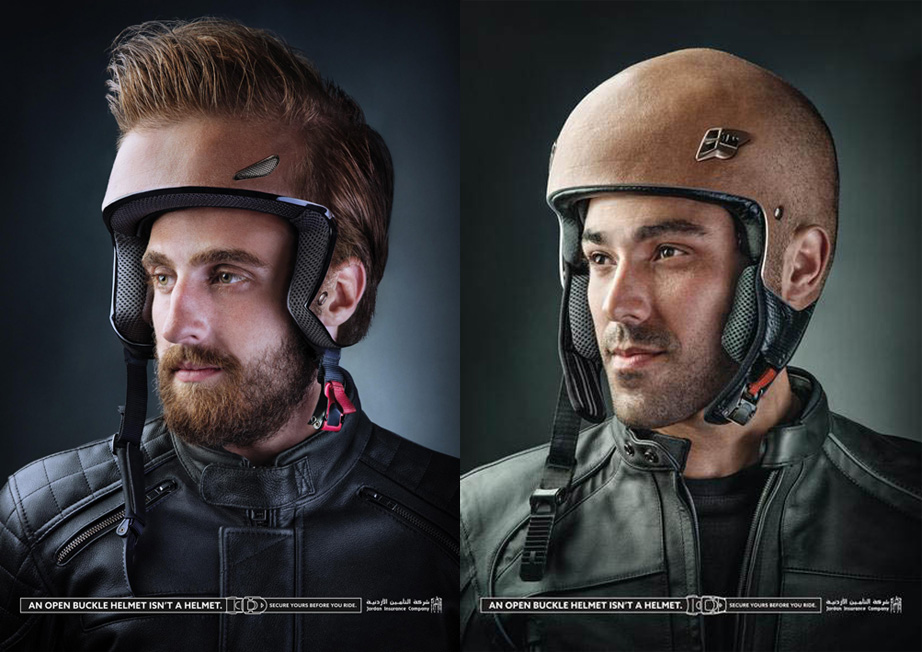
| THE ORIGINAL? Jordan Insurance – Road Safety – 2016 Source : Cannes Lions SHORTLIST Agency : Team Young & Rubicam Amman (Jordan) |
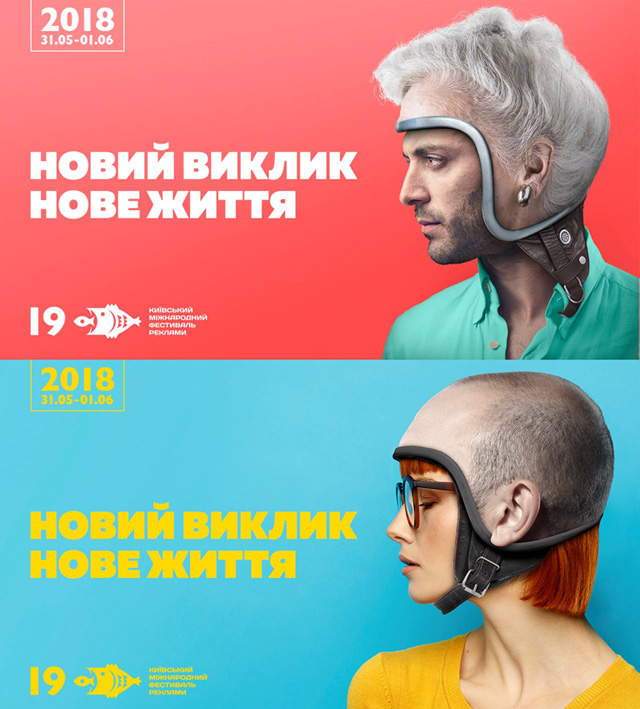
LESS ORIGINAL Kiev Advertising Festival – 2018 “New challenge. New life” Agency : Scholz & Friends (Ukraine) |
Post pobrano z: Living in an advertising space / Enfermés dans la même idée?
 |
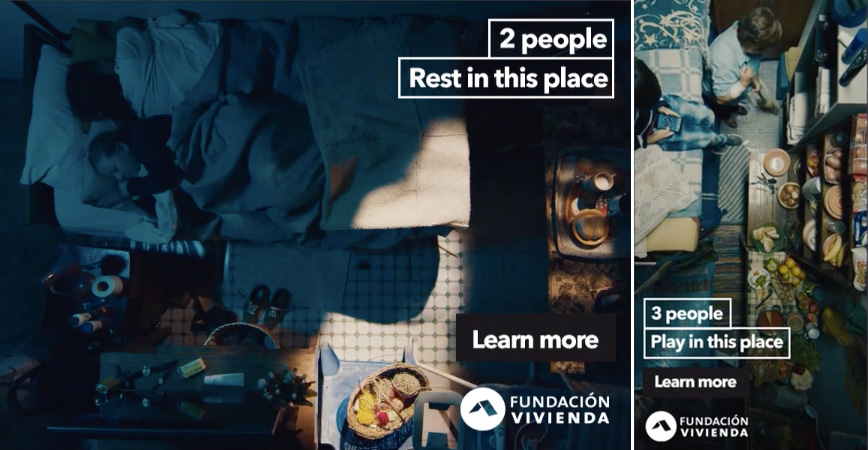 |
| THE ORIGINAL? Abbé Pierre Foundation – 2008 Source : Coloribus, French ADC Agency : BDDP&Fils (France) |
LESS ORIGINAL Vivienda Foundation “Overcrowded banners”– 2018 Source : Coloribus / Watch the Case Study Agency : Prolam Y&R, Santiago (Chile) |
Post pobrano z: The backdrop-filter CSS property
I had never heard of the backdrop-filter property until yesterday, but after a couple of hours messing around with it I’m positive that it’s nothing more than magic. This is because it adds filters (like changing the hue, contrast or blur) of the background of an element without changing the text or other elements inside.
Take this example where I’ve replicated the iOS notification style: see how the background of each of these boxes are blurred but the text isn’t?

That’s only a single line of CSS to create that faded background effect, just like this:
.notification {
  backdrop-filter: blur(3px);
}
Now it’s worth noting that browser support for this CSS property isn’t particularly well supported just yet (see below). But we’ve been trying to do this sort of filtering stuff for a really long time and so it’s great to see that progress is being made here. Chris wrote about the “frosted-glass” technique in 2014 and way back then you had to use a bunch of weird hacks and extra images to replicate the effect. Now we can write a lot less code to get the same effect!
We also get to pick from a lot more filters than just that frosted glass style. The following demo showcases all of the backdrop-filter values and how they change the background:
Each of these boxes are just separate divs where I’ve applied a different backdrop-filter to each. And that’s it! I sort of can’t believe how simple this is, actually.
Of course you can chain them together like so:
.element {
  backdrop-filter: blur(5px) contrast(.8);
}
And this could make all sorts of elaborate and complex designs, especially if you start combining them together with animations.
But wait, why do we even need this property? Well, after reading up a little it seems that the go-to default example is a modal of some description. That’s what Guillermo Esteves was experimenting with back in 2015:
See the Pen PwRPZa by Guillermo Esteves (@gesteves) on CodePen.
I reckon we can do something much weirder and more beautiful if we put our minds to it.
The backdrop-filter property is not well supported at the time of this writing. And even in Safari where it is supported, you’ll still need to prefix it. There’s no support for Firefox at all. But, really, do websites need to look exactly the same in every browser?
This browser support data is from Caniuse, which has more detail. A number indicates that browser supports the feature at that version and up.
| Chrome | Opera | Firefox | IE | Edge | Safari |
|---|---|---|---|---|---|
| No | No | No | No | 17 | 9* |
| iOS Safari | Opera Mobile | Opera Mini | Android | Android Chrome | Android Firefox |
|---|---|---|---|---|---|
| 9.0-9.2* | No | No | No | No | No |
The post The backdrop-filter CSS property appeared first on CSS-Tricks.
Post pobrano z: A Strategy Guide To CSS Custom Properties
CSS preprocessor variables and CSS custom properties (often referred to as „CSS variables”) can do some of the same things, but are not the same.
Practical advice from Mike Riethmuller:
If it is alright to use static variables inside components, when should we use custom properties? Converting existing preprocessor variables to custom properties usually makes little sense. After all, the reason for custom properties is completely different. Custom properties make sense when we have CSS properties that change relative to a condition in the DOM — especially a dynamic condition such as
:focus,:hover, media queries or with JavaScript.
Direct Link to Article — Permalink
The post A Strategy Guide To CSS Custom Properties appeared first on CSS-Tricks.