How to Create a Vector T-Shirt Template and Apply a Pattern to It With Adobe Illustrator

Post pobrano z: How to Create a Vector T-Shirt Template and Apply a Pattern to It With Adobe Illustrator

Final product image
What You’ll Be Creating

In this tutorial, you will learn how to use the Mesh Tool in Adobe Illustrator to create a vector T-shirt!

If you want to skip the tutorial and just use this shirt with lots of other awesome designs, purchase the Collection of Various Soccer Jerseys from GraphicRiver!

Collection of Various Soccer Jerseys

1. How to Draw a T-Shirt With the Mesh Tool

Step 1

Let’s learn how to use the Mesh Tool while creating a photo-realistic T-shirt!

Begin by drawing the shape of half of a shirt with the Pen Tool (P). Fill it in with #FDFDFD.

Create a copy of the shape! Put it aside—we will need it later.

Let’s start using a Mesh! Take the Mesh Tool (U) and start creating a Mesh grid on the object by placing nodes. Afterwards, select the nodes on the top left edge of the shirt and change their color to #D5D5D5.

Add some more nodes, as indicated in the screenshot below, and color the bottom two-thirds of the shirt with #F1F1F1.

see above

Step 2

Continue similarly, now using these colors:

  1. #DFDFDF
  2. #B7B7B7
  3. #7E7E7E
shadow on the left side

Step 3

Create more shadows and folds in this step, using these colors:

  1. #7E7E7E
  2. #B4B4B4
  3. #C9C9C9
folds on the left middle

Step 4

Add some more Mesh nodes and apply the final colors:

  1. #AAAAAA
  2. #DADADA
  3. #D1D1D1
more folds now on the bottom

Step 5

Add a final fold with #BCBCBC and now create a reflected copy of the object by right-clicking, and then choosing Transform > Reflect.

Choose Vertical reflection and click Copy instead of OK.

Put the two copies together as well as you can—make sure the mesh nodes in the middle line up. You can Group both objects (Control-G) for ease of use.

see above

Step 6

Next, let’s draw the sleeves! Draw an outline and save a copy for later. Continue using the Mesh Tool (U) with these colors:

  1. #DCDCDC
  2. #949494
  3. #FCFCFC
dark on the right white on the left and create folds

Step 7

Apply finishing touches to the sleeve with:

  1. #F4F4F4
  2. #606060
  3. #FBFBFB
create more folds with white highlights

Step 8

Draw the inside of the shirt with these colors:

  1. #A6A6A6
  2. #676767
  3. #8D8D8D

Save a copy of the outline of the shape!

grey with darker on the edges

Step 9

Draw some more folds with:

  1. #898989
  2. #919191
  3. #B7B7B7
single fold in the middle

Step 10

Draw the outline of the shape and save a copy of it for later.

Finish off the shirt by coloring its collar using these:

  1. #F4F4F4
  2. #D0D0D0
  3. #DDDDDD
  4. #CECECE
collar with dark on the edges

Step 11

Now, put all the elements together! (Create the second sleeve by recreating Step 5).

Our shirt is done!

put it together

2. How to Apply a Pattern to the Shirt

Step 1

Draw a sample pattern made with red (#E81010) stripes on a white background. You can use any other pattern you want!

see above

Step 2

Grab the copy of the outline we made back in Step 1, create a reflected copy and, using the Pathfinder panel, Unite both shapes into one.

see above

Step 3

Place the pattern we made before over the top of the white shape. Select both and, after right-clicking, choose Make Clipping Mask.

see above

Step 4

Grab the other copies of outlines we made in the previous section of the tutorial and add them to our shirt pattern. You can Group them.

Next, take the Mesh T-shirt and, in the Transparency panel, change the Transparency mode to Multiply. Place the Mesh T-shirt over the top of the pattern and it’s ready!

see above

Step 5

Our T-shirt with the pattern is done! You can apply any other pattern you’d like in exactly the same fashion.

result

Awesome Work, You’re Now Done!

What now? You can try any of my other tutorials from my profile, or check out my portfolio on GraphicRiver, as well as the original shirts collection we recreated in this tutorial.

I hope you enjoyed the tutorial, and I’ll be extremely happy to see your results in the comments below!

Collection of Various Soccer Jerseys

Design deals for the week

Post pobrano z: Design deals for the week
first image of the post

Every week, we’ll give you an overview of the best deals for designers, make sure you don’t miss any by subscribing to our deals feed. You can also follow the recently launched website Type Deals if you are looking for free fonts or font deals.

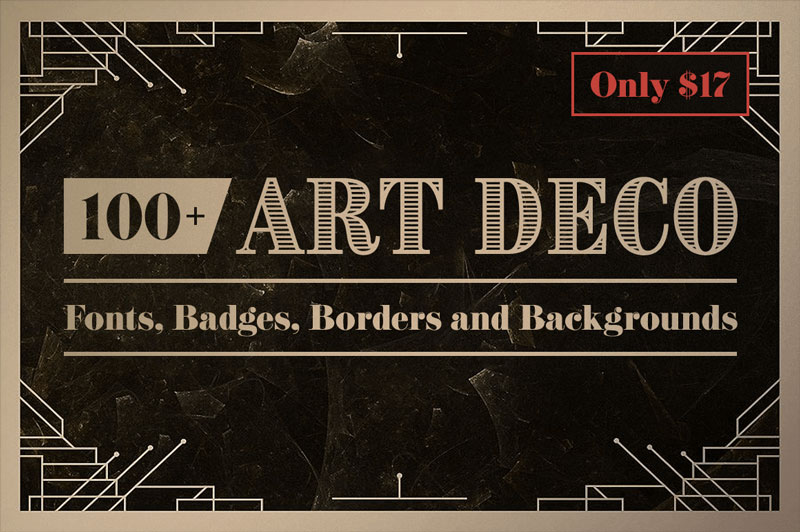
100+ Art Deco Fonts, Badges, Borders and Backgrounds

Give your latest design project a shot in the arm with this retro Art Deco Bundle! Themed around the Art Deco/Steampunk style, you’ll get yourself a bevvy of fonts, logo templates, borders, vectors and backgrounds. Basically everything you need to push the past forward!

$17 instead of $104 – Get it now!

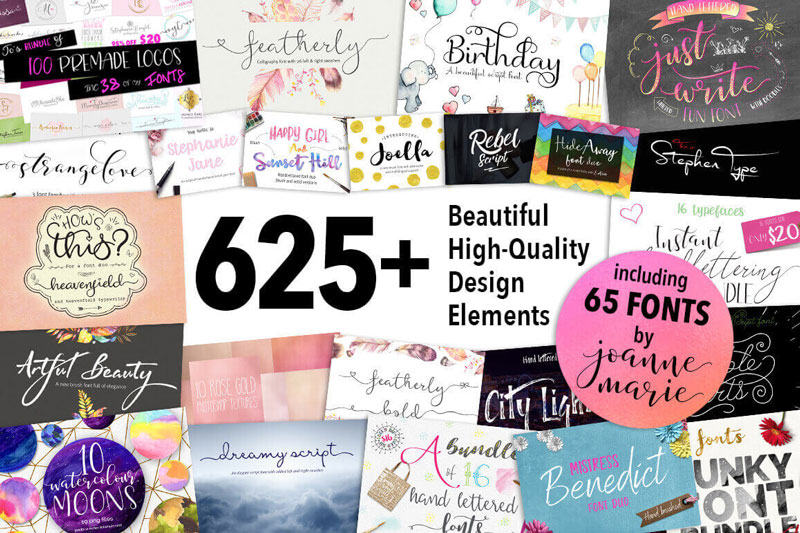
Bundle: 625+ Beautiful High-Quality Design Elements and Fonts

More than 600 unique design elements in 1 super-discounted deal. You’ll get everything you need to create gorgeous designs including logos, graphics, papers, fonts, backgrounds, Photoshop tools, marketing sets and more! It’s the perfect package for every project from wedding invitations to company branding.

$21 instead of $1360 – Get it now!

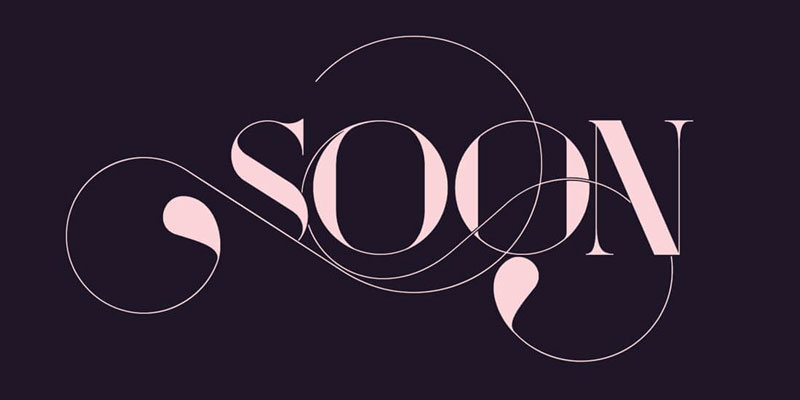
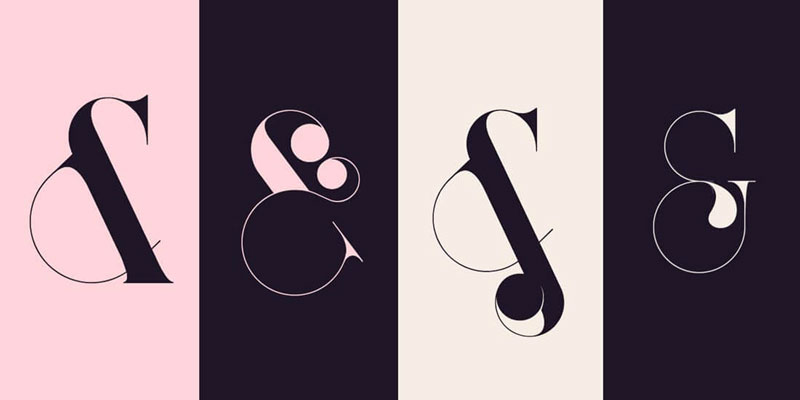
36 Luxurious Fashion Magazine Fonts

Made up of 3 unique font families – Port, Port Vintage and Bohema – this luxury-themed font bundle sports 36 unique typefaces, more than 1000 glyphs and a wide array of OpenType Features to help make your latest projects luxurious.

$17 instead of $330 – Get it now!

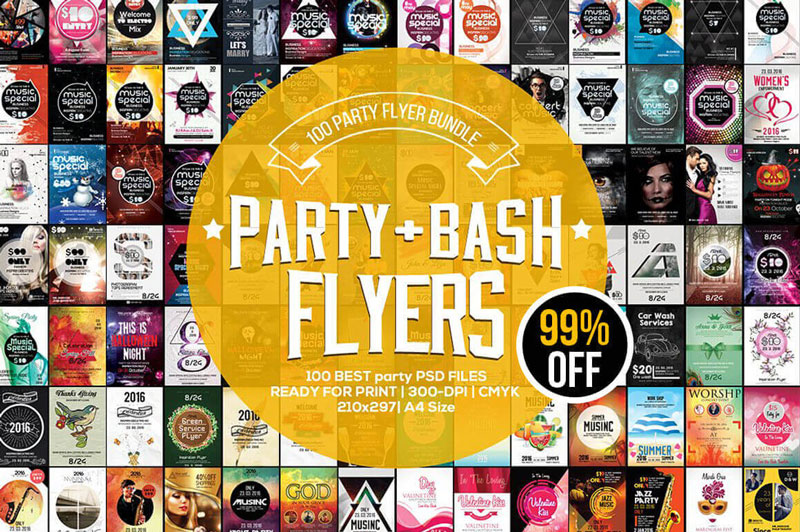
100 Professional, Print-Ready Event Flyers

Get 100 high-quality party and event flyers covering everything from jazz concerts to worship services. Fully editable PSD files let you easily change up colors, text, images and more.

$9 instead of $600 – Get it now!

Web Development Masterclass: 100s of Tutorials, 20 Unique Sections

In 20 different sections, this online video tutorial covers everything from teaching you the latest scripting languages to walking you through the installation and administration of everything from LAMP stack to test servers. Best of all, you’ll learn at your own pace with a lifetime to soak it all in.

$17 instead of $299 – Get it now!

Now Available on Envato Elements: Unlimited Stock Photos

Post pobrano z: Now Available on Envato Elements: Unlimited Stock Photos

Welcome to unlimited stock photos on Envato Elements!

If you’re already an Elements subscriber, you’ll now see that, along with all the graphics, fonts, web templates, 3D models and everything else you’ve been used to downloading, you have unlimited access to over 240,000 high-quality stock images. Enjoy!

If you’re not an Elements subscriber, here’s how it works. For a single monthly subscription of US$29, you get unlimited downloads from a broad and highly curated selection of:

  • graphics (vectors, icons, patterns, textures, illustrations and more)
  • add-ons (think Photoshop and Illustrator actions, Lightroom presets, etc.)
  • fonts
  • graphic templates (logos, infographics, product mockups, etc.)
  • presentation templates (Keynote and PowerPoint)
  • web templates (landing pages, full websites, email newsletters, etc.)
  • CMS templates (Shopify, Magento, OpenCart, and a lot more)
  • 3D models

Oh, and you also get free access to over 1,000 courses and 170 eBooks here on Envato Tuts+, as well as free AND CO membership to help you with invoicing and contracts. 

And because all of that just wasn’t enough, now you get almost a quarter of a million stock photos too.

Stock photo on Envato Elements
Workplace image from Envato Elements

Why Envato Elements?

Of course, there are loads of stock photo sites out there already, both free and paid. So why should you bother with Envato Elements? Here are a few reasons:

1. Get Premium Quality

On some other stock photo sites, the emphasis is on quantity: thousands of people uploading millions of images, with little quality control. On Envato Elements, the collection is carefully curated to make sure you have access to the very best images, without having to wade through tons of mediocre ones.

Photography image on Envato Elements

2. Get Broad Commercial Rights

No matter whether you’re using photos for a website, an artwork, a client project or a professional document, you need to know that you have the right to use those images and won’t get sued for copyright infringement. All the items on Envato Elements come with a simple, easy-to-understand commercial license, so that you can use them in your projects with confidence—and without having to squint at a mass of small print.

Happy couple image on Envato Elements

3. Find Exactly What You Need

Elements offers some useful filters to help you find what you need quickly and effectively. You can search by subject, of course, but you can also filter for image orientation (landscape, portrait, or square) and for the predominant colours in the image. So you can find images that not only convey the right message, but also fit seamlessly with your overall design.

Image of Tuscany from Envato Elements

4. Get a Lot of Other Stuff Too

As I mentioned above, you get a ton of other useful things bundled with an Elements subscription. There are no usage limits, no credits to keep track of. You just use as many photos, templates, fonts and graphics as you need for the projects you’re working on. So whether you’re a web designer, a developer, an artist a businessperson or a freelancer in a number of creative fields, you’ll be able to get good value out of an Elements subscription.

Food image on Envato Elements

What to Do Next

To learn more about the new selection of photos, head over to Envato Elements. You can browse the full selection of items even if you don’t have an account, so take a look around to get an idea of what’s on offer and decide whether it would be useful for you.

Keep in mind that Envato Elements is expanding all the time, both in terms of the number of categories being offered and the number of items in each category. So this is a subscription that’s only going to get more valuable over time.

Did you mean Mailchimp?

Post pobrano z: Did you mean Mailchimp?

MailChimp’s marketing campaign, “Did You Mean MailChimp?”, was one of the three Cyber Grand Prix winners at Cannes International Festival of Creativity 2017, in recognition of an integrated multi-platform campaign. Launched in January 2017, the brand campaign was designed as an ecosystem of additive, artful and playful experiences connected with the mispronunciation of the email marketing platform name Mailchimp. MailChimp is the world’s leading marketing platform. Fifteen million customers, from small e-commerce businesses to major online retailers, use MailChimp to express themselves to the world and connect the right people with the right message, at the right time. As a company that has built itself on enabling small businesses to grow without compromise, the new campaign shows that MailChimp practices what it preaches: Being creative and true to yourself is good for business. For MailChimp, that meant having fun with its name in as many creative ways as possible, drawing on inspiration from its 2014 audio ad, popularized by cult podcast series Serial, in which people mispronounced MailChimp, ending with the now infamous “MailKimp?”. This inspired a collection of cultural activations, from creating hit singles and a new brand of potato chips, to starting fashion trends and making short films about singing sandwiches. MaleCrimp, MailShrimp, KaleLimp, FailChips, VeilHymn, SnailPrimp, JailBlimp, WhaleSynth and NailChamp all have one thing in common: They sound like “MailChimp.” The Did You Mean Mailchimp campaign, online at mailchimp.com/did-you-mean, was experienced in cinemas and has expressions on social media platforms such as YouTube, Twitter, Tumblr and Instagram.

Did you mean Mailchimp inception mural

Three “mood films”, MailShrimp, KaleLimp and JailBlimp, were released in USA cinemas early in the campaign before being released online with their own sites, YouTube channels and movie posters.

MailShrimp

Robert Vacha and Peter Klimes star in this short film featuring a singing shrimp sandwich in the mailroom. The film is supported by its own site, mailshrimpfilm.com and a movie poster.

Did you mean Mailchimp Mailshrimp poster

KaleLimp

Zdenek Subr, Helena Jilkova, Boris Wilke are featured in the KaleLimp film, in which a dog made of wet kale releases leaves for diners in a restaurant. The film is supported by the website, kalelimpfilm.com, and a movie poster.

Did you mean Mailchimp KaleLimp poster

JailBlimp

Actors Rachel Podrazilova, Jan Vokrouhlecky, Filip Vu, Jiri Sieber are featured in the JailBlimp film, in which a birthday girl smashes her way into a jail blimp piñata. The film is supported by the website, jailblimpfilm.com, and a movie poster.

Did you mean Mailchimp JailLimp poster

VeilHymn

VeilHymn, is a musical collaboration between Devonté Hynes and Bryndon Cook. Vistors to the site veilhymn.com interact with both the 4:35 minute music video, Hymn, and behind-the-scenes footage.

SnailPrimp

If you’re feeling like you want to take your face back in time, then maybe you should treat yourself to a SnailPrimp. It’s an anti-aging facial using snail secretions, featured online at snailprimp.com and instagram.com/snailprimp.

Did you mean Mailchimp SnailPrimp site

FailChips

The fake brand FailChips, online at failchips.com, features the small and crushed crisps found at the bottom of the packet.

Did you mean Mailchimp Failchips site

WhaleSynth

whalesynth.com. The anchor gives users the chance to dive into the depths of the ocean to provide deeper tones. The chorus feature allows for the addition of whales. The species feature allows the sampling of three different whales.

Did you mean Mailchimp Whalesynth site

NailChamp

Online at nailchamp.com, the NailChamp Tumblr site features contests between polished nails.

Did you mean Mailchimp NailChamp site

MailCrimp

Online at malecrimp.com, the MaleCrimp Tumblr site is dedicated to men who crimp their hair. Within days of launch the #Malecrimp trend was being picked up on social media channels, with Buzzfeed launching a story on eleven historic figures who could really have rocked a mailcrimp. A video on the Mailchimp Youtube channel demonstrates the move from manbun to malecrimp.

Did you mean Mailchimp MaleCrimp site

Did You Mean Mailchimp Credits

The Did You Mean Mailchimp campaign was developed at Droga5, New York, by creative chairman David Droga, chief creative officer Ted Royer, executive creative director Neil Heymann, group creative director Don Shelford, senior copywriter Julie Matheny, senior art director Matt Rogers, copywriter Ryan Snyder, art director Katie Willis, design director Devin Croda, senior designer Nate Moore, experience design director Daniel Perlin, junior experience designer James Garvey, chief creation officer Sally-Ann Dale, director of interactive production Niklas Lindstrom, associate director of interactive production Justin Durazzo, executive experiential producer Bo Djogo, senior interactive producer Leo Seeley, interactive producers Grace Wang and Morgan Mendel, integrated producer Riely Clough, director of art production Cliff Lewis, executive art producer Julia Menassa, art producers Nichole Katsikas and Frannie Schultz, co-directors of film production Jesse Brihn and Bryan Litman, senior film producer Anders Hedberg, associate film producer Isabella Lebovitz, music supervisors Ryan Barkan and Mike Ladman, senior editor Matt Badger, audio mixer Jesse Peterson, senior integrated production business managers Denise Klapp and Tom Vendittelli, director of print services Rob Lugo, senior print producer Alyssa Dolman, director of print services Rob Lugo, senior print producer Alyssa Dolman, retouching studio manager Michelle Leedy, graphics studio manager Virginia Vargas, quality control team Lisa Bishai and Susanne Johansson, retouching coordinator Michael Mockler, retouchers Pete Gibson, John Ciambriello, Mike Vorassi, Shari Alexander, Natasha Kaser, John Clendenen, chief strategy officer Jonny Bauer, co-head of strategy Colm Murphy, strategy director Katie Coane, senior strategist Justin Pak, strategist Midori McSwain, senior communications strategist Elsa Stahura, senior communications strategist Taylor Hines, data strategy directors Lily Ng and Bethany Bengtson, data strategist Kaveri Gautam, chief operating officer Susie Nam, executive group director Julian Cheevers, group account director Matt Ahumada, account director Pat Rowley, account supervisor Josh Freeland, associate account manager Camille Cheeks-Lomax, global head of PR Marianne Stefanowicz, PR manager Danny Hernandez, PR coordinator Ahrim Nam, head of project management Katia Billings, project managers Leslie Alexander, counsel Sarah Fox and associate counsel Zach Werner.

Media was handled at PHD by strategy director Ji Kim, marketing sciences director Phil D’Addio, associate strategy director Alex Arcuri, associate director digital investment Tina Qu.

PR was handled at RSquared by PR consultant Alison Voetsch.

Interactive work was done at Resn.

Filming for JailBlimp, KaleLimp, and Mail Shrimp was shot by directing collective The Sacred Egg via Riff Raff Films and The Directors Bureau, with director of photography Ben Todd, 1st assistant director Eric Kaskens, producer Jane Tredget, wardrobe stylist Oscar Charpenter, makeup artist Jana Dopitova, production designer Petr Kunc at Unit+Sofa. Editor was Sam Mould at Big Chop. Post production was done at MPC by VFX supervisor Alex Lovejoy and producer Louise Unwin. Sound was mixed at Factory by Jon Clarke. Music for MailShrimp was by Five Mission More (Abla El-Sharnouby and Tom Simpson) via Ricall. Music for JailBlimp was Bimbi by Joy Boy, with additional arrangement by Found Objects. Music for KaleLimp was Plantasia by Mort Garson.

Film posters were produced at JUCO, represented at Art + Motion by managing director Billy Diesel.

The VeilHymn song and video were produced by Devonte Hynes and Bryndon Cook via Domino Records, with director Malia James, director of photography Jackson Hunt, editor Mandy Brown, Strangelove executive producers Melinda Nugent and Sara Greco, line producer Laure Salgon. Conform/VFX was produced at The Artery VFX. Colour was produced at MPC London by colourist Houmam. Cover art photography was by JUCO.

FailChips product was developed at MADE. Photography was by Paul McGeiver. The SnailPrimp event was produced at The Uprising Creative.

The MailChimp Inception mural was illustrated by Brosmind, represented by Liz Leavitt at Levine/Leavitt.

Photography in the FailChimps and MaleCrimp campaigns was by Paul McGeiver. Promotional photography in the NailChamp campaign was by JUCO.

Stickybits: an alternative to `position: sticky` polyfills

Post pobrano z: Stickybits: an alternative to `position: sticky` polyfills

Stickybits is a small JavaScript utility plugin. It’s goal is not to get in the way. It does one thing well: help with sticky elements. It is not dependent on other JavaScript Plugins, can be imported via npm, and approaches sticky elements in a very utility-oriented way.

Solving the sticky element problem can lead to sticky situations

When navigating sites, it is common to see HTML elements, like banners and navigations, sticking to the top and bottom of the browser. There are a couple of ways that can be done.

One, there is position: sticky, a native CSS feature. You might use it something like this:

header {
  position: sticky;
  top: -1px;
}

MDN explains it well:

Sticky positioning is a hybrid of relative and fixed positioning. The element is treated as relative positioned until it crosses a specified threshold, at which point it is treated as fixed positioned.

Two, you can essentially fake that behavior with JavaScript. You measure scroll positions and flip-flop the element between position: relative (or static or anything else) and position: fixed as needed.

I’d say that neither of these techniques are quite ideal.

By doing the flip-flopping yourself, there may be jumpiness when these elements go from fixed position to not. This issues is worsened in mobile device browsers.

With native CSS alone, you don’t have the ability to know when the element is in one state or the other.

Get the best of both worlds with StickyBits

Stickybits a lightweight (~2KB) alternative to position: sticky polyfills. It is an easy to set up plugin that is cross-compatible with any other plugins, libraries, or frameworks.

Installation with npm:

npm i stickybits --save-dev

Or, installation with Yarn:

yarn add stickybits --dev

Usage:

stickybits('[your-sticky-selector]');

With the out-of-the-box solution above, you now have set any element with your selector to be sticky. This will work for browsers that support .classList whether position: sticky is supported or not.

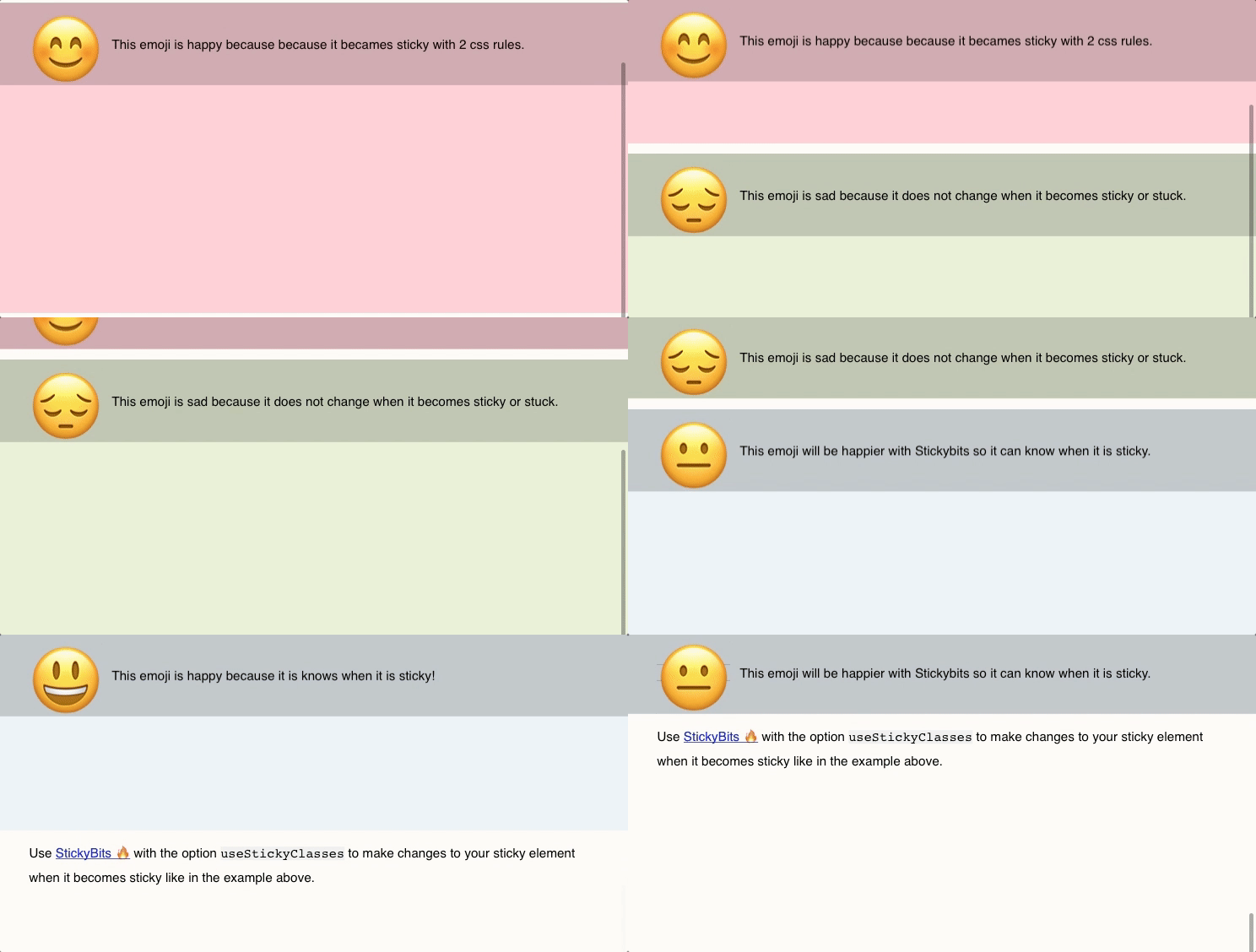
Stickybits, with the additional useStickyClasses: true property set will add sticky and stuck classes when elements become sticky or stuck. This makes it easy to hook up CSS styles based on when the selected element become static, sticky or stuck. This useful utility was added after Dave Rupert mentioned it on the Shop Talk Show Podcast.

Stickybits also supplies offset properties and a clean-up method hook to help better manage its sticky state.

Demos

See the Pen Njwpep by Jeff Wainwright (@yowainwright) on CodePen.

See the Pen CSS `position: sticky` example by Jeff Wainwright (@yowainwright) on CodePen.

More demos provided on GitHub.

Conclusion

Stickybits is a JavaScript Plugin for making an HTML element stick to the top or bottom of a browser window within its parent. With the varying implementations of position: fixed; and position: sticky; across browsers, making high quality sticky features is challenging. Stickybits solves this.

Stickybits was inspired by FixedSticky from Fillament Group, who has recently deprecated their plugin.

It is open-sourced by Dollar Shave Club and maintained by our team and I.


Stickybits: an alternative to `position: sticky` polyfills is a post from CSS-Tricks

Agregator najlepszych postów o designie, webdesignie, cssie i Internecie