While these houses might not be the biggest or the most expensive in the world, they are definitely incredibly beautiful; from the designs, to the extra features (like pools and garages.) Before we get into it, here are the prices and locations of the top 10 most expensive houses in the world!
7 Upper Phillimore Gardens – London- $128 million
Kensington Palace Gardens- London- $140 million
Seven The Pinnacle- Big Sky, Montana- $155 million
Hearst Castle- San Simeon, California- $191 million
Ellison Estate- Woodside, California- $200 million
18-19 Kensington Palace Gardens- London- $222 million
Four Fairfield Pond- Sagaponack, New York- $248.5 million
Villa Leopolda- Cote D’Azure, France- $750 million
There’s no doubt that New York city is one of the most interesting places in the world! From the Statue of Liberty to the Empire State Building; there’s no shortage of incredible sights and landmarks. Here’s 10 quick facts on the great city of New York, courtesy of Buzzfeed:
Pinball was banned in the city until 1978. The NYPD even held “Prohibition-style” busts.
The Jewish population in NYC is the largest in the world outside of Israel.
There’s a man who mines sidewalk cracks for gold. He can make over $600 a week.
Albert Einstein’s eyeballs are stored in a safe deposit box in the city.
There is a birth in New York City every 4.4 minutes.
New York City has the largest Chinese population of any city outside of Asia.
In nine years, Madison Square Garden’s lease will run out and it will have to move.
It can cost over $289,000 for a one-year hot dog stand permit in Central Park.
UPS, FedEx, and other commercial delivery companies receive up to 7,000 parking tickets a DAY, contributing up to $120 million in revenue for the city of New York.
There are more undergrad and graduate students in NYC than Boston has people.
Crazy! Who would of thought that so many interesting facts could come out of a single city. But all that aside, the city produces some of the most amazing photography! Check out the collection below for 21 photos of NYC at its finest! Enjoy!
Credit to respective artists.
Credit:Laurent Nivalle
Credit:Jakob Wagner
Credit:Jakob Wagner
Credit:Aleks Ivic
Credit:Radifa Terza
Credit:Luis Bensimon
Credit:Luis Bensimon
Credit:Nicolás Cuello
Credit:Hugo Cuevas
Credit:magdalena kus
Credit:Victor Utama
Credit:Victor Utama
Credit:Victor Utama
Credit:Dan Murray
Credit:Dan Murray
Credit:Dan Murray
Credit:Florian W. Mueller
Credit:Florian W. Mueller
Credit:Gianluca G. Giancola
Credit:Gianluca G. Giancola
Credit:Gianluca G. Giancola
Conclusion
New York city is definitely one of the most incredible cities in the world; both in facts and in photographic beauty! I hope that you enjoyed this week’s photography collection! Thanks for stopping by!
Publicly supporting, utilizing, and accepting alternative payment methods is often a great way to promote your business, especially amongst more modern, technology-friendly demographics. Of course, not all companies are eager to embrace these new developments, but today we thought we’d take a look at a couple of ways in which businesses are gradually starting to get creative with their payment methods and why it is benefiting the company, their employees, and their customers.
Bitcoin
As perhaps the most famous cryptocurrency in the world, it is no surprise that businesses are utilizing Bitcoin in a variety of ways. While when the mysterious programmer – or collective – known as Satoshi Nakamoto first launched it in 2009 only computer-savvy individuals could collect and distribute Bitcoin, now almost anyone can get their hands on the currency using front-end interfaces like Gui Miner that will effectively mine Bitcoin for you. Not only are customers now able to buy all types of goods and services from companies like Expedia and Sears using the digital money, but companies can also now make their own transactions and pay their employees with Bitcoin – actions that have many benefits.
While traditional currencies can take days to transfer between accounts, Bitcoin transfers occur almost instantaneously, thus ensuring that business transactions such as invoices are never late. In addition to this, the transactions themselves are often extremely cheap, thereby saving companies, even more money as well as time. Finally, the fact that Bitcoin is inherently secure means that companies and their customers can rely on the currency completely without fear of theft or fraud.
Mobile Payments
Ever since the introduction of Apple Pay and Android Wallet, it appears that the idea of using credit cards or cash as payment methods has become less popular. According to a report published late last year by NTT DATA, Ingenico ePayments, Oxford Economics and Charney Research, customers are extremely eager to start using mobile payments for many of their financial transactions. In fact, of the 2,000 consumers that were surveyed, 70% stated that they wish to use mobile payment methods for travel, technology, retail, healthcare, and entertainment purchases, while some even reported trusting tech companies over traditional banks.
Mobile payments are notoriously swift and simple, which is why companies such as Starbucks have started creating innovative ways to tie their company to mobile payments. The leading coffee chain has created a loyalty program that entices those regular customers who embrace mobile payments to return; plus, when customers are in-store, queues tend to go down much faster due to how easy and convenient transactions are. Meanwhile, Walmart added mobile payments to their mobile app as far back as 2015 – a change that apparently improved the shopping experience for many customers according to reports.
It appears that by embracing alternative payment methods such as Bitcoin and mobile payments, companies are able to streamline almost every financial aspect of business. Needless to say, this improvement alone is sure to attract more happy customers and dedicated employees. We look forward to seeing how businesses around the world will continue to get creative with these payment methods, as it will hopefully lead to an even more pleasant experience for patrons.
Just got back from the gym and thought I’d throw together a collection of muscle and fitness logos for your inspiration! But first, here’s 10 quick facts about muscles:
Muscles make up about 40% of total body weight.
If all of the muscles in the body could all pull in one direction, it would create a force of 25 tons!
Humans are born with all of the muscle fibers they will ever have. They don’t grow new fibers, they just grow thicker.
Some of the biggest muscles are in the back, near the spine. They are responsible for keeping the body upright and gives the body the power it needs to lift and push things.
In the digestive system, the smooth muscles tighten up and relax, moving food through the body.
Smooth muscles are even found in the eyes, where they help keep the eyes focused, and help control the amount of light that enters the eye.
The skeletal muscles, which are the ones that can be controlled by conscious thought, work with the skeleton, or the bones, to move the body. They attach to the skeleton with tendons, which are cords of tough tissue.
Smiling takes 17 muscles in the face, while frowning takes 43!
The heart is made up of muscle, called cardiac muscle. This muscle works all by itself with no thought. The heart beats anywhere from 60 to 100 times a minute, every minute, of every day in a human life!
The strongest muscles in the body? Pound for pound, it’s the muscles that you chew with – called the masseters!
The ability to surf the World Wide Web is a beautiful thing, and it began in the hands of the history of the web design industry. People from across continents, from all cultures, backgrounds, and beliefs can connect and keep up to date with friends and news abroad. Though it only began in the early 80s, it has certainly become a booming destination.
But before we can really start to understand the web design industry, we have to delineate the difference between the internet and the World Wide Web. Sure, people use the terms interchangeably, but that doesn’t make it correct. In fact, the internet is simply a grouping of gigantic computer networks that allow other computers to make global connections.
The internet consists of varied languages that enable these computers to communicate with one another. They are the bridges that allow information to travel, and they are best referred to as protocols. Email protocols include things like: IMAP, SMTP, and POP3. That makes email a layer of the internet just as much as the World Wide Web is a layer. It just uses different protocols:
URLs (Uniform Resource Locator)- These are the final parts of the web’s puzzle. URLs provide the addresses to the location of documents that reside on the web.
HTML (Hypertext Markup Language)- HTML is a language that designers utilize to create their web pages.
HTTP (Hypertext Transfer Protocol)- HTTP is the most commonly used protocol, though FTP gets used as well. The HTML protocol is specifically designed for the World Wide Web. It is relatively quick and simplistic, which makes it a favorite for industry professionals. It works to request documents from their servers in order to give the browsers access.
So Where did it All Begin?
You might be shocked to discover that the concept for the World Wide Web may have originated in a short story penned by Murray Leinster, as far back as 1946. His short story describes computers with access to a central device that provided them with information. These computers resided in all homes, according to his short story. They were called, Logics. Although his description is not completely accurate, it does convey the idea that these computers were networked and readily accessible to the populace.
It took another 40 years for the true vision to be executed by an Englishman named Tim Berners Lee. He was working on the Enquire project. There was nothing whizz bang about his task, it was simply a database that contained software and people within the company he worked for. But, it was because of this project that he tried out hypertext to be displayed on other devices that utilize it. He employed the hypertext as a means of accessing each page on the database. This, in turn, granted access to other relevant pages through references within the system.
Interestingly enough, Berners Lee was not a computer programmer. Rather, he was a physicist. But, it was his need to share his discoveries and findings within that community that catapulted his dream to create a centralized database. This was in 1989. Sadly, no one else seemed to care about his idea. That is, except for his boss. He was encouraged to implement the idea into the next project. Eventually, it became known as the World Wide Web, and Tim Berners Lee is credited with its invention.
The Beginning of Browsers
Tim Berners Lee did not give up. In fact, he teamed up with Robert Cailliau, another physicist and they rewrote Tim’s initial proposal. They wanted to be able to use hypertext alongside the internet to create what we now know as “web pages.” Unfortunately, no one in the early 90s had any idea how brilliant this idea was.
But, even though Tim saw little appreciation for his idea, he pressed on. He created HTTP, HTML, and the first browser ever in existence. It worked as an editor as well. And, by June 8th of 1991, he announced his World Wide Web project to the globe. A few months later, the first web page appeared. It became the world’s first website. It shared all Tim’s plans for the web. HTML was made available that same year.
Then the browser scene exploded with improvements and differing functionalities. Some of those beginning browsers were:
Mosaic Browser
Viola WWW Browser
Line Mode Browser
Opera 1.0
Internet Explorer 1.0
Netscape Navigator 1.1
Cello Browser
Say Hello to CSS and JavaScript
Initially, text documents were all you found on a website. Of course today, they are so much more. What makes the difference is the introduction of CSS and JavaScript. August of 1995 is marked as the birthplace of JavaScript, though it was originally called Mocha. There were a number of people that did not like this code, including Cailliau. But, it helped make the web more interactive and dynamic.
JavaScript enabled websites to think, but CSS changed the look and style of the entire web. Though stylesheets have been around since the early 80s, cascading style sheets (CSS) created a consistency of style. They created the ability to separate the HTML content from the actual style or layout of that content. However, it wasn’t until 2000, that CSS was almost fully supported by browsers.
Booming Dot Com’s
Over a five year span of time, between 1995 and 2000, some investors realized it might be a good idea to focus on the web. They started investing money in all web related developments. And, companies that could be found online started making more money.
People called this the internet boom. Sadly, that boom didn’t last. And, many of these investors lost a good deal of money having invested only in technology and not actual business fundamentals.However, there are some businesses that did not feel the brunt of that crash. These entities survived the dot com bubble:
Ebay
Amazon
Google
And Social Networks Begin
The social network design was initially referred to as a bulletin board system (BBS). It allowed users to login and do stuff. They could upload and download information. They could read things and exchange messages with other members. Or, they could utilize various chat and messaging options.
The birth of the social network became one of the biggest races for online supremacy. AOL was one of the first internet companies to offer resources like we find on today’s social network platforms.
Obviously, much has improved and changed since the: “You’ve got mail!” phenomenon. Certainly we will continue to see growth in this arena. And, the history of the web design industry will continue.
Every week, we’ll give you an overview of the best deals for designers, make sure you don’t miss any by subscribing to our deals feed. You can also follow the recently launched website Type Deals if you are looking for free fonts or font deals.
PSD Bundle
We have included 140+ PSD Templates which has 15 PSD Categories. This bundle comes with massive discount of 87% off the Regular price for Limited time only!
Sick of boring old photos? Well, with the help of this Mighty Deal from Krystal Designs Co., you’ll never look at two photos the same again! The Mega Action Bundle is made up of 4 unique Photoshop Add-Ons that will give your ordinary images an extraordinary appearance. From double exposure to vintage painting, you can add some unique effects with the mere click of a mouse.
When artists create a new masterpiece, they have one goal in mind: to move you. Well, why shouldn’t the same go with Web designers? There’s no better way to get your next project moving than with the awesomely active (and actively awesome!) Verb font family!
After an overwhelming amout of requests to bring this incredible deal back, we’ve eventually managed to get it back for another run and this time, it’s even better than ever!
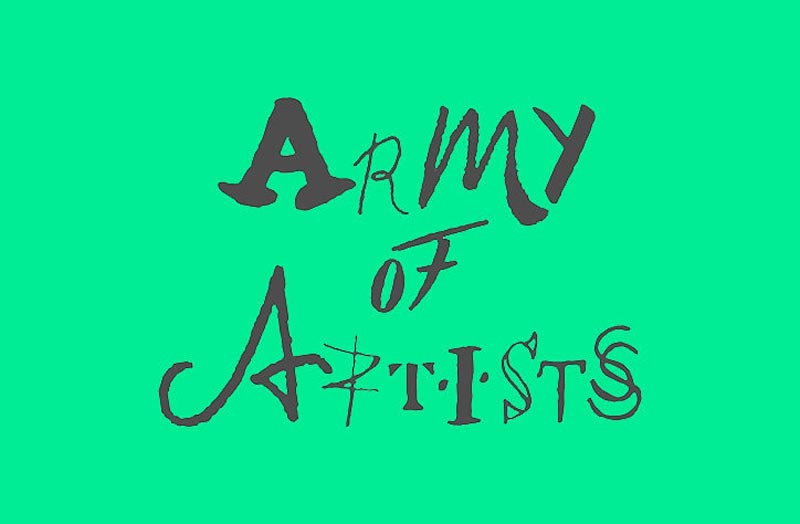
In the “unusual typefaces” family, a new kid has appeared: Army of Artists. The font was designed by Landor, a design consultancy with offices around the globe.
The concept font takes the first letter of famous artists’ signatures and uses it to represent one letter of the alphabet, a clever way to celebrate the artists’ individuality.
A blog post can be anything you want. You could easily write one that links up a bunch of articles on your site. Titles, summaries, links… all hand-crafted HTML. A „guide”, as it were. It will likely be appreciated by your readers, I find, especially when you’re linking up old evergreen content that is still relevant and useful today.
But let’s say you want to programmatically create these „guides”. That might make them faster to create, easier to maintain, and give you a nice level of control over them. Let’s look at a way to do that.
Guides on CSS-Tricks
I’m writing about this because guides are something we’ve just started to do here on CSS-Tricks. For example, I wanted to make a guide of our content that is well suited for folks just starting out, so I made Our Guide To Just Starting Out with CSS & HTML.
That wasn’t built by hand, it was built by programmatically attaching a variety of content to a Custom Post Type we created just for Guides.
Programmatically Attaching Posts to Posts
You know how you can put images into blog posts? But in WordPress, there is also a concept of a featured image, which is one specific programmatically attached image for that post.
That image is programatically attached to this Post.
But we’re talking associating Posts with Posts not Images to Posts. There is no built-in WordPress way of doing that, so we’ll reach for plugins.
CMB2 and Friends
CMB2 (i.e. the second version of „Custom Meta Boxes”) is a free, open source plugin for adding better UI and functionality around custom fields. If you’re familiar with Advanced Custom Fields, it’s a bit like that, only I guess entirely free and a bit more modular.
With that installed, now you can install (I guess we’ll call them sub-plugins?) that make CMB2 do stuff. The one we’re after is CMB2 Attached Posts Field which has the explicit job of attaching Posts to Posts (or really, post type to any post type).
It gives you this two-column UI on post types you activate it for:
Move anything from the left to right, and it’s now programatically attached. This is exactly what we’re after. Now we can hand select, and hand order, any type of post to attach to any other.
Configuring Things
Before you get to the UI you can see above, you not only need to install and activate those two plugins, but also tell CMB2 to create the custom meta boxes and apply them to the types of posts you want.
In our case, our Guides are a custom post type. That’s easy enough to enable:
Then we apply this new custom meta box only to that custom post type (so we don’t have to see it everywhere):
$cmb = new_cmb2_box( array(
  'id'            => 'guide_metabox',
  'title'         => __( 'The Guide Metabox', 'cmb2' ),
  'object_types'  => array( 'guides', ), // Post type
  'context'       => 'normal',
  'priority'      => 'high',
  'show_names'    => true, // Show field names on the left
  // 'cmb_styles' => false, // false to disable the CMB stylesheet
  // 'closed'     => true, // Keep the metabox closed by default
) );

// Regular text field
$cmb->add_field( array(
  'name'       => __( 'Things for the Guide', 'cmb2' ),
  'id'         => 'attached_cmb2_attached_posts',
  'type'       => 'custom_attached_posts',
  'show_on_cb' => 'cmb2_hide_if_no_cats',
  'options' => array(
    'show_thumbnails' => true, // Show thumbnails on the left
    'filter_boxes'    => true, // Show a text box for filtering the results
    'query_args'      => array(
      // 'posts_per_page' => 2,
      'post_type' => array('post', 'page')
    ), // override the get_posts args
  ),
) );
We nestle all this code nicely into a functionality plugin, rather than a `functions.php` file, so that changing themes has no bearing on this content.
A Template for Guides
Now that a custom post type exists for our guides, adding a file called `single-guides.php` into our active theme is enough to make that the file that renders for like `/guide/example/`.
In that file, we do whatever normal template-y stuff we’d do on any other template file (e.g. `page.php`, but also loop through all these posts we’ve attached!
It feels great to have some kind of mechanism for surfacing evergreen content like this. That can be quite a challenge for sites with a huge amount of content!
In this article we will leverage some unconventional CSS matrices to build a custom scroller that doesn’t require any JavaScript while scrolling, just some setup code.
 Credit:Home Adore
 Credit:Dmitry Tsyrencshikov
 Credit:mohamed rezk
 Credit:MyHouse Idea
 Credit:Adam Kaminski
 Credit:MyHouse Idea
 Credit:Home Adore
 Credit:Sérgio Merêces
 Credit:Sérgio Merêces
 Credit:MyHouse Idea
 Credit:Michal Nowak
 Credit:Michal Nowak
 Credit:Angel Kostov
 Credit:Angel Kostov
 Credit:Rafa? Dawlud & Karolina Che?stowska
 Credit:Rafa? Dawlud & Karolina Che?stowska
 Credit:Home Adore
 Credit:Home Adore
 Credit:mode:lina architekci
 Credit:mode:lina architekci
 Credit:Seth Powers
 Credit:Seth Powers
 Credit:Seth Powers
 Credit:ACHouse .Studio