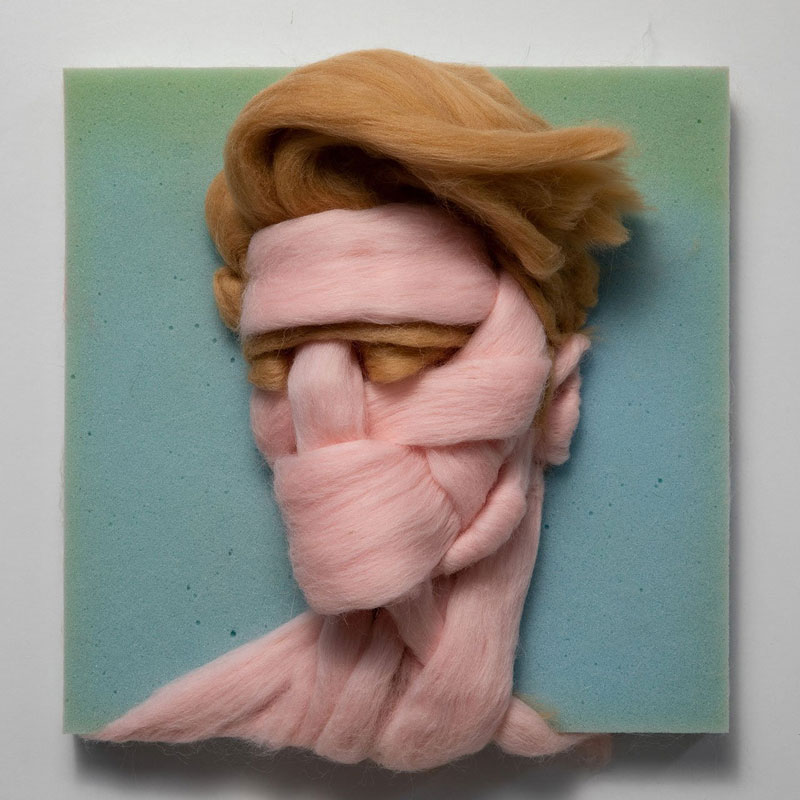
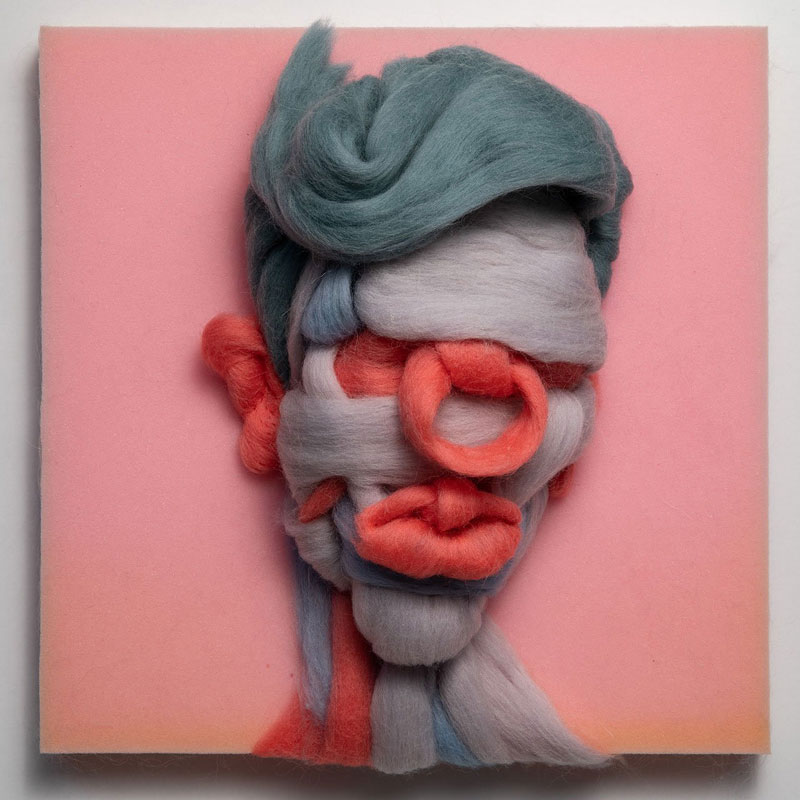
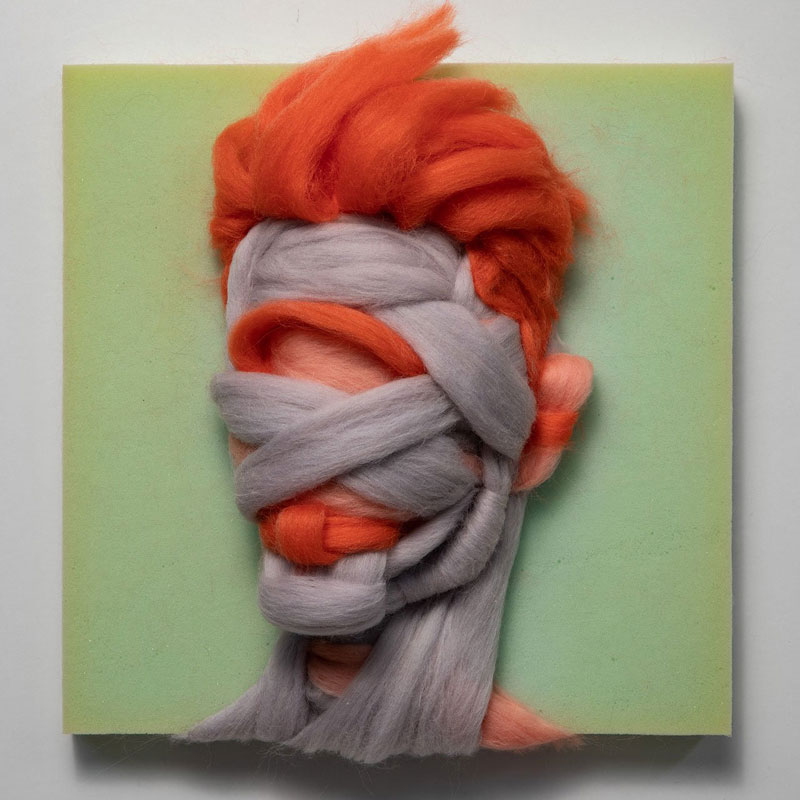
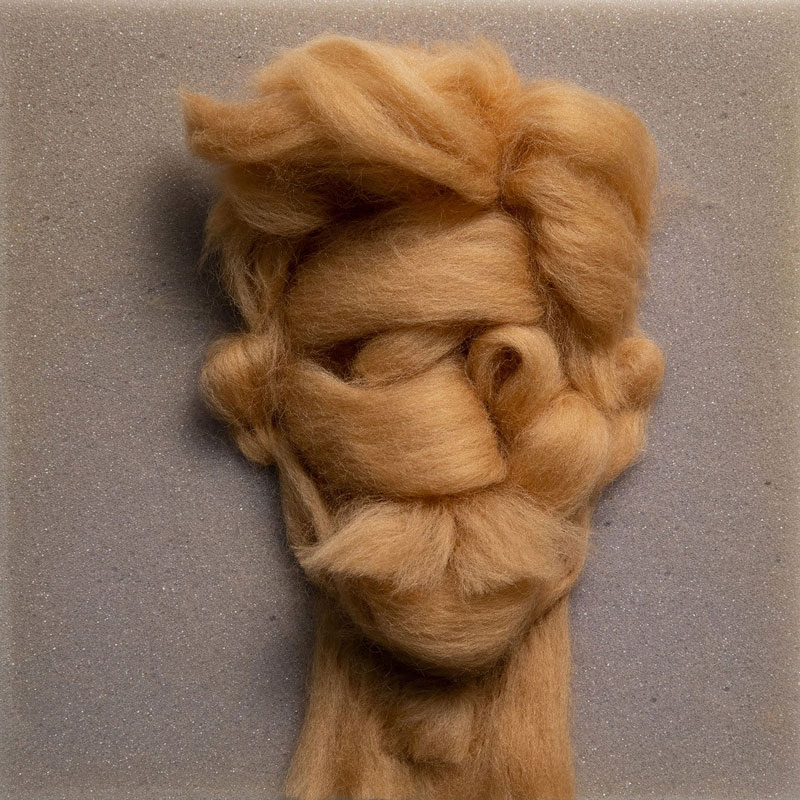
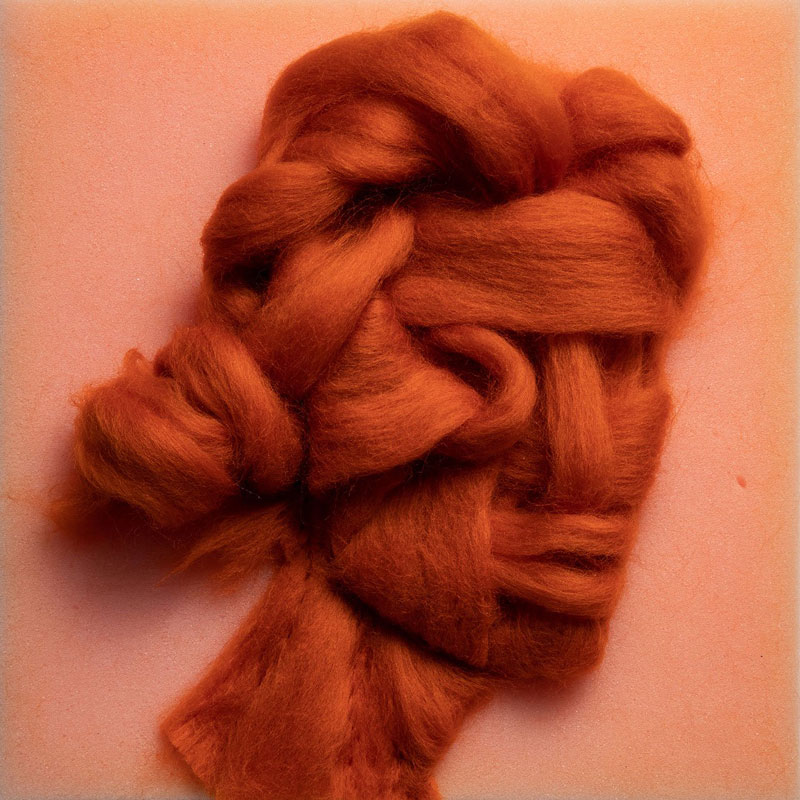
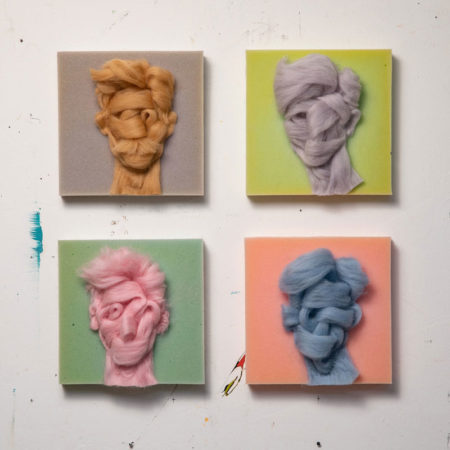
Knotted mustaches, curly hair, hairy eyes,.. these are only some of the weird things you will be able to observe in Salman Khoshroo’s amazing wool portraits. The artist uses crafty techniques to give a soul to otherwise expression-less figures.
You can discover more of the New York based artist’s artworks on his website.
Knotted mustaches, curly hair, hairy eyes,.. these are only some of the weird things you will be able to observe in Salman Khoshroo’s amazing wool portraits. The artist uses crafty techniques to give a soul to otherwise expression-less figures.
You can discover more of the New York based artist’s artworks on his website.
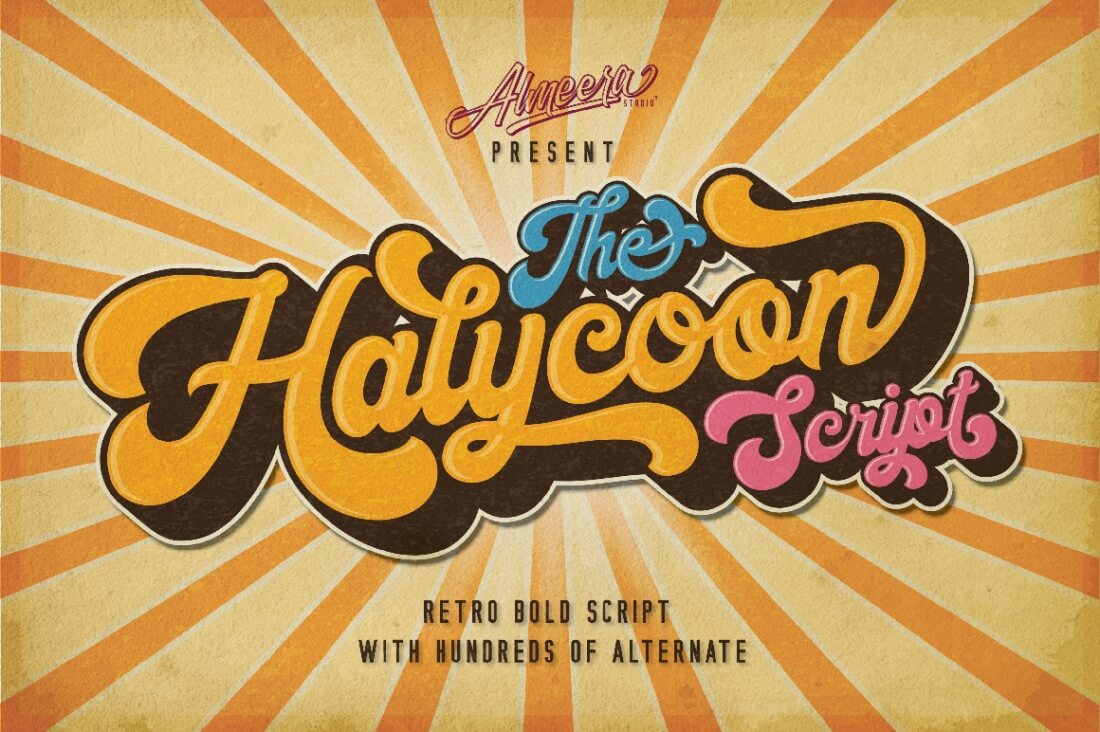
Love pretty fonts? Check out this list of super cute styles from our favorite free and premium sites!
A cute free font features the best of both worlds: high-quality design and an affordable price tag everyone will love.
This cute font to download from Envato Elements is fun and bright!
And since these free fonts can instantly change the vibe of any design, they easily become important assets that every designer should own.
Ready to add some beautiful typefaces to your growing font packs? Today, we’re bringing you a wonderful selection of free and premium cute letter fonts to inspire your next creative project. From bubble letters to flirty scripts, these super cute fonts are a definite must-have for any typography lover.
Get Cute Font Styles in Envato Elements (With Unlimited Use)
If you’re wondering how to get cute fonts with lots of benefits, Envato Elements is the perfect place to visit.
Our subscription-based marketplace has hundreds of cute bold fonts. A premium font from Envato Elements means you’ll get a clear and understandable license, no grey areas for commercial use, and best of all: you can download as many pretty fonts as you wish.
Get unlimited cute fonts to write from Envato Elements
But that’s not the only reason why you should start your search for cute easy fonts there. In Envato Elements, you can also find thousands of graphic templates and creative digital assets. You’ll get unlimited use of our libraries, all for a low monthly fee.
10+ Premium Pretty Fonts From Envato Elements
Now, let’s dive into some of the amazing premium cute letter fonts we’ve got for you. These professional type designs include high-quality font files that are easy to use and ready to download.
Charlemon is a really cute font to download from our marketplace. This cute bold font is suitable for branding, and it’ll make your designs pop! Try it on T-shirts, book covers, cards, invitations, or on any project you’ve got in mind!
Download this cute font to write cards and invitations with a touch of style. This pretty font includes standard characters, lowercase, uppercase, numbers, punctuation, and international characters.
Get this cute bold font to transform any creative project you have. This pretty font is multipurpose and would look good in children’s books, logos, or invitations, for example.
Green is one of the cute font styles we’ve got for you. This cute easy font includes upper and lowercase characters, numerals, and more symbols, along with multilingual support for various languages.
Priscillia is a really cute font to download. It was designed to look like hand letters done with a brush pen, and it’s suitable for holiday cards, postcards, brochures, invitations, and many other projects.
Jacklos is a cute bold font for comic lovers. Every single letter has been carefully crafted to make your text look beautiful and funny. This pretty font is perfect for logos, name cards, magazine layouts, invitations, headers, or even large-scale artwork.
This cute letter font is adorable and perfect for children’s books or kids’ projects. This cute easy font has a typewriter feel, perfect for any creative project.
Some sans-serif fonts seem a little rigid in style, but not the super-cute Apple Juice font. This cute letter font with a fresh design features a fun, playful appearance that can easily be integrated into children’s books and more. Combine it with your favorite colors to take your work to the next level.
One of the many benefits of font packs is the extra fun bonuses you get with each download. Take the Pixie Ring font, for instance. This cute font to download was created with flirty, cute letters, and it features extra details like hearts and diamonds to decorate your work.
Perhaps your next book cover should feature a stunning script font like the Slowbird typeface. This cute font style features elegant script details and sweet letterforms, and it pairs well with lovely illustrations. Add that special touch to your invites and more with the Slowbird typeface.
Next up is Periwinkle, an adorable handmade font that is stretched tall for lots of character. Enjoy this selection of a full set of upper and lowercase characters you can easily combine for a fun new look—it’s a really cute font to write with! Also included in this pack are alternate characters for more options.
Take a little bit of summer with you with the amazing Little Summer font. This is a cute font to download for any animated project or children’s book, and it has a pretty, light quality to it that is simply endearing. Included in this download are basic Latin characters, along with numbers and symbols.
Want a new logo with a pretty sweet design? Then check out this font duo pack, Sweet Belly. Sweet Belly features a script and sans-serif typeface along with plenty of bonus vectors to decorate your work. Use them for flyers, invites, and more!
Our last premium font is the stunning Quartz script. This unique typeface features simple, bold line letterforms that mimic realistic handwriting or doodling. Add a little pizazz to your pieces with a casual script font like this one. Just check out the cute font style previews for inspiration.
25+ Super-Cute Free Fonts With Pretty Designs
If you’d like to know how to get cute fonts for free, we’ve got you covered! You can also find cute free fonts to download from a variety of sites like Behance and more. Check out these incredible free pretty fonts, from cute scripts to decorative styles.
You’ll want a tall glass of the Lemonade script font to quench your design thirst. Featuring stylistic, handmade letterforms, this free pretty font also includes many alternate characters. Use it to create amazing typography pieces featuring your favorite words or quotes.
You don’t have to over-design to create a beautiful typeface. Take the classic Bavro cute free font, for instance. A clean typeface perfect for headlines and posters, this font download also includes multilingual support to use with many international languages. Give it a shot!
Add some character to your package design with this fresh, handwritten font. Lavanda is a free pretty font that can be used with many creative projects. Update your blogs with exciting images or use it to create a new logo. The opportunities are limitless!
Inspired by the handmade posters of the 1980s, West Side is a cute free font with cool, angular details. Try it out with a cute animal silhouette like the bird in the example below. Or make it stand alone for a one-of-a-kind poster. Free for personal and commercial use, this font is definitely a must-have resource!
Getting that natural handmade look is sometimes hard to achieve by yourself. That’s why the incredible Debby font pack comes in handy, and it’s one of our favorite free pretty fonts. Featuring loopy script letters and a rough, paper-like texture, this font is both pretty and multipurpose. Use it on greeting cards, wedding invites, or logos!
Are you feeling very creative today? Then try your hand at the super-wild New Dawn font. Featuring interesting geometric forms inspired by retro styles, this cute free font is truly unique and a showstopper! Easily move and rotate your letters to create exciting typographic pieces.
Not many fonts are available for commercial use, so that’s why it’s great to grab up a freebie like the stunning Lilly Mae font. A swirly modern typeface with a delicate calligraphy style, this font is great for handmade crafts or digital designs. Just use this free pretty font with the software you prefer!
Or explore your fun side with this next free typeface, Xplor. This font pack features a full set of letters, numbers, and symbols, all created in a cool, bold letter style. Customize your comics with expressive cute bold fonts, or animate them for an awesome effect. Check it out!
Don’t over-complicate your font collection with fussy typefaces! The new Mangaba font is simple and effortless! This cute easy font features a handmade design specifically made for writing text in tight spaces. Created by designer Eliezer Grawe, this cute free font includes international characters as well!
Love vector art? Add a little humor and wit to your minimalist designs with this awesome typeface, FatFrank. From our free pretty fonts selection, this is available in several font line weights and is a great way to make your logos stand out. Use negative space concepts like the design below to get the most out of this pack!
Embody the energy of one of the sweetest seasons all year round with the Springfield font. This handwritten font duo pack contains upper and lowercase characters, as well as fun doodle illustrations to spice up your designs. Enjoy this cute font to write on packaging and more.
Invite
your friends and family to the gathering of the year using cute letter fonts! Decorate your
invites with a beautiful font like the Horizon hand-lettered script. A
fresh, handmade script from TJ Creative Shop, this font features natural
strokes suitable for greetings cards or branding material!
Another pretty font we have for you today is the Sweet Carissa typeface. This download actually features a helpful font duo that includes both script and sans-serif styles. Pair the fonts together for a great look or feature one on its own for more impact. Try it out!
Some
of the prettiest fonts around are the ones drawn by hand. Take the free
Mona font, for instance. This charming, hand-drawn typeface features all
uppercase characters with contrasting bold and thin lines. Add that
creative flair to your work with Mona.
Bubble text has always had a way of bringing a smile to people’s faces. And the Airfool free typeface is great for designers on a budget. Enjoy the super-cute chunky letters, which you can customize with exciting colors and gradients. Add it to your collection!
If only we were all blessed with beautiful handwriting, then typography would be so much easier! If you have the same worries, then try out the pretty Beautiful Bloom font from designer Mats-Peter Forss. It features an authentic handmade design with great alternate letters for more variations. Check it out!
If you haven’t found the right font yet, then consider this gorgeous free typeface, Lena. Created by designer Vsevolod Abramov, this font features a combination of straight lines and soft forms for a super-pretty result. Add it to your creative project today!
Whether you’re a fan of the 80s or just have a love for bright colors, this neon font is creative and multipurpose. Download the file from designer Aga Magdziak to get access to colorful characters and patterns that will help you think outside the box.
Calligraphy types like the Noelan font are a definite favorite among many creatives. Featuring a gorgeous modern look with delicate swash details, this font automatically connects the swashes for more efficiency. Pretty and multipurpose, this font is perfect for many projects.
Produce elegant, decorative lettering for your posters or packaging. Lovelyn is our next pretty font, featuring a beautiful and classic serif type design any creative will love. Visit the link to download the full version or just demo it quickly to see if it’s the right fit!
Floral design is a popular trend that will never die out. Check out this lovely vintage and eroded flower font, blooming with exquisite flowers. A fresh, new design made for 2018, this font includes a full set of floral letters and numbers you can use in both commercial and personal projects.
It’s easy to get lost in the crowd. That’s why the Moalang free font is an essential resource for many creative artists and designers. Featuring tons of cool alternates and multilingual characters, this font comes with limitless design possibilities. Check it out!
Looking for a stunning script font with lots of character? Check out this incredible elegant script, Anthasic. A flirty script style with large, loopy swashes, this font might just be the perfect match for your wedding stationery. Try it out on postcards, invites, and more.
Signature fonts give your work that unique, handwritten look. Now you can enjoy the Tuesday Night signature font for logos, apparel, or decorative packaging. Designed by Font Forestry, this font is easy to download and use. Add it to your collection!
Another handwritten script that made it onto this list is this lovely handwritten type, Yolan. A unique design offered free by FadeLine, this script features a bouncy baseline and extraordinary characters. You’ll just love the way your name looks with its soft, elegant letters.
Our last free font is the impeccable Lorena font. Inspired by the feel of vintage typefaces, this font features regular, bold, and medium font styles you can easily mix and match. Get access to a full set of letters, numbers, and symbols in this free download.
Discover More Awesome Fonts for Your Projects
The missing element to your artwork might just be a pretty cute font. Don’t stress about thinking how to get cute fonts. Make sure to bookmark your favorites from this list or download them today in case they get removed!
Have you downloaded any of these free pretty fonts? Use these resources in your next creative adventure and let us know how much you liked this selection in the comments below.
Want more fonts? Check out these collections for more:
This has been a selection of premium resources perfect for the avid designer. Now, you know how to get cute fonts from our premium marketplace! For more pretty fonts, make sure to check out Envato Elements. Happy designing!
Love pretty fonts? Check out this list of super cute styles from our favorite free and premium sites!
A cute free font features the best of both worlds: high-quality design and an affordable price tag everyone will love.
This cute font to download from Envato Elements is fun and bright!
And since these free fonts can instantly change the vibe of any design, they easily become important assets that every designer should own.
Ready to add some beautiful typefaces to your growing font packs? Today, we’re bringing you a wonderful selection of free and premium cute letter fonts to inspire your next creative project. From bubble letters to flirty scripts, these super cute fonts are a definite must-have for any typography lover.
Get Cute Font Styles in Envato Elements (With Unlimited Use)
If you’re wondering how to get cute fonts with lots of benefits, Envato Elements is the perfect place to visit.
Our subscription-based marketplace has hundreds of cute bold fonts. A premium font from Envato Elements means you’ll get a clear and understandable license, no grey areas for commercial use, and best of all: you can download as many pretty fonts as you wish.
Get unlimited cute fonts to write from Envato Elements
But that’s not the only reason why you should start your search for cute easy fonts there. In Envato Elements, you can also find thousands of graphic templates and creative digital assets. You’ll get unlimited use of our libraries, all for a low monthly fee.
10+ Premium Pretty Fonts From Envato Elements
Now, let’s dive into some of the amazing premium cute letter fonts we’ve got for you. These professional type designs include high-quality font files that are easy to use and ready to download.
Charlemon is a really cute font to download from our marketplace. This cute bold font is suitable for branding, and it’ll make your designs pop! Try it on T-shirts, book covers, cards, invitations, or on any project you’ve got in mind!
Download this cute font to write cards and invitations with a touch of style. This pretty font includes standard characters, lowercase, uppercase, numbers, punctuation, and international characters.
Get this cute bold font to transform any creative project you have. This pretty font is multipurpose and would look good in children’s books, logos, or invitations, for example.
Green is one of the cute font styles we’ve got for you. This cute easy font includes upper and lowercase characters, numerals, and more symbols, along with multilingual support for various languages.
Priscillia is a really cute font to download. It was designed to look like hand letters done with a brush pen, and it’s suitable for holiday cards, postcards, brochures, invitations, and many other projects.
Jacklos is a cute bold font for comic lovers. Every single letter has been carefully crafted to make your text look beautiful and funny. This pretty font is perfect for logos, name cards, magazine layouts, invitations, headers, or even large-scale artwork.
This cute letter font is adorable and perfect for children’s books or kids’ projects. This cute easy font has a typewriter feel, perfect for any creative project.
Some sans-serif fonts seem a little rigid in style, but not the super-cute Apple Juice font. This cute letter font with a fresh design features a fun, playful appearance that can easily be integrated into children’s books and more. Combine it with your favorite colors to take your work to the next level.
One of the many benefits of font packs is the extra fun bonuses you get with each download. Take the Pixie Ring font, for instance. This cute font to download was created with flirty, cute letters, and it features extra details like hearts and diamonds to decorate your work.
Perhaps your next book cover should feature a stunning script font like the Slowbird typeface. This cute font style features elegant script details and sweet letterforms, and it pairs well with lovely illustrations. Add that special touch to your invites and more with the Slowbird typeface.
Next up is Periwinkle, an adorable handmade font that is stretched tall for lots of character. Enjoy this selection of a full set of upper and lowercase characters you can easily combine for a fun new look—it’s a really cute font to write with! Also included in this pack are alternate characters for more options.
Take a little bit of summer with you with the amazing Little Summer font. This is a cute font to download for any animated project or children’s book, and it has a pretty, light quality to it that is simply endearing. Included in this download are basic Latin characters, along with numbers and symbols.
Want a new logo with a pretty sweet design? Then check out this font duo pack, Sweet Belly. Sweet Belly features a script and sans-serif typeface along with plenty of bonus vectors to decorate your work. Use them for flyers, invites, and more!
Our last premium font is the stunning Quartz script. This unique typeface features simple, bold line letterforms that mimic realistic handwriting or doodling. Add a little pizazz to your pieces with a casual script font like this one. Just check out the cute font style previews for inspiration.
25+ Super-Cute Free Fonts With Pretty Designs
If you’d like to know how to get cute fonts for free, we’ve got you covered! You can also find cute free fonts to download from a variety of sites like Behance and more. Check out these incredible free pretty fonts, from cute scripts to decorative styles.
You’ll want a tall glass of the Lemonade script font to quench your design thirst. Featuring stylistic, handmade letterforms, this free pretty font also includes many alternate characters. Use it to create amazing typography pieces featuring your favorite words or quotes.
You don’t have to over-design to create a beautiful typeface. Take the classic Bavro cute free font, for instance. A clean typeface perfect for headlines and posters, this font download also includes multilingual support to use with many international languages. Give it a shot!
Add some character to your package design with this fresh, handwritten font. Lavanda is a free pretty font that can be used with many creative projects. Update your blogs with exciting images or use it to create a new logo. The opportunities are limitless!
Inspired by the handmade posters of the 1980s, West Side is a cute free font with cool, angular details. Try it out with a cute animal silhouette like the bird in the example below. Or make it stand alone for a one-of-a-kind poster. Free for personal and commercial use, this font is definitely a must-have resource!
Getting that natural handmade look is sometimes hard to achieve by yourself. That’s why the incredible Debby font pack comes in handy, and it’s one of our favorite free pretty fonts. Featuring loopy script letters and a rough, paper-like texture, this font is both pretty and multipurpose. Use it on greeting cards, wedding invites, or logos!
Are you feeling very creative today? Then try your hand at the super-wild New Dawn font. Featuring interesting geometric forms inspired by retro styles, this cute free font is truly unique and a showstopper! Easily move and rotate your letters to create exciting typographic pieces.
Not many fonts are available for commercial use, so that’s why it’s great to grab up a freebie like the stunning Lilly Mae font. A swirly modern typeface with a delicate calligraphy style, this font is great for handmade crafts or digital designs. Just use this free pretty font with the software you prefer!
Or explore your fun side with this next free typeface, Xplor. This font pack features a full set of letters, numbers, and symbols, all created in a cool, bold letter style. Customize your comics with expressive cute bold fonts, or animate them for an awesome effect. Check it out!
Don’t over-complicate your font collection with fussy typefaces! The new Mangaba font is simple and effortless! This cute easy font features a handmade design specifically made for writing text in tight spaces. Created by designer Eliezer Grawe, this cute free font includes international characters as well!
Love vector art? Add a little humor and wit to your minimalist designs with this awesome typeface, FatFrank. From our free pretty fonts selection, this is available in several font line weights and is a great way to make your logos stand out. Use negative space concepts like the design below to get the most out of this pack!
Embody the energy of one of the sweetest seasons all year round with the Springfield font. This handwritten font duo pack contains upper and lowercase characters, as well as fun doodle illustrations to spice up your designs. Enjoy this cute font to write on packaging and more.
Invite
your friends and family to the gathering of the year using cute letter fonts! Decorate your
invites with a beautiful font like the Horizon hand-lettered script. A
fresh, handmade script from TJ Creative Shop, this font features natural
strokes suitable for greetings cards or branding material!
Another pretty font we have for you today is the Sweet Carissa typeface. This download actually features a helpful font duo that includes both script and sans-serif styles. Pair the fonts together for a great look or feature one on its own for more impact. Try it out!
Some
of the prettiest fonts around are the ones drawn by hand. Take the free
Mona font, for instance. This charming, hand-drawn typeface features all
uppercase characters with contrasting bold and thin lines. Add that
creative flair to your work with Mona.
Bubble text has always had a way of bringing a smile to people’s faces. And the Airfool free typeface is great for designers on a budget. Enjoy the super-cute chunky letters, which you can customize with exciting colors and gradients. Add it to your collection!
If only we were all blessed with beautiful handwriting, then typography would be so much easier! If you have the same worries, then try out the pretty Beautiful Bloom font from designer Mats-Peter Forss. It features an authentic handmade design with great alternate letters for more variations. Check it out!
If you haven’t found the right font yet, then consider this gorgeous free typeface, Lena. Created by designer Vsevolod Abramov, this font features a combination of straight lines and soft forms for a super-pretty result. Add it to your creative project today!
Whether you’re a fan of the 80s or just have a love for bright colors, this neon font is creative and multipurpose. Download the file from designer Aga Magdziak to get access to colorful characters and patterns that will help you think outside the box.
Calligraphy types like the Noelan font are a definite favorite among many creatives. Featuring a gorgeous modern look with delicate swash details, this font automatically connects the swashes for more efficiency. Pretty and multipurpose, this font is perfect for many projects.
Produce elegant, decorative lettering for your posters or packaging. Lovelyn is our next pretty font, featuring a beautiful and classic serif type design any creative will love. Visit the link to download the full version or just demo it quickly to see if it’s the right fit!
Floral design is a popular trend that will never die out. Check out this lovely vintage and eroded flower font, blooming with exquisite flowers. A fresh, new design made for 2018, this font includes a full set of floral letters and numbers you can use in both commercial and personal projects.
It’s easy to get lost in the crowd. That’s why the Moalang free font is an essential resource for many creative artists and designers. Featuring tons of cool alternates and multilingual characters, this font comes with limitless design possibilities. Check it out!
Looking for a stunning script font with lots of character? Check out this incredible elegant script, Anthasic. A flirty script style with large, loopy swashes, this font might just be the perfect match for your wedding stationery. Try it out on postcards, invites, and more.
Signature fonts give your work that unique, handwritten look. Now you can enjoy the Tuesday Night signature font for logos, apparel, or decorative packaging. Designed by Font Forestry, this font is easy to download and use. Add it to your collection!
Another handwritten script that made it onto this list is this lovely handwritten type, Yolan. A unique design offered free by FadeLine, this script features a bouncy baseline and extraordinary characters. You’ll just love the way your name looks with its soft, elegant letters.
Our last free font is the impeccable Lorena font. Inspired by the feel of vintage typefaces, this font features regular, bold, and medium font styles you can easily mix and match. Get access to a full set of letters, numbers, and symbols in this free download.
Discover More Awesome Fonts for Your Projects
The missing element to your artwork might just be a pretty cute font. Don’t stress about thinking how to get cute fonts. Make sure to bookmark your favorites from this list or download them today in case they get removed!
Have you downloaded any of these free pretty fonts? Use these resources in your next creative adventure and let us know how much you liked this selection in the comments below.
Want more fonts? Check out these collections for more:
This has been a selection of premium resources perfect for the avid designer. Now, you know how to get cute fonts from our premium marketplace! For more pretty fonts, make sure to check out Envato Elements. Happy designing!
The HBO sitcom Silicon Valley hilariously followed Pied Piper, a team of developers with startup dreams to create a compression algorithm so powerful that high-quality streaming and file storage concerns would become a thing of the past.
In the show, Google is portrayed by the fictional company Hooli, which is after Pied Piper’s intellectual property. The funny thing is that, while being far from a startup, Google does indeed have a powerful compression engine in real life called Brotli.
This article is about my experience using Brotli at production scale. Despite being really expensive and a truly unfeasible method for on-the-fly compression, Brotli is actually very economical and saves cost on many fronts, especially when compared with gzip or lower compression levels of Brotli (which we’ll get into).
Brotli’s beginning…
In 2015, Google published a blog post announcing Brotli and released its source code on GitHub. The pair of developers who created Brotli also created Google’s Zopfli compression two years earlier. But where Zopfli leveraged existing compression techniques, Brotli was written from the ground-up and squarely focused on text compression to benefit static web assets, like HTML, CSS, JavaScript and even web fonts.
At that time, I was working as a freelance website performance consultant. I was really excited for the 20-26% improvement Brotli promised over Zopfli. Zopfli in itself is a dense implementation of the deflate compressor compared with zlib’s standard implementation, so the claim of up to 26% was quite impressive. And what’s zlib? It’s essentially the same as gzip.
So what we’re looking at is the next generation of Zopfli, which is an offshoot of zlib, which is essentially gzip.
A story of disappointment
It took a few months for major CDN players to support Brotli, but meanwhile it was seeing widespread adoption in tools, services, browsers and servers. However, the 26% dense compression that Brotli promised was never reflected in production. Some CDNs set a lower compression level internally while others supported Brotli at origin so that they only support it if it was enabled manually at the origin.
Server support for Brotli was pretty good, but to achieve high compression levels, it required rolling your own pre-compression code or using a server module to do it for you — which is not always an option, especially in the case of shared hosting services.
This was really disappointing for me. I wanted to compress every last possible byte for my clients’ websites in a drive to make them faster, but using pre-compression and allowing clients to update files on demand simultaneously was not always easy.
Taking matters into my own hands
I started building my own performance optimization service for my clients.
I had several tricks that could significantly speed up websites. The service categorized all the optimizations in three groups consisting of several “Content,” “Delivery,” and “Cache” optimizations. I had Brotli in mind for the content optimization part of the service for compressible resources.
Like other compression formats, Brotli comes in different levels of power. Brotli’s max level is exactly like the max volume of the guitar amps in This is Spinal Tap: it goes to 11.
Brotli:11, or Brotli compression level 11, can offer significant reduction in the size of compressible files, but has a substantial trade-off: it is painfully slow and not feasible for on demand compression the same way gzip is capable of doing it. It costs significantly more in terms of CPU time.
In my benchmarks, Brotli:11 takes several hundred milliseconds to compress a single minified jQuery file. So, the only way to offer Brotli:11 to my clients was to use it for pre-compression, leaving me to figure out a way to cache files at the server level. Luckily we already had that in place. The only problem was the fear that Brotli could kill all our processing resources.
Maybe that’s why Pied Piper had to continue rigging its servers for more power.
I put my fears aside and built Brotli:11 as a configurable server option. This way, clients could decide whether enabling it was worth the computing cost.
It’s slow, but gradually pays off
Among several other optimizations, the service for my clients also offers geographic content delivery; in other words, it has a built-in CDN.
Of the several tricks I tried when taking matters into my own hands, one was to combine public CDN (or open-source CDN) and private CDN on a single host so that websites can enjoy the benefits of shared browser cache of public resources without incurring separate DNS lookup and connection cost for that public host. I wanted to avoid this extra connection cost because it has significant impact for mobile users. Also, combining more and more resources on a single host can help get the most of HTTP/2 features, like multiplexing.
I enabled the public CDN and turned on Brotli:11 pre-compression for all compressible resources, including CSS, JavaScript, SVG, and TTF, among other types of files. The overhead of compression did indeed increase on first request of each resource — but after that, everything seemed to run smoothly. Brotli has over 90% browser support and pretty much all the requests hitting my service now use Brotli.
I was happy. Clients were happy. But I didn’t have numbers. I started analyzing the impact of enabling this high density compression on public resources. For this, I recorded file transfer sizes of several popular libraries — including jQuery, Bootstrap, React, and other frameworks — that used common compression methods implemented by other CDNs and found that Brotli:11 compression was saving around 21% compared to other compression formats.
It’s important to note that some of the other public CDNs I compared were already using Brotli, but at lower compression levels. So, the 21% extra compression was really satisfying for me. This number is based on a very small subset of libraries but is not incorrect by a big margin as I was seeing this much gain on all of the websites that I tested.
Here is a graphical representation of the savings.
You can see the raw data below..Note that the savings for CSS is much more prominent than what JavaScript gets.
Library
Original
Avg. of Common Compression (A)
Brotli:11 (B)
(A) / (B) – 1
Ant Design
1,938.99 KB
438.24 KB
362.82 KB
20.79%
Bootstrap
152.11 KB
24.20 KB
17.30 KB
39.88%
Bulma
186.13 KB
23.40 KB
19.30 KB
21.24%
D3.js
236.82 KB
74.51 KB
65.75 KB
13.32%
Font Awesome
1,104.04 KB
422.56 KB
331.12 KB
27.62%
jQuery
86.08 KB
30.31 KB
27.65 KB
9.62%
React
105.47 KB
33.33 KB
30.28 KB
10.07%
Semantic UI
613.78 KB
91.93 KB
78.25 KB
17.48%
three.js
562.75 KB
134.01 KB
114.44 KB
17.10%
Vue.js
91.48 KB
33.17 KB
30.58 KB
8.47%
The results are great, which is what I expected. But what about the overall impact of using Brotli:11 at scale? Turns out that using Brotli:11 for all public resources reduces cost all around:
The smaller file sizes are expected to result in lower TLS overhead. That said, it is not easily measurable, nor is it significant for my service because modern CPUs are very fast at encryption. Still, I believe there is some tiny and repeated saving on account of encryption for every request as smaller files encrypt faster.
It reduces the bandwidth cost. The 21% savings I got across the board is the case in point. And, remember, savings are not a one-time thing. Each request counts as cost, so the 21% savings is repeated time and again, creating a snowball savings for the cost of bandwidth.
We only cache hot files in memory at edge servers. Due to the widespread browser support for Brotli, these hot files are mostly encoded by Brotli and their small size lets us fit more of them in available memory.
Visitors, especially those on mobile devices, enjoy reduced data transfer. This results in less battery use and savings on data charges. That’s a huge win that gets passed on to the users of our clients!
This is all so good. The cost we save per request is not significant, but considering we have a near zero cache miss rate for public resources, we can easily amortize the initial high cost of compression in next several hundred requests. After that, we’re looking at a lifetime benefit of reduced overhead.
It doesn’t end there
With the mix of public and private CDNs that we introduced as part of our performance optimization service, we wanted to make sure that clients could set lower compression levels for resources that frequently change over time (like custom CSS and JavaScript) on the private CDN and automatically switch to the public CDN for open-source resources that change less often and have pre-configured Brotli:11. This way, our clients can still get a high compression ratio on resources that change less often while still enjoying good compression ratios with instant purge and updates for compressible resources.
This all is done smoothly and seamlessly using our integration tools. The added benefit of this approach for clients is that the bandwidth on the public CDN is totally free with unprecedented performance levels.
Try it yourself!
Testing on a common website, using aggressive compression can easily shave around 50 KB off the page load. If you want to play with the free public CDN and enjoy smaller CSS and JavaScript, you are welcome to use our PageCDN service. Here are some of the most used libraries for your use:
Our PHP library automatic switches between private and public CDN if you need it to. The same feature is implemented seamlessly in our WordPress plugin that automatically loads public resources over Public CDN. Both of these tools allow full access to the free public CDN. Libraries for JavaScript, Python. and Ruby are not yet available. If you contribute any such library to our Public CDN, I will be happy to list it in our docs.
Additionally, you can use our search tool to immediately find a corresponding resource on the public CDN by supplying a URL of a resource on your website. If none of these tools work for you, then you can check the relevant library page and pick the URLs you want.
Looking toward the future
We started by hosting only the most popular libraries in order to prevent malware spread. However, things are changing rapidly and we add new libraries as our users suggest them to us. You are welcome to suggest your favorite ones, too. If you still want to link to a public or private Github repo that is not yet available on our public CDN, you can use our private CDN to connect to a repo and import all new releases as they appear on GitHub and then apply your own aggressive optimizations before delivery.
What do you think?
Everything we covered here is solely based on my personal experience working with Brotli compression at CDN scale. It just happens to be an introduction to my public CDN as well. We are still a small service and our client websites are only in the hundreds. Still, at this scale the aggressive compression seems to pay off.
I achieved high quality results for my clients and now you can use this free service for your websites as well. And, if you like it, please leave feedback at my email and recommend it to others.
The HBO sitcom Silicon Valley hilariously followed Pied Piper, a team of developers with startup dreams to create a compression algorithm so powerful that high-quality streaming and file storage concerns would become a thing of the past.
In the show, Google is portrayed by the fictional company Hooli, which is after Pied Piper’s intellectual property. The funny thing is that, while being far from a startup, Google does indeed have a powerful compression engine in real life called Brotli.
This article is about my experience using Brotli at production scale. Despite being really expensive and a truly unfeasible method for on-the-fly compression, Brotli is actually very economical and saves cost on many fronts, especially when compared with gzip or lower compression levels of Brotli (which we’ll get into).
Brotli’s beginning…
In 2015, Google published a blog post announcing Brotli and released its source code on GitHub. The pair of developers who created Brotli also created Google’s Zopfli compression two years earlier. But where Zopfli leveraged existing compression techniques, Brotli was written from the ground-up and squarely focused on text compression to benefit static web assets, like HTML, CSS, JavaScript and even web fonts.
At that time, I was working as a freelance website performance consultant. I was really excited for the 20-26% improvement Brotli promised over Zopfli. Zopfli in itself is a dense implementation of the deflate compressor compared with zlib’s standard implementation, so the claim of up to 26% was quite impressive. And what’s zlib? It’s essentially the same as gzip.
So what we’re looking at is the next generation of Zopfli, which is an offshoot of zlib, which is essentially gzip.
A story of disappointment
It took a few months for major CDN players to support Brotli, but meanwhile it was seeing widespread adoption in tools, services, browsers and servers. However, the 26% dense compression that Brotli promised was never reflected in production. Some CDNs set a lower compression level internally while others supported Brotli at origin so that they only support it if it was enabled manually at the origin.
Server support for Brotli was pretty good, but to achieve high compression levels, it required rolling your own pre-compression code or using a server module to do it for you — which is not always an option, especially in the case of shared hosting services.
This was really disappointing for me. I wanted to compress every last possible byte for my clients’ websites in a drive to make them faster, but using pre-compression and allowing clients to update files on demand simultaneously was not always easy.
Taking matters into my own hands
I started building my own performance optimization service for my clients.
I had several tricks that could significantly speed up websites. The service categorized all the optimizations in three groups consisting of several “Content,” “Delivery,” and “Cache” optimizations. I had Brotli in mind for the content optimization part of the service for compressible resources.
Like other compression formats, Brotli comes in different levels of power. Brotli’s max level is exactly like the max volume of the guitar amps in This is Spinal Tap: it goes to 11.
Brotli:11, or Brotli compression level 11, can offer significant reduction in the size of compressible files, but has a substantial trade-off: it is painfully slow and not feasible for on demand compression the same way gzip is capable of doing it. It costs significantly more in terms of CPU time.
In my benchmarks, Brotli:11 takes several hundred milliseconds to compress a single minified jQuery file. So, the only way to offer Brotli:11 to my clients was to use it for pre-compression, leaving me to figure out a way to cache files at the server level. Luckily we already had that in place. The only problem was the fear that Brotli could kill all our processing resources.
Maybe that’s why Pied Piper had to continue rigging its servers for more power.
I put my fears aside and built Brotli:11 as a configurable server option. This way, clients could decide whether enabling it was worth the computing cost.
It’s slow, but gradually pays off
Among several other optimizations, the service for my clients also offers geographic content delivery; in other words, it has a built-in CDN.
Of the several tricks I tried when taking matters into my own hands, one was to combine public CDN (or open-source CDN) and private CDN on a single host so that websites can enjoy the benefits of shared browser cache of public resources without incurring separate DNS lookup and connection cost for that public host. I wanted to avoid this extra connection cost because it has significant impact for mobile users. Also, combining more and more resources on a single host can help get the most of HTTP/2 features, like multiplexing.
I enabled the public CDN and turned on Brotli:11 pre-compression for all compressible resources, including CSS, JavaScript, SVG, and TTF, among other types of files. The overhead of compression did indeed increase on first request of each resource — but after that, everything seemed to run smoothly. Brotli has over 90% browser support and pretty much all the requests hitting my service now use Brotli.
I was happy. Clients were happy. But I didn’t have numbers. I started analyzing the impact of enabling this high density compression on public resources. For this, I recorded file transfer sizes of several popular libraries — including jQuery, Bootstrap, React, and other frameworks — that used common compression methods implemented by other CDNs and found that Brotli:11 compression was saving around 21% compared to other compression formats.
It’s important to note that some of the other public CDNs I compared were already using Brotli, but at lower compression levels. So, the 21% extra compression was really satisfying for me. This number is based on a very small subset of libraries but is not incorrect by a big margin as I was seeing this much gain on all of the websites that I tested.
Here is a graphical representation of the savings.
You can see the raw data below..Note that the savings for CSS is much more prominent than what JavaScript gets.
Library
Original
Avg. of Common Compression (A)
Brotli:11 (B)
(A) / (B) – 1
Ant Design
1,938.99 KB
438.24 KB
362.82 KB
20.79%
Bootstrap
152.11 KB
24.20 KB
17.30 KB
39.88%
Bulma
186.13 KB
23.40 KB
19.30 KB
21.24%
D3.js
236.82 KB
74.51 KB
65.75 KB
13.32%
Font Awesome
1,104.04 KB
422.56 KB
331.12 KB
27.62%
jQuery
86.08 KB
30.31 KB
27.65 KB
9.62%
React
105.47 KB
33.33 KB
30.28 KB
10.07%
Semantic UI
613.78 KB
91.93 KB
78.25 KB
17.48%
three.js
562.75 KB
134.01 KB
114.44 KB
17.10%
Vue.js
91.48 KB
33.17 KB
30.58 KB
8.47%
The results are great, which is what I expected. But what about the overall impact of using Brotli:11 at scale? Turns out that using Brotli:11 for all public resources reduces cost all around:
The smaller file sizes are expected to result in lower TLS overhead. That said, it is not easily measurable, nor is it significant for my service because modern CPUs are very fast at encryption. Still, I believe there is some tiny and repeated saving on account of encryption for every request as smaller files encrypt faster.
It reduces the bandwidth cost. The 21% savings I got across the board is the case in point. And, remember, savings are not a one-time thing. Each request counts as cost, so the 21% savings is repeated time and again, creating a snowball savings for the cost of bandwidth.
We only cache hot files in memory at edge servers. Due to the widespread browser support for Brotli, these hot files are mostly encoded by Brotli and their small size lets us fit more of them in available memory.
Visitors, especially those on mobile devices, enjoy reduced data transfer. This results in less battery use and savings on data charges. That’s a huge win that gets passed on to the users of our clients!
This is all so good. The cost we save per request is not significant, but considering we have a near zero cache miss rate for public resources, we can easily amortize the initial high cost of compression in next several hundred requests. After that, we’re looking at a lifetime benefit of reduced overhead.
It doesn’t end there
With the mix of public and private CDNs that we introduced as part of our performance optimization service, we wanted to make sure that clients could set lower compression levels for resources that frequently change over time (like custom CSS and JavaScript) on the private CDN and automatically switch to the public CDN for open-source resources that change less often and have pre-configured Brotli:11. This way, our clients can still get a high compression ratio on resources that change less often while still enjoying good compression ratios with instant purge and updates for compressible resources.
This all is done smoothly and seamlessly using our integration tools. The added benefit of this approach for clients is that the bandwidth on the public CDN is totally free with unprecedented performance levels.
Try it yourself!
Testing on a common website, using aggressive compression can easily shave around 50 KB off the page load. If you want to play with the free public CDN and enjoy smaller CSS and JavaScript, you are welcome to use our PageCDN service. Here are some of the most used libraries for your use:
Our PHP library automatic switches between private and public CDN if you need it to. The same feature is implemented seamlessly in our WordPress plugin that automatically loads public resources over Public CDN. Both of these tools allow full access to the free public CDN. Libraries for JavaScript, Python. and Ruby are not yet available. If you contribute any such library to our Public CDN, I will be happy to list it in our docs.
Additionally, you can use our search tool to immediately find a corresponding resource on the public CDN by supplying a URL of a resource on your website. If none of these tools work for you, then you can check the relevant library page and pick the URLs you want.
Looking toward the future
We started by hosting only the most popular libraries in order to prevent malware spread. However, things are changing rapidly and we add new libraries as our users suggest them to us. You are welcome to suggest your favorite ones, too. If you still want to link to a public or private Github repo that is not yet available on our public CDN, you can use our private CDN to connect to a repo and import all new releases as they appear on GitHub and then apply your own aggressive optimizations before delivery.
What do you think?
Everything we covered here is solely based on my personal experience working with Brotli compression at CDN scale. It just happens to be an introduction to my public CDN as well. We are still a small service and our client websites are only in the hundreds. Still, at this scale the aggressive compression seems to pay off.
I achieved high quality results for my clients and now you can use this free service for your websites as well. And, if you like it, please leave feedback at my email and recommend it to others.
Instant.Page does one special thing to make sites faster: it preloads the next page when it’s pretty sure you’re going to click a link (either by hovering over 65ms or mousedown on desktop, or touchstart on mobile), so when you do complete the click (probably a few hundred milliseconds later), it loads that much faster.
It’s one thing to understand that approach, buy into it, integrate it, and consider it a perf win. I have it installed here!
It’s another thing to actually get the data on your own site. Leave it to Tim Kadlec to get clever and A/B test it. Tim was able to do a 50/50 A/B split with performance-neutral Netlify split testing. Half loaded Instant.Page, the other half didn’t. And the same halves told SpeedCurve which half they were in, so performance charts could be built to compare.
Tim says it mostly looks good, but his site probably isn’t the best test:
It’s also worth noting that even if the results do look good, just because it does or doesn’t make an impact on my site doesn’t mean it won’t have a different impact elsewhere. My site has a short session length, typically, and very lightweight pages: putting this on a larger commercial site would inevitably yield much different results.
I’d love to see someone do this on a beefier site. I’m in the how could it not be faster?! camp, but with zero data.
In this tutorial, you’ll learn how to create a tri-fold brochure template in Affinity Publisher. Adaptable for a range of businesses and purposes, this Affinity Publisher brochure template is simple to create and features contemporary colors and typography.
This tri-fold brochure template tutorial comes complete with a downloadable free brochure template for both Adobe InDesign and Affinity Publisher, allowing you to quickly create your own unique tri-fold brochure template.
Follow the steps below to get to grips with Affinity Publisher, pick up key print design skills, and create a stylish Affinity Publisher brochure template from scratch.
Adobe InDesign has long been the market leader in publishing software. But rival layout design programs are starting to make waves in the market, with…
Follow along with this tutorial over on our Envato Tuts+ YouTube channel, where you can find more Affinity tutorials:
What You Will Learn in This Brochure Tutorial
How to set up blank brochure templates for print in Affinity Publisher.
How to create layers and color swatches and work with images in your Publisher brochure templates.
How to use blending modes and format typography on your brochure templates in Affinity Publisher.
How to export your tri-fold flyer template as a press-ready PDF, ready for printing.
What You’ll Need to Create Your Tri-Fold Brochure Template
In this tutorial, we’ll be using Affinity Publisher to create our three-fold brochure template. If you’re an InDesign user, you can download the InDesign brochure template here.
As well as access to Affinity Publisher, you’ll also need to download the following fonts and images from Envato Elements to recreate the tri-fold brochure template pictured here:
1. How to Set Up Your Blank Brochure Template in Affinity Publisher
Step 1
Open Publisher, and go to File > New.
Select Print from the options along the top of the window. Set the Page width to 11 in and Page height to 8.5 in. Increase the Number of pages to 2.
Step 2
From the Margins options, set a margin width of 0.375 in for all sides of the page. Add a Bleed width of 0.125 in.
Then click Create.
Step 3
To mark out the folds in our brochure template, make sure the rulers are visible (View > Show Rulers).
Double-click on Master A in the Pages panel (View > Studio > Pages), and pull out a guide from the left-hand ruler to 3.66 in.
Then pull out a second guide to 7.33 in.
Step 4
To make sure we place content centrally on each section of the tri-fold brochure, we can add margin lines on either side of each fold.
Pull out guides to 3.29 in, 4.05 in, 6.95 in, and 7.69 in.
Step 5
Go to the Swatches panel (View > Studio > Swatches) and choose Add Global Colour from the drop-down menu in the top-right corner.
Name the swatch Off-White and set the levels below to C=3 M=1 Y=4 K=0. Then click Add.
Repeat to create two more swatches:
Navy: C=100 M=89 Y=39 K=32
Orange: C=3 M=82 Y=97 K=0
Step 6
Double-click on Page 1 in the Pages panel to go back to the pages of your document.
Go to the Layers panel (View > Studio > Layers) and rename Layer 1 as Background.
Click on the Add Layer button at the bottom right of the panel. Name this second layer Images and Color. Repeat to create a third layer, naming this Text.
Select both the Text and Images and Color layers and lock them by clicking the padlock icon at top right.
2. How to Add Color and Images to Your Affinity Publisher Brochure Template
Step 1
Working on the Background layer, select the Rectangle Tool (M) from the Tools panel and drag across the whole of Page 1, extending the edges up to the bleed.
From the Swatches panel, set the Fill Color to Off-White.
Step 2
Use the Rectangle Tool to create a second shape on Page 1, across the central and right-hand section of the trifold brochure.
Set the Fill to Orange.
Step 3
Switch to the Picture Frame Rectangle Tool (F) and create a frame across the bottom half of Page 1, across the left-hand and central section.
Go to File > Place, choose an image, such as this one, and click Open.
Double-click inside the picture frame to select the image directly, and scale it until you’re happy with the position.
Step 4
Select the picture frame and Edit > Copy, Edit > Paste it, moving the copy up to the top-right corner of the tri-fold brochure template.
Use File > Place to replace the image with a different one, such as this one.
Step 5
Use the Rectangle Tool to create a shape across the bottom of the central section, setting the Fill to Navy.
From the Colour panel (View > Studio > Colour), reduce the Opacity to 80%.
Step 6
Select the navy shape and Copy and Paste it, moving it directly above the original. Switch the Fill to Orange.
In the Layers panel, choose Multiply for the Blending Mode.
Step 7
Select the image frame at the top-right of Page 1, and Edit > Copy it.
Scroll down to Page 2 and Edit > Paste, expanding the picture frame to fill the whole page of the tri-fold brochure template and scaling the image inside to fit it.
Step 8
Select the navy rectangle on Page 1 and Copy it, pasting it onto Page 2.
Select the orange shape on the central section of Page 1 and Copy that too, pasting onto Page 2. Resize it so it fits across the whole of the left-hand section of the tri-fold brochure.
Paste again, moving the orange shape over to the right-hand section and scaling it to fill the lower two thirds of the section.
3. How to Format Stylish Typography for Your Affinity Publisher Brochure Template
Step 1
Lock the Text and Color layer and unlock the top layer, Text.
Select the Frame Text Tool (T) and drag across the bottom of the far-right section of Page 1, using the margin guides to position the frame.
Type in the brochure title, and from the Character and Paragraph panels (View > Studio > Character), set the Font to Mondia, Size 52 pt, and Align Center.
Set the Font Colour to Off-White.
Add a subtitle below the heading, set in CA Saygon Text, Size 10 pt.
Step 2
Over the blue shape, create another text frame for a sub-heading, setting the Font to Mondia, Size 20 pt, and Align Left.
From the Typography panel, check the All Caps icon.
Create a larger text frame below this for body text, setting the Font to CA Saygon Text, Size 10 pt.
Add a pull-quote above, set in Mondia, Size 19 pt, Align Right.
Step 3
The white space at the top of the left-hand section is a good place for contact details.
Set subtitles in Mondia, 20 pt, and a Navy Font Color.
Body text should be CA Saygon Text, 10 pt.
Step 4
Select the sub-heading and body text frame on the central section of Page 1, and Copy them.
Scroll down to Page 2 and Paste.
Paste again, moving this over to the top of the left-hand section.
You can also add more pull quotes or reviews at the top of the right-hand section on Page 2.
Step 5
If you want to add a logo to the front cover of your tri-fold brochure template, unlock the Images and Color layer, and extend the right edge of the orange shape at the top of Page 1, hitting about halfway across the right-hand section.
You can either File > Place a logo or create an icon using the shape tools in Publisher, such as the Ellipse Tool (M).
4. How to Export Your Tri-Fold Brochure Template for Print
Step 1
When you’ve finished working on your Affinity Publisher brochure template, it’s time to export your artwork as a PDF, ready for sending to print.
Make sure to File > Save your work, before going to File > Export.
In the window that opens, choose PDF from the icon options at the top, and select PDF (press ready) from the Preset menu.
Make sure the Raster DPI is set to 300, and that the Include Bleed box is checked.
Then click Export.
Step 2
Name your file, select a folder to save it into, and then hit Save.
You can send the exported PDF straight off to the printers—awesome work!
Conclusion: Your Finished Tri-Fold Brochure Template
Your Affinity Publisher brochure template is finished—great job!
In this Affinity Publisher tutorial, you’ve picked up a wide range of skills and techniques for creating Affinity Publisher templates, from setting up blank brochure templates in Affinity Publisher to creating color swatches, placing images, and formatting typography to create a stylish and contemporary Affinity Publisher brochure template.
If you want to compare your tri-fold brochure design with my own, make sure to download the completed Affinity Publisher tri-fold brochure template. It’s also available as an InDesign brochure template.
It’s quick and easy to customise your Affinity Publisher brochure template further, by swapping in different color swatches, fonts, and images.
The corporate tri-fold brochure design below uses a few different images and a yellow color palette to create a unique style:
Looking for more Affinity Publisher templates, blank brochure templates, tri-fold brochure templates and InDesign brochure templates? Discover a wide selection of InDesign brochure templates, Affinity Publisher brochure templates, and more on Envato Elements.
Eager to develop your Affinity Publisher skills further? Don’t miss these tips and tutorials:
Adobe InDesign has long been the market leader in publishing software. But rival layout design programs are starting to make waves in the market, with…
In this tutorial, you’ll learn how to create a simple and stylish magazine spread using Affinity Publisher, the great-value and easy-to-use alternative to…
In this tutorial, you’ll learn how to create a tri-fold brochure template in Affinity Publisher. Adaptable for a range of businesses and purposes, this Affinity Publisher brochure template is simple to create and features contemporary colors and typography.
This tri-fold brochure template tutorial comes complete with a downloadable free brochure template for both Adobe InDesign and Affinity Publisher, allowing you to quickly create your own unique tri-fold brochure template.
Follow the steps below to get to grips with Affinity Publisher, pick up key print design skills, and create a stylish Affinity Publisher brochure template from scratch.
Adobe InDesign has long been the market leader in publishing software. But rival layout design programs are starting to make waves in the market, with…
Follow along with this tutorial over on our Envato Tuts+ YouTube channel, where you can find more Affinity tutorials:
What You Will Learn in This Brochure Tutorial
How to set up blank brochure templates for print in Affinity Publisher.
How to create layers and color swatches and work with images in your Publisher brochure templates.
How to use blending modes and format typography on your brochure templates in Affinity Publisher.
How to export your tri-fold flyer template as a press-ready PDF, ready for printing.
What You’ll Need to Create Your Tri-Fold Brochure Template
In this tutorial, we’ll be using Affinity Publisher to create our three-fold brochure template. If you’re an InDesign user, you can download the InDesign brochure template here.
As well as access to Affinity Publisher, you’ll also need to download the following fonts and images from Envato Elements to recreate the tri-fold brochure template pictured here:
1. How to Set Up Your Blank Brochure Template in Affinity Publisher
Step 1
Open Publisher, and go to File > New.
Select Print from the options along the top of the window. Set the Page width to 11 in and Page height to 8.5 in. Increase the Number of pages to 2.
Step 2
From the Margins options, set a margin width of 0.375 in for all sides of the page. Add a Bleed width of 0.125 in.
Then click Create.
Step 3
To mark out the folds in our brochure template, make sure the rulers are visible (View > Show Rulers).
Double-click on Master A in the Pages panel (View > Studio > Pages), and pull out a guide from the left-hand ruler to 3.66 in.
Then pull out a second guide to 7.33 in.
Step 4
To make sure we place content centrally on each section of the tri-fold brochure, we can add margin lines on either side of each fold.
Pull out guides to 3.29 in, 4.05 in, 6.95 in, and 7.69 in.
Step 5
Go to the Swatches panel (View > Studio > Swatches) and choose Add Global Colour from the drop-down menu in the top-right corner.
Name the swatch Off-White and set the levels below to C=3 M=1 Y=4 K=0. Then click Add.
Repeat to create two more swatches:
Navy: C=100 M=89 Y=39 K=32
Orange: C=3 M=82 Y=97 K=0
Step 6
Double-click on Page 1 in the Pages panel to go back to the pages of your document.
Go to the Layers panel (View > Studio > Layers) and rename Layer 1 as Background.
Click on the Add Layer button at the bottom right of the panel. Name this second layer Images and Color. Repeat to create a third layer, naming this Text.
Select both the Text and Images and Color layers and lock them by clicking the padlock icon at top right.
2. How to Add Color and Images to Your Affinity Publisher Brochure Template
Step 1
Working on the Background layer, select the Rectangle Tool (M) from the Tools panel and drag across the whole of Page 1, extending the edges up to the bleed.
From the Swatches panel, set the Fill Color to Off-White.
Step 2
Use the Rectangle Tool to create a second shape on Page 1, across the central and right-hand section of the trifold brochure.
Set the Fill to Orange.
Step 3
Switch to the Picture Frame Rectangle Tool (F) and create a frame across the bottom half of Page 1, across the left-hand and central section.
Go to File > Place, choose an image, such as this one, and click Open.
Double-click inside the picture frame to select the image directly, and scale it until you’re happy with the position.
Step 4
Select the picture frame and Edit > Copy, Edit > Paste it, moving the copy up to the top-right corner of the tri-fold brochure template.
Use File > Place to replace the image with a different one, such as this one.
Step 5
Use the Rectangle Tool to create a shape across the bottom of the central section, setting the Fill to Navy.
From the Colour panel (View > Studio > Colour), reduce the Opacity to 80%.
Step 6
Select the navy shape and Copy and Paste it, moving it directly above the original. Switch the Fill to Orange.
In the Layers panel, choose Multiply for the Blending Mode.
Step 7
Select the image frame at the top-right of Page 1, and Edit > Copy it.
Scroll down to Page 2 and Edit > Paste, expanding the picture frame to fill the whole page of the tri-fold brochure template and scaling the image inside to fit it.
Step 8
Select the navy rectangle on Page 1 and Copy it, pasting it onto Page 2.
Select the orange shape on the central section of Page 1 and Copy that too, pasting onto Page 2. Resize it so it fits across the whole of the left-hand section of the tri-fold brochure.
Paste again, moving the orange shape over to the right-hand section and scaling it to fill the lower two thirds of the section.
3. How to Format Stylish Typography for Your Affinity Publisher Brochure Template
Step 1
Lock the Text and Color layer and unlock the top layer, Text.
Select the Frame Text Tool (T) and drag across the bottom of the far-right section of Page 1, using the margin guides to position the frame.
Type in the brochure title, and from the Character and Paragraph panels (View > Studio > Character), set the Font to Mondia, Size 52 pt, and Align Center.
Set the Font Colour to Off-White.
Add a subtitle below the heading, set in CA Saygon Text, Size 10 pt.
Step 2
Over the blue shape, create another text frame for a sub-heading, setting the Font to Mondia, Size 20 pt, and Align Left.
From the Typography panel, check the All Caps icon.
Create a larger text frame below this for body text, setting the Font to CA Saygon Text, Size 10 pt.
Add a pull-quote above, set in Mondia, Size 19 pt, Align Right.
Step 3
The white space at the top of the left-hand section is a good place for contact details.
Set subtitles in Mondia, 20 pt, and a Navy Font Color.
Body text should be CA Saygon Text, 10 pt.
Step 4
Select the sub-heading and body text frame on the central section of Page 1, and Copy them.
Scroll down to Page 2 and Paste.
Paste again, moving this over to the top of the left-hand section.
You can also add more pull quotes or reviews at the top of the right-hand section on Page 2.
Step 5
If you want to add a logo to the front cover of your tri-fold brochure template, unlock the Images and Color layer, and extend the right edge of the orange shape at the top of Page 1, hitting about halfway across the right-hand section.
You can either File > Place a logo or create an icon using the shape tools in Publisher, such as the Ellipse Tool (M).
4. How to Export Your Tri-Fold Brochure Template for Print
Step 1
When you’ve finished working on your Affinity Publisher brochure template, it’s time to export your artwork as a PDF, ready for sending to print.
Make sure to File > Save your work, before going to File > Export.
In the window that opens, choose PDF from the icon options at the top, and select PDF (press ready) from the Preset menu.
Make sure the Raster DPI is set to 300, and that the Include Bleed box is checked.
Then click Export.
Step 2
Name your file, select a folder to save it into, and then hit Save.
You can send the exported PDF straight off to the printers—awesome work!
Conclusion: Your Finished Tri-Fold Brochure Template
Your Affinity Publisher brochure template is finished—great job!
In this Affinity Publisher tutorial, you’ve picked up a wide range of skills and techniques for creating Affinity Publisher templates, from setting up blank brochure templates in Affinity Publisher to creating color swatches, placing images, and formatting typography to create a stylish and contemporary Affinity Publisher brochure template.
If you want to compare your tri-fold brochure design with my own, make sure to download the completed Affinity Publisher tri-fold brochure template. It’s also available as an InDesign brochure template.
It’s quick and easy to customise your Affinity Publisher brochure template further, by swapping in different color swatches, fonts, and images.
The corporate tri-fold brochure design below uses a few different images and a yellow color palette to create a unique style:
Looking for more Affinity Publisher templates, blank brochure templates, tri-fold brochure templates and InDesign brochure templates? Discover a wide selection of InDesign brochure templates, Affinity Publisher brochure templates, and more on Envato Elements.
Eager to develop your Affinity Publisher skills further? Don’t miss these tips and tutorials:
Adobe InDesign has long been the market leader in publishing software. But rival layout design programs are starting to make waves in the market, with…
In this tutorial, you’ll learn how to create a simple and stylish magazine spread using Affinity Publisher, the great-value and easy-to-use alternative to…
It’s useful when DevTools tells you that a declaration is invalid. For example, colr: red; isn’t valid because colr isn’t a valid property. Likewise color: rd; isn’t valid because rd isn’t a valid value. For the most part, a browser’s DevTools shows the declaration as crossed out with a warning () icon. It would be nice if they went a step further to tell you which thing was wrong (or both) and suggest likely fixes, but hey, I don’t wanna look a gift horse in the mouth.
Firefox is starting to go a step further in telling you when certain declarations aren’t valid, not because of a syntax error, but because they don’t meet other qualifications. For example, I tossed a grid-column-gap: 1rem on a random <p> and I was told this in a little popup:
grid-column-gap has no effect on this element since it’s not a flex container, a grid container, or a multi-column container.
Try adding either display:grid, display:flex, or columns:2. Learn more
Well that’s awful handy.
Elijah Manor has a blog post and video digging into this a bit.